> ## Documentation Index
> Fetch the complete documentation index at: https://docs.praxis-ai.com/llms.txt
> Use this file to discover all available pages before exploring further.
# Connector MCP
> Connect your Digital Twin to remote MCP servers for unlimited AI capabilities.
Connectors for MCP (Model Context Protocol) are currently in **Beta**. Features and compatibility may change as the protocol evolves.
## Overview
Connectors link your Digital Twin to remote **MCP (Model Context Protocol) servers**, giving it access to the rapidly growing ecosystem of MCP tools without any custom code.
### What is MCP?
MCP is an open standard for integrating external applications with AI models — think of it as the **universal "USB-C port" for AI ecosystems**. Once a connector is active, every tool the remote server exposes becomes available to your Digital Twin during conversations.
### Expanded Capabilities
Your Digital Twin can interact with a wide landscape of external systems, including:
* **Business applications** (CRM, ERP, project management)
* **Databases** (SQL, NoSQL, data warehouses)
* **APIs** (REST, GraphQL, webhooks)
* **Cloud services** (AWS, Azure, Google Cloud)
* **Custom applications** and proprietary systems (Salesforce, Hubspot, Whatsapp, Slack, etc.)
## Key Benefits
Tap into any external business logic, data service, or proprietary application seamlessly
Automate cross-platform workflows and eliminate manual processes
Unify fragmented services without complex custom integrations
Unlock new AI capabilities by connecting to specialized external tools
## Prerequisites
**Critical Setup Requirement**: Always confirm that the conversation model you select for Pria explicitly supports the MCP protocol. If not supported, the system will silently ignore any attached MCP connectors, potentially leaving integrations inactive with no obvious warning.
### Supported Models
* OpenAI GPT-5 series (with MCP support)
* Other MCP-compatible models (check model documentation)
## Configuration
Navigate to your instance **Edit → MCP Connectors and Tools** panel to manage your connectors.
**Example Use Case**: Add the Praxis AI Documentation as a connector so your digital twin can reference official documentation when responding to questions about Pria's features and usage.
### Connector List View
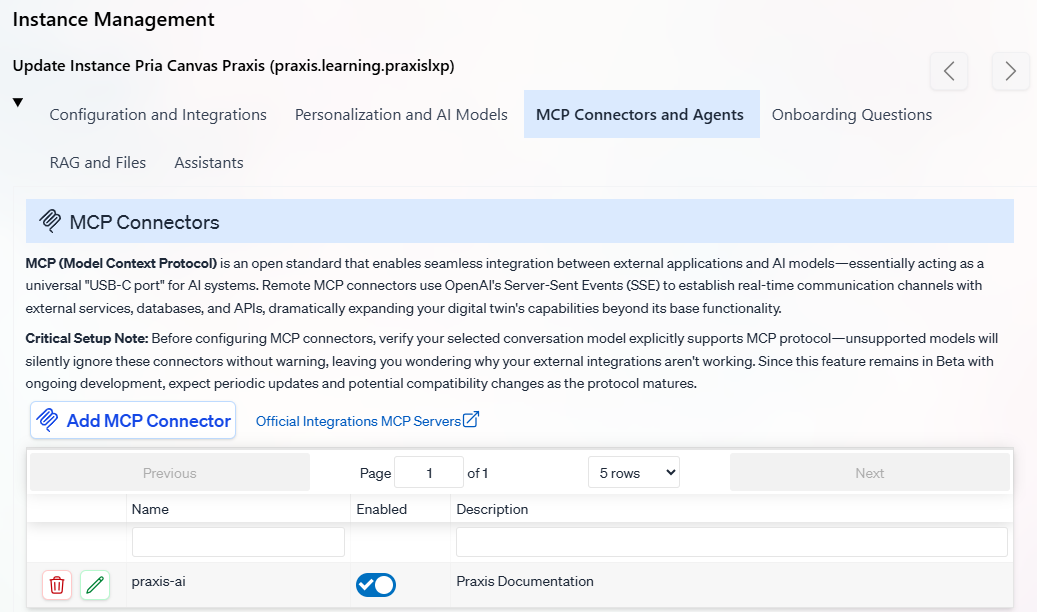 Only connectors with **Status: Enabled** are used by your Digital Twin. You can quickly enable/disable connectors from this view.
### Creating/Editing Connectors
Only connectors with **Status: Enabled** are used by your Digital Twin. You can quickly enable/disable connectors from this view.
### Creating/Editing Connectors
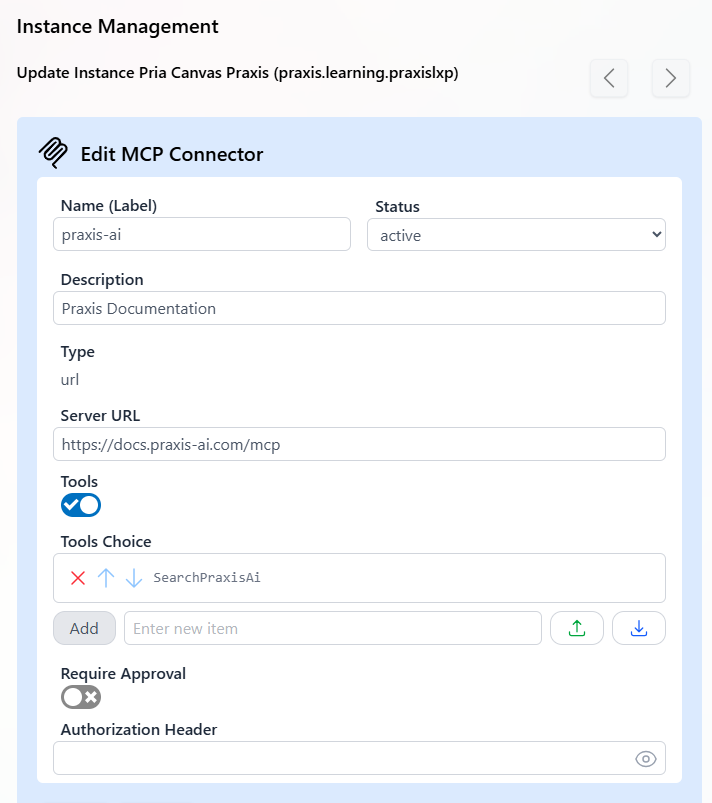 #### Required Fields
**Connector Name (Label)**: Must match your MCP Server Label exactly
**Status**:
* `Active` - Connector is enabled and available to the Digital Twin
* `Inactive` - Connector is disabled
**Description**: A description of your MCP server's purpose, sent to the AI model as context. Use this to help the AI understand when and how to use the server's tools.
Example: `"This server provides access to the company's CRM. Use it to look up customer records, update contact information, and create support tickets."`
A well-written description significantly improves how reliably the AI selects the right tools from your MCP server. Be specific about what the server does and when the AI should use it.
**Type**: Communication method
* `url` - URL-based communication (currently the only supported method)
**Server URL**: The endpoint of your remote MCP server
Example: `https://docs.praxis-ai.com/mcp`
#### Tool Management
**Tools Filter**: Enable to select a subset of available tools
**Recommended**: Enable this option when your MCP server has many tools. Some servers may expose hundreds of tools, so filtering helps optimize performance and focus functionality.
**Selected Tools**: List of specific tool names to enable
* Tool names are **case-sensitive**
* Use only alphanumeric characters, dashes, and underscores
* Allowed characters may vary by LLM model
**When to use tool filtering:** If your MCP server exposes dozens or hundreds of tools (common with platforms like Zapier or Salesforce), enable the tools filter and select only the tools your Digital Twin actually needs. This reduces token usage and improves response quality — the AI doesn't have to evaluate tools it will never use.
#### Approval Settings
**Requires Approval**: When enabled, the LLM requests user permission before using MCP tools
**Recommendation**: Leave disabled for most use cases to maintain smooth user experience
**Ignore Approval for Tools**: List of tools that bypass the approval step when approval is required
Use this for frequently-used, low-risk tools like search or read-only operations.
#### Authentication
**Authorization Header**: Service-level authentication token
Format: `Bearer xyz123...`
**Security Note**: Praxis AI middleware uses service-level credentials. All requests share the same credentials to access the remote MCP server.
## Best Practices
* Use service accounts with minimal required permissions
* Regularly rotate authorization tokens
* Monitor MCP server access logs
* Implement rate limiting on your MCP servers
* Enable tool filtering for servers with many available tools
* Use descriptive connector names for easy management
* Test connectors in development before production deployment
* Monitor response times and adjust timeouts as needed
* Verify model MCP compatibility before deployment
* Check authorization headers and server URLs
* Ensure tool names match exactly (case-sensitive)
* Monitor server logs for connection issues
## Next Steps
Read on Model Container Protocol
Search Existing MCP server
Develop MCP servers on hosted platforms like smithery.ai zapier.com
Connect Claude, ChatGPT, or your favorite LLM to Praxi-AI
#### Required Fields
**Connector Name (Label)**: Must match your MCP Server Label exactly
**Status**:
* `Active` - Connector is enabled and available to the Digital Twin
* `Inactive` - Connector is disabled
**Description**: A description of your MCP server's purpose, sent to the AI model as context. Use this to help the AI understand when and how to use the server's tools.
Example: `"This server provides access to the company's CRM. Use it to look up customer records, update contact information, and create support tickets."`
A well-written description significantly improves how reliably the AI selects the right tools from your MCP server. Be specific about what the server does and when the AI should use it.
**Type**: Communication method
* `url` - URL-based communication (currently the only supported method)
**Server URL**: The endpoint of your remote MCP server
Example: `https://docs.praxis-ai.com/mcp`
#### Tool Management
**Tools Filter**: Enable to select a subset of available tools
**Recommended**: Enable this option when your MCP server has many tools. Some servers may expose hundreds of tools, so filtering helps optimize performance and focus functionality.
**Selected Tools**: List of specific tool names to enable
* Tool names are **case-sensitive**
* Use only alphanumeric characters, dashes, and underscores
* Allowed characters may vary by LLM model
**When to use tool filtering:** If your MCP server exposes dozens or hundreds of tools (common with platforms like Zapier or Salesforce), enable the tools filter and select only the tools your Digital Twin actually needs. This reduces token usage and improves response quality — the AI doesn't have to evaluate tools it will never use.
#### Approval Settings
**Requires Approval**: When enabled, the LLM requests user permission before using MCP tools
**Recommendation**: Leave disabled for most use cases to maintain smooth user experience
**Ignore Approval for Tools**: List of tools that bypass the approval step when approval is required
Use this for frequently-used, low-risk tools like search or read-only operations.
#### Authentication
**Authorization Header**: Service-level authentication token
Format: `Bearer xyz123...`
**Security Note**: Praxis AI middleware uses service-level credentials. All requests share the same credentials to access the remote MCP server.
## Best Practices
* Use service accounts with minimal required permissions
* Regularly rotate authorization tokens
* Monitor MCP server access logs
* Implement rate limiting on your MCP servers
* Enable tool filtering for servers with many available tools
* Use descriptive connector names for easy management
* Test connectors in development before production deployment
* Monitor response times and adjust timeouts as needed
* Verify model MCP compatibility before deployment
* Check authorization headers and server URLs
* Ensure tool names match exactly (case-sensitive)
* Monitor server logs for connection issues
## Next Steps
Read on Model Container Protocol
Search Existing MCP server
Develop MCP servers on hosted platforms like smithery.ai zapier.com
Connect Claude, ChatGPT, or your favorite LLM to Praxi-AI