> ## Documentation Index
> Fetch the complete documentation index at: https://docs.praxis-ai.com/llms.txt
> Use this file to discover all available pages before exploring further.
# Entitlements
> Manage fine-grained, role-based permissions for admin users across your institution.
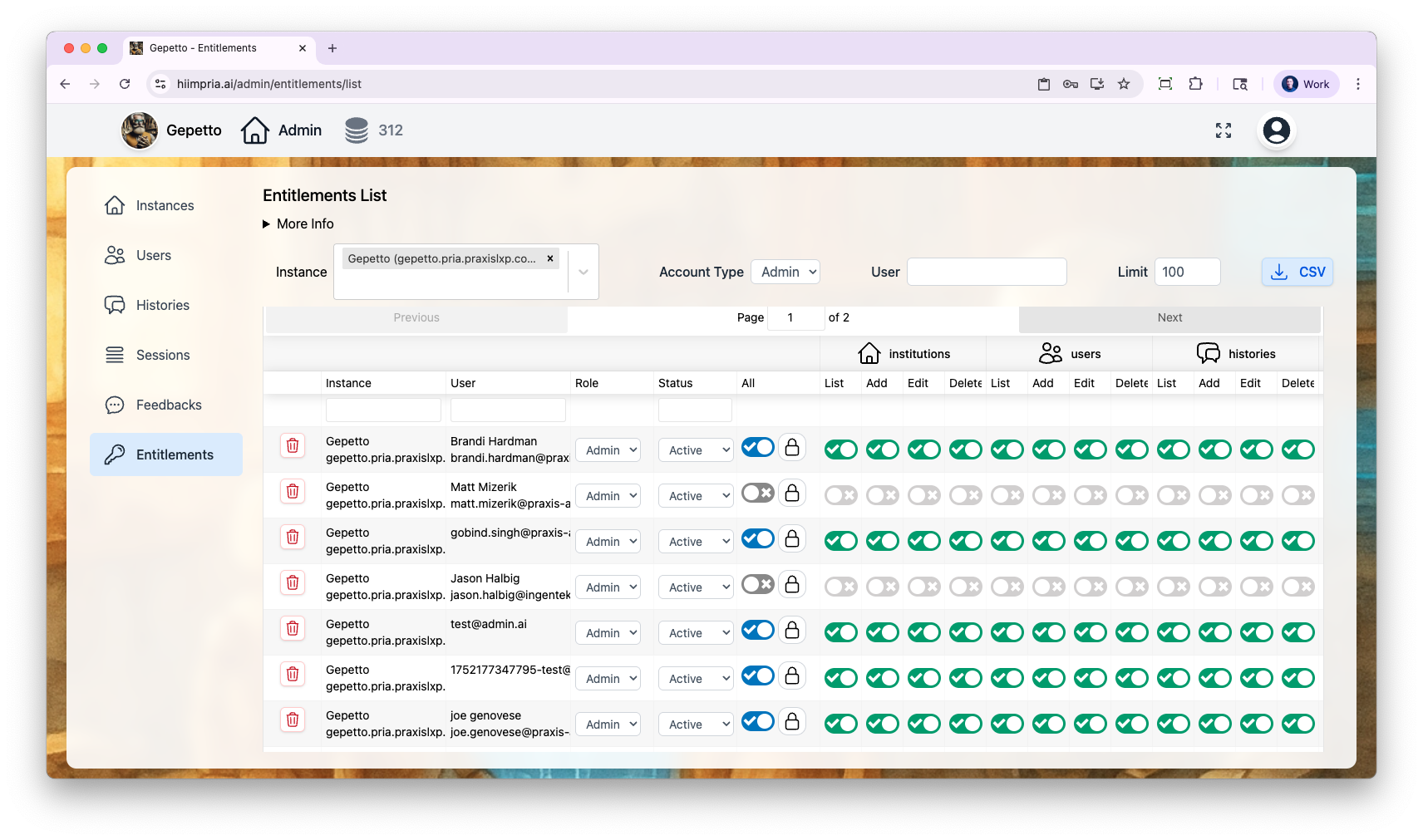
The Entitlements tab is your central control panel for managing role-based permissions. It allows you to customize access levels for different admin users, ensuring appropriate system access based on organizational roles and responsibilities.
Entitlements are only available for Admin users. Regular users do not have entitlements.
 ***
## How Entitlements Work
Every admin action in Pria is governed by a **permission verb** in the format `module.action`. When a user tries to perform an action (e.g., editing an assistant), the system checks whether their membership includes the corresponding verb (e.g., `assistants.edit`).
Entitlements apply to users with the **Admin** account type and control which admin features they can access.
### Account Types
| Account Type | Scope | Entitlements |
| ------------ | ----------------------- | --------------------------------------------------------------------------- |
| **User** | Regular user | Cannot access admin dashboard. No entitlements needed. |
| **Admin** | Institution-level admin | Actions gated by assigned entitlements. Must be assigned to an institution. |
A user's **global account type** (set in User Management) must be **Admin** to access the admin dashboard. Setting someone as Admin in Entitlements alone is not sufficient — both the global type and institution membership role must be Admin.
***
## Permission Modules
Entitlements are organized into **10 modules**, each with up to 4 actions:
| Module | Description | Available Actions |
| ---------------- | ---------------------------------------------------------------------------- | ----------------------- |
| **Institutions** | Instance settings, branding, integrations, MCP servers, onboarding questions | list, add, edit, delete |
| **Users** | User management, password resets, impersonation | list, add, edit, delete |
| **Sessions** | Session tracking and compliance data | list, edit, delete |
| **Histories** | Conversation logs, analytics charts, weekly usage | list, add, edit, delete |
| **Feedbacks** | User feedback and ratings | list, edit, delete |
| **Assistants** | Shared and personal assistant management | list, add, edit, delete |
| **AI Models** | Custom AI model configurations | list, add, edit, delete |
| **Payments** | Credit purchase and payment records | list |
| **SSO** | OAuth 2.0 Single Sign-On provider management | list, add, edit, delete |
| **Files** | Instance and account vault file management | list, add, edit, delete |
### Complete Permission Reference
There are **35 permission verbs** in total:
| Permission | Allows |
| --------------------- | ------------------------------------------------------------------ |
| `institutions.list` | View institution list and settings |
| `institutions.add` | Create new institutions, clone existing ones |
| `institutions.edit` | Modify settings, branding, OAuth, MCP servers, manage entitlements |
| `institutions.delete` | Delete institutions |
`institutions.edit` is the gatekeeper for the Entitlements page itself. A user needs this permission to manage other users' entitlements.
| Permission | Allows |
| -------------- | ----------------------------------------------- |
| `users.list` | View user list |
| `users.add` | Create new users |
| `users.edit` | Edit user details, reset passwords, impersonate |
| `users.delete` | Delete users |
| Permission | Allows |
| ----------------- | -------------------------- |
| `sessions.list` | View session tracking data |
| `sessions.edit` | Modify session records |
| `sessions.delete` | Delete session records |
There is no `sessions.add` — sessions are created automatically by the system.
| Permission | Allows |
| ------------------ | -------------------------------------------- |
| `histories.list` | View conversation history, weekly charts |
| `histories.add` | Create history records |
| `histories.edit` | Edit history records, release credits |
| `histories.delete` | Delete history records, recover user history |
| Permission | Allows |
| ------------------ | ----------------------- |
| `feedbacks.list` | View user feedback |
| `feedbacks.edit` | Update feedback records |
| `feedbacks.delete` | Delete feedback records |
There is no `feedbacks.add` — feedbacks are submitted by users, not created manually.
| Permission | Allows |
| ------------------- | -------------------------------------- |
| `assistants.list` | View assistant list |
| `assistants.add` | Create new shared assistants |
| `assistants.edit` | Edit assistants, toggle enable/disable |
| `assistants.delete` | Delete assistants |
| Permission | Allows |
| ----------------- | --------------------------------------------- |
| `aimodels.list` | View AI model configurations |
| `aimodels.add` | Add custom AI models |
| `aimodels.edit` | Edit AI model settings, toggle enable/disable |
| `aimodels.delete` | Delete AI model configurations |
| Permission | Allows |
| --------------- | ---------------------------------------- |
| `payments.list` | View credit purchase and payment records |
Payments only supports the `list` action. Payment records are created automatically by the billing system and cannot be manually added, edited, or deleted.
| Permission | Allows |
| ------------ | ------------------------------------------------ |
| `sso.list` | View the list of SSO providers |
| `sso.add` | Create new SSO providers for an institution |
| `sso.edit` | Modify existing SSO providers, test connectivity |
| `sso.delete` | Delete SSO providers |
Each institution can have one SSO provider. See [SSO Providers](/mdx/admin-guide/sso-providers) for configuration details.
| Permission | Allows |
| -------------- | --------------------------------------------------------------- |
| `files.list` | View files in the instance and account vaults |
| `files.add` | Upload files to the instance and account vaults |
| `files.edit` | Edit file properties, include/exclude from retrieval, reprocess |
| `files.delete` | Delete files from the instance and account vaults |
Files permissions govern an admin's access to **shared** vault content (instance and account vaults). Users always manage their own personal vault files.
***
## Managing Entitlements
### Inline Editing
The Entitlements page provides **inline editing** — all changes are made directly in the list view without navigating to a separate edit page.
Each row represents a user's membership in an institution and displays:
* **User email and name**
* **Role dropdown** — Change account type (User, Admin)
* **Status dropdown** — Change membership status (Active, Pending, Suspended)
* **Credit Consumed** — How many credits this member has consumed, so you can spot heavy consumers in a pooled instance
* **Permission checkboxes** — Toggle individual permissions on or off
### Membership Status Enforcement
Membership status directly controls whether a user can interact with AI features. The platform enforces status checks on every AI request:
| **Status** | **Access** |
| ------------- | ---------------------------------------------------------------------------------------------------- |
| **Active** | Full access to all AI features — chat, streaming, realtime voice, and tool execution |
| **Pending** | Blocked from all AI interactions. The user sees a message to contact their institution administrator |
| **Suspended** | Blocked from all AI interactions, same as Pending |
Status enforcement is immediate — changing a user's membership status to Pending or Suspended blocks their AI access on the next request. No logout or session refresh is required.
Personal accounts (users without an institution) are not subject to membership status checks. Their access is controlled by their account-level status instead.
### Quick Actions
Use the **"All" checkbox** to toggle all 35 permissions on or off at once. This is useful when granting full admin access to a trusted administrator.
Click the **lock icon** to apply a Read-Only preset. This grants:
* All `.list` permissions (view access to every module)
* All `.edit` permissions **except** `institutions.edit`
This preset is ideal for teaching assistants or support staff who need to view data and make minor edits but should not manage institution settings or other users' permissions.
Use the module dropdown to show or hide permission columns by module. This is helpful when you only need to manage permissions for a specific area (e.g., just Assistants or just Histories).
### Filtering Users
| Filter | Description |
| ---------------- | -------------------------------------------------------------- |
| **Account** | Filter by parent account (useful for multi-institution setups) |
| **Institution** | Filter by specific institution |
| **Account Type** | Show only Users or Admins |
| **User Search** | Search by email, first name, or last name |
| **Result Limit** | Cap the number of results (default: 100) |
***
## Account Manager Role
The Account Manager role provides scoped access to manage multiple institutions within an account. This role is configured by the Praxis AI team and is separate from the standard entitlement system.
To request Account Manager access for your organization, contact [humans@praxis-ai.com](mailto:humans@praxis-ai.com).
***
## Auto-Granting Entitlements
Entitlements can be automatically granted to new admin users under certain conditions:
When an institution has **Entitle New Admins** enabled, any user who joins with an Admin account type automatically receives all 35 permissions.
Users whose email appears in the institution's **Contact Email** list automatically receive full permissions, regardless of the entitleNewAdmins setting.
When you create or clone an institution, the creating user automatically receives full permissions for that institution.
***
## Enrollment
The **Register Users** tab (available on the Entitlements page) allows administrators to auto-enroll eligible users into an institution with appropriate entitlements. This is useful for bulk onboarding of faculty or staff who need admin access.
***
## Common Configurations
Grant selective read access:
* `histories.list` — View student conversation history
* `feedbacks.list` — View student feedback
* `sessions.list` — View session data
* `assistants.list` — View available assistants
Do **not** grant `institutions.edit`, `users.edit`, or any `.delete` permissions.
Grant assistant and content management:
* `assistants.list`, `assistants.add`, `assistants.edit`, `assistants.delete`
* `aimodels.list`
* `histories.list`
Do **not** grant `institutions.*` or `users.*` permissions.
Use the **"All" checkbox** to grant all 35 permissions. This gives complete access to all admin functions within the assigned institution.
***
## Related
* [User Management](/mdx/admin-guide/users) — Managing user accounts and account types
* [Configuration](/mdx/admin-guide/configuration) — Institution settings that affect entitlements
* [Sessions](/mdx/admin-guide/sessions) — Session tracking controlled by session entitlements
* [SSO Providers](/mdx/admin-guide/sso-providers) — OAuth 2.0 Single Sign-On configuration (requires SSO entitlements)
***
## How Entitlements Work
Every admin action in Pria is governed by a **permission verb** in the format `module.action`. When a user tries to perform an action (e.g., editing an assistant), the system checks whether their membership includes the corresponding verb (e.g., `assistants.edit`).
Entitlements apply to users with the **Admin** account type and control which admin features they can access.
### Account Types
| Account Type | Scope | Entitlements |
| ------------ | ----------------------- | --------------------------------------------------------------------------- |
| **User** | Regular user | Cannot access admin dashboard. No entitlements needed. |
| **Admin** | Institution-level admin | Actions gated by assigned entitlements. Must be assigned to an institution. |
A user's **global account type** (set in User Management) must be **Admin** to access the admin dashboard. Setting someone as Admin in Entitlements alone is not sufficient — both the global type and institution membership role must be Admin.
***
## Permission Modules
Entitlements are organized into **10 modules**, each with up to 4 actions:
| Module | Description | Available Actions |
| ---------------- | ---------------------------------------------------------------------------- | ----------------------- |
| **Institutions** | Instance settings, branding, integrations, MCP servers, onboarding questions | list, add, edit, delete |
| **Users** | User management, password resets, impersonation | list, add, edit, delete |
| **Sessions** | Session tracking and compliance data | list, edit, delete |
| **Histories** | Conversation logs, analytics charts, weekly usage | list, add, edit, delete |
| **Feedbacks** | User feedback and ratings | list, edit, delete |
| **Assistants** | Shared and personal assistant management | list, add, edit, delete |
| **AI Models** | Custom AI model configurations | list, add, edit, delete |
| **Payments** | Credit purchase and payment records | list |
| **SSO** | OAuth 2.0 Single Sign-On provider management | list, add, edit, delete |
| **Files** | Instance and account vault file management | list, add, edit, delete |
### Complete Permission Reference
There are **35 permission verbs** in total:
| Permission | Allows |
| --------------------- | ------------------------------------------------------------------ |
| `institutions.list` | View institution list and settings |
| `institutions.add` | Create new institutions, clone existing ones |
| `institutions.edit` | Modify settings, branding, OAuth, MCP servers, manage entitlements |
| `institutions.delete` | Delete institutions |
`institutions.edit` is the gatekeeper for the Entitlements page itself. A user needs this permission to manage other users' entitlements.
| Permission | Allows |
| -------------- | ----------------------------------------------- |
| `users.list` | View user list |
| `users.add` | Create new users |
| `users.edit` | Edit user details, reset passwords, impersonate |
| `users.delete` | Delete users |
| Permission | Allows |
| ----------------- | -------------------------- |
| `sessions.list` | View session tracking data |
| `sessions.edit` | Modify session records |
| `sessions.delete` | Delete session records |
There is no `sessions.add` — sessions are created automatically by the system.
| Permission | Allows |
| ------------------ | -------------------------------------------- |
| `histories.list` | View conversation history, weekly charts |
| `histories.add` | Create history records |
| `histories.edit` | Edit history records, release credits |
| `histories.delete` | Delete history records, recover user history |
| Permission | Allows |
| ------------------ | ----------------------- |
| `feedbacks.list` | View user feedback |
| `feedbacks.edit` | Update feedback records |
| `feedbacks.delete` | Delete feedback records |
There is no `feedbacks.add` — feedbacks are submitted by users, not created manually.
| Permission | Allows |
| ------------------- | -------------------------------------- |
| `assistants.list` | View assistant list |
| `assistants.add` | Create new shared assistants |
| `assistants.edit` | Edit assistants, toggle enable/disable |
| `assistants.delete` | Delete assistants |
| Permission | Allows |
| ----------------- | --------------------------------------------- |
| `aimodels.list` | View AI model configurations |
| `aimodels.add` | Add custom AI models |
| `aimodels.edit` | Edit AI model settings, toggle enable/disable |
| `aimodels.delete` | Delete AI model configurations |
| Permission | Allows |
| --------------- | ---------------------------------------- |
| `payments.list` | View credit purchase and payment records |
Payments only supports the `list` action. Payment records are created automatically by the billing system and cannot be manually added, edited, or deleted.
| Permission | Allows |
| ------------ | ------------------------------------------------ |
| `sso.list` | View the list of SSO providers |
| `sso.add` | Create new SSO providers for an institution |
| `sso.edit` | Modify existing SSO providers, test connectivity |
| `sso.delete` | Delete SSO providers |
Each institution can have one SSO provider. See [SSO Providers](/mdx/admin-guide/sso-providers) for configuration details.
| Permission | Allows |
| -------------- | --------------------------------------------------------------- |
| `files.list` | View files in the instance and account vaults |
| `files.add` | Upload files to the instance and account vaults |
| `files.edit` | Edit file properties, include/exclude from retrieval, reprocess |
| `files.delete` | Delete files from the instance and account vaults |
Files permissions govern an admin's access to **shared** vault content (instance and account vaults). Users always manage their own personal vault files.
***
## Managing Entitlements
### Inline Editing
The Entitlements page provides **inline editing** — all changes are made directly in the list view without navigating to a separate edit page.
Each row represents a user's membership in an institution and displays:
* **User email and name**
* **Role dropdown** — Change account type (User, Admin)
* **Status dropdown** — Change membership status (Active, Pending, Suspended)
* **Credit Consumed** — How many credits this member has consumed, so you can spot heavy consumers in a pooled instance
* **Permission checkboxes** — Toggle individual permissions on or off
### Membership Status Enforcement
Membership status directly controls whether a user can interact with AI features. The platform enforces status checks on every AI request:
| **Status** | **Access** |
| ------------- | ---------------------------------------------------------------------------------------------------- |
| **Active** | Full access to all AI features — chat, streaming, realtime voice, and tool execution |
| **Pending** | Blocked from all AI interactions. The user sees a message to contact their institution administrator |
| **Suspended** | Blocked from all AI interactions, same as Pending |
Status enforcement is immediate — changing a user's membership status to Pending or Suspended blocks their AI access on the next request. No logout or session refresh is required.
Personal accounts (users without an institution) are not subject to membership status checks. Their access is controlled by their account-level status instead.
### Quick Actions
Use the **"All" checkbox** to toggle all 35 permissions on or off at once. This is useful when granting full admin access to a trusted administrator.
Click the **lock icon** to apply a Read-Only preset. This grants:
* All `.list` permissions (view access to every module)
* All `.edit` permissions **except** `institutions.edit`
This preset is ideal for teaching assistants or support staff who need to view data and make minor edits but should not manage institution settings or other users' permissions.
Use the module dropdown to show or hide permission columns by module. This is helpful when you only need to manage permissions for a specific area (e.g., just Assistants or just Histories).
### Filtering Users
| Filter | Description |
| ---------------- | -------------------------------------------------------------- |
| **Account** | Filter by parent account (useful for multi-institution setups) |
| **Institution** | Filter by specific institution |
| **Account Type** | Show only Users or Admins |
| **User Search** | Search by email, first name, or last name |
| **Result Limit** | Cap the number of results (default: 100) |
***
## Account Manager Role
The Account Manager role provides scoped access to manage multiple institutions within an account. This role is configured by the Praxis AI team and is separate from the standard entitlement system.
To request Account Manager access for your organization, contact [humans@praxis-ai.com](mailto:humans@praxis-ai.com).
***
## Auto-Granting Entitlements
Entitlements can be automatically granted to new admin users under certain conditions:
When an institution has **Entitle New Admins** enabled, any user who joins with an Admin account type automatically receives all 35 permissions.
Users whose email appears in the institution's **Contact Email** list automatically receive full permissions, regardless of the entitleNewAdmins setting.
When you create or clone an institution, the creating user automatically receives full permissions for that institution.
***
## Enrollment
The **Register Users** tab (available on the Entitlements page) allows administrators to auto-enroll eligible users into an institution with appropriate entitlements. This is useful for bulk onboarding of faculty or staff who need admin access.
***
## Common Configurations
Grant selective read access:
* `histories.list` — View student conversation history
* `feedbacks.list` — View student feedback
* `sessions.list` — View session data
* `assistants.list` — View available assistants
Do **not** grant `institutions.edit`, `users.edit`, or any `.delete` permissions.
Grant assistant and content management:
* `assistants.list`, `assistants.add`, `assistants.edit`, `assistants.delete`
* `aimodels.list`
* `histories.list`
Do **not** grant `institutions.*` or `users.*` permissions.
Use the **"All" checkbox** to grant all 35 permissions. This gives complete access to all admin functions within the assigned institution.
***
## Related
* [User Management](/mdx/admin-guide/users) — Managing user accounts and account types
* [Configuration](/mdx/admin-guide/configuration) — Institution settings that affect entitlements
* [Sessions](/mdx/admin-guide/sessions) — Session tracking controlled by session entitlements
* [SSO Providers](/mdx/admin-guide/sso-providers) — OAuth 2.0 Single Sign-On configuration (requires SSO entitlements)