> ## Documentation Index
> Fetch the complete documentation index at: https://docs.praxis-ai.com/llms.txt
> Use this file to discover all available pages before exploring further.
# Sessions
> Track who is signed in, from where, and on what device — for FERPA compliance, security review, and incident response.
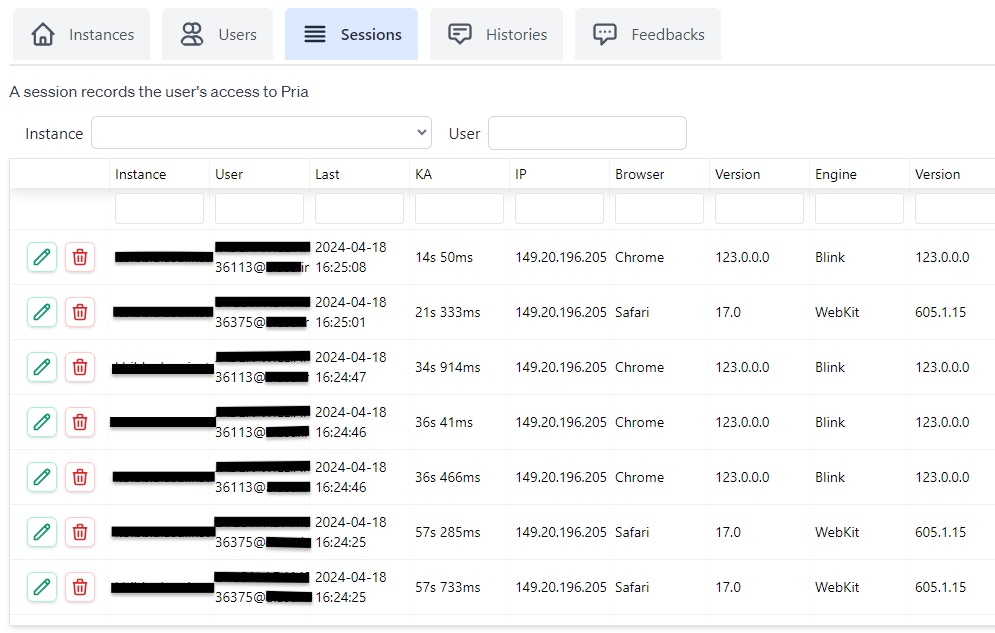
The **Sessions** page shows authenticated access to your Digital Twin: one row per user device or browser that has been active in the selected date range. It is the system-of-record for "who logged in, from where, when" — the data you need for FERPA audits, security reviews, and incident response.
 ## Overview
A **session** is created the first time a user signs into an instance from a given browser or device, and is updated each time that browser hits the API again. One user typically has multiple sessions: laptop, phone, tablet, second browser. Each is tracked independently so you can revoke one without touching the others.
The list is sorted by **Last Active** (most recent first) and defaults to the last 30 days.
### Active vs idle
Pria does not distinguish "active" and "idle" with a hard cutoff — instead, the **Last Active** timestamp is updated every time the session's browser makes an authenticated request (page navigation, message send, file upload, etc.). Read it as a freshness indicator:
* **Last Active within a few seconds** — the user is actively interacting right now
* **Last Active within a few minutes** — likely still at their keyboard
* **Last Active hours ago** — the browser tab is probably open but unused
* **Last Active days ago** — abandoned session; will be cleaned up automatically
There is no real-time "currently typing" beacon — Last Active is the heartbeat.
### Data tracked per session
| Field | Description |
| --------------- | ------------------------------------------------------------------ |
| **User** | Email and name of the signed-in user |
| **IP Address** | The originating IP as seen by Pria (already X-Forwarded-For aware) |
| **Browser** | Browser name and version (e.g. Chrome 131, Safari 18) |
| **OS** | Operating system and version |
| **Device** | Device type and model when the user-agent provides it |
| **Instance** | Which Digital Twin instance the session is attached to |
| **Created** | When the session was first established (initial sign-in) |
| **Last Active** | Most recent authenticated request from this session |
| **Status** | Current session status — `active` or `deleted` |
## Filtering and search
The filter bar narrows the list:
* **Account** — span all instances in an account
* **Instance** — sessions for a single Digital Twin instance
* **User search** — by email, first name, or last name
* **Date range** — by `Last Active`; up to roughly the last month (older sessions are removed automatically — see retention below)
Filters persist as you scroll so you can sweep a large window without losing context.
## Reading a session row
Each row shows the instance, the user, how long ago the session was active, how long it has been alive, the IP address, and the browser/engine/OS breakdown. Click the pencil to see the full detail panel:
* User and instance cards (who, and which Digital Twin the session is attached to — a user with access to multiple instances has separate sessions per instance)
* Session ID, source IP, created and last-updated timestamps, and current status
* Device details when the browser reports them: type, vendor, model, and CPU architecture
* The full raw user-agent string (useful when the device columns abbreviate)
## Revoking a session
Click the trash icon to revoke (soft-delete) a session. The next time the browser tries to call an authenticated endpoint, it will be forced back to the sign-in page.
Common reasons to revoke:
* **Shared computer left signed in.** A student logs out of a library workstation by emailing you; you revoke the session.
* **Lost device.** Phone left in a taxi; revoke every session from that device fingerprint.
* **Compromised account.** As part of a credential reset, revoke all of the user's sessions across all devices to ensure the attacker is signed out everywhere.
The user impact is immediate but graceful: the current page may still appear loaded, but any subsequent API call (sending a message, uploading a file, refreshing) will redirect to sign-in. There is no in-page "you have been kicked" toast — the experience is a quiet redirect.
Revoking does not delete the session record immediately — the row keeps its `deleted` status for review until the normal retention window cleans it up. Export the filtered list to CSV first if you need the record for an incident file.
## Detecting suspicious activity
Things to scan for during a security review:
* **Multiple geographies for the same user in the same hour.** A user with a session in New York and another in São Paulo five minutes later is almost certainly account sharing or a stolen credential.
* **Unfamiliar user-agent.** A non-browser UA string on an account that has only ever used standard browsers warrants attention.
* **Long gap between Created and first Last Active update.** Suggests the credential was captured and used later from a different environment.
* **Burst of new sessions for one user across many IPs.** Classic credential-stuffing signature.
These are manual review patterns for the Sessions list itself. Note that [Praxis Shield](/mdx/admin-guide/praxis-shield) automatically monitors *conversation* activity for abuse — including unusual automation volume and coordinated activity across accounts — and raises incidents for review; pair a suspicious session with the user's Shield incidents and [Histories](/mdx/admin-guide/histories) before acting.
## Coordinating with the user
When you spot a suspicious session, the standard playbook is:
1. **Revoke** the suspicious session(s) immediately.
2. **Email the user** at the address on the session row, asking them to confirm whether it was them. Use the email field in the detail panel.
3. **Force a password reset** by directing the user to the "Forgot password" flow on sign-in. If the account uses [API Keys](/mdx/user-guide/profile-settings/api-keys), rotate them too.
4. **Require [MFA](/mdx/admin-guide/mfa)** going forward if the user did not already have it enabled.
5. **Review their [Histories](/mdx/admin-guide/histories)** for the same window — sometimes the suspicious session shows in conversation patterns even when the IP looked routine.
Document the action in your incident log; the session row's revocation is the audit trail.
## Session retention
Sessions are a rolling window, not a permanent archive: **records older than 30 days are removed automatically** (the page notes this next to the date-range filter). Active sessions are kept fresh by browser activity, so anything a user still touches stays in the window indefinitely.
If your compliance process needs session evidence beyond 30 days, make the **CSV export** part of your routine — for example, a monthly export filed with your audit records. For your deployment's broader data-retention commitments, see [Privacy & Educational Consent](/mdx/introduction/privacy-edu-consent).
## Cross-link: MFA and API Keys
Sessions interact with two other security surfaces:
* **[MFA](/mdx/admin-guide/mfa)** — if a suspicious session prompts a credential reset, check whether the user has two-step verification enabled, and require it going forward. A user's MFA state and trusted devices are managed from [Users](/mdx/admin-guide/users) → Edit → Security.
* **[Personal API Keys](/mdx/user-guide/profile-settings/api-keys)** — programmatic access via API key exchange creates short-lived tokens; those calls do not show in the Sessions list. Admins concerned about a specific user's key activity should ask the user to rotate their key from **Settings → Developer**.
### Export
The current filtered view can be exported as **CSV** for audit packages and compliance evidence. The export includes the displayed columns plus the full user-agent string.
Session tracking supports **FERPA compliance** by maintaining a verifiable record of who accessed educational data, when, and from where.
## Session analytics
The **Charts** tab turns the same filtered session data into visual breakdowns:
* **OS distribution** — which operating systems your users sign in from
* **Browser distribution** — browser share across sessions
* **Device type distribution** — desktop vs mobile vs tablet
* **Activity over time** — session activity plotted across the selected date range
The distribution charts offer a few display styles (donut, radial, polar), and all charts respect the Account, Instance, and date-range filters — so you can answer questions like "what do students in this twin actually use?" before planning a rollout or troubleshooting a browser-specific issue.
***
## Required permissions
| Action | Required entitlement |
| --------------- | -------------------- |
| View sessions | `sessions.list` |
| Edit sessions | `sessions.edit` |
| Revoke sessions | `sessions.delete` |
See [Entitlements](/mdx/admin-guide/entitlements) for how to grant these.
***
## Related
* [Users](/mdx/admin-guide/users) — manage the user accounts behind each session
* [MFA](/mdx/admin-guide/mfa) — multi-factor authentication requirements
* [Personal API Keys](/mdx/user-guide/profile-settings/api-keys) — programmatic access for Admin users
* [Entitlements](/mdx/admin-guide/entitlements) — `sessions.*` permissions
* [Histories](/mdx/admin-guide/histories) — what each session was used to do
* [Praxis Shield](/mdx/admin-guide/praxis-shield) — automatic threat and abuse monitoring of conversations
* [Configuration](/mdx/admin-guide/configuration) — instance-level security settings
## Overview
A **session** is created the first time a user signs into an instance from a given browser or device, and is updated each time that browser hits the API again. One user typically has multiple sessions: laptop, phone, tablet, second browser. Each is tracked independently so you can revoke one without touching the others.
The list is sorted by **Last Active** (most recent first) and defaults to the last 30 days.
### Active vs idle
Pria does not distinguish "active" and "idle" with a hard cutoff — instead, the **Last Active** timestamp is updated every time the session's browser makes an authenticated request (page navigation, message send, file upload, etc.). Read it as a freshness indicator:
* **Last Active within a few seconds** — the user is actively interacting right now
* **Last Active within a few minutes** — likely still at their keyboard
* **Last Active hours ago** — the browser tab is probably open but unused
* **Last Active days ago** — abandoned session; will be cleaned up automatically
There is no real-time "currently typing" beacon — Last Active is the heartbeat.
### Data tracked per session
| Field | Description |
| --------------- | ------------------------------------------------------------------ |
| **User** | Email and name of the signed-in user |
| **IP Address** | The originating IP as seen by Pria (already X-Forwarded-For aware) |
| **Browser** | Browser name and version (e.g. Chrome 131, Safari 18) |
| **OS** | Operating system and version |
| **Device** | Device type and model when the user-agent provides it |
| **Instance** | Which Digital Twin instance the session is attached to |
| **Created** | When the session was first established (initial sign-in) |
| **Last Active** | Most recent authenticated request from this session |
| **Status** | Current session status — `active` or `deleted` |
## Filtering and search
The filter bar narrows the list:
* **Account** — span all instances in an account
* **Instance** — sessions for a single Digital Twin instance
* **User search** — by email, first name, or last name
* **Date range** — by `Last Active`; up to roughly the last month (older sessions are removed automatically — see retention below)
Filters persist as you scroll so you can sweep a large window without losing context.
## Reading a session row
Each row shows the instance, the user, how long ago the session was active, how long it has been alive, the IP address, and the browser/engine/OS breakdown. Click the pencil to see the full detail panel:
* User and instance cards (who, and which Digital Twin the session is attached to — a user with access to multiple instances has separate sessions per instance)
* Session ID, source IP, created and last-updated timestamps, and current status
* Device details when the browser reports them: type, vendor, model, and CPU architecture
* The full raw user-agent string (useful when the device columns abbreviate)
## Revoking a session
Click the trash icon to revoke (soft-delete) a session. The next time the browser tries to call an authenticated endpoint, it will be forced back to the sign-in page.
Common reasons to revoke:
* **Shared computer left signed in.** A student logs out of a library workstation by emailing you; you revoke the session.
* **Lost device.** Phone left in a taxi; revoke every session from that device fingerprint.
* **Compromised account.** As part of a credential reset, revoke all of the user's sessions across all devices to ensure the attacker is signed out everywhere.
The user impact is immediate but graceful: the current page may still appear loaded, but any subsequent API call (sending a message, uploading a file, refreshing) will redirect to sign-in. There is no in-page "you have been kicked" toast — the experience is a quiet redirect.
Revoking does not delete the session record immediately — the row keeps its `deleted` status for review until the normal retention window cleans it up. Export the filtered list to CSV first if you need the record for an incident file.
## Detecting suspicious activity
Things to scan for during a security review:
* **Multiple geographies for the same user in the same hour.** A user with a session in New York and another in São Paulo five minutes later is almost certainly account sharing or a stolen credential.
* **Unfamiliar user-agent.** A non-browser UA string on an account that has only ever used standard browsers warrants attention.
* **Long gap between Created and first Last Active update.** Suggests the credential was captured and used later from a different environment.
* **Burst of new sessions for one user across many IPs.** Classic credential-stuffing signature.
These are manual review patterns for the Sessions list itself. Note that [Praxis Shield](/mdx/admin-guide/praxis-shield) automatically monitors *conversation* activity for abuse — including unusual automation volume and coordinated activity across accounts — and raises incidents for review; pair a suspicious session with the user's Shield incidents and [Histories](/mdx/admin-guide/histories) before acting.
## Coordinating with the user
When you spot a suspicious session, the standard playbook is:
1. **Revoke** the suspicious session(s) immediately.
2. **Email the user** at the address on the session row, asking them to confirm whether it was them. Use the email field in the detail panel.
3. **Force a password reset** by directing the user to the "Forgot password" flow on sign-in. If the account uses [API Keys](/mdx/user-guide/profile-settings/api-keys), rotate them too.
4. **Require [MFA](/mdx/admin-guide/mfa)** going forward if the user did not already have it enabled.
5. **Review their [Histories](/mdx/admin-guide/histories)** for the same window — sometimes the suspicious session shows in conversation patterns even when the IP looked routine.
Document the action in your incident log; the session row's revocation is the audit trail.
## Session retention
Sessions are a rolling window, not a permanent archive: **records older than 30 days are removed automatically** (the page notes this next to the date-range filter). Active sessions are kept fresh by browser activity, so anything a user still touches stays in the window indefinitely.
If your compliance process needs session evidence beyond 30 days, make the **CSV export** part of your routine — for example, a monthly export filed with your audit records. For your deployment's broader data-retention commitments, see [Privacy & Educational Consent](/mdx/introduction/privacy-edu-consent).
## Cross-link: MFA and API Keys
Sessions interact with two other security surfaces:
* **[MFA](/mdx/admin-guide/mfa)** — if a suspicious session prompts a credential reset, check whether the user has two-step verification enabled, and require it going forward. A user's MFA state and trusted devices are managed from [Users](/mdx/admin-guide/users) → Edit → Security.
* **[Personal API Keys](/mdx/user-guide/profile-settings/api-keys)** — programmatic access via API key exchange creates short-lived tokens; those calls do not show in the Sessions list. Admins concerned about a specific user's key activity should ask the user to rotate their key from **Settings → Developer**.
### Export
The current filtered view can be exported as **CSV** for audit packages and compliance evidence. The export includes the displayed columns plus the full user-agent string.
Session tracking supports **FERPA compliance** by maintaining a verifiable record of who accessed educational data, when, and from where.
## Session analytics
The **Charts** tab turns the same filtered session data into visual breakdowns:
* **OS distribution** — which operating systems your users sign in from
* **Browser distribution** — browser share across sessions
* **Device type distribution** — desktop vs mobile vs tablet
* **Activity over time** — session activity plotted across the selected date range
The distribution charts offer a few display styles (donut, radial, polar), and all charts respect the Account, Instance, and date-range filters — so you can answer questions like "what do students in this twin actually use?" before planning a rollout or troubleshooting a browser-specific issue.
***
## Required permissions
| Action | Required entitlement |
| --------------- | -------------------- |
| View sessions | `sessions.list` |
| Edit sessions | `sessions.edit` |
| Revoke sessions | `sessions.delete` |
See [Entitlements](/mdx/admin-guide/entitlements) for how to grant these.
***
## Related
* [Users](/mdx/admin-guide/users) — manage the user accounts behind each session
* [MFA](/mdx/admin-guide/mfa) — multi-factor authentication requirements
* [Personal API Keys](/mdx/user-guide/profile-settings/api-keys) — programmatic access for Admin users
* [Entitlements](/mdx/admin-guide/entitlements) — `sessions.*` permissions
* [Histories](/mdx/admin-guide/histories) — what each session was used to do
* [Praxis Shield](/mdx/admin-guide/praxis-shield) — automatic threat and abuse monitoring of conversations
* [Configuration](/mdx/admin-guide/configuration) — instance-level security settings