> ## Documentation Index
> Fetch the complete documentation index at: https://docs.praxis-ai.com/llms.txt
> Use this file to discover all available pages before exploring further.
# Users
> Manage the people in your Digital Twin instances — search, edit, import in bulk, review memberships and credit usage, and act on accounts when needed.
**Integration Note**: When your instance is integrated through Canvas or other SDK, users are automatically signed in and registered.
## User List Management
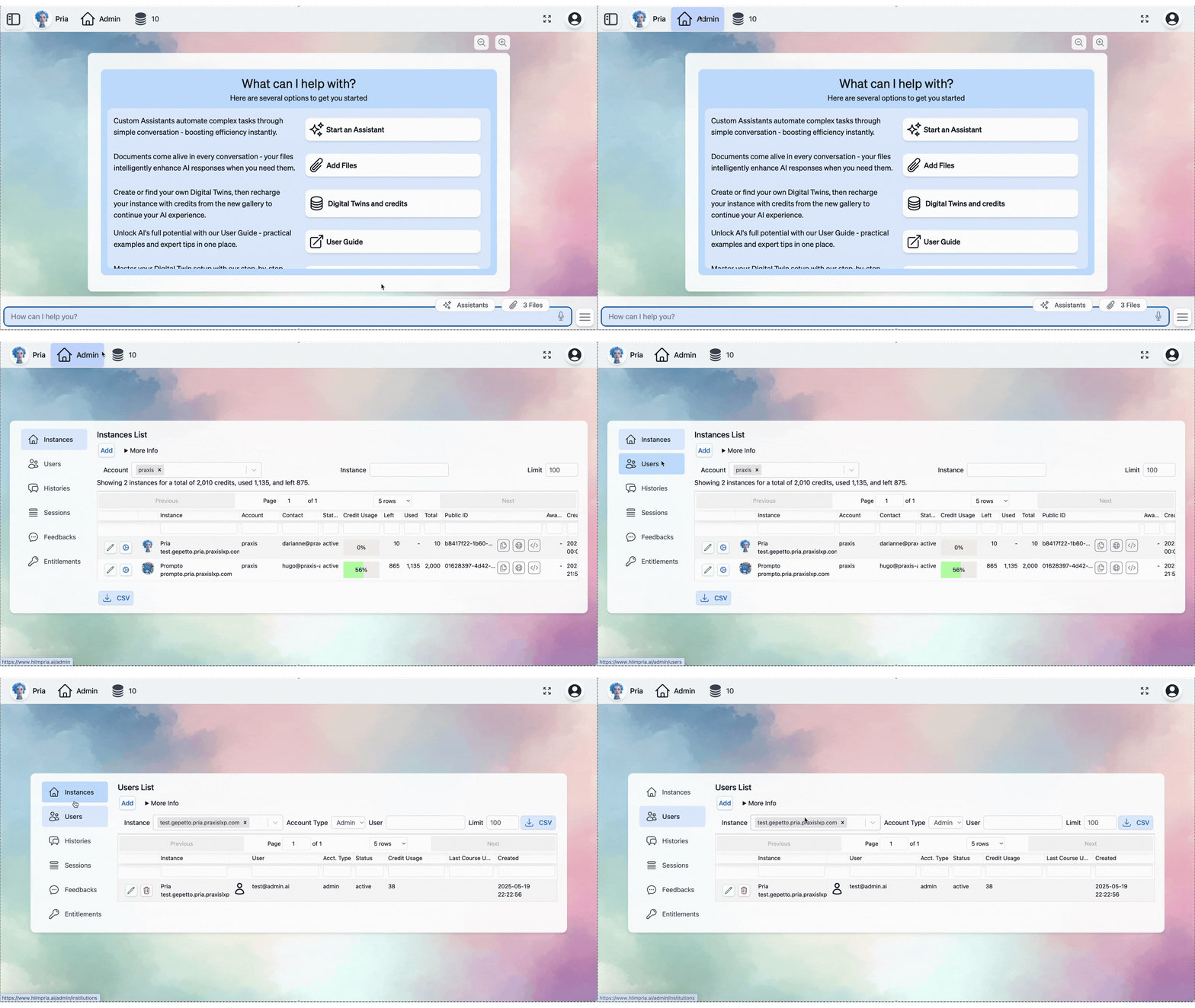 ### Viewing All Users
The user list displays all registered users in your instance with comprehensive filtering and search capabilities:
* **Search by Name or Email**: Use the search bar to quickly locate specific users
* **Filter by Account Type**: Narrow results by Admin or User account
* **Sort Options**: Organize by registration date, last activity, or alphabetical order
* **Pagination**: Navigate through large user lists efficiently
### User Details View
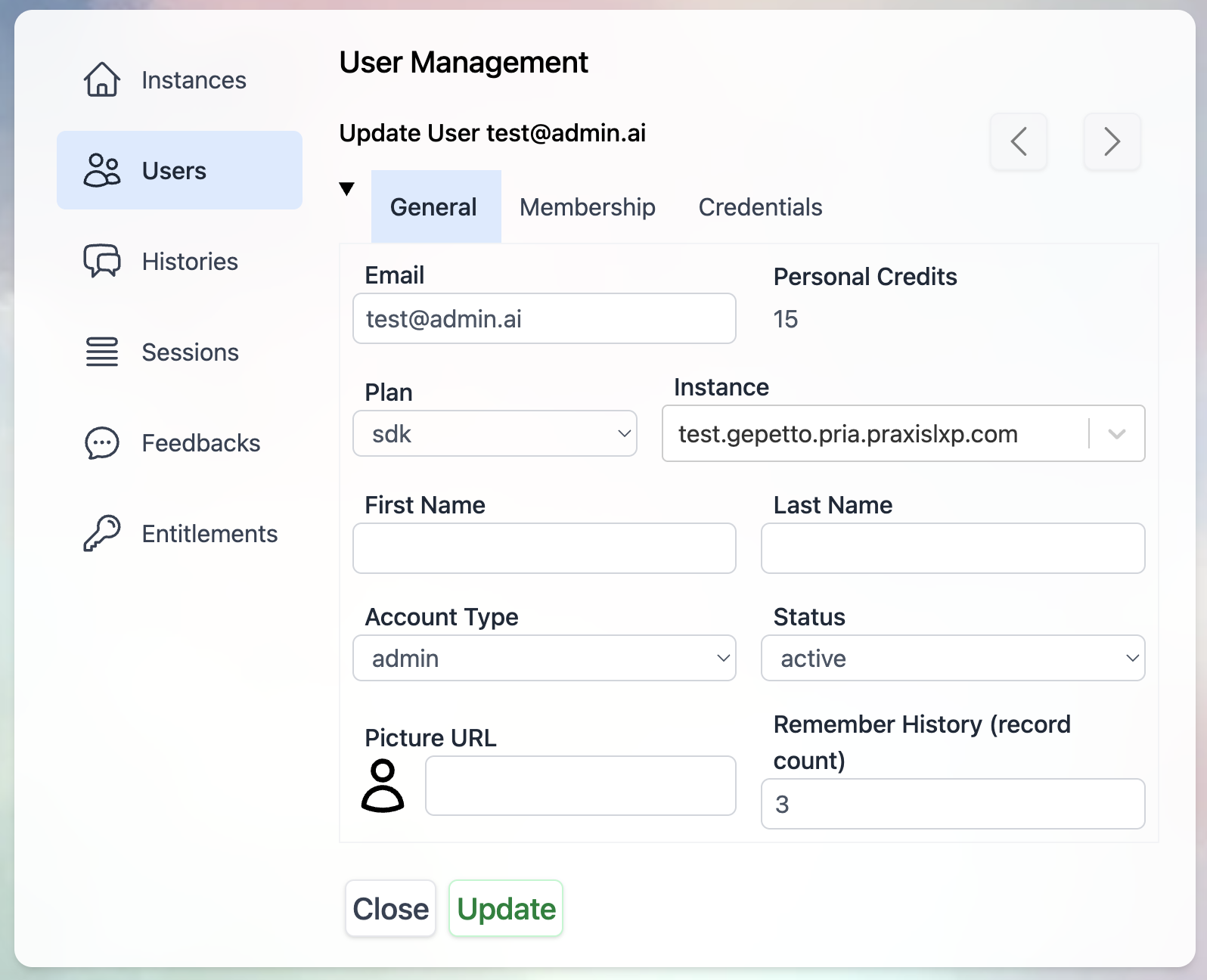
Click on any user to open their profile. The tabs mirror the user's own Profile screen, so you work with the same layout the user sees:
Identity — name, picture, email, account type, plan, and current status.
### Viewing All Users
The user list displays all registered users in your instance with comprehensive filtering and search capabilities:
* **Search by Name or Email**: Use the search bar to quickly locate specific users
* **Filter by Account Type**: Narrow results by Admin or User account
* **Sort Options**: Organize by registration date, last activity, or alphabetical order
* **Pagination**: Navigate through large user lists efficiently
### User Details View
Click on any user to open their profile. The tabs mirror the user's own Profile screen, so you work with the same layout the user sees:
Identity — name, picture, email, account type, plan, and current status.
 Appearance and conversation preferences — dark mode, location use, dictation, and the Remember History depth.
The user's retrieval mode preference (how their conversations search uploaded documents).
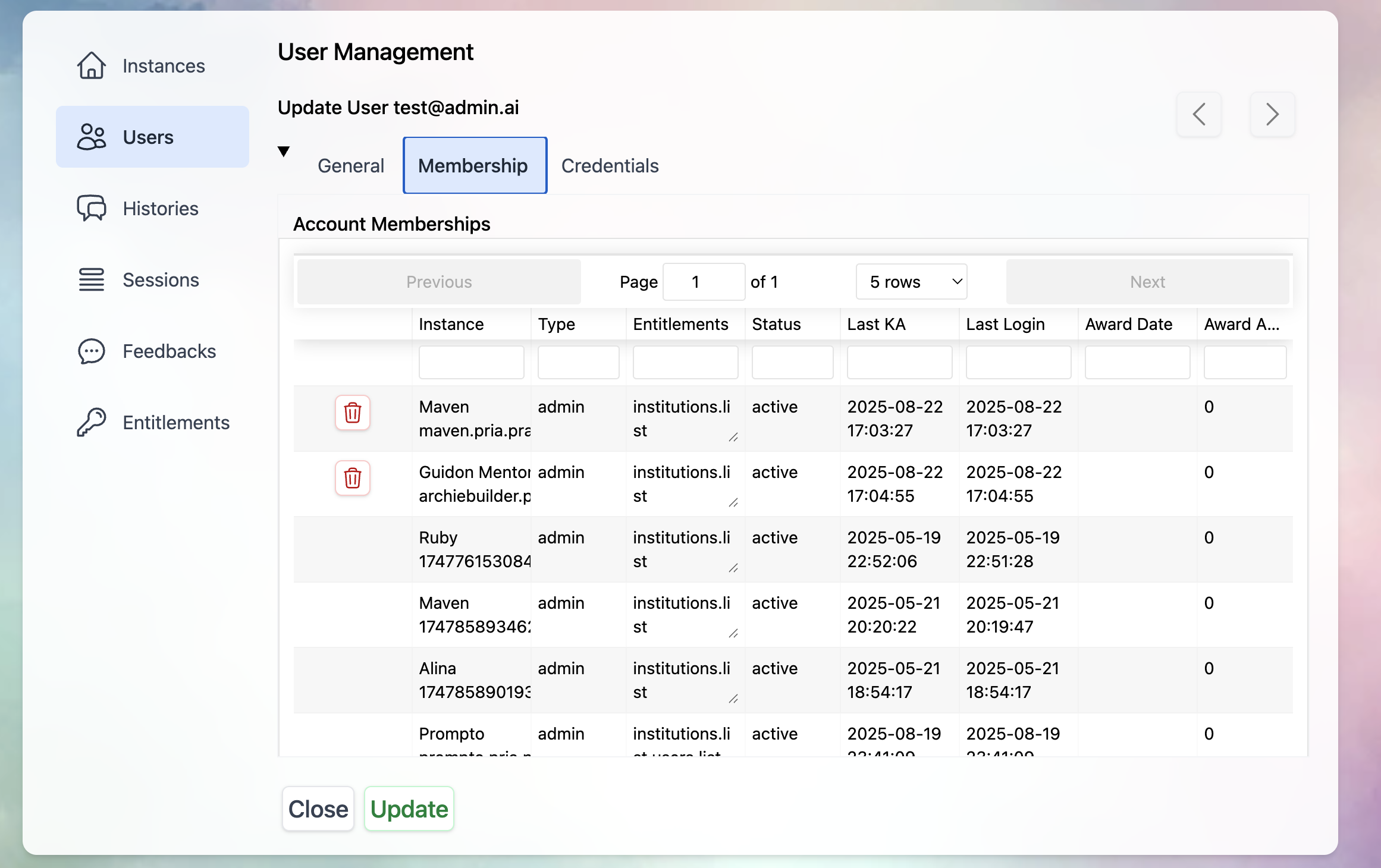
One row per Digital Twin membership, with entitlements, status, last login, and a **Credit Consumed** column — the lifetime credits the user has drawn from each instance's pooled wallet. The column stays blank for memberships that don't draw from a pooled wallet, so anything you see there is real shared-wallet usage. Use it to spot unusually heavy consumers at a glance.
Appearance and conversation preferences — dark mode, location use, dictation, and the Remember History depth.
The user's retrieval mode preference (how their conversations search uploaded documents).
One row per Digital Twin membership, with entitlements, status, last login, and a **Credit Consumed** column — the lifetime credits the user has drawn from each instance's pooled wallet. The column stays blank for memberships that don't draw from a pooled wallet, so anything you see there is real shared-wallet usage. Use it to spot unusually heavy consumers at a glance.
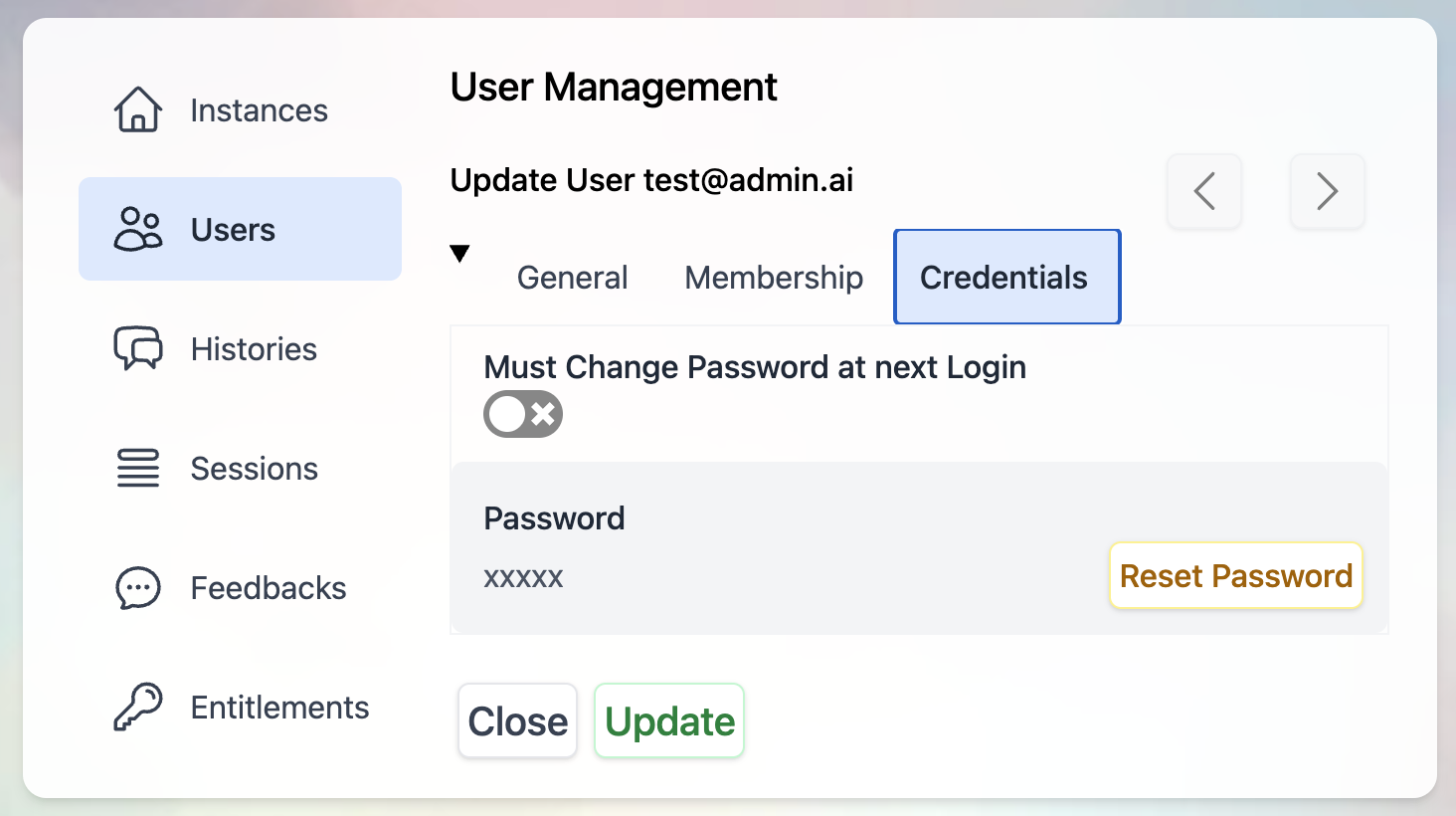
 Password reset, two-step verification (MFA) management — including turning MFA off and revoking trusted devices for a locked-out user — and connected sign-in methods.
 Everything Pria remembers about the user — see **Memory Parameters** under User Actions below.
***
## User Actions
### Individual User Management
Modify user information and permissions:
* **Account Type Changes**: Upgrade/downgrade between Admin or User
* **Email Updates**: Change primary email address
* **Profile Information**: Update name, preferences, and settings
* **Status Management**: Activate, deactivate, or suspend accounts. Inactive or suspended users are immediately blocked from AI interactions (chat, streaming, realtime voice, and tool execution). See [Membership Status Enforcement](/mdx/admin-guide/entitlements#membership-status-enforcement) for details
Remove users from the instance:
* **Soft Delete**: Deactivate while preserving data
* **Hard Delete**: Permanently remove user and associated data
* **Data Export**: Download user data before deletion
* **Confirmation Process**: Multi-step verification for safety
* Last login and status
Inspect and manage the memory parameters Pria stores for this user — namespaces, key/value pairs, and shared instance entries that the user (or Pria's `set_user_memory` tool) has saved over time.
* **Memory tab** in the Edit User modal lists every memory entry for the user, **grouped by instance** for clarity (Personal entries in their own bucket).
* **Visibility scope** is enforced server-side: you only see entries from instances where you hold the `users.edit` entitlement.
* **Filter row**: Search across name/value/description, filter by namespace, and filter by scope (All / Private (non-shared) / Shared only).
* **Edit a row**: opens a Lightbox letting you change the **value**, **description**, and the **shared** toggle (rows can move between user-private and instance-shared in either direction, as long as the row has institution context). The `key_name` and `key_namespace` fields are part of the unique key and cannot be edited — to rename, delete the row and ask the user to recreate it.
* **Delete a row**: confirmation Lightbox shows the row's key and a preview of the value before you confirm. Hard delete (matching the runtime `set_user_memory` behavior).
* **Clear filtered**: bulk-delete every row currently visible under the active filters. Confirmation shows a scrollable list of the exact rows that will be removed before you confirm.
Memory is also reachable from a separate **Instance Memory** tab in the Edit Instance modal, which lists every shared row in that instance with the author email linked back to the same Memory tab here for quick navigation.
Temporarily switch your session to see Pria exactly as the target user does — for support, debugging memory issues, validating an entitlement change, or reproducing a reported problem.
**Who can use it**: admins who hold the `users.edit` entitlement on at least one institution where the target has membership. The button is **omitted entirely** when you don't qualify (no disabled-state confusion).
**Restrictions**:
* You cannot impersonate yourself.
* You cannot impersonate a Praxis AI staff account.
* You cannot start a new impersonation session while one is already active — Stop the current one first.
**Starting a session**:
1. Open the Edit User modal for the target user.
2. Click **Act As…** in the modal footer (left of Cancel/Update). The button is amber to flag that it changes your effective identity.
3. A consent Lightbox explains: "you will see exactly what they see; every action you take will be recorded as theirs; you will lose access to admin pages until you stop." It requires a written **reason** (1–500 characters, e.g. "Debugging support ticket #1234").
4. Confirm. Pria swaps your session to the target user, the page reloads, and the conversation/files/memory you now see all belong to the target.
**While impersonating**:
* An amber **Acting as ``** pill stays pinned in the top navigation. Click **Stop** at any time to end the session and return.
* The rest of the admin console is **blocked** — visiting any `/admin/*` page returns 403 with a message asking you to stop impersonating first. The only exception is the Stop endpoint itself.
* Sessions automatically expire after **1 hour** (or sooner if your own session was about to expire). When the session ends, you're returned to the admin console with a brief notice.
* If your own admin tokens are revoked while impersonating (e.g. another admin or the Praxis AI team terminates your session), the active impersonation dies on the next request.
**Audit log**: every `start` and `stop` writes a row to an internal `impersonation_log` collection capturing: your admin id, the target's id, the stated reason, the start time, the end time (or `null` if you closed the tab without stopping), the TTL, the IP address, and the user agent. The log is retained for compliance review.
**Use this access only for the support purpose stated in your reason.** Treat the user's privacy with respect — you have visibility into their conversations, files, history, and memory.
***
## Adding New Users
Everything Pria remembers about the user — see **Memory Parameters** under User Actions below.
***
## User Actions
### Individual User Management
Modify user information and permissions:
* **Account Type Changes**: Upgrade/downgrade between Admin or User
* **Email Updates**: Change primary email address
* **Profile Information**: Update name, preferences, and settings
* **Status Management**: Activate, deactivate, or suspend accounts. Inactive or suspended users are immediately blocked from AI interactions (chat, streaming, realtime voice, and tool execution). See [Membership Status Enforcement](/mdx/admin-guide/entitlements#membership-status-enforcement) for details
Remove users from the instance:
* **Soft Delete**: Deactivate while preserving data
* **Hard Delete**: Permanently remove user and associated data
* **Data Export**: Download user data before deletion
* **Confirmation Process**: Multi-step verification for safety
* Last login and status
Inspect and manage the memory parameters Pria stores for this user — namespaces, key/value pairs, and shared instance entries that the user (or Pria's `set_user_memory` tool) has saved over time.
* **Memory tab** in the Edit User modal lists every memory entry for the user, **grouped by instance** for clarity (Personal entries in their own bucket).
* **Visibility scope** is enforced server-side: you only see entries from instances where you hold the `users.edit` entitlement.
* **Filter row**: Search across name/value/description, filter by namespace, and filter by scope (All / Private (non-shared) / Shared only).
* **Edit a row**: opens a Lightbox letting you change the **value**, **description**, and the **shared** toggle (rows can move between user-private and instance-shared in either direction, as long as the row has institution context). The `key_name` and `key_namespace` fields are part of the unique key and cannot be edited — to rename, delete the row and ask the user to recreate it.
* **Delete a row**: confirmation Lightbox shows the row's key and a preview of the value before you confirm. Hard delete (matching the runtime `set_user_memory` behavior).
* **Clear filtered**: bulk-delete every row currently visible under the active filters. Confirmation shows a scrollable list of the exact rows that will be removed before you confirm.
Memory is also reachable from a separate **Instance Memory** tab in the Edit Instance modal, which lists every shared row in that instance with the author email linked back to the same Memory tab here for quick navigation.
Temporarily switch your session to see Pria exactly as the target user does — for support, debugging memory issues, validating an entitlement change, or reproducing a reported problem.
**Who can use it**: admins who hold the `users.edit` entitlement on at least one institution where the target has membership. The button is **omitted entirely** when you don't qualify (no disabled-state confusion).
**Restrictions**:
* You cannot impersonate yourself.
* You cannot impersonate a Praxis AI staff account.
* You cannot start a new impersonation session while one is already active — Stop the current one first.
**Starting a session**:
1. Open the Edit User modal for the target user.
2. Click **Act As…** in the modal footer (left of Cancel/Update). The button is amber to flag that it changes your effective identity.
3. A consent Lightbox explains: "you will see exactly what they see; every action you take will be recorded as theirs; you will lose access to admin pages until you stop." It requires a written **reason** (1–500 characters, e.g. "Debugging support ticket #1234").
4. Confirm. Pria swaps your session to the target user, the page reloads, and the conversation/files/memory you now see all belong to the target.
**While impersonating**:
* An amber **Acting as ``** pill stays pinned in the top navigation. Click **Stop** at any time to end the session and return.
* The rest of the admin console is **blocked** — visiting any `/admin/*` page returns 403 with a message asking you to stop impersonating first. The only exception is the Stop endpoint itself.
* Sessions automatically expire after **1 hour** (or sooner if your own session was about to expire). When the session ends, you're returned to the admin console with a brief notice.
* If your own admin tokens are revoked while impersonating (e.g. another admin or the Praxis AI team terminates your session), the active impersonation dies on the next request.
**Audit log**: every `start` and `stop` writes a row to an internal `impersonation_log` collection capturing: your admin id, the target's id, the stated reason, the start time, the end time (or `null` if you closed the tab without stopping), the TTL, the IP address, and the user agent. The log is retained for compliance review.
**Use this access only for the support purpose stated in your reason.** Treat the user's privacy with respect — you have visibility into their conversations, files, history, and memory.
***
## Adding New Users
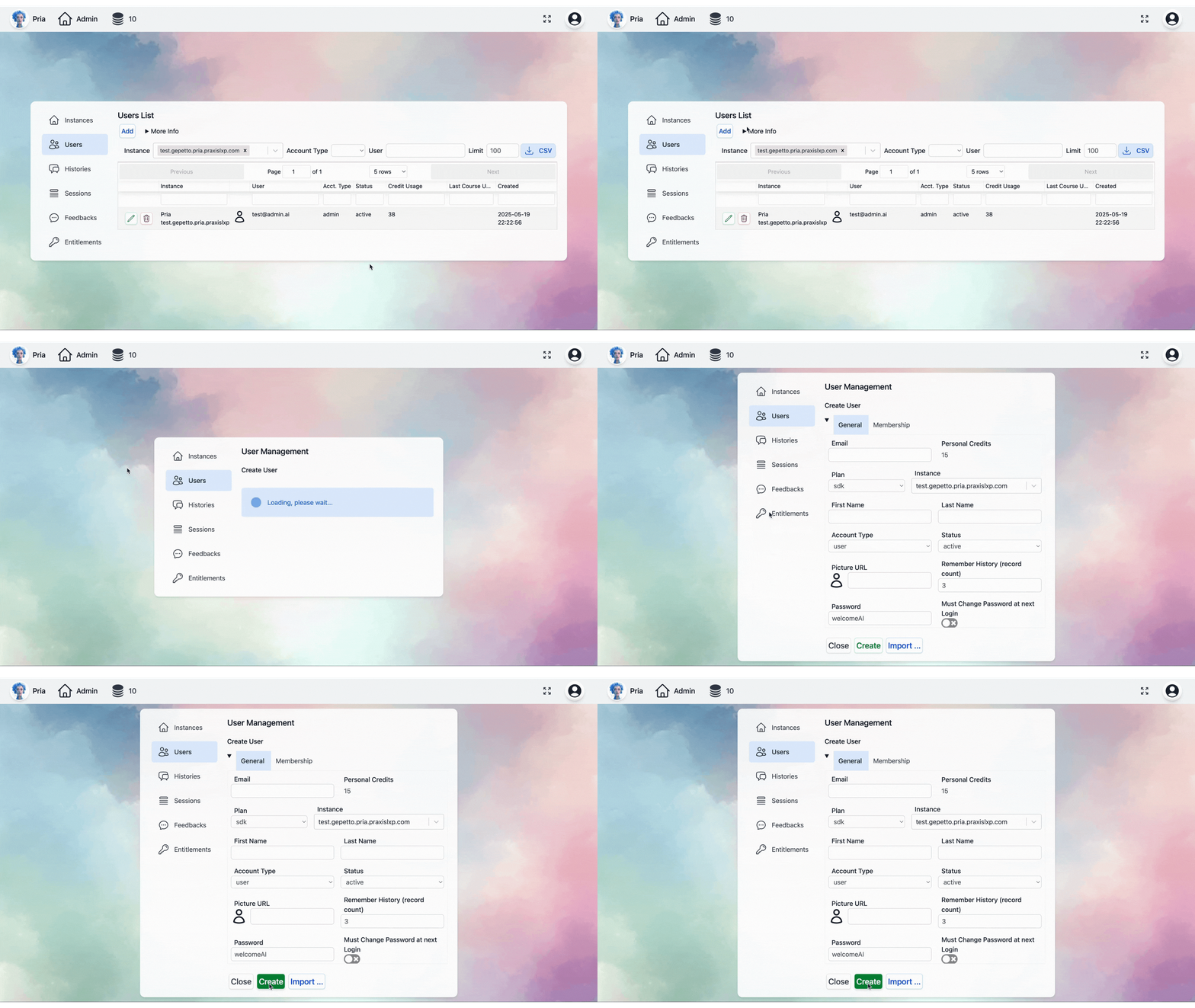 ### Individual User Addition
Navigate to the Users section in your admin dashboard
Select the "Add User" button to open the registration form
Provide required details:
* **Full Name**: User's complete name
* **Email Address**: Valid email for login and notifications
* **Account Type**: Select appropriate permission level
* **Instance:** Select the name of the digital twin
* **Initial Password**: Set temporary password (optional)
You must click "Create" to complete the process and register the user
You can now contact the user and let them know their account has been set up and what their password is
### Bulk User Import
For adding multiple users simultaneously:
**Preparation Required**: Ensure your CSV file follows the exact format specified below to avoid import errors.
#### CSV File Format
```csv theme={null}
Name,Email
John Smith,john.smith@company.com
Jane Doe,jane.doe@company.com
```
#### Import Process
Create a properly formatted CSV with required columns:
* **Name**: Full user name
* **Email**: Valid email address
* Click "Import" in the Users section
* Select your CSV file
* Review the preview of users to be imported
* **Account Type:** Select either `user` or `admin` based on the required permission level
* **Account Status**
* Choose `active` to enable immediate access
* Choose `inactive` to create the account but prevent login until activated
* **Instance Assignment:** Select the digital twin instance that this account will be associated with
* **Default Password:** Set the initial password for the new account
* **Force Password Change:** Enable this option to require the user to create a new password on their first login
* Review summary of users to be added
* Confirm import operation
* Check the users list to see newly imported users
## Account Types & Permissions
### Permission Levels
**Full Platform Access**
* Complete user management capabilities
* Instance configuration and settings
* Analytics and reporting access
* Digital twin customization rights
* Billing and subscription management
* Integration and API access
**Standard Access**
* Personal digital twin interaction
* Learning content access
* Session participation
* Profile management
### Role-Based Permissions
Beyond account types, assign specific roles through [entitlements](/mdx/admin-guide/entitlements) for granular control.
***
## Related
* [Entitlements](/mdx/admin-guide/entitlements) — granular per-instance permissions and membership status enforcement
* [MFA](/mdx/admin-guide/mfa) — two-step verification management and recovery
* [Sessions](/mdx/admin-guide/sessions) — review and revoke a user's signed-in devices
* [Praxis Shield](/mdx/admin-guide/praxis-shield) — security incidents involving a user, and suspending from there
* [Memory & Act As](/mdx/admin-guide/memory-and-impersonation) — deeper coverage of memory inspection and impersonation
### Individual User Addition
Navigate to the Users section in your admin dashboard
Select the "Add User" button to open the registration form
Provide required details:
* **Full Name**: User's complete name
* **Email Address**: Valid email for login and notifications
* **Account Type**: Select appropriate permission level
* **Instance:** Select the name of the digital twin
* **Initial Password**: Set temporary password (optional)
You must click "Create" to complete the process and register the user
You can now contact the user and let them know their account has been set up and what their password is
### Bulk User Import
For adding multiple users simultaneously:
**Preparation Required**: Ensure your CSV file follows the exact format specified below to avoid import errors.
#### CSV File Format
```csv theme={null}
Name,Email
John Smith,john.smith@company.com
Jane Doe,jane.doe@company.com
```
#### Import Process
Create a properly formatted CSV with required columns:
* **Name**: Full user name
* **Email**: Valid email address
* Click "Import" in the Users section
* Select your CSV file
* Review the preview of users to be imported
* **Account Type:** Select either `user` or `admin` based on the required permission level
* **Account Status**
* Choose `active` to enable immediate access
* Choose `inactive` to create the account but prevent login until activated
* **Instance Assignment:** Select the digital twin instance that this account will be associated with
* **Default Password:** Set the initial password for the new account
* **Force Password Change:** Enable this option to require the user to create a new password on their first login
* Review summary of users to be added
* Confirm import operation
* Check the users list to see newly imported users
## Account Types & Permissions
### Permission Levels
**Full Platform Access**
* Complete user management capabilities
* Instance configuration and settings
* Analytics and reporting access
* Digital twin customization rights
* Billing and subscription management
* Integration and API access
**Standard Access**
* Personal digital twin interaction
* Learning content access
* Session participation
* Profile management
### Role-Based Permissions
Beyond account types, assign specific roles through [entitlements](/mdx/admin-guide/entitlements) for granular control.
***
## Related
* [Entitlements](/mdx/admin-guide/entitlements) — granular per-instance permissions and membership status enforcement
* [MFA](/mdx/admin-guide/mfa) — two-step verification management and recovery
* [Sessions](/mdx/admin-guide/sessions) — review and revoke a user's signed-in devices
* [Praxis Shield](/mdx/admin-guide/praxis-shield) — security incidents involving a user, and suspending from there
* [Memory & Act As](/mdx/admin-guide/memory-and-impersonation) — deeper coverage of memory inspection and impersonation