> ## Documentation Index
> Fetch the complete documentation index at: https://docs.praxis-ai.com/llms.txt
> Use this file to discover all available pages before exploring further.
# Overview
> Canvas Integration features
## Integrate Your Digital Twins with Canvas
Pria offers two robust integration paths for embedding Digital Twins directly within your Canvas environment, enabling tailored learning assistance at both the institution and course level.
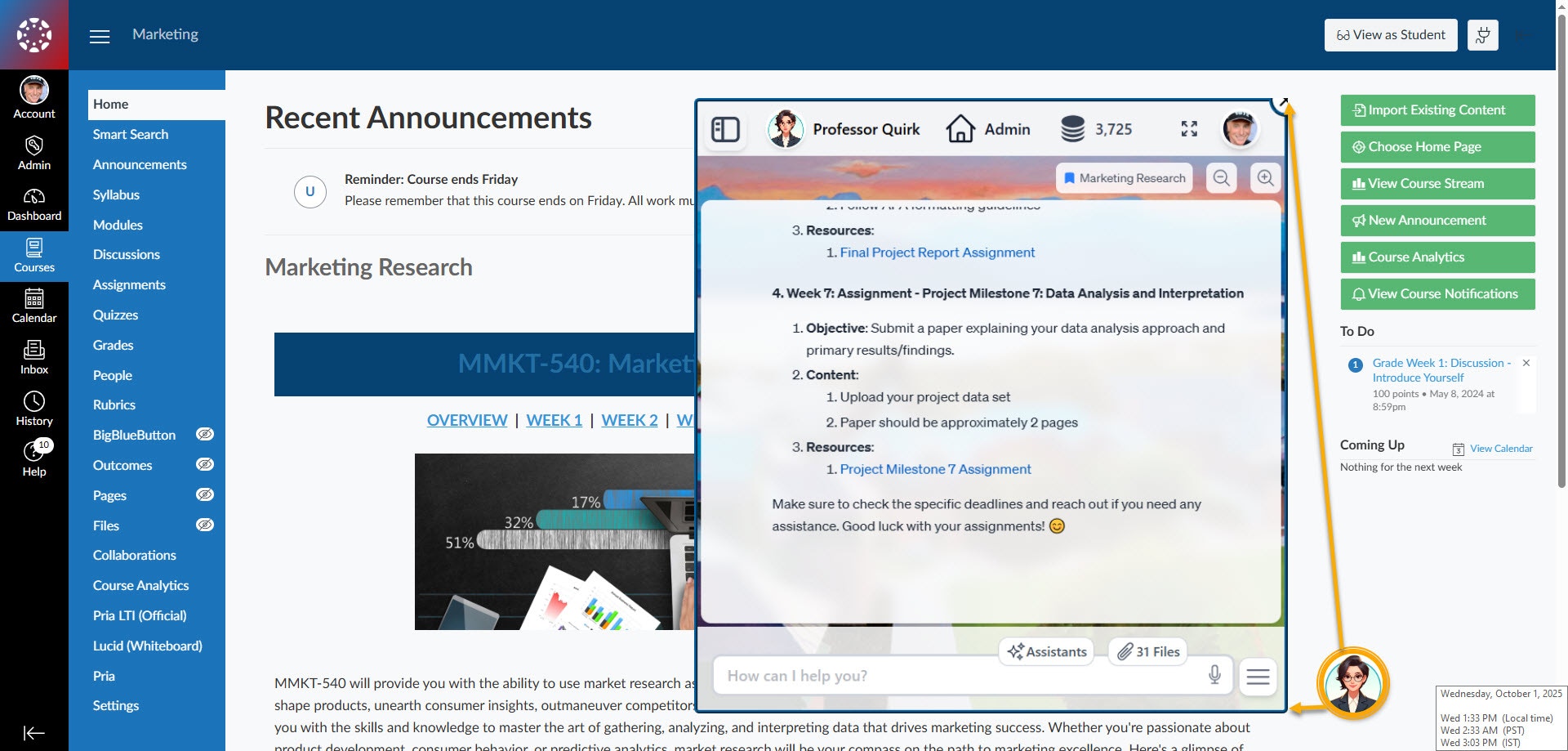
Enable Praxis AI platform-wide as an overlay by having institution admins assign a custom Canvas theme.
* Praxis AI appears as a floating assistant icon on all course pages.
* Consistent, institution-branded experience across all sub-accounts.
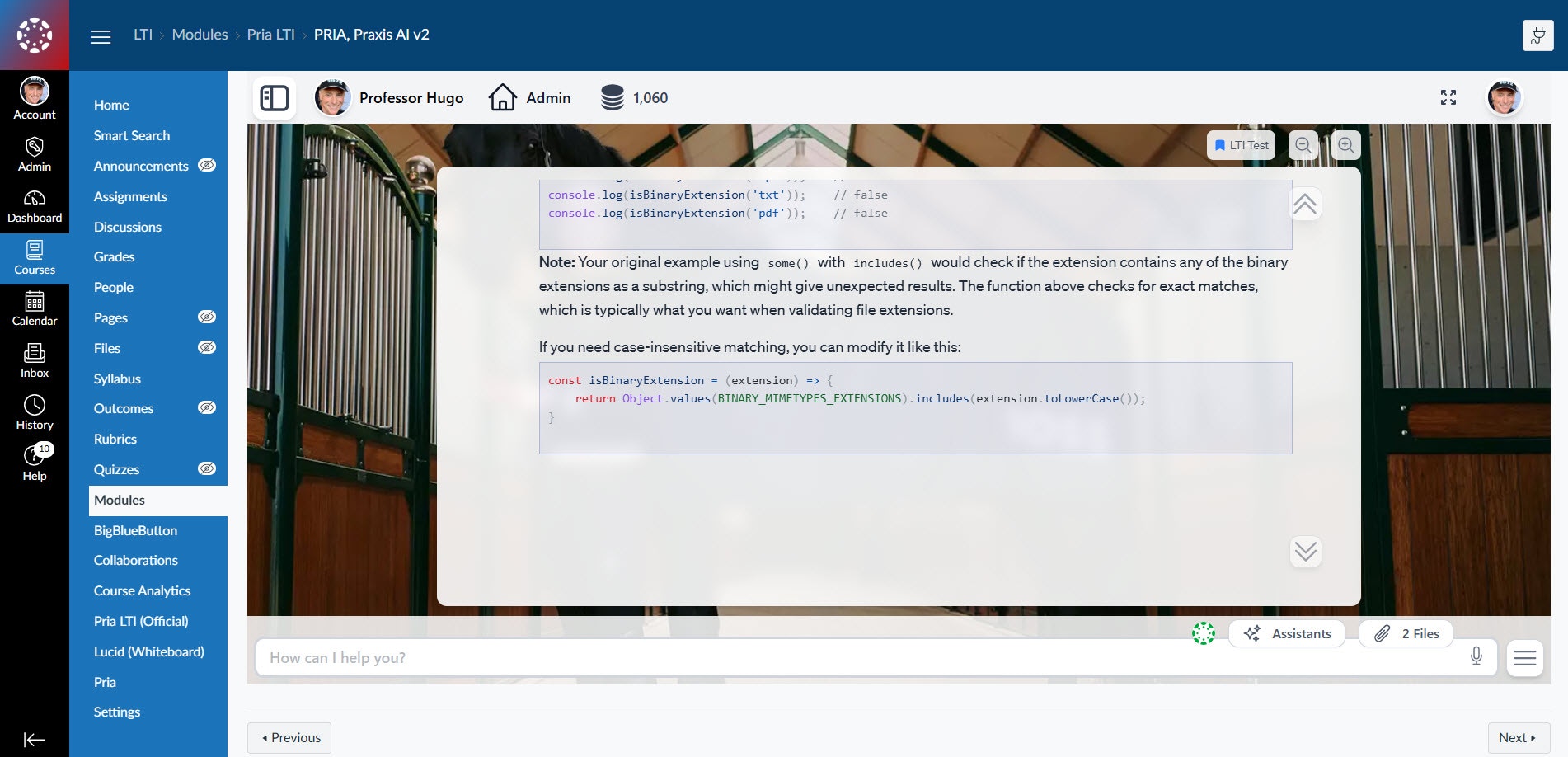
 Add Praxis AI on a course-by-course basis using Canvas LTI v1.3 integration.
* Faculty place Praxis AI as a specific module or activity within courses.
* Students access assistance only where configured by the instructor.
Add Praxis AI on a course-by-course basis using Canvas LTI v1.3 integration.
* Faculty place Praxis AI as a specific module or activity within courses.
* Students access assistance only where configured by the instructor.
 ## Connect Your Digital Twin to Canvas
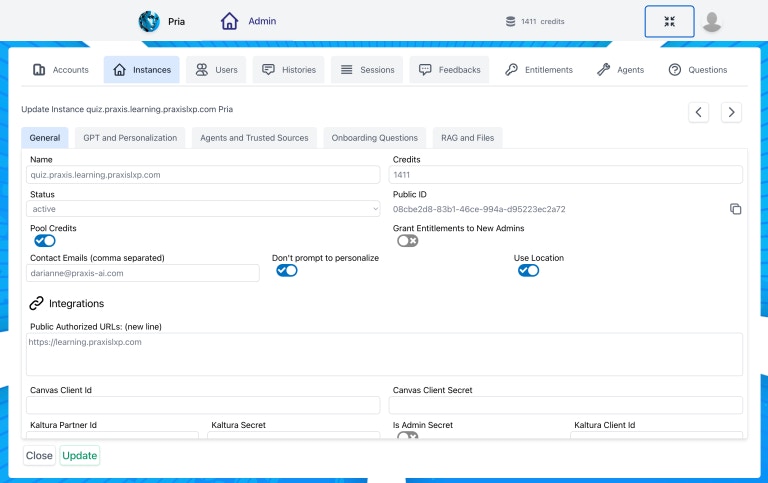
Configure your Digital Twin for intelligent, course-aware interactions with Canvas, enabling secure access and use of your institution's educational content.
Enable the Canvas tools to:
* Allow your Digital Twin to communicate directly with your Canvas instance.
* Make your Digital Twin contextually aware of the course it supports.
* Seamlessly leverage course materials and resources for personalized assistance.
## Connect Your Digital Twin to Canvas
Configure your Digital Twin for intelligent, course-aware interactions with Canvas, enabling secure access and use of your institution's educational content.
Enable the Canvas tools to:
* Allow your Digital Twin to communicate directly with your Canvas instance.
* Make your Digital Twin contextually aware of the course it supports.
* Seamlessly leverage course materials and resources for personalized assistance.
 ## Add additional UI Widgets and integration Tools for your Theme Based integration
Download the Canvas Themes based SDK + Tools library to add additional Wizard and buttons that control your Digital Twins through Canvas UI
Add the Canvas Tools to:
* Add several useful widgets, buttons and context menu options
* Send messages to your digital twin dynamically while interacting with Canvas elements
* Trigger assistants such as Auto-Graded, Class Health Check and more
## Add additional UI Widgets and integration Tools for your Theme Based integration
Download the Canvas Themes based SDK + Tools library to add additional Wizard and buttons that control your Digital Twins through Canvas UI
Add the Canvas Tools to:
* Add several useful widgets, buttons and context menu options
* Send messages to your digital twin dynamically while interacting with Canvas elements
* Trigger assistants such as Auto-Graded, Class Health Check and more