> ## Documentation Index
> Fetch the complete documentation index at: https://docs.praxis-ai.com/llms.txt
> Use this file to discover all available pages before exploring further.
# Pria Tools
> Control your Canvas instance through the Canvas REST APIs
Your Digital Twin contains the **call\_canvas** and **search\_canvas** tools specialized in interacting with and retrieving data from Canvas using the Canvas REST APIs.
**Understanding the two Canvas tools:**
* **`call_canvas`** — The comprehensive Canvas integration tool that provides full access to the Canvas REST API ecosystem. Use this tool for complete CRUD operations including creating assignments, grading submissions, managing enrollments, posting discussions, retrieving detailed analytics, and any operation that requires write access or complex data manipulation.
* **`search_canvas`** — A lightweight, read-only tool that exclusively leverages the Canvas Smart Search API. Use this tool when you only need to discover and retrieve links to specific content within a course (such as finding a particular assignment, page, or resource). It's optimized for quick content discovery without the overhead of full API access.
**When to use each:**
* Choose `search_canvas` for simple queries like "find the syllabus" or "locate the midterm assignment"
* Choose `call_canvas` for actions like grading, creating content, viewing detailed submission data, or any operation beyond basic search
## Overview
The Pria tools for Canvas (a.k.a Canvas Tools) enables seamless, conversational access to your Canvas Learning Management System through natural language queries. Instead of navigating through multiple web pages and menus, users can simply ask questions and receive immediate, accurate responses powered by Canvas REST APIs.
## Benefits and Use Cases
### For Students
The Canvas tools transforms how students interact with their coursework by providing instant access to critical information:
* **Quick Assignment Lookups**: Ask "When is my biology assignment due?" or "What assignments do I have this week?" to get immediate answers
* **Grade Tracking**: Query "What's my current grade in calculus?" or "Show me my quiz scores" without navigating through multiple pages
* **Discussion Management**: Find out "What discussions do I need to respond to this week?" to stay on top of participation requirements
* **Deadline Management**: Eliminate the stress of clicking through Canvas menus during busy study periods
### For Educators
Teachers and instructors gain powerful administrative and pedagogical capabilities:
* **Student Progress Monitoring**: Instantly identify "Which students haven't submitted their midterm papers?" or "Show me all students who scored below 70% on the last three quizzes"
* **Data-Driven Instruction**: Access participation data, engagement metrics, and performance analytics for early intervention strategies
* **Administrative Efficiency**: Check enrollment numbers, retrieve discussion participation data, and manage course logistics through simple conversations
* **Content Management**: Create discussion posts, manage assignments, and update course materials using natural language commands
### Advanced Capabilities
The tools handle sophisticated queries that would typically require multiple manual steps:
* Complex filtering and sorting of student data
* Bulk operations on assignments and enrollments
* Cross-referencing multiple data sources (grades, submissions, participation)
* Automated reporting and analytics generation
## How It Works
### Architecture
Behind the scenes, the Canvas tools operate through a sophisticated translation layer:
1. **Natural Language Processing**: Converts user questions into structured API requests
2. **Authentication Handling**: Automatically manages OAuth tokens and session credentials
3. **API Translation**: Maps conversational queries to precise Canvas REST API endpoints
4. **Data Formatting**: Transforms API responses into human-readable, contextual answers
5. **Error Handling**: Gracefully manages API limitations and provides helpful feedback
### Example Workflows
**Student Query Flow**:
```
User asks: "What discussions do I need to respond to this week?"
↓
Tool queries Canvas discussion topics API
↓
Filters results by due dates and user participation
↓
Returns formatted list of pending discussions
```
**Instructor Query Flow**:
```
User asks: "Create a discussion post about photosynthesis due next Friday"
↓
Tool constructs discussion topic payload
↓
Posts to Canvas discussion API with specified due date
↓
Confirms creation and provides discussion link
```
**Administrative Query Flow**:
```
User asks: "Which students in my AP History class have missing assignments?"
↓
Tool retrieves enrollment data and submission records
↓
Cross-references to identify gaps
↓
Returns actionable list with student details
```
## Role-Based Access Control
The Canvas tools implement intelligent, automatic role-based access control that adapts to each user's Canvas permissions:
### Automatic Role Detection
The system determines user roles through:
* SSO (Single Sign-On) authentication data
* OAuth token permissions and scopes
* Canvas enrollment and membership information
### Permission Levels
**Read-Only Access**
* View assignments and submissions
* Check grades and feedback
* Access course content
* Participate in discussions
**Teaching Functions**
* Grade assignments
* Manage course content
* Create discussions and assignments
* View student analytics
* Post announcements
**Full Access**
* Account management
* User enrollment operations
* System-wide analytics
* Course creation and deletion
* Institution-level settings
### Security Model
The tools operate conservatively by default, restricting access to only those operations explicitly permitted by the user's Canvas role. This ensures compliance with institutional policies and prevents unauthorized access to sensitive data.
**Key Security Features**:
* Automatic permission verification before each API call
* Scope-based access control aligned with Canvas permissions
* Session-based authentication with automatic token refresh
* Audit logging of all API interactions
* Graceful denial of unauthorized requests with clear messaging
## Getting Started
### Prerequisites
Before configuring the Canvas tools, ensure you have:
* Administrative access to your Canvas instance
* Permissions to create Developer Keys in Canvas
* Access to your Praxis Digital Twin configuration panel
### Setup Overview
Generate API credentials in Canvas to enable communication between Praxis and Canvas
During initial setup, **disable** scope enforcement on your Developer Key so you can explore the full Canvas API without restrictions
Add Canvas credentials to your Praxis instance
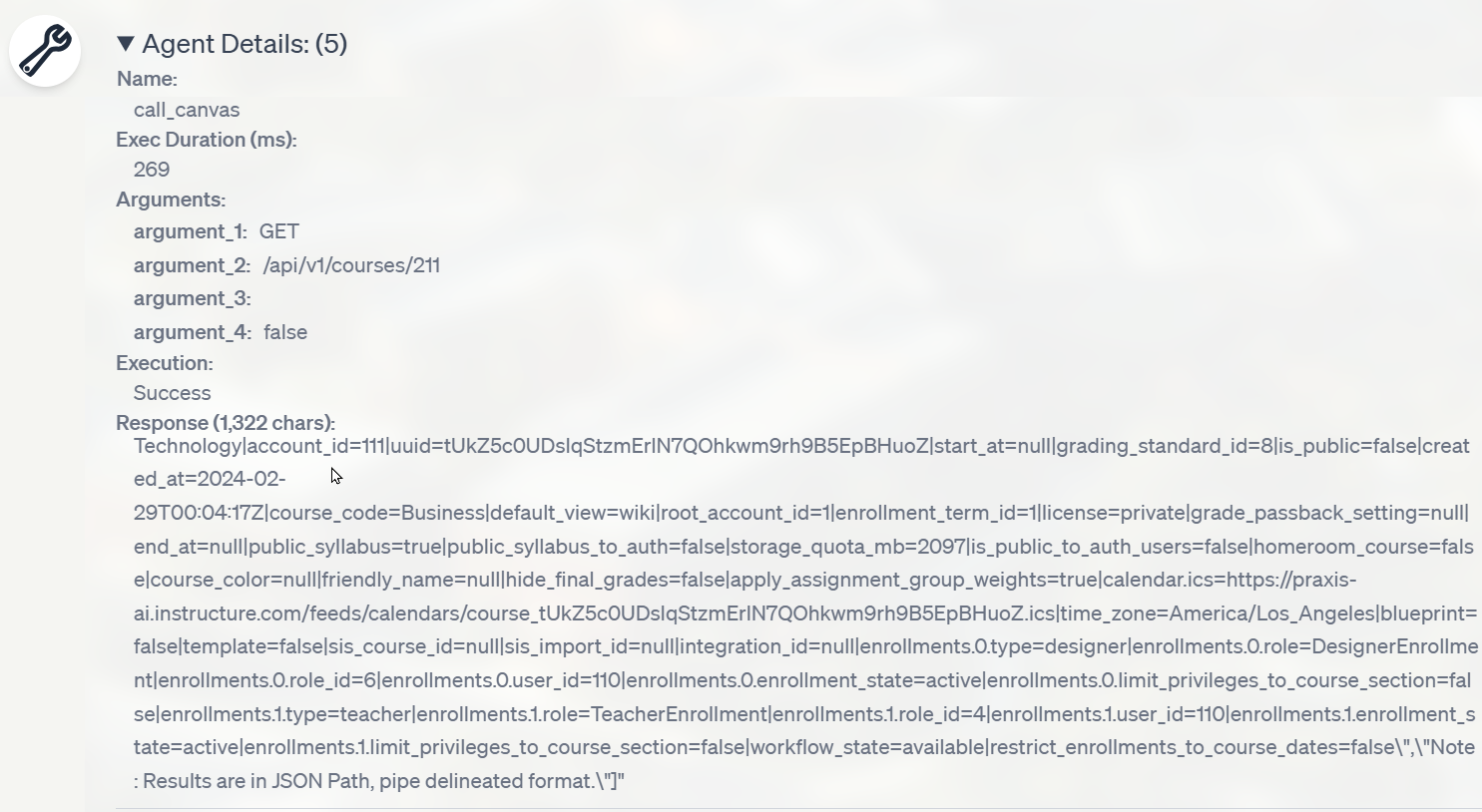
Test your Digital Twin with Canvas. As you interact, note which API endpoints are used in the Agent Details of your dialog history—these are the scopes you will need
Once you have a complete list, enable scope enforcement on your Canvas Developer Key **and** add the same scopes to your Digital Twin instance configuration
The Developer Key you create for API access is separate and distinct from any LTI (Learning Tools Interoperability) keys used for embedding Pria as an LTI activity within Canvas.
### Multi-Instance Management
**For Accounts Managing Multiple Digital Twins**:
Organizations with multiple Digital Twin instances can streamline configuration by storing Canvas API credentials at the account level:
* **Centralized Configuration**: Set Canvas Client ID and Secret once at the parent account level
* **Automatic Inheritance**: All child Digital Twin instances automatically inherit these credentials
* **Simplified Maintenance**: Update credentials in one place to affect all instances
* **Focus on Customization**: Teachers can concentrate on behavior and content personalization rather than technical setup
Contact our support team to configure account-level Canvas credentials. This is recommended once your API scopes and configuration attributes have stabilized in your development environment.
## Create Developer Keys
Developer Keys provide the authentication credentials necessary for your Digital Twin to communicate with Canvas through REST APIs.
Only **one Developer Key** is needed per institution and can be shared across multiple Praxis instances.
### Step-by-Step Configuration
Log in to your Canvas instance with administrative credentials.
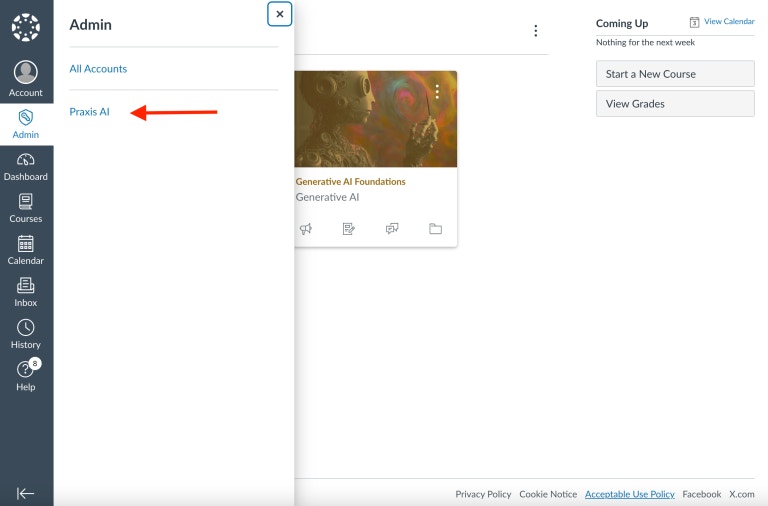
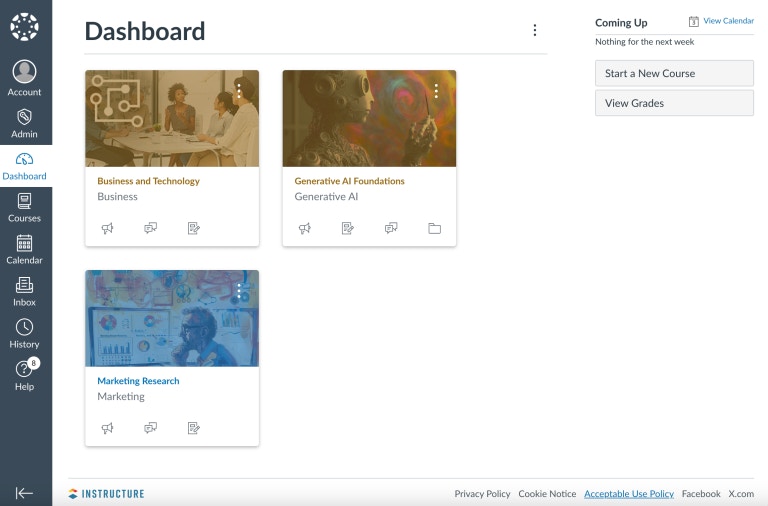 Click **Admin** in the left navigation menu, then select your institution's account (e.g., "Praxis AI").
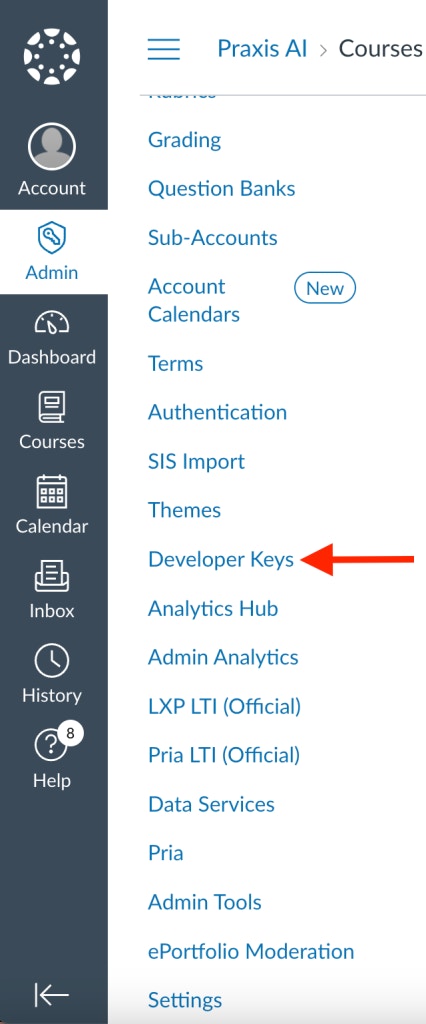
 In the account settings, select **Developer Keys** from the navigation menu.
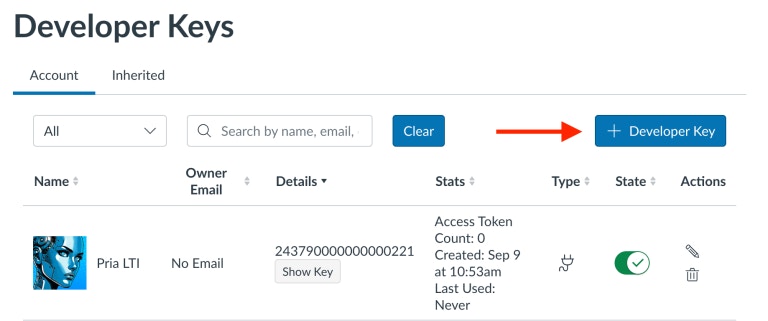
 **a.** Click the **+ Developer Key** button in the top-right corner
 **b.** Select **+ API Key** from the dropdown menu
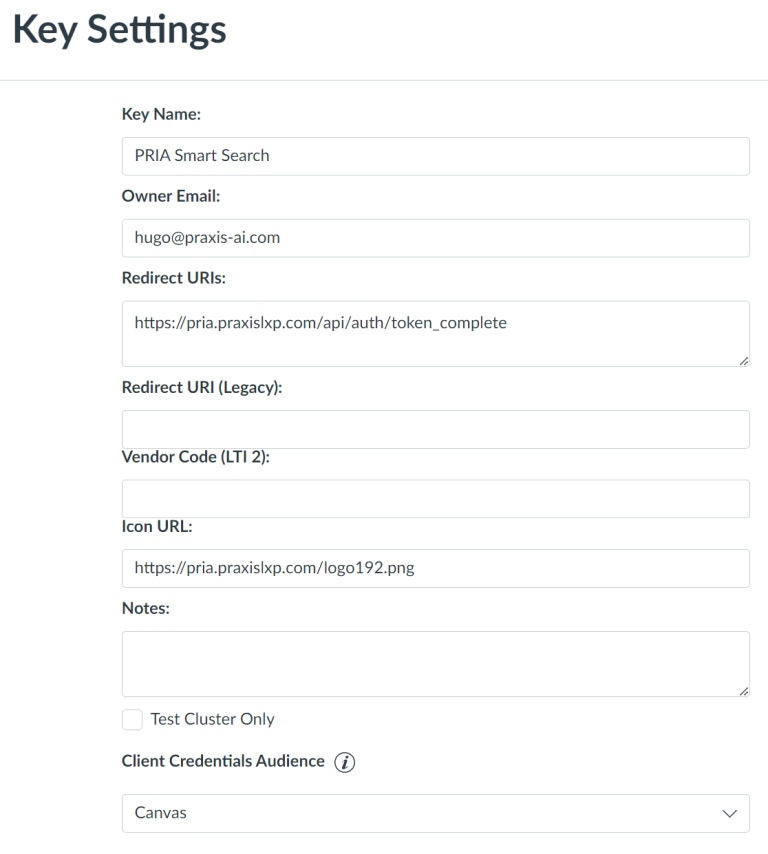
Fill in the following required fields:
| Field | Value | Purpose |
| ---------------- | ---------------------------------------------------- | ------------------------------- |
| **Key Name** | `Pria Smart Search` | Displayed in OAuth consent form |
| **Owner Email** | Your institution's admin email | Contact for key management |
| **Redirect URI** | `https://pria.praxislxp.com/api/auth/token_complete` | OAuth callback endpoint |
| **Icon URL** | `https://pria.praxislxp.com/logo192.png` | Displayed in consent form |
Leave all other fields empty.
**b.** Select **+ API Key** from the dropdown menu
Fill in the following required fields:
| Field | Value | Purpose |
| ---------------- | ---------------------------------------------------- | ------------------------------- |
| **Key Name** | `Pria Smart Search` | Displayed in OAuth consent form |
| **Owner Email** | Your institution's admin email | Contact for key management |
| **Redirect URI** | `https://pria.praxislxp.com/api/auth/token_complete` | OAuth callback endpoint |
| **Icon URL** | `https://pria.praxislxp.com/logo192.png` | Displayed in consent form |
Leave all other fields empty.
 Scopes control which Canvas API endpoints your Developer Key is allowed to call. Think of them as a whitelist — if a scope isn't enabled here, the API will reject the request even if the user has Canvas permissions for it.
**Important:** When first creating your Developer Key, we strongly recommend you **disable** scope enforcement. This allows unrestricted API access during development so you can discover which endpoints your Digital Twin actually needs. You will enable specific scopes later once you have a complete list.
**a.** **Development Mode (Recommended First Step)**: Leave scope enforcement **disabled**. Interact with your Digital Twin normally and monitor the **Agent Details** in your dialog history — it shows exactly which Canvas API endpoints each query uses. Keep a record of these endpoints; you will need to enable them as scopes here **and** add them to your Digital Twin instance configuration.
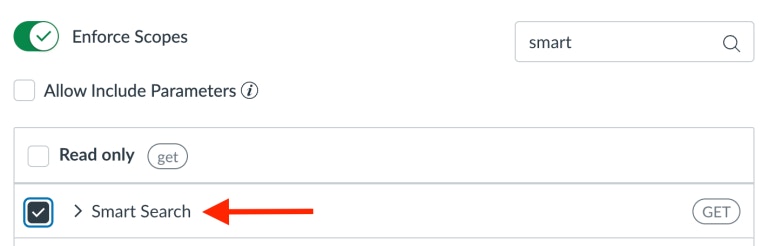
**b.** **Production Mode**: Once you have documented all required endpoints, return to this Developer Key and enable scope enforcement:
* Use the search box to find specific API functions (e.g., type "smart" to locate Smart Search)
* Check the boxes for each API function you documented during development
Scopes control which Canvas API endpoints your Developer Key is allowed to call. Think of them as a whitelist — if a scope isn't enabled here, the API will reject the request even if the user has Canvas permissions for it.
**Important:** When first creating your Developer Key, we strongly recommend you **disable** scope enforcement. This allows unrestricted API access during development so you can discover which endpoints your Digital Twin actually needs. You will enable specific scopes later once you have a complete list.
**a.** **Development Mode (Recommended First Step)**: Leave scope enforcement **disabled**. Interact with your Digital Twin normally and monitor the **Agent Details** in your dialog history — it shows exactly which Canvas API endpoints each query uses. Keep a record of these endpoints; you will need to enable them as scopes here **and** add them to your Digital Twin instance configuration.
**b.** **Production Mode**: Once you have documented all required endpoints, return to this Developer Key and enable scope enforcement:
* Use the search box to find specific API functions (e.g., type "smart" to locate Smart Search)
* Check the boxes for each API function you documented during development
 Every scope you enable on this Developer Key must also be listed in your Digital Twin's instance configuration. See the [Canvas Scopes](#canvas-scopes) section for the full list of available scopes and the [Digital Twin Configuration](#digital-twin-configuration) section for where to add them.
**c.** Click **Save** in the bottom-right corner
**d.** Enable the Developer Key by toggling the **State** button to "ON"
Every scope you enable on this Developer Key must also be listed in your Digital Twin's instance configuration. See the [Canvas Scopes](#canvas-scopes) section for the full list of available scopes and the [Digital Twin Configuration](#digital-twin-configuration) section for where to add them.
**c.** Click **Save** in the bottom-right corner
**d.** Enable the Developer Key by toggling the **State** button to "ON"
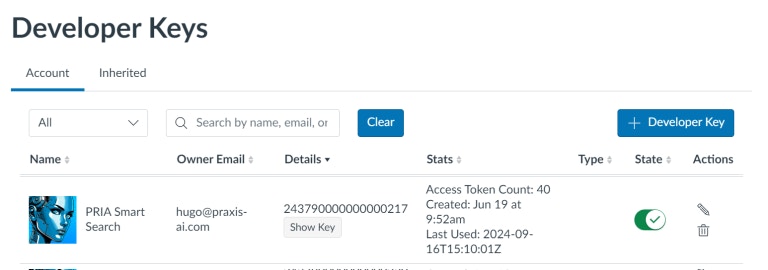 Under the **Details** section:
* Copy the **Client ID** (the numeric identifier, e.g., XXX217)
* Click **Show Key** and copy the **Client Secret**
Store these credentials securely—you'll need them for Digital Twin configuration.
Remember: One Developer Key can serve multiple Praxis instances. You'll use these credentials when configuring each Digital Twin that needs Canvas access.
### Understanding Scope Enforcement
When you enable scopes for Pria's API integration, you establish precise security boundaries:
* **Explicit Permissions**: Define exactly which Canvas operations Pria can perform on behalf of users
* **Principle of Least Privilege**: Grant only the minimum access necessary for required functionality
* **Data Protection**: Ensure Pria accesses only the data it needs to function
* **Audit Trail**: Track which API functions are authorized and used
Pria's Canvas tools automatically implement role-based access control that respects Canvas's native permission system. Even with broad API scopes enabled, individual users can only perform actions appropriate to their Canvas role (student, instructor, administrator).
## Digital Twin Configuration
After creating your Developer Key in Canvas, you need to configure your Digital Twin instance with the API credentials.
### Configuration Steps
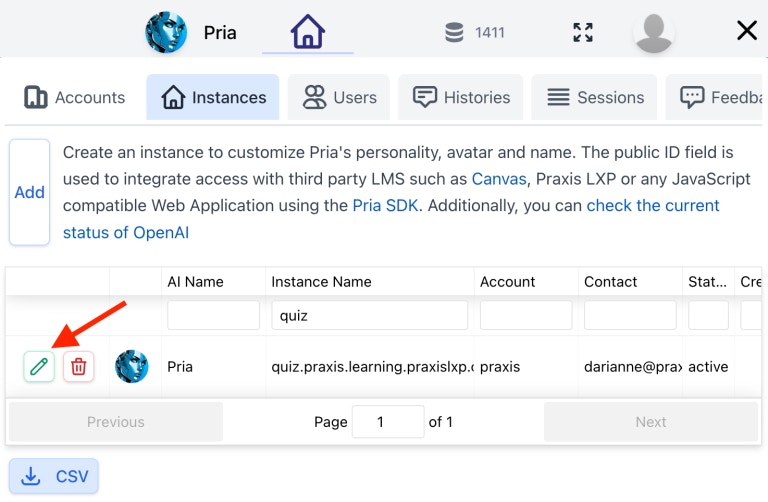
Click the **Admin (⌂)** icon at the top of your Praxis interface and select Instances
Find your Digital Twin instance in the list and click the green **Edit** pencil icon on the left.
Under the **Details** section:
* Copy the **Client ID** (the numeric identifier, e.g., XXX217)
* Click **Show Key** and copy the **Client Secret**
Store these credentials securely—you'll need them for Digital Twin configuration.
Remember: One Developer Key can serve multiple Praxis instances. You'll use these credentials when configuring each Digital Twin that needs Canvas access.
### Understanding Scope Enforcement
When you enable scopes for Pria's API integration, you establish precise security boundaries:
* **Explicit Permissions**: Define exactly which Canvas operations Pria can perform on behalf of users
* **Principle of Least Privilege**: Grant only the minimum access necessary for required functionality
* **Data Protection**: Ensure Pria accesses only the data it needs to function
* **Audit Trail**: Track which API functions are authorized and used
Pria's Canvas tools automatically implement role-based access control that respects Canvas's native permission system. Even with broad API scopes enabled, individual users can only perform actions appropriate to their Canvas role (student, instructor, administrator).
## Digital Twin Configuration
After creating your Developer Key in Canvas, you need to configure your Digital Twin instance with the API credentials.
### Configuration Steps
Click the **Admin (⌂)** icon at the top of your Praxis interface and select Instances
Find your Digital Twin instance in the list and click the green **Edit** pencil icon on the left.
 In the Edit Instance panel:
**a.** Scroll down to the **Configuration and Integration** section
**b.** Locate the **Canvas Client ID** and **Canvas Client Secret** fields in the Canvas section
**c.** Paste the credentials you copied from the Canvas Developer Key in the Client ID and secret fields
In the Edit Instance panel:
**a.** Scroll down to the **Configuration and Integration** section
**b.** Locate the **Canvas Client ID** and **Canvas Client Secret** fields in the Canvas section
**c.** Paste the credentials you copied from the Canvas Developer Key in the Client ID and secret fields
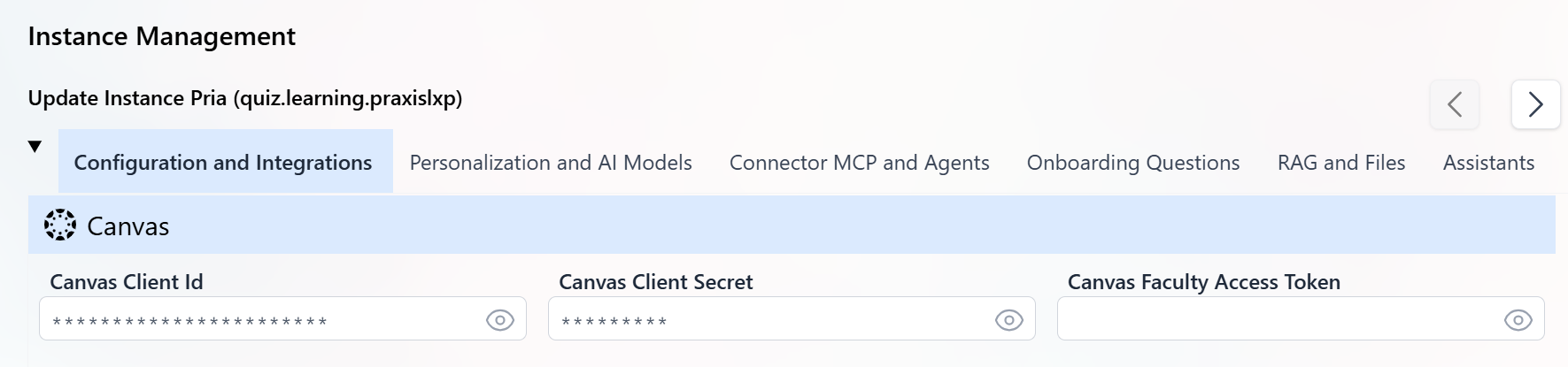 To post comments or perform teacher-level operations, create a personal access token for a registered course instructor and enter it in the **Faculty Access Token** field.
**This is where you register the scopes your Digital Twin is allowed to use.** The scopes listed here must match the scopes enabled on your Canvas Developer Key — if a scope is enabled in Canvas but not listed here (or vice versa), API calls for that endpoint will fail.
If you disabled scope enforcement on your Canvas Developer Key during development (as recommended), you still need to add scopes here. This list tells your Digital Twin which Canvas API endpoints it is permitted to call.
Each scope follows the syntax `url:|
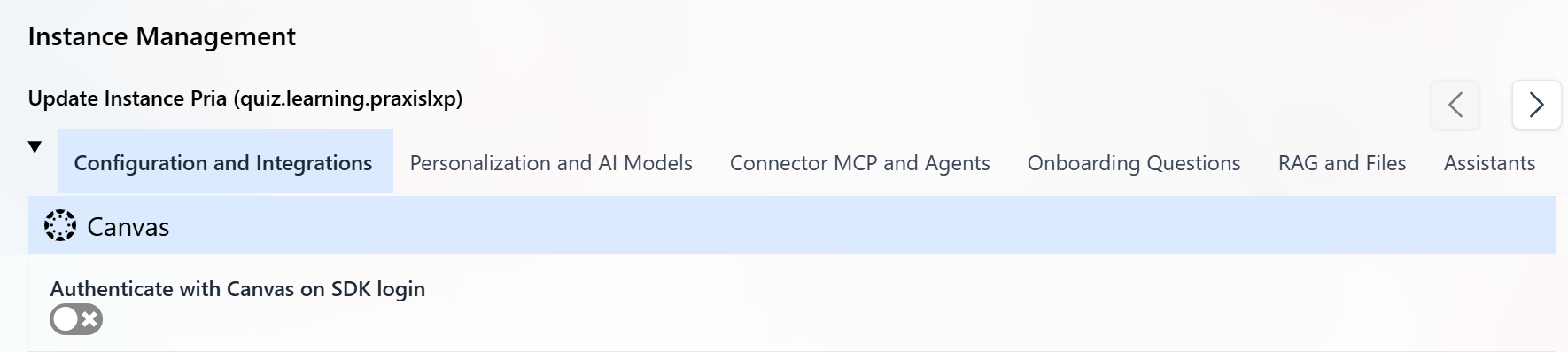
Enable the **Authenticate with Canvas on SDK login** toggle to require students to authenticate in Canvas and generate an authorization token before accessing the digital twin, adding an extra security layer to your integration.
To post comments or perform teacher-level operations, create a personal access token for a registered course instructor and enter it in the **Faculty Access Token** field.
**This is where you register the scopes your Digital Twin is allowed to use.** The scopes listed here must match the scopes enabled on your Canvas Developer Key — if a scope is enabled in Canvas but not listed here (or vice versa), API calls for that endpoint will fail.
If you disabled scope enforcement on your Canvas Developer Key during development (as recommended), you still need to add scopes here. This list tells your Digital Twin which Canvas API endpoints it is permitted to call.
Each scope follows the syntax `url:|
Enable the **Authenticate with Canvas on SDK login** toggle to require students to authenticate in Canvas and generate an authorization token before accessing the digital twin, adding an extra security layer to your integration.
 The Canvas tools use the first URL in the public URLs list to authenticate and execute requests against your institution's Canvas REST APIs—ensure this URL is correct.
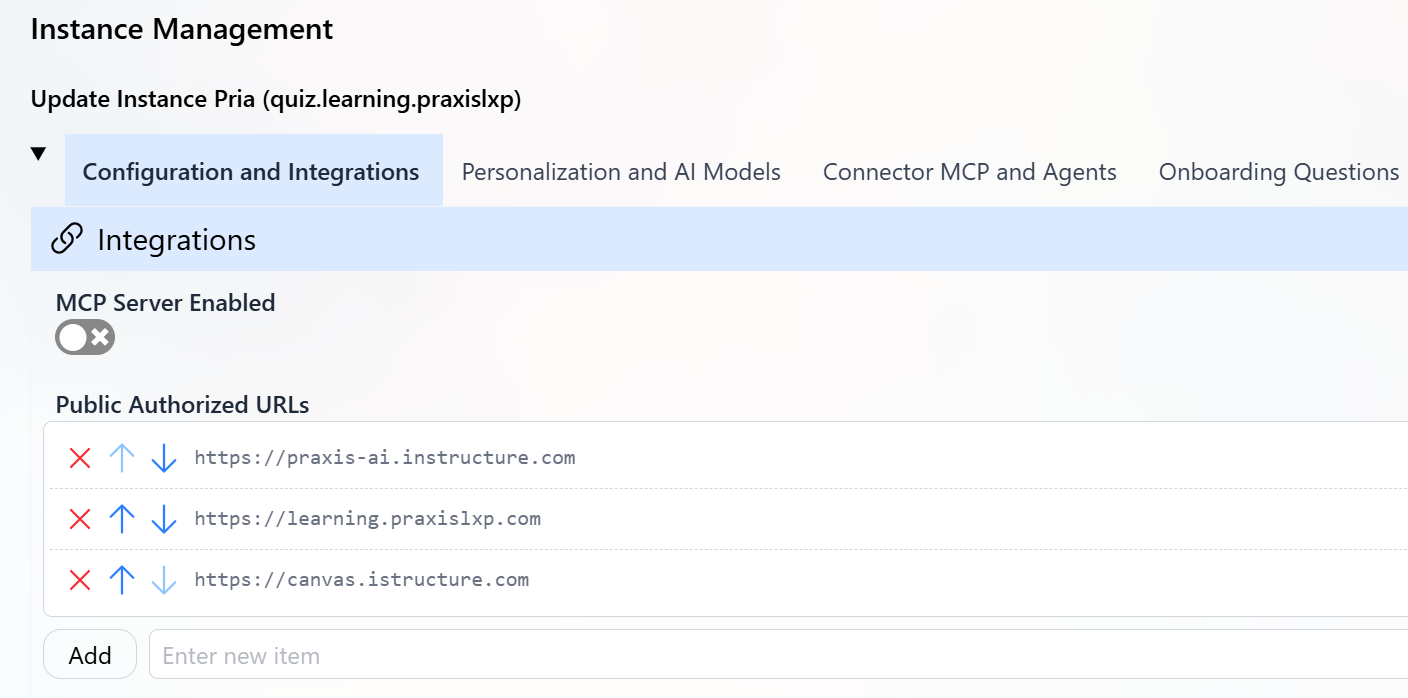 As an example, the first URL in the list is Praxis AI's Instructure URL: [https://praxis-ai.instructure.com](https://praxis-ai.instructure.com).
If your institution has a vanity URL, use that instead (e.g., [https://my.university.edu](https://my.university.edu)).
Click **Update** at the bottom of the panel to save your changes.
These credentials enable your Digital Twin to authenticate with Canvas on behalf of users. The actual user permissions are determined by their Canvas role and the OAuth authorization they grant.
## Testing Your Canvas Integration
Once configuration is complete, verify that your Digital Twin can successfully connect to Canvas.
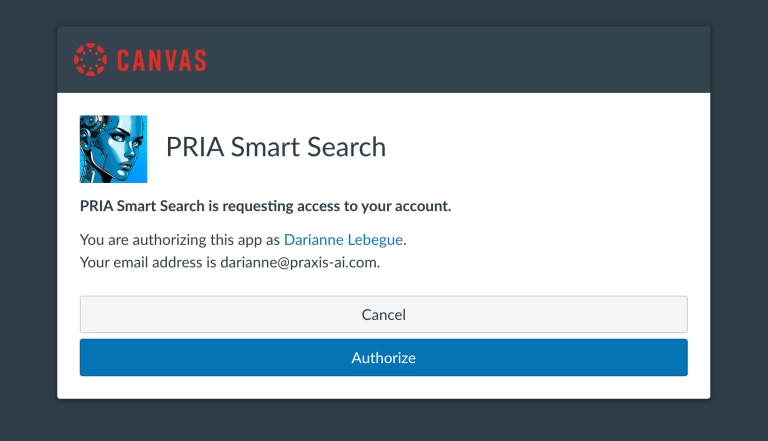
This is the authorization screen students and instructors will see when first connecting to Canvas:
As an example, the first URL in the list is Praxis AI's Instructure URL: [https://praxis-ai.instructure.com](https://praxis-ai.instructure.com).
If your institution has a vanity URL, use that instead (e.g., [https://my.university.edu](https://my.university.edu)).
Click **Update** at the bottom of the panel to save your changes.
These credentials enable your Digital Twin to authenticate with Canvas on behalf of users. The actual user permissions are determined by their Canvas role and the OAuth authorization they grant.
## Testing Your Canvas Integration
Once configuration is complete, verify that your Digital Twin can successfully connect to Canvas.
This is the authorization screen students and instructors will see when first connecting to Canvas:
 ### Initial Connection Test
Navigate to your Digital Twin and ask a Canvas-related question:
```text theme={null}
What is my course syllabus in Canvas?
```
or
```text theme={null}
Show me my upcoming assignments
```
On first connection (or when your token expires), you'll be prompted to authorize your Digital Twin to access Canvas:
* Click the authorization link provided
### Initial Connection Test
Navigate to your Digital Twin and ask a Canvas-related question:
```text theme={null}
What is my course syllabus in Canvas?
```
or
```text theme={null}
Show me my upcoming assignments
```
On first connection (or when your token expires), you'll be prompted to authorize your Digital Twin to access Canvas:
* Click the authorization link provided
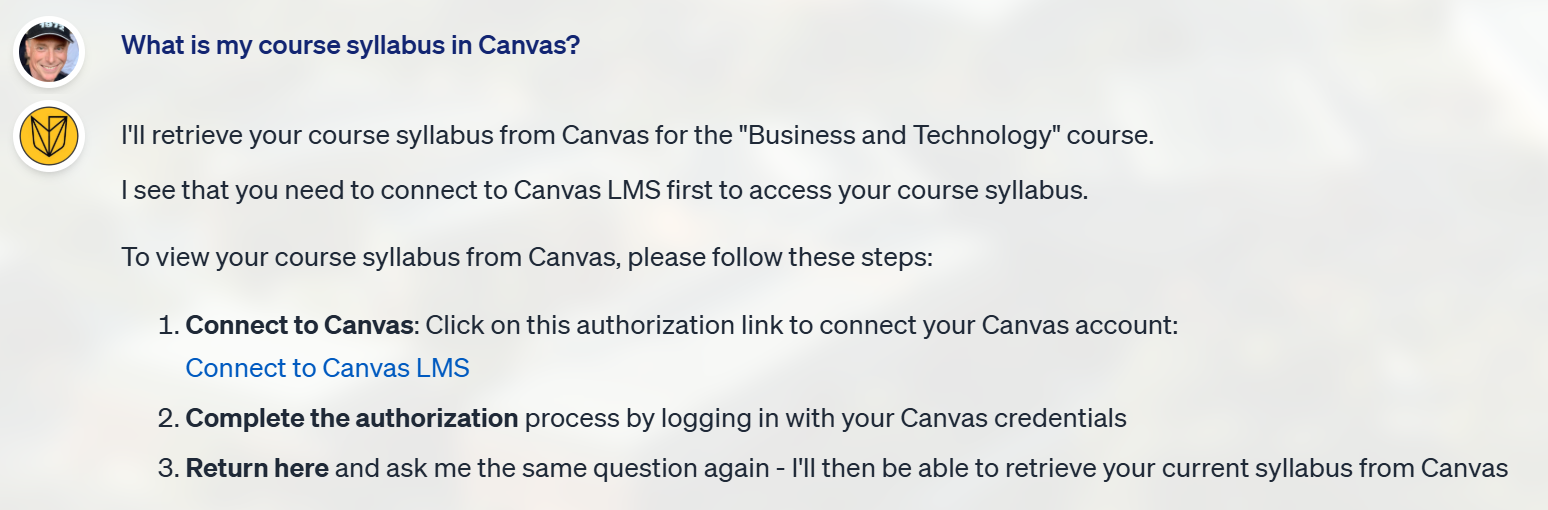 * Review the permissions requested
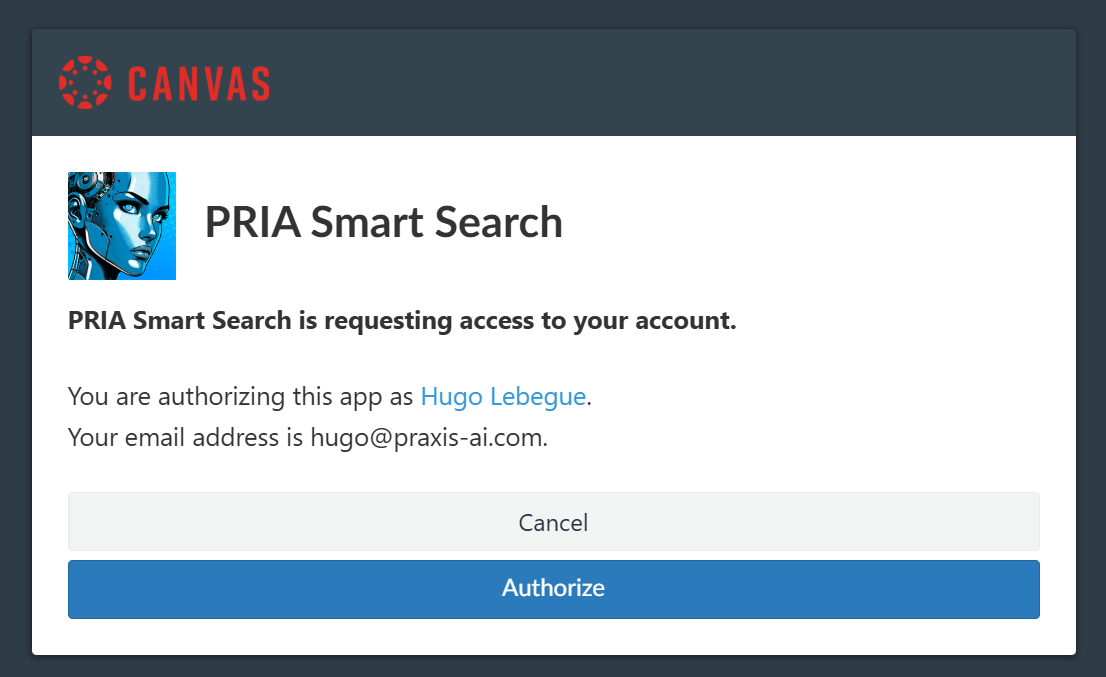 * Click **Authorize** in the Canvas OAuth consent screen
* You'll be redirected back to Praxis automatically
* Click **Authorize** in the Canvas OAuth consent screen
* You'll be redirected back to Praxis automatically
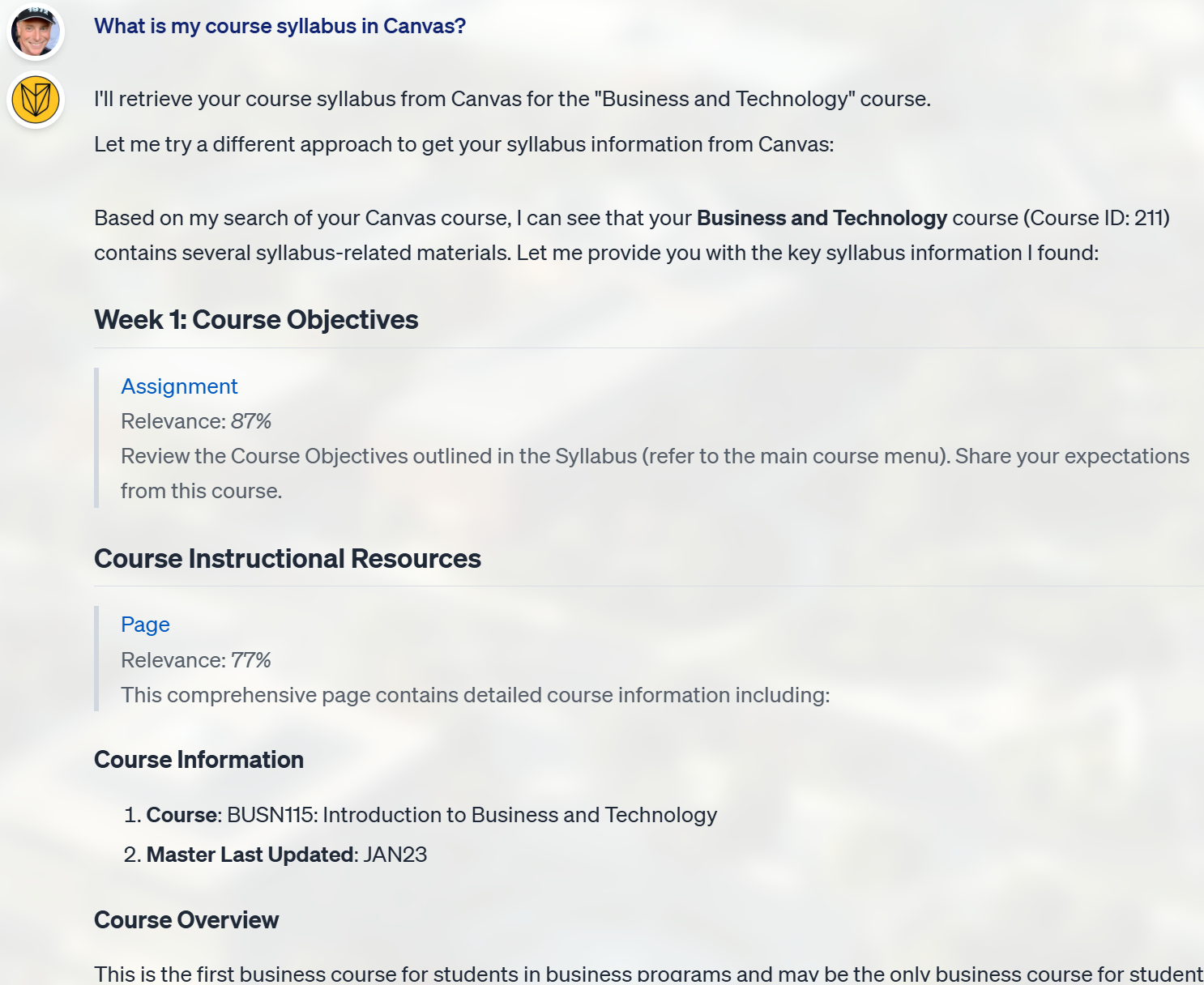
 Your Digital Twin should return relevant information from your Canvas course, confirming successful integration.
 A comprehensive audit log of the Digital Twin's Canvas interactions via the `call_canvas` tool is available in the `Tool Details` section of each response, allowing you to review successful execution status and identify the specific API functions that were called during the interaction.
 **Token Management**: Access tokens are valid for 60 minutes and are automatically refreshed in the background to maintain seamless access. You typically only need to authorize once per session or when tokens expire.
### What to Test
Verify different types of queries based on your role:
**Students**:
```text theme={null}
What assignments are due this week?
Show me my current grades
What discussions do I need to respond to?
```
**Instructors**:
```text theme={null}
Which students haven't submitted the midterm?
Show me average scores for the last quiz
Create a discussion post about [topic] due next Friday
```
**Administrators**:
```text theme={null}
How many students are enrolled in Biology 101?
Show me course completion rates
List all active courses in the department
```
## Troubleshooting
### Standalone accounts
Instance not properly configured: Your account is stand alone and is not integrated with Canvas. It must be associated to an instance properly configured by your Teacher or Administrator.
### Invalid or missing API URL
**Symptom**: Authentication fails or redirects to the wrong Canvas instance
Instance not properly configured: Access to Canvas LMS requires a valid Authorized Public URL property for your instance! This value can be configured using the Administration UI.
For missing or incorrect API Url
**Cause**: The system cannot determine your institution's Canvas domain, or there's a mismatch in the authorized URLs configuration.
**Solution**:
In your Digital Twin configuration, ensure the **first line** of your Public Authorized URLs contains your institution's primary Canvas domain:
```
https://your-institution.instructure.com
```
The Canvas tools use the first domain in your authorized URLs list that matches your institution. Order matters:
**Correct Order**:
```
https://school.instructure.com
https://school.beta.instructure.com
```
The tools will use `school.instructure.com` (production)
**Production vs. Test Instances**: It is strongly recommended NOT to share a single Digital Twin between production and test Canvas instances. This can cause domain confusion and authentication failures.
If you must use both environments, the Canvas tools will select the first domain in your authorized URLs list that contains either:
* Your institution's domain (e.g., `school.edu`)
* `instructure.com` (Canvas cloud hosting)
### Invalid or missing Client ID or Secret
**Symptom**: Error message about Client ID or Secret missing
Instance not properly configured: Access to Canvas LMS requires a valid Client Id for your instance! This value can be configured using the Administration UI.
Instance not properly configured: Access to Canvas LMS requires a valid client secret for your instance! This value can be configured using the Administration UI.
**Solution**:
1. Verify that you've copied the correct Client ID and Secret from Canvas
2. Ensure the Developer Key is enabled in Canvas
3. Check that the Redirect URI in Canvas matches: `https://pria.praxislxp.com/api/auth/token_complete`
4. Update your Digital Twin instance with the correct credentials
### Invalid or missing Course information
Integration user issue: Access to Canvas LMS requires a valid course Id. Please launch from a valid course page in your Canvas instance!
### Insufficient Scopes Error
**Error Message**:
```json theme={null}
{
"errors": [{
"message": "Insufficient scopes on access token."
}],
"error_report_id": "1288266"
}
```
**Example**:
```
Access to Canvas LMS API function at https://institution.instructure.com/api/v1/courses/53493/assignments
is Unauthorized (401). Insufficient scopes on access token.
```
**Cause**: The API endpoint being accessed requires a scope that hasn't been authorized in your Canvas Developer Key.
**Solution**:
From the error message, note the endpoint path (e.g., `/api/v1/courses/:course_id/assignments`)
1. Return to Canvas Developer Keys
2. Edit your Pria API key
3. Search for and enable the required scope
4. Save changes
Users will need to re-authorize to receive a token with the updated scopes:
* Log out of Praxis
* Log back in
* Re-authorize Canvas access when prompted
**Important**: When scopes are enforced, they must be defined in **both** locations:
1. Your Canvas Developer Key (authorizes the scopes)
2. Your Digital Twin configuration (declares required scopes)
Any modifications to the scope list require generating new access tokens, as scopes are embedded in the token at creation time.
### Token Expiration Issues
**Symptom**: Frequent re-authorization requests or "token expired" messages
**Cause**: Access tokens expire after 60 minutes of inactivity
**Solution**: This is normal behavior. The system automatically refreshes tokens in the background. If you're prompted to re-authorize:
1. Click the authorization link
2. Approve the request in Canvas
3. Continue your session
If you experience excessive re-authorization requests, check that your browser allows cookies from `pria.praxislxp.com` and your Canvas domain.
### Removing Token
When scopes have changed and require a new token, or to simply re-issue a new authorization token:
Click the Profile link in the top navigation menu.
**Token Management**: Access tokens are valid for 60 minutes and are automatically refreshed in the background to maintain seamless access. You typically only need to authorize once per session or when tokens expire.
### What to Test
Verify different types of queries based on your role:
**Students**:
```text theme={null}
What assignments are due this week?
Show me my current grades
What discussions do I need to respond to?
```
**Instructors**:
```text theme={null}
Which students haven't submitted the midterm?
Show me average scores for the last quiz
Create a discussion post about [topic] due next Friday
```
**Administrators**:
```text theme={null}
How many students are enrolled in Biology 101?
Show me course completion rates
List all active courses in the department
```
## Troubleshooting
### Standalone accounts
Instance not properly configured: Your account is stand alone and is not integrated with Canvas. It must be associated to an instance properly configured by your Teacher or Administrator.
### Invalid or missing API URL
**Symptom**: Authentication fails or redirects to the wrong Canvas instance
Instance not properly configured: Access to Canvas LMS requires a valid Authorized Public URL property for your instance! This value can be configured using the Administration UI.
For missing or incorrect API Url
**Cause**: The system cannot determine your institution's Canvas domain, or there's a mismatch in the authorized URLs configuration.
**Solution**:
In your Digital Twin configuration, ensure the **first line** of your Public Authorized URLs contains your institution's primary Canvas domain:
```
https://your-institution.instructure.com
```
The Canvas tools use the first domain in your authorized URLs list that matches your institution. Order matters:
**Correct Order**:
```
https://school.instructure.com
https://school.beta.instructure.com
```
The tools will use `school.instructure.com` (production)
**Production vs. Test Instances**: It is strongly recommended NOT to share a single Digital Twin between production and test Canvas instances. This can cause domain confusion and authentication failures.
If you must use both environments, the Canvas tools will select the first domain in your authorized URLs list that contains either:
* Your institution's domain (e.g., `school.edu`)
* `instructure.com` (Canvas cloud hosting)
### Invalid or missing Client ID or Secret
**Symptom**: Error message about Client ID or Secret missing
Instance not properly configured: Access to Canvas LMS requires a valid Client Id for your instance! This value can be configured using the Administration UI.
Instance not properly configured: Access to Canvas LMS requires a valid client secret for your instance! This value can be configured using the Administration UI.
**Solution**:
1. Verify that you've copied the correct Client ID and Secret from Canvas
2. Ensure the Developer Key is enabled in Canvas
3. Check that the Redirect URI in Canvas matches: `https://pria.praxislxp.com/api/auth/token_complete`
4. Update your Digital Twin instance with the correct credentials
### Invalid or missing Course information
Integration user issue: Access to Canvas LMS requires a valid course Id. Please launch from a valid course page in your Canvas instance!
### Insufficient Scopes Error
**Error Message**:
```json theme={null}
{
"errors": [{
"message": "Insufficient scopes on access token."
}],
"error_report_id": "1288266"
}
```
**Example**:
```
Access to Canvas LMS API function at https://institution.instructure.com/api/v1/courses/53493/assignments
is Unauthorized (401). Insufficient scopes on access token.
```
**Cause**: The API endpoint being accessed requires a scope that hasn't been authorized in your Canvas Developer Key.
**Solution**:
From the error message, note the endpoint path (e.g., `/api/v1/courses/:course_id/assignments`)
1. Return to Canvas Developer Keys
2. Edit your Pria API key
3. Search for and enable the required scope
4. Save changes
Users will need to re-authorize to receive a token with the updated scopes:
* Log out of Praxis
* Log back in
* Re-authorize Canvas access when prompted
**Important**: When scopes are enforced, they must be defined in **both** locations:
1. Your Canvas Developer Key (authorizes the scopes)
2. Your Digital Twin configuration (declares required scopes)
Any modifications to the scope list require generating new access tokens, as scopes are embedded in the token at creation time.
### Token Expiration Issues
**Symptom**: Frequent re-authorization requests or "token expired" messages
**Cause**: Access tokens expire after 60 minutes of inactivity
**Solution**: This is normal behavior. The system automatically refreshes tokens in the background. If you're prompted to re-authorize:
1. Click the authorization link
2. Approve the request in Canvas
3. Continue your session
If you experience excessive re-authorization requests, check that your browser allows cookies from `pria.praxislxp.com` and your Canvas domain.
### Removing Token
When scopes have changed and require a new token, or to simply re-issue a new authorization token:
Click the Profile link in the top navigation menu.
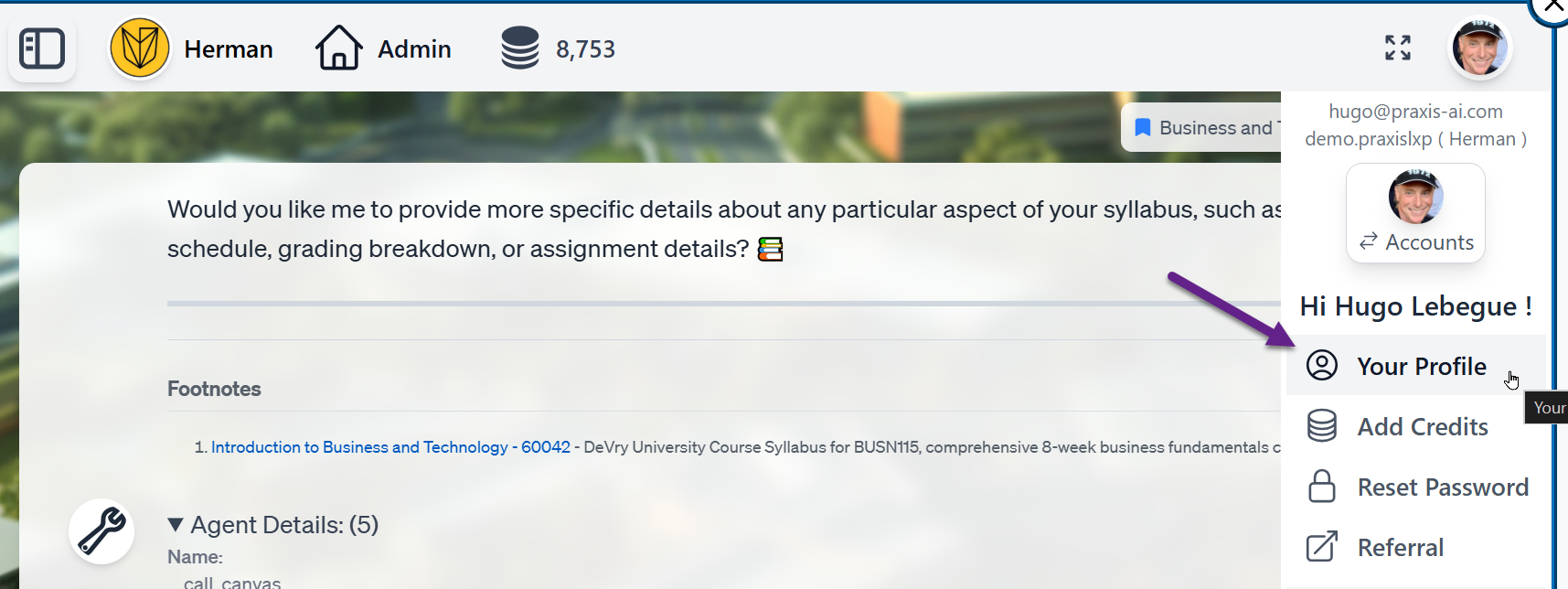 Click the Remove Token button to remove your OAuth token for Canvas.
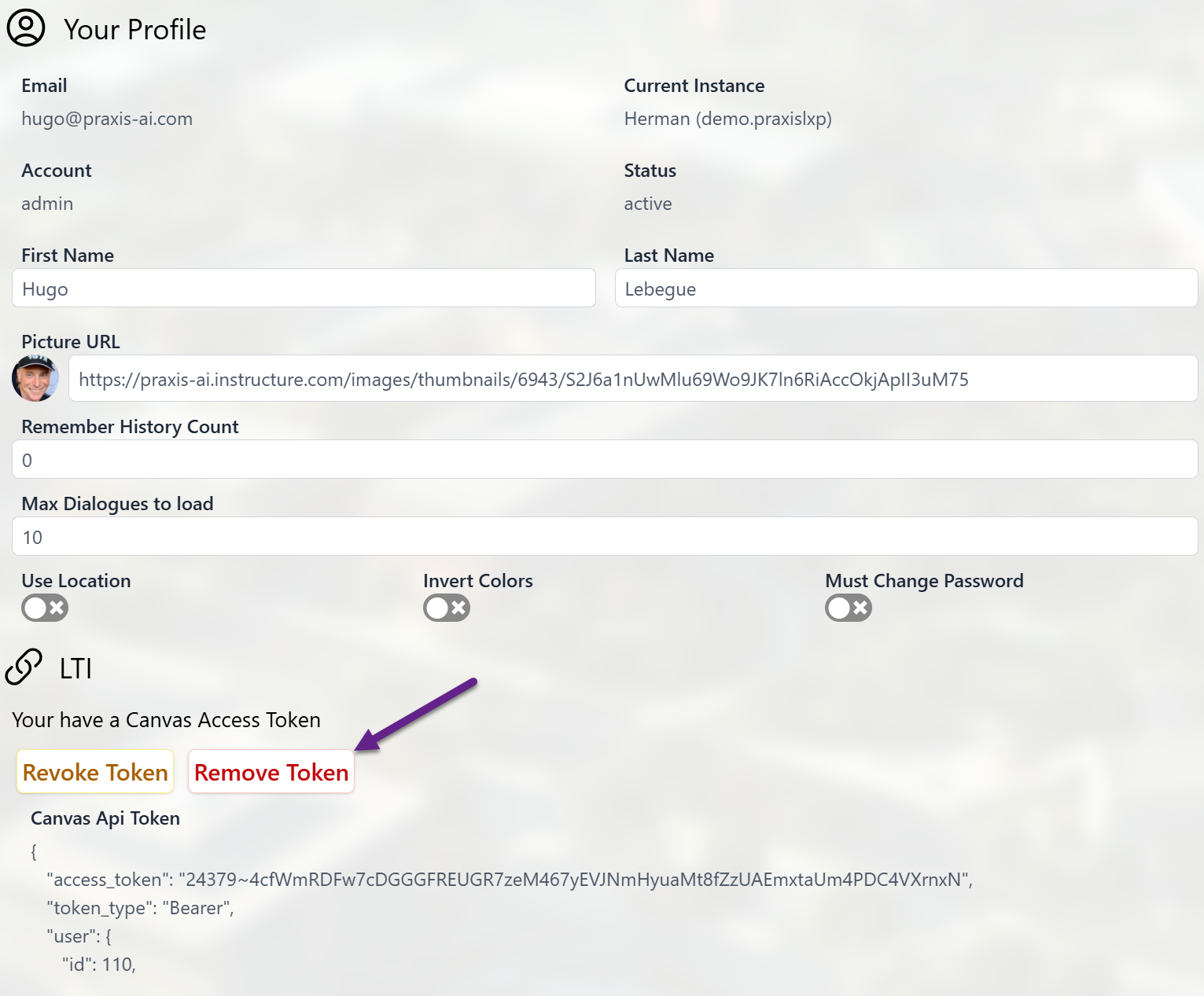 To generate a new token, simply ask a question about content on Canvas and follow the OAuth2 authorization flow.
## Canvas Scopes
### Understanding Scopes
Canvas API scopes are permission controls that act as a **whitelist** for your application's API access. When scope enforcement is enabled on a Developer Key, Canvas will only allow API calls to endpoints that have been explicitly authorized — all other requests are rejected with a 401 error, regardless of the user's Canvas role.
Scopes must be configured in **two places**:
1. **Canvas Developer Key** — controls what Canvas will allow at the API level
2. **Digital Twin Instance Configuration** — controls what your Digital Twin is permitted to request
Both lists must match. If a scope is missing from either location, the corresponding API call will fail.
**Key Concepts**:
* **Whitelist Model**: Only explicitly enabled scopes are allowed — everything else is blocked
* **Endpoint-Specific**: Each scope maps to a specific API endpoint and HTTP method (e.g., GET, POST, PUT, DELETE)
* **Dual Configuration**: Scopes must be enabled on the Canvas Developer Key *and* listed in your Digital Twin instance
* **Principle of Least Privilege**: Grant only the scopes your Digital Twin actually needs
Only grant scopes your Digital Twin actually uses. Over-permissioning creates unnecessary security risk. Use the [recommended development workflow](#best-practices-for-scope-management) to discover exactly which scopes you need before enabling enforcement.
### Scope Anatomy
Each scope is a pipe-delimited string with three components:
```
url:|
```
**Components**:
1. **Literal prefix**: Always starts with `url:`
2. **HTTP Method**: `GET`, `POST`, `PUT`, or `DELETE`
3. **Endpoint Path**: The API path without the domain
**Example Scope**:
```
url:GET|/api/v1/courses/:course_id/enrollments
```
This scope allows:
* **Method**: GET (read-only)
* **Resource**: Course enrollments
* **Context**: Within a specific course
**Path Variables**: URL parameters are written with colon notation (e.g., `:user_id`, `:course_id`, `:assignment_id`). When defining scopes, ensure variable names match exactly—scope comparison is token-based and case-sensitive.
### Official Documentation
For the complete, authoritative list of all available Canvas API scopes and endpoints, consult:
[Canvas REST API Documentation](https://developerdocs.instructure.com/services/canvas)
### Common Scopes by Category
**List Assignments**:
```
Endpoint: /api/v1/courses/:course_id/assignments
Scope: url:GET|/api/v1/courses/:course_id/assignments
```
**Get Single Assignment**:
```
Endpoint: /api/v1/courses/:course_id/assignments/:id
Scope: url:GET|/api/v1/courses/:course_id/assignments/:id
```
**Update Submission** (grading, comments):
```
Endpoint: /api/v1/courses/:course_id/assignments/:assignment_id/submissions/:user_id
Scope: url:PUT|/api/v1/courses/:course_id/assignments/:assignment_id/submissions/:user_id
```
**List Submissions**:
```
Endpoint: /api/v1/courses/:course_id/assignments/:assignment_id/submissions
Scope: url:GET|/api/v1/courses/:course_id/assignments/:assignment_id/submissions
```
**List Discussion Topics**:
```
Endpoint: /api/v1/courses/:course_id/discussion_topics
Scope: url:GET|/api/v1/courses/:course_id/discussion_topics
```
**Create Discussion**:
```
Endpoint: /api/v1/courses/:course_id/discussion_topics
Scope: url:POST|/api/v1/courses/:course_id/discussion_topics
```
**Get Discussion Entries**:
```
Endpoint: /api/v1/courses/:course_id/discussion_topics/:topic_id/entries
Scope: url:GET|/api/v1/courses/:course_id/discussion_topics/:topic_id/entries
```
**List All Submissions**:
```
Endpoint: /api/v1/courses/:course_id/submissions
Scope: url:GET|/api/v1/courses/:course_id/submissions
```
**Get User Grades**:
```
Endpoint: /api/v1/courses/:course_id/students/submissions
Scope: url:GET|/api/v1/courses/:course_id/students/submissions
```
**List Quizzes**:
```
Endpoint: /api/v1/courses/:course_id/quizzes
Scope: url:GET|/api/v1/courses/:course_id/quizzes
```
**Get Quiz Submissions**:
```
Endpoint: /api/v1/courses/:course_id/quizzes/:quiz_id/submissions
Scope: url:GET|/api/v1/courses/:course_id/quizzes/:quiz_id/submissions
```
**List Announcements**:
```
Endpoint: /api/v1/courses/:course_id/announcements
Scope: url:GET|/api/v1/courses/:course_id/announcements
```
**Create Announcement**:
```
Endpoint: /api/v1/courses/:course_id/discussion_topics
Scope: url:POST|/api/v1/courses/:course_id/discussion_topics
```
(Announcements are special discussion topics)
**List Modules**:
```
Endpoint: /api/v1/courses/:course_id/modules
Scope: url:GET|/api/v1/courses/:course_id/modules
```
**List Module Items**:
```
Endpoint: /api/v1/courses/:course_id/modules/:module_id/items
Scope: url:GET|/api/v1/courses/:course_id/modules/:module_id/items
```
**List Pages**:
```
Endpoint: /api/v1/courses/:course_id/pages
Scope: url:GET|/api/v1/courses/:course_id/pages
```
**Get Page Content**:
```
Endpoint: /api/v1/courses/:course_id/pages/:url_or_id
Scope: url:GET|/api/v1/courses/:course_id/pages/:url_or_id
```
**List Course Users**:
```
Endpoint: /api/v1/courses/:course_id/users
Scope: url:GET|/api/v1/courses/:course_id/users
```
**List Enrollments**:
```
Endpoint: /api/v1/courses/:course_id/enrollments
Scope: url:GET|/api/v1/courses/:course_id/enrollments
```
**List Course Files**:
```
Endpoint: /api/v1/courses/:course_id/files
Scope: url:GET|/api/v1/courses/:course_id/files
```
**Get File Details**:
```
Endpoint: /api/v1/courses/:course_id/files/:id
Scope: url:GET|/api/v1/courses/:course_id/files/:id
```
**List Course Groups**:
```
Endpoint: /api/v1/courses/:course_id/groups
Scope: url:GET|/api/v1/courses/:course_id/groups
```
**List Rubrics**:
```
Endpoint: /api/v1/courses/:course_id/rubrics
Scope: url:GET|/api/v1/courses/:course_id/rubrics
```
**List Assignment Groups**:
```
Endpoint: /api/v1/courses/:course_id/assignment_groups
Scope: url:GET|/api/v1/courses/:course_id/assignment_groups
```
**Course Activity**:
```
Endpoint: /api/v1/courses/:course_id/analytics/activity
Scope: url:GET|/api/v1/courses/:course_id/analytics/activity
```
**Assignment Analytics**:
```
Endpoint: /api/v1/courses/:course_id/analytics/assignments
Scope: url:GET|/api/v1/courses/:course_id/analytics/assignments
```
**Student Summaries**:
```
Endpoint: /api/v1/courses/:course_id/analytics/student_summaries
Scope: url:GET|/api/v1/courses/:course_id/analytics/student_summaries
```
**Individual Student Activity**:
```
Endpoint: /api/v1/courses/:course_id/analytics/users/:student_id/activity
Scope: url:GET|/api/v1/courses/:course_id/analytics/users/:student_id/activity
```
**Smart Search** (recommended fallback):
```
Endpoint: /api/v1/courses/:course_id/smartsearch
Scope: url:GET|/api/v1/courses/:course_id/smartsearch
```
**User Calendar Events**:
```
Endpoint: /api/v1/users/:user_id/calendar_events
Scope: url:GET|/api/v1/users/:user_id/calendar_events
```
### Choosing Scopes for Your Use Case
Select scopes based on the specific functionality your Digital Twin needs to provide:
**Example: Auto-Grader Assistant**
```
url:GET|/api/v1/courses/:course_id/assignments
url:GET|/api/v1/courses/:course_id/assignments/:assignment_id/submissions
url:PUT|/api/v1/courses/:course_id/assignments/:assignment_id/submissions/:user_id
```
**Example: Student Support Bot**
```
url:GET|/api/v1/courses/:course_id/assignments
url:GET|/api/v1/courses/:course_id/discussion_topics
url:GET|/api/v1/courses/:course_id/pages
url:GET|/api/v1/users/:user_id/calendar_events
```
**Example: Course Analytics Dashboard**
```
url:GET|/api/v1/courses/:course_id/analytics/activity
url:GET|/api/v1/courses/:course_id/analytics/assignments
url:GET|/api/v1/courses/:course_id/analytics/student_summaries
url:GET|/api/v1/courses/:course_id/submissions
```
### Best Practices for Scope Management
**Recommended Development Workflow**:
1. **Development Phase**: Disable scope enforcement to allow unrestricted API exploration
2. **Documentation Phase**: Monitor Tool Details in dialog history to identify all endpoints used
3. **Compilation Phase**: Create a comprehensive list of required scopes in a JSON file
4. **Testing Phase**: Enable scope enforcement and test all functionality
5. **Production Phase**: Deploy with minimal, verified scopes
This approach ensures you grant exactly the permissions needed—no more, no less.
### Starter Scope Configuration
Use this starter JSON as a foundation for your scope configuration. This includes commonly used endpoints for typical Digital Twin functionality:
```json theme={null}
[
"url:GET|/api/v1/courses/:course_id/analytics/activity",
"url:GET|/api/v1/courses/:course_id/analytics/assignments",
"url:GET|/api/v1/courses/:course_id/analytics/student_summaries",
"url:GET|/api/v1/courses/:course_id/analytics/users/:student_id/activity",
"url:GET|/api/v1/courses/:course_id/announcements",
"url:GET|/api/v1/courses/:course_id/assignments",
"url:GET|/api/v1/courses/:course_id/assignments/:id",
"url:GET|/api/v1/courses/:course_id/assignments/:assignment_id/submissions",
"url:PUT|/api/v1/courses/:course_id/assignments/:assignment_id/submissions/:user_id",
"url:GET|/api/v1/courses/:course_id/assignment_groups",
"url:GET|/api/v1/courses/:course_id/discussion_topics",
"url:GET|/api/v1/courses/:course_id/enrollments",
"url:GET|/api/v1/courses/:course_id/files",
"url:GET|/api/v1/courses/:course_id/files/:id",
"url:GET|/api/v1/courses/:course_id/groups",
"url:GET|/api/v1/courses/:course_id/modules",
"url:GET|/api/v1/courses/:course_id/modules/:module_id/items",
"url:GET|/api/v1/courses/:course_id/pages",
"url:GET|/api/v1/courses/:course_id/pages/:url_or_id",
"url:GET|/api/v1/courses/:course_id/quizzes",
"url:GET|/api/v1/courses/:course_id/smartsearch",
"url:GET|/api/v1/courses/:course_id/submissions",
"url:GET|/api/v1/courses/:course_id/users",
"url:GET|/api/v1/users/:user_id/calendar_events"
]
```
### Suggested Scopes
Here is a [list of scopes suggested by Pria](https://gitlab.com/praxis-ai/pria-client-sdk/-/blob/c5f3fb53553d1a1ee1b6ddc79685475e35cf0b5c/canvas/canvas-scope-pria-suggestion.md),
Here's the enhanced list with the most common Canvas API operations for students and teachers:
```javascript theme={null}
[
// Analytics (Teachers)
"url:GET|/api/v1/courses/:course_id/analytics/activity",
"url:GET|/api/v1/courses/:course_id/analytics/assignments",
"url:GET|/api/v1/courses/:course_id/analytics/student_summaries",
"url:GET|/api/v1/courses/:course_id/analytics/users/:student_id/activity",
// Announcements
"url:GET|/api/v1/courses/:course_id/announcements",
"url:POST|/api/v1/courses/:course_id/discussion_topics", // Create announcement
"url:PUT|/api/v1/courses/:course_id/discussion_topics/:topic_id", // Update announcement
"url:DELETE|/api/v1/courses/:course_id/discussion_topics/:topic_id", // Delete announcement
// Assignments
"url:GET|/api/v1/courses/:course_id/assignments",
"url:GET|/api/v1/courses/:course_id/assignments/:id",
"url:POST|/api/v1/courses/:course_id/assignments", // Create assignment (Teachers)
"url:PUT|/api/v1/courses/:course_id/assignments/:id", // Update assignment (Teachers)
"url:DELETE|/api/v1/courses/:course_id/assignments/:id", // Delete assignment (Teachers)
"url:GET|/api/v1/courses/:course_id/assignment_groups",
"url:POST|/api/v1/courses/:course_id/assignment_groups", // Create assignment group (Teachers)
"url:PUT|/api/v1/courses/:course_id/assignment_groups/:assignment_group_id", // Update group (Teachers)
// Submissions
"url:GET|/api/v1/courses/:course_id/assignments/:assignment_id/submissions",
"url:GET|/api/v1/courses/:course_id/assignments/:assignment_id/submissions/:user_id", // View single submission
"url:POST|/api/v1/courses/:course_id/assignments/:assignment_id/submissions", // Submit assignment (Students)
"url:PUT|/api/v1/courses/:course_id/assignments/:assignment_id/submissions/:user_id", // Grade/update submission
"url:POST|/api/v1/courses/:course_id/assignments/:assignment_id/submissions/:user_id/comments", // Add comment
"url:GET|/api/v1/courses/:course_id/students/submissions", // Get user's own submissions (Students)
"url:GET|/api/v1/courses/:course_id/submissions", // All submissions (Teachers)
"url:POST|/api/v1/courses/:course_id/assignments/:assignment_id/submissions/update_grades", // Bulk grade (Teachers)
// Discussion Topics & Entries
"url:GET|/api/v1/courses/:course_id/discussion_topics",
"url:GET|/api/v1/courses/:course_id/discussion_topics/:topic_id",
"url:GET|/api/v1/courses/:course_id/discussion_topics/:topic_id/entries", // View discussion posts
"url:POST|/api/v1/courses/:course_id/discussion_topics/:topic_id/entries", // Post to discussion
"url:PUT|/api/v1/courses/:course_id/discussion_topics/:topic_id/entries/:entry_id", // Edit post
"url:DELETE|/api/v1/courses/:course_id/discussion_topics/:topic_id/entries/:entry_id", // Delete post
"url:GET|/api/v1/courses/:course_id/discussion_topics/:topic_id/view", // Mark as read
// Enrollments
"url:GET|/api/v1/courses/:course_id/enrollments",
"url:POST|/api/v1/courses/:course_id/enrollments", // Enroll users (Teachers)
"url:DELETE|/api/v1/courses/:course_id/enrollments/:id", // Remove enrollment (Teachers)
// Files & Folders
"url:GET|/api/v1/courses/:course_id/files",
"url:GET|/api/v1/courses/:course_id/files/:id",
"url:POST|/api/v1/courses/:course_id/files", // Upload file
"url:DELETE|/api/v1/files/:id", // Delete file
"url:GET|/api/v1/courses/:course_id/folders",
"url:GET|/api/v1/folders/:id",
"url:POST|/api/v1/courses/:course_id/folders", // Create folder
// Grades & Gradebook
"url:GET|/api/v1/courses/:course_id/gradebook_history/feed",
"url:GET|/api/v1/courses/:course_id/assignment_groups/:assignment_group_id/grades",
"url:POST|/api/v1/courses/:course_id/assignments/:assignment_id/submissions/:user_id", // Post grade
// Groups
"url:GET|/api/v1/courses/:course_id/groups",
"url:GET|/api/v1/groups/:group_id",
"url:GET|/api/v1/groups/:group_id/users",
"url:POST|/api/v1/courses/:course_id/groups", // Create group (Teachers)
// Modules
"url:GET|/api/v1/courses/:course_id/modules",
"url:GET|/api/v1/courses/:course_id/modules/:module_id",
"url:GET|/api/v1/courses/:course_id/modules/:module_id/items",
"url:GET|/api/v1/courses/:course_id/modules/:module_id/items/:id",
"url:POST|/api/v1/courses/:course_id/modules", // Create module (Teachers)
"url:PUT|/api/v1/courses/:course_id/modules/:module_id", // Update module (Teachers)
"url:POST|/api/v1/courses/:course_id/modules/:module_id/items", // Add module item (Teachers)
"url:PUT|/api/v1/courses/:course_id/modules/:module_id/items/:id/done", // Mark item complete (Students)
// Pages
"url:GET|/api/v1/courses/:course_id/pages",
"url:GET|/api/v1/courses/:course_id/pages/:url_or_id",
"url:POST|/api/v1/courses/:course_id/pages", // Create page (Teachers)
"url:PUT|/api/v1/courses/:course_id/pages/:url_or_id", // Update page (Teachers)
"url:DELETE|/api/v1/courses/:course_id/pages/:url_or_id", // Delete page (Teachers)
"url:GET|/api/v1/courses/:course_id/front_page", // Get front page
// Quizzes
"url:GET|/api/v1/courses/:course_id/quizzes",
"url:GET|/api/v1/courses/:course_id/quizzes/:id",
"url:POST|/api/v1/courses/:course_id/quizzes", // Create quiz (Teachers)
"url:PUT|/api/v1/courses/:course_id/quizzes/:id", // Update quiz (Teachers)
"url:GET|/api/v1/courses/:course_id/quizzes/:quiz_id/submissions", // Quiz submissions
"url:POST|/api/v1/courses/:course_id/quizzes/:quiz_id/submissions", // Start quiz (Students)
"url:GET|/api/v1/courses/:course_id/quizzes/:quiz_id/questions", // Get quiz questions
// Rubrics
"url:GET|/api/v1/courses/:course_id/rubrics",
"url:GET|/api/v1/courses/:course_id/rubrics/:id",
"url:POST|/api/v1/courses/:course_id/rubrics", // Create rubric (Teachers)
// Users & Profiles
"url:GET|/api/v1/courses/:course_id/users",
"url:GET|/api/v1/users/:id",
"url:GET|/api/v1/users/:user_id/profile", // View profile
"url:PUT|/api/v1/users/:id", // Update user settings
"url:GET|/api/v1/users/self", // Get current user
// Calendar & Events
"url:GET|/api/v1/users/:user_id/calendar_events",
"url:GET|/api/v1/calendar_events",
"url:POST|/api/v1/calendar_events", // Create calendar event
"url:PUT|/api/v1/calendar_events/:id", // Update calendar event
// Courses
"url:GET|/api/v1/courses",
"url:GET|/api/v1/courses/:id",
"url:PUT|/api/v1/courses/:id", // Update course (Teachers)
"url:GET|/api/v1/courses/:course_id/settings", // Course settings
// Conversations/Messages
"url:GET|/api/v1/conversations",
"url:POST|/api/v1/conversations", // Send message
"url:GET|/api/v1/conversations/:id",
"url:PUT|/api/v1/conversations/:id", // Update conversation (mark as read)
"url:POST|/api/v1/conversations/:id/add_message", // Reply to conversation
// External Tools (LTI)
"url:GET|/api/v1/courses/:course_id/external_tools",
"url:GET|/api/v1/courses/:course_id/external_tools/:external_tool_id",
// Search & Navigation
"url:GET|/api/v1/courses/:course_id/smartsearch",
"url:GET|/api/v1/courses/:course_id/tabs",
"url:GET|/api/v1/search/recipients", // Search for users to message
// Additional Common Operations
"url:GET|/api/v1/courses/:course_id/activity_stream",
"url:GET|/api/v1/courses/:course_id/todo",
"url:GET|/api/v1/users/:user_id/courses", // Get user's courses
"url:GET|/api/v1/courses/:course_id/recent_students", // Recently accessed students (Teachers)
]
```
## Key Additions by User Type:
**Students:**
* POST submissions (submit assignments)
* POST discussion entries (participate in discussions)
* GET own submissions
* Mark module items as complete
* Take quizzes
* Send messages
* View their own profile
**Teachers:**
* Create/update/delete assignments, pages, modules
* Grade submissions and add comments
* Bulk grading operations
* Create announcements and discussions
* Manage enrollments and groups
* Create quizzes and rubrics
* Access analytics
* Update course settings
* Manage course files and folders
This comprehensive list covers \~95% of typical Canvas LMS interactions for both students and instructors.
**Latest Version**: The most current version of this starter configuration is maintained in the Praxis AI Community Repository - please contribute:
[Canvas Scopes Configuration](https://gitlab.com/praxis-ai/pria-client-sdk/-/blob/c684acc6895695a0d1acdac3a2079d9bd14322f0/canvas/digital-twin-canvas-scopes.json)
### Scope Troubleshooting
**Insufficient Scopes Error**:
```
Access to Canvas LMS API function at https://institution.instructure.com/api/v1/courses/53493/assignments
is Unauthorized (401).
{"errors":[{"message":"Insufficient scopes on access token."}],"error_report_id":"1288266"}
```
**Resolution Steps**:
1. Identify the missing scope from the error message endpoint
2. Add the scope to your Canvas Developer Key
3. Ensure the scope is also listed in your Digital Twin configuration
4. Have users re-authorize to receive updated tokens
**Critical Scope Requirement**: When scopes are enforced, they must be defined in **both** locations:
1. **Canvas Developer Key** (authorizes the application to use these scopes)
2. **Digital Twin Configuration** (declares which scopes to request during OAuth)
Modifying scopes requires generating new access tokens, as scope permissions are embedded in the token at creation time and cannot be changed retroactively.
## Smart Search
Canvas Smart Search provides an intelligent fallback mechanism when specific API endpoints are unavailable or return insufficient data due to scope restrictions.
### What is Smart Search?
Smart Search is Canvas's AI-powered search capability that allows natural language queries across course content, returning relevant results from:
* Assignments and submissions
* Discussion topics and posts
* Pages and modules
* Files and documents
* Announcements
* Quiz content
### How the Canvas Tools Use Smart Search
The Canvas tools automatically fall back to Smart Search when:
1. Specific API endpoints lack required scopes
2. Direct API queries return no results
3. Complex cross-resource queries are needed
4. Natural language search provides better context
**API Endpoint**:
```
GET /api/v1/courses/:course_id/smartsearch
```
**Required Scope**:
```
url:GET|/api/v1/courses/:course_id/smartsearch
```
### Official Documentation
For detailed information about Smart Search capabilities and parameters:
[Canvas Smart Search API Documentation](https://developerdocs.instructure.com/services/canvas/resources/smart_search#smart-search-api)
### Availability and Requirements
**Environment Availability**: According to Canvas deployment notes, Smart Search is available only for **Beta** and **Production** releases. It may not be available in test or development Canvas instances.
If you experience issues with Smart Search even after proper configuration, contact Instructure Support to verify that your Canvas instance has Smart Search enabled.
### Best Practices
**Recommended Configuration**: Always include the Smart Search scope in your production configuration:
```json theme={null}
"url:GET|/api/v1/courses/:course_id/smartsearch"
```
This ensures your Digital Twin can gracefully handle edge cases and provide comprehensive search capabilities even when specific API scopes are restricted.
## Additional Resources
### Documentation Links
* [Canvas REST API Reference](https://developerdocs.instructure.com/services/canvas)
* [Canvas OAuth2 Documentation](https://canvas.instructure.com/doc/api/file.oauth.html)
* [Praxis AI Community Repository](https://gitlab.com/praxis-ai/pria-client-sdk)
### Support
For assistance with Canvas tools configuration or troubleshooting:
* Search for help on the [Canvas Community](https://community.canvaslms.com/)
* Contact [Praxis AI Support](mailto:humans@praxis-ai.com) for Digital Twin configuration issues
* Contact [Instructure Support](https://www.instructure.com/contact-us) for Canvas-specific API or Smart Search availability questions
### Community Examples
Explore real-world implementations and advanced use cases in the Praxis AI Community Repository:
* [Auto-grader assistant](https://gitlab.com/praxis-ai/pria-client-sdk/-/blob/c684acc6895695a0d1acdac3a2079d9bd14322f0/canvas/assistants/assignment-grader.md)
* [Multi-Files Auto Grader assistant](https://gitlab.com/praxis-ai/pria-client-sdk/-/blob/c684acc6895695a0d1acdac3a2079d9bd14322f0/canvas/assistants/multi-files-auto-grader.md)
* [Class Health Check assistant](https://gitlab.com/praxis-ai/pria-client-sdk/-/blob/c684acc6895695a0d1acdac3a2079d9bd14322f0/canvas/assistants/class-healthcheck.md)
To generate a new token, simply ask a question about content on Canvas and follow the OAuth2 authorization flow.
## Canvas Scopes
### Understanding Scopes
Canvas API scopes are permission controls that act as a **whitelist** for your application's API access. When scope enforcement is enabled on a Developer Key, Canvas will only allow API calls to endpoints that have been explicitly authorized — all other requests are rejected with a 401 error, regardless of the user's Canvas role.
Scopes must be configured in **two places**:
1. **Canvas Developer Key** — controls what Canvas will allow at the API level
2. **Digital Twin Instance Configuration** — controls what your Digital Twin is permitted to request
Both lists must match. If a scope is missing from either location, the corresponding API call will fail.
**Key Concepts**:
* **Whitelist Model**: Only explicitly enabled scopes are allowed — everything else is blocked
* **Endpoint-Specific**: Each scope maps to a specific API endpoint and HTTP method (e.g., GET, POST, PUT, DELETE)
* **Dual Configuration**: Scopes must be enabled on the Canvas Developer Key *and* listed in your Digital Twin instance
* **Principle of Least Privilege**: Grant only the scopes your Digital Twin actually needs
Only grant scopes your Digital Twin actually uses. Over-permissioning creates unnecessary security risk. Use the [recommended development workflow](#best-practices-for-scope-management) to discover exactly which scopes you need before enabling enforcement.
### Scope Anatomy
Each scope is a pipe-delimited string with three components:
```
url:|
```
**Components**:
1. **Literal prefix**: Always starts with `url:`
2. **HTTP Method**: `GET`, `POST`, `PUT`, or `DELETE`
3. **Endpoint Path**: The API path without the domain
**Example Scope**:
```
url:GET|/api/v1/courses/:course_id/enrollments
```
This scope allows:
* **Method**: GET (read-only)
* **Resource**: Course enrollments
* **Context**: Within a specific course
**Path Variables**: URL parameters are written with colon notation (e.g., `:user_id`, `:course_id`, `:assignment_id`). When defining scopes, ensure variable names match exactly—scope comparison is token-based and case-sensitive.
### Official Documentation
For the complete, authoritative list of all available Canvas API scopes and endpoints, consult:
[Canvas REST API Documentation](https://developerdocs.instructure.com/services/canvas)
### Common Scopes by Category
**List Assignments**:
```
Endpoint: /api/v1/courses/:course_id/assignments
Scope: url:GET|/api/v1/courses/:course_id/assignments
```
**Get Single Assignment**:
```
Endpoint: /api/v1/courses/:course_id/assignments/:id
Scope: url:GET|/api/v1/courses/:course_id/assignments/:id
```
**Update Submission** (grading, comments):
```
Endpoint: /api/v1/courses/:course_id/assignments/:assignment_id/submissions/:user_id
Scope: url:PUT|/api/v1/courses/:course_id/assignments/:assignment_id/submissions/:user_id
```
**List Submissions**:
```
Endpoint: /api/v1/courses/:course_id/assignments/:assignment_id/submissions
Scope: url:GET|/api/v1/courses/:course_id/assignments/:assignment_id/submissions
```
**List Discussion Topics**:
```
Endpoint: /api/v1/courses/:course_id/discussion_topics
Scope: url:GET|/api/v1/courses/:course_id/discussion_topics
```
**Create Discussion**:
```
Endpoint: /api/v1/courses/:course_id/discussion_topics
Scope: url:POST|/api/v1/courses/:course_id/discussion_topics
```
**Get Discussion Entries**:
```
Endpoint: /api/v1/courses/:course_id/discussion_topics/:topic_id/entries
Scope: url:GET|/api/v1/courses/:course_id/discussion_topics/:topic_id/entries
```
**List All Submissions**:
```
Endpoint: /api/v1/courses/:course_id/submissions
Scope: url:GET|/api/v1/courses/:course_id/submissions
```
**Get User Grades**:
```
Endpoint: /api/v1/courses/:course_id/students/submissions
Scope: url:GET|/api/v1/courses/:course_id/students/submissions
```
**List Quizzes**:
```
Endpoint: /api/v1/courses/:course_id/quizzes
Scope: url:GET|/api/v1/courses/:course_id/quizzes
```
**Get Quiz Submissions**:
```
Endpoint: /api/v1/courses/:course_id/quizzes/:quiz_id/submissions
Scope: url:GET|/api/v1/courses/:course_id/quizzes/:quiz_id/submissions
```
**List Announcements**:
```
Endpoint: /api/v1/courses/:course_id/announcements
Scope: url:GET|/api/v1/courses/:course_id/announcements
```
**Create Announcement**:
```
Endpoint: /api/v1/courses/:course_id/discussion_topics
Scope: url:POST|/api/v1/courses/:course_id/discussion_topics
```
(Announcements are special discussion topics)
**List Modules**:
```
Endpoint: /api/v1/courses/:course_id/modules
Scope: url:GET|/api/v1/courses/:course_id/modules
```
**List Module Items**:
```
Endpoint: /api/v1/courses/:course_id/modules/:module_id/items
Scope: url:GET|/api/v1/courses/:course_id/modules/:module_id/items
```
**List Pages**:
```
Endpoint: /api/v1/courses/:course_id/pages
Scope: url:GET|/api/v1/courses/:course_id/pages
```
**Get Page Content**:
```
Endpoint: /api/v1/courses/:course_id/pages/:url_or_id
Scope: url:GET|/api/v1/courses/:course_id/pages/:url_or_id
```
**List Course Users**:
```
Endpoint: /api/v1/courses/:course_id/users
Scope: url:GET|/api/v1/courses/:course_id/users
```
**List Enrollments**:
```
Endpoint: /api/v1/courses/:course_id/enrollments
Scope: url:GET|/api/v1/courses/:course_id/enrollments
```
**List Course Files**:
```
Endpoint: /api/v1/courses/:course_id/files
Scope: url:GET|/api/v1/courses/:course_id/files
```
**Get File Details**:
```
Endpoint: /api/v1/courses/:course_id/files/:id
Scope: url:GET|/api/v1/courses/:course_id/files/:id
```
**List Course Groups**:
```
Endpoint: /api/v1/courses/:course_id/groups
Scope: url:GET|/api/v1/courses/:course_id/groups
```
**List Rubrics**:
```
Endpoint: /api/v1/courses/:course_id/rubrics
Scope: url:GET|/api/v1/courses/:course_id/rubrics
```
**List Assignment Groups**:
```
Endpoint: /api/v1/courses/:course_id/assignment_groups
Scope: url:GET|/api/v1/courses/:course_id/assignment_groups
```
**Course Activity**:
```
Endpoint: /api/v1/courses/:course_id/analytics/activity
Scope: url:GET|/api/v1/courses/:course_id/analytics/activity
```
**Assignment Analytics**:
```
Endpoint: /api/v1/courses/:course_id/analytics/assignments
Scope: url:GET|/api/v1/courses/:course_id/analytics/assignments
```
**Student Summaries**:
```
Endpoint: /api/v1/courses/:course_id/analytics/student_summaries
Scope: url:GET|/api/v1/courses/:course_id/analytics/student_summaries
```
**Individual Student Activity**:
```
Endpoint: /api/v1/courses/:course_id/analytics/users/:student_id/activity
Scope: url:GET|/api/v1/courses/:course_id/analytics/users/:student_id/activity
```
**Smart Search** (recommended fallback):
```
Endpoint: /api/v1/courses/:course_id/smartsearch
Scope: url:GET|/api/v1/courses/:course_id/smartsearch
```
**User Calendar Events**:
```
Endpoint: /api/v1/users/:user_id/calendar_events
Scope: url:GET|/api/v1/users/:user_id/calendar_events
```
### Choosing Scopes for Your Use Case
Select scopes based on the specific functionality your Digital Twin needs to provide:
**Example: Auto-Grader Assistant**
```
url:GET|/api/v1/courses/:course_id/assignments
url:GET|/api/v1/courses/:course_id/assignments/:assignment_id/submissions
url:PUT|/api/v1/courses/:course_id/assignments/:assignment_id/submissions/:user_id
```
**Example: Student Support Bot**
```
url:GET|/api/v1/courses/:course_id/assignments
url:GET|/api/v1/courses/:course_id/discussion_topics
url:GET|/api/v1/courses/:course_id/pages
url:GET|/api/v1/users/:user_id/calendar_events
```
**Example: Course Analytics Dashboard**
```
url:GET|/api/v1/courses/:course_id/analytics/activity
url:GET|/api/v1/courses/:course_id/analytics/assignments
url:GET|/api/v1/courses/:course_id/analytics/student_summaries
url:GET|/api/v1/courses/:course_id/submissions
```
### Best Practices for Scope Management
**Recommended Development Workflow**:
1. **Development Phase**: Disable scope enforcement to allow unrestricted API exploration
2. **Documentation Phase**: Monitor Tool Details in dialog history to identify all endpoints used
3. **Compilation Phase**: Create a comprehensive list of required scopes in a JSON file
4. **Testing Phase**: Enable scope enforcement and test all functionality
5. **Production Phase**: Deploy with minimal, verified scopes
This approach ensures you grant exactly the permissions needed—no more, no less.
### Starter Scope Configuration
Use this starter JSON as a foundation for your scope configuration. This includes commonly used endpoints for typical Digital Twin functionality:
```json theme={null}
[
"url:GET|/api/v1/courses/:course_id/analytics/activity",
"url:GET|/api/v1/courses/:course_id/analytics/assignments",
"url:GET|/api/v1/courses/:course_id/analytics/student_summaries",
"url:GET|/api/v1/courses/:course_id/analytics/users/:student_id/activity",
"url:GET|/api/v1/courses/:course_id/announcements",
"url:GET|/api/v1/courses/:course_id/assignments",
"url:GET|/api/v1/courses/:course_id/assignments/:id",
"url:GET|/api/v1/courses/:course_id/assignments/:assignment_id/submissions",
"url:PUT|/api/v1/courses/:course_id/assignments/:assignment_id/submissions/:user_id",
"url:GET|/api/v1/courses/:course_id/assignment_groups",
"url:GET|/api/v1/courses/:course_id/discussion_topics",
"url:GET|/api/v1/courses/:course_id/enrollments",
"url:GET|/api/v1/courses/:course_id/files",
"url:GET|/api/v1/courses/:course_id/files/:id",
"url:GET|/api/v1/courses/:course_id/groups",
"url:GET|/api/v1/courses/:course_id/modules",
"url:GET|/api/v1/courses/:course_id/modules/:module_id/items",
"url:GET|/api/v1/courses/:course_id/pages",
"url:GET|/api/v1/courses/:course_id/pages/:url_or_id",
"url:GET|/api/v1/courses/:course_id/quizzes",
"url:GET|/api/v1/courses/:course_id/smartsearch",
"url:GET|/api/v1/courses/:course_id/submissions",
"url:GET|/api/v1/courses/:course_id/users",
"url:GET|/api/v1/users/:user_id/calendar_events"
]
```
### Suggested Scopes
Here is a [list of scopes suggested by Pria](https://gitlab.com/praxis-ai/pria-client-sdk/-/blob/c5f3fb53553d1a1ee1b6ddc79685475e35cf0b5c/canvas/canvas-scope-pria-suggestion.md),
Here's the enhanced list with the most common Canvas API operations for students and teachers:
```javascript theme={null}
[
// Analytics (Teachers)
"url:GET|/api/v1/courses/:course_id/analytics/activity",
"url:GET|/api/v1/courses/:course_id/analytics/assignments",
"url:GET|/api/v1/courses/:course_id/analytics/student_summaries",
"url:GET|/api/v1/courses/:course_id/analytics/users/:student_id/activity",
// Announcements
"url:GET|/api/v1/courses/:course_id/announcements",
"url:POST|/api/v1/courses/:course_id/discussion_topics", // Create announcement
"url:PUT|/api/v1/courses/:course_id/discussion_topics/:topic_id", // Update announcement
"url:DELETE|/api/v1/courses/:course_id/discussion_topics/:topic_id", // Delete announcement
// Assignments
"url:GET|/api/v1/courses/:course_id/assignments",
"url:GET|/api/v1/courses/:course_id/assignments/:id",
"url:POST|/api/v1/courses/:course_id/assignments", // Create assignment (Teachers)
"url:PUT|/api/v1/courses/:course_id/assignments/:id", // Update assignment (Teachers)
"url:DELETE|/api/v1/courses/:course_id/assignments/:id", // Delete assignment (Teachers)
"url:GET|/api/v1/courses/:course_id/assignment_groups",
"url:POST|/api/v1/courses/:course_id/assignment_groups", // Create assignment group (Teachers)
"url:PUT|/api/v1/courses/:course_id/assignment_groups/:assignment_group_id", // Update group (Teachers)
// Submissions
"url:GET|/api/v1/courses/:course_id/assignments/:assignment_id/submissions",
"url:GET|/api/v1/courses/:course_id/assignments/:assignment_id/submissions/:user_id", // View single submission
"url:POST|/api/v1/courses/:course_id/assignments/:assignment_id/submissions", // Submit assignment (Students)
"url:PUT|/api/v1/courses/:course_id/assignments/:assignment_id/submissions/:user_id", // Grade/update submission
"url:POST|/api/v1/courses/:course_id/assignments/:assignment_id/submissions/:user_id/comments", // Add comment
"url:GET|/api/v1/courses/:course_id/students/submissions", // Get user's own submissions (Students)
"url:GET|/api/v1/courses/:course_id/submissions", // All submissions (Teachers)
"url:POST|/api/v1/courses/:course_id/assignments/:assignment_id/submissions/update_grades", // Bulk grade (Teachers)
// Discussion Topics & Entries
"url:GET|/api/v1/courses/:course_id/discussion_topics",
"url:GET|/api/v1/courses/:course_id/discussion_topics/:topic_id",
"url:GET|/api/v1/courses/:course_id/discussion_topics/:topic_id/entries", // View discussion posts
"url:POST|/api/v1/courses/:course_id/discussion_topics/:topic_id/entries", // Post to discussion
"url:PUT|/api/v1/courses/:course_id/discussion_topics/:topic_id/entries/:entry_id", // Edit post
"url:DELETE|/api/v1/courses/:course_id/discussion_topics/:topic_id/entries/:entry_id", // Delete post
"url:GET|/api/v1/courses/:course_id/discussion_topics/:topic_id/view", // Mark as read
// Enrollments
"url:GET|/api/v1/courses/:course_id/enrollments",
"url:POST|/api/v1/courses/:course_id/enrollments", // Enroll users (Teachers)
"url:DELETE|/api/v1/courses/:course_id/enrollments/:id", // Remove enrollment (Teachers)
// Files & Folders
"url:GET|/api/v1/courses/:course_id/files",
"url:GET|/api/v1/courses/:course_id/files/:id",
"url:POST|/api/v1/courses/:course_id/files", // Upload file
"url:DELETE|/api/v1/files/:id", // Delete file
"url:GET|/api/v1/courses/:course_id/folders",
"url:GET|/api/v1/folders/:id",
"url:POST|/api/v1/courses/:course_id/folders", // Create folder
// Grades & Gradebook
"url:GET|/api/v1/courses/:course_id/gradebook_history/feed",
"url:GET|/api/v1/courses/:course_id/assignment_groups/:assignment_group_id/grades",
"url:POST|/api/v1/courses/:course_id/assignments/:assignment_id/submissions/:user_id", // Post grade
// Groups
"url:GET|/api/v1/courses/:course_id/groups",
"url:GET|/api/v1/groups/:group_id",
"url:GET|/api/v1/groups/:group_id/users",
"url:POST|/api/v1/courses/:course_id/groups", // Create group (Teachers)
// Modules
"url:GET|/api/v1/courses/:course_id/modules",
"url:GET|/api/v1/courses/:course_id/modules/:module_id",
"url:GET|/api/v1/courses/:course_id/modules/:module_id/items",
"url:GET|/api/v1/courses/:course_id/modules/:module_id/items/:id",
"url:POST|/api/v1/courses/:course_id/modules", // Create module (Teachers)
"url:PUT|/api/v1/courses/:course_id/modules/:module_id", // Update module (Teachers)
"url:POST|/api/v1/courses/:course_id/modules/:module_id/items", // Add module item (Teachers)
"url:PUT|/api/v1/courses/:course_id/modules/:module_id/items/:id/done", // Mark item complete (Students)
// Pages
"url:GET|/api/v1/courses/:course_id/pages",
"url:GET|/api/v1/courses/:course_id/pages/:url_or_id",
"url:POST|/api/v1/courses/:course_id/pages", // Create page (Teachers)
"url:PUT|/api/v1/courses/:course_id/pages/:url_or_id", // Update page (Teachers)
"url:DELETE|/api/v1/courses/:course_id/pages/:url_or_id", // Delete page (Teachers)
"url:GET|/api/v1/courses/:course_id/front_page", // Get front page
// Quizzes
"url:GET|/api/v1/courses/:course_id/quizzes",
"url:GET|/api/v1/courses/:course_id/quizzes/:id",
"url:POST|/api/v1/courses/:course_id/quizzes", // Create quiz (Teachers)
"url:PUT|/api/v1/courses/:course_id/quizzes/:id", // Update quiz (Teachers)
"url:GET|/api/v1/courses/:course_id/quizzes/:quiz_id/submissions", // Quiz submissions
"url:POST|/api/v1/courses/:course_id/quizzes/:quiz_id/submissions", // Start quiz (Students)
"url:GET|/api/v1/courses/:course_id/quizzes/:quiz_id/questions", // Get quiz questions
// Rubrics
"url:GET|/api/v1/courses/:course_id/rubrics",
"url:GET|/api/v1/courses/:course_id/rubrics/:id",
"url:POST|/api/v1/courses/:course_id/rubrics", // Create rubric (Teachers)
// Users & Profiles
"url:GET|/api/v1/courses/:course_id/users",
"url:GET|/api/v1/users/:id",
"url:GET|/api/v1/users/:user_id/profile", // View profile
"url:PUT|/api/v1/users/:id", // Update user settings
"url:GET|/api/v1/users/self", // Get current user
// Calendar & Events
"url:GET|/api/v1/users/:user_id/calendar_events",
"url:GET|/api/v1/calendar_events",
"url:POST|/api/v1/calendar_events", // Create calendar event
"url:PUT|/api/v1/calendar_events/:id", // Update calendar event
// Courses
"url:GET|/api/v1/courses",
"url:GET|/api/v1/courses/:id",
"url:PUT|/api/v1/courses/:id", // Update course (Teachers)
"url:GET|/api/v1/courses/:course_id/settings", // Course settings
// Conversations/Messages
"url:GET|/api/v1/conversations",
"url:POST|/api/v1/conversations", // Send message
"url:GET|/api/v1/conversations/:id",
"url:PUT|/api/v1/conversations/:id", // Update conversation (mark as read)
"url:POST|/api/v1/conversations/:id/add_message", // Reply to conversation
// External Tools (LTI)
"url:GET|/api/v1/courses/:course_id/external_tools",
"url:GET|/api/v1/courses/:course_id/external_tools/:external_tool_id",
// Search & Navigation
"url:GET|/api/v1/courses/:course_id/smartsearch",
"url:GET|/api/v1/courses/:course_id/tabs",
"url:GET|/api/v1/search/recipients", // Search for users to message
// Additional Common Operations
"url:GET|/api/v1/courses/:course_id/activity_stream",
"url:GET|/api/v1/courses/:course_id/todo",
"url:GET|/api/v1/users/:user_id/courses", // Get user's courses
"url:GET|/api/v1/courses/:course_id/recent_students", // Recently accessed students (Teachers)
]
```
## Key Additions by User Type:
**Students:**
* POST submissions (submit assignments)
* POST discussion entries (participate in discussions)
* GET own submissions
* Mark module items as complete
* Take quizzes
* Send messages
* View their own profile
**Teachers:**
* Create/update/delete assignments, pages, modules
* Grade submissions and add comments
* Bulk grading operations
* Create announcements and discussions
* Manage enrollments and groups
* Create quizzes and rubrics
* Access analytics
* Update course settings
* Manage course files and folders
This comprehensive list covers \~95% of typical Canvas LMS interactions for both students and instructors.
**Latest Version**: The most current version of this starter configuration is maintained in the Praxis AI Community Repository - please contribute:
[Canvas Scopes Configuration](https://gitlab.com/praxis-ai/pria-client-sdk/-/blob/c684acc6895695a0d1acdac3a2079d9bd14322f0/canvas/digital-twin-canvas-scopes.json)
### Scope Troubleshooting
**Insufficient Scopes Error**:
```
Access to Canvas LMS API function at https://institution.instructure.com/api/v1/courses/53493/assignments
is Unauthorized (401).
{"errors":[{"message":"Insufficient scopes on access token."}],"error_report_id":"1288266"}
```
**Resolution Steps**:
1. Identify the missing scope from the error message endpoint
2. Add the scope to your Canvas Developer Key
3. Ensure the scope is also listed in your Digital Twin configuration
4. Have users re-authorize to receive updated tokens
**Critical Scope Requirement**: When scopes are enforced, they must be defined in **both** locations:
1. **Canvas Developer Key** (authorizes the application to use these scopes)
2. **Digital Twin Configuration** (declares which scopes to request during OAuth)
Modifying scopes requires generating new access tokens, as scope permissions are embedded in the token at creation time and cannot be changed retroactively.
## Smart Search
Canvas Smart Search provides an intelligent fallback mechanism when specific API endpoints are unavailable or return insufficient data due to scope restrictions.
### What is Smart Search?
Smart Search is Canvas's AI-powered search capability that allows natural language queries across course content, returning relevant results from:
* Assignments and submissions
* Discussion topics and posts
* Pages and modules
* Files and documents
* Announcements
* Quiz content
### How the Canvas Tools Use Smart Search
The Canvas tools automatically fall back to Smart Search when:
1. Specific API endpoints lack required scopes
2. Direct API queries return no results
3. Complex cross-resource queries are needed
4. Natural language search provides better context
**API Endpoint**:
```
GET /api/v1/courses/:course_id/smartsearch
```
**Required Scope**:
```
url:GET|/api/v1/courses/:course_id/smartsearch
```
### Official Documentation
For detailed information about Smart Search capabilities and parameters:
[Canvas Smart Search API Documentation](https://developerdocs.instructure.com/services/canvas/resources/smart_search#smart-search-api)
### Availability and Requirements
**Environment Availability**: According to Canvas deployment notes, Smart Search is available only for **Beta** and **Production** releases. It may not be available in test or development Canvas instances.
If you experience issues with Smart Search even after proper configuration, contact Instructure Support to verify that your Canvas instance has Smart Search enabled.
### Best Practices
**Recommended Configuration**: Always include the Smart Search scope in your production configuration:
```json theme={null}
"url:GET|/api/v1/courses/:course_id/smartsearch"
```
This ensures your Digital Twin can gracefully handle edge cases and provide comprehensive search capabilities even when specific API scopes are restricted.
## Additional Resources
### Documentation Links
* [Canvas REST API Reference](https://developerdocs.instructure.com/services/canvas)
* [Canvas OAuth2 Documentation](https://canvas.instructure.com/doc/api/file.oauth.html)
* [Praxis AI Community Repository](https://gitlab.com/praxis-ai/pria-client-sdk)
### Support
For assistance with Canvas tools configuration or troubleshooting:
* Search for help on the [Canvas Community](https://community.canvaslms.com/)
* Contact [Praxis AI Support](mailto:humans@praxis-ai.com) for Digital Twin configuration issues
* Contact [Instructure Support](https://www.instructure.com/contact-us) for Canvas-specific API or Smart Search availability questions
### Community Examples
Explore real-world implementations and advanced use cases in the Praxis AI Community Repository:
* [Auto-grader assistant](https://gitlab.com/praxis-ai/pria-client-sdk/-/blob/c684acc6895695a0d1acdac3a2079d9bd14322f0/canvas/assistants/assignment-grader.md)
* [Multi-Files Auto Grader assistant](https://gitlab.com/praxis-ai/pria-client-sdk/-/blob/c684acc6895695a0d1acdac3a2079d9bd14322f0/canvas/assistants/multi-files-auto-grader.md)
* [Class Health Check assistant](https://gitlab.com/praxis-ai/pria-client-sdk/-/blob/c684acc6895695a0d1acdac3a2079d9bd14322f0/canvas/assistants/class-healthcheck.md)