> ## Documentation Index
> Fetch the complete documentation index at: https://docs.praxis-ai.com/llms.txt
> Use this file to discover all available pages before exploring further.

# ElevenLabs Voice Agent

> Give your Digital Twin a voice — connect an ElevenLabs agent to Pria using Custom LLM and deploy embeddable voice widgets

ElevenLabs Conversational AI lets you create voice agents with cloned or synthetic voices. By pointing an ElevenLabs agent at Pria's **Chat Completions API** as a Custom LLM, your Digital Twin becomes the brain behind a real-time voice experience — no additional backend code required.

<Tip>This integration combines ElevenLabs' voice synthesis and real-time audio with your Digital Twin's knowledge, personality, and tools.</Tip>

***

## How It Works

<CardGroup cols={3}>
  <Card title="ElevenLabs Agent" icon="microphone">
    Handles voice input/output, speech-to-text, text-to-speech, and the real-time audio stream.
  </Card>

  <Card title="Chat Completions API" icon="arrows-left-right">
    Receives OpenAI-compatible requests from ElevenLabs and routes them to your Digital Twin.
  </Card>

  <Card title="Digital Twin" icon="brain">
    Generates intelligent responses using its knowledge base, tools, assistants, and conversation memory.
  </Card>
</CardGroup>

```
User speaks → ElevenLabs (STT) → Chat Completions API → Digital Twin → Response → ElevenLabs (TTS) → User hears
```

***

## Prerequisites

Before you begin, make sure you have:

* An **ElevenLabs account** with access to [Conversational AI Agents](https://elevenlabs.io/conversational-ai)
* Created a voice in Eleven Labs and trained it
* A **Praxis AI account** with at least one Digital Twin configured
* Your **Digital Twin's Public ID** (a UUID found in the administration panel)

***

## Step 1: Create an ElevenLabs Agent

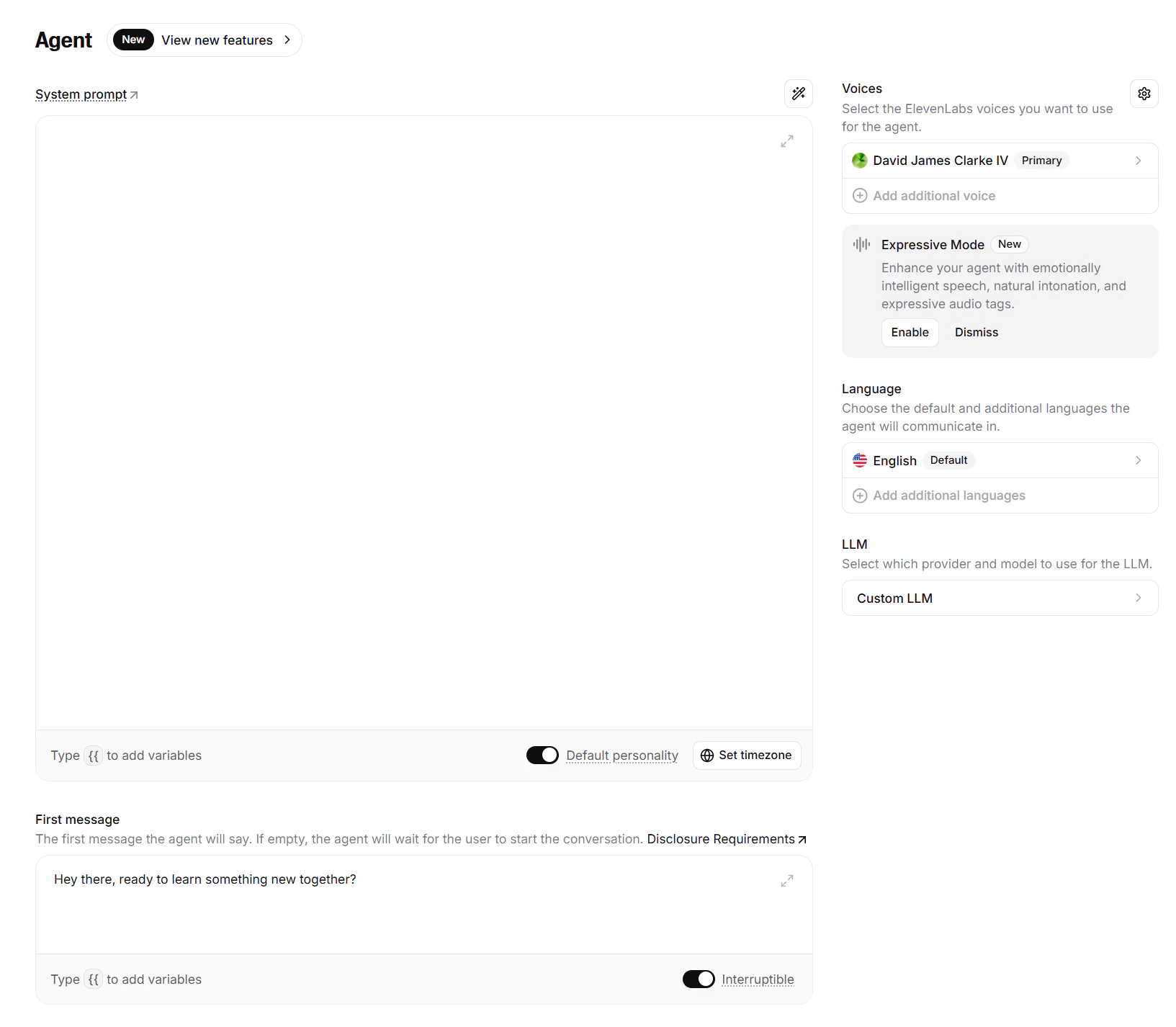
<img src="https://mintcdn.com/praxisai/sUEl2whbeE_DvV_e/images/integrations/elevenlabs/create-agent.png?fit=max&auto=format&n=sUEl2whbeE_DvV_e&q=85&s=b04572ea5f0b26b16aaf19f02466cf9a" alt="Custom LLM" width="1633" height="1426" data-path="images/integrations/elevenlabs/create-agent.png" />

<Steps>
  <Step title="Go to the ElevenLabs Dashboard">
    Navigate to [Conversational AI](https://elevenlabs.io/app/conversational-ai) in your ElevenLabs account and create a new agent.
  </Step>

  <Step title="Choose a voice">
    Select a stock voice, or use ElevenLabs' voice cloning to create a custom voice that matches your Digital Twin's persona.
  </Step>

  <Step title="Configure the system prompt">
    The Digital Twin manages its own system instructions server-side. Use the ElevenLabs system prompt for voice-specific behavior only (e.g., greeting style, conversation pacing).
  </Step>

  <Step title="First Message">
    Type a greeting, for example `Hey there, ready to learn something new together?`
  </Step>

  <Step title="LLM">
    Select Custom LLM
  </Step>
</Steps>

***

## Step 2: Connect to Custom LLM

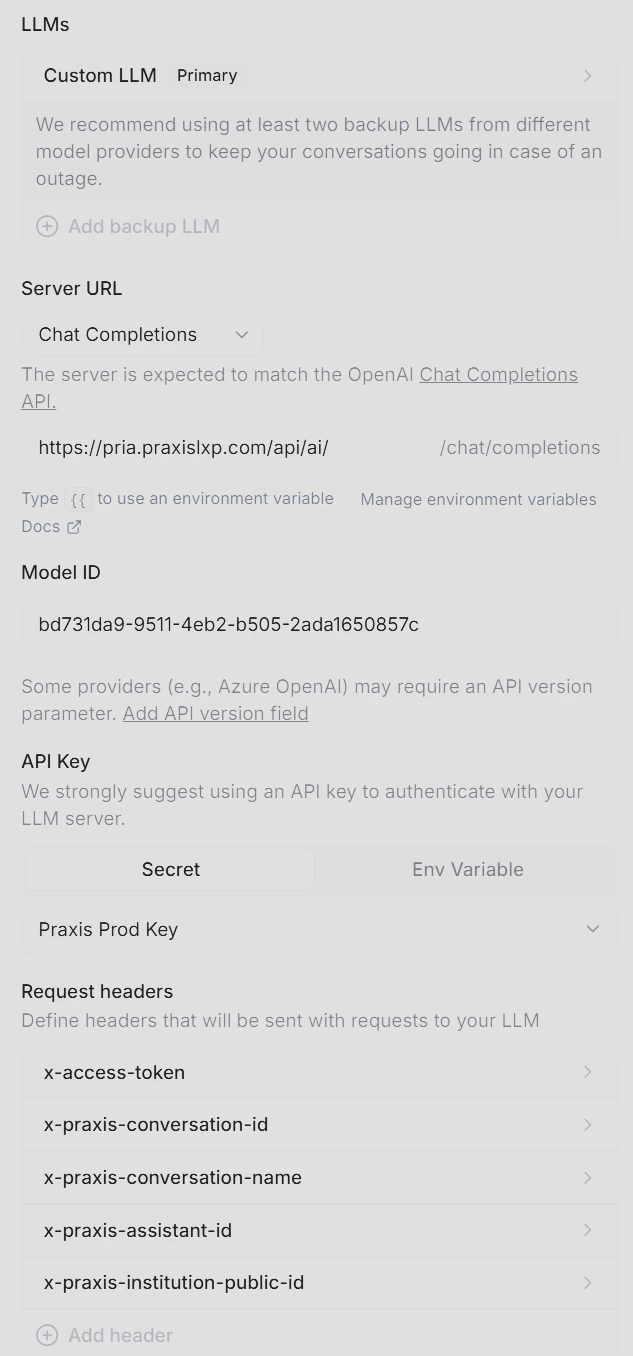
This is the core configuration — tell your ElevenLabs agent to use your Digital Twin as its language model.

<img src="https://mintcdn.com/praxisai/e58d1xFIJKGPjtpD/images/integrations/elevenlabs/custom-model-setup.png?fit=max&auto=format&n=e58d1xFIJKGPjtpD&q=85&s=a0dd2bf551792dd2d4beeea873339f52" alt="Custom LLM" width="633" height="1356" data-path="images/integrations/elevenlabs/custom-model-setup.png" />

<Steps>
  <Step title="Open LLM settings">
    In your agent's settings, go to the **LLM** section and select **Custom LLM**.
  </Step>

  <Step title="Set the Server URL">
    Enter your Chat Completions API base URL:

    ```
    https://pria.praxislxp.com/api/ai
    ```
  </Step>

  <Step title="Set the Model ID">
    Enter your **Digital Twin's Public ID** as the model:

    ```
    e455529a-4f51-479e-94fc-bbebb41d19a1
    ```

    <Info>The Model ID maps directly to the Digital Twin Public ID. ElevenLabs will include this in every request as the `model` parameter — exactly how the Chat Completions API expects it.</Info>
  </Step>

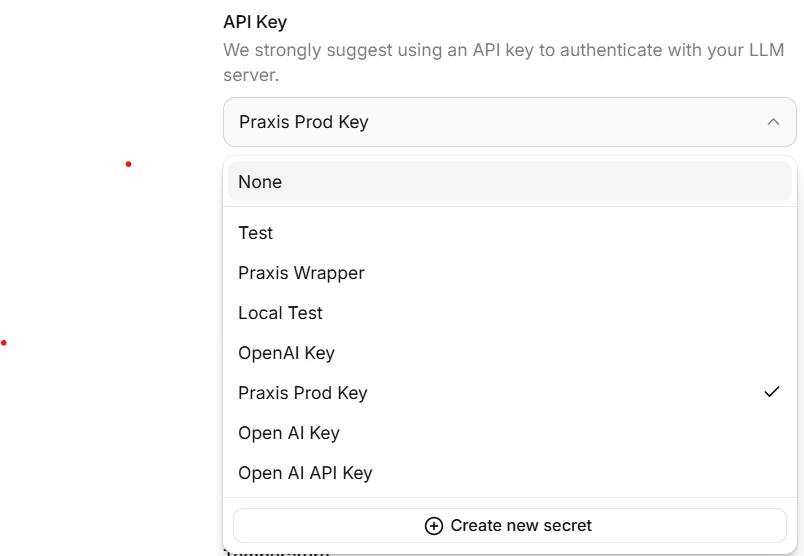
  <Step title="API Key">
    In the **API Key** section of your ElevenLabs custom-LLM dashboard, select your ElevenLabs API Key or create a new one.

    <img src="https://mintcdn.com/praxisai/sUEl2whbeE_DvV_e/images/integrations/elevenlabs/api-key-secret.png?fit=max&auto=format&n=sUEl2whbeE_DvV_e&q=85&s=69acd5080b22956377014b6225318044" alt="Elevenlab API Secret" width="804" height="556" data-path="images/integrations/elevenlabs/api-key-secret.png" />

    <Warning>You must also set this value in your Digital Twin configuration page in Praxis.</Warning>
  </Step>
</Steps>

***

## Step 3: Configure Dynamic Variables

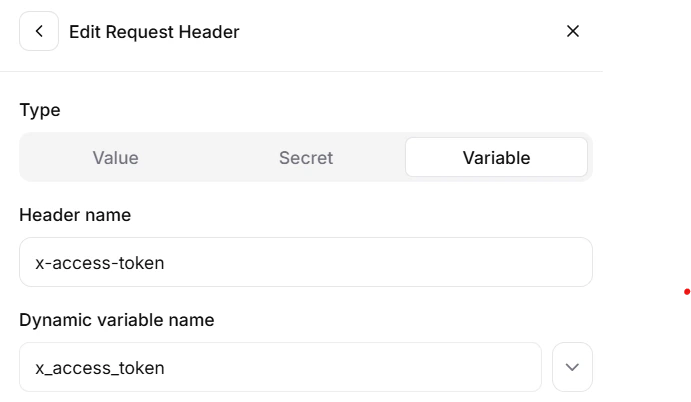
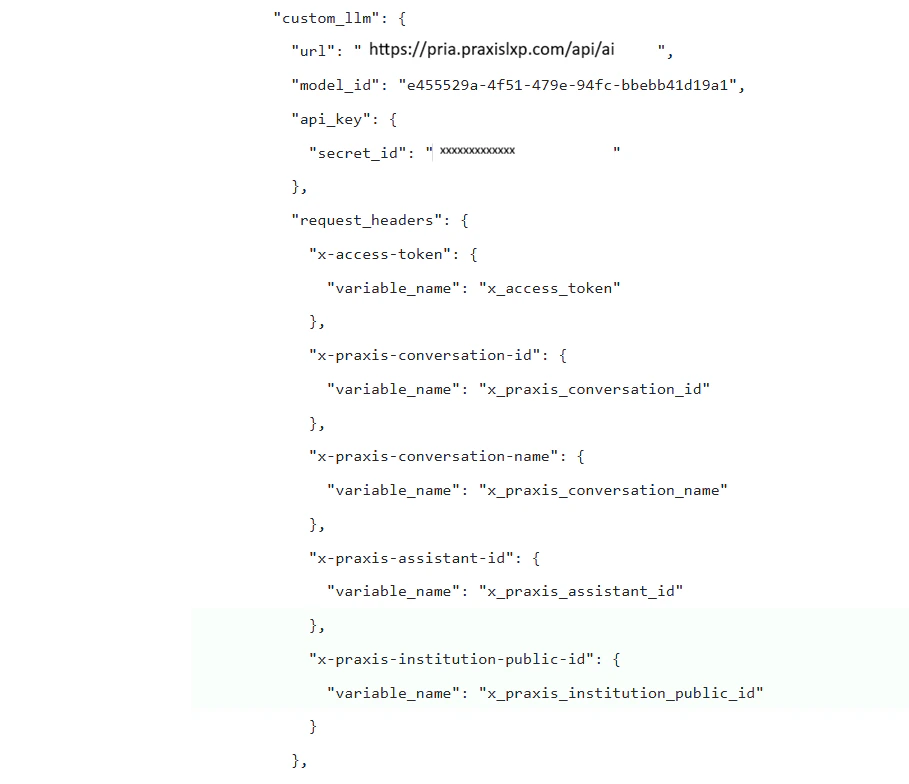
Dynamic variables let you pass user identity and conversation context from the client application through ElevenLabs to your Digital Twin. These are mapped to the `x-praxis-*` request headers that the Chat Completions API forwards to Praxis.

### Define Variables in ElevenLabs

<img src="https://mintcdn.com/praxisai/sUEl2whbeE_DvV_e/images/integrations/elevenlabs/custom-variable.png?fit=max&auto=format&n=sUEl2whbeE_DvV_e&q=85&s=3049bf38421330501977c65ea1326447" alt="Custom Variable" width="691" height="402" data-path="images/integrations/elevenlabs/custom-variable.png" />

In your agent's settings, define the custom header mapping to dynamic variables:

| Header                           | Description                                                                    | Dynamic Variable                 |
| -------------------------------- | ------------------------------------------------------------------------------ | -------------------------------- |
| `x-access-token`                 | Praxis JWT for user authentication                                             | `x_access_token`                 |
| `x-praxis-conversation-id`       | Numeric conversation/course identifier                                         | `x_praxis_conversation_id`       |
| `x-praxis-conversation-name`     | Human-readable conversation name                                               | `x_praxis_conversation_name`     |
| `x-praxis-assistant-id`          | Assistant to execute during the conversation                                   | `x_praxis_assistant_id`          |
| `x-praxis-institution-public-id` | Override the target Digital Twin when using the voice agent for multiple Twins | `x_praxis_institution_public_id` |
<Warning>The `x_access_token` dynamic variable corresponds to the user's access token from Praxis and is passed through to allow the Chat Completions API to seamlessly connect to your Digital Twin assuming the user's identity.</Warning>

This is the example JSON configuration for your Agent's custom LLM:

<img src="https://mintcdn.com/praxisai/e58d1xFIJKGPjtpD/images/integrations/elevenlabs/custom-model-json.png?fit=max&auto=format&n=e58d1xFIJKGPjtpD&q=85&s=cf52281bd12f96d71a796e74608c9a73" alt="Example Configuration JSON" width="909" height="784" data-path="images/integrations/elevenlabs/custom-model-json.png" />

<Warning>Don't forget to **publish** your changes after making updates.</Warning>

### How Variables Flow

```
Client widget passes dynamic variables at session start
        ↓
ElevenLabs injects variables into custom headers + system prompt
        ↓
Chat Completions API extracts x-praxis-* headers
        ↓
Digital Twin receives full conversation context
```

When using the **Extra Body** option in ElevenLabs, dynamic variables are included in the request body under `elevenlabs_extra_body`:

```json theme={null}
{
  "model": "e455529a-4f51-479e-94fc-bbebb41d19a1",
  "messages": [
    {"role": "user", "content": "What are today's assignments?"}
  ],
  "elevenlabs_extra_body": {
    "x_access_token": "eyJhbGciOiJIUzI1NiIs...",
    "x_praxis_conversation_id": "48201",
    "x_praxis_conversation_name": "Biology 101",
    "x_praxis_assistant_id": "69956bf0c8510d46974a11a6",
    "x_praxis_institution_public_id": "f831501f-b645-481a-9cbb-331509aaf8c1"
  }
}
```

***

## Step 4: Configure Your Digital Twin

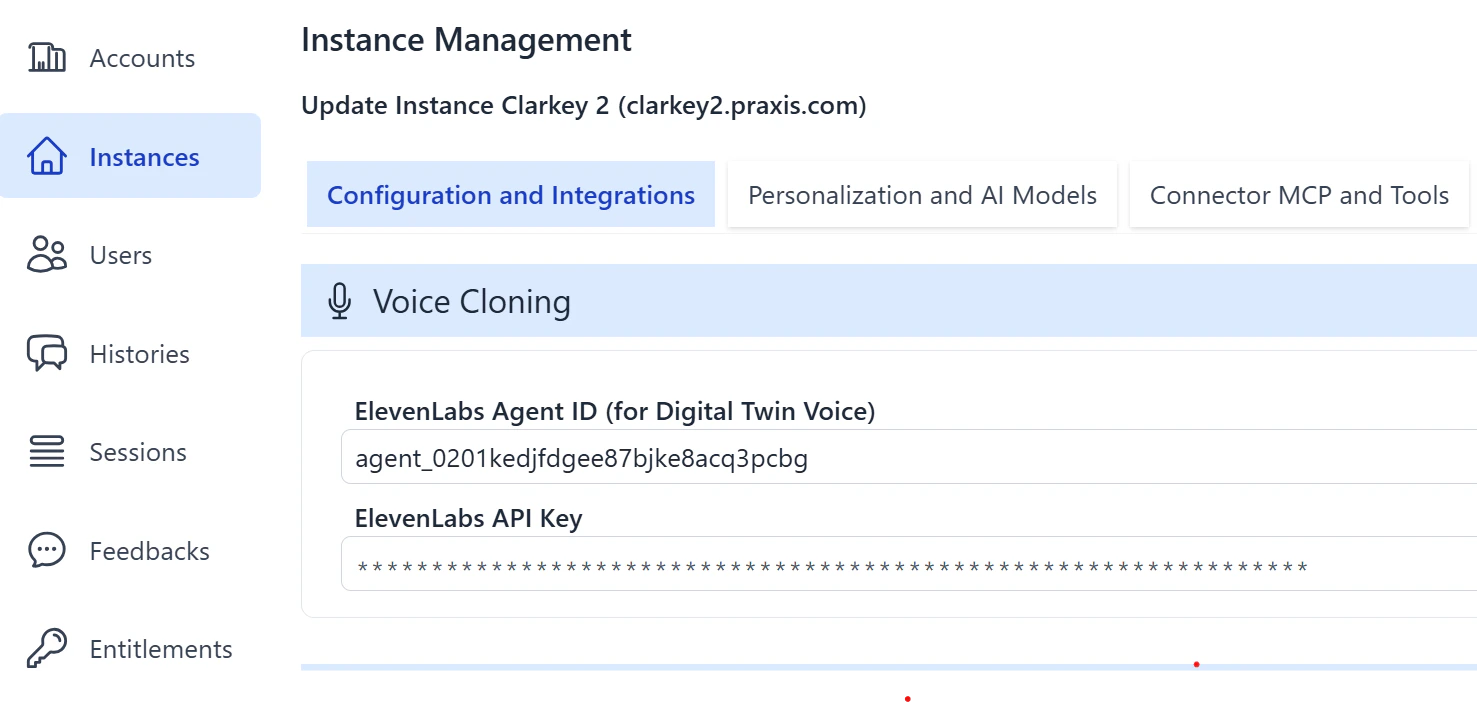
After setting up the ElevenLabs agent, you must configure your Digital Twin in Praxis to accept requests from ElevenLabs.

<img src="https://mintcdn.com/praxisai/sUEl2whbeE_DvV_e/images/integrations/elevenlabs/digitaltwin-elevenlabs-setup.png?fit=max&auto=format&n=sUEl2whbeE_DvV_e&q=85&s=37e2a9b4c856cf5864dc9c005b4e9267" alt="Digital Twin Setup for Elevenlabs" width="1477" height="702" data-path="images/integrations/elevenlabs/digitaltwin-elevenlabs-setup.png" />

<Steps>
  <Step title="Open the Admin Dashboard">
    Navigate to the <Icon icon="house-chimney" /> Admin dashboard and select your Digital Twin instance.
  </Step>

  <Step title="Go to Configuration">
    Open the **Configuration** tab and locate the **ElevenLabs** section.
  </Step>

  <Step title="Set the ElevenLabs Agent ID">
    Enter the **Agent ID** from your ElevenLabs Conversational AI agent. This is the identifier shown in your ElevenLabs dashboard under the agent settings.
  </Step>

  <Step title="Set the ElevenLabs API Key">
    Enter the same **API Key** you configured in [Step 2](#step-2-connect-to-custom-llm). This allows the Chat Completions API to validate inbound requests from ElevenLabs.
  </Step>
</Steps>

<Info>See [Configuration — ElevenLabs](/mdx/admin-guide/configuration#elevenlabs) for full details on the credential fields (Agent ID and API Key).</Info>

***

## Step 5: Use ElevenLabs for Convo Mode

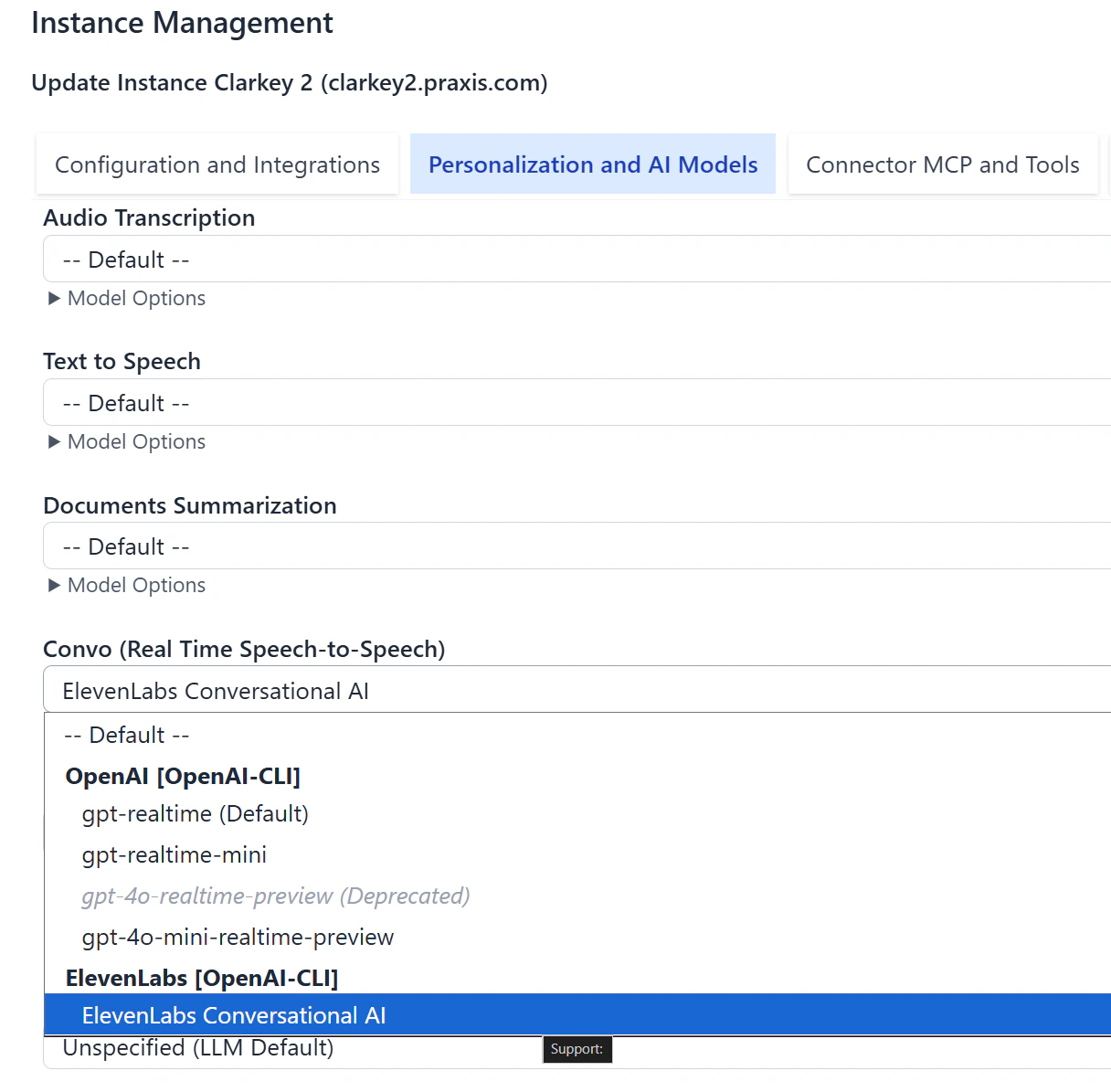
Once the ElevenLabs agent is configured in your Digital Twin, you can select ElevenLabs as the voice provider for Pria's built-in **Convo Mode** (speech-to-speech).

<img src="https://mintcdn.com/praxisai/sUEl2whbeE_DvV_e/images/integrations/elevenlabs/digitaltwin-elevenlabs-convo.png?fit=max&auto=format&n=sUEl2whbeE_DvV_e&q=85&s=94884ac1af0d180033ea6917dee2d782" alt="Digital Twin Convo with Elevenlabs" width="1216" height="1195" data-path="images/integrations/elevenlabs/digitaltwin-elevenlabs-convo.png" />

<Steps>
  <Step title="Open Personalization">
    In the Admin dashboard, select your Digital Twin instance and navigate to the **Personalization** tab.
  </Step>

  <Step title="Change the Convo Mode model">
    Under **Convo Mode**, select **ElevenLabs** from the list of supported voice providers.

    <Warning>If ElevenLabs is selected as the voice provider but the **Agent ID** or **API Key** are not configured in the Configuration tab, a warning pill will appear directing you to complete the ElevenLabs setup in **Configuration**.</Warning>
  </Step>

  <Step title="Start a conversation">
    The Convo widget will now use your ElevenLabs agent for real-time speech-to-speech. Users can click the Convo button to speak directly with the Digital Twin.
  </Step>
</Steps>

<Info>Voice selection is not available in ElevenLabs Convo Mode. The voice used is the one configured in your agent's settings on the ElevenLabs dashboard. To change the voice, update it in your [ElevenLabs agent configuration](https://elevenlabs.io/app/conversational-ai).</Info>

### Connection Method

ElevenLabs supports two connection methods for the audio stream between the browser and ElevenLabs servers:

| Method               | Description                                                                                         |
| -------------------- | --------------------------------------------------------------------------------------------------- |
| **WebRTC** (default) | Low-latency peer-to-peer connection. Best for most environments.                                    |
| **WebSocket**        | Server-relayed connection. Use when WebRTC is blocked by firewalls or restrictive network policies. |

The connection method can be configured in the Convo Mode settings. If users report connection issues in corporate or campus networks, switching to WebSocket typically resolves the problem.

***

## Step 6: Deploy Client Widgets (optional)

ElevenLabs provides multiple ways to embed a voice agent in your application. Each method supports passing dynamic variables at session start.

### HTML Widget

The simplest option — add two lines to any web page:

```html theme={null}
<script src="https://unpkg.com/@elevenlabs/convai-widget-embed" async type="text/javascript"></script>

<elevenlabs-convai agent-id="YOUR_ELEVENLABS_AGENT_ID"></elevenlabs-convai>
```

<Tip>Pin to a specific version for production: `@elevenlabs/convai-widget-embed@1.0.0`</Tip>

### React Integration

For React applications, use the `@elevenlabs/react` package with dynamic variables:

```typescript theme={null}
import { useConversation } from "@elevenlabs/react";

export function DigitalTwinVoice({ praxisToken, courseId, courseName, assistantId, publicId }) {
  const conversation = useConversation({
    agentId: "YOUR_ELEVENLABS_AGENT_ID",
    dynamicVariables: {
      x_access_token: praxisToken,
      x_praxis_conversation_id: courseId,
      x_praxis_conversation_name: courseName,
      x_praxis_assistant_id: assistantId,
      x_praxis_institution_public_id: publicId,
    },
  });

  const handleStart = async () => {
    await navigator.mediaDevices.getUserMedia({ audio: true });
    await conversation.startSession();
  };

  return (
    <div>
      <button onClick={handleStart}>
        Talk to your Digital Twin
      </button>
      {conversation.status === "connected" && (
        <button onClick={() => conversation.endSession()}>
          End Conversation
        </button>
      )}
    </div>
  );
}
```

Install the dependency:

```bash theme={null}
npm install @elevenlabs/react
```

### JavaScript SDK (Vanilla)

For non-React applications, use the `@elevenlabs/client` SDK directly:

```typescript theme={null}
import { Conversation } from "@elevenlabs/client";

const conversation = await Conversation.startSession({
  agentId: "YOUR_ELEVENLABS_AGENT_ID",
  connectionType: "webrtc",
  dynamicVariables: {
    x_access_token: "your-praxis-jwt-token",
    x_praxis_conversation_id: "48201",
    x_praxis_conversation_name: "Biology 101",
    x_praxis_assistant_id: "69956bf0c8510d46974a11a6",
    x_praxis_institution_public_id: "f831501f-b645-481a-9cbb-331509aaf8c1",
  },
  onMessage: (message) => {
    console.log(`${message.source}: ${message.message}`);
  },
  onError: (error) => {
    console.error("Conversation error:", error);
  },
  onStatusChange: (status) => {
    console.log("Status:", status);
  },
});

// End the session when done
await conversation.endSession();
```

Install the dependency:

```bash theme={null}
npm install @elevenlabs/client
```

***

## Securing Private Agents

For production deployments, use **signed URLs** to prevent unauthorized access to your ElevenLabs agent.

<Steps>
  <Step title="Generate a signed URL on your server">
    ```javascript theme={null}
    // Server-side (Node.js)
    app.get("/api/voice-session", async (req, res) => {
      const response = await fetch(
        `https://api.elevenlabs.io/v1/convai/conversation/get-signed-url?agent_id=${AGENT_ID}`,
        {
          headers: { "xi-api-key": process.env.ELEVENLABS_API_KEY },
        }
      );
      const data = await response.json();
      res.json({ signedUrl: data.signed_url });
    });
    ```
  </Step>

  <Step title="Use the signed URL on the client">
    ```typescript theme={null}
    const { signedUrl } = await fetch("/api/voice-session").then(r => r.json());

    const conversation = useConversation({
      signedUrl: signedUrl,
      dynamicVariables: {
        x_access_token: praxisToken,
        x_praxis_conversation_id: courseId,
        x_praxis_conversation_name: courseName,
        x_praxis_assistant_id: assistantId,
      },
    });
    ```
  </Step>
</Steps>

<Warning>Never expose your ElevenLabs API key in client-side code. Always generate signed URLs from your backend. Signed URLs expire after 15 minutes.</Warning>

You can also configure an **allowlist** of approved domains in your agent's Security tab to restrict where the widget can be embedded.

***

## Full Example: Embeddable Support Widget

A complete React component that authenticates with your backend, starts a voice session with a Digital Twin, and displays the conversation transcript:

```typescript theme={null}
import React, { useState, useCallback } from "react";
import { useConversation } from "@elevenlabs/react";

export function SupportWidget({ praxisToken, courseId, courseName, assistantId, publicId }) {
  const [messages, setMessages] = useState([]);

  const conversation = useConversation({
    agentId: "YOUR_ELEVENLABS_AGENT_ID",
    dynamicVariables: {
      x_access_token: praxisToken,
      x_praxis_conversation_id: String(courseId),
      x_praxis_conversation_name: courseName,
      x_praxis_assistant_id: assistantId,
      x_praxis_institution_public_id: publicId,
    },
    onMessage: (msg) => {
      setMessages((prev) => [
        ...prev,
        { role: msg.source === "ai" ? "assistant" : "user", text: msg.message },
      ]);
    },
  });

  const toggle = useCallback(async () => {
    if (conversation.status === "connected") {
      await conversation.endSession();
    } else {
      await navigator.mediaDevices.getUserMedia({ audio: true });
      await conversation.startSession();
    }
  }, [conversation]);

  return (
    <div style={{ maxWidth: 400, margin: "0 auto", fontFamily: "sans-serif" }}>
      <button onClick={toggle}>
        {conversation.status === "connected" ? "End" : "Start"} Conversation
      </button>

      <div style={{ marginTop: 16 }}>
        {messages.map((m, i) => (
          <p key={i}>
            <strong>{m.role === "assistant" ? "Twin" : "You"}:</strong> {m.text}
          </p>
        ))}
      </div>
    </div>
  );
}
```

***

## Troubleshooting

| Symptom                                    | Cause                           | Fix                                                                  |
| ------------------------------------------ | ------------------------------- | -------------------------------------------------------------------- |
| Agent responds but has no knowledge        | Model ID is wrong               | Verify the Digital Twin Public ID in the LLM model field             |
| 401 Unauthorized from Chat Completions API | Missing or expired JWT          | Ensure `x_access_token` dynamic variable contains a valid Praxis JWT |
| No audio from agent                        | Microphone not granted          | Check browser permissions; call `getUserMedia` before `startSession` |
| Agent is silent after connecting           | ElevenLabs can't reach your API | Verify the Custom LLM server URL is publicly accessible              |
| "LiveKit v1" 404 in console                | Normal SDK behavior             | Benign version negotiation — safe to ignore                          |

***

## Related

* [Chat Completions API](/mdx/integrations/chat-completions/introduction) — Set up the OpenAI-compatible endpoint that powers this integration
* [Web SDK](/mdx/integrations/web/introduction) — Embed the full Digital Twin UI (text + voice) in your app
* [ElevenLabs Custom LLM Docs](https://elevenlabs.io/docs/eleven-agents/customization/llm/custom-llm) — Official ElevenLabs configuration reference
* [ElevenLabs Dynamic Variables](https://elevenlabs.io/docs/eleven-agents/customization/personalization/dynamic-variables) — How variables flow through the agent