> ## Documentation Index
> Fetch the complete documentation index at: https://docs.praxis-ai.com/llms.txt
> Use this file to discover all available pages before exploring further.
# MCP Server
> Connect your LLM to Praxis AI Middleware's MCP Server
## What is MCP?
The **Model Context Protocol (MCP)** is an open standard that lets AI applications connect to external data sources and tools through a unified interface. Pria speaks MCP in **both directions** — see below.
## The Two MCP Roles in Pria
Pria participates in the MCP ecosystem in two distinct ways. Most administrators will use one or both; understanding the distinction up front saves a lot of confusion.
Your IDE, agent, or other LLM application connects to Pria as an MCP server. Pria exposes tools like `search-instance-rag` and `api-rt-docs` so external assistants can query your Digital Twin's knowledge base and API.
Your Digital Twin calls out to external MCP servers (Slack, Zapier, a custom internal MCP server) as tools during a conversation. The external MCP server becomes part of the Twin's toolkit.
The rest of this page walks through both, with quick‑start recipes and links to the deeper docs.
### What Pria Exposes as an MCP Server
Query your Digital Twin's document collection using natural‑language search via the `search-instance-rag` tool.
Access live OpenAPI documentation for both Runtime and Admin endpoints directly from your LLM.
Connect multiple Digital Twins so one can query another's knowledge base without duplicating data.
***
## Quick Start — Pria AS an MCP Server
Follow these steps to expose your Digital Twin as an MCP server and connect an external client (Claude Desktop, Cursor, your own application).
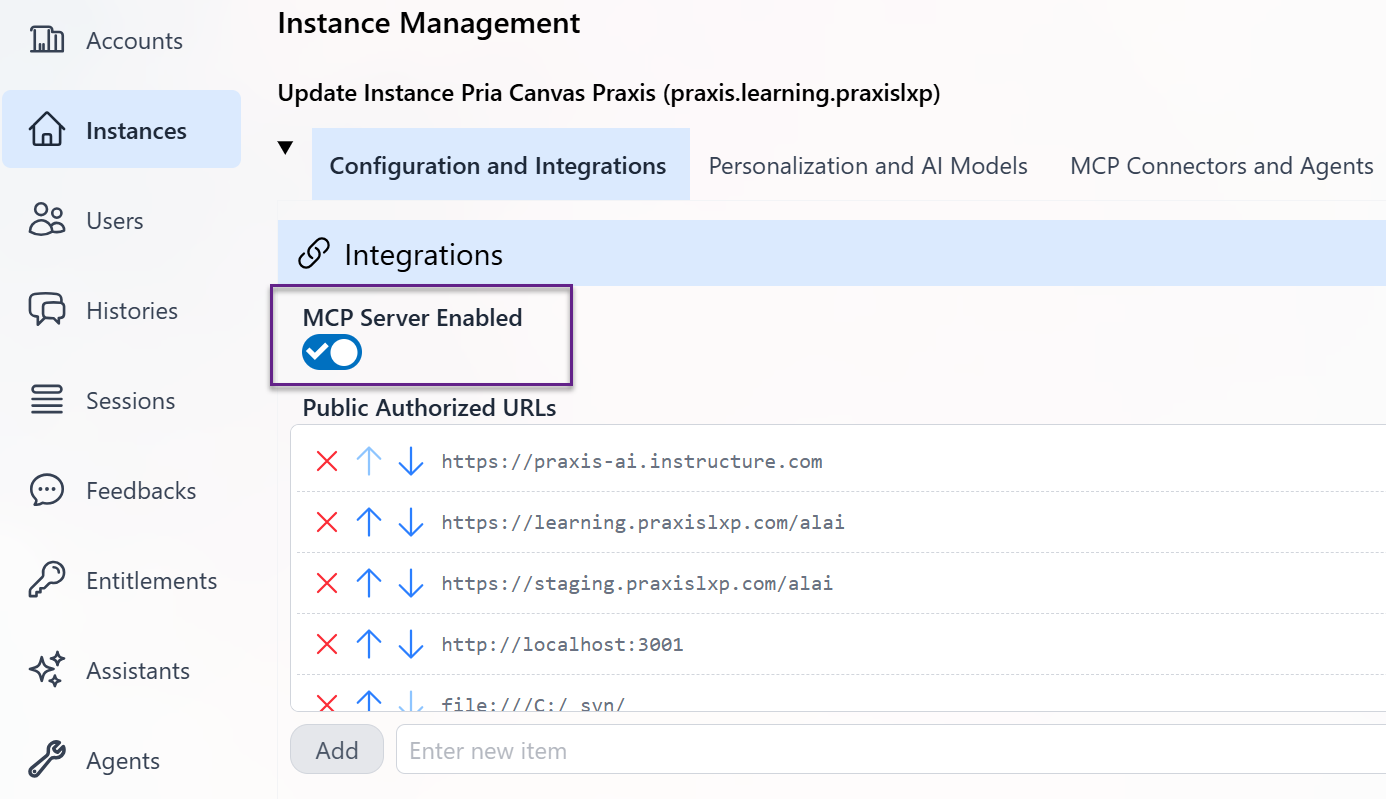
### Step 1 — Enable MCP on Your Digital Twin
Open your Digital Twin's **Configuration and Integrations** panel and turn on the **MCP Server** switch, then save.
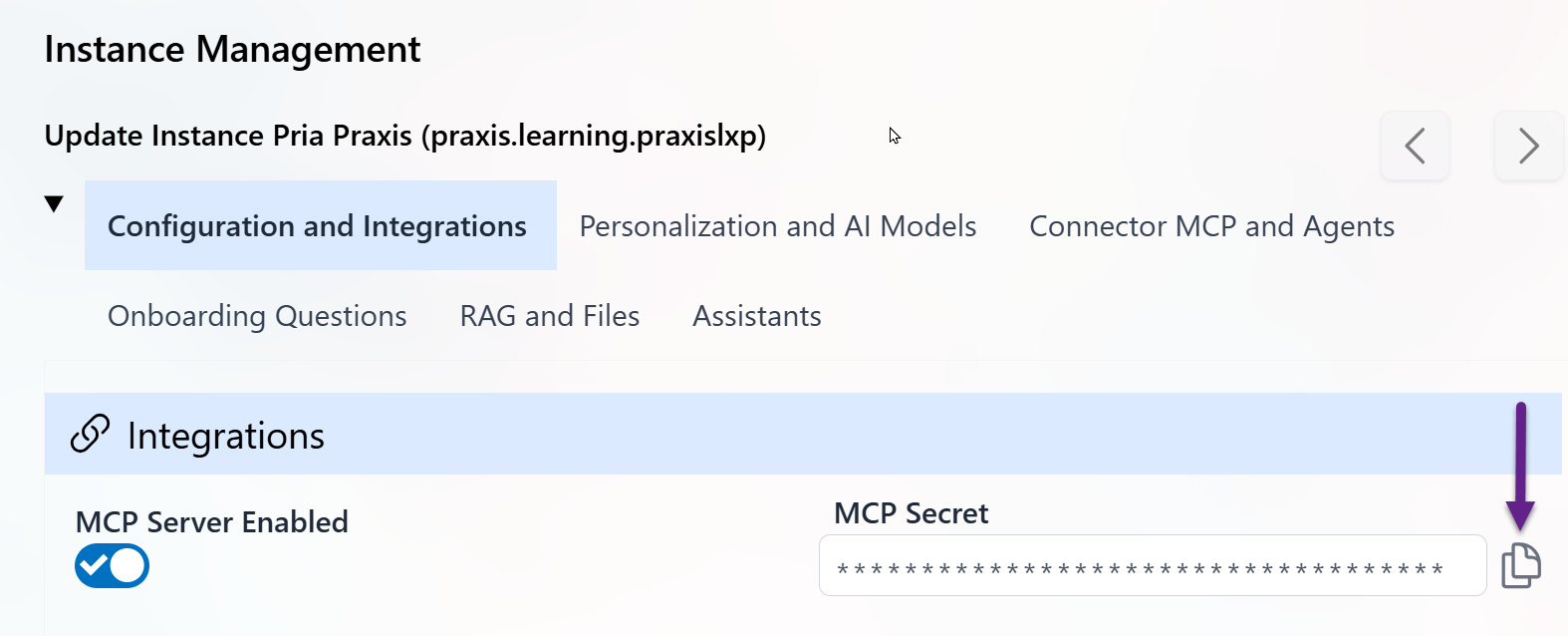
 ### Step 2 — Copy Your MCP Secret
In the same panel, copy the value from the **MCP Secret** field. This token authenticates clients connecting to your MCP server.
### Step 2 — Copy Your MCP Secret
In the same panel, copy the value from the **MCP Secret** field. This token authenticates clients connecting to your MCP server.
 ### Step 3 — Configure Your MCP Client
Use the following settings in any MCP-compatible client:
| Setting | Value |
| ----------------- | ------------------------------------ |
| **Server URL** | `https://pria.praxislxp.com/api/mcp` |
| **Server Label** | `pria-mcp` |
| **Authorization** | `Bearer ` |
**Description / System Instruction** (optional but recommended):
```text wrap theme={null}
Use this tool to run authoritative semantic search against the remote Digital Twin via the MCP server. Invoke search-instance-rag whenever the user's question targets content stored in the Digital Twin (prefer it over local search for remote-scope queries). Input is a natural-language query string; output is a relevance-ordered list of matches containing each item's file title, a concise summary, and a direct URL (include source_id and score when available). If no relevant results exist, return an empty list. Do not infer, synthesize, or modify content — return only what the remote instance provides.
```
The description tells the AI **when** and **how** to use the MCP tools. Customize it to match your use case.
### Available Tools
Once connected, your MCP client can invoke these tools:
| Tool | Description |
| --------------------- | -------------------------------------------------------------------------------- |
| `search-instance-rag` | Semantic search across your Digital Twin's uploaded documents and knowledge base |
| `api-admin-docs` | Returns the Admin API OpenAPI specification for the Praxis AI Middleware |
| `api-rt-docs` | Returns the Runtime API OpenAPI specification for the Praxis AI Middleware |
Additional tools may be available depending on your Digital Twin's configuration and enabled connectors.
***
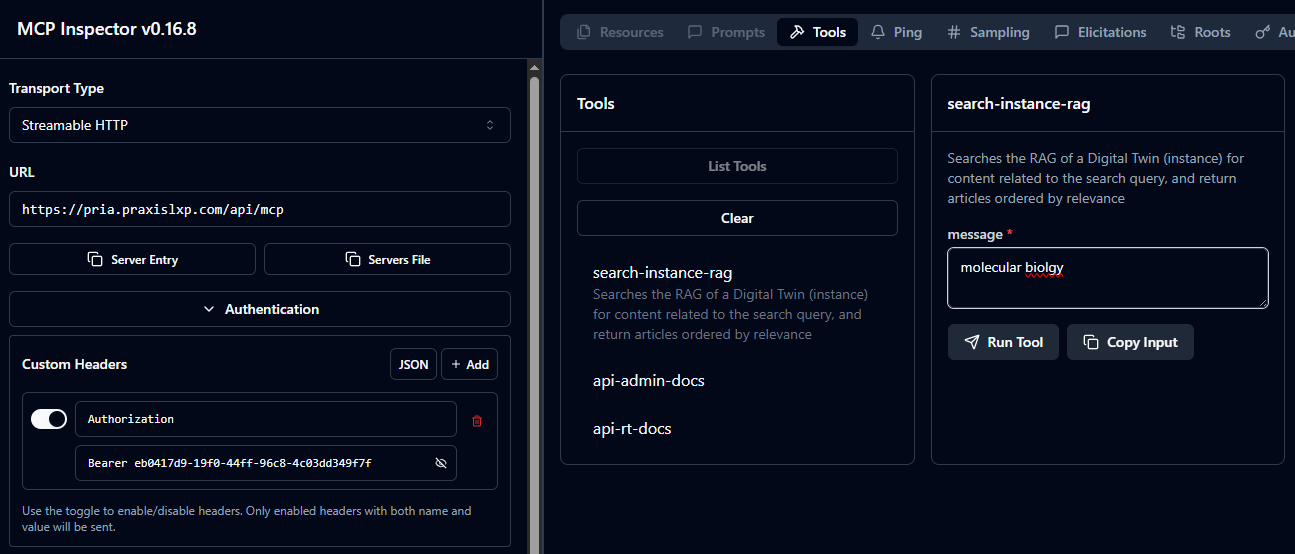
## Testing Your MCP Server
Use the **MCP Inspector** ([documentation](https://modelcontextprotocol.io/docs/tools/inspector)) to validate your connection, browse available tools, and send test requests.
```bash theme={null}
npx @modelcontextprotocol/inspector
```
Connect to `https://pria.praxislxp.com/api/mcp` with your Bearer token and verify that the tools listed above appear.
### Step 3 — Configure Your MCP Client
Use the following settings in any MCP-compatible client:
| Setting | Value |
| ----------------- | ------------------------------------ |
| **Server URL** | `https://pria.praxislxp.com/api/mcp` |
| **Server Label** | `pria-mcp` |
| **Authorization** | `Bearer ` |
**Description / System Instruction** (optional but recommended):
```text wrap theme={null}
Use this tool to run authoritative semantic search against the remote Digital Twin via the MCP server. Invoke search-instance-rag whenever the user's question targets content stored in the Digital Twin (prefer it over local search for remote-scope queries). Input is a natural-language query string; output is a relevance-ordered list of matches containing each item's file title, a concise summary, and a direct URL (include source_id and score when available). If no relevant results exist, return an empty list. Do not infer, synthesize, or modify content — return only what the remote instance provides.
```
The description tells the AI **when** and **how** to use the MCP tools. Customize it to match your use case.
### Available Tools
Once connected, your MCP client can invoke these tools:
| Tool | Description |
| --------------------- | -------------------------------------------------------------------------------- |
| `search-instance-rag` | Semantic search across your Digital Twin's uploaded documents and knowledge base |
| `api-admin-docs` | Returns the Admin API OpenAPI specification for the Praxis AI Middleware |
| `api-rt-docs` | Returns the Runtime API OpenAPI specification for the Praxis AI Middleware |
Additional tools may be available depending on your Digital Twin's configuration and enabled connectors.
***
## Testing Your MCP Server
Use the **MCP Inspector** ([documentation](https://modelcontextprotocol.io/docs/tools/inspector)) to validate your connection, browse available tools, and send test requests.
```bash theme={null}
npx @modelcontextprotocol/inspector
```
Connect to `https://pria.praxislxp.com/api/mcp` with your Bearer token and verify that the tools listed above appear.
 ### Protocol Version & Tool Catalog
Pria's MCP server is built on the official [MCP TypeScript SDK](https://github.com/modelcontextprotocol/typescript-sdk) (`@modelcontextprotocol/sdk`) and serves the **2025‑03‑26** MCP specification over HTTP at `/api/mcp` (stateless transport).
The currently exposed tools are:
| Tool | Input | Purpose |
| --------------------- | ------------------------------------------ | ----------------------------------------------------------------------------------------------- |
| `search-instance-rag` | `message` (string), optional `assistantId` | Semantic RAG search over the Twin's documents; optionally scoped to one assistant's collections |
| `api-rt-docs` | `asYaml` (boolean) | The Runtime API OpenAPI spec, as JSON or YAML |
| `api-admin-docs` | `asYaml` (boolean) | The Admin API OpenAPI spec, as JSON or YAML |
Additional tools may be added over time. Use the Inspector's `tools/list` to see the current catalog for your deployment.
***
## Pria CONSUMING an External MCP Server
In the other direction, your Digital Twin can call out to any external MCP‑compatible server during a conversation. Once configured, the external server's tools appear in the Twin's toolkit alongside Pria's built‑in tools — the model can decide to invoke them when relevant.
Common reasons to add an external MCP server:
* A **company knowledge base** running its own MCP server (Notion, internal docs MCP).
* A **task / automation hub** like Slack, Zapier, or a workflow engine.
* A **custom domain MCP server** you built — for example, a server that exposes your CRM, your ticketing system, or a proprietary scientific database.
* A **second Praxis Digital Twin** (see [Linking Digital Twins](#linking-digital-twins-via-connector-mcp) below).
### Two Ways to Wire It Up
Pria offers two scopes for adding an external MCP server:
| Scope | Where you configure it | Who can use it |
| -------------------------------- | ------------------------------------- | ------------------------------------- |
| **Connector** (per Twin) | Twin's **Connectors** panel | Every assistant on this Digital Twin |
| **Institution‑level MCP server** | Admin **Configuration → MCP Servers** | Every Digital Twin in the institution |
Pick **Connector** when only one Twin needs the tools. Pick **Institution‑level** when many Twins share the same upstream MCP server.
For institution‑level setup and the full server catalog, see [MCP Servers (admin)](/mdx/admin-guide/mcp-servers).
### Authentication to External MCP Servers
When Pria connects out to a third‑party MCP server, you supply the credentials Pria should present:
* **Bearer token** — most common. Paste the upstream MCP server's token in the connector's **Bearer Token** field.
* **No auth** — for open public MCP servers (rare).
Pria forwards the configured credential on every tool invocation. The token never appears in any model‑visible content.
***
## Linking Digital Twins via Connector MCP
A common use case is connecting two Digital Twins so that **Twin B** can search **Twin A's** knowledge base in real time — without copying or syncing documents between them.
**Why link twins?**
* Keep source knowledge centralized in one twin while others query it on demand
* Updates to Twin A's documents are instantly available to Twin B
* Avoid data duplication and keep all twins consistent
### How to Set It Up
Follow the [Quick Start](#quick-start) above to enable MCP and copy Twin A's MCP Secret.
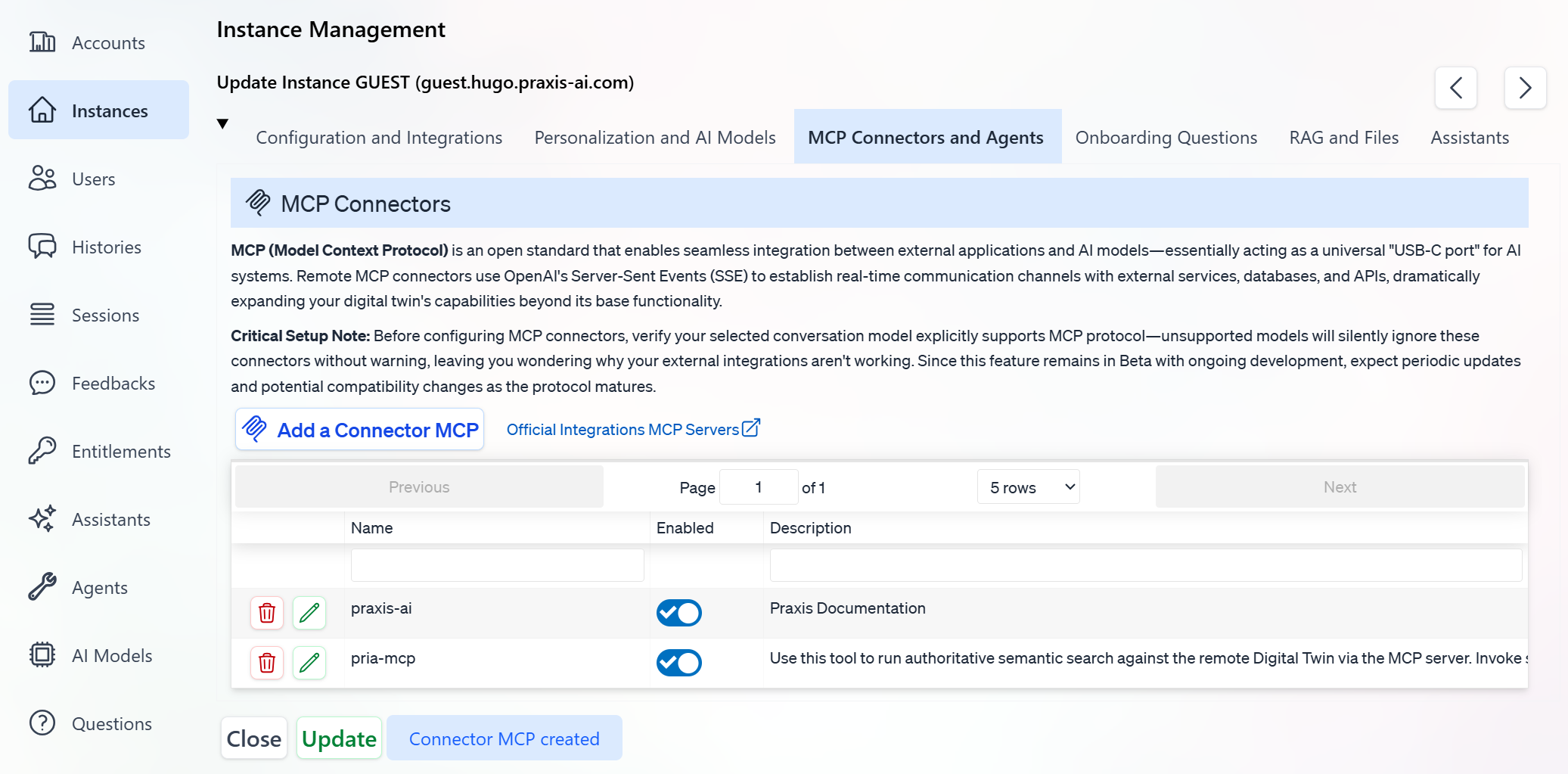
In Twin B, navigate to **Connectors** and add a new connector:
* **Type:** Connector MCP
* **Target URL:** `https://pria.praxislxp.com/api/mcp`
* **Bearer Token:** Twin A's MCP Secret
### Protocol Version & Tool Catalog
Pria's MCP server is built on the official [MCP TypeScript SDK](https://github.com/modelcontextprotocol/typescript-sdk) (`@modelcontextprotocol/sdk`) and serves the **2025‑03‑26** MCP specification over HTTP at `/api/mcp` (stateless transport).
The currently exposed tools are:
| Tool | Input | Purpose |
| --------------------- | ------------------------------------------ | ----------------------------------------------------------------------------------------------- |
| `search-instance-rag` | `message` (string), optional `assistantId` | Semantic RAG search over the Twin's documents; optionally scoped to one assistant's collections |
| `api-rt-docs` | `asYaml` (boolean) | The Runtime API OpenAPI spec, as JSON or YAML |
| `api-admin-docs` | `asYaml` (boolean) | The Admin API OpenAPI spec, as JSON or YAML |
Additional tools may be added over time. Use the Inspector's `tools/list` to see the current catalog for your deployment.
***
## Pria CONSUMING an External MCP Server
In the other direction, your Digital Twin can call out to any external MCP‑compatible server during a conversation. Once configured, the external server's tools appear in the Twin's toolkit alongside Pria's built‑in tools — the model can decide to invoke them when relevant.
Common reasons to add an external MCP server:
* A **company knowledge base** running its own MCP server (Notion, internal docs MCP).
* A **task / automation hub** like Slack, Zapier, or a workflow engine.
* A **custom domain MCP server** you built — for example, a server that exposes your CRM, your ticketing system, or a proprietary scientific database.
* A **second Praxis Digital Twin** (see [Linking Digital Twins](#linking-digital-twins-via-connector-mcp) below).
### Two Ways to Wire It Up
Pria offers two scopes for adding an external MCP server:
| Scope | Where you configure it | Who can use it |
| -------------------------------- | ------------------------------------- | ------------------------------------- |
| **Connector** (per Twin) | Twin's **Connectors** panel | Every assistant on this Digital Twin |
| **Institution‑level MCP server** | Admin **Configuration → MCP Servers** | Every Digital Twin in the institution |
Pick **Connector** when only one Twin needs the tools. Pick **Institution‑level** when many Twins share the same upstream MCP server.
For institution‑level setup and the full server catalog, see [MCP Servers (admin)](/mdx/admin-guide/mcp-servers).
### Authentication to External MCP Servers
When Pria connects out to a third‑party MCP server, you supply the credentials Pria should present:
* **Bearer token** — most common. Paste the upstream MCP server's token in the connector's **Bearer Token** field.
* **No auth** — for open public MCP servers (rare).
Pria forwards the configured credential on every tool invocation. The token never appears in any model‑visible content.
***
## Linking Digital Twins via Connector MCP
A common use case is connecting two Digital Twins so that **Twin B** can search **Twin A's** knowledge base in real time — without copying or syncing documents between them.
**Why link twins?**
* Keep source knowledge centralized in one twin while others query it on demand
* Updates to Twin A's documents are instantly available to Twin B
* Avoid data duplication and keep all twins consistent
### How to Set It Up
Follow the [Quick Start](#quick-start) above to enable MCP and copy Twin A's MCP Secret.
In Twin B, navigate to **Connectors** and add a new connector:
* **Type:** Connector MCP
* **Target URL:** `https://pria.praxislxp.com/api/mcp`
* **Bearer Token:** Twin A's MCP Secret
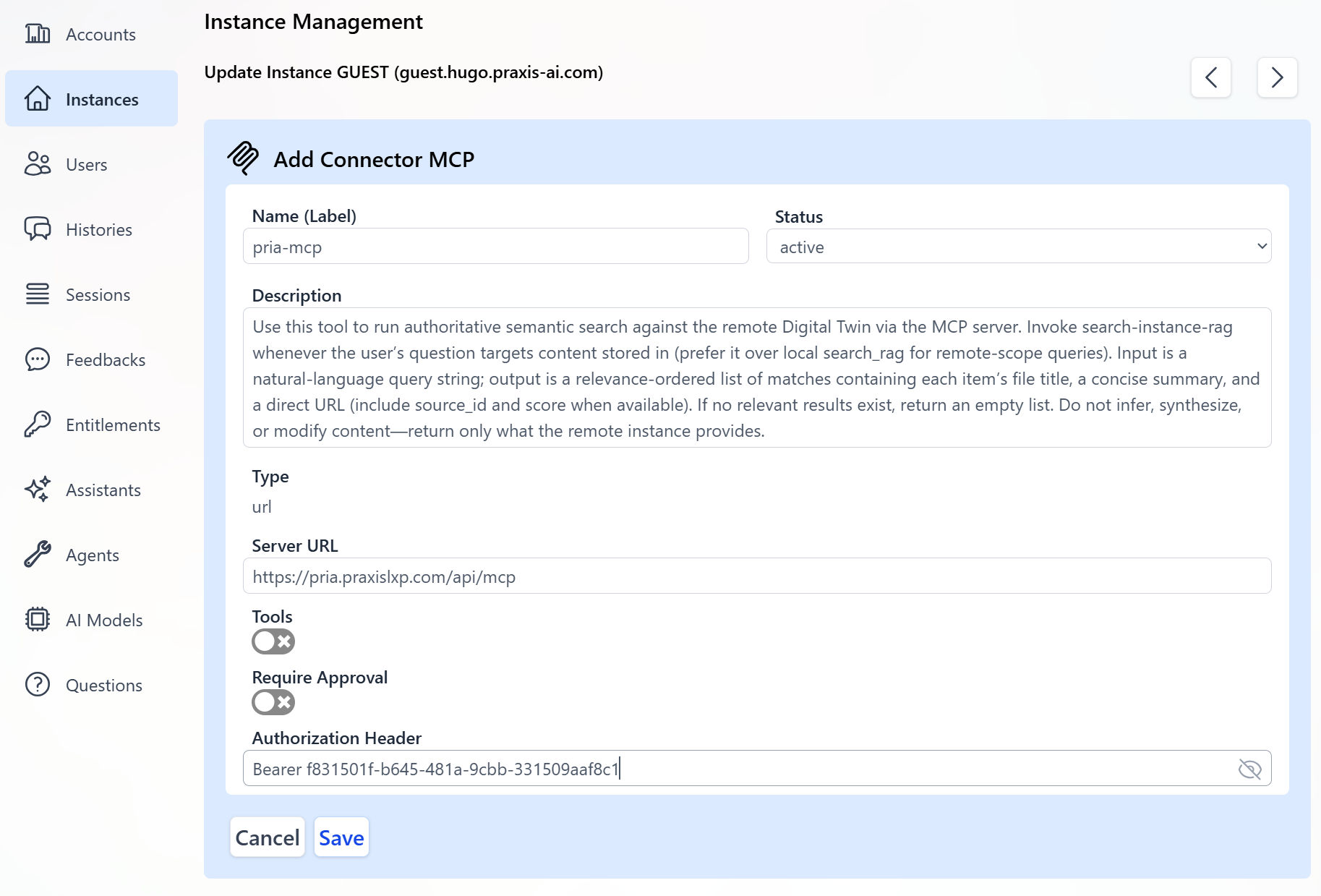 Save the connector and ensure it is enabled.
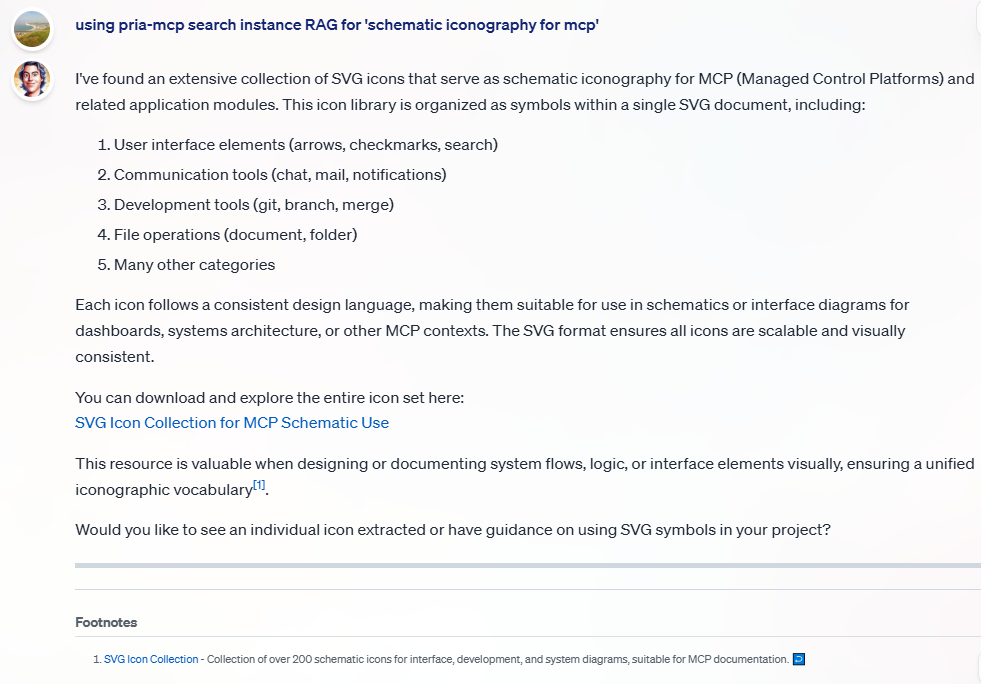
 Send a query in Twin B that targets Twin A's knowledge. For example:
> Using the pria-mcp, search for information about "onboarding process"
Send a query in Twin B that targets Twin A's knowledge. For example:
> Using the pria-mcp, search for information about "onboarding process"
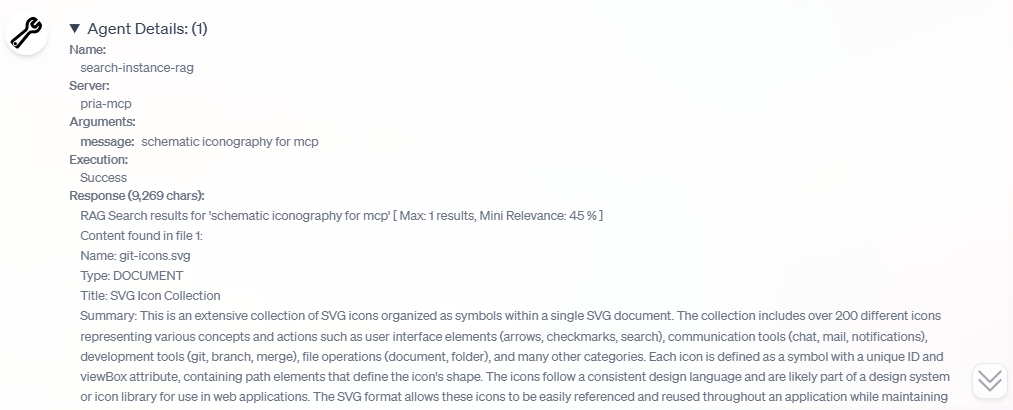
 Check the agent details to confirm the tool was invoked correctly and returned results.
 The Bearer token you provide in Twin B must match Twin A's **MCP Secret**. This ensures authenticated, secure communication between twins.
***
## MCP in Real-Time Voice Conversations
MCP tools are available during **Convo Mode** when using the **OpenAI GPT-Realtime** voice provider. Your Digital Twin can invoke MCP tools during live voice conversations — for example, searching a connected twin's knowledge base while speaking with a user.
MCP tool support in Convo Mode is only available with the OpenAI GPT-Realtime provider. ElevenLabs voice sessions do not support MCP tools. See [Convo Mode](/mdx/user-guide/interface/convo-speech) for a provider comparison.
***
## Institution-Level MCP Server Configuration
Administrators can configure MCP servers at the institution level through the **Configuration** page in the Admin dashboard. This makes external MCP tools available to all users of a Digital Twin without requiring individual setup.
See [Configuration > MCP Servers](/mdx/admin-guide/configuration) for details.
***
## Troubleshooting
| Symptom | Solution |
| -------------------------------- | ---------------------------------------------------------------------------------------------------------------------------------------------------------------- |
| **401 Unauthorized** | Verify your `Authorization: Bearer ` header matches the Digital Twin's MCP Secret exactly. |
| **Connection refused** | Confirm the server URL is `https://pria.praxislxp.com/api/mcp` and your network allows outbound HTTPS. |
| **Tools not appearing** | Ensure MCP Server is enabled and saved in the Digital Twin's Configuration panel. |
| **Twin B ignores the connector** | Check that the server label and tool names are correct. Try an explicit prompt: *"Using the pria-mcp, execute search-instance-rag to find information on 'xyz'"* |
| **Unexpected results** | Use the [MCP Inspector](https://modelcontextprotocol.io/docs/tools/inspector) to send the same query directly and compare responses. |
***
## Learn More
* [Model Context Protocol specification](https://modelcontextprotocol.io/) — The official MCP documentation and standard
***
## Related
* [MCP Servers (admin)](/mdx/admin-guide/mcp-servers) — Institution‑level MCP server configuration
* [Configuration](/mdx/admin-guide/configuration) — Where the MCP Server switch and Secret live
* [Connectors](/mdx/admin-guide/connectors) — Adding external MCP servers as Twin‑scoped connectors
* [Tools](/mdx/admin-guide/tools) — Tool definitions available to your Digital Twin
* [Convo Mode](/mdx/user-guide/interface/convo-speech) — Voice conversations with MCP tool support
* [API Reference](/mdx/api-reference/introduction) — Runtime and Admin REST APIs that the MCP server mirrors
* [API Keys](/mdx/user-guide/profile-settings/api-keys) — Personal API keys for programmatic access to Pria
The Bearer token you provide in Twin B must match Twin A's **MCP Secret**. This ensures authenticated, secure communication between twins.
***
## MCP in Real-Time Voice Conversations
MCP tools are available during **Convo Mode** when using the **OpenAI GPT-Realtime** voice provider. Your Digital Twin can invoke MCP tools during live voice conversations — for example, searching a connected twin's knowledge base while speaking with a user.
MCP tool support in Convo Mode is only available with the OpenAI GPT-Realtime provider. ElevenLabs voice sessions do not support MCP tools. See [Convo Mode](/mdx/user-guide/interface/convo-speech) for a provider comparison.
***
## Institution-Level MCP Server Configuration
Administrators can configure MCP servers at the institution level through the **Configuration** page in the Admin dashboard. This makes external MCP tools available to all users of a Digital Twin without requiring individual setup.
See [Configuration > MCP Servers](/mdx/admin-guide/configuration) for details.
***
## Troubleshooting
| Symptom | Solution |
| -------------------------------- | ---------------------------------------------------------------------------------------------------------------------------------------------------------------- |
| **401 Unauthorized** | Verify your `Authorization: Bearer ` header matches the Digital Twin's MCP Secret exactly. |
| **Connection refused** | Confirm the server URL is `https://pria.praxislxp.com/api/mcp` and your network allows outbound HTTPS. |
| **Tools not appearing** | Ensure MCP Server is enabled and saved in the Digital Twin's Configuration panel. |
| **Twin B ignores the connector** | Check that the server label and tool names are correct. Try an explicit prompt: *"Using the pria-mcp, execute search-instance-rag to find information on 'xyz'"* |
| **Unexpected results** | Use the [MCP Inspector](https://modelcontextprotocol.io/docs/tools/inspector) to send the same query directly and compare responses. |
***
## Learn More
* [Model Context Protocol specification](https://modelcontextprotocol.io/) — The official MCP documentation and standard
***
## Related
* [MCP Servers (admin)](/mdx/admin-guide/mcp-servers) — Institution‑level MCP server configuration
* [Configuration](/mdx/admin-guide/configuration) — Where the MCP Server switch and Secret live
* [Connectors](/mdx/admin-guide/connectors) — Adding external MCP servers as Twin‑scoped connectors
* [Tools](/mdx/admin-guide/tools) — Tool definitions available to your Digital Twin
* [Convo Mode](/mdx/user-guide/interface/convo-speech) — Voice conversations with MCP tool support
* [API Reference](/mdx/api-reference/introduction) — Runtime and Admin REST APIs that the MCP server mirrors
* [API Keys](/mdx/user-guide/profile-settings/api-keys) — Personal API keys for programmatic access to Pria