> ## Documentation Index
> Fetch the complete documentation index at: https://docs.praxis-ai.com/llms.txt
> Use this file to discover all available pages before exploring further.
# What are Assistants
> Assistants are specialized AI tools that expand your digital twin's capabilities for specific tasks.
## Understanding Assistants
Assistants are specialized AI tools that focus on specific tasks or domains. They extend your digital twin's capabilities by providing targeted expertise for particular workflows.
**Digital Twin vs Assistants:**
* **Digital Twin** = WHO you are (your complete professional identity)
* **Assistants** = WHAT you can do (specialized skills and tasks)
### Examples of What Assistants Can Do
| Category | Examples |
| --------------- | ------------------------------------------------------ |
| **Education** | Socratic Tutor, Course Syllabus Generator, Auto-Grader |
| **Development** | Code Analyzer, Learn to Code |
| **Research** | BibTeX Generator, Research Assistant |
| **Business** | Contract Review, Report Generator |
***
## How to Use Assistants
### Accessing the Assistant Library
Click the **Assistants** button in the bottom-right corner of the interface.
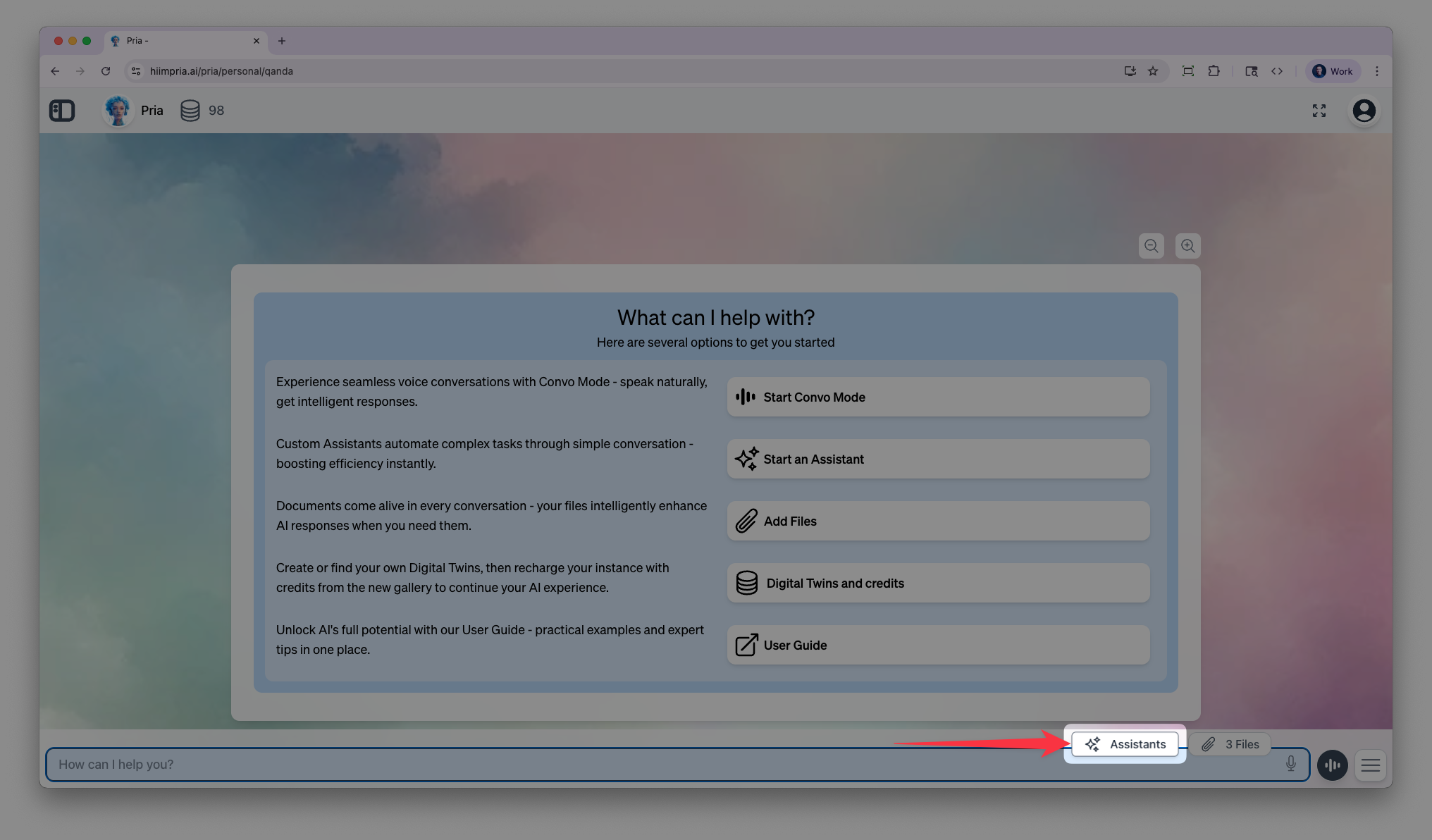 You can also open it from the **\[+]** action menu on the input bar — click **\[+]** and select **Assistants**.
![The [+] action menu expanded with the Assistants option selected.](https://mintcdn.com/praxisai/ibcwyLwL5tldF2mQ/images/user-guide/assistants-personalization/assistants-plus-menu.webp?fit=max&auto=format&n=ibcwyLwL5tldF2mQ&q=85&s=82f5282fd6e6084871686d418979de33) ### Browsing Available Assistants
Your digital twin comes with pre-built assistants. You can enable, disable, or create your own.
### Browsing Available Assistants
Your digital twin comes with pre-built assistants. You can enable, disable, or create your own.
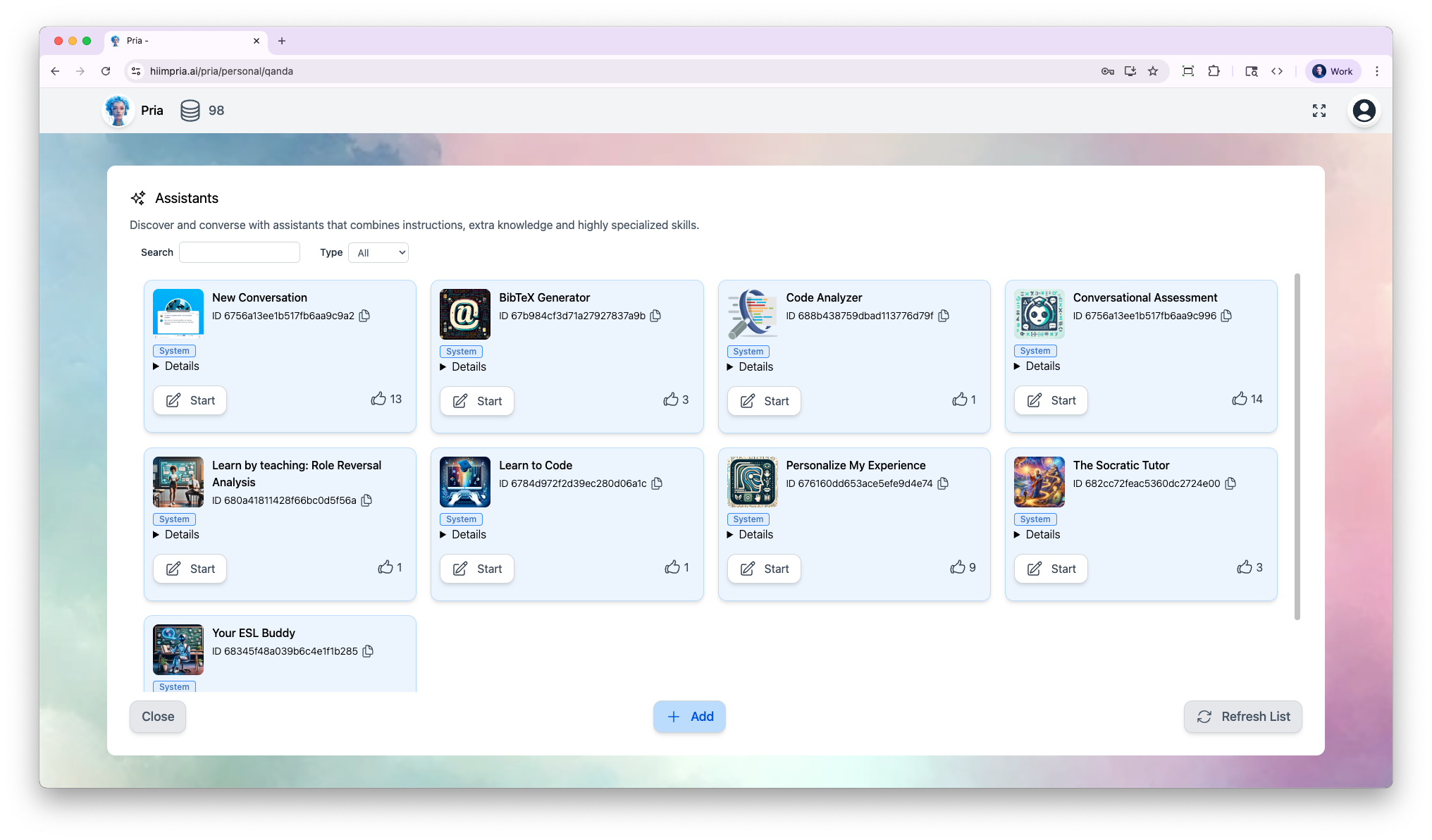 Each assistant card shows its avatar, name, and a **scope chip** telling you where it comes from — *Personal* (yours), *Instance* (shared with your Digital Twin), *Account* (shared across your organization), or *Admin* (admin-managed). A few things you can do from the gallery:
* **Favorite** an assistant with the ⭐ star — favorites appear in the chat sidebar's **Favorites** section for one-click access.
* **Switch views** between grid, list, and table layouts; your choice and filters are remembered.
* **Configure** (⋮ menu on assistants you can manage): Edit, Duplicate, Delete, or View History.
### Starting a Conversation
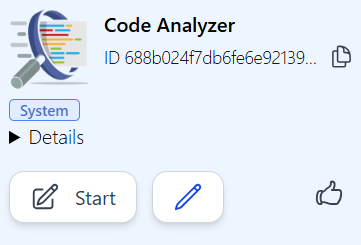
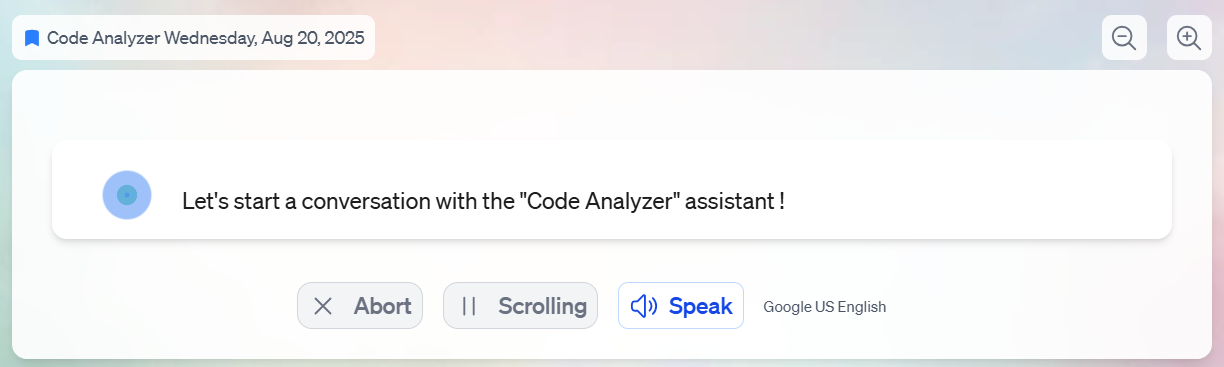
Select an assistant to begin a specialized conversation. The assistant's instructions guide every response in that thread.
Each assistant card shows its avatar, name, and a **scope chip** telling you where it comes from — *Personal* (yours), *Instance* (shared with your Digital Twin), *Account* (shared across your organization), or *Admin* (admin-managed). A few things you can do from the gallery:
* **Favorite** an assistant with the ⭐ star — favorites appear in the chat sidebar's **Favorites** section for one-click access.
* **Switch views** between grid, list, and table layouts; your choice and filters are remembered.
* **Configure** (⋮ menu on assistants you can manage): Edit, Duplicate, Delete, or View History.
### Starting a Conversation
Select an assistant to begin a specialized conversation. The assistant's instructions guide every response in that thread.
 Each assistant conversation maintains its own context—separate from your other conversations.
 ***
## Creating Your First Assistant
You can create custom assistants tailored to your specific needs. Here's a quick walkthrough:
Click the **Assistants** button to open the Assistants page
Click **Add** to create a new assistant
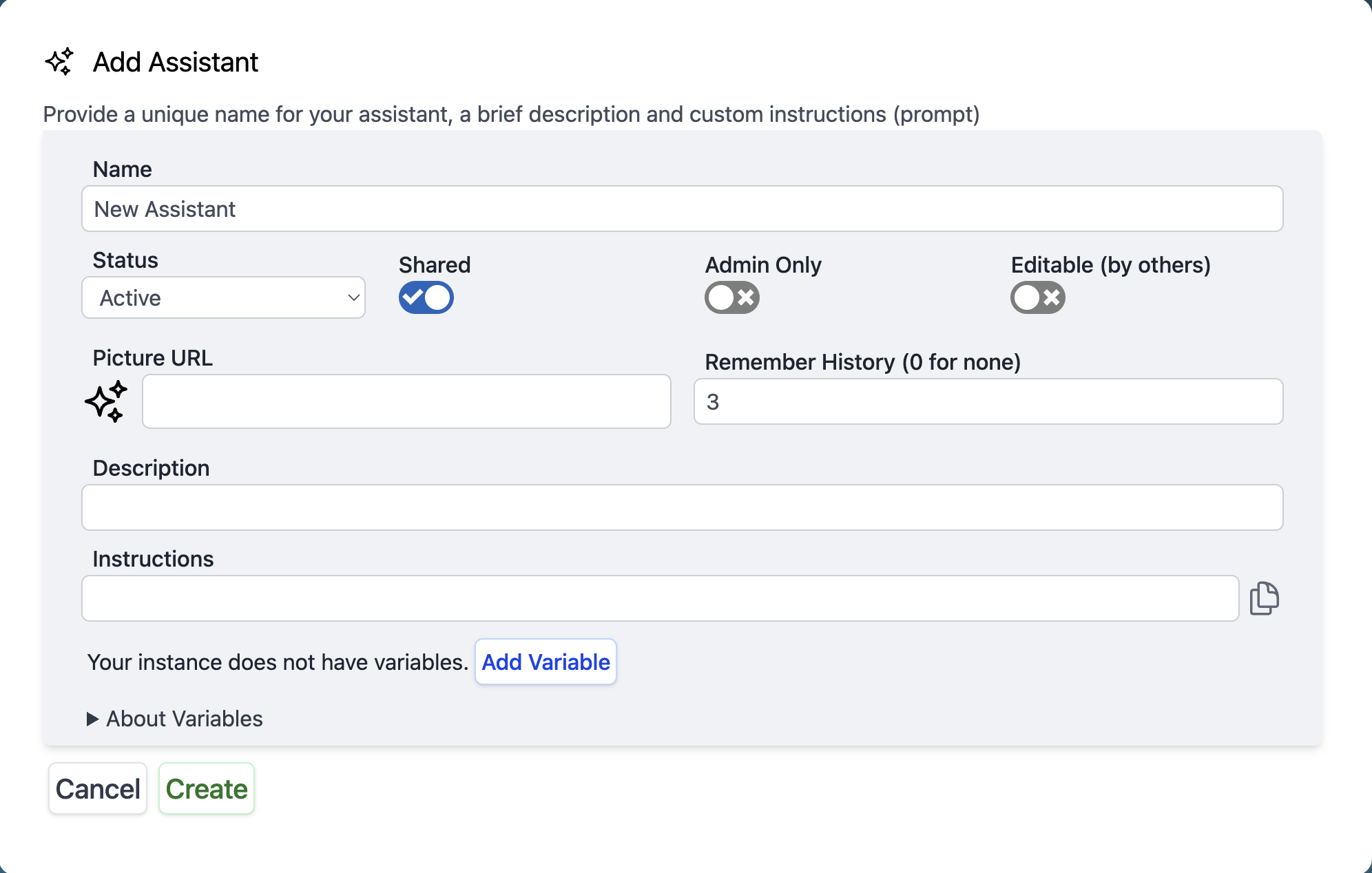
Set the name, description, and optionally an icon. Configure advanced options like history settings and model override.
Add your assistant's prompt—the instructions that define how it behaves. You can insert reusable values with **variables** (`${variable_name}`) and pin the Variables sidebar while editing.
Click **Create**, then start a conversation with your new assistant
For detailed guidance on writing effective assistant prompts, see [Creating Assistants](/mdx/user-guide/assistants-personalization/building).
***
## Administrator Options
Administrators have additional controls for managing assistants across the organization.
* **Share with all users**: Make an assistant available to everyone
* **Share with admins only**: Restrict to administrators
* **Allow editing by others**: Let others modify the assistant
* **Hide system assistants**: Curate which pre-built assistants users see
* **RAG collection scope**: Restrict which document collections an assistant searches
* **Tool configuration**: Control which AI tools each assistant can use
***
## Creating Your First Assistant
You can create custom assistants tailored to your specific needs. Here's a quick walkthrough:
Click the **Assistants** button to open the Assistants page
Click **Add** to create a new assistant
Set the name, description, and optionally an icon. Configure advanced options like history settings and model override.
Add your assistant's prompt—the instructions that define how it behaves. You can insert reusable values with **variables** (`${variable_name}`) and pin the Variables sidebar while editing.
Click **Create**, then start a conversation with your new assistant
For detailed guidance on writing effective assistant prompts, see [Creating Assistants](/mdx/user-guide/assistants-personalization/building).
***
## Administrator Options
Administrators have additional controls for managing assistants across the organization.
* **Share with all users**: Make an assistant available to everyone
* **Share with admins only**: Restrict to administrators
* **Allow editing by others**: Let others modify the assistant
* **Hide system assistants**: Curate which pre-built assistants users see
* **RAG collection scope**: Restrict which document collections an assistant searches
* **Tool configuration**: Control which AI tools each assistant can use
 ***
### Construction Industry Example
**Digital Twin: "Mike Rodriguez - General Contractor"**
Mike is a 25-year construction veteran who started as a framer. He's direct, detail-oriented, and won't cut corners. This is the personality that clients interact with.
**Mike's Assistants:**
| Assistant | Specialization |
| ---------------------------- | ------------------------------------------------------------- |
| 🔧 **Welding Expert** | MIG, TIG, stick techniques; safety protocols; cost estimation |
| 📋 **Construction Playbook** | Scheduling, permits, quality checklists |
| 🧱 **Masonry Specialist** | Brick, stone, concrete; mortar mixing; repairs |
| 🔧 **Plumbing Systems** | Pipe sizing, code compliance, troubleshooting |
**How they work together:**
When a client asks about adding a basement bathroom, Mike responds with his authentic personality and experience. Behind the scenes, he orchestrates his assistants:
1. **Plumbing Assistant** calculates pump requirements and code compliance
2. **Construction Playbook** outlines permits and inspection schedule
3. **Masonry Assistant** advises on concrete cutting
The result: Technical expertise delivered through Mike's professional persona.
***
### Construction Industry Example
**Digital Twin: "Mike Rodriguez - General Contractor"**
Mike is a 25-year construction veteran who started as a framer. He's direct, detail-oriented, and won't cut corners. This is the personality that clients interact with.
**Mike's Assistants:**
| Assistant | Specialization |
| ---------------------------- | ------------------------------------------------------------- |
| 🔧 **Welding Expert** | MIG, TIG, stick techniques; safety protocols; cost estimation |
| 📋 **Construction Playbook** | Scheduling, permits, quality checklists |
| 🧱 **Masonry Specialist** | Brick, stone, concrete; mortar mixing; repairs |
| 🔧 **Plumbing Systems** | Pipe sizing, code compliance, troubleshooting |
**How they work together:**
When a client asks about adding a basement bathroom, Mike responds with his authentic personality and experience. Behind the scenes, he orchestrates his assistants:
1. **Plumbing Assistant** calculates pump requirements and code compliance
2. **Construction Playbook** outlines permits and inspection schedule
3. **Masonry Assistant** advises on concrete cutting
The result: Technical expertise delivered through Mike's professional persona.