> ## Documentation Index
> Fetch the complete documentation index at: https://docs.praxis-ai.com/llms.txt
> Use this file to discover all available pages before exploring further.
# Create Your Digital Twin
> A step-by-step guide to the 8-step Digital Twin creation wizard — from name and avatar through personalization questions to file upload and launch.
Creating a Digital Twin takes about 10-20 minutes from the self-service wizard, or 24-48 hours if you want our team to build one for you. Pick the path that fits.
## Choose Your Path
Our team handles everything. Best for organizations or anyone who wants a polished twin without the setup work.
**Timeline:** 24-48 hours
Walk through the 8-step wizard at your own pace. Your twin is live the moment you finish the Configuration step.
**Timeline:** 10-20 minutes
***
## Option 1: We Build It For You
Best for organizations, busy professionals, or anyone who wants an expert-configured Digital Twin on day one.
Fill out our intake form (takes about 2 minutes).
Start the request form →
We'll ask about:
* Your expertise and domain
* Intended use cases
* Branding preferences
* Any special requirements
Our team configures everything for you within **24-48 hours**:
* Personalized AI instructions based on your input
* Visual identity and branding
* Initial knowledge base setup
* Tool and integration configuration
You'll receive an email with your login link and a pointer to the [Quick-start Guide](/mdx/user-guide/digital-twin-getting-started).
This option is ideal for enterprise deployments, faculty with limited time, or anyone who wants an expert-configured twin from day one.
***
## Option 2: Build It Yourself
The self-service wizard walks you through eight steps. You can always go back to a previous step using the stepper at the top or the **Back** button.
The **Cancel** button (or × on the modal) closes the wizard. Up through Step 6 nothing has been saved, so cancelling discards the in-progress draft. Once you click **Create** on Step 6 the twin is created — cancelling on Step 7 (file upload) or Step 8 (success) just closes the wizard; the twin stays.
### Before You Start
A name for your Digital Twin (you can change it later)
An avatar image — file upload, webcam snapshot, or paste from clipboard (optional but recommended)
About 10-15 minutes for the personalization interview; longer if you also upload knowledge files
### How to Open the Wizard
The most common entry point.
Click your profile icon in the top navigation to open the Digital Twin Gallery.
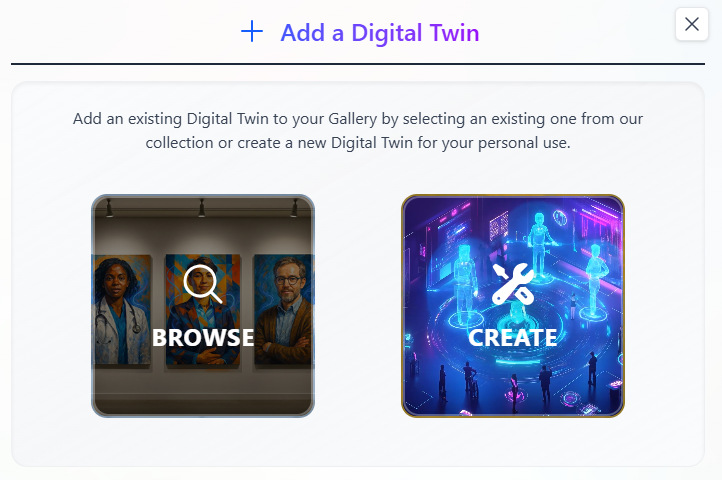
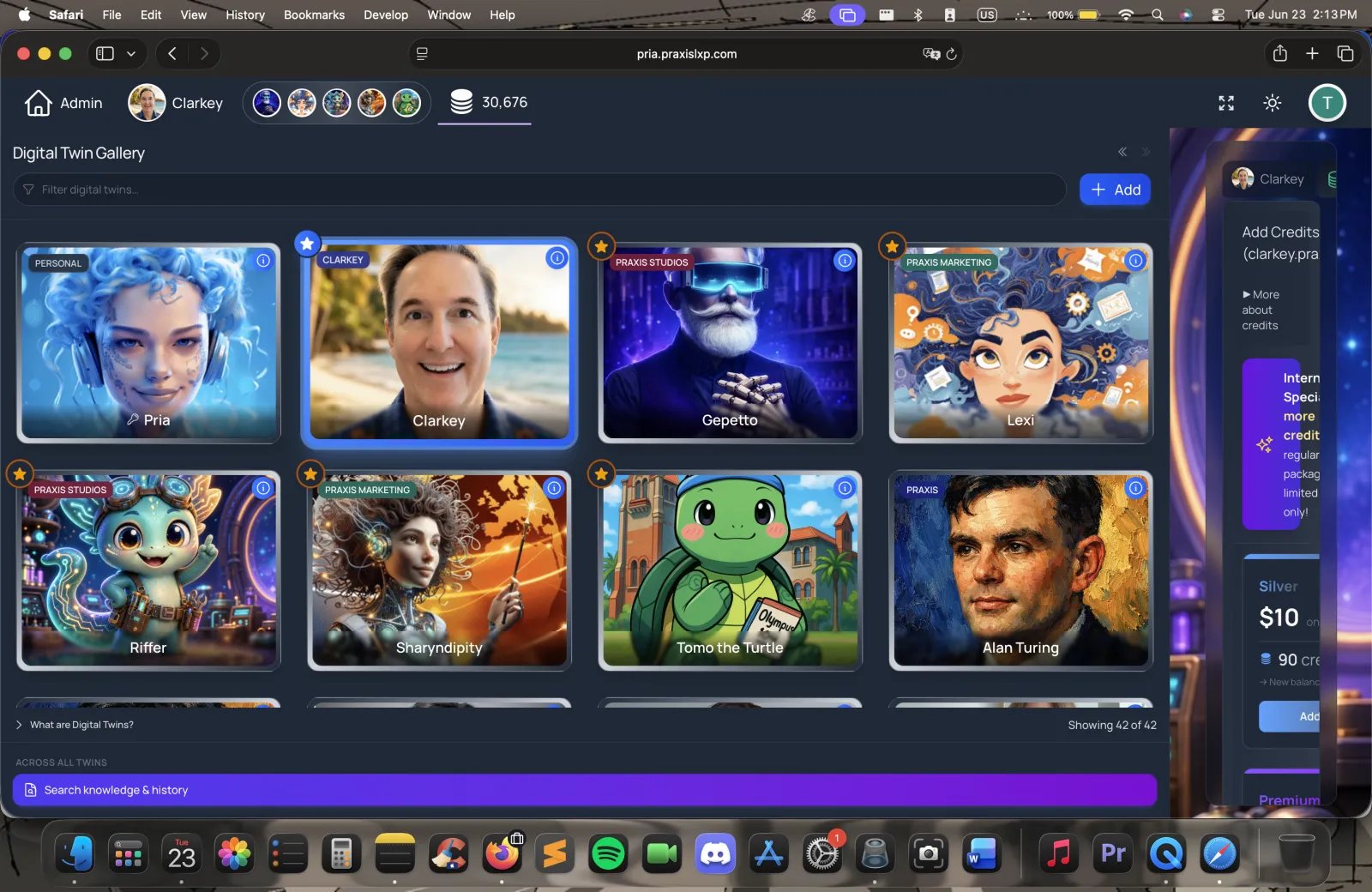 Click the **+ Add** button on a gallery card, then choose the **Create** option. The wizard opens in a modal.
 Navigate to `/my-profile/create` directly. The wizard opens as a full-page experience instead of a modal — useful for bookmarking or sharing the link with team members.
Faculty creating a course-specific Digital Twin should follow the [Faculty Onboarding Guide](/mdx/user-guide/lms/faculty-onboarding). The LMS path uses a slightly different launch flow tailored to course context.
Administrators creating institutional Digital Twins with custom entitlements, AI models, or branding should go through **Admin → Instances**. See the [Admin Guide](/mdx/admin-guide/introduction) for the full configuration surface.
***
## The 8-Step Wizard
A stepper across the top of the wizard tracks your progress. You can click any **previously-visited** step to jump back to it.
Enter the **Name** your twin will be called. It defaults to "Pria" if you leave it blank, and you can change it later. The name you type here also pre-fills the "What should your digital twin be called?" question in the personalization interview.
There's no longer an interview-type choice on this step — every twin is now personalized through the same guided **Persona Builder** interview (Step 4). Just name your twin and continue.
Upload an avatar via the picture-upload widget. You can:
* Upload a file from your device
* Take a snapshot with your webcam
* Paste an image from the clipboard
The widget includes a circular crop tool so the avatar fits the gallery card. You can leave the picture blank and click **Next** — twins without an avatar fall back to the default Pria image, and you can set or change the picture later from the Edit page.
Set how this twin looks. Two parts:
* **UI Theme** — choose **User Directed** (let each person use their own light/dark preference), **Dark**, or **Light**.
* **Background images** — optional light-mode and dark-mode backgrounds that appear behind the chat surface. Click a background tile to upload a local image (cropped to a wide 16:9 frame), or paste an **Image URL** (publicly reachable HTTPS).
Everything here is optional — leave the backgrounds blank and click **Next** to use the defaults. You can always change the theme and backgrounds later from the Edit page.
This is the **Persona Builder** — one curated **14-question** interview grouped into five sections (Basic Identity, Role and Primary Use Case, Audience, Communication Style, Advice Style and Guardrails). Questions are shown **one at a time** with prev/next controls and a progress bar.
Most questions are plain text, but two use richer controls:
* A **personality slider group** — seven traits (tone, energy, detail, feedback, humor, thinking, warmth), each a 1-to-7 scale; click one square per trait.
* A **single-choice tile** question for how your twin gives advice (Direct, Encouraging, Analytical, or Balanced).
**Six questions are required** (your name, email, the twin's role, what it helps with, its audience, and its advice style). The **Next** button stays disabled until every required question is answered — it reads *"Answer N more required to continue"* until then. The email question pre-fills from your account, and the twin-name question syncs with the name you set in Step 1.
Be specific. Detail in the answers translates directly into detail in your twin's voice — the answers become the personalization context behind your twin's Instructions. See [Onboarding Questions](/mdx/admin-guide/onboarding-questions) for the full question list.
When you reach this step, Pria automatically generates the twin's instructions from your interview answers (the **Generate Prompt** step) and shows them in an editable editor. You can:
* **Edit directly** to fine-tune phrasing
* Click **Regenerate from answers** to discard your edits and rebuild from the questions
Instructions are **required** — the **Next** button is locked while the draft is generating and stays locked if the field is empty (it reads *"Instructions required to continue"*). The instructions are what the underlying model receives as its system prompt — every conversation with your twin starts from this text.
Three groups of settings.
**Conversation Access** — who is allowed to chat with this twin:
| Option | Meaning |
| --------------------------- | ------------------------------------------------------------------------------------------------------------------------------------------------------------------------------------------------------------------------------------- |
| **By Invitation only** | Default. Only people you explicitly invite. |
| **Members of your account** | Shown when you belong to a parent account. Anyone in that account can converse. The option label includes the account's actual name. |
| **Anyone (public)** | Public access. Selecting this automatically switches Credit Management to Personal Credits and shows a warning recommending that — you can switch back to Pool Credits if you really want, but it exposes the pool to credit farming. |
**Convo Mode** — toggle to enable real-time **voice conversations** with this twin. Off by default.
**Credit Management** — pick one:
| Option | Meaning |
| -------------------- | ------------------------------------------------------------------------------------------------------------------------------------------------------------------- |
| **Pool Credits** | Conversations draw from the institution's shared credit pool. Recommended for most setups. |
| **Personal Credits** | Each user pays from their own credit balance. You set a one-time **Credits awarded per user** stipend (default 50) so new users can try the twin before topping up. |
Click the **Create** button (its label includes your twin's name) when you're done. The wizard plays a short full-screen creation animation (\~5 seconds — *Seeding Digital Twin… Infusing personality… Shaping voice & tone… Awakening consciousness…*) while it creates the twin, saves your question answers, and refreshes your profile.
Optional but powerful. Upload documents to give your twin domain-specific knowledge that is referenced in real time during conversations.
You can:
* **Drag and drop** files onto the drop zone
* **Paste** files from the clipboard (e.g. a screenshot you just took)
* Click **Choose Files to Upload** to pick from your device
Supported formats include PDF, DOCX, TXT, CSV, images, audio, video, and more. Uploaded files appear in a list below with their processing status (Processing / Ready / Error).
Click **Finish** to skip or move on; you can add more files at any time from the admin Files page.
Success screen with your twin's avatar, a confirmation that it's been added to your Gallery, and credit-related guidance:
* If your parent account has **auto-transfer** enabled, you're told credits will refill automatically when low.
* Otherwise, an **Add Credits Now** shortcut takes you to the Pricing page.
Two action buttons close the wizard:
* **Edit** — opens the full admin edit page for this twin (instructions, AI models, files, members, etc.)
* **Converse** — jumps straight into your first conversation with the new twin
***
## What Gets Saved
When you click **Create** on Step 6, the wizard sends a single create-institution request that captures everything from Steps 1-6 in one shot:
* Name, picture, UI theme, light/dark backgrounds
* Generated/edited instructions
* Conversation access mode and credit policy
* Voice (Convo Mode) toggle
Your answers to the personalization questions are saved as separate `institutionQuestion` records linked to the new twin so you can revisit and edit them later from the admin page.
File uploads on Step 7 are independent — each file is processed asynchronously, and you can close the wizard before processing finishes without losing them.
***
## After Creation Checklist
Once your twin is live, work through these:
Open the twin and have a few conversations. Listen for tone, accuracy, and anything that doesn't sound like you.
Add reference documents to the [IP Vault](/mdx/user-guide/files-documents/ipvault) so the twin can ground its answers in your sources.
Set up [specialized assistants](/mdx/user-guide/assistants-personalization/assistants) for the specific tasks you'll use the twin for.
Share access with your team, students, or audience — by invitation, account membership, or public link depending on the access mode you chose.
Connect to your [LMS](/mdx/integrations/canvas/overview), [website](/mdx/integrations/web/introduction), or other platforms.
***
## Troubleshooting
All **six required** questions must be answered before the wizard lets you advance — your name, email, the twin's role, what it helps with, its audience, and its advice style. The button label shows how many remain: *"Answer N more required to continue"*. Optional questions can be left blank.
The URL must be publicly accessible (no login wall), served over HTTPS, free of CORS restrictions, and link directly to the image file (ending in `.jpg`, `.png`, `.gif`, or `.webp`). If in doubt, use the **Upload File** button instead — uploaded images are served from our CDN.
On Step 5, edit the textarea directly to rewrite phrasing, or click **Regenerate from answers** to rebuild from the questions. You can always refine the instructions later from the twin's Edit page.
Pria limits Digital Twin creation to one per minute per user to keep the system stable. Wait a moment and try again.
Nothing is saved until you click **Create** on Step 6. Steps 1-5 live entirely in the wizard's local state — closing or cancelling discards them.
Check your **Gallery** (profile icon in the top nav). Newly created twins appear there immediately. If a twin was created through Canvas LMS, it may be linked only to that course context.
***
## Next Steps
Learn how to use your new Digital Twin
Create specialized AI assistants
Embed your Digital Twin in websites, LMS, and more
Navigate to `/my-profile/create` directly. The wizard opens as a full-page experience instead of a modal — useful for bookmarking or sharing the link with team members.
Faculty creating a course-specific Digital Twin should follow the [Faculty Onboarding Guide](/mdx/user-guide/lms/faculty-onboarding). The LMS path uses a slightly different launch flow tailored to course context.
Administrators creating institutional Digital Twins with custom entitlements, AI models, or branding should go through **Admin → Instances**. See the [Admin Guide](/mdx/admin-guide/introduction) for the full configuration surface.
***
## The 8-Step Wizard
A stepper across the top of the wizard tracks your progress. You can click any **previously-visited** step to jump back to it.
Enter the **Name** your twin will be called. It defaults to "Pria" if you leave it blank, and you can change it later. The name you type here also pre-fills the "What should your digital twin be called?" question in the personalization interview.
There's no longer an interview-type choice on this step — every twin is now personalized through the same guided **Persona Builder** interview (Step 4). Just name your twin and continue.
Upload an avatar via the picture-upload widget. You can:
* Upload a file from your device
* Take a snapshot with your webcam
* Paste an image from the clipboard
The widget includes a circular crop tool so the avatar fits the gallery card. You can leave the picture blank and click **Next** — twins without an avatar fall back to the default Pria image, and you can set or change the picture later from the Edit page.
Set how this twin looks. Two parts:
* **UI Theme** — choose **User Directed** (let each person use their own light/dark preference), **Dark**, or **Light**.
* **Background images** — optional light-mode and dark-mode backgrounds that appear behind the chat surface. Click a background tile to upload a local image (cropped to a wide 16:9 frame), or paste an **Image URL** (publicly reachable HTTPS).
Everything here is optional — leave the backgrounds blank and click **Next** to use the defaults. You can always change the theme and backgrounds later from the Edit page.
This is the **Persona Builder** — one curated **14-question** interview grouped into five sections (Basic Identity, Role and Primary Use Case, Audience, Communication Style, Advice Style and Guardrails). Questions are shown **one at a time** with prev/next controls and a progress bar.
Most questions are plain text, but two use richer controls:
* A **personality slider group** — seven traits (tone, energy, detail, feedback, humor, thinking, warmth), each a 1-to-7 scale; click one square per trait.
* A **single-choice tile** question for how your twin gives advice (Direct, Encouraging, Analytical, or Balanced).
**Six questions are required** (your name, email, the twin's role, what it helps with, its audience, and its advice style). The **Next** button stays disabled until every required question is answered — it reads *"Answer N more required to continue"* until then. The email question pre-fills from your account, and the twin-name question syncs with the name you set in Step 1.
Be specific. Detail in the answers translates directly into detail in your twin's voice — the answers become the personalization context behind your twin's Instructions. See [Onboarding Questions](/mdx/admin-guide/onboarding-questions) for the full question list.
When you reach this step, Pria automatically generates the twin's instructions from your interview answers (the **Generate Prompt** step) and shows them in an editable editor. You can:
* **Edit directly** to fine-tune phrasing
* Click **Regenerate from answers** to discard your edits and rebuild from the questions
Instructions are **required** — the **Next** button is locked while the draft is generating and stays locked if the field is empty (it reads *"Instructions required to continue"*). The instructions are what the underlying model receives as its system prompt — every conversation with your twin starts from this text.
Three groups of settings.
**Conversation Access** — who is allowed to chat with this twin:
| Option | Meaning |
| --------------------------- | ------------------------------------------------------------------------------------------------------------------------------------------------------------------------------------------------------------------------------------- |
| **By Invitation only** | Default. Only people you explicitly invite. |
| **Members of your account** | Shown when you belong to a parent account. Anyone in that account can converse. The option label includes the account's actual name. |
| **Anyone (public)** | Public access. Selecting this automatically switches Credit Management to Personal Credits and shows a warning recommending that — you can switch back to Pool Credits if you really want, but it exposes the pool to credit farming. |
**Convo Mode** — toggle to enable real-time **voice conversations** with this twin. Off by default.
**Credit Management** — pick one:
| Option | Meaning |
| -------------------- | ------------------------------------------------------------------------------------------------------------------------------------------------------------------- |
| **Pool Credits** | Conversations draw from the institution's shared credit pool. Recommended for most setups. |
| **Personal Credits** | Each user pays from their own credit balance. You set a one-time **Credits awarded per user** stipend (default 50) so new users can try the twin before topping up. |
Click the **Create** button (its label includes your twin's name) when you're done. The wizard plays a short full-screen creation animation (\~5 seconds — *Seeding Digital Twin… Infusing personality… Shaping voice & tone… Awakening consciousness…*) while it creates the twin, saves your question answers, and refreshes your profile.
Optional but powerful. Upload documents to give your twin domain-specific knowledge that is referenced in real time during conversations.
You can:
* **Drag and drop** files onto the drop zone
* **Paste** files from the clipboard (e.g. a screenshot you just took)
* Click **Choose Files to Upload** to pick from your device
Supported formats include PDF, DOCX, TXT, CSV, images, audio, video, and more. Uploaded files appear in a list below with their processing status (Processing / Ready / Error).
Click **Finish** to skip or move on; you can add more files at any time from the admin Files page.
Success screen with your twin's avatar, a confirmation that it's been added to your Gallery, and credit-related guidance:
* If your parent account has **auto-transfer** enabled, you're told credits will refill automatically when low.
* Otherwise, an **Add Credits Now** shortcut takes you to the Pricing page.
Two action buttons close the wizard:
* **Edit** — opens the full admin edit page for this twin (instructions, AI models, files, members, etc.)
* **Converse** — jumps straight into your first conversation with the new twin
***
## What Gets Saved
When you click **Create** on Step 6, the wizard sends a single create-institution request that captures everything from Steps 1-6 in one shot:
* Name, picture, UI theme, light/dark backgrounds
* Generated/edited instructions
* Conversation access mode and credit policy
* Voice (Convo Mode) toggle
Your answers to the personalization questions are saved as separate `institutionQuestion` records linked to the new twin so you can revisit and edit them later from the admin page.
File uploads on Step 7 are independent — each file is processed asynchronously, and you can close the wizard before processing finishes without losing them.
***
## After Creation Checklist
Once your twin is live, work through these:
Open the twin and have a few conversations. Listen for tone, accuracy, and anything that doesn't sound like you.
Add reference documents to the [IP Vault](/mdx/user-guide/files-documents/ipvault) so the twin can ground its answers in your sources.
Set up [specialized assistants](/mdx/user-guide/assistants-personalization/assistants) for the specific tasks you'll use the twin for.
Share access with your team, students, or audience — by invitation, account membership, or public link depending on the access mode you chose.
Connect to your [LMS](/mdx/integrations/canvas/overview), [website](/mdx/integrations/web/introduction), or other platforms.
***
## Troubleshooting
All **six required** questions must be answered before the wizard lets you advance — your name, email, the twin's role, what it helps with, its audience, and its advice style. The button label shows how many remain: *"Answer N more required to continue"*. Optional questions can be left blank.
The URL must be publicly accessible (no login wall), served over HTTPS, free of CORS restrictions, and link directly to the image file (ending in `.jpg`, `.png`, `.gif`, or `.webp`). If in doubt, use the **Upload File** button instead — uploaded images are served from our CDN.
On Step 5, edit the textarea directly to rewrite phrasing, or click **Regenerate from answers** to rebuild from the questions. You can always refine the instructions later from the twin's Edit page.
Pria limits Digital Twin creation to one per minute per user to keep the system stable. Wait a moment and try again.
Nothing is saved until you click **Create** on Step 6. Steps 1-5 live entirely in the wizard's local state — closing or cancelling discards them.
Check your **Gallery** (profile icon in the top nav). Newly created twins appear there immediately. If a twin was created through Canvas LMS, it may be linked only to that course context.
***
## Next Steps
Learn how to use your new Digital Twin
Create specialized AI assistants
Embed your Digital Twin in websites, LMS, and more