> ## Documentation Index
> Fetch the complete documentation index at: https://docs.praxis-ai.com/llms.txt
> Use this file to discover all available pages before exploring further.
# Audio Notes
> Capture spoken notes directly from the Pria toolbar. Each recording is transcribed in the background and filed in your personal IP Vault, ready to be used through RAG when you converse with your digital twin.
Audio Notes is a personal-vault feature. Recordings always land in your **Audio Notes** collection inside your *Personal* IP Vault — never in instance or account vaults.
## When to use Audio Notes
Audio Notes turn a thirty-second voice memo into searchable, citation-ready knowledge in your IP Vault. Use it when:
* You're walking, driving, or away from a keyboard and want to capture a thought your digital twin can later reference.
* You're debriefing after a meeting and want the takeaways in your vault without typing them up.
* You're training your twin on tacit knowledge that's faster to *say* than to *write* — process tips, customer anecdotes, decision rationales.
Once a recording is processed, it behaves exactly like any other file in your vault: it shows up in **My Files**, contributes to RAG searches, and can be cited inline in your twin's responses.
## Recording a note
The **microphone** icon appears in the Pria input toolbar next to the file-attach button. It's enabled by default for personal accounts and for digital twin instances, but several conditions can hide it:
* Your browser doesn't expose a usable microphone, or you're on a context (kiosk mode, headless browser, plain HTTP page) where audio recording isn't available.
* You're using the twin in **Guest UI** mode.
* The instance administrator has turned on **Disable File Upload for Users** (audio notes are file uploads, so the same gate applies).
* The instance administrator has explicitly turned on **Disable Audio Notes for Users** for this instance. (Note: every pre-existing instance had Audio Notes turned off when the feature first rolled out — your instance admin needs to opt your instance back in if you want Audio Notes available.)
Administrators with the `admin` account type are never affected by these toggles; the icon stays visible for them regardless.
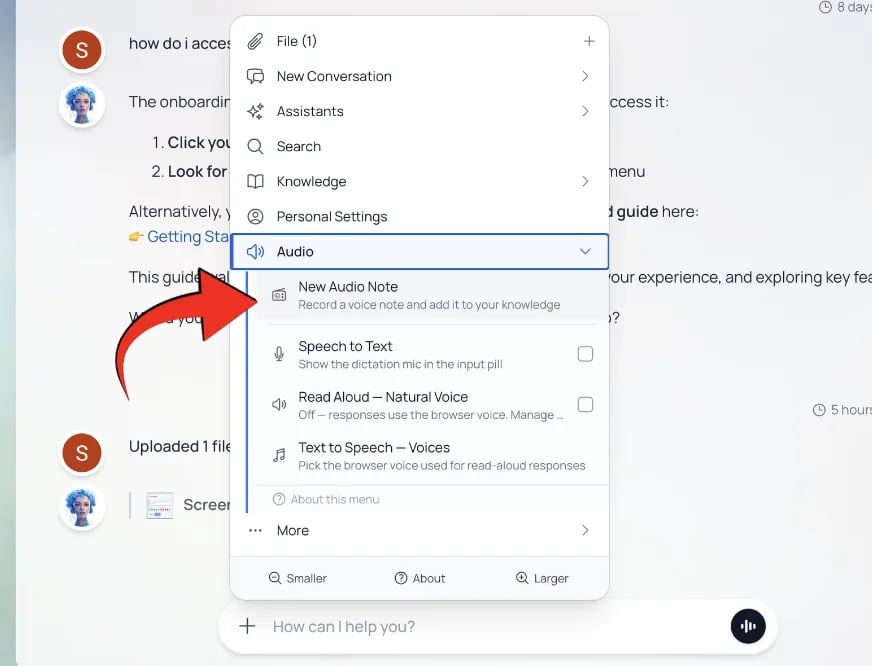
1. **Tap the microphone icon** to open the Audio Notes panel.
![The [+] action menu expanded with the Audio option selected.](https://mintcdn.com/praxisai/ibcwyLwL5tldF2mQ/images/user-guide/files-documents/audio-menu-option.webp?fit=max&auto=format&n=ibcwyLwL5tldF2mQ&q=85&s=7a73a201c194ee70631e5f40ab63ad02)
 2. **Tap the round mic button** to start recording. A live level meter shows that audio is being picked up — bars shift from gray to red as your voice gets louder.
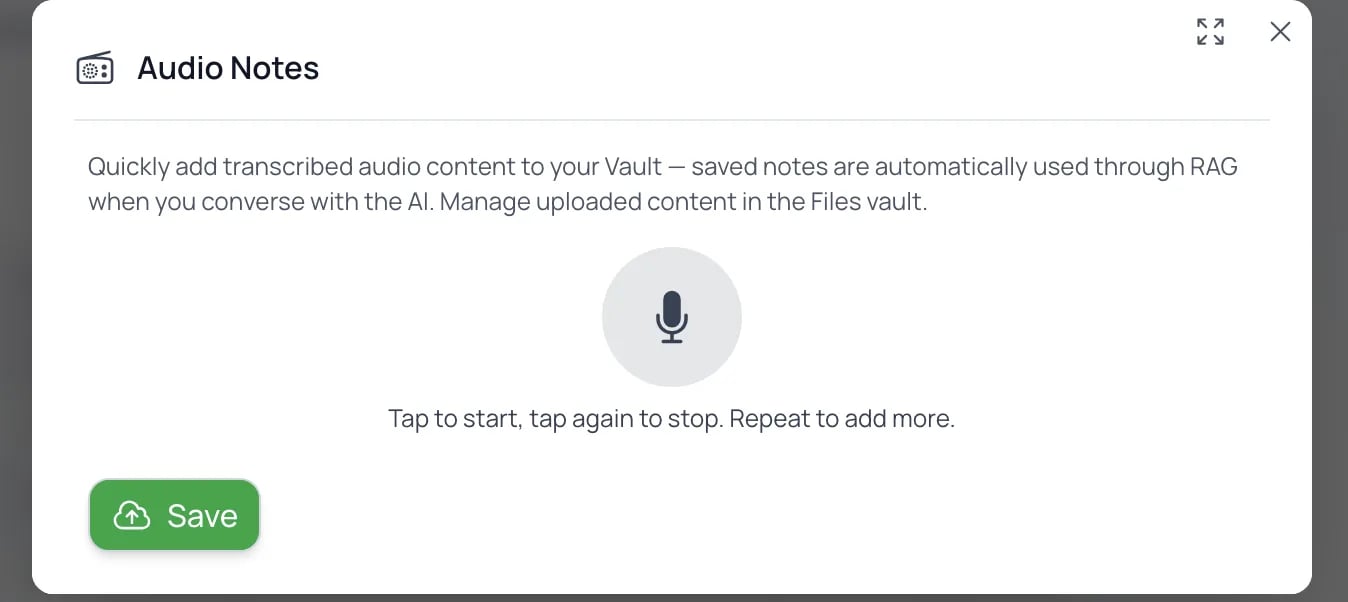 3. **Tap again to stop**. The segment appears in a list with an inline player. Repeat to add more segments to the same note.
4. Each segment can be **played back, renamed, reordered (↑/↓), or deleted** before saving.
5. **Combine audio into a single note** is on by default — when checked, all segments are losslessly concatenated server-side into one upload before transcription. Uncheck to file each segment as its own note.
6. Hit **Save**. A green confirmation appears: *"Audio note sent for processing."* Your recording is queued; the modal closes when you tap **Close**.
The mobile experience uses the same click-to-toggle interaction as desktop. There's no press-and-hold so recordings of any length work the same on a phone as on a laptop.
## What happens after Save
Saving returns immediately and the rest happens in the background:
1. **Transcription** runs through the speech-to-text model configured for your account (the same engine used for any audio you'd upload).
2. **Title generation** — once the transcript exists, a short, descriptive title is produced (e.g. *"Quarterly planning notes"*). The note's filename is replaced with this title automatically.
3. **Embedding & indexing** — the transcript is chunked, sanitized, embedded, and stored alongside your other vault content. From here on, RAG retrieval works exactly as it would for any uploaded file.
4. **History entry** — the upload is linked to a conversation history row tagged with the active assistant and selected course (if any), so token usage and credits are accounted against your normal balance.
You'll see the new file appear in **My Files → Audio Notes** within seconds of saving. If transcription fails (network glitch, provider outage), the upload is marked **Failed** in the vault — re-record or retry from the file actions menu.
## Combining vs. separate notes
| Choice | When to use |
| ----------------------- | ---------------------------------------------------------------------------------------------------------------------------------- |
| **Combine** *(default)* | The segments are part of the same thought ("the meeting recap"). One transcription call, one vault entry, one searchable document. |
| **Separate** | Each segment is a distinct idea. N transcription calls, N vault entries — each independently titled and indexed. |
Combine works only when every segment shares the same audio format. If the modal detects a mismatch (rare — only happens across sessions/devices), the checkbox is automatically disabled and the segments are saved separately with a small notice.
## File limits
| Limit | Value |
| --------------------- | ------------------------------------------------------------------------------------------------- |
| Max segments per save | 20 |
| Max size per segment | 50 MB |
| Soft duration cap | \~10 minutes per segment (Opus encoding ≈ 3 MB / 10 min, so the size cap is rarely reached first) |
## Managing audio notes
Audio notes appear under **My Files → Audio Notes** in the Personal IP Vault and behave like any other file:
* **Rename** — change the title; the original transcript-derived name is kept as a hint.
* **Delete** — removes the file and its embeddings. There's no undo.
* **Include / Exclude from RAG** — toggle whether your twin uses this note as a knowledge source.
* **Move to another collection** — drag it out of Audio Notes if you want it filed elsewhere.
The original `.webm` (or `.mp4` on iOS Safari) audio is preserved alongside the transcript, so you can replay any note from its file detail view.
## Privacy
* Recordings are uploaded over HTTPS in production.
* Browser-side audio is held in memory only until you tap Save — closing the modal or browser before saving discards everything; nothing leaves your device until the upload is queued.
* Personal-vault content is private to your account by default. Even administrators of your tenant can't access files marked **Confidential** by you.
* Transcription is performed by the AI provider configured for your tenant. The same data-handling and retention policies apply as for any audio you'd upload manually via the file picker.
## Troubleshooting
**The mic icon isn't showing.** Your browser doesn't expose a microphone, the page is on plain HTTP (mic access requires HTTPS in production), or the OS has the microphone disabled. Try a different browser (Chrome, Edge, Firefox, Safari ≥ 14) or check your OS privacy settings.
**Microphone access denied.** The modal will show a banner. Allow access in your browser's site settings (look for the mic icon in the address bar) and re-open the modal.
**The note is stuck in "Processing".** The ingestion queue is shared across the platform — under heavy load, processing can take a few minutes. The file becomes active automatically once embedding finishes; refreshing the Files panel shows the latest state.
**The transcript is wrong.** The recording was probably noisy or in a language the transcription model doesn't handle well. You can edit the transcript in the file detail view, or delete and re-record in a quieter environment.
3. **Tap again to stop**. The segment appears in a list with an inline player. Repeat to add more segments to the same note.
4. Each segment can be **played back, renamed, reordered (↑/↓), or deleted** before saving.
5. **Combine audio into a single note** is on by default — when checked, all segments are losslessly concatenated server-side into one upload before transcription. Uncheck to file each segment as its own note.
6. Hit **Save**. A green confirmation appears: *"Audio note sent for processing."* Your recording is queued; the modal closes when you tap **Close**.
The mobile experience uses the same click-to-toggle interaction as desktop. There's no press-and-hold so recordings of any length work the same on a phone as on a laptop.
## What happens after Save
Saving returns immediately and the rest happens in the background:
1. **Transcription** runs through the speech-to-text model configured for your account (the same engine used for any audio you'd upload).
2. **Title generation** — once the transcript exists, a short, descriptive title is produced (e.g. *"Quarterly planning notes"*). The note's filename is replaced with this title automatically.
3. **Embedding & indexing** — the transcript is chunked, sanitized, embedded, and stored alongside your other vault content. From here on, RAG retrieval works exactly as it would for any uploaded file.
4. **History entry** — the upload is linked to a conversation history row tagged with the active assistant and selected course (if any), so token usage and credits are accounted against your normal balance.
You'll see the new file appear in **My Files → Audio Notes** within seconds of saving. If transcription fails (network glitch, provider outage), the upload is marked **Failed** in the vault — re-record or retry from the file actions menu.
## Combining vs. separate notes
| Choice | When to use |
| ----------------------- | ---------------------------------------------------------------------------------------------------------------------------------- |
| **Combine** *(default)* | The segments are part of the same thought ("the meeting recap"). One transcription call, one vault entry, one searchable document. |
| **Separate** | Each segment is a distinct idea. N transcription calls, N vault entries — each independently titled and indexed. |
Combine works only when every segment shares the same audio format. If the modal detects a mismatch (rare — only happens across sessions/devices), the checkbox is automatically disabled and the segments are saved separately with a small notice.
## File limits
| Limit | Value |
| --------------------- | ------------------------------------------------------------------------------------------------- |
| Max segments per save | 20 |
| Max size per segment | 50 MB |
| Soft duration cap | \~10 minutes per segment (Opus encoding ≈ 3 MB / 10 min, so the size cap is rarely reached first) |
## Managing audio notes
Audio notes appear under **My Files → Audio Notes** in the Personal IP Vault and behave like any other file:
* **Rename** — change the title; the original transcript-derived name is kept as a hint.
* **Delete** — removes the file and its embeddings. There's no undo.
* **Include / Exclude from RAG** — toggle whether your twin uses this note as a knowledge source.
* **Move to another collection** — drag it out of Audio Notes if you want it filed elsewhere.
The original `.webm` (or `.mp4` on iOS Safari) audio is preserved alongside the transcript, so you can replay any note from its file detail view.
## Privacy
* Recordings are uploaded over HTTPS in production.
* Browser-side audio is held in memory only until you tap Save — closing the modal or browser before saving discards everything; nothing leaves your device until the upload is queued.
* Personal-vault content is private to your account by default. Even administrators of your tenant can't access files marked **Confidential** by you.
* Transcription is performed by the AI provider configured for your tenant. The same data-handling and retention policies apply as for any audio you'd upload manually via the file picker.
## Troubleshooting
**The mic icon isn't showing.** Your browser doesn't expose a microphone, the page is on plain HTTP (mic access requires HTTPS in production), or the OS has the microphone disabled. Try a different browser (Chrome, Edge, Firefox, Safari ≥ 14) or check your OS privacy settings.
**Microphone access denied.** The modal will show a banner. Allow access in your browser's site settings (look for the mic icon in the address bar) and re-open the modal.
**The note is stuck in "Processing".** The ingestion queue is shared across the platform — under heavy load, processing can take a few minutes. The file becomes active automatically once embedding finishes; refreshing the Files panel shows the latest state.
**The transcript is wrong.** The recording was probably noisy or in a language the transcription model doesn't handle well. You can edit the transcript in the file detail view, or delete and re-record in a quieter environment.