> ## Documentation Index
> Fetch the complete documentation index at: https://docs.praxis-ai.com/llms.txt
> Use this file to discover all available pages before exploring further.
# Organizing Files into Collections
> Group related files into Collections for cleaner organization and easier sharing.
Collections are named groups of files — folders, essentially. They live inside a vault, nest as deeply as you want, and exist for one reason: to keep your vault organized so you can find things quickly. Your Digital Twin still searches across **every** included file regardless of folder, so a Collection's job is purely human-facing.
Use Collections to mirror how **you** think about the content — by topic, course, project, client, or release. A clean vault is a vault you'll actually trust.
***
## Creating a Collection
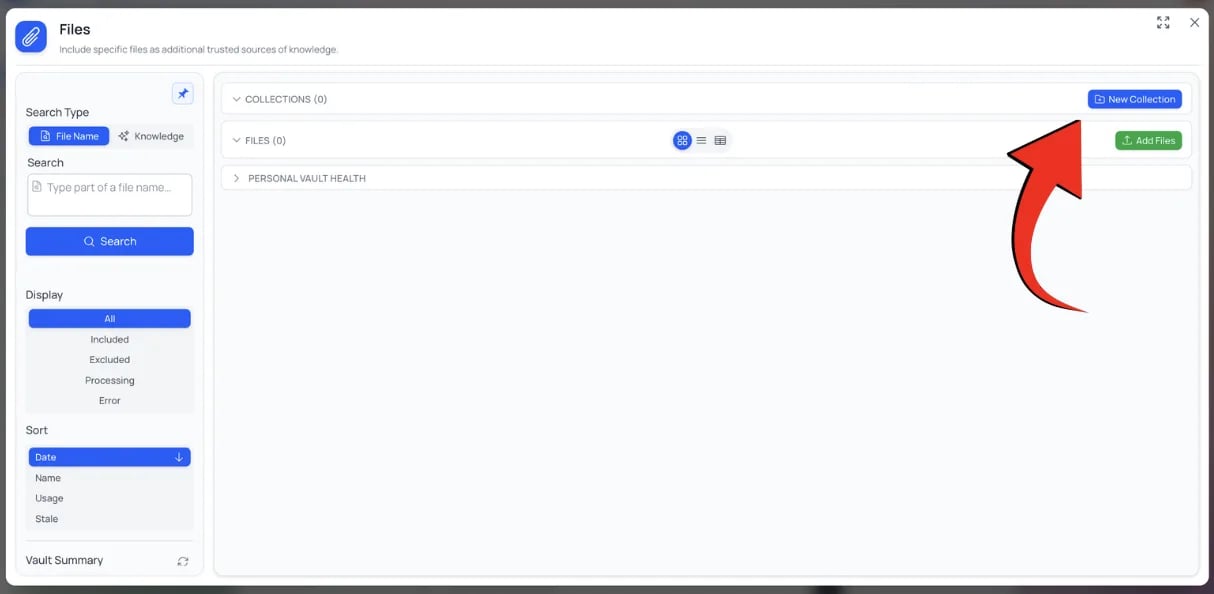
Click **Files** on the chat input bar.
The button sits next to **+ Add** at the bottom of the file panel.
 Color codes show up on the folder icon and on file-card breadcrumbs throughout the vault.
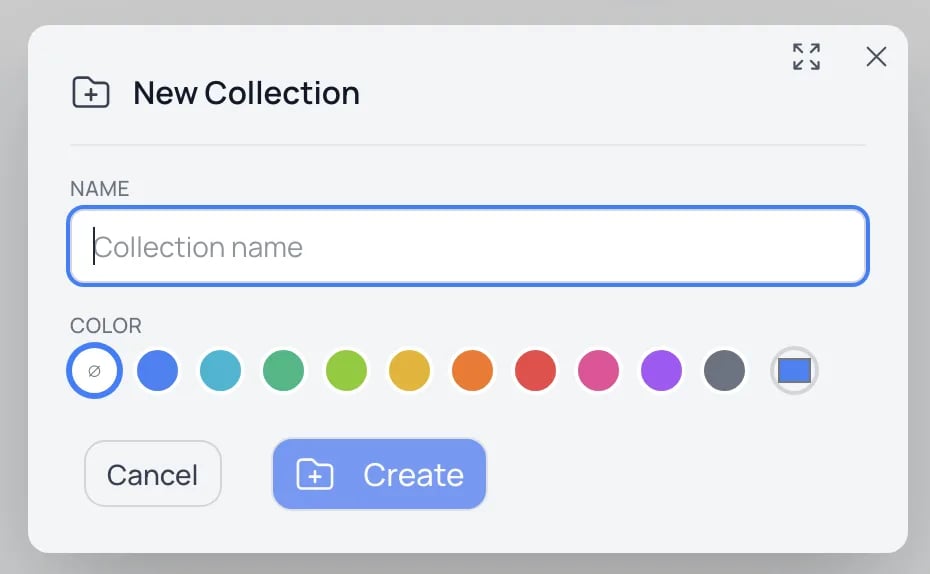 The new Collection card appears alongside your files at the root of the active vault.
Click a Collection card to navigate **into** it. The breadcrumb at the top of the panel lets you climb back out one level at a time, or jump straight to the vault root.
***
## Adding files
You have three ways to put files into a Collection:
Drag any file card onto a Collection card to move it in. Drag from inside a Collection onto the breadcrumb to move it back out.
Check the boxes on several file cards, then drag any one of them — the whole selection moves together.
From the file action menu (or the bulk-action toolbar), pick **Move to Collection** and select the target from a dropdown.
You can also **upload directly into a Collection** — open the Collection first, then click **+ Add**. New uploads land where you are, not at the vault root.
Drop a file from your desktop **directly onto a Collection card** to upload straight into that folder. Same gesture, fewer clicks.
### Moving files between Collections
Just drag the file card from one Collection to another. To move several files at once, multi-select first.
***
## Renaming and deleting Collections
Click the **⋮ menu** on a Collection card for the management actions.
| Action | What happens |
| ----------------------------- | --------------------------------------------------------------------------------------------------- |
| **Rename** | Updates the Collection name everywhere it's referenced. Files inside are unaffected. |
| **Recolor** | Updates the folder color. |
| **New Sub-Collection** | Creates a nested Collection inside this one. |
| **Include All / Exclude All** | Toggles every file in the Collection (and its sub-collections) in or out of retrieval in one click. |
| **Make All Public / Private** | Bulk access change for every file inside. |
| **Reprocess All** | Re-runs processing on every file in the Collection — useful after an embedding-model change. |
| **Download as ZIP** | Archives the Collection and its sub-collections, preserving folder structure. |
| **Delete** | **Deletes the Collection and every file inside it**, recursively into sub-collections. |
Deleting a Collection deletes every file inside it (and inside its sub-collections). If you only want to remove the grouping, **move files out** (drag-drop or Move to Collection) or **download the ZIP** first, then delete.
***
## Nested Collections
Collections can contain other Collections — nesting is unbounded. Drag one Collection onto another to make it a sub-collection. The folder hierarchy shows up in file breadcrumbs everywhere:
```
Collection › Sub-collection › document.pdf
```
This is useful for top-down organization (`Courses › Fall 2026 › Biology 101 › Lecture Notes`) where each level adds context.
***
## Sharing Collections
If you're an **admin** in your institution, you can publish Collections to shared scopes:
| Scope | Visibility |
| ---------------------- | --------------------------------------------------- |
| **Personal** (default) | Only you. |
| **Instance** | All users in your institution. |
| **Account** | All users across every institution in your account. |
### Moving a Collection to a shared vault
From inside **My Files**, drag the Collection card onto the **Instance Files** or **Account Files** tab header. The Collection and **every file inside it** (including sub-collections) move to that scope in one operation.
Once published:
* Users on the target scope see the Collection in their **Instance Files** or **Account Files** tab.
* File-level access tiers (Public / Private / Confidential) still apply — moving a Confidential file to Instance does **not** let others open it; they see a "🔒 CONFIDENTIAL" marker instead of its details.
### Bringing a Collection back to Personal
Same gesture in reverse — drag the Collection from Instance or Account back onto the **My Files** tab. The Collection becomes personal again, visible only to you.
***
## Permissions on shared Collections
When a Collection lives in a shared vault, who can do what depends on your role:
| Role | Add files | Rename / Recolor | Move files in/out | Delete | View |
| ------------------ | ------------------- | ---------------- | ----------------- | ------ | ---- |
| **Instance admin** | Yes | Yes | Yes | Yes | Yes |
| **Account admin** | Yes (Account scope) | Yes | Yes | Yes | Yes |
| **Standard user** | No (unless granted) | No | No | No | Yes |
Standard users see shared Collections and the files inside them but can't restructure the shared knowledge base. This keeps the shared vault curated.
Need permission to manage a shared Collection? Ask your institution admin to grant you the appropriate role — Pria's permission model lives in your Instance Settings.
***
## Using Collections in chat
Collections can do double duty: instead of letting your Digital Twin search the **entire** vault, you can **restrict retrieval to a single Collection** for focused answers.
This is useful when:
* You're working on a specific project and want answers grounded only in that project's files
* You have overlapping topics across Collections and want to disambiguate
* You're testing how a Collection's files behave in conversation
Open the chat sidebar's **Knowledge** controls to scope retrieval to a Collection. While the scope is active, every answer will be grounded in just that Collection's files.
Pair a focused Collection with [Search Only mode](/mdx/user-guide/interface/knowledge-modes) to get the raw passages without an LLM rewrite — perfect for browsing a project's knowledge base directly.
***
## Organization tips
Resist the urge to over-nest. A project Collection with everything inside (sources, notes, deliverables) is easier to scope than three levels of folder hierarchy.
Use a top-level `Archive` Collection for finished work. The files stay searchable, but they don't clutter your current view.
Use folder colors consistently — e.g. blue for active, gray for archived, red for sensitive. Color carries through breadcrumbs and file cards.
Files at the vault root with no Collection are easy to lose track of. Run a quick sort by date occasionally and tuck recent uploads into the right Collection.
Combine Collection navigation with the **Display: Processing** or **Display: Error** filter to find files that need attention inside any Collection.
Remember: your Digital Twin searches across every included file regardless of folder. You don't need Collections for retrieval to work — they're for **you**.
***
## Related
* [IP Vault](/mdx/user-guide/files-documents/ipvault) — vault overview, access tiers, and what each vault is for
* [Managing Files](/mdx/user-guide/files-documents/managing-files) — uploads, file actions, bulk operations
* [Searching Inside Your Files](/mdx/user-guide/files-documents/file-search) — content search and Collection-scoped queries
* [Knowledge Modes](/mdx/user-guide/interface/knowledge-modes) — how Pria uses your Collections at chat time
The new Collection card appears alongside your files at the root of the active vault.
Click a Collection card to navigate **into** it. The breadcrumb at the top of the panel lets you climb back out one level at a time, or jump straight to the vault root.
***
## Adding files
You have three ways to put files into a Collection:
Drag any file card onto a Collection card to move it in. Drag from inside a Collection onto the breadcrumb to move it back out.
Check the boxes on several file cards, then drag any one of them — the whole selection moves together.
From the file action menu (or the bulk-action toolbar), pick **Move to Collection** and select the target from a dropdown.
You can also **upload directly into a Collection** — open the Collection first, then click **+ Add**. New uploads land where you are, not at the vault root.
Drop a file from your desktop **directly onto a Collection card** to upload straight into that folder. Same gesture, fewer clicks.
### Moving files between Collections
Just drag the file card from one Collection to another. To move several files at once, multi-select first.
***
## Renaming and deleting Collections
Click the **⋮ menu** on a Collection card for the management actions.
| Action | What happens |
| ----------------------------- | --------------------------------------------------------------------------------------------------- |
| **Rename** | Updates the Collection name everywhere it's referenced. Files inside are unaffected. |
| **Recolor** | Updates the folder color. |
| **New Sub-Collection** | Creates a nested Collection inside this one. |
| **Include All / Exclude All** | Toggles every file in the Collection (and its sub-collections) in or out of retrieval in one click. |
| **Make All Public / Private** | Bulk access change for every file inside. |
| **Reprocess All** | Re-runs processing on every file in the Collection — useful after an embedding-model change. |
| **Download as ZIP** | Archives the Collection and its sub-collections, preserving folder structure. |
| **Delete** | **Deletes the Collection and every file inside it**, recursively into sub-collections. |
Deleting a Collection deletes every file inside it (and inside its sub-collections). If you only want to remove the grouping, **move files out** (drag-drop or Move to Collection) or **download the ZIP** first, then delete.
***
## Nested Collections
Collections can contain other Collections — nesting is unbounded. Drag one Collection onto another to make it a sub-collection. The folder hierarchy shows up in file breadcrumbs everywhere:
```
Collection › Sub-collection › document.pdf
```
This is useful for top-down organization (`Courses › Fall 2026 › Biology 101 › Lecture Notes`) where each level adds context.
***
## Sharing Collections
If you're an **admin** in your institution, you can publish Collections to shared scopes:
| Scope | Visibility |
| ---------------------- | --------------------------------------------------- |
| **Personal** (default) | Only you. |
| **Instance** | All users in your institution. |
| **Account** | All users across every institution in your account. |
### Moving a Collection to a shared vault
From inside **My Files**, drag the Collection card onto the **Instance Files** or **Account Files** tab header. The Collection and **every file inside it** (including sub-collections) move to that scope in one operation.
Once published:
* Users on the target scope see the Collection in their **Instance Files** or **Account Files** tab.
* File-level access tiers (Public / Private / Confidential) still apply — moving a Confidential file to Instance does **not** let others open it; they see a "🔒 CONFIDENTIAL" marker instead of its details.
### Bringing a Collection back to Personal
Same gesture in reverse — drag the Collection from Instance or Account back onto the **My Files** tab. The Collection becomes personal again, visible only to you.
***
## Permissions on shared Collections
When a Collection lives in a shared vault, who can do what depends on your role:
| Role | Add files | Rename / Recolor | Move files in/out | Delete | View |
| ------------------ | ------------------- | ---------------- | ----------------- | ------ | ---- |
| **Instance admin** | Yes | Yes | Yes | Yes | Yes |
| **Account admin** | Yes (Account scope) | Yes | Yes | Yes | Yes |
| **Standard user** | No (unless granted) | No | No | No | Yes |
Standard users see shared Collections and the files inside them but can't restructure the shared knowledge base. This keeps the shared vault curated.
Need permission to manage a shared Collection? Ask your institution admin to grant you the appropriate role — Pria's permission model lives in your Instance Settings.
***
## Using Collections in chat
Collections can do double duty: instead of letting your Digital Twin search the **entire** vault, you can **restrict retrieval to a single Collection** for focused answers.
This is useful when:
* You're working on a specific project and want answers grounded only in that project's files
* You have overlapping topics across Collections and want to disambiguate
* You're testing how a Collection's files behave in conversation
Open the chat sidebar's **Knowledge** controls to scope retrieval to a Collection. While the scope is active, every answer will be grounded in just that Collection's files.
Pair a focused Collection with [Search Only mode](/mdx/user-guide/interface/knowledge-modes) to get the raw passages without an LLM rewrite — perfect for browsing a project's knowledge base directly.
***
## Organization tips
Resist the urge to over-nest. A project Collection with everything inside (sources, notes, deliverables) is easier to scope than three levels of folder hierarchy.
Use a top-level `Archive` Collection for finished work. The files stay searchable, but they don't clutter your current view.
Use folder colors consistently — e.g. blue for active, gray for archived, red for sensitive. Color carries through breadcrumbs and file cards.
Files at the vault root with no Collection are easy to lose track of. Run a quick sort by date occasionally and tuck recent uploads into the right Collection.
Combine Collection navigation with the **Display: Processing** or **Display: Error** filter to find files that need attention inside any Collection.
Remember: your Digital Twin searches across every included file regardless of folder. You don't need Collections for retrieval to work — they're for **you**.
***
## Related
* [IP Vault](/mdx/user-guide/files-documents/ipvault) — vault overview, access tiers, and what each vault is for
* [Managing Files](/mdx/user-guide/files-documents/managing-files) — uploads, file actions, bulk operations
* [Searching Inside Your Files](/mdx/user-guide/files-documents/file-search) — content search and Collection-scoped queries
* [Knowledge Modes](/mdx/user-guide/interface/knowledge-modes) — how Pria uses your Collections at chat time