> ## Documentation Index
> Fetch the complete documentation index at: https://docs.praxis-ai.com/llms.txt
> Use this file to discover all available pages before exploring further.
# Searching Inside Your Files
> Find passages across all your uploaded documents with keyword search and relevance scoring.
Most of the time, Pria reaches into your files automatically while you chat — that's the [Knowledge Modes](/mdx/user-guide/interface/knowledge-modes) system at work. But sometimes you don't want to start a conversation. You just want to find the paragraph that mentions a clause, a date, or a name. **Content search** is the tool for that.
Content search is for **finding a specific passage on demand**. Chat-time retrieval (RAG and KAG) runs inline while you talk to your Digital Twin. The two systems share the same underlying index, but content search puts you in the driver's seat — type a query, scan the hits, jump to the source.
***
## Where to use it
Open your **IP Vault** from the **Files** button on the chat input bar. At the top of the file panel you'll see the **Search bar** — type a query and Pria scans every passage in your eligible files, returning ranked snippets with the file they came from.
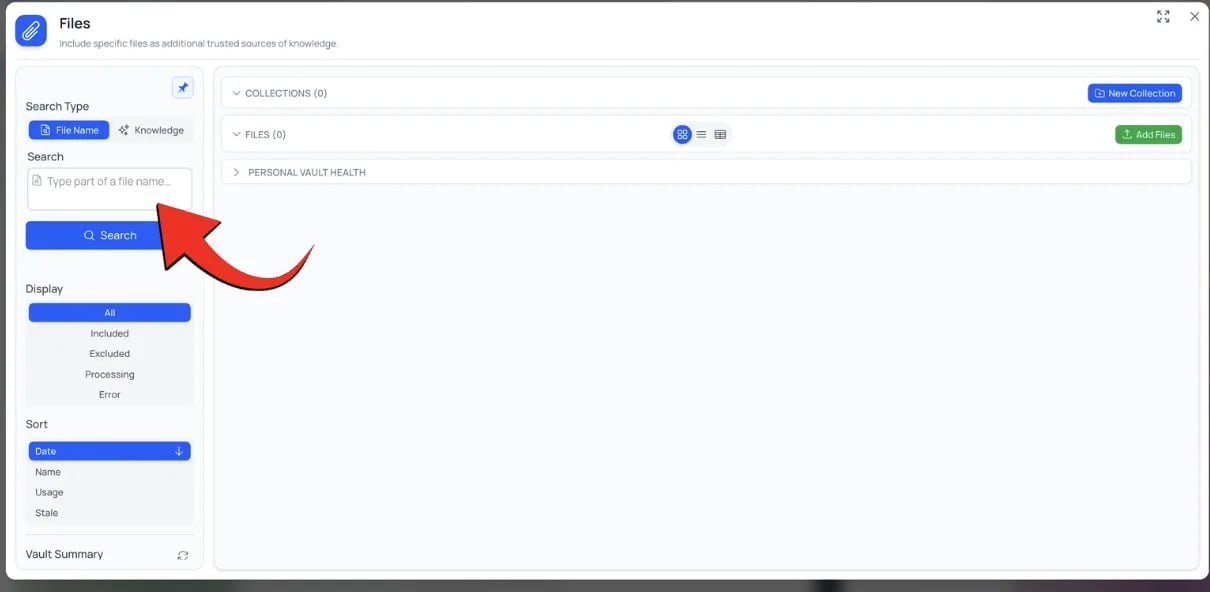 You can search at any time:
* Mid-conversation, without breaking your chat
* Before a session, to remind yourself what you uploaded
* During cleanup, to find duplicate or outdated files
***
## Keyword queries
The search bar accepts free-form text. Pria builds a semantic query against your vault, so you don't have to match wording exactly.
Type a phrase in quotes to bias the search toward verbatim hits — useful for finding a specific clause, definition, or quote.
Combine terms to narrow the result set. Pria scores passages on how well they match the **combination** of words, not just any one.
"What did the report say about Q3 hiring?" works as well as `Q3 hiring`. The semantic layer handles paraphrase.
Proper nouns and specific tokens (case numbers, model IDs, ISBNs) rank reliably because they're rare in the index.
Keep queries under \~500 characters. Long queries get truncated and dilute the signal — shorter is sharper.
***
## Reading results
Each hit shows up as a card with:
* **File name and icon** — what document the passage came from
* **Snippet** — about 200 characters of context, with the matched terms emphasized
* **Relevance score** — a 0–100% value reflecting how closely the passage matches your query
* **Source label** — whether the match came from semantic similarity (RAG), the knowledge graph (KAG), or both legs combined (fused)
### What the relevance score means
| Score | Interpretation |
| ------------- | ------------------------------------------------------------ |
| **90–100%** | Excellent match — the passage directly addresses your query. |
| **70–89%** | Good match — semantically related; worth reading. |
| **50–69%** | Partial match — adjacent topic or background context. |
| **Below 50%** | Weak match — adjacent context only; review carefully. |
By default, results below **10% relevance** are dropped to keep the list focused. Strong matches (typically 70%+) are what you'll act on; the broader floor exists so partial matches still surface for review.
### Jumping to the source
Click any result card to open the file in the **File Preview**, scrolled to the matched segment. From there you can:
* Read the surrounding context
* Edit the segment text (if you have permission)
* Open the original file in its native viewer
* Re-process or re-embed the file if you spot a quality issue
***
## Narrowing the search
A query against the whole vault can return a lot of hits. Use the filter controls above the result list to scope down:
| Filter | Effect |
| ---------------- | ----------------------------------------------------------------------------------------------------------------------------------------------------- |
| **Collection** | Restrict to files inside a single Collection (or its sub-collections). |
| **File** | Search within one specific file's passages. Useful for long documents. |
| **Date** | Limit to files uploaded within a date range. |
| **Confidential** | Include or exclude confidential files. By default, only your own confidential files appear; shared confidential files surface as locked placeholders. |
Filters compose — you can search "Q3 hiring" inside the **Project Reports** collection, uploaded in the last 30 days, excluding confidential drafts.
***
## Multi-vault scope
Pria searches across every vault you can see in one pass:
Your own uploads — files only you can see.
Files shared with your Digital Twin's institution.
Files shared across every institution in your account.
Each result card carries a small **vault pill** so you know which vault the passage came from. If you want to search a single vault only, switch to that vault's tab first and run the query there.
Account-shared files appear in your search even though they live under a sibling institution. The knowledge graph leg widens its scope to cover the original owner's entities, so you get the same quality of match regardless of where the file was originally uploaded.
***
## When search returns no results
If you expected hits and got nothing, the most common causes are:
| Symptom | What it means | Fix |
| ---------------------------------------------- | ---------------------------------------------------------------------------------------------------------------------------------------------- | ----------------------------------------------------------------------------------------------------------------------------------- |
| **"Still processing"** badge on recent uploads | The file hasn't finished its [processing pipeline](/mdx/user-guide/files-documents/file-processing) yet. Segments and embeddings aren't ready. | Wait for the green **Included** badge, then re-run the query. |
| **Confidential file** | The passage exists but lives in a confidential file owned by someone else — Pria shows a locked placeholder instead of the snippet. | Ask the owner to share it, or upload your own copy. |
| **Wrong vault scope** | You're searching the Personal vault but the file is in Instance or Account. | Switch tabs or remove the vault filter. |
| **File excluded from RAG** | Files toggled off via the action menu aren't indexed for search. | Open the file's action menu and **Include in RAG**. |
| **Score below threshold** | Matches exist but all scored below 10% — they're filtered out as noise. | Reword the query with more distinctive vocabulary; ask your Digital Twin directly in chat (chat retrieval is often more forgiving). |
| **Wrong wording entirely** | The concept is in your files but the words don't overlap. | Try synonyms, or ask your Digital Twin directly — chat-time retrieval is often more forgiving of phrasing. |
When in doubt, **flip into the file preview** and skim the segments tab. If the passage you remember isn't even listed there, the file may need to be **re-processed** to refresh its segments.
***
## Related
* [Knowledge Modes](/mdx/user-guide/interface/knowledge-modes) — how Pria picks RAG, KAG fusion, or no retrieval at chat time
* [IP Vault](/mdx/user-guide/files-documents/ipvault) — vault overview and access tiers
* [Managing Files](/mdx/user-guide/files-documents/managing-files) — uploading, organizing, and reprocessing
* [File Processing Status](/mdx/user-guide/files-documents/file-processing) — what happens after upload
You can search at any time:
* Mid-conversation, without breaking your chat
* Before a session, to remind yourself what you uploaded
* During cleanup, to find duplicate or outdated files
***
## Keyword queries
The search bar accepts free-form text. Pria builds a semantic query against your vault, so you don't have to match wording exactly.
Type a phrase in quotes to bias the search toward verbatim hits — useful for finding a specific clause, definition, or quote.
Combine terms to narrow the result set. Pria scores passages on how well they match the **combination** of words, not just any one.
"What did the report say about Q3 hiring?" works as well as `Q3 hiring`. The semantic layer handles paraphrase.
Proper nouns and specific tokens (case numbers, model IDs, ISBNs) rank reliably because they're rare in the index.
Keep queries under \~500 characters. Long queries get truncated and dilute the signal — shorter is sharper.
***
## Reading results
Each hit shows up as a card with:
* **File name and icon** — what document the passage came from
* **Snippet** — about 200 characters of context, with the matched terms emphasized
* **Relevance score** — a 0–100% value reflecting how closely the passage matches your query
* **Source label** — whether the match came from semantic similarity (RAG), the knowledge graph (KAG), or both legs combined (fused)
### What the relevance score means
| Score | Interpretation |
| ------------- | ------------------------------------------------------------ |
| **90–100%** | Excellent match — the passage directly addresses your query. |
| **70–89%** | Good match — semantically related; worth reading. |
| **50–69%** | Partial match — adjacent topic or background context. |
| **Below 50%** | Weak match — adjacent context only; review carefully. |
By default, results below **10% relevance** are dropped to keep the list focused. Strong matches (typically 70%+) are what you'll act on; the broader floor exists so partial matches still surface for review.
### Jumping to the source
Click any result card to open the file in the **File Preview**, scrolled to the matched segment. From there you can:
* Read the surrounding context
* Edit the segment text (if you have permission)
* Open the original file in its native viewer
* Re-process or re-embed the file if you spot a quality issue
***
## Narrowing the search
A query against the whole vault can return a lot of hits. Use the filter controls above the result list to scope down:
| Filter | Effect |
| ---------------- | ----------------------------------------------------------------------------------------------------------------------------------------------------- |
| **Collection** | Restrict to files inside a single Collection (or its sub-collections). |
| **File** | Search within one specific file's passages. Useful for long documents. |
| **Date** | Limit to files uploaded within a date range. |
| **Confidential** | Include or exclude confidential files. By default, only your own confidential files appear; shared confidential files surface as locked placeholders. |
Filters compose — you can search "Q3 hiring" inside the **Project Reports** collection, uploaded in the last 30 days, excluding confidential drafts.
***
## Multi-vault scope
Pria searches across every vault you can see in one pass:
Your own uploads — files only you can see.
Files shared with your Digital Twin's institution.
Files shared across every institution in your account.
Each result card carries a small **vault pill** so you know which vault the passage came from. If you want to search a single vault only, switch to that vault's tab first and run the query there.
Account-shared files appear in your search even though they live under a sibling institution. The knowledge graph leg widens its scope to cover the original owner's entities, so you get the same quality of match regardless of where the file was originally uploaded.
***
## When search returns no results
If you expected hits and got nothing, the most common causes are:
| Symptom | What it means | Fix |
| ---------------------------------------------- | ---------------------------------------------------------------------------------------------------------------------------------------------- | ----------------------------------------------------------------------------------------------------------------------------------- |
| **"Still processing"** badge on recent uploads | The file hasn't finished its [processing pipeline](/mdx/user-guide/files-documents/file-processing) yet. Segments and embeddings aren't ready. | Wait for the green **Included** badge, then re-run the query. |
| **Confidential file** | The passage exists but lives in a confidential file owned by someone else — Pria shows a locked placeholder instead of the snippet. | Ask the owner to share it, or upload your own copy. |
| **Wrong vault scope** | You're searching the Personal vault but the file is in Instance or Account. | Switch tabs or remove the vault filter. |
| **File excluded from RAG** | Files toggled off via the action menu aren't indexed for search. | Open the file's action menu and **Include in RAG**. |
| **Score below threshold** | Matches exist but all scored below 10% — they're filtered out as noise. | Reword the query with more distinctive vocabulary; ask your Digital Twin directly in chat (chat retrieval is often more forgiving). |
| **Wrong wording entirely** | The concept is in your files but the words don't overlap. | Try synonyms, or ask your Digital Twin directly — chat-time retrieval is often more forgiving of phrasing. |
When in doubt, **flip into the file preview** and skim the segments tab. If the passage you remember isn't even listed there, the file may need to be **re-processed** to refresh its segments.
***
## Related
* [Knowledge Modes](/mdx/user-guide/interface/knowledge-modes) — how Pria picks RAG, KAG fusion, or no retrieval at chat time
* [IP Vault](/mdx/user-guide/files-documents/ipvault) — vault overview and access tiers
* [Managing Files](/mdx/user-guide/files-documents/managing-files) — uploading, organizing, and reprocessing
* [File Processing Status](/mdx/user-guide/files-documents/file-processing) — what happens after upload