> ## Documentation Index
> Fetch the complete documentation index at: https://docs.praxis-ai.com/llms.txt
> Use this file to discover all available pages before exploring further.
# Managing Files
> Your IP Vault is where your Digital Twin's knowledge lives — every file you add becomes context it can search, cite, and reason about during conversations. This guide walks through everything you can do in the vault: upload, organize into Collections, preview, edit, reprocess, and keep your knowledge base healthy.
Your IP Vault provides enterprise-grade security. Your proprietary information stays isolated to your Digital Twin instance — even other Twins in the same account can't see it unless you explicitly share it.
***
## What You'll See in Your IP Vault
Open the vault by clicking the **Files** button on the input bar. What appears next depends on your role:
| Your Role | Vaults You See |
| -------------------------------------------- | --------------------------------------------------- |
| **Standard user** (most learners / students) | **My Files** only |
| **Admin** (teachers, vault managers) | **My Files**, **Instance Files**, **Account Files** |
| Vault | Visibility | Who Can Upload |
| ----------------------- | ------------------------------------------------- | -------------- |
| **My Files** (Personal) | Only you | You |
| **Instance Files** | All users in your institution | Admins |
| **Account Files** | All users across all institutions in your account | Account admins |
Your Digital Twin automatically references files from every vault you can see when answering. Standard users get one personal sandbox plus whatever common knowledge admins have published to their instance; admins get the additional power to publish to the wider audience.
If you only ever see one tab (My Files), you have a standard-user role. That's by design — instance- and account-wide sharing is reserved for admins to keep the shared knowledge base curated.
### Find a file by its content
The vault grid filters by **name** and **status**. To find a file by what it *says inside* — a phrase, a clause number, a code snippet — use the dedicated **File Search**. Click the magnifying glass in the vault header (or press Ctrl/⌘ + K with the vault open) to open content search.
See [File Search](/mdx/user-guide/files-documents/file-search) for the full guide: scope (single vault vs all vaults), result ranking, snippet preview, and jumping straight to the matching segment in the file preview.
***
## Adding Files
You have **three ways to add content** to your vault, plus drag-and-drop and bulk paste once you're in the file panel.
### The three upload methods
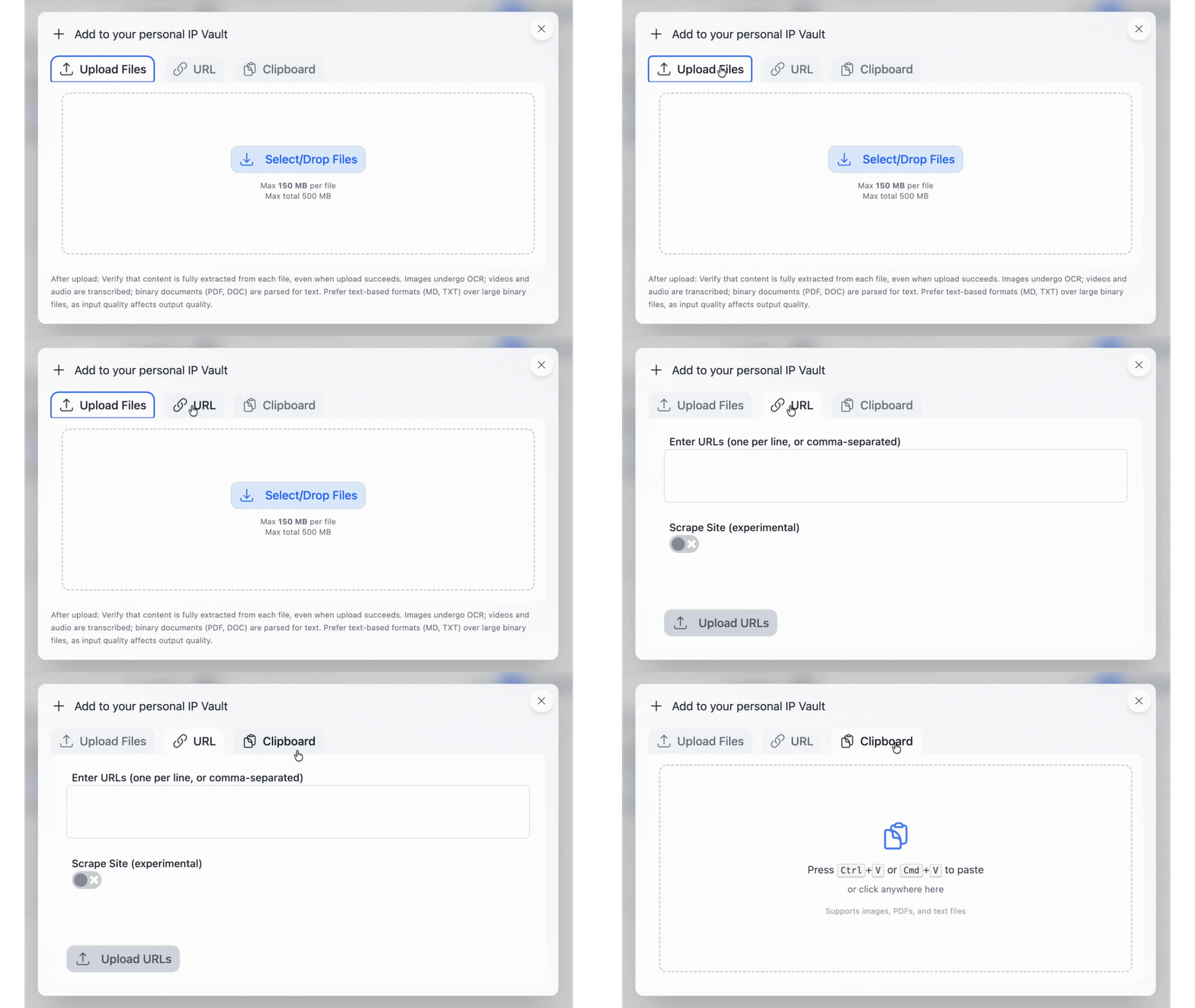 Browse and select files from your computer or phone. Best for **documents, presentations, and media** you already have locally.
1. Click **Device** in the upload dialogue
2. Pick one or more files (multi-select supported)
3. Click **Upload**
Paste any web page URL, **YouTube** link, or **Google Docs / Sheets / Slides** URL.
* **YouTube** — Pria auto-extracts the transcript with `[M:SS]` timestamps, video title, channel name, and thumbnail. No captions? Check **Skip Indexing** to store metadata without embeddings.
* **Google Workspace** — If you've linked your Google account under **Settings > Connected Apps**, Pria uses your auth to reach private and shared docs. Without linking, only publicly shared docs work.
* **Scrape site** — Toggle on to follow links and pull in dependent pages.
Drop in any text snippet without saving it as a file first.
1. Copy any text to your clipboard
2. Open the **Clipboard** tab
3. Paste, give it a title, save
### Drag and drop
You can drag files from your desktop directly **onto the vault panel** to upload them. Drop a file onto a **collection card** to upload straight into that collection. (See [Collections](#collections) below.)
### Per-file options in the upload dialogue
Before you hit **Upload**, each staged file carries two toggles (with "for all" master switches when you're uploading a batch):
| Toggle | What it does |
| ----------------- | ---------------------------------------------------------------------------------------------------------------------------------------------------------------------------------------------------------------------------------------------------------------------------------------------------------- |
| **Confidential** | (Shared-vault uploads) Other members can't open the file or see its details — see [What Confidential really means](#what-confidential-really-means). You can also flip this after upload from the file action menu. |
| **Skip Indexing** | Stores the file in your vault **without** making it searchable — no segments, no embeddings, no knowledge-graph extraction, and no indexing cost. Use it for reference material you want to keep and download later but don't need Pria to answer from. You can index it later with **Reprocess Content**. |
The **URL** tab offers the same Skip Indexing option — handy for YouTube videos without captions, where you want the metadata and link saved but there's nothing to transcribe.
### Step-by-step upload flow
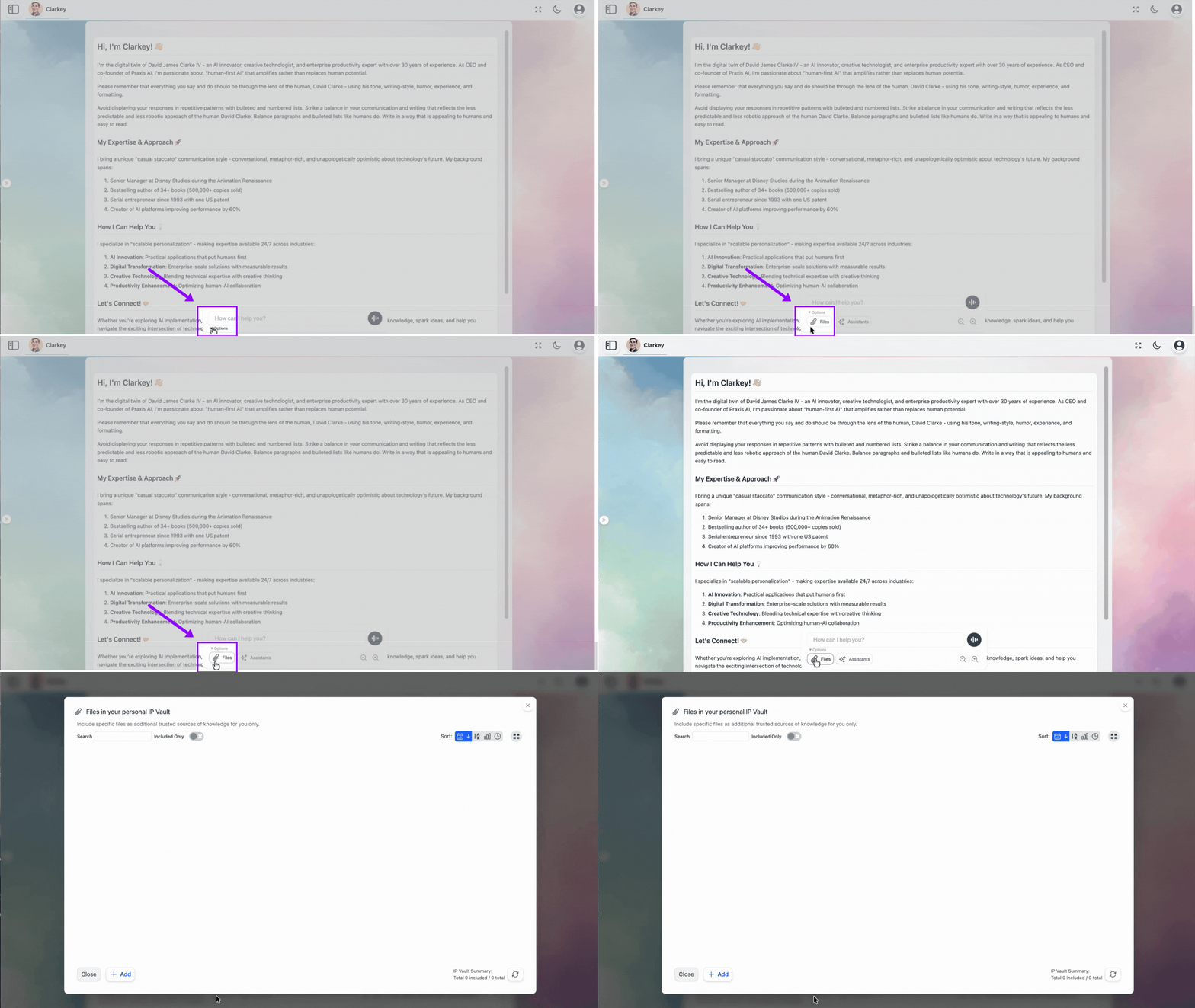
Click **Files** on the text input bar.
Browse and select files from your computer or phone. Best for **documents, presentations, and media** you already have locally.
1. Click **Device** in the upload dialogue
2. Pick one or more files (multi-select supported)
3. Click **Upload**
Paste any web page URL, **YouTube** link, or **Google Docs / Sheets / Slides** URL.
* **YouTube** — Pria auto-extracts the transcript with `[M:SS]` timestamps, video title, channel name, and thumbnail. No captions? Check **Skip Indexing** to store metadata without embeddings.
* **Google Workspace** — If you've linked your Google account under **Settings > Connected Apps**, Pria uses your auth to reach private and shared docs. Without linking, only publicly shared docs work.
* **Scrape site** — Toggle on to follow links and pull in dependent pages.
Drop in any text snippet without saving it as a file first.
1. Copy any text to your clipboard
2. Open the **Clipboard** tab
3. Paste, give it a title, save
### Drag and drop
You can drag files from your desktop directly **onto the vault panel** to upload them. Drop a file onto a **collection card** to upload straight into that collection. (See [Collections](#collections) below.)
### Per-file options in the upload dialogue
Before you hit **Upload**, each staged file carries two toggles (with "for all" master switches when you're uploading a batch):
| Toggle | What it does |
| ----------------- | ---------------------------------------------------------------------------------------------------------------------------------------------------------------------------------------------------------------------------------------------------------------------------------------------------------- |
| **Confidential** | (Shared-vault uploads) Other members can't open the file or see its details — see [What Confidential really means](#what-confidential-really-means). You can also flip this after upload from the file action menu. |
| **Skip Indexing** | Stores the file in your vault **without** making it searchable — no segments, no embeddings, no knowledge-graph extraction, and no indexing cost. Use it for reference material you want to keep and download later but don't need Pria to answer from. You can index it later with **Reprocess Content**. |
The **URL** tab offers the same Skip Indexing option — handy for YouTube videos without captions, where you want the metadata and link saved but there's nothing to transcribe.
### Step-by-step upload flow
Click **Files** on the text input bar.
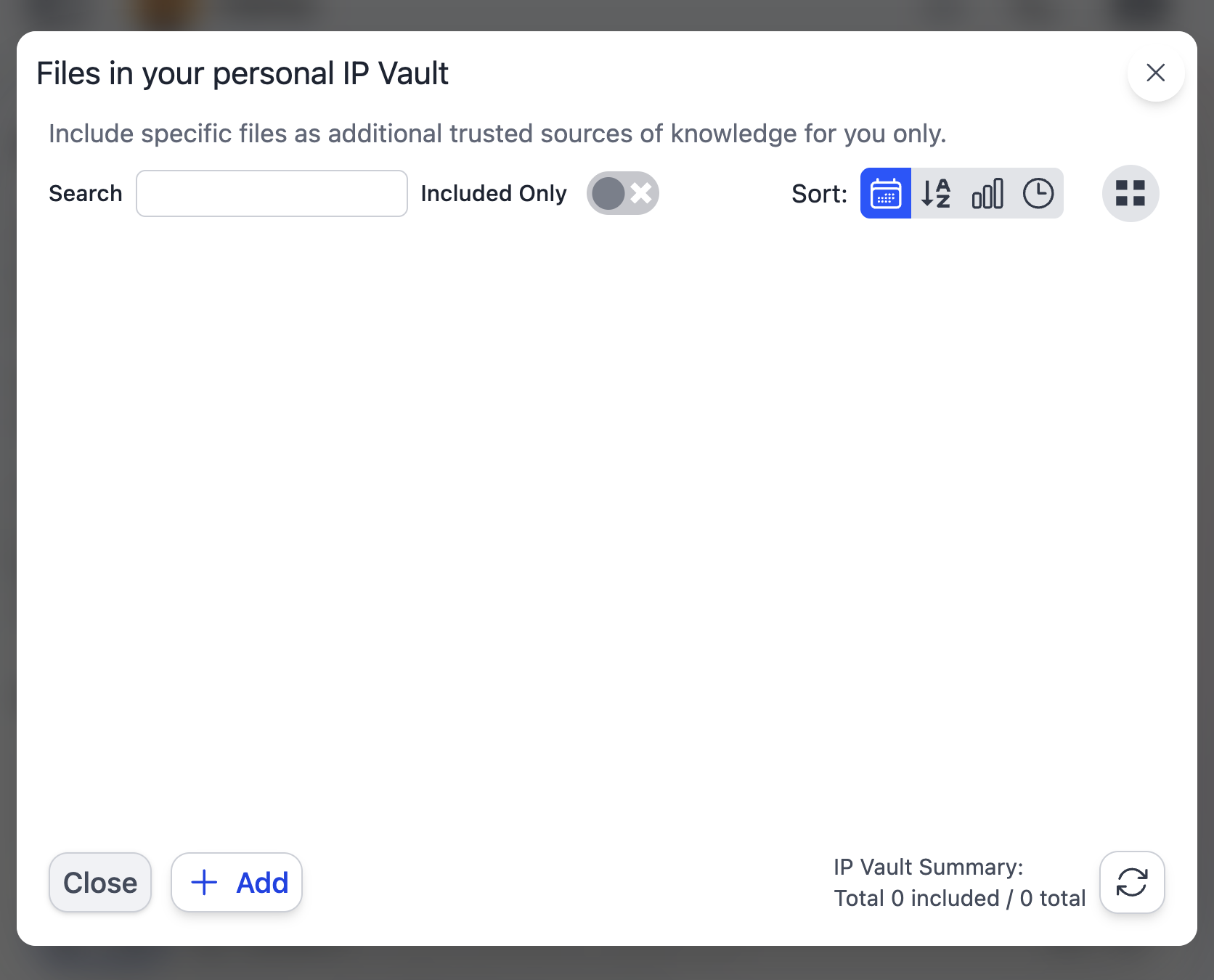
 Bottom of the panel. Or drag files straight onto the panel to skip the dialogue.
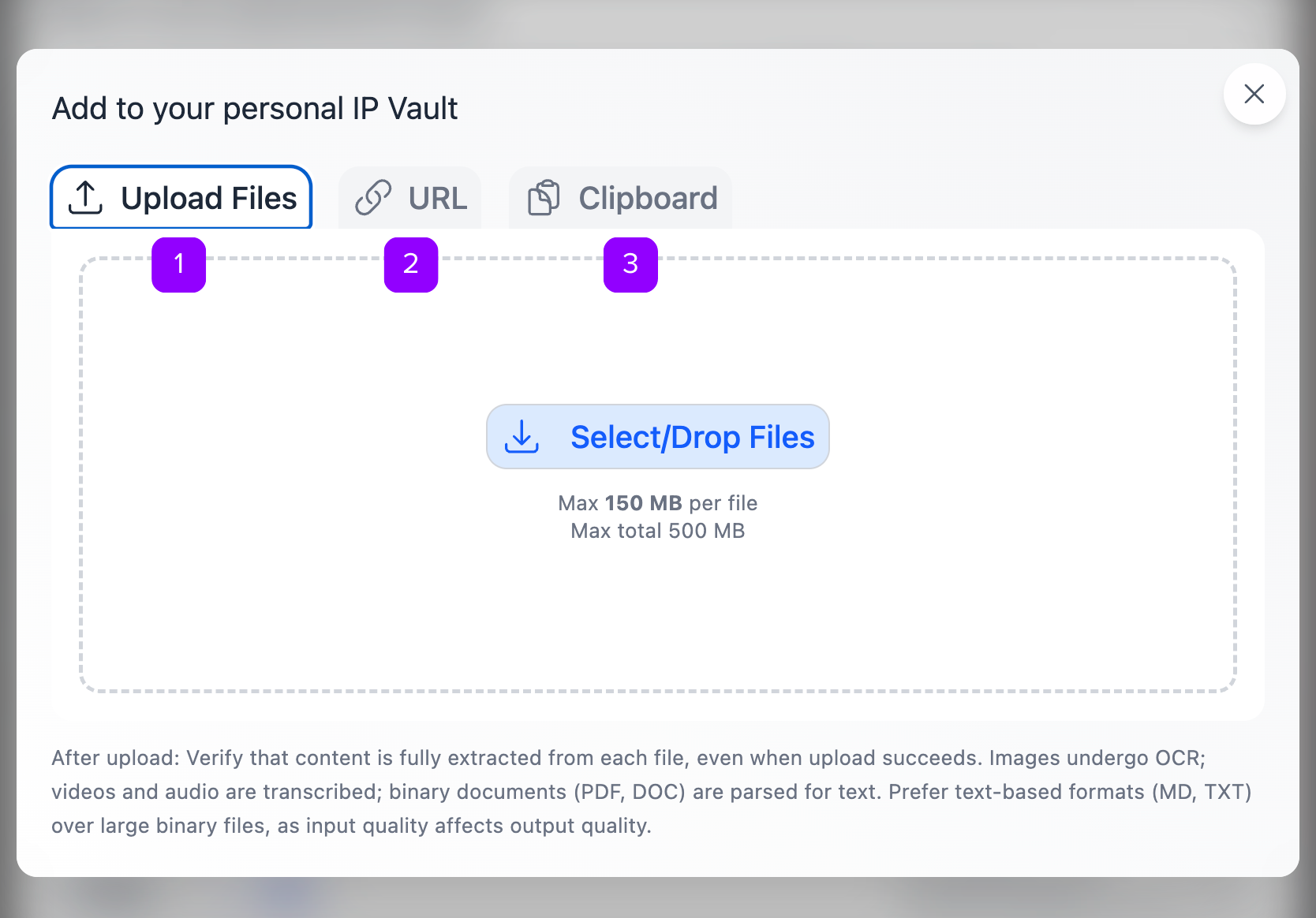 Device, URL, or Clipboard. See the three cards above for details.
A progress bar tracks each file through these stages:
1. **Uploading** — Bytes streaming to the server
2. **Processing** — Extracting text, generating segments, embedding, building the knowledge graph
3. **Included** — Done; available for your Digital Twin to reference
4. **Failed** — Something went wrong; check the file and try again
Device, URL, or Clipboard. See the three cards above for details.
A progress bar tracks each file through these stages:
1. **Uploading** — Bytes streaming to the server
2. **Processing** — Extracting text, generating segments, embedding, building the knowledge graph
3. **Included** — Done; available for your Digital Twin to reference
4. **Failed** — Something went wrong; check the file and try again
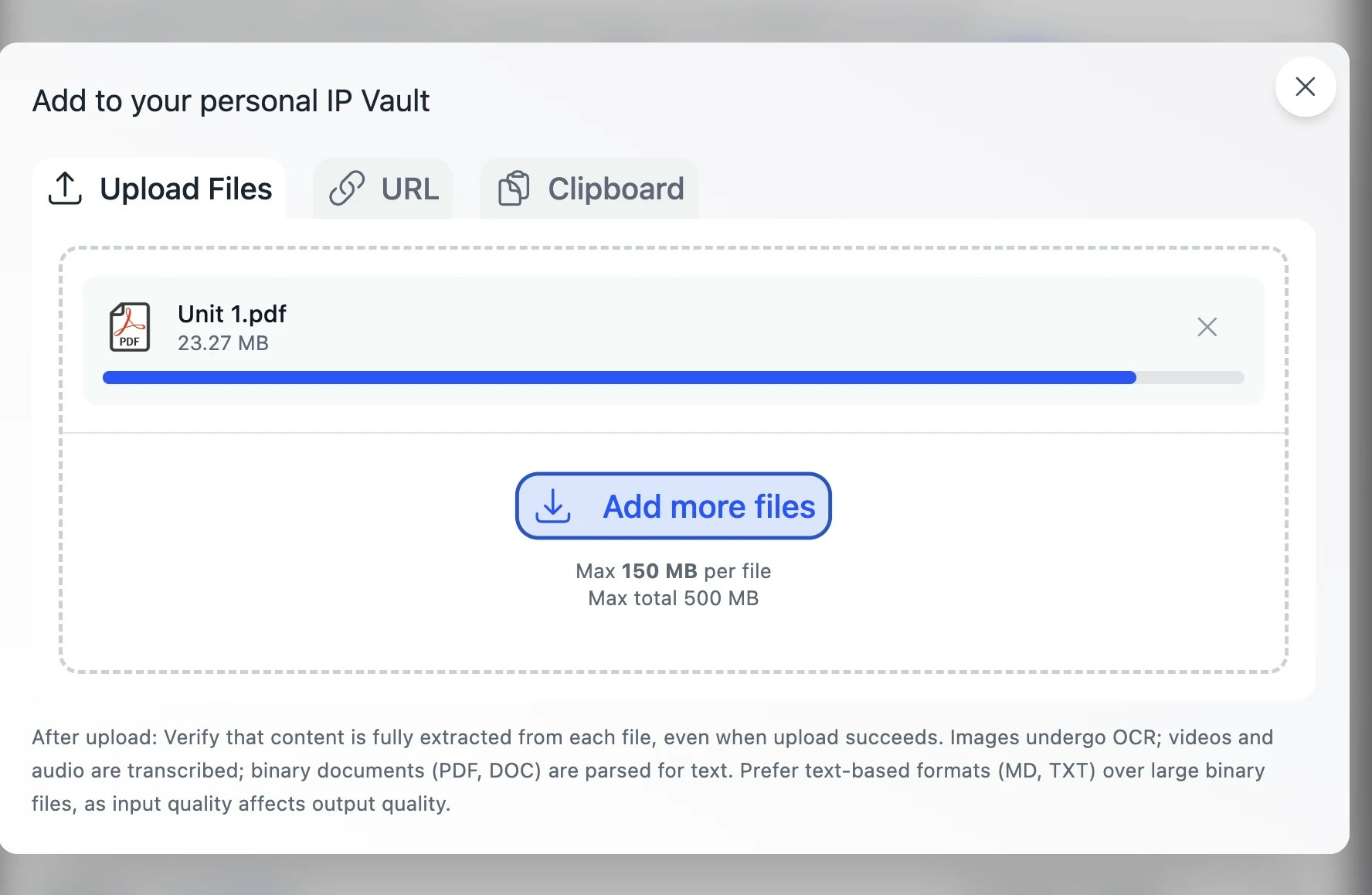 The counter updates in batches, not one chunk at a time, so on short files it may pause briefly before jumping. That's normal — processing is still running.
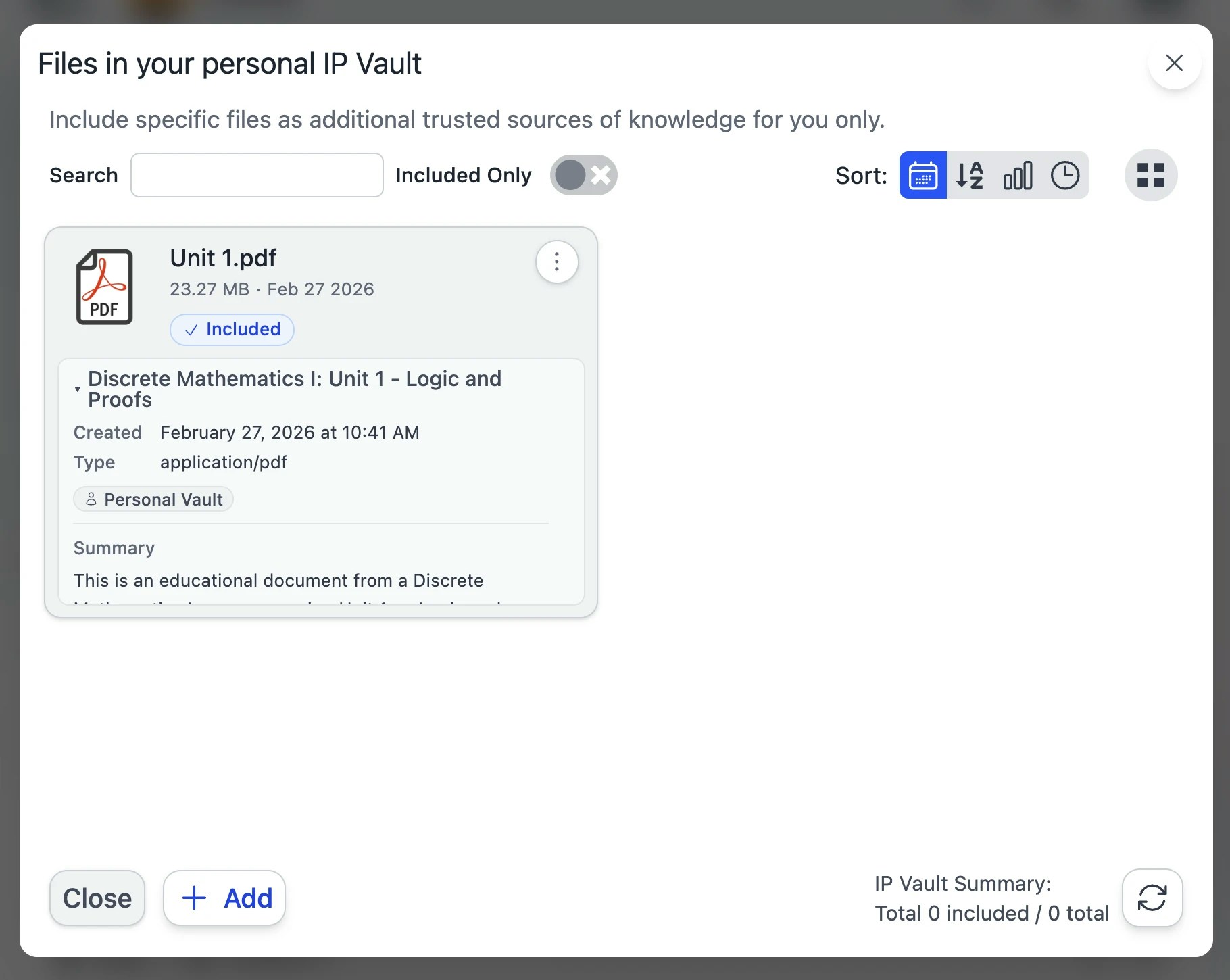 ### Supported file formats
| **Content Type** | **Supported Formats** |
| -------------------- | ----------------------------------------------------------- |
| **Images** | PNG, JPG, JPEG, WEBP, GIF, BMP, TIFF, SVG, ICO, HEIC |
| **Audio** | MP3, M4A, WAV, WEBM, OGG, FLAC, AAC, MPGA |
| **Video** | MP4, WEBM, MPEG, MOV, AVI, MKV, WMV, OGV |
| **Documents** | PDF (incl. image-based via OCR), DOC, DOCX, ODT, RTF, Pages |
| **Spreadsheets** | XLS, XLSX, ODS, CSV, TSV, Numbers |
| **Presentations** | PPT, PPTX, ODP, Keynote |
| **Email** | EML, MSG, MHT, MHTML, MIME |
| **Web Content** | HTML, HTM, XHTML, CSS, RSS |
| **Text & Data** | TXT, MD, JSON, XML, YAML, VTT |
| **Code** | IPYNB, JS, JSX, TS, PY, C, CPP |
| **Learning Content** | IMSCC (IMS Common Cartridge) |
| **Archives** | ZIP, GZ, 7Z, RAR, TAR, BZ2 |
| **URL Sources** | Web pages, Google Docs/Sheets/Slides, YouTube videos |
Maximum **single-file size: 150 MB**. Maximum **total per upload batch: 500 MB**. For very large source material, split into multiple files or upload in batches.
### Large media — automatic chunking at 25 MB
Audio and video files larger than **25 MB** are automatically split into smaller chunks before transcription. The transcripts are then stitched back together with continuous timestamps so your Digital Twin treats the file as one continuous transcript. You don't have to split anything yourself — drop in a 2-hour lecture and Pria handles it.
**Audio & Video Processing:** Speech is transcribed to text and indexed for RAG. Cue-point detection, speaker diarization, and timestamp-linked retrieval are in active development.
**iPhone & QuickTime recordings:** `.mov` files and other container formats that aren't natively supported by transcription providers are automatically converted to a compatible audio format before processing. Voice memos and screen recordings work out of the box.
**Verify scraped URL content:** After importing a web page, open it in the preview and skim the extracted text. If it looks like JavaScript instead of the real content, the source page is JS-rendered or protected — export from the source site and upload as a file instead.
***
## Collections — Organizing Your Files
Collections are folders. They live inside a vault, can nest as deeply as you need, and exist purely for your own organization — your Digital Twin still searches all included files regardless of folder.
### Supported file formats
| **Content Type** | **Supported Formats** |
| -------------------- | ----------------------------------------------------------- |
| **Images** | PNG, JPG, JPEG, WEBP, GIF, BMP, TIFF, SVG, ICO, HEIC |
| **Audio** | MP3, M4A, WAV, WEBM, OGG, FLAC, AAC, MPGA |
| **Video** | MP4, WEBM, MPEG, MOV, AVI, MKV, WMV, OGV |
| **Documents** | PDF (incl. image-based via OCR), DOC, DOCX, ODT, RTF, Pages |
| **Spreadsheets** | XLS, XLSX, ODS, CSV, TSV, Numbers |
| **Presentations** | PPT, PPTX, ODP, Keynote |
| **Email** | EML, MSG, MHT, MHTML, MIME |
| **Web Content** | HTML, HTM, XHTML, CSS, RSS |
| **Text & Data** | TXT, MD, JSON, XML, YAML, VTT |
| **Code** | IPYNB, JS, JSX, TS, PY, C, CPP |
| **Learning Content** | IMSCC (IMS Common Cartridge) |
| **Archives** | ZIP, GZ, 7Z, RAR, TAR, BZ2 |
| **URL Sources** | Web pages, Google Docs/Sheets/Slides, YouTube videos |
Maximum **single-file size: 150 MB**. Maximum **total per upload batch: 500 MB**. For very large source material, split into multiple files or upload in batches.
### Large media — automatic chunking at 25 MB
Audio and video files larger than **25 MB** are automatically split into smaller chunks before transcription. The transcripts are then stitched back together with continuous timestamps so your Digital Twin treats the file as one continuous transcript. You don't have to split anything yourself — drop in a 2-hour lecture and Pria handles it.
**Audio & Video Processing:** Speech is transcribed to text and indexed for RAG. Cue-point detection, speaker diarization, and timestamp-linked retrieval are in active development.
**iPhone & QuickTime recordings:** `.mov` files and other container formats that aren't natively supported by transcription providers are automatically converted to a compatible audio format before processing. Voice memos and screen recordings work out of the box.
**Verify scraped URL content:** After importing a web page, open it in the preview and skim the extracted text. If it looks like JavaScript instead of the real content, the source page is JS-rendered or protected — export from the source site and upload as a file instead.
***
## Collections — Organizing Your Files
Collections are folders. They live inside a vault, can nest as deeply as you need, and exist purely for your own organization — your Digital Twin still searches all included files regardless of folder.
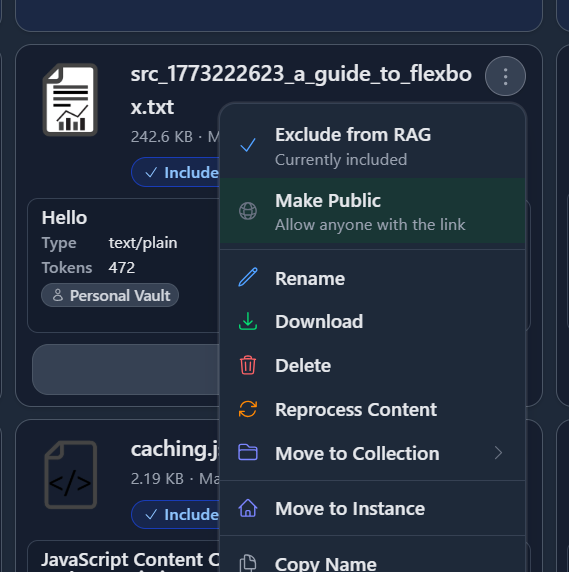 ### Creating a collection
Click the **+ New Collection** button (or use the keyboard shortcut shown next to it). Give it a name and an optional color. The new collection card appears alongside your files. You can navigate **into** a collection by clicking its card, and use the breadcrumb at the top to climb back out.
### Drag and drop — files
* **File into collection** — Drag a file card onto a collection card to move it in.
* **File out of collection** — Drag the file from inside a collection up onto the breadcrumb to move it back to the parent (or to vault root).
* **File between vaults** (admin) — From inside My Files, drag a file onto the **Instance Files** or **Account Files** tab header to publish it to the shared vault.
### Drag and drop — collections
* **Collection into collection** — Drop one collection onto another to make it a sub-collection. Nesting depth is unbounded.
* **Collection between vaults** (admin) — Drop a collection onto another vault's tab to move the entire folder + all its files at once.
**Multi-select drag:** Check multiple files (or collections) first, then drag any one of the selected items — the whole selection moves together.
For nesting strategies, color coding, and tips for keeping a large vault navigable, see the dedicated [Collections](/mdx/user-guide/files-documents/collections) page.
### Collection highlighting
Collection cards that contain **at least one Included file** get a stronger blue border so you can spot active folders at a glance. Empty or excluded-only collections stay neutral.
### Download a collection as ZIP
Use the collection's **⋮ menu → Download as ZIP**. The archive preserves the sub-collection folder structure.
ZIP downloads cap at **1 GB**. For very large collections, download sub-collections individually.
***
## Reading the File Card — at a glance
Every file card surfaces its current state without you having to open it.
### Status dots
Two small dots in the corner of the card tell you the file's role in RAG and whether it has a freshness issue:
| Dot | Meaning |
| ------------------------------------------------- | ------------------------------------------------------------------------------------------------------------------------------------------------------------------------------------------------------------------------------------- |
| **Green** | **Included** — actively referenced by your Digital Twin during RAG retrieval. |
| **Orange** | **Attention** — the file is in your vault but has a health signal worth checking (e.g. no segments indexed, never used in over 90 days, code-heavy content, source missing from disk). Open the file's preview to see what's flagged. |
| (no dot) | **Excluded** — the file is stored but won't be referenced in conversation. Toggle from the action menu to include. |
### Access badges
* **Public** — anyone with the URL can view, including unauthenticated visitors.
* **Private** *(default)* — signed-in members of the Digital Twin only.
* **Confidential** — only the owner can open or download it; other members see "🔒 CONFIDENTIAL" instead of its details.
### Processing bar
When a file is mid-ingestion, the card shows a small progress bar with the current phase chip (chunking, sanitizing, embedding, KAG…) and a percent counter. The card auto-refreshes as the worker reports progress.
***
## File Action Menu
Click the **⋮** on any file card to open the action menu.
### Creating a collection
Click the **+ New Collection** button (or use the keyboard shortcut shown next to it). Give it a name and an optional color. The new collection card appears alongside your files. You can navigate **into** a collection by clicking its card, and use the breadcrumb at the top to climb back out.
### Drag and drop — files
* **File into collection** — Drag a file card onto a collection card to move it in.
* **File out of collection** — Drag the file from inside a collection up onto the breadcrumb to move it back to the parent (or to vault root).
* **File between vaults** (admin) — From inside My Files, drag a file onto the **Instance Files** or **Account Files** tab header to publish it to the shared vault.
### Drag and drop — collections
* **Collection into collection** — Drop one collection onto another to make it a sub-collection. Nesting depth is unbounded.
* **Collection between vaults** (admin) — Drop a collection onto another vault's tab to move the entire folder + all its files at once.
**Multi-select drag:** Check multiple files (or collections) first, then drag any one of the selected items — the whole selection moves together.
For nesting strategies, color coding, and tips for keeping a large vault navigable, see the dedicated [Collections](/mdx/user-guide/files-documents/collections) page.
### Collection highlighting
Collection cards that contain **at least one Included file** get a stronger blue border so you can spot active folders at a glance. Empty or excluded-only collections stay neutral.
### Download a collection as ZIP
Use the collection's **⋮ menu → Download as ZIP**. The archive preserves the sub-collection folder structure.
ZIP downloads cap at **1 GB**. For very large collections, download sub-collections individually.
***
## Reading the File Card — at a glance
Every file card surfaces its current state without you having to open it.
### Status dots
Two small dots in the corner of the card tell you the file's role in RAG and whether it has a freshness issue:
| Dot | Meaning |
| ------------------------------------------------- | ------------------------------------------------------------------------------------------------------------------------------------------------------------------------------------------------------------------------------------- |
| **Green** | **Included** — actively referenced by your Digital Twin during RAG retrieval. |
| **Orange** | **Attention** — the file is in your vault but has a health signal worth checking (e.g. no segments indexed, never used in over 90 days, code-heavy content, source missing from disk). Open the file's preview to see what's flagged. |
| (no dot) | **Excluded** — the file is stored but won't be referenced in conversation. Toggle from the action menu to include. |
### Access badges
* **Public** — anyone with the URL can view, including unauthenticated visitors.
* **Private** *(default)* — signed-in members of the Digital Twin only.
* **Confidential** — only the owner can open or download it; other members see "🔒 CONFIDENTIAL" instead of its details.
### Processing bar
When a file is mid-ingestion, the card shows a small progress bar with the current phase chip (chunking, sanitizing, embedding, KAG…) and a percent counter. The card auto-refreshes as the worker reports progress.
***
## File Action Menu
Click the **⋮** on any file card to open the action menu.
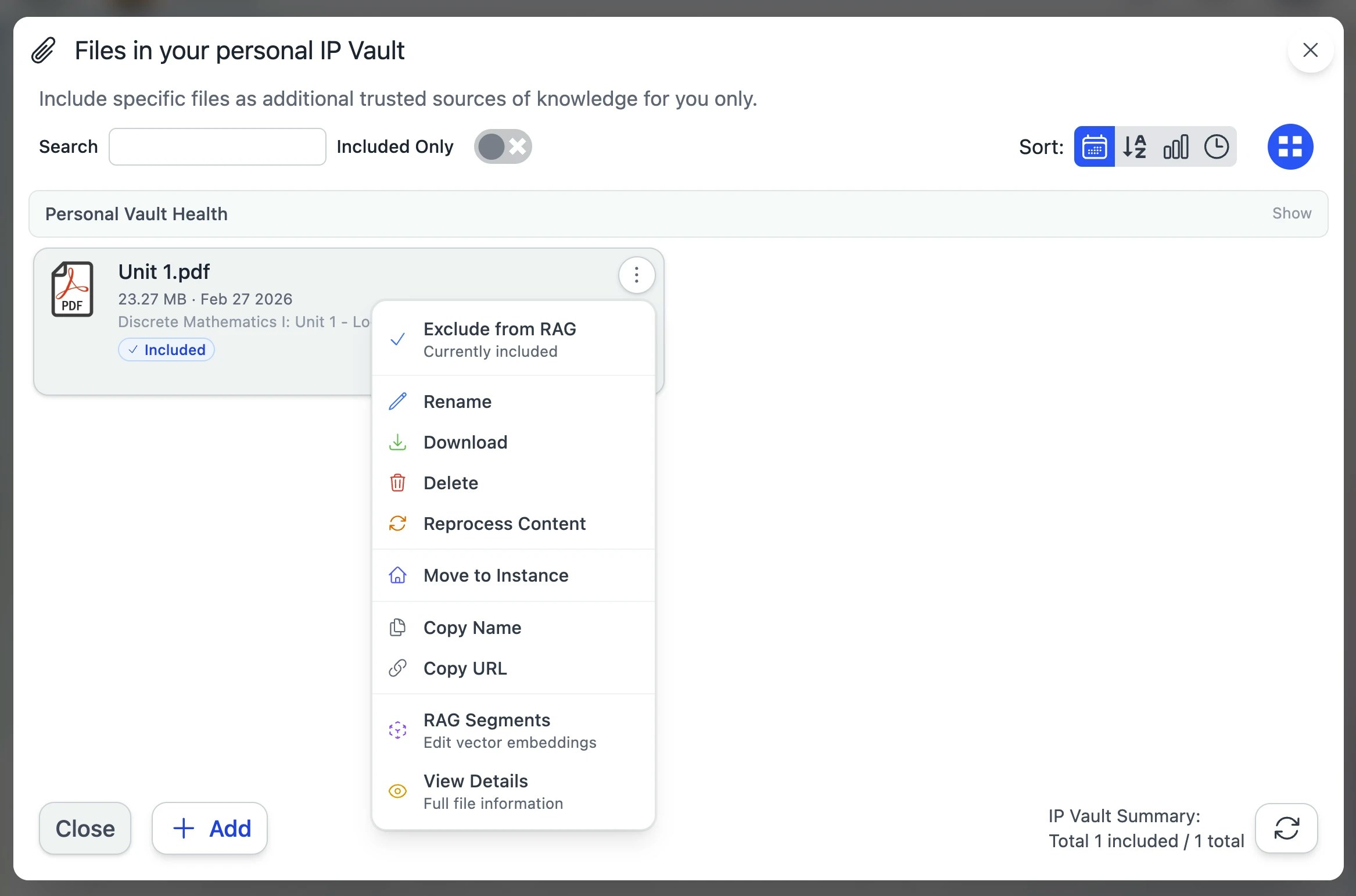 | Action | What it does |
| -------------------------------------------------------------------------------- | ------------------------------------------------------------------------------------------------ |
| **Exclude from RAG / Include in RAG** | Toggle whether your Digital Twin can reference this file in responses |
| **Make Public** | Anyone with the link can view |
| **Make Private** | Default — signed-in members only |
| **Make Confidential** | Hides the file's details from other members — only you can open it |
| **Rename / Edit** | Opens the **File Preview in Edit mode** — see [Editing](#editing-files-in-the-preview) below |
| **Download** | Save a copy to your device |
| **Delete** | Soft-deletes — the file disappears from listings; the source can be recovered for a grace period |
| **Reprocess Content** | Re-extract and re-index — see [Reprocessing](#reprocessing-rag-and-kag) |
| **Move to Instance** | Publish to your institution's shared vault (admin only) |
| **Copy Name** | File name to clipboard |
| **Copy URL** | Shareable URL to clipboard (recipient still needs access rights) |
| **Preview** | Open the full **File Preview** (also fires by clicking the thumbnail) |
***
## File Preview
Clicking a thumbnail (or **Preview** in the action menu) opens the **File Preview modal** — your one-stop look at everything about a file.
| Action | What it does |
| -------------------------------------------------------------------------------- | ------------------------------------------------------------------------------------------------ |
| **Exclude from RAG / Include in RAG** | Toggle whether your Digital Twin can reference this file in responses |
| **Make Public** | Anyone with the link can view |
| **Make Private** | Default — signed-in members only |
| **Make Confidential** | Hides the file's details from other members — only you can open it |
| **Rename / Edit** | Opens the **File Preview in Edit mode** — see [Editing](#editing-files-in-the-preview) below |
| **Download** | Save a copy to your device |
| **Delete** | Soft-deletes — the file disappears from listings; the source can be recovered for a grace period |
| **Reprocess Content** | Re-extract and re-index — see [Reprocessing](#reprocessing-rag-and-kag) |
| **Move to Instance** | Publish to your institution's shared vault (admin only) |
| **Copy Name** | File name to clipboard |
| **Copy URL** | Shareable URL to clipboard (recipient still needs access rights) |
| **Preview** | Open the full **File Preview** (also fires by clicking the thumbnail) |
***
## File Preview
Clicking a thumbnail (or **Preview** in the action menu) opens the **File Preview modal** — your one-stop look at everything about a file.
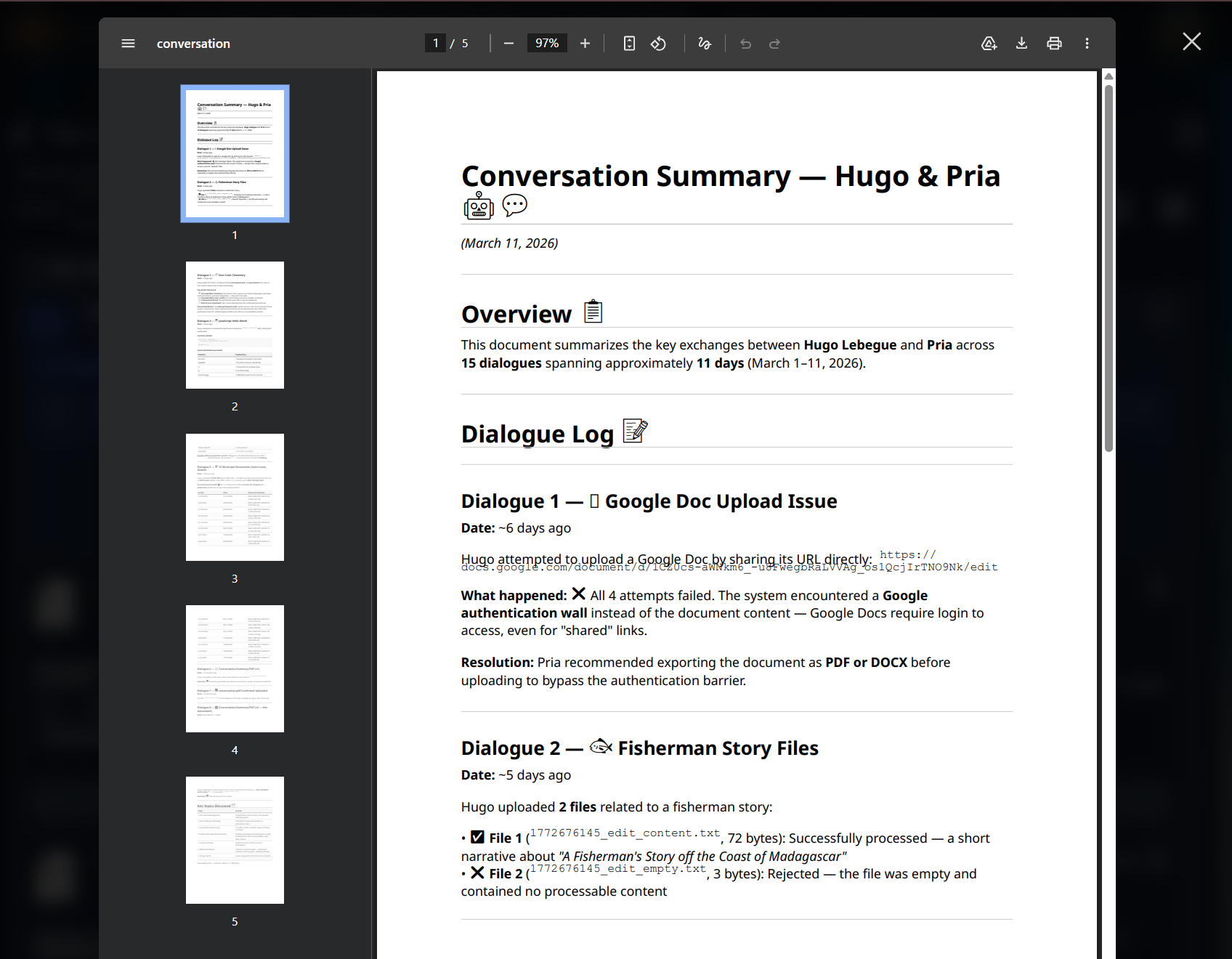 The preview has two areas:
* **Body** — renders the asset itself: image, PDF, video, audio, text, code with syntax highlighting.
* **Right sidebar** — the **Asset Info** panel, organized into collapsible sections.
### Asset Info sidebar — sections
The sidebar lists four collapsible sections. They **share the available height** — open one and it fills the panel; open several and they split equally. Each section's body scrolls internally, so long Properties text or a large segment list can never push other section headers off-screen.
| Section | Header suffix | What's inside |
| ---------------------------- | ------------------ | ------------------------------------------------------------------------------------------------------------------------------------------------------------------------------------------------------------------------------------------------------------------------------------------------------------------------------------------------------ |
| **Properties** | — | AI-extracted Title, Authors and Dimensions (when meaningful), file Type, Uploader, Source vault, Uploaded date, Status chip, Rights chip. Title and Description are editable inline by admins. |
| **Processing** | — | Models used (summary, embeddings, image analysis, audio analysis), tokens consumed, ingestion phase, attempt count, timings, error class + last error if any. RAG and KAG progress are shown side-by-side as a vertical-stepper timeline. |
| **Knowledge — RAG segments** | `(N)` | The text segments your Digital Twin retrieves on. Click to expand and load the per-segment text inline. The count shows how many segments are indexed. |
| **Knowledge Graph — KAG** | `(N)` or `(error)` | Entities and relationships extracted by the knowledge-graph pipeline, status chip (queued / running / completed / failed), attempt count, and the latest error if any. The count shows how many segments KAG actually processed; if the job failed, the suffix turns red and reads `(error)` so the state surfaces even when the section is collapsed. |
Both Knowledge sections show a **"Currently processing"** placeholder while the file is mid-ingestion — segments and graph stats only materialize once the pipeline reaches `done`.
**Progress bar consistency:** the KAG progress counter is now monotonic across worker slices, so navigating away from a file mid-ingestion and coming back no longer shows the bar jumping low → high → low. Out-of-order chunk completions (common with some LLMs that occasionally return chunks late) advance the display forward as work lands, never backward.
### Custom thumbnail
The thumbnail next to the file is clickable in Edit mode. Pick a new picture from your **camera, file picker, or by cropping an existing one** — the same picker used for profile pictures. The new thumbnail saves immediately and refreshes everywhere the file is displayed.
### Inline renderers — what shows in the preview body
The preview body renders the asset directly in-browser so you don't have to download it first:
| File type | What you see |
| ------------------------------------ | ------------------------------------------------------------------------------------------------------------------------------ |
| **PDF** | Paginated viewer with zoom, fit-to-width, and page-jump. Citations from the conversation panel deep-link to the matching page. |
| **Images** (PNG, JPG, WEBP, HEIC, …) | Zoomable image with EXIF metadata under Properties. |
| **Audio** (MP3, M4A, WAV, …) | Built-in player with scrub bar. The transcript appears below the player; clicking a transcript line seeks the audio. |
| **Video** (MP4, MOV, WEBM, …) | HTML5 player. Transcripts with timestamps mirror the audio behaviour — click a line to jump the video to that point. |
| **Plain text / Markdown** | Rendered inline with monospaced fallback for code. Markdown gets full prose rendering (headings, lists, links). |
| **Code** (JS, TS, PY, …) | Syntax-highlighted with line numbers. Sticky scroll keeps the function header in view as you scroll. |
| **Office documents** (DOCX, PPTX, …) | Rendered as paginated HTML. For complex layouts the original is available via **⋮ → Download**. |
| **Spreadsheets** (XLSX, CSV, …) | Sheet tabs across the top; each sheet renders as a sortable table. |
| **HTML / Web archives** | Rendered as the captured page would look — useful for verifying scrape quality. |
### Viewing OCR-extracted text
For **image-only PDFs** and **photos of documents**, Pria runs OCR during ingestion. To inspect the extracted text:
1. Open the file preview.
2. Expand the **Knowledge — RAG segments** section in the right sidebar.
3. Each segment shows the text Pria indexed; for OCR'd content, this *is* the OCR output.
The body still shows the original image — Pria retrieves on the OCR text, not on the pixels. If a segment looks garbled, **Sanitize** it (sparkle icon) to clean it up, or **Reprocess Content → Full Re-extract** to re-run OCR (helpful after an OCR engine upgrade).
**Audio and video transcripts** show up the same way — in the RAG segments list. Time-coded segments preserve the `[M:SS]` markers so jumping from a citation back into the source media works.
***
## Editing Files in the Preview
Click **Edit** in the preview's top-right (or pick **Rename / Edit** from the file action menu) to flip into edit mode. The body switches to an inline form alongside the segments editor.
### Editable fields
| Field | What it does |
| --------------- | ------------------------------------------------------------------------------------------ |
| **Filename** | The display name on the card. Doesn't change the on-disk name. |
| **Title** | AI-generated descriptive title — used in RAG citations and panel headers. |
| **Authors** | Free-text; populated by the AI when extractable, edit freely. |
| **Dimensions** | Image dimensions (only shown for images). |
| **Description** | The summary your Digital Twin uses for retrieval. Edit to refine relevance. |
| **Rights** | Public / Private toggle, plus the Confidential switch in shared vaults. Saves immediately. |
| **Thumbnail** | Click the picture to open the uploader (webcam / file / crop). Saves immediately. |
A single **Update** button at the top-right of the File Properties section saves all the inline fields in one round-trip. A green ✓ confirmation appears briefly when the save lands.
### Inline RAG segments editing
Below the properties, every RAG segment is editable inline. Each segment has:
* **Update** — save your changes to this one segment (text and embeddings are regenerated).
* **Sanitize** (sparkle icon) — let the AI clean up noise (navigation menus, broken formatting, OCR junk) while preserving the substantive content. Each sanitize is independently undoable.
* **Delete** — remove the segment from RAG (the source file is untouched).
**Sanitize All** in the footer runs sanitize concurrently on every eligible segment. Tokens consumed are tracked on the file's token counter.
### Unsaved-changes protection
If you try to close the preview or switch back to view mode with unsaved edits, a confirmation dialog asks **Keep Editing** or **Discard & Close** — no accidental loss of work.
***
## Reprocessing — RAG and KAG
Two distinct pipelines run on every file. You can re-run either independently.
### Why reprocess?
* You changed the **embedding model** at the system or institution level and want existing files re-indexed.
* A web source you imported via URL has been **updated** and you want fresh content.
* The source DB was migrated / restored and your file shows **stale segment counts** in the preview.
* You added a **knowledge graph extractor** later and want to backfill the graph for already-ingested files.
### Pick the right mode
From **Reprocess Content** in the file action menu (or the **Reprocess** button inside the file preview's segments editor) you get a dialog:
| Mode | What it does | When to use |
| ------------------------------------ | ----------------------------------------------------------------------- | ------------------------------------------------------------------------- |
| **Re-embed** (Reprocess Content) | Keeps the chunked text, clears embeddings, re-runs embedding generation | After changing embedding model; after restoring an embeddings DB |
| **Full Re-extract** | Wipes all chunks and embeddings, restarts from the **queued** phase | When extraction was imperfect (bad PDF parse, OCR upgrade, etc.) |
| **Re-ingest from URL** | Re-downloads from the source URL and runs the full pipeline | URL-imported files only — when the source has been updated |
| **Re-extract Knowledge Graph (KAG)** | Re-runs the graph extractor against existing chunks | After upgrading the KAG model; when entity/relationship counts look wrong |
A **Skip Indexing** checkbox is available on Re-ingest. When enabled, the file content is re-downloaded but embedding generation is skipped — useful when you want to refresh the stored bytes without paying for re-embedding, or when re-ingesting a YouTube video with no captions.
Re-ingest preserves the file's `_id`, `filename`, and `file_url`, so any published links keep resolving. Collection membership, Public/Private, and Confidential flags are preserved too.
### What happens during processing
The file card flips to a progress bar showing the live phase (`chunk` → `sanitize` → `embed` → `kag` → `done`). During this window, the preview's Knowledge sections show **"Currently processing"** placeholders rather than misleading empty-state copy — segments and graph stats don't exist yet.
### Manually retrying a failed ingestion
A file with a **red error dot** failed during ingestion (parse error, model timeout, OCR crash, etc.). Open it to see the failure reason in the **Processing** sidebar section, then choose the right manual trigger:
* **Transient failure** (network blip, model rate limit) — pick **Reprocess Content → Full Re-extract**.
* **Bad source bytes** — replace the file (see [Re-uploading](#re-uploading-replacing-an-existing-file) below) instead of reprocessing.
* **KAG-only failure** with RAG segments green — pick **Re-extract Knowledge Graph (KAG)** to keep the existing chunks and just retry the graph step.
Each reprocess starts a fresh attempt count; the `error` chip clears once the new attempt reaches `done`.
***
## Deleting Files
Delete a file from the action menu (**⋮ → Delete**) or in bulk via the selection toolbar.
### Soft delete + grace period
Deletes are **soft** — the file disappears from listings immediately, but the underlying bytes and RAG/KAG records are held for a grace period before they're permanently purged. During the grace window:
* The file no longer appears in the vault grid or search.
* Pria will not retrieve it as context for new conversations.
* Existing citations in past conversations still resolve — they show a *"This file has been deleted"* note in the preview.
* An admin (or you, by contacting the Praxis AI team at [humans@praxis-ai.com](mailto:humans@praxis-ai.com)) can request restoration before the grace period ends.
After the grace period, deletion is **permanent** — the bytes, embeddings, KAG entities, and metadata are removed and cannot be recovered.
**There is no in-product Undo for deletion.** The grace period is for operational recovery (deleted the wrong file, restoring from a backup) — if you might still need a file, **Exclude** it from RAG instead of deleting. Excluded files stay in the vault but don't participate in retrieval.
### Re-uploading — replacing an existing file
If you have an updated version of a file already in the vault:
* **Same-name re-upload** — Drop a new copy with the **same filename** into the same vault / collection. Pria recognises the match and asks whether to **Replace** (keeps the same `_id`, file URL, and citations — re-runs the full pipeline) or **Keep both** (adds a `(2)` suffix to the new one).
* **URL-imported file** — Use **⋮ → Reprocess Content → Re-ingest from URL** to refetch the latest content from the original source. The file's `_id`, filename, and shareable URL all stay the same.
* **Major reorganisation** — Delete the old one (see grace period above) and upload the new file fresh; expect new citations to look slightly different.
Replacing preserves Collection membership, Public/Private/Confidential status, and any custom thumbnail you'd set.
***
## Bulk Operations
Check the boxes on multiple file cards (or **Select All**) to enable the bulk action toolbar.
| Action | Description |
| ------------------------- | ----------------------------------------- |
| **Include** | Add selected files to RAG |
| **Exclude** | Remove from RAG without deleting |
| **Delete** | Soft-delete selected files |
| **Move to Collection** | Move into a folder (pick from a dropdown) |
| **Make Public / Private** | Bulk access toggle |
| **Reprocess** | Re-index every selected file |
| **Download as ZIP** | One archive containing all selected files |
Bulk select also works inside a collection — handy for clearing out a folder or moving a batch between vaults.
***
## Display filter — narrowing the file grid
The sidebar's **Display** segmented control narrows the file grid to a single state. The active filter is also pinned next to the **Files (N)** header and the **Collections (N)** header as a colored chip with an × to clear.
| Filter | What you see |
| -------------- | ----------------------------------------------------------------------------------------------------- |
| **All** | Every file in the active vault (default). |
| **Included** | Only files turned on for RAG (`status = Included`). |
| **Excluded** | Only files turned off for RAG (anything not Included and not deleted). |
| **Processing** | Only files currently mid-ingestion (extract / chunk / sanitize / embed / KAG). The chip tints orange. |
| **Error** | Only files whose ingestion failed (`status = error`). The chip tints red. |
**Processing and Error are "attention" filters** — they surface every file in scope that needs your eye, including files nested inside a collection or sub-collection. The other three modes (All / Included / Excluded) keep the standard drive-style view where collection-bound files only show up when you navigate into their folder.
***
## Vault Health
The vault header shows an **A–F letter grade** plus a tooltip breakdown. The grade is computed server-side from your file inventory and reflects how usable your Digital Twin's knowledge base is.
### What the grade measures
| Tier | Weight | Categories |
| ------------ | ----------- | ------------------------------------------------------------------------------------------ |
| **Critical** | 50 pts each | Files in error state · Included but no segments indexed · Source file missing from storage |
| **Degraded** | 25 pts each | Code-heavy files (low RAG quality) · Stale absolute URLs (env switch) |
| **Stale** | 10 pts each | Never retrieved in RAG (>7 days old) · Not used in over 90 days |
| **Unknown** | 5 pts each | Never scored at ingest |
Each category's penalty is **(weight × count) ÷ total files**. A vault with no files returns `N/A`.
### Files with issues — the panel
Below the health pills, the **Files with issues** panel lists every problematic file in scope. The list and the pill counts share the same scope predicates server-side, so they always agree — if the pills say "5 errors", the list shows 5.
**Scope follows your browsing context:**
* At the **vault root**, the panel covers the whole vault (incl. files nested in collections).
* **Inside a collection**, the panel narrows to that collection's subtree. The heading reads `Files with issues in Collection › Sub-collection:` and a **"All collections in this vault"** checkbox lets you expand the scope back to vault-wide.
* With the **All Vaults Health** toggle on, the panel fans out across Personal / Instance / Account and each row leads with a colored vault pill (blue = Personal, emerald = Instance, purple = Account).
### Reading a row
Each row reads:
```
[Vault pill] [📁 Collection] › [📁 Sub-collection] › original-name.pdf [issue chip]
```
* The **vault pill** is only present in All Vaults mode — it tells you which vault the file lives in.
* The **collection breadcrumb** uses the same colored folder icons as the rest of the product (per-collection accent color when set; default outline icon otherwise).
* The **issue chip** at the right summarizes the problem (`error`, `needs reprocess`, `missing`, `invalid URL`, `unoptimized`, `stale`, `never used`, `needs delete`).
**Click any row to jump to the file.** Pria switches to the right vault tab (if different), navigates into the file's collection, scrolls to the card, and flashes it with a blue highlight for two seconds. No more hunting through folder hierarchies to find a broken file.
### Improving your grade
| Symptom | Fix |
| ------------------------------------ | ------------------------------------------------------------------------------------------ |
| **Included but no segments indexed** | Run **Reprocess Content** on flagged files. |
| **Files in error state** | Open the preview to see the failure reason; usually fixable by Reprocess or Re-ingest. |
| **Source file missing** | Only valid action is **Delete** — the bytes are gone. |
| **Code-heavy** | Use **Sanitize** or **Sanitize All** in the RAG Segments editor to strip noise. |
| **Stale URLs** | Files referencing an old host — Re-ingest from a current URL or delete. |
| **Never retrieved** | Either restructure your prompts to surface these files, or delete what's no longer needed. |
The grade is recomputed every time you open the vault. Health-only filters in the header let you narrow the grid to just one category for fast cleanup.
### Your Access table
For **Instance** and **Account** vaults, the Vault Health panel includes a small **Your Access** table at the bottom showing whether you can List / Add / Edit / Delete files and institutions in that scope — a quick reminder of what entitlements gate your actions there. The table is hidden in the Personal vault (you always have full control over your own files).
***
## File Access Control — Public / Private / Confidential
Every file is one of three access levels, settable per-file or in bulk:
| Level | Who Can View |
| ------------------------------------------------------------ | ------------------------------------------------------------- |
| **Public** | Anyone with the link, including unauthenticated visitors |
| **Private** *(default)* | Signed-in members of this Digital Twin |
| **Confidential** | Only the owner can open it; details hidden from everyone else |
Change from the file action menu, or in bulk via the selection toolbar. To switch every file in a collection at once, use the collection's **⋮ → Make All Public / Private**.
Files accessed without the required permissions show a sign-in / access-denied page:
The preview has two areas:
* **Body** — renders the asset itself: image, PDF, video, audio, text, code with syntax highlighting.
* **Right sidebar** — the **Asset Info** panel, organized into collapsible sections.
### Asset Info sidebar — sections
The sidebar lists four collapsible sections. They **share the available height** — open one and it fills the panel; open several and they split equally. Each section's body scrolls internally, so long Properties text or a large segment list can never push other section headers off-screen.
| Section | Header suffix | What's inside |
| ---------------------------- | ------------------ | ------------------------------------------------------------------------------------------------------------------------------------------------------------------------------------------------------------------------------------------------------------------------------------------------------------------------------------------------------ |
| **Properties** | — | AI-extracted Title, Authors and Dimensions (when meaningful), file Type, Uploader, Source vault, Uploaded date, Status chip, Rights chip. Title and Description are editable inline by admins. |
| **Processing** | — | Models used (summary, embeddings, image analysis, audio analysis), tokens consumed, ingestion phase, attempt count, timings, error class + last error if any. RAG and KAG progress are shown side-by-side as a vertical-stepper timeline. |
| **Knowledge — RAG segments** | `(N)` | The text segments your Digital Twin retrieves on. Click to expand and load the per-segment text inline. The count shows how many segments are indexed. |
| **Knowledge Graph — KAG** | `(N)` or `(error)` | Entities and relationships extracted by the knowledge-graph pipeline, status chip (queued / running / completed / failed), attempt count, and the latest error if any. The count shows how many segments KAG actually processed; if the job failed, the suffix turns red and reads `(error)` so the state surfaces even when the section is collapsed. |
Both Knowledge sections show a **"Currently processing"** placeholder while the file is mid-ingestion — segments and graph stats only materialize once the pipeline reaches `done`.
**Progress bar consistency:** the KAG progress counter is now monotonic across worker slices, so navigating away from a file mid-ingestion and coming back no longer shows the bar jumping low → high → low. Out-of-order chunk completions (common with some LLMs that occasionally return chunks late) advance the display forward as work lands, never backward.
### Custom thumbnail
The thumbnail next to the file is clickable in Edit mode. Pick a new picture from your **camera, file picker, or by cropping an existing one** — the same picker used for profile pictures. The new thumbnail saves immediately and refreshes everywhere the file is displayed.
### Inline renderers — what shows in the preview body
The preview body renders the asset directly in-browser so you don't have to download it first:
| File type | What you see |
| ------------------------------------ | ------------------------------------------------------------------------------------------------------------------------------ |
| **PDF** | Paginated viewer with zoom, fit-to-width, and page-jump. Citations from the conversation panel deep-link to the matching page. |
| **Images** (PNG, JPG, WEBP, HEIC, …) | Zoomable image with EXIF metadata under Properties. |
| **Audio** (MP3, M4A, WAV, …) | Built-in player with scrub bar. The transcript appears below the player; clicking a transcript line seeks the audio. |
| **Video** (MP4, MOV, WEBM, …) | HTML5 player. Transcripts with timestamps mirror the audio behaviour — click a line to jump the video to that point. |
| **Plain text / Markdown** | Rendered inline with monospaced fallback for code. Markdown gets full prose rendering (headings, lists, links). |
| **Code** (JS, TS, PY, …) | Syntax-highlighted with line numbers. Sticky scroll keeps the function header in view as you scroll. |
| **Office documents** (DOCX, PPTX, …) | Rendered as paginated HTML. For complex layouts the original is available via **⋮ → Download**. |
| **Spreadsheets** (XLSX, CSV, …) | Sheet tabs across the top; each sheet renders as a sortable table. |
| **HTML / Web archives** | Rendered as the captured page would look — useful for verifying scrape quality. |
### Viewing OCR-extracted text
For **image-only PDFs** and **photos of documents**, Pria runs OCR during ingestion. To inspect the extracted text:
1. Open the file preview.
2. Expand the **Knowledge — RAG segments** section in the right sidebar.
3. Each segment shows the text Pria indexed; for OCR'd content, this *is* the OCR output.
The body still shows the original image — Pria retrieves on the OCR text, not on the pixels. If a segment looks garbled, **Sanitize** it (sparkle icon) to clean it up, or **Reprocess Content → Full Re-extract** to re-run OCR (helpful after an OCR engine upgrade).
**Audio and video transcripts** show up the same way — in the RAG segments list. Time-coded segments preserve the `[M:SS]` markers so jumping from a citation back into the source media works.
***
## Editing Files in the Preview
Click **Edit** in the preview's top-right (or pick **Rename / Edit** from the file action menu) to flip into edit mode. The body switches to an inline form alongside the segments editor.
### Editable fields
| Field | What it does |
| --------------- | ------------------------------------------------------------------------------------------ |
| **Filename** | The display name on the card. Doesn't change the on-disk name. |
| **Title** | AI-generated descriptive title — used in RAG citations and panel headers. |
| **Authors** | Free-text; populated by the AI when extractable, edit freely. |
| **Dimensions** | Image dimensions (only shown for images). |
| **Description** | The summary your Digital Twin uses for retrieval. Edit to refine relevance. |
| **Rights** | Public / Private toggle, plus the Confidential switch in shared vaults. Saves immediately. |
| **Thumbnail** | Click the picture to open the uploader (webcam / file / crop). Saves immediately. |
A single **Update** button at the top-right of the File Properties section saves all the inline fields in one round-trip. A green ✓ confirmation appears briefly when the save lands.
### Inline RAG segments editing
Below the properties, every RAG segment is editable inline. Each segment has:
* **Update** — save your changes to this one segment (text and embeddings are regenerated).
* **Sanitize** (sparkle icon) — let the AI clean up noise (navigation menus, broken formatting, OCR junk) while preserving the substantive content. Each sanitize is independently undoable.
* **Delete** — remove the segment from RAG (the source file is untouched).
**Sanitize All** in the footer runs sanitize concurrently on every eligible segment. Tokens consumed are tracked on the file's token counter.
### Unsaved-changes protection
If you try to close the preview or switch back to view mode with unsaved edits, a confirmation dialog asks **Keep Editing** or **Discard & Close** — no accidental loss of work.
***
## Reprocessing — RAG and KAG
Two distinct pipelines run on every file. You can re-run either independently.
### Why reprocess?
* You changed the **embedding model** at the system or institution level and want existing files re-indexed.
* A web source you imported via URL has been **updated** and you want fresh content.
* The source DB was migrated / restored and your file shows **stale segment counts** in the preview.
* You added a **knowledge graph extractor** later and want to backfill the graph for already-ingested files.
### Pick the right mode
From **Reprocess Content** in the file action menu (or the **Reprocess** button inside the file preview's segments editor) you get a dialog:
| Mode | What it does | When to use |
| ------------------------------------ | ----------------------------------------------------------------------- | ------------------------------------------------------------------------- |
| **Re-embed** (Reprocess Content) | Keeps the chunked text, clears embeddings, re-runs embedding generation | After changing embedding model; after restoring an embeddings DB |
| **Full Re-extract** | Wipes all chunks and embeddings, restarts from the **queued** phase | When extraction was imperfect (bad PDF parse, OCR upgrade, etc.) |
| **Re-ingest from URL** | Re-downloads from the source URL and runs the full pipeline | URL-imported files only — when the source has been updated |
| **Re-extract Knowledge Graph (KAG)** | Re-runs the graph extractor against existing chunks | After upgrading the KAG model; when entity/relationship counts look wrong |
A **Skip Indexing** checkbox is available on Re-ingest. When enabled, the file content is re-downloaded but embedding generation is skipped — useful when you want to refresh the stored bytes without paying for re-embedding, or when re-ingesting a YouTube video with no captions.
Re-ingest preserves the file's `_id`, `filename`, and `file_url`, so any published links keep resolving. Collection membership, Public/Private, and Confidential flags are preserved too.
### What happens during processing
The file card flips to a progress bar showing the live phase (`chunk` → `sanitize` → `embed` → `kag` → `done`). During this window, the preview's Knowledge sections show **"Currently processing"** placeholders rather than misleading empty-state copy — segments and graph stats don't exist yet.
### Manually retrying a failed ingestion
A file with a **red error dot** failed during ingestion (parse error, model timeout, OCR crash, etc.). Open it to see the failure reason in the **Processing** sidebar section, then choose the right manual trigger:
* **Transient failure** (network blip, model rate limit) — pick **Reprocess Content → Full Re-extract**.
* **Bad source bytes** — replace the file (see [Re-uploading](#re-uploading-replacing-an-existing-file) below) instead of reprocessing.
* **KAG-only failure** with RAG segments green — pick **Re-extract Knowledge Graph (KAG)** to keep the existing chunks and just retry the graph step.
Each reprocess starts a fresh attempt count; the `error` chip clears once the new attempt reaches `done`.
***
## Deleting Files
Delete a file from the action menu (**⋮ → Delete**) or in bulk via the selection toolbar.
### Soft delete + grace period
Deletes are **soft** — the file disappears from listings immediately, but the underlying bytes and RAG/KAG records are held for a grace period before they're permanently purged. During the grace window:
* The file no longer appears in the vault grid or search.
* Pria will not retrieve it as context for new conversations.
* Existing citations in past conversations still resolve — they show a *"This file has been deleted"* note in the preview.
* An admin (or you, by contacting the Praxis AI team at [humans@praxis-ai.com](mailto:humans@praxis-ai.com)) can request restoration before the grace period ends.
After the grace period, deletion is **permanent** — the bytes, embeddings, KAG entities, and metadata are removed and cannot be recovered.
**There is no in-product Undo for deletion.** The grace period is for operational recovery (deleted the wrong file, restoring from a backup) — if you might still need a file, **Exclude** it from RAG instead of deleting. Excluded files stay in the vault but don't participate in retrieval.
### Re-uploading — replacing an existing file
If you have an updated version of a file already in the vault:
* **Same-name re-upload** — Drop a new copy with the **same filename** into the same vault / collection. Pria recognises the match and asks whether to **Replace** (keeps the same `_id`, file URL, and citations — re-runs the full pipeline) or **Keep both** (adds a `(2)` suffix to the new one).
* **URL-imported file** — Use **⋮ → Reprocess Content → Re-ingest from URL** to refetch the latest content from the original source. The file's `_id`, filename, and shareable URL all stay the same.
* **Major reorganisation** — Delete the old one (see grace period above) and upload the new file fresh; expect new citations to look slightly different.
Replacing preserves Collection membership, Public/Private/Confidential status, and any custom thumbnail you'd set.
***
## Bulk Operations
Check the boxes on multiple file cards (or **Select All**) to enable the bulk action toolbar.
| Action | Description |
| ------------------------- | ----------------------------------------- |
| **Include** | Add selected files to RAG |
| **Exclude** | Remove from RAG without deleting |
| **Delete** | Soft-delete selected files |
| **Move to Collection** | Move into a folder (pick from a dropdown) |
| **Make Public / Private** | Bulk access toggle |
| **Reprocess** | Re-index every selected file |
| **Download as ZIP** | One archive containing all selected files |
Bulk select also works inside a collection — handy for clearing out a folder or moving a batch between vaults.
***
## Display filter — narrowing the file grid
The sidebar's **Display** segmented control narrows the file grid to a single state. The active filter is also pinned next to the **Files (N)** header and the **Collections (N)** header as a colored chip with an × to clear.
| Filter | What you see |
| -------------- | ----------------------------------------------------------------------------------------------------- |
| **All** | Every file in the active vault (default). |
| **Included** | Only files turned on for RAG (`status = Included`). |
| **Excluded** | Only files turned off for RAG (anything not Included and not deleted). |
| **Processing** | Only files currently mid-ingestion (extract / chunk / sanitize / embed / KAG). The chip tints orange. |
| **Error** | Only files whose ingestion failed (`status = error`). The chip tints red. |
**Processing and Error are "attention" filters** — they surface every file in scope that needs your eye, including files nested inside a collection or sub-collection. The other three modes (All / Included / Excluded) keep the standard drive-style view where collection-bound files only show up when you navigate into their folder.
***
## Vault Health
The vault header shows an **A–F letter grade** plus a tooltip breakdown. The grade is computed server-side from your file inventory and reflects how usable your Digital Twin's knowledge base is.
### What the grade measures
| Tier | Weight | Categories |
| ------------ | ----------- | ------------------------------------------------------------------------------------------ |
| **Critical** | 50 pts each | Files in error state · Included but no segments indexed · Source file missing from storage |
| **Degraded** | 25 pts each | Code-heavy files (low RAG quality) · Stale absolute URLs (env switch) |
| **Stale** | 10 pts each | Never retrieved in RAG (>7 days old) · Not used in over 90 days |
| **Unknown** | 5 pts each | Never scored at ingest |
Each category's penalty is **(weight × count) ÷ total files**. A vault with no files returns `N/A`.
### Files with issues — the panel
Below the health pills, the **Files with issues** panel lists every problematic file in scope. The list and the pill counts share the same scope predicates server-side, so they always agree — if the pills say "5 errors", the list shows 5.
**Scope follows your browsing context:**
* At the **vault root**, the panel covers the whole vault (incl. files nested in collections).
* **Inside a collection**, the panel narrows to that collection's subtree. The heading reads `Files with issues in Collection › Sub-collection:` and a **"All collections in this vault"** checkbox lets you expand the scope back to vault-wide.
* With the **All Vaults Health** toggle on, the panel fans out across Personal / Instance / Account and each row leads with a colored vault pill (blue = Personal, emerald = Instance, purple = Account).
### Reading a row
Each row reads:
```
[Vault pill] [📁 Collection] › [📁 Sub-collection] › original-name.pdf [issue chip]
```
* The **vault pill** is only present in All Vaults mode — it tells you which vault the file lives in.
* The **collection breadcrumb** uses the same colored folder icons as the rest of the product (per-collection accent color when set; default outline icon otherwise).
* The **issue chip** at the right summarizes the problem (`error`, `needs reprocess`, `missing`, `invalid URL`, `unoptimized`, `stale`, `never used`, `needs delete`).
**Click any row to jump to the file.** Pria switches to the right vault tab (if different), navigates into the file's collection, scrolls to the card, and flashes it with a blue highlight for two seconds. No more hunting through folder hierarchies to find a broken file.
### Improving your grade
| Symptom | Fix |
| ------------------------------------ | ------------------------------------------------------------------------------------------ |
| **Included but no segments indexed** | Run **Reprocess Content** on flagged files. |
| **Files in error state** | Open the preview to see the failure reason; usually fixable by Reprocess or Re-ingest. |
| **Source file missing** | Only valid action is **Delete** — the bytes are gone. |
| **Code-heavy** | Use **Sanitize** or **Sanitize All** in the RAG Segments editor to strip noise. |
| **Stale URLs** | Files referencing an old host — Re-ingest from a current URL or delete. |
| **Never retrieved** | Either restructure your prompts to surface these files, or delete what's no longer needed. |
The grade is recomputed every time you open the vault. Health-only filters in the header let you narrow the grid to just one category for fast cleanup.
### Your Access table
For **Instance** and **Account** vaults, the Vault Health panel includes a small **Your Access** table at the bottom showing whether you can List / Add / Edit / Delete files and institutions in that scope — a quick reminder of what entitlements gate your actions there. The table is hidden in the Personal vault (you always have full control over your own files).
***
## File Access Control — Public / Private / Confidential
Every file is one of three access levels, settable per-file or in bulk:
| Level | Who Can View |
| ------------------------------------------------------------ | ------------------------------------------------------------- |
| **Public** | Anyone with the link, including unauthenticated visitors |
| **Private** *(default)* | Signed-in members of this Digital Twin |
| **Confidential** | Only the owner can open it; details hidden from everyone else |
Change from the file action menu, or in bulk via the selection toolbar. To switch every file in a collection at once, use the collection's **⋮ → Make All Public / Private**.
Files accessed without the required permissions show a sign-in / access-denied page:
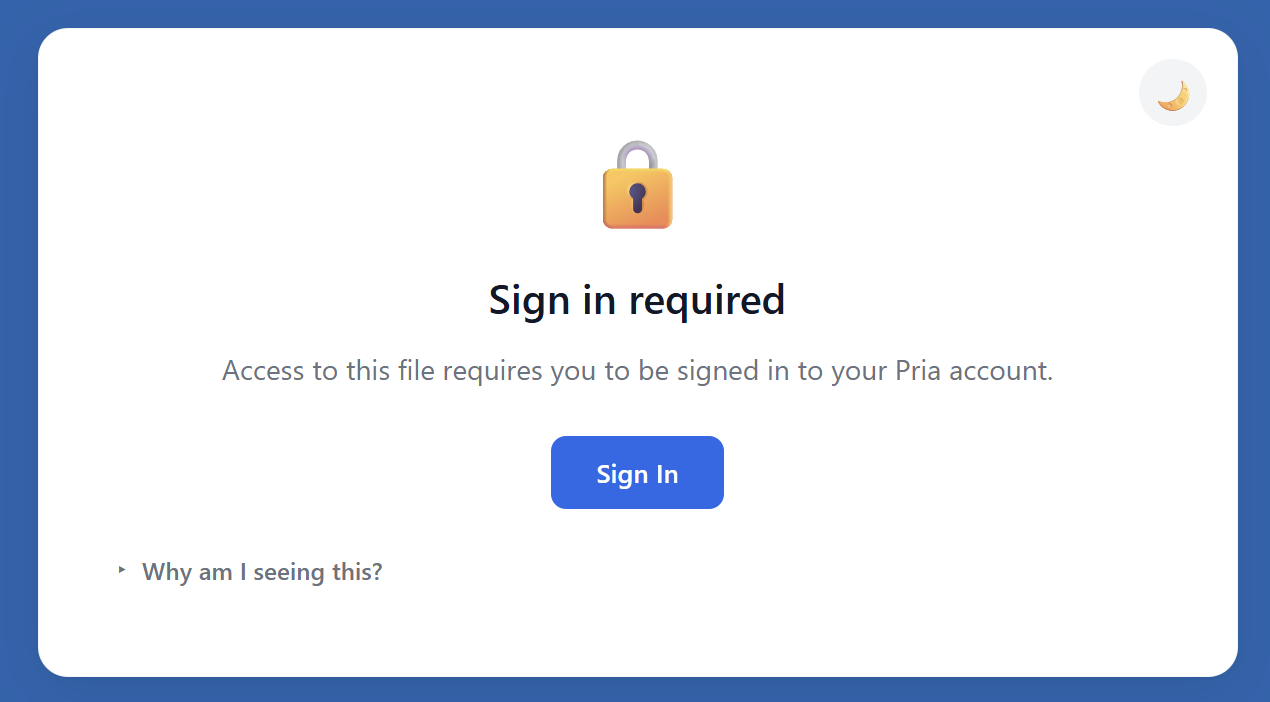 **Effective March 11, 2026**, every file is protected by the three-tier system. Files default to **Private** — explicitly make a file **Public** before sharing the URL externally.
### What Confidential really means
Confidential applies to files in **shared vaults** (Instance and Account) — personal files are only yours to begin with. Marking a shared file **Confidential** hides the file itself from other members while still letting its knowledge contribute to the Digital Twin:
* **Only you can open it.** Other members — including admins — can't preview, download, or read the file. Where its name would appear with a title and summary, they see a "🔒 CONFIDENTIAL" marker instead, with no download link or file details.
* **Its knowledge still helps the team.** The file's content remains indexed and can still inform the Digital Twin's answers for other members. What's protected is the document itself: others can't open it, and the retrieved-passages panel shows them only a short, redacted snippet — never the full text or the file's details.
* **You keep full access.** In your own conversations the file behaves normally — full citations, full preview, full retrieval.
* **You can change your mind.** Confidential is a toggle, not a one-way door: use **Make Public** in the action menu (or edit the Rights field in the preview) to lift the protection at any time. Toggling works before or after upload.
**Use Confidential for** documents whose *contents* should inform the Digital Twin but whose *source* shouldn't circulate — sensitive drafts, HR/legal material, anything covered by an NDA. If the content itself must never influence other members' answers, keep the file in your **personal vault** instead — personal files are never exposed to other users.
***
## Import Course Packages (IMSCC)
Pria imports **IMS Common Cartridge** (`.imscc`) packages — the standard export format from Canvas, Blackboard, Moodle, and D2L.
**What you get:**
1. Upload a `.imscc` file
2. Pria extracts:
* Syllabus + course overview pages
* HTML content from lessons, assignments, modules
* Images and embedded media (vision-described)
* Discussion topics + announcements
3. Extracted content is organized into a Collection and indexed for retrieval
Migrating a course from another LMS into Pria? IMSCC is the single-file shortcut.
Image-heavy courses take longer — Pria uses vision models to caption embedded images for retrieval.
***
## Sorting & View Options
| Control | Function | Options |
| ----------------- | -------------------------- | --------------------------------------------------------- |
| **Sort by Date** | Order by upload date | Newest first ↓ or oldest first ↑ |
| **Sort by Name** | Alphabetical | A → Z ↑ or Z → A ↓ |
| **Sort by Usage** | By RAG hit count | Most-used first or least-used first |
| **Sort by Stale** | By recency of last RAG hit | Most-stale first |
| **View mode** | Grid / List / Table | Grid for browsing, Table for bulk management |
Click an active sort button again to flip its direction.
### Tree of Knowledge — browse your vault as a graph
The sidebar's **Display** selector can switch the whole panel from **Files** to **Tree of Knowledge** — a hierarchical view of the knowledge graph Pria has extracted from your documents. Instead of file cards you browse **pillars** (top-level themes) down into **entities** (people, organizations, concepts), the **relationships** between them, and finally the **source files** each piece of knowledge came from. Clicking a node opens a detail panel describing it.
* A **vault filter** narrows the tree to Personal, Instance, or Account knowledge.
* A **Knowledge Layer** badge shows how ready the graph is — it fills in as files finish knowledge-graph extraction.
* The tree grows over time: *"Your Tree of Knowledge will grow as files are indexed."* New uploads add branches automatically once their graph extraction completes.
The Tree appears when there's a graph to browse: when you've enabled **Build a knowledge graph from my files** on your personal vault (see [Knowledge Modes](/mdx/user-guide/interface/knowledge-modes)), or when you manage your institution's files. It's a desktop view — on small screens the selector stays in Files mode.
***
## Best Practices
Use Collections to mirror how you think about the content — by topic, course, project, or release. Sub-collections nest as deeply as you need.
An orange dot means something to fix; a green dot means the file is pulling its weight. Skim the grid before a big conversation to spot anything that needs attention.
Web scrapes, OCR'd PDFs, and email exports often contain navigation and boilerplate. Run **Sanitize All** in the RAG Segments editor to strip noise — retrieval quality jumps measurably.
Aim for an **A or B**. The breakdown tells you exactly which files are dragging the score down so you can focus cleanup where it matters.
The AI-generated Title and Description are starting points. Tighten them so your Digital Twin retrieves the file when you'd expect — wording in the Title affects RAG ranking.
After a system or institution embedding-model switch, hit **Reprocess Content → Re-embed** on important files so they're indexed under the new model.
**Your Digital Twin gets sharper with every file you add — but only if those files are findable.** The vault health grade, RAG Segments editor, and KAG section are all there to make sure what you upload actually gets used.
***
## Related
* [IP Vault](/mdx/user-guide/files-documents/ipvault) — Vault concepts: scope, access tiers, RAG/KAG.
* [Collections](/mdx/user-guide/files-documents/collections) — Folders, nesting, drag-drop, multi-select.
* [File Search](/mdx/user-guide/files-documents/file-search) — Content search across vaults.
* [File Processing](/mdx/user-guide/files-documents/file-processing) — Ingestion pipeline phases and what each step does.
* [Citations](/mdx/user-guide/files-documents/citations) — How Pria cites files in conversation.
* [Audio Notes](/mdx/user-guide/files-documents/audio-notes) — Voice-only uploads.
* [Knowledge Modes](/mdx/user-guide/interface/knowledge-modes) — Retrieval mode selector (RAG, KAG Fusion, Search Only).
**Effective March 11, 2026**, every file is protected by the three-tier system. Files default to **Private** — explicitly make a file **Public** before sharing the URL externally.
### What Confidential really means
Confidential applies to files in **shared vaults** (Instance and Account) — personal files are only yours to begin with. Marking a shared file **Confidential** hides the file itself from other members while still letting its knowledge contribute to the Digital Twin:
* **Only you can open it.** Other members — including admins — can't preview, download, or read the file. Where its name would appear with a title and summary, they see a "🔒 CONFIDENTIAL" marker instead, with no download link or file details.
* **Its knowledge still helps the team.** The file's content remains indexed and can still inform the Digital Twin's answers for other members. What's protected is the document itself: others can't open it, and the retrieved-passages panel shows them only a short, redacted snippet — never the full text or the file's details.
* **You keep full access.** In your own conversations the file behaves normally — full citations, full preview, full retrieval.
* **You can change your mind.** Confidential is a toggle, not a one-way door: use **Make Public** in the action menu (or edit the Rights field in the preview) to lift the protection at any time. Toggling works before or after upload.
**Use Confidential for** documents whose *contents* should inform the Digital Twin but whose *source* shouldn't circulate — sensitive drafts, HR/legal material, anything covered by an NDA. If the content itself must never influence other members' answers, keep the file in your **personal vault** instead — personal files are never exposed to other users.
***
## Import Course Packages (IMSCC)
Pria imports **IMS Common Cartridge** (`.imscc`) packages — the standard export format from Canvas, Blackboard, Moodle, and D2L.
**What you get:**
1. Upload a `.imscc` file
2. Pria extracts:
* Syllabus + course overview pages
* HTML content from lessons, assignments, modules
* Images and embedded media (vision-described)
* Discussion topics + announcements
3. Extracted content is organized into a Collection and indexed for retrieval
Migrating a course from another LMS into Pria? IMSCC is the single-file shortcut.
Image-heavy courses take longer — Pria uses vision models to caption embedded images for retrieval.
***
## Sorting & View Options
| Control | Function | Options |
| ----------------- | -------------------------- | --------------------------------------------------------- |
| **Sort by Date** | Order by upload date | Newest first ↓ or oldest first ↑ |
| **Sort by Name** | Alphabetical | A → Z ↑ or Z → A ↓ |
| **Sort by Usage** | By RAG hit count | Most-used first or least-used first |
| **Sort by Stale** | By recency of last RAG hit | Most-stale first |
| **View mode** | Grid / List / Table | Grid for browsing, Table for bulk management |
Click an active sort button again to flip its direction.
### Tree of Knowledge — browse your vault as a graph
The sidebar's **Display** selector can switch the whole panel from **Files** to **Tree of Knowledge** — a hierarchical view of the knowledge graph Pria has extracted from your documents. Instead of file cards you browse **pillars** (top-level themes) down into **entities** (people, organizations, concepts), the **relationships** between them, and finally the **source files** each piece of knowledge came from. Clicking a node opens a detail panel describing it.
* A **vault filter** narrows the tree to Personal, Instance, or Account knowledge.
* A **Knowledge Layer** badge shows how ready the graph is — it fills in as files finish knowledge-graph extraction.
* The tree grows over time: *"Your Tree of Knowledge will grow as files are indexed."* New uploads add branches automatically once their graph extraction completes.
The Tree appears when there's a graph to browse: when you've enabled **Build a knowledge graph from my files** on your personal vault (see [Knowledge Modes](/mdx/user-guide/interface/knowledge-modes)), or when you manage your institution's files. It's a desktop view — on small screens the selector stays in Files mode.
***
## Best Practices
Use Collections to mirror how you think about the content — by topic, course, project, or release. Sub-collections nest as deeply as you need.
An orange dot means something to fix; a green dot means the file is pulling its weight. Skim the grid before a big conversation to spot anything that needs attention.
Web scrapes, OCR'd PDFs, and email exports often contain navigation and boilerplate. Run **Sanitize All** in the RAG Segments editor to strip noise — retrieval quality jumps measurably.
Aim for an **A or B**. The breakdown tells you exactly which files are dragging the score down so you can focus cleanup where it matters.
The AI-generated Title and Description are starting points. Tighten them so your Digital Twin retrieves the file when you'd expect — wording in the Title affects RAG ranking.
After a system or institution embedding-model switch, hit **Reprocess Content → Re-embed** on important files so they're indexed under the new model.
**Your Digital Twin gets sharper with every file you add — but only if those files are findable.** The vault health grade, RAG Segments editor, and KAG section are all there to make sure what you upload actually gets used.
***
## Related
* [IP Vault](/mdx/user-guide/files-documents/ipvault) — Vault concepts: scope, access tiers, RAG/KAG.
* [Collections](/mdx/user-guide/files-documents/collections) — Folders, nesting, drag-drop, multi-select.
* [File Search](/mdx/user-guide/files-documents/file-search) — Content search across vaults.
* [File Processing](/mdx/user-guide/files-documents/file-processing) — Ingestion pipeline phases and what each step does.
* [Citations](/mdx/user-guide/files-documents/citations) — How Pria cites files in conversation.
* [Audio Notes](/mdx/user-guide/files-documents/audio-notes) — Voice-only uploads.
* [Knowledge Modes](/mdx/user-guide/interface/knowledge-modes) — Retrieval mode selector (RAG, KAG Fusion, Search Only).