> ## Documentation Index
> Fetch the complete documentation index at: https://docs.praxis-ai.com/llms.txt
> Use this file to discover all available pages before exploring further.
# Convo Mode
> Convo mode transforms your digital twin interaction from traditional text-based Q&A into natural, flowing dialogue. It enables real-time voice conversations where you can speak naturally with your AI assistant, creating a more intuitive and engaging experience.
## Activating Conversation Mode
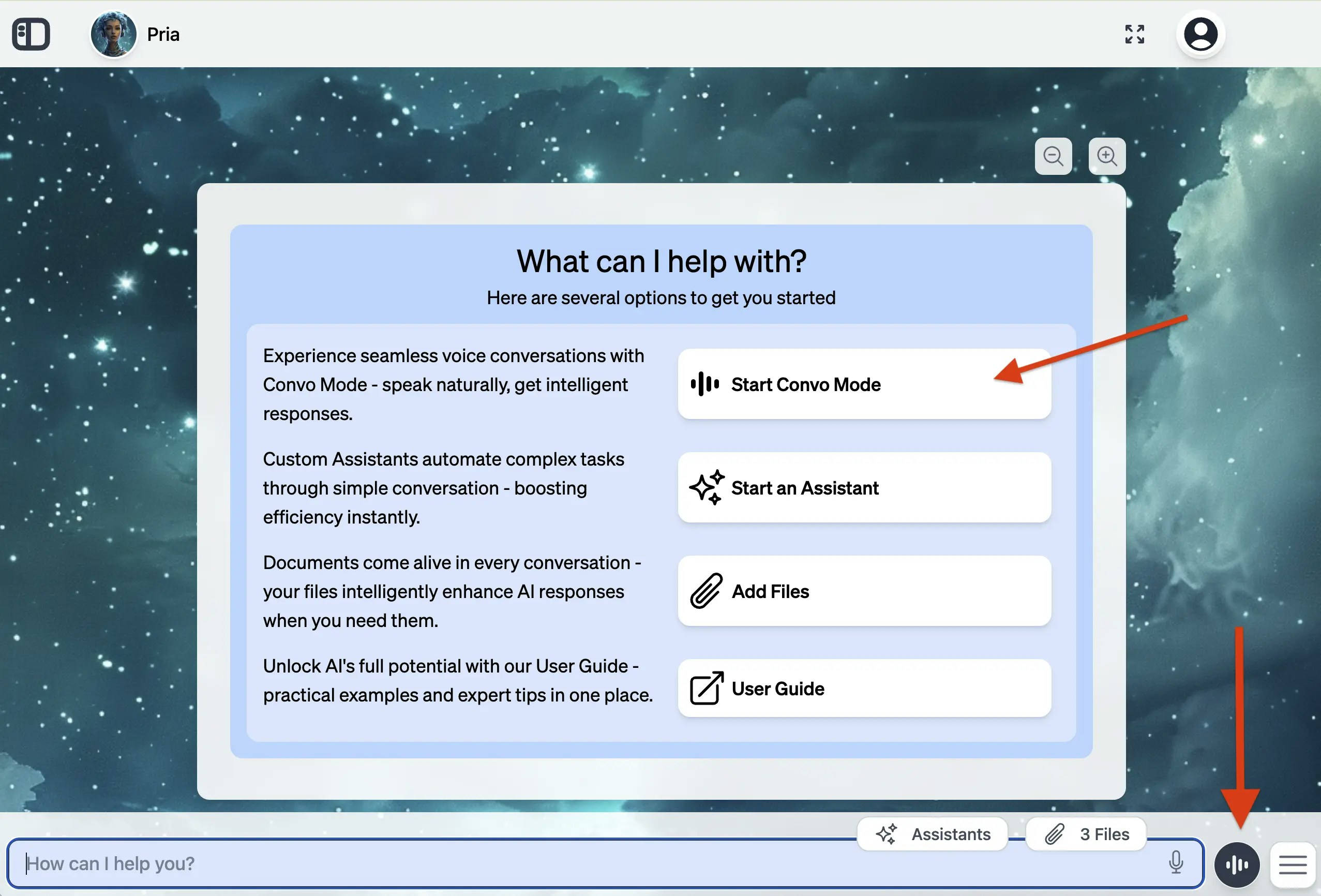
Instance owners can make Convo Mode the default experience: with **Start Convo mode on login** enabled (Instance Settings → Voice, or the admin instance editor), visitors land on a tap-to-start screen right after signing in — the tap grants microphone access and begins the conversation. Anyone can exit to the classic chat, and each visitor's last choice (voice or text) is remembered on their device for future visits. Full-screen behaviour follows the Avatar Fullscreen setting.
From the main interface, look for the Conversation icon on the text input bar
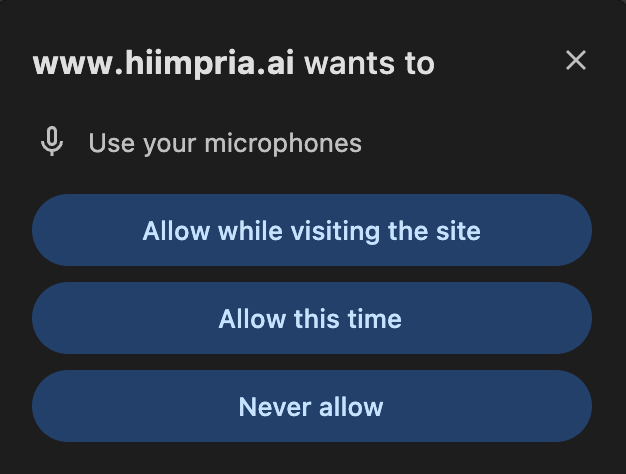
 Allow microphone use in the browser
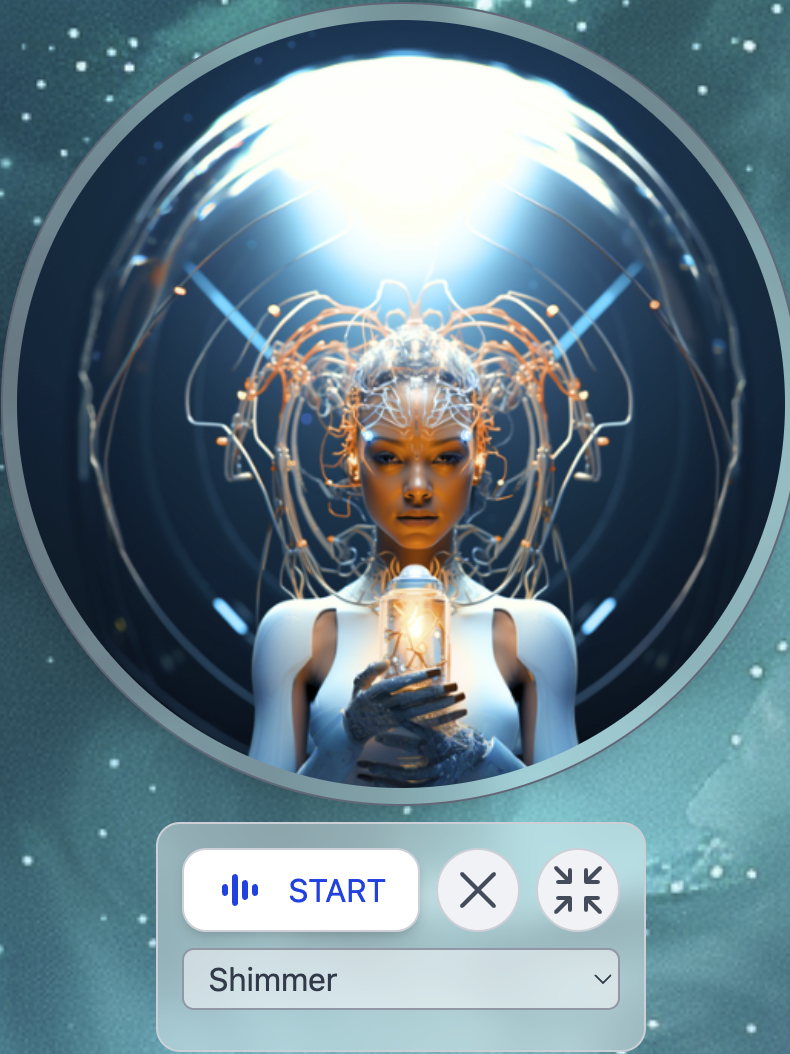
 Click the start button and begin talking. Your Digital Twin will listen and respond with voice.
 ***
## The Convo Mode panel
Once you launch Convo Mode, a floating panel appears over your conversation — Pria's avatar orb with the controls beneath it.
***
## The Convo Mode panel
Once you launch Convo Mode, a floating panel appears over your conversation — Pria's avatar orb with the controls beneath it.
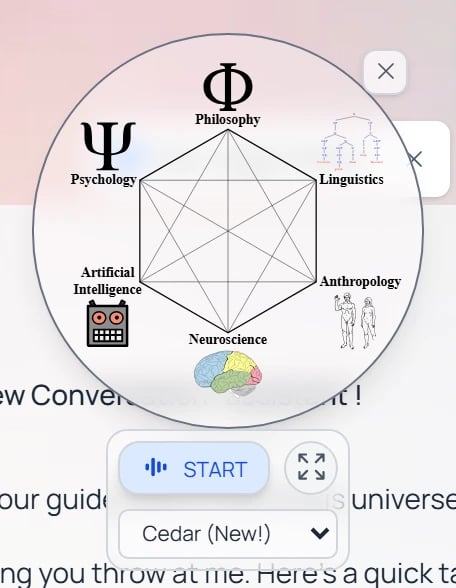 | Control | What it does |
| -------------------------------------------- | ----------------------------------------------------------------------------------------------------------------------------------------------------------------------------------------------- |
| **START / Stop** | Begin or end the live voice session. While it's running you just speak — there's no push-to-talk to hold. |
| **Mute** | Mutes your microphone so Pria stops listening; unmute to resume. Your audio is captured but not sent while muted. |
| **Expand / Contract** | Switch the panel between **compact** and **expanded** display modes (below). |
| **Voice** | Pick the voice Pria speaks in (e.g. *Cedar*). The list adapts to the active provider, and is hidden when ElevenLabs manages voices. See [Switching voices](#switching-voices-mid-conversation). |
| **Live transcript** | As you talk, your words and Pria's replies are transcribed in real time (e.g. *"**You:** …"*) so you can read along. Whether it shows is a per-Twin setting. |
| **Close** | Closes the panel and ends the session, returning you to the text chat. |
### Display modes
| Mode | Description |
| ------------ | ----------------------------------------------------------------------------------------------------------------------------------------------------------------------------- |
| **Compact** | The floating orb beside your chat — great for quick voice exchanges while you keep working in text. |
| **Expanded** | A larger, **immersive** view that fills the screen, putting the avatar (and transcript, where enabled) front and centre — ideal for a focused conversation or a screen-share. |
| Control | What it does |
| -------------------------------------------- | ----------------------------------------------------------------------------------------------------------------------------------------------------------------------------------------------- |
| **START / Stop** | Begin or end the live voice session. While it's running you just speak — there's no push-to-talk to hold. |
| **Mute** | Mutes your microphone so Pria stops listening; unmute to resume. Your audio is captured but not sent while muted. |
| **Expand / Contract** | Switch the panel between **compact** and **expanded** display modes (below). |
| **Voice** | Pick the voice Pria speaks in (e.g. *Cedar*). The list adapts to the active provider, and is hidden when ElevenLabs manages voices. See [Switching voices](#switching-voices-mid-conversation). |
| **Live transcript** | As you talk, your words and Pria's replies are transcribed in real time (e.g. *"**You:** …"*) so you can read along. Whether it shows is a per-Twin setting. |
| **Close** | Closes the panel and ends the session, returning you to the text chat. |
### Display modes
| Mode | Description |
| ------------ | ----------------------------------------------------------------------------------------------------------------------------------------------------------------------------- |
| **Compact** | The floating orb beside your chat — great for quick voice exchanges while you keep working in text. |
| **Expanded** | A larger, **immersive** view that fills the screen, putting the avatar (and transcript, where enabled) front and centre — ideal for a focused conversation or a screen-share. |
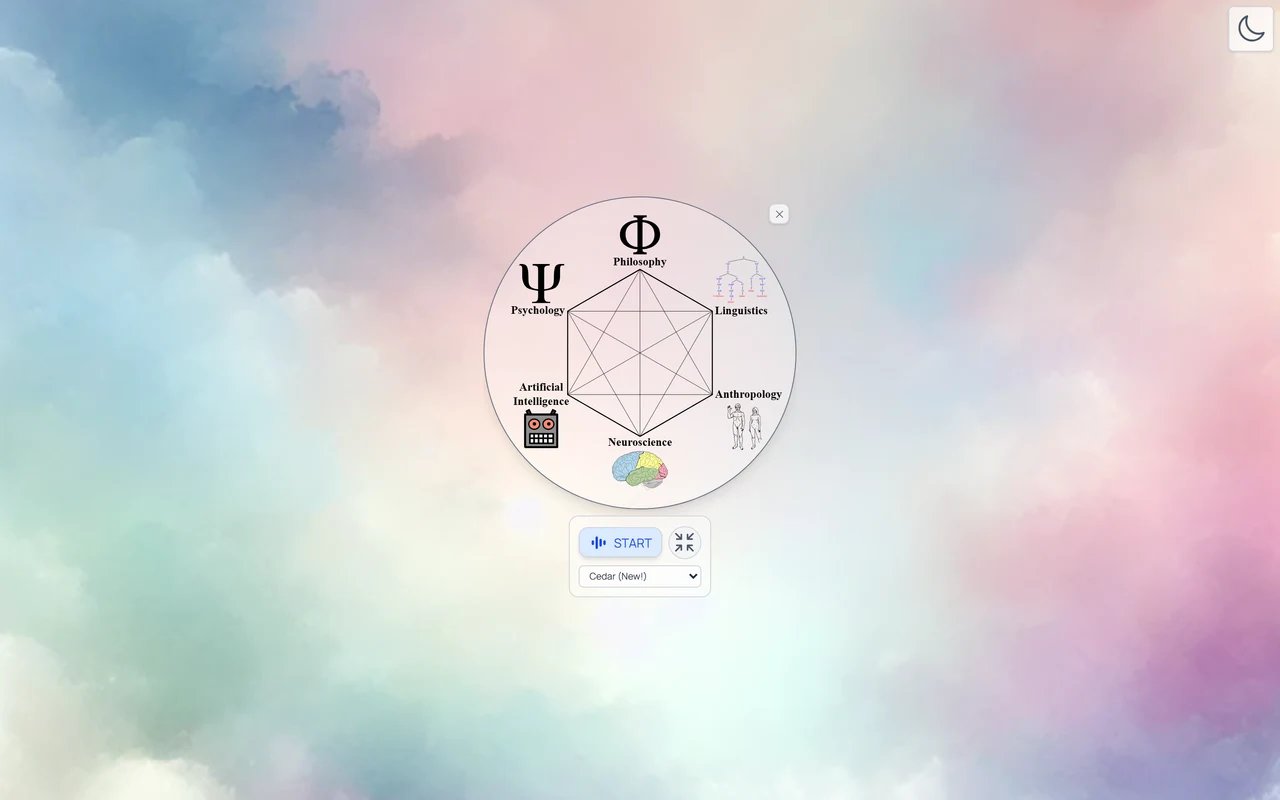 Tap the expand button to grow the panel, and the same button (now **Contract**) to shrink it back. On supported devices an administrator can enable true **fullscreen** immersive mode — and a fullscreen transcript — per Digital Twin in [Instance Settings → Voice](/mdx/user-guide/profile-settings/instance-settings).
**Mute** and the **live transcript** appear once a voice session is actually running — press **START** to see them.
***
## Voice Providers
Convo Mode supports several real-time voice and avatar providers. Your administrator selects which provider your Digital Twin uses; see [Voice & Realtime Providers](/mdx/integrations/voice-providers/overview) for the integration overview and [Realtime Voice & Avatars](/mdx/admin-guide/realtime-voice) for admin-side configuration.
The default voice provider, powered by OpenAI's Realtime API.
* **Voice selection** — Choose from 10+ built-in voices (Cedar, Marin, Alloy, Ash, and more) directly in the Convo Mode panel
* **Voice Activity Detection (VAD)** — Configurable eagerness controls how quickly the AI responds when you pause speaking
* **Tool calling** — Your Digital Twin can access its full set of tools (search, file lookup, web browsing, etc.) during voice conversations
* **MCP support** — Connected MCP servers are available during real-time conversations
* **Token tracking** — Input and output token usage is tracked and displayed
* **Reasoning support** — The `gpt-realtime-2` model supports configurable reasoning effort during voice conversations, enabling stronger instruction following and more reliable tool use for complex voice-agent workflows. It also accepts image input alongside text and audio. See [AI Models](/mdx/admin-guide/ai-models) for details.
Real-time speech-to-speech powered by xAI's Grok voice models.
* **Voice selection** — Choose from five built-in voices: **eve**, **ara**, **rex**, **sal**, **leo**, directly in the Convo Mode panel
* **Tool calling** — Full tool access during voice conversations, including web search, file lookup, and IP Vault retrieval
* **Automatic prompt caching** — Grok's optimized caching reduces cost on long-running sessions; usage is reported with `cached_tokens` in the token counter
* **Live transcription** — Both your speech and Grok's responses are transcribed in real time
* **WebSocket transport** — Uses a WebSocket connection (similar to Gemini Live) rather than WebRTC, which can make it more tolerant of restrictive networks
The `grok-fast` real-time model is conversational-first; if you ask it to *speak* a Markdown image link aloud it may garble the URL into the audio. Stick to plain text questions in voice — text turns render images fine.
Real-time native audio powered by Google Gemini, with built-in speech recognition and synthesis.
* **Voice selection** — Choose from 30 built-in voices (Puck, Charon, Kore, Fenrir, Aoede, and more) directly in the Convo Mode panel
* **Tool calling** — Full tool access during voice conversations, including web search, file lookup, and IP Vault retrieval
* **Live transcription** — Both your speech (input) and the AI's responses (output) are transcribed in real time
* **Proactive audio** — The AI can initiate speech without waiting for a prompt, creating more natural turn-taking
* **Ephemeral authentication** — Session tokens are generated per-conversation for security; no long-lived credentials are stored client-side
Gemini Live requires a Gemini-compatible model configured on your instance. Your administrator selects the voice provider and available voices.
An alternative voice provider offering high-quality, customizable voice synthesis.
* **Custom voices** — Voices are configured in the ElevenLabs Agent dashboard, including custom voice clones
* **Dynamic context** — Your name, email, timezone, and course information are automatically passed to the conversation
* **Simplified experience** — Voice activity detection and session management are handled automatically
* **Dashboard-managed tools** — Tool execution is configured in the ElevenLabs Agent dashboard rather than through Pria
Voice selection and VAD controls are not shown in the Convo Mode panel when ElevenLabs is active, as these are managed in the ElevenLabs dashboard.
A live animated avatar overlays the Convo Mode panel — Pria appears as a face that lip-syncs to its responses while you talk.
* **Animated face** — Pria's words drive real-time lip sync; pauses and head motion read as natural attention
* **Idle pose** — Between turns the avatar blinks and breathes so the panel never goes static
* **Loading indicator** — The avatar video shows a brief shimmer while Anam streams the first frame after you ask a question
* **Voice + avatar pairing** — Anam handles the visible face; the underlying voice is supplied by the model your admin has selected (OpenAI Realtime, Gemini Live, xAI Realtime). You can switch the voice without losing the avatar.
* **Dragable, resizable panel** — Same window controls as the audio-only Convo panel; resize bigger when you want the avatar visible end-to-end of a screen-share.
See [Anam Integration](/mdx/integrations/anam/introduction) for the admin setup. If Anam isn't enabled on your Digital Twin, ask an admin to turn it on under **Instance Settings → Voice**.
LemonSlice is a legacy animated avatar provider. Some Digital Twins still have it enabled, but **new setups should use Anam** — it offers better lip sync, lower latency, and is the actively-developed integration. Functionality is similar to Anam (face + idle pose + lip sync), but Anam is the recommended path going forward.
Your admin can switch from LemonSlice to Anam under **Instance Settings → Voice** without losing your existing conversation history.
### Switching voices mid-conversation
You can change the voice at any time during a Convo session — the new voice takes effect on the **next response**. Open the voice picker in the Convo panel header, pick a new voice, and continue speaking; the running response (if any) finishes in the original voice, then the next turn switches.
Switching between providers (OpenAI ↔ xAI ↔ Gemini Live ↔ ElevenLabs) is an admin action — the live voice picker only swaps voices **within** the active provider.
Avatar providers (Anam, LemonSlice) operate independently of the underlying voice model: you can change voices without losing the avatar, and you can disable the avatar without ending the voice session.
### Avatar animation feedback
When an avatar provider is active, the Convo panel includes a few visual cues so you can tell what state Pria is in:
| Cue | What it means |
| ----------------------------------- | ----------------------------------------------------------------------------------------------------------------------------------------------------------------- |
| **Idle pose** (blinking, breathing) | Pria is waiting for you to speak. |
| **Listening** dot near the face | Your microphone is open and your audio is reaching the model. |
| **Loading shimmer** over the video | The avatar is buffering the first frame of a new response. |
| **Lip-synced mouth motion** | Pria is speaking. The mouth tracks the streamed audio in real time. |
| **Frozen frame** | The session has been interrupted (network blip, model hiccup). Click the refresh button on the Convo panel to reconnect — your conversation history is preserved. |
***
## Features
Your digital twin knows how to have actual conversations. It waits for you
to finish your thoughts before jumping in, remembers what you've been
talking about, and lets you ask follow-up questions without having to repeat
yourself.
When you speak, your words appear as text right away. When your digital twin
responds, you'll hear it speak back to you with a natural-sounding voice.
The more you use it, the better it gets at understanding how you talk.
Prefer typing? When text input is enabled, you can type messages during a
voice conversation instead of speaking. Your Digital Twin responds with both
voice and text — ideal for noisy environments or when you need to input precise information.
Switch between languages right in the middle of a conversation. Your digital
twin will catch on and switch with you, keeping track of what you were
talking about.
Your AI assistant automatically references your uploaded documents and
custom-built assistants during conversations, providing personalized and
contextually relevant responses.
All voice conversations are automatically saved as searchable transcript
files that you can access, review, and reference at any time.
***
## Provider Comparison
| Feature | OpenAI GPT-Realtime | xAI Realtime | Gemini Live | ElevenLabs |
| ----------------------- | :--------------------------: | :--------------------------: | :--------------------------: | :---------------------: |
| Voice selection in Pria | Yes (10+ voices) | Yes (5 voices) | Yes (30 voices) | Configured in dashboard |
| VAD control | Adjustable eagerness | Automatic | Automatic | Automatic |
| Tool calling | Full tool access | Full tool access | Full tool access | Dashboard-configured |
| MCP server support | Yes | No | No | No |
| Text input mode | Yes | Yes | Yes | Yes |
| Token tracking | Yes | Yes (with `cached_tokens`) | Yes | No |
| Custom voice clones | No | No | No | Yes |
| Live transcription | Output only | Input and output | Input and output | Output only |
| Proactive audio | No | No | Yes | No |
| Noise reduction | Configurable | Automatic | Automatic | Automatic |
| Transport | WebRTC | WebSocket | WebSocket | WebRTC |
| Dynamic variables | N/A (full context in prompt) | N/A (full context in prompt) | N/A (full context in prompt) | Auto-injected |
Avatar providers (**Anam**, **LemonSlice**) are layered on top — they pair with any of the audio providers above to give Pria a visible face.
Your administrator selects the voice provider for your Digital Twin. Contact your admin if you have questions about which provider is active.
***
## Troubleshooting Common Issues
Check permissions and hardware connections. Your microphone needs to be
enabled in the browser for Convo Mode to work.
Adjust input sensitivity and check for background noise.
Use headphones or adjust speaker volume.
Speak clearly and check language settings.
Check internet connection and try restarting the conversation.
Provide a brief recap of your previous discussion and pick up from there.
Rephrase using different words or examples.
Explicitly state language changes if the Digital Twin does not pick up on the switch.
If you don't see voice selection or VAD controls, your Digital Twin is using ElevenLabs as the voice provider. These settings are managed by your administrator in the ElevenLabs dashboard.
***
## Related
* [Realtime Voice & Avatars (admin)](/mdx/admin-guide/realtime-voice) — Admin-side configuration of voice providers, avatars, and per-instance voice picks
* [Voice & Realtime Providers (integration overview)](/mdx/integrations/voice-providers/overview) — How each provider connects to Pria and what features it brings
* [Anam Integration](/mdx/integrations/anam/introduction) — Setup guide for the Anam animated avatar
* [Gemini Live Integration](/mdx/integrations/gemini-live/introduction) — Admin setup guide for Gemini Live voice
* [AI Models](/mdx/admin-guide/ai-models) — Real-time speech-to-speech model options
* [Configuration](/mdx/admin-guide/configuration) — Voice provider selection for administrators
* [Input & Responses](/mdx/user-guide/interface/input-responses) — Text and voice input options, including one-shot dictation (the 🎙 mic)
* [Audio Notes](/mdx/user-guide/files-documents/audio-notes) — Record voice memos that become searchable knowledge in your vault
Tap the expand button to grow the panel, and the same button (now **Contract**) to shrink it back. On supported devices an administrator can enable true **fullscreen** immersive mode — and a fullscreen transcript — per Digital Twin in [Instance Settings → Voice](/mdx/user-guide/profile-settings/instance-settings).
**Mute** and the **live transcript** appear once a voice session is actually running — press **START** to see them.
***
## Voice Providers
Convo Mode supports several real-time voice and avatar providers. Your administrator selects which provider your Digital Twin uses; see [Voice & Realtime Providers](/mdx/integrations/voice-providers/overview) for the integration overview and [Realtime Voice & Avatars](/mdx/admin-guide/realtime-voice) for admin-side configuration.
The default voice provider, powered by OpenAI's Realtime API.
* **Voice selection** — Choose from 10+ built-in voices (Cedar, Marin, Alloy, Ash, and more) directly in the Convo Mode panel
* **Voice Activity Detection (VAD)** — Configurable eagerness controls how quickly the AI responds when you pause speaking
* **Tool calling** — Your Digital Twin can access its full set of tools (search, file lookup, web browsing, etc.) during voice conversations
* **MCP support** — Connected MCP servers are available during real-time conversations
* **Token tracking** — Input and output token usage is tracked and displayed
* **Reasoning support** — The `gpt-realtime-2` model supports configurable reasoning effort during voice conversations, enabling stronger instruction following and more reliable tool use for complex voice-agent workflows. It also accepts image input alongside text and audio. See [AI Models](/mdx/admin-guide/ai-models) for details.
Real-time speech-to-speech powered by xAI's Grok voice models.
* **Voice selection** — Choose from five built-in voices: **eve**, **ara**, **rex**, **sal**, **leo**, directly in the Convo Mode panel
* **Tool calling** — Full tool access during voice conversations, including web search, file lookup, and IP Vault retrieval
* **Automatic prompt caching** — Grok's optimized caching reduces cost on long-running sessions; usage is reported with `cached_tokens` in the token counter
* **Live transcription** — Both your speech and Grok's responses are transcribed in real time
* **WebSocket transport** — Uses a WebSocket connection (similar to Gemini Live) rather than WebRTC, which can make it more tolerant of restrictive networks
The `grok-fast` real-time model is conversational-first; if you ask it to *speak* a Markdown image link aloud it may garble the URL into the audio. Stick to plain text questions in voice — text turns render images fine.
Real-time native audio powered by Google Gemini, with built-in speech recognition and synthesis.
* **Voice selection** — Choose from 30 built-in voices (Puck, Charon, Kore, Fenrir, Aoede, and more) directly in the Convo Mode panel
* **Tool calling** — Full tool access during voice conversations, including web search, file lookup, and IP Vault retrieval
* **Live transcription** — Both your speech (input) and the AI's responses (output) are transcribed in real time
* **Proactive audio** — The AI can initiate speech without waiting for a prompt, creating more natural turn-taking
* **Ephemeral authentication** — Session tokens are generated per-conversation for security; no long-lived credentials are stored client-side
Gemini Live requires a Gemini-compatible model configured on your instance. Your administrator selects the voice provider and available voices.
An alternative voice provider offering high-quality, customizable voice synthesis.
* **Custom voices** — Voices are configured in the ElevenLabs Agent dashboard, including custom voice clones
* **Dynamic context** — Your name, email, timezone, and course information are automatically passed to the conversation
* **Simplified experience** — Voice activity detection and session management are handled automatically
* **Dashboard-managed tools** — Tool execution is configured in the ElevenLabs Agent dashboard rather than through Pria
Voice selection and VAD controls are not shown in the Convo Mode panel when ElevenLabs is active, as these are managed in the ElevenLabs dashboard.
A live animated avatar overlays the Convo Mode panel — Pria appears as a face that lip-syncs to its responses while you talk.
* **Animated face** — Pria's words drive real-time lip sync; pauses and head motion read as natural attention
* **Idle pose** — Between turns the avatar blinks and breathes so the panel never goes static
* **Loading indicator** — The avatar video shows a brief shimmer while Anam streams the first frame after you ask a question
* **Voice + avatar pairing** — Anam handles the visible face; the underlying voice is supplied by the model your admin has selected (OpenAI Realtime, Gemini Live, xAI Realtime). You can switch the voice without losing the avatar.
* **Dragable, resizable panel** — Same window controls as the audio-only Convo panel; resize bigger when you want the avatar visible end-to-end of a screen-share.
See [Anam Integration](/mdx/integrations/anam/introduction) for the admin setup. If Anam isn't enabled on your Digital Twin, ask an admin to turn it on under **Instance Settings → Voice**.
LemonSlice is a legacy animated avatar provider. Some Digital Twins still have it enabled, but **new setups should use Anam** — it offers better lip sync, lower latency, and is the actively-developed integration. Functionality is similar to Anam (face + idle pose + lip sync), but Anam is the recommended path going forward.
Your admin can switch from LemonSlice to Anam under **Instance Settings → Voice** without losing your existing conversation history.
### Switching voices mid-conversation
You can change the voice at any time during a Convo session — the new voice takes effect on the **next response**. Open the voice picker in the Convo panel header, pick a new voice, and continue speaking; the running response (if any) finishes in the original voice, then the next turn switches.
Switching between providers (OpenAI ↔ xAI ↔ Gemini Live ↔ ElevenLabs) is an admin action — the live voice picker only swaps voices **within** the active provider.
Avatar providers (Anam, LemonSlice) operate independently of the underlying voice model: you can change voices without losing the avatar, and you can disable the avatar without ending the voice session.
### Avatar animation feedback
When an avatar provider is active, the Convo panel includes a few visual cues so you can tell what state Pria is in:
| Cue | What it means |
| ----------------------------------- | ----------------------------------------------------------------------------------------------------------------------------------------------------------------- |
| **Idle pose** (blinking, breathing) | Pria is waiting for you to speak. |
| **Listening** dot near the face | Your microphone is open and your audio is reaching the model. |
| **Loading shimmer** over the video | The avatar is buffering the first frame of a new response. |
| **Lip-synced mouth motion** | Pria is speaking. The mouth tracks the streamed audio in real time. |
| **Frozen frame** | The session has been interrupted (network blip, model hiccup). Click the refresh button on the Convo panel to reconnect — your conversation history is preserved. |
***
## Features
Your digital twin knows how to have actual conversations. It waits for you
to finish your thoughts before jumping in, remembers what you've been
talking about, and lets you ask follow-up questions without having to repeat
yourself.
When you speak, your words appear as text right away. When your digital twin
responds, you'll hear it speak back to you with a natural-sounding voice.
The more you use it, the better it gets at understanding how you talk.
Prefer typing? When text input is enabled, you can type messages during a
voice conversation instead of speaking. Your Digital Twin responds with both
voice and text — ideal for noisy environments or when you need to input precise information.
Switch between languages right in the middle of a conversation. Your digital
twin will catch on and switch with you, keeping track of what you were
talking about.
Your AI assistant automatically references your uploaded documents and
custom-built assistants during conversations, providing personalized and
contextually relevant responses.
All voice conversations are automatically saved as searchable transcript
files that you can access, review, and reference at any time.
***
## Provider Comparison
| Feature | OpenAI GPT-Realtime | xAI Realtime | Gemini Live | ElevenLabs |
| ----------------------- | :--------------------------: | :--------------------------: | :--------------------------: | :---------------------: |
| Voice selection in Pria | Yes (10+ voices) | Yes (5 voices) | Yes (30 voices) | Configured in dashboard |
| VAD control | Adjustable eagerness | Automatic | Automatic | Automatic |
| Tool calling | Full tool access | Full tool access | Full tool access | Dashboard-configured |
| MCP server support | Yes | No | No | No |
| Text input mode | Yes | Yes | Yes | Yes |
| Token tracking | Yes | Yes (with `cached_tokens`) | Yes | No |
| Custom voice clones | No | No | No | Yes |
| Live transcription | Output only | Input and output | Input and output | Output only |
| Proactive audio | No | No | Yes | No |
| Noise reduction | Configurable | Automatic | Automatic | Automatic |
| Transport | WebRTC | WebSocket | WebSocket | WebRTC |
| Dynamic variables | N/A (full context in prompt) | N/A (full context in prompt) | N/A (full context in prompt) | Auto-injected |
Avatar providers (**Anam**, **LemonSlice**) are layered on top — they pair with any of the audio providers above to give Pria a visible face.
Your administrator selects the voice provider for your Digital Twin. Contact your admin if you have questions about which provider is active.
***
## Troubleshooting Common Issues
Check permissions and hardware connections. Your microphone needs to be
enabled in the browser for Convo Mode to work.
Adjust input sensitivity and check for background noise.
Use headphones or adjust speaker volume.
Speak clearly and check language settings.
Check internet connection and try restarting the conversation.
Provide a brief recap of your previous discussion and pick up from there.
Rephrase using different words or examples.
Explicitly state language changes if the Digital Twin does not pick up on the switch.
If you don't see voice selection or VAD controls, your Digital Twin is using ElevenLabs as the voice provider. These settings are managed by your administrator in the ElevenLabs dashboard.
***
## Related
* [Realtime Voice & Avatars (admin)](/mdx/admin-guide/realtime-voice) — Admin-side configuration of voice providers, avatars, and per-instance voice picks
* [Voice & Realtime Providers (integration overview)](/mdx/integrations/voice-providers/overview) — How each provider connects to Pria and what features it brings
* [Anam Integration](/mdx/integrations/anam/introduction) — Setup guide for the Anam animated avatar
* [Gemini Live Integration](/mdx/integrations/gemini-live/introduction) — Admin setup guide for Gemini Live voice
* [AI Models](/mdx/admin-guide/ai-models) — Real-time speech-to-speech model options
* [Configuration](/mdx/admin-guide/configuration) — Voice provider selection for administrators
* [Input & Responses](/mdx/user-guide/interface/input-responses) — Text and voice input options, including one-shot dictation (the 🎙 mic)
* [Audio Notes](/mdx/user-guide/files-documents/audio-notes) — Record voice memos that become searchable knowledge in your vault