> ## Documentation Index
> Fetch the complete documentation index at: https://docs.praxis-ai.com/llms.txt
> Use this file to discover all available pages before exploring further.
# The Gallery
> Manage and switch between your digital experts effortlessly using the Gallery
Your digital expert gallery is your command center for managing multiple AI personalities. Learn to navigate, organize, and expand your expert collection efficiently.
## Switch Accounts to Switch Digital Experts
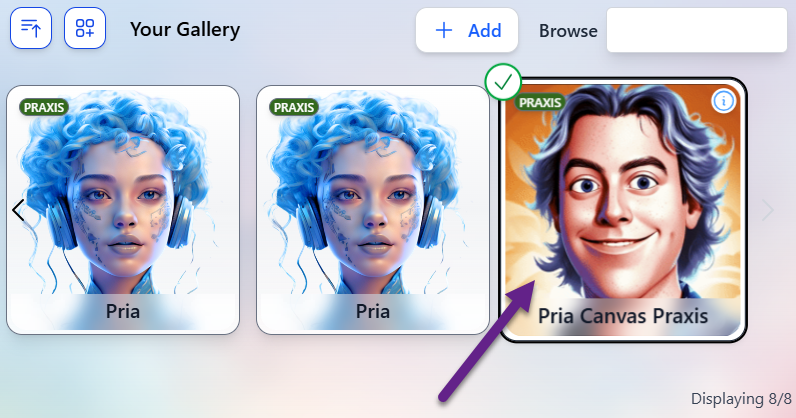
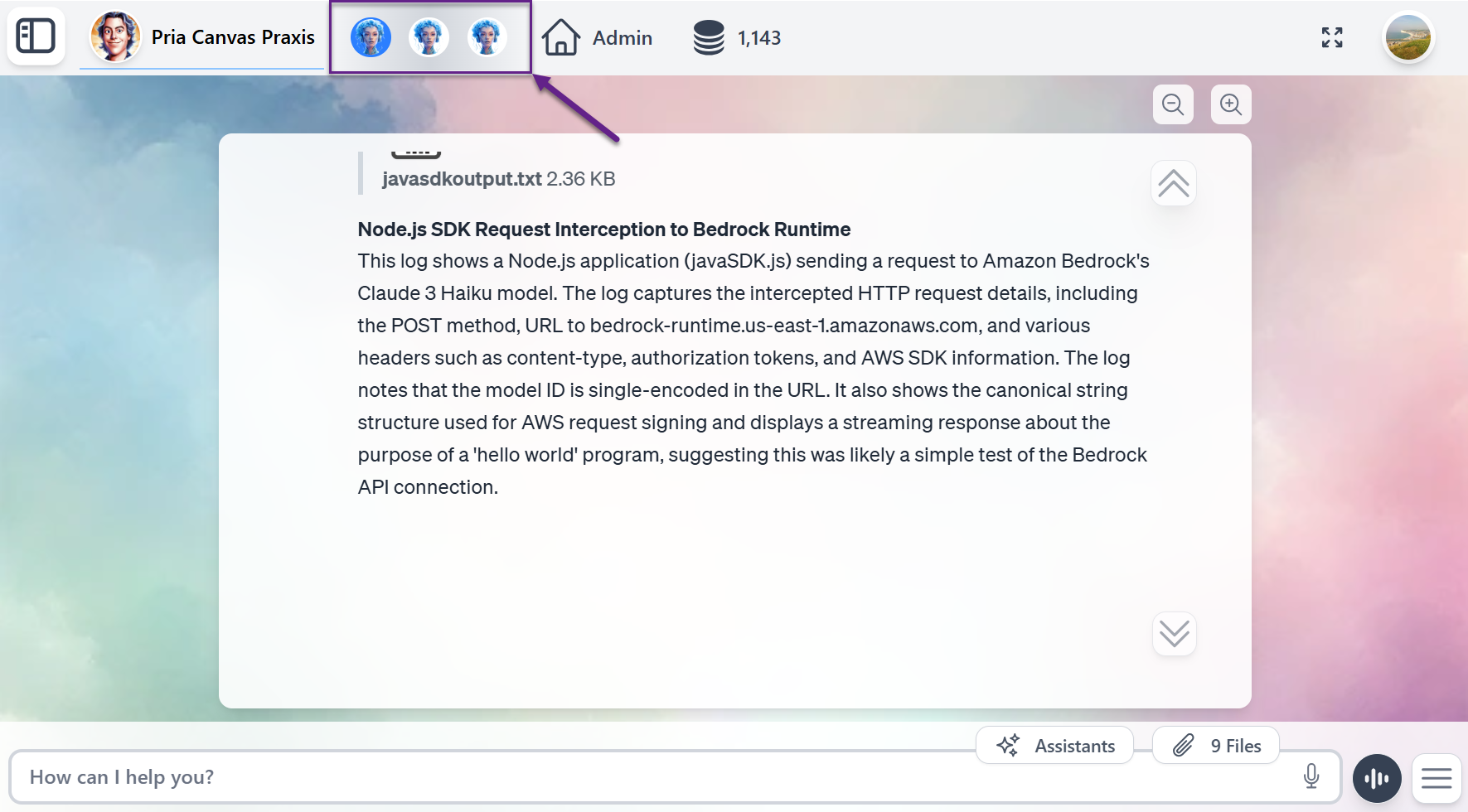
Once you've created multiple digital experts, switching between them becomes effortless with the integrated "Switch Accounts" feature.
Mark your most frequently used digital twins as Favorites to prioritize them at the top of your gallery for quick access.
***
## Your Gallery
Your centralized gallery provides comprehensive management capabilities for all your digital experts.
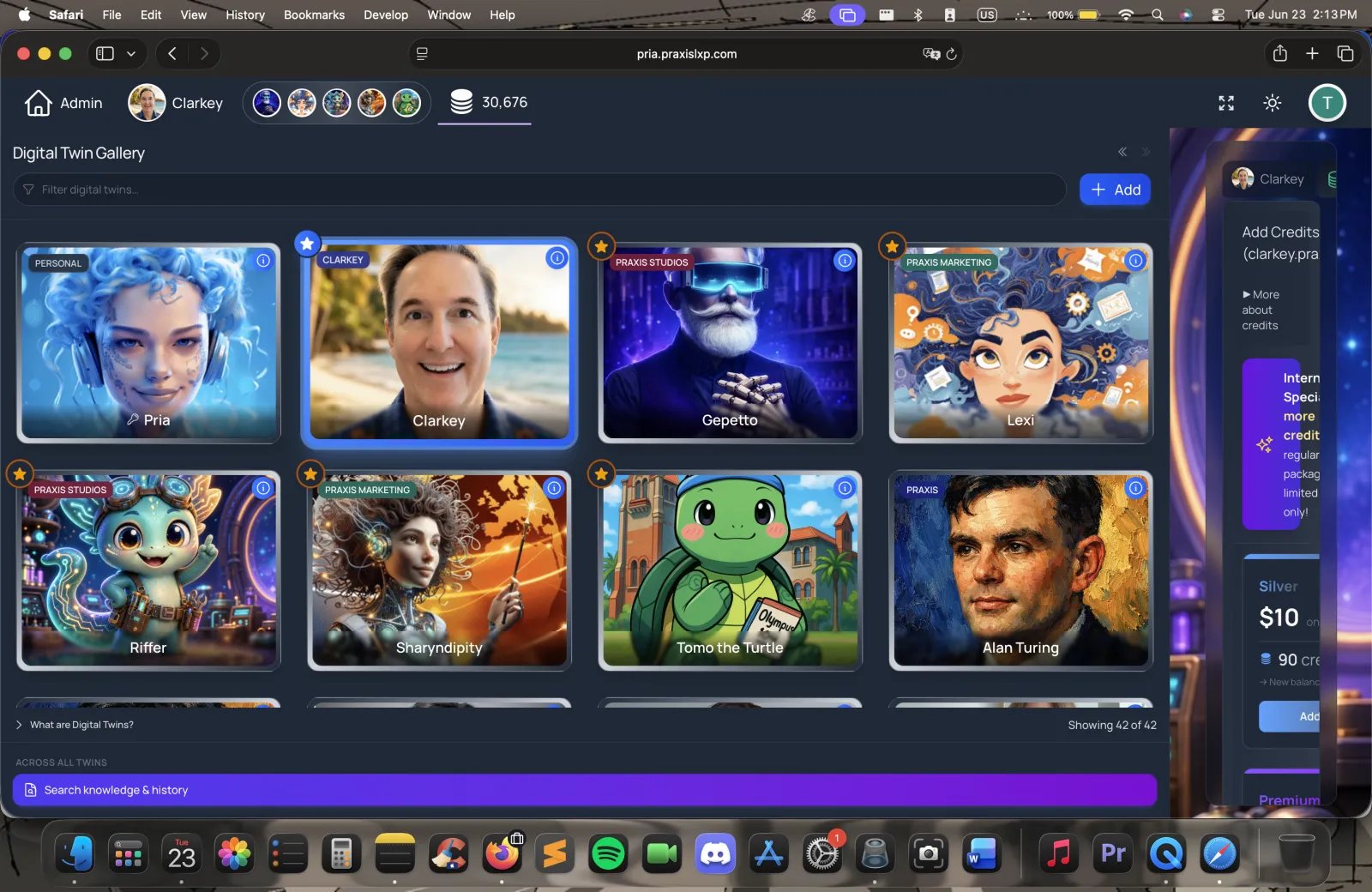 ### Gallery Management Features
Depending on your admin entitlements for the current digital twin you are using, you may be able to access the gallery management features
**Find Experts Quickly**
* **Smart Search**: Locate experts by name, subject, or specialty
* **Filter Options**: Sort by creation date, usage frequency, or category
* **Quick Preview**: View expert capabilities without switching
Use descriptive names for your experts to make searching more efficient as your collection grows.
**Edit and Customize**
* **Direct Editing**: Modify expert personalities and instructions
* **Capability Updates**: Add new skills or knowledge areas
* **Visual Customization**: Update avatars and display preferences
* **Performance Tuning**: Adjust response styles and behaviors
**Monitor and Replenish Resources**
* **Balance Tracking**: Credit usage monitoring
* **Easy Top-Up**: One-click credit purchasing
Keep an eye on your credit balance to ensure uninterrupted access to your digital experts.
**Enhance Expert Abilities**
* **Skill Integration**: Add new assistants that are custom to your expert
* **Knowledge Updates**: Incorporate latest information and data in the IP vault
* **Specialization**: Fine-tune experts for specific domains
This centralized management system allows you to efficiently oversee all your digital experts from one convenient location, making it easy to maintain and optimize your AI assistant ecosystem.
***
## Favorite Digital Twins
Mark your most frequently used digital twins as Favorites to prioritize them at the top of your gallery for quick access.
### Gallery Management Features
Depending on your admin entitlements for the current digital twin you are using, you may be able to access the gallery management features
**Find Experts Quickly**
* **Smart Search**: Locate experts by name, subject, or specialty
* **Filter Options**: Sort by creation date, usage frequency, or category
* **Quick Preview**: View expert capabilities without switching
Use descriptive names for your experts to make searching more efficient as your collection grows.
**Edit and Customize**
* **Direct Editing**: Modify expert personalities and instructions
* **Capability Updates**: Add new skills or knowledge areas
* **Visual Customization**: Update avatars and display preferences
* **Performance Tuning**: Adjust response styles and behaviors
**Monitor and Replenish Resources**
* **Balance Tracking**: Credit usage monitoring
* **Easy Top-Up**: One-click credit purchasing
Keep an eye on your credit balance to ensure uninterrupted access to your digital experts.
**Enhance Expert Abilities**
* **Skill Integration**: Add new assistants that are custom to your expert
* **Knowledge Updates**: Incorporate latest information and data in the IP vault
* **Specialization**: Fine-tune experts for specific domains
This centralized management system allows you to efficiently oversee all your digital experts from one convenient location, making it easy to maintain and optimize your AI assistant ecosystem.
***
## Favorite Digital Twins
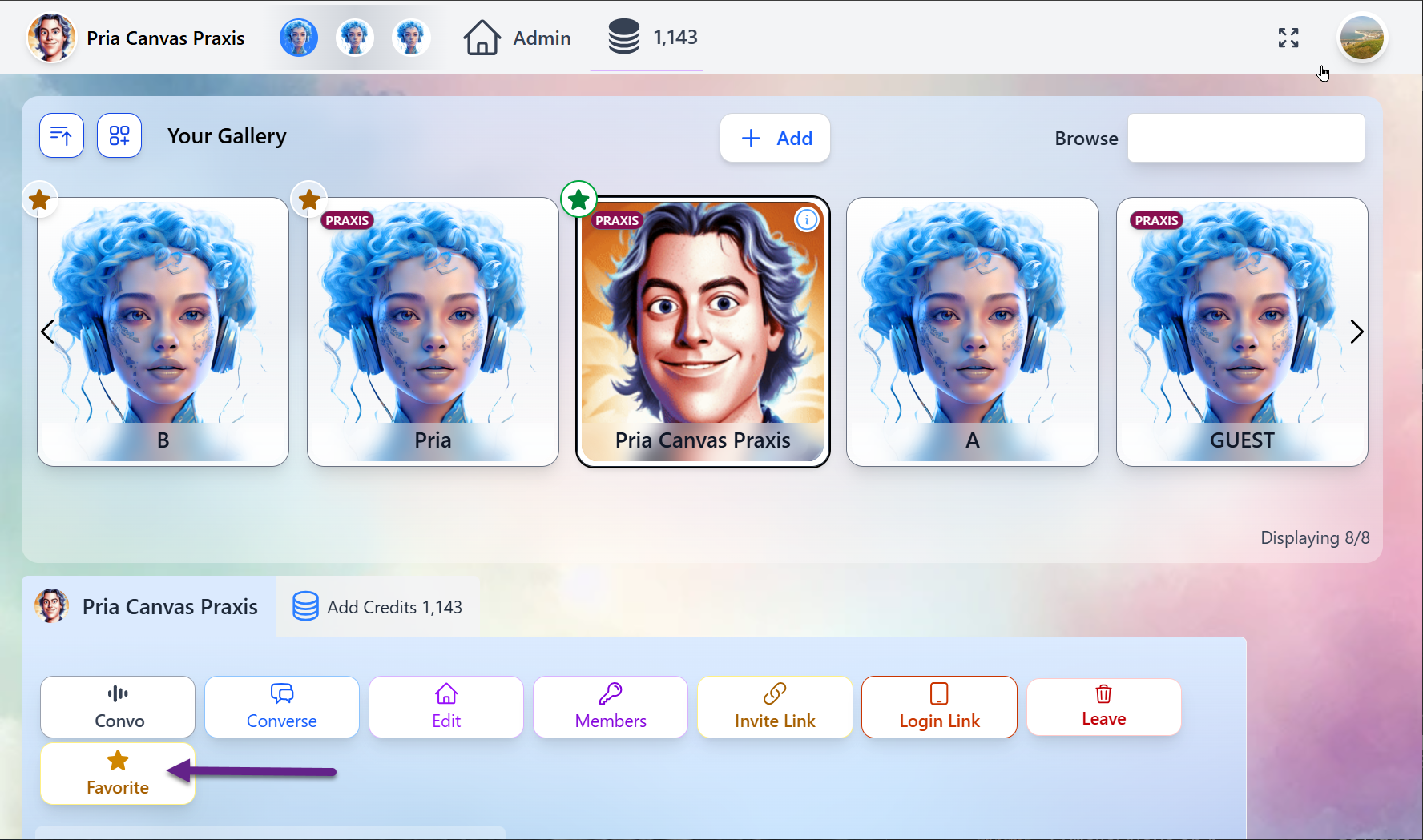
Mark your most frequently used digital twins as Favorites to prioritize them at the top of your gallery for quick access.
 ## Digital Twin Options
| Option | Description |
| ------------ | -------------------------------------------------------------------------------------------------------- |
| **Convo** | Start a vocal conversation with your digital twin ([Convo Mode](/mdx/user-guide/interface/convo-speech)) |
| **Converse** | Redirect to the text-based conversation UI |
| **Leave** | Leave the Digital Twin. This removes it from your gallery. |
| **Favorite** | Add your Digital Twin to the list of Favorites for quick access |
## Admin Features
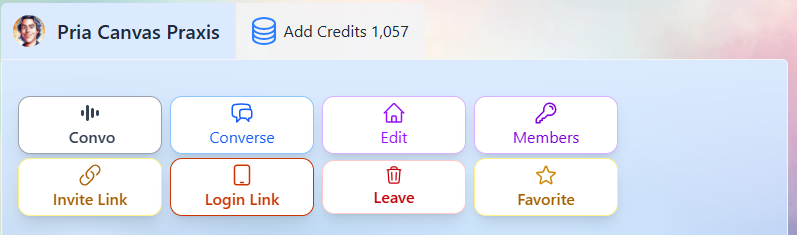
Administrative users have enhanced capabilities for expanding and managing the digital expert ecosystem and are offered several buttons that regroup to most commonly used commands for your digital twins.
## Digital Twin Options
| Option | Description |
| ------------ | -------------------------------------------------------------------------------------------------------- |
| **Convo** | Start a vocal conversation with your digital twin ([Convo Mode](/mdx/user-guide/interface/convo-speech)) |
| **Converse** | Redirect to the text-based conversation UI |
| **Leave** | Leave the Digital Twin. This removes it from your gallery. |
| **Favorite** | Add your Digital Twin to the list of Favorites for quick access |
## Admin Features
Administrative users have enhanced capabilities for expanding and managing the digital expert ecosystem and are offered several buttons that regroup to most commonly used commands for your digital twins.
 ### Add Credits to your Digital Twin
Use the Gallery to add Credits to your Personal instance of your Digital Twin. For more information, consult the [Plans and Credits](/mdx/introduction/plans-and-credits#digital-twin-credits) page.
### Invite users to your Digital Twin
Inviting people is built into **Instance Settings → Invite** (the person-plus tab). It gives you a shareable **Invite Link** — anyone who opens it can sign up and **join your Twin automatically** — plus a scannable **QR code** for posters, slides, or onboarding in person. The same tab also carries the branded **Login Page** for people who already have access.
### Add Credits to your Digital Twin
Use the Gallery to add Credits to your Personal instance of your Digital Twin. For more information, consult the [Plans and Credits](/mdx/introduction/plans-and-credits#digital-twin-credits) page.
### Invite users to your Digital Twin
Inviting people is built into **Instance Settings → Invite** (the person-plus tab). It gives you a shareable **Invite Link** — anyone who opens it can sign up and **join your Twin automatically** — plus a scannable **QR code** for posters, slides, or onboarding in person. The same tab also carries the branded **Login Page** for people who already have access.
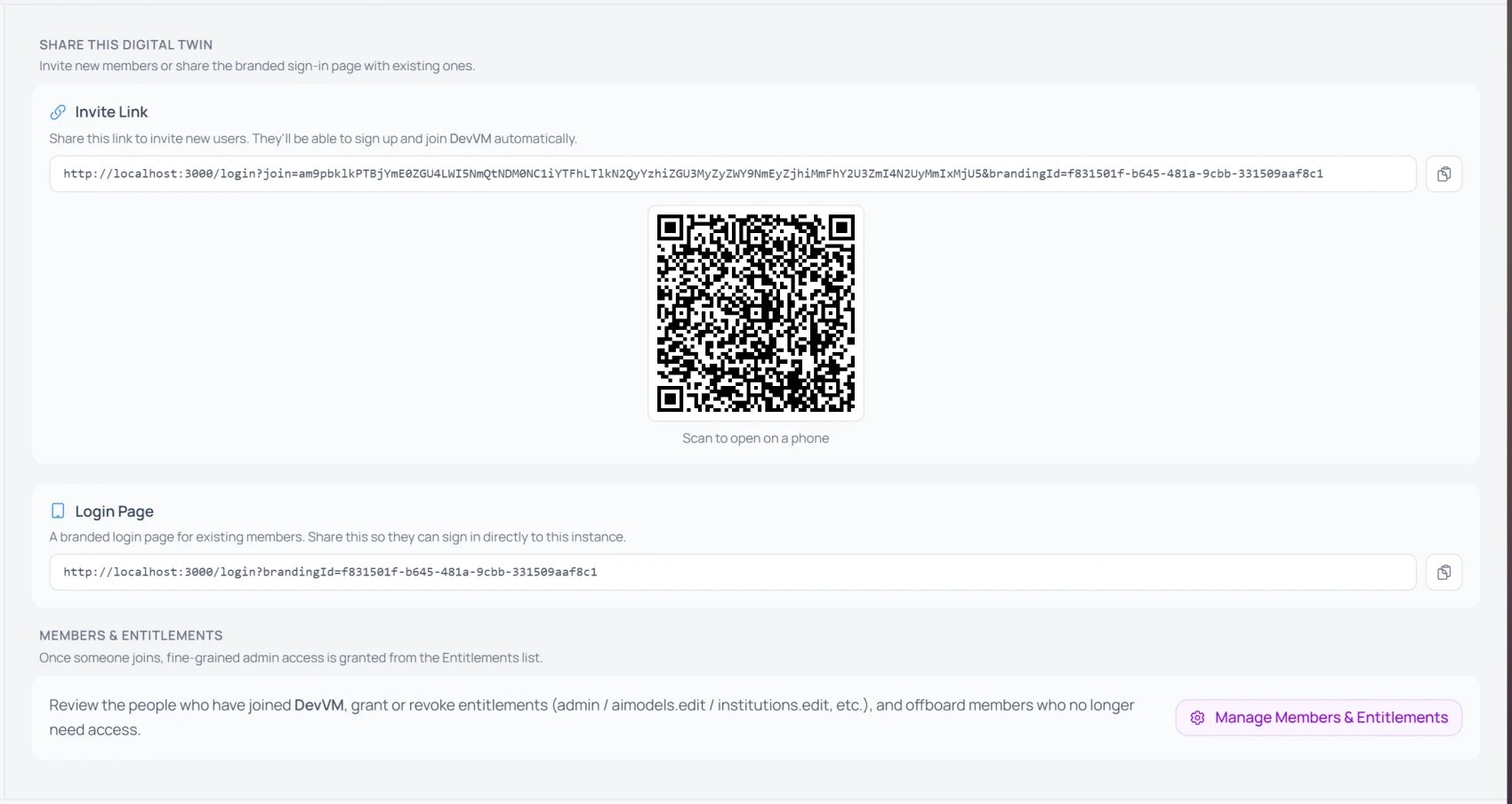 In **Instance Settings**, select **Invite**. You need the **`institutions.edit`** entitlement on the Twin — regular members won't see the tab.
Copy the **Invite Link** and send it by email, chat, or your website — or let people **scan the QR code**. Whoever opens it signs up and joins your Twin automatically; there's no per-request approval step.
Once people join, use **Manage Members & Entitlements** to review members, grant or revoke fine-grained admin access (`admin`, `aimodels.edit`, `institutions.edit`, …), and offboard anyone who no longer needs it.
For the full walkthrough — both links, the QR code, what each part of the link means, and managing members — see [Inviting Users to Your Twin](/mdx/user-guide/profile-settings/instance-invite).
### Create a Branded Login Screen
Alongside the Invite Link, the **Invite** tab also offers a **Login Page** link — a branded sign-in page for people who already have access to your Digital Twin. Copy it from **Instance Settings → Invite** and share it.
#### Branded Login Link Features
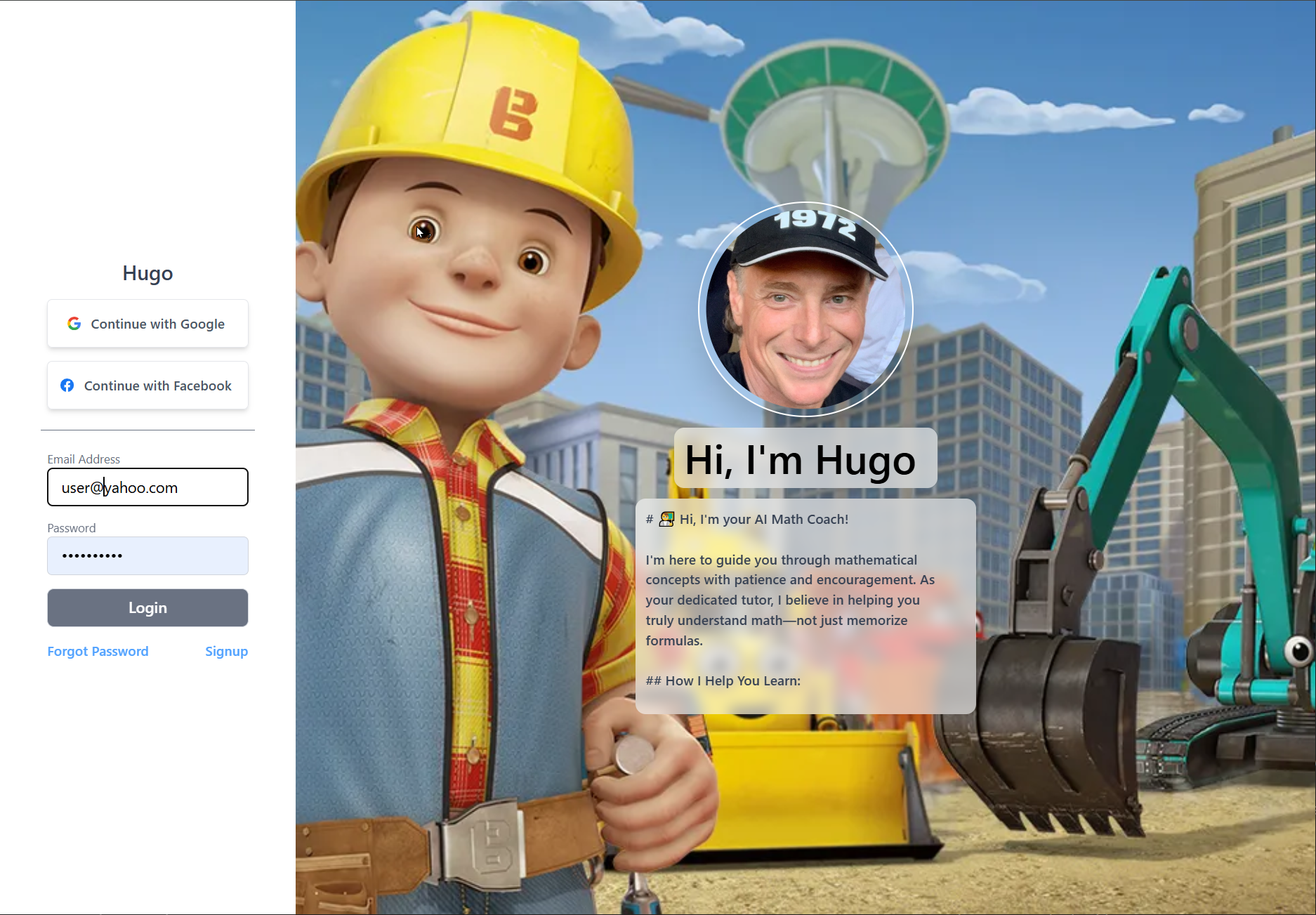
The login Link presents a login page that is customized with your Digital Twin's personalized properties, such as AI Name, Logo, About information, custom CSS, etc
The login page adapts to all form factors using a responsive UI design
When login through your branded login page, users immediately switch to your digital twin over any other DT they may have in their gallery
The branded login page uses the Animated Picture (GIF) to create a more immersive and interacive experience
#### How it works
In **Instance Settings → Invite**, copy the **Login Page** link (it carries your Twin's `brandingId`) and share it by email, chat, or your website.
Opening the link takes members to a sign-in page themed with your Twin's name, avatar, About text, and background — and drops them straight into your Digital Twin, ahead of any others in their gallery.
In **Instance Settings**, select **Invite**. You need the **`institutions.edit`** entitlement on the Twin — regular members won't see the tab.
Copy the **Invite Link** and send it by email, chat, or your website — or let people **scan the QR code**. Whoever opens it signs up and joins your Twin automatically; there's no per-request approval step.
Once people join, use **Manage Members & Entitlements** to review members, grant or revoke fine-grained admin access (`admin`, `aimodels.edit`, `institutions.edit`, …), and offboard anyone who no longer needs it.
For the full walkthrough — both links, the QR code, what each part of the link means, and managing members — see [Inviting Users to Your Twin](/mdx/user-guide/profile-settings/instance-invite).
### Create a Branded Login Screen
Alongside the Invite Link, the **Invite** tab also offers a **Login Page** link — a branded sign-in page for people who already have access to your Digital Twin. Copy it from **Instance Settings → Invite** and share it.
#### Branded Login Link Features
The login Link presents a login page that is customized with your Digital Twin's personalized properties, such as AI Name, Logo, About information, custom CSS, etc
The login page adapts to all form factors using a responsive UI design
When login through your branded login page, users immediately switch to your digital twin over any other DT they may have in their gallery
The branded login page uses the Animated Picture (GIF) to create a more immersive and interacive experience
#### How it works
In **Instance Settings → Invite**, copy the **Login Page** link (it carries your Twin's `brandingId`) and share it by email, chat, or your website.
Opening the link takes members to a sign-in page themed with your Twin's name, avatar, About text, and background — and drops them straight into your Digital Twin, ahead of any others in their gallery.
 #### Example with Animation
Here is an example of a branded login page with an animation
Set the branding — AI Name, logo, About text, background, and animated picture — in **Instance Settings → Personalization**. See [Instance Settings](/mdx/user-guide/profile-settings/instance-settings).
### Adding New Digital Twins to your gallery
To add a digital twin to your gallery, click the Add button
#### Example with Animation
Here is an example of a branded login page with an animation
Set the branding — AI Name, logo, About text, background, and animated picture — in **Instance Settings → Personalization**. See [Instance Settings](/mdx/user-guide/profile-settings/instance-settings).
### Adding New Digital Twins to your gallery
To add a digital twin to your gallery, click the Add button
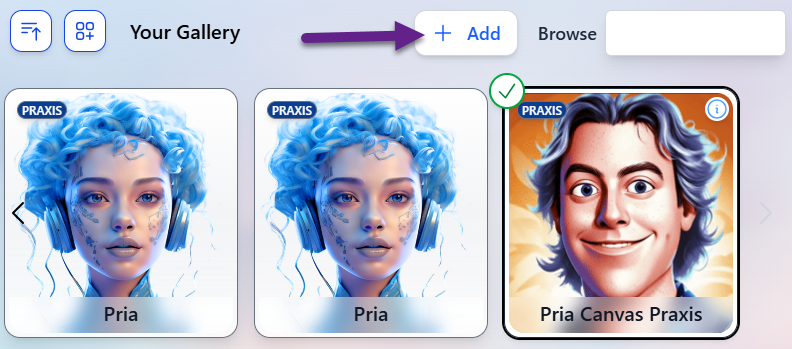 Choose to browse for an existing Digital Twin or create a new one from scratch
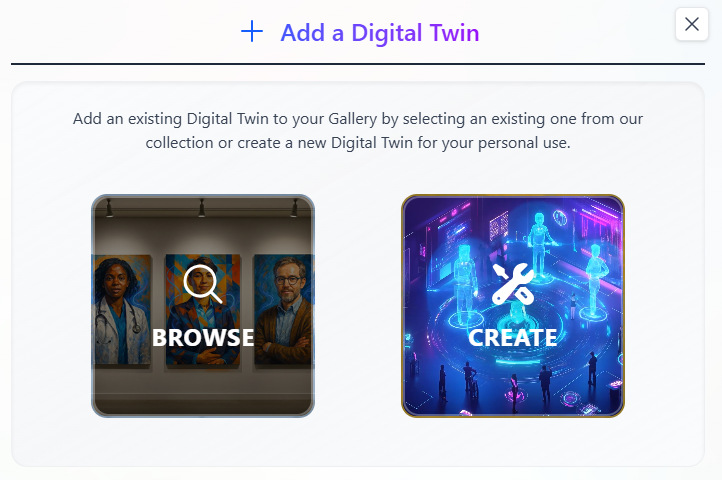 **Discover Pre-Built Digital Twins**
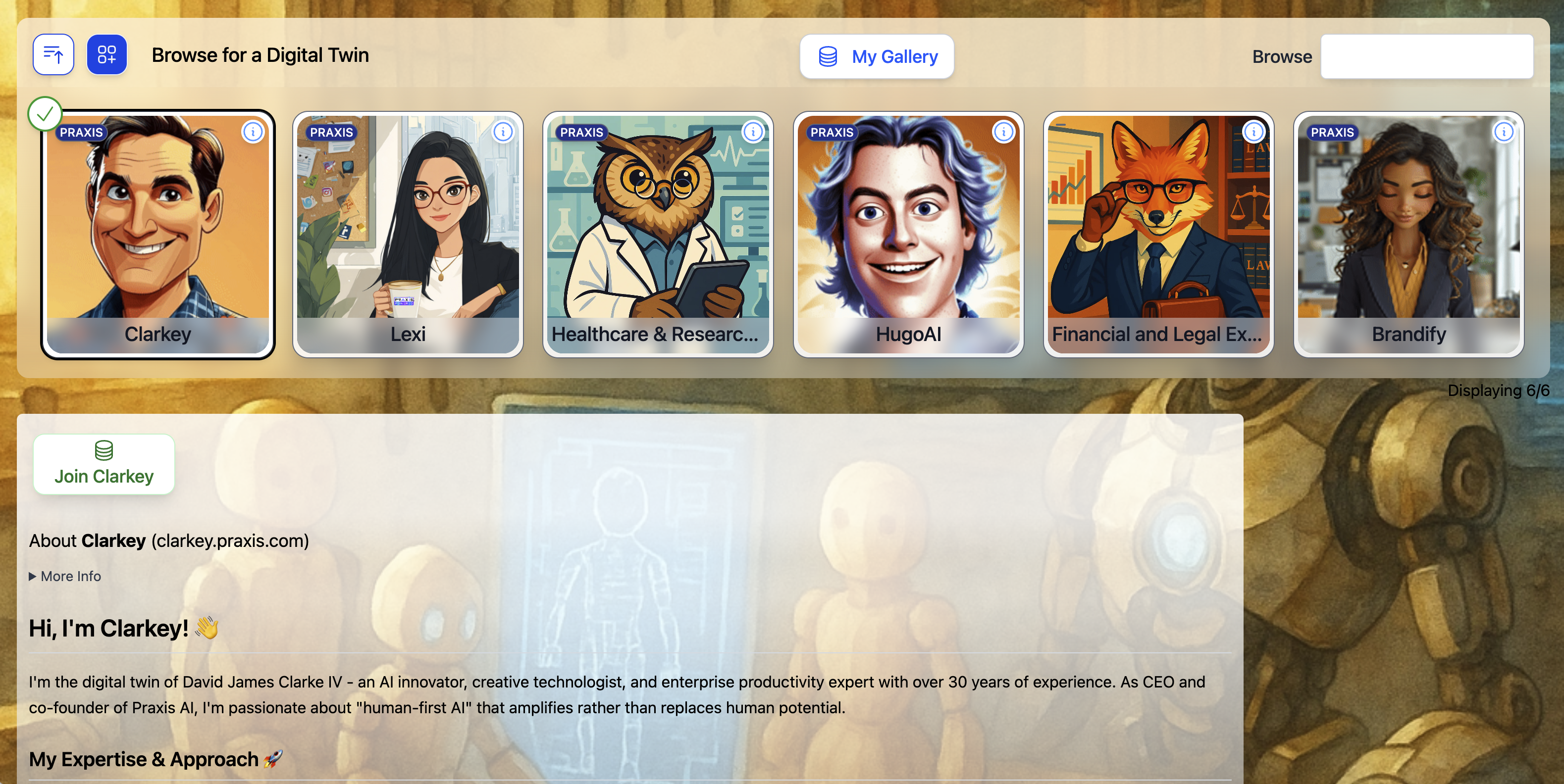 **Browse Gallery Features:**
* **Curated Collection**: Access professionally designed digital experts
* **Category Filtering**: Find experts by subject, industry, or use case
* **Instant Integration**: Add experts to your gallery with one click
The public gallery contains experts created by educators, professionals, and the Praxis AI community, offering diverse perspectives and specialized knowledge.
Select a digital twin, then click the **Join** button
**Browse Gallery Features:**
* **Curated Collection**: Access professionally designed digital experts
* **Category Filtering**: Find experts by subject, industry, or use case
* **Instant Integration**: Add experts to your gallery with one click
The public gallery contains experts created by educators, professionals, and the Praxis AI community, offering diverse perspectives and specialized knowledge.
Select a digital twin, then click the **Join** button
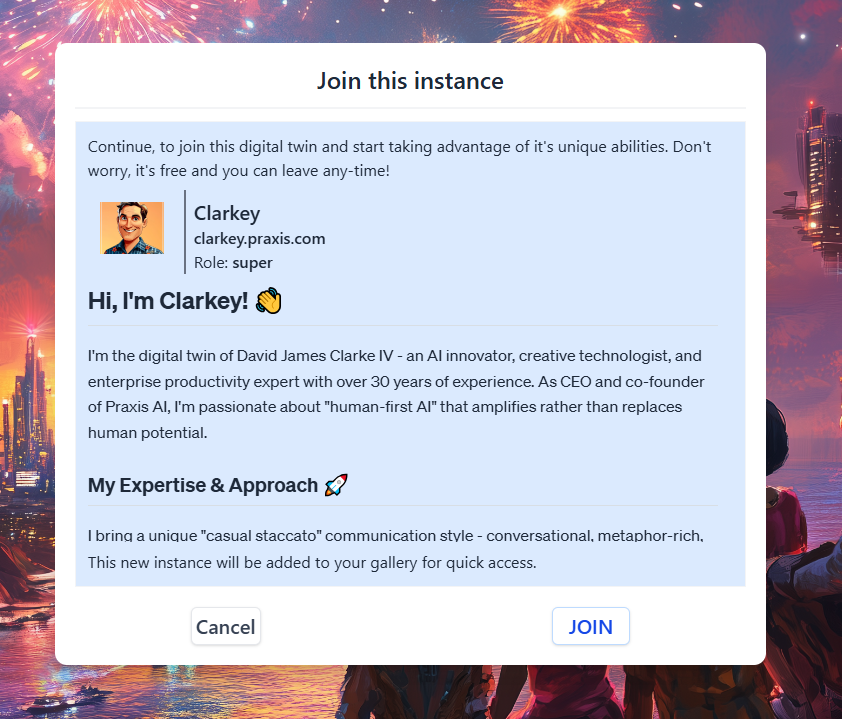 Click **Join** To confirm
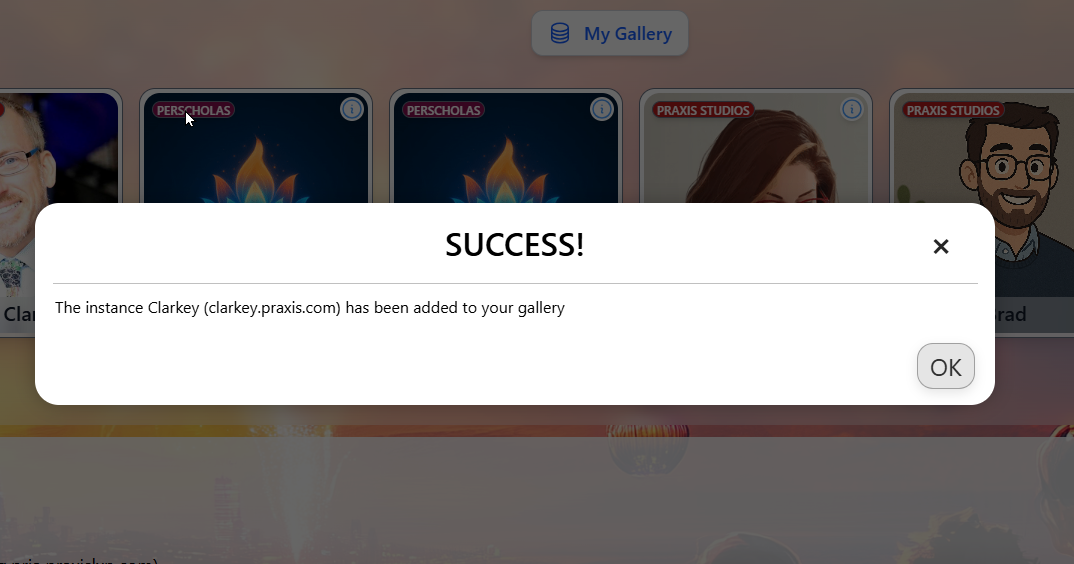 Click **OK** to continue, then **Gallery** to return to your Gallery
**Build Your Unique Digital Twin**
For a complete step-by-step guide with tips on naming, images, and personalization, see [Create Your Digital Twin](/mdx/user-guide/create-digital-twin).
Choose a unique and meaningful **name**, **pictures** to get started.
Click **OK** to continue, then **Gallery** to return to your Gallery
**Build Your Unique Digital Twin**
For a complete step-by-step guide with tips on naming, images, and personalization, see [Create Your Digital Twin](/mdx/user-guide/create-digital-twin).
Choose a unique and meaningful **name**, **pictures** to get started.
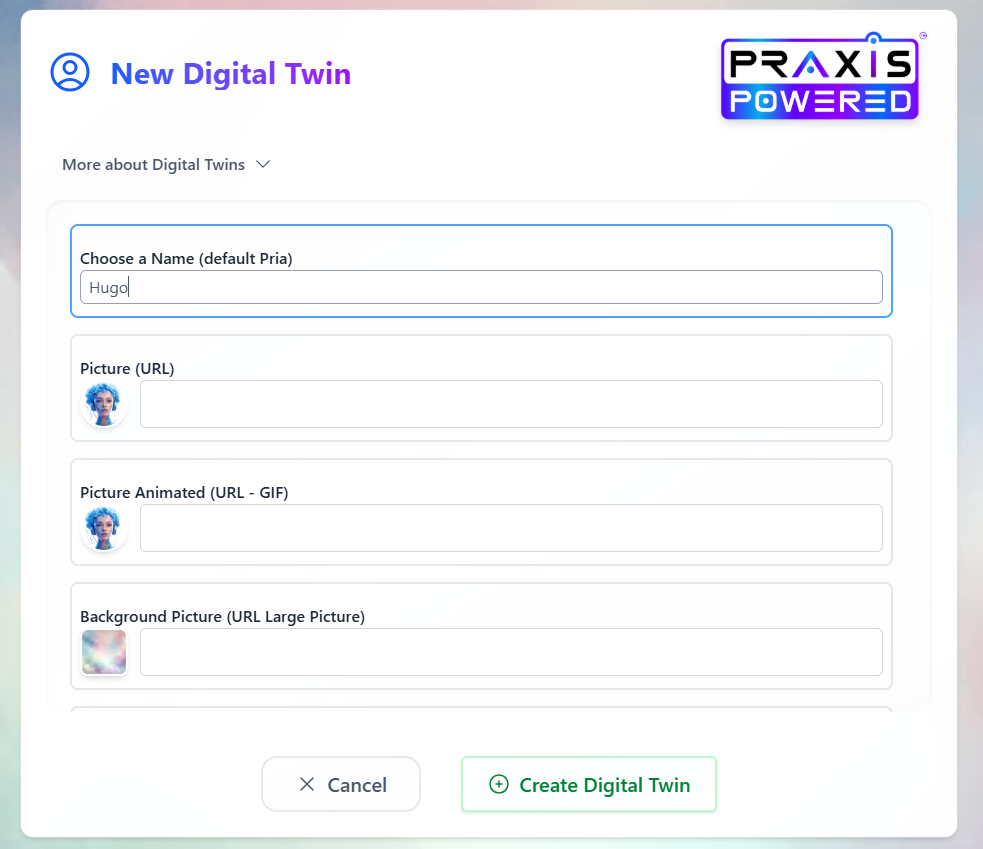 Click the **Create Digital Twin** button to complete the creation process
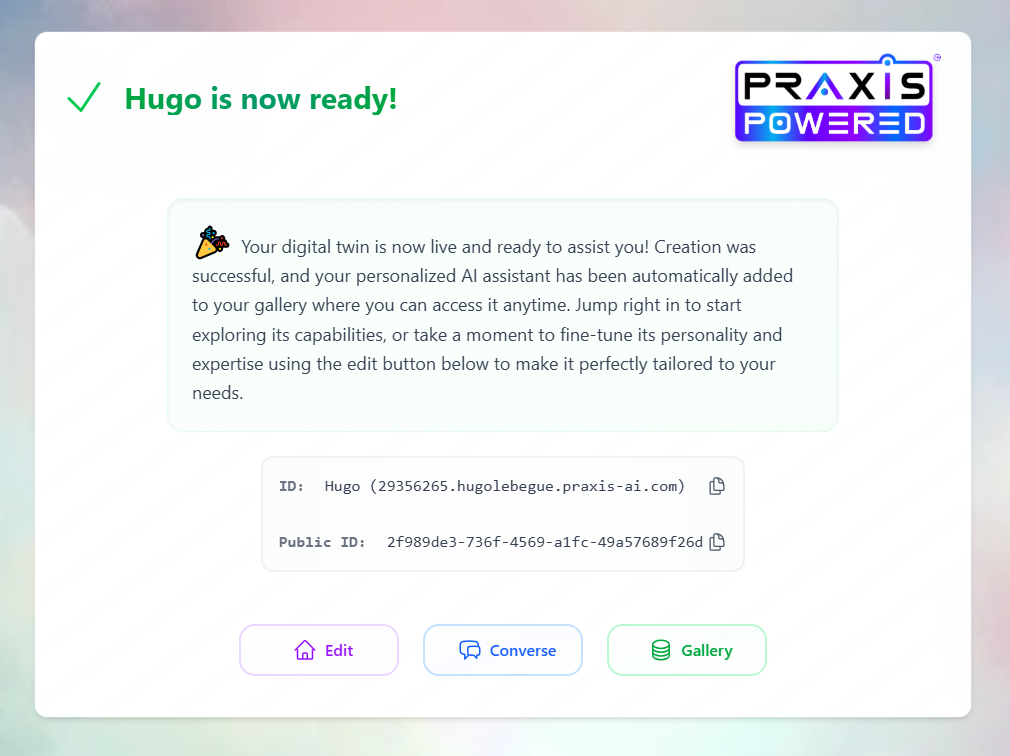 Click the **Edit** button to further personalize your Digital Twin
**Custom Creation Process:**
* **Personality Design**: Define unique characteristics and communication style
* **Knowledge Specialization**: Set specific areas of expertise
* **Behavioral Parameters**: Configure response patterns and interaction style
* **Visual Identity**: Upload custom avatars and branding
* **Integration Settings**: Connect with specific tools and data sources
Click the **Gallery** to return to your Gallery
Creating custom experts allows you to build AI assistants perfectly tailored to your specific needs, teaching style, or organizational requirements.
## Getting Started
Identify what types of digital experts would benefit your work or learning goals.
Browse the public gallery to see what's available, or plan custom expert creation.
Start with one additional expert to learn the switching and management process.
Get comfortable with the navigation between different experts.
Add more experts as you become comfortable with the management system.
Remember: The goal is to create a personalized ecosystem of AI experts that enhances your productivity and learning experience. Start small and expand based on your actual usage patterns.
***
## Related
* [Convo Mode](/mdx/user-guide/interface/convo-speech) — Real-time voice conversations with your Digital Twin
* [Assistants](/mdx/user-guide/assistants-personalization/assistants) — Specialized AI assistants within your Digital Twin
* [Plans and Credits](/mdx/introduction/plans-and-credits) — Credit management and purchasing
* [Edit Profile](/mdx/user-guide/profile-settings/edit-profile) — Personalization and voice settings
* [Configuration](/mdx/admin-guide/configuration) — Admin settings for Digital Twin instances
Click the **Edit** button to further personalize your Digital Twin
**Custom Creation Process:**
* **Personality Design**: Define unique characteristics and communication style
* **Knowledge Specialization**: Set specific areas of expertise
* **Behavioral Parameters**: Configure response patterns and interaction style
* **Visual Identity**: Upload custom avatars and branding
* **Integration Settings**: Connect with specific tools and data sources
Click the **Gallery** to return to your Gallery
Creating custom experts allows you to build AI assistants perfectly tailored to your specific needs, teaching style, or organizational requirements.
## Getting Started
Identify what types of digital experts would benefit your work or learning goals.
Browse the public gallery to see what's available, or plan custom expert creation.
Start with one additional expert to learn the switching and management process.
Get comfortable with the navigation between different experts.
Add more experts as you become comfortable with the management system.
Remember: The goal is to create a personalized ecosystem of AI experts that enhances your productivity and learning experience. Start small and expand based on your actual usage patterns.
***
## Related
* [Convo Mode](/mdx/user-guide/interface/convo-speech) — Real-time voice conversations with your Digital Twin
* [Assistants](/mdx/user-guide/assistants-personalization/assistants) — Specialized AI assistants within your Digital Twin
* [Plans and Credits](/mdx/introduction/plans-and-credits) — Credit management and purchasing
* [Edit Profile](/mdx/user-guide/profile-settings/edit-profile) — Personalization and voice settings
* [Configuration](/mdx/admin-guide/configuration) — Admin settings for Digital Twin instances