> ## Documentation Index
> Fetch the complete documentation index at: https://docs.praxis-ai.com/llms.txt
> Use this file to discover all available pages before exploring further.
# Conversations & the Sidebar
> What a Conversation is in Pria, how to start one and pick an assistant, and how to switch, rename, and favorite from the left sidebar.
Everything you do with a Digital Twin happens inside a **Conversation**. Conversations are how Pria keeps context, how it remembers what you've been working on, and how you organise your work — so they're worth understanding before anything else. The left sidebar is where you create, switch, and manage them.
## What is a Conversation?
A **Conversation** is a single thread between you and your Digital Twin. Inside one conversation you can have many back-and-forth turns (called **dialogues**) — a question and its answer is one dialogue; a long working session is many.
The important part is **context**: Pria answers based on the *current* conversation's history. Everything earlier in the same thread is available to it; anything in a *different* conversation is not. That's deliberate — it keeps unrelated topics from bleeding into each other.
**One topic, one conversation.** Start a new conversation for each distinct task or subject. It keeps each thread focused, makes answers more accurate, and makes past work easy to find later. If something seems to have "disappeared," it's almost always in a different thread — by design.
***
## Starting a new conversation
Open the **\[+]** (Actions) menu next to the input pill and choose **New Conversation** — or click the **+** at the right of the **Conversations** header in the sidebar.
![The [+] Actions menu listing Files, New Conversation, Assistants, Search, Knowledge (RAG + KAG), Personal Settings, Audio, and More, with submenu chevrons on several items.](https://mintcdn.com/praxisai/QuC6PliAGSCHnMfO/images/user-guide/interface/actions-menu-conversations.webp?fit=max&auto=format&n=QuC6PliAGSCHnMfO&q=85&s=7fc9322d8b9a1f6457e89e5bc1d52cd6) A new conversation is also created automatically when you:
* Launch a chat with an **assistant**,
* Switch Canvas classes on the same Digital Twin, or
* Start fresh after a long, compacted thread.
***
## Conversations run on an Assistant
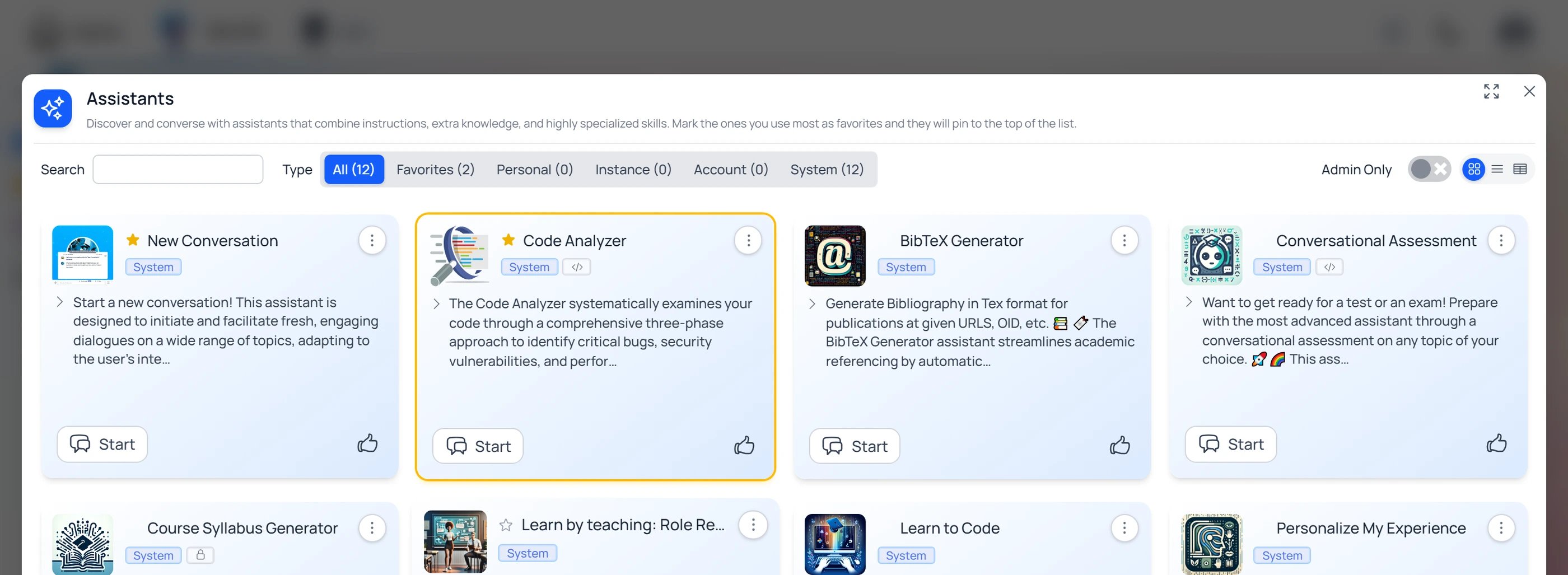
Every conversation runs under an **assistant** — a persona with its own instructions, knowledge, and skills (the default twin behaviour is itself an assistant). The **\[+] → Assistants** entry opens the full library, where you can browse, create, and **favorite** assistants.
**Favorite the assistants you use most.** In the library, click an assistant's star to favorite it — favorites pin to the top of the list.
A new conversation is also created automatically when you:
* Launch a chat with an **assistant**,
* Switch Canvas classes on the same Digital Twin, or
* Start fresh after a long, compacted thread.
***
## Conversations run on an Assistant
Every conversation runs under an **assistant** — a persona with its own instructions, knowledge, and skills (the default twin behaviour is itself an assistant). The **\[+] → Assistants** entry opens the full library, where you can browse, create, and **favorite** assistants.
**Favorite the assistants you use most.** In the library, click an assistant's star to favorite it — favorites pin to the top of the list.
 Once favorited, the assistant shows up as a **one-click shortcut under \[+] → New Conversation** — alongside a plain **New Conversation** and **Select Assistant …** (which opens the full picker) — so your go-to personas are always a click away when starting a thread.
![The [+] Actions menu with New Conversation expanded, showing shortcuts for New Conversation, the favorited Code Analyzer assistant, and Select Assistant.](https://mintcdn.com/praxisai/5XakllQlecMDawVX/images/user-guide/interface/newconv-favorite-assistant.webp?fit=max&auto=format&n=5XakllQlecMDawVX&q=85&s=1264ca3b361051bef353572e168913f5) Assistants are a topic of their own — how to build them, scope them (personal, instance, account), and pin a model. See [Assistants](/mdx/user-guide/assistants-personalization/assistants) and the [Assistant Library](/mdx/user-guide/assistants-personalization/assistant-library).
***
## Managing conversations in the sidebar
The sidebar's **Conversations** list holds every thread for the current Digital Twin, newest first, each labelled with its name and last-activity date. The active conversation is highlighted.
Assistants are a topic of their own — how to build them, scope them (personal, instance, account), and pin a model. See [Assistants](/mdx/user-guide/assistants-personalization/assistants) and the [Assistant Library](/mdx/user-guide/assistants-personalization/assistant-library).
***
## Managing conversations in the sidebar
The sidebar's **Conversations** list holds every thread for the current Digital Twin, newest first, each labelled with its name and last-activity date. The active conversation is highlighted.
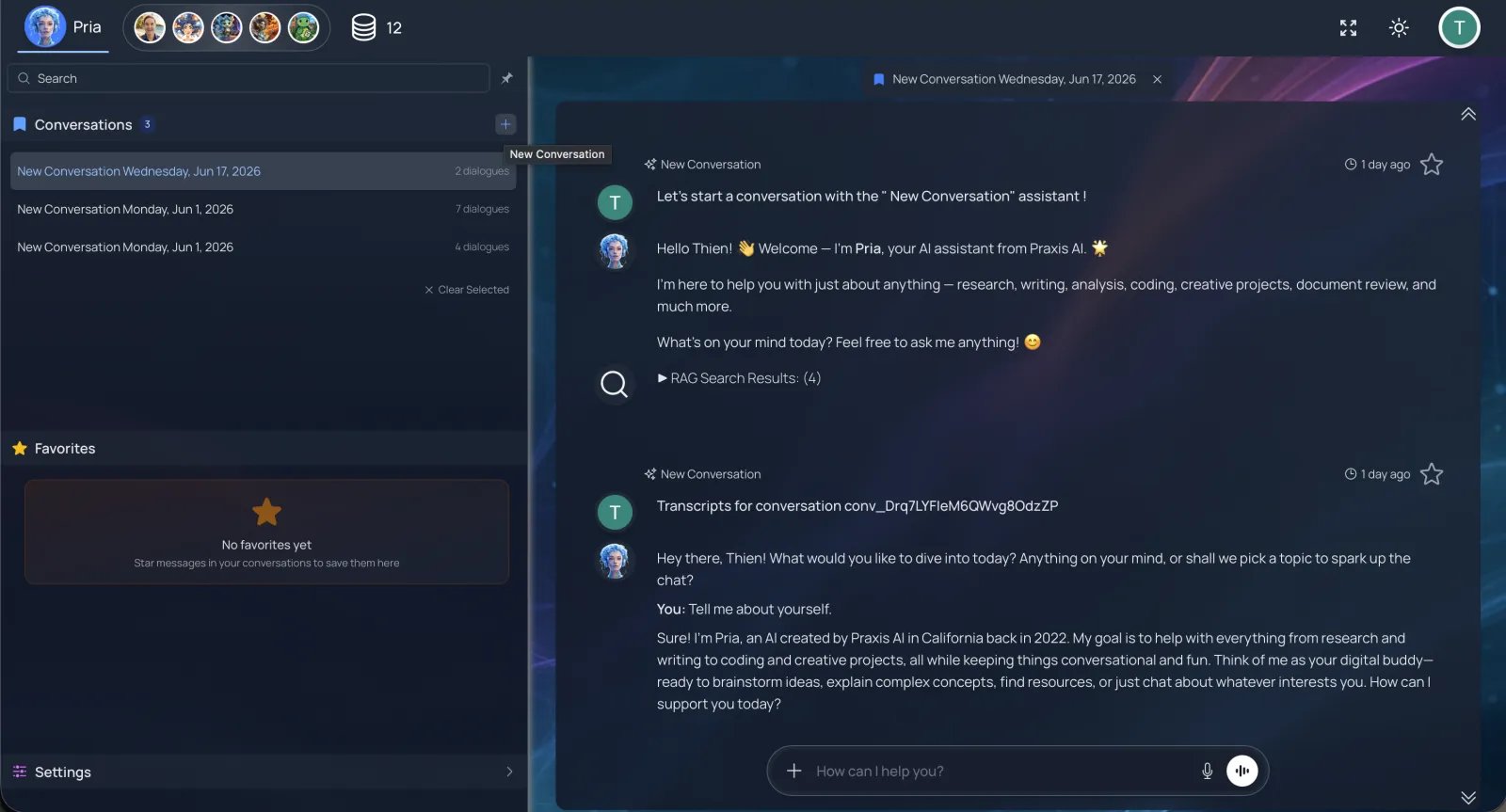 * **Switch** — click any row to load that conversation into the main panel.
* **Leave the open conversation** — it shows as a chip above the dialogues; click its **×** to close it (see [Leaving a conversation](#leaving-a-conversation--back-to-the-full-view)).
* **Rename or delete** — hover a row to reveal the pencil; it opens a dialog where you can rename the thread or delete it.
* **Switch** — click any row to load that conversation into the main panel.
* **Leave the open conversation** — it shows as a chip above the dialogues; click its **×** to close it (see [Leaving a conversation](#leaving-a-conversation--back-to-the-full-view)).
* **Rename or delete** — hover a row to reveal the pencil; it opens a dialog where you can rename the thread or delete it.
 **Deletion is permanent.** A deleted conversation can't be recovered — all its dialogues go with it. Export first (*Your Profile → Your Data → Export my data*) if you need a backup.
***
## Leaving a conversation — back to the full view
When you open a conversation you're looking at just that one thread. Two small **×** controls take you back out to the wider view.
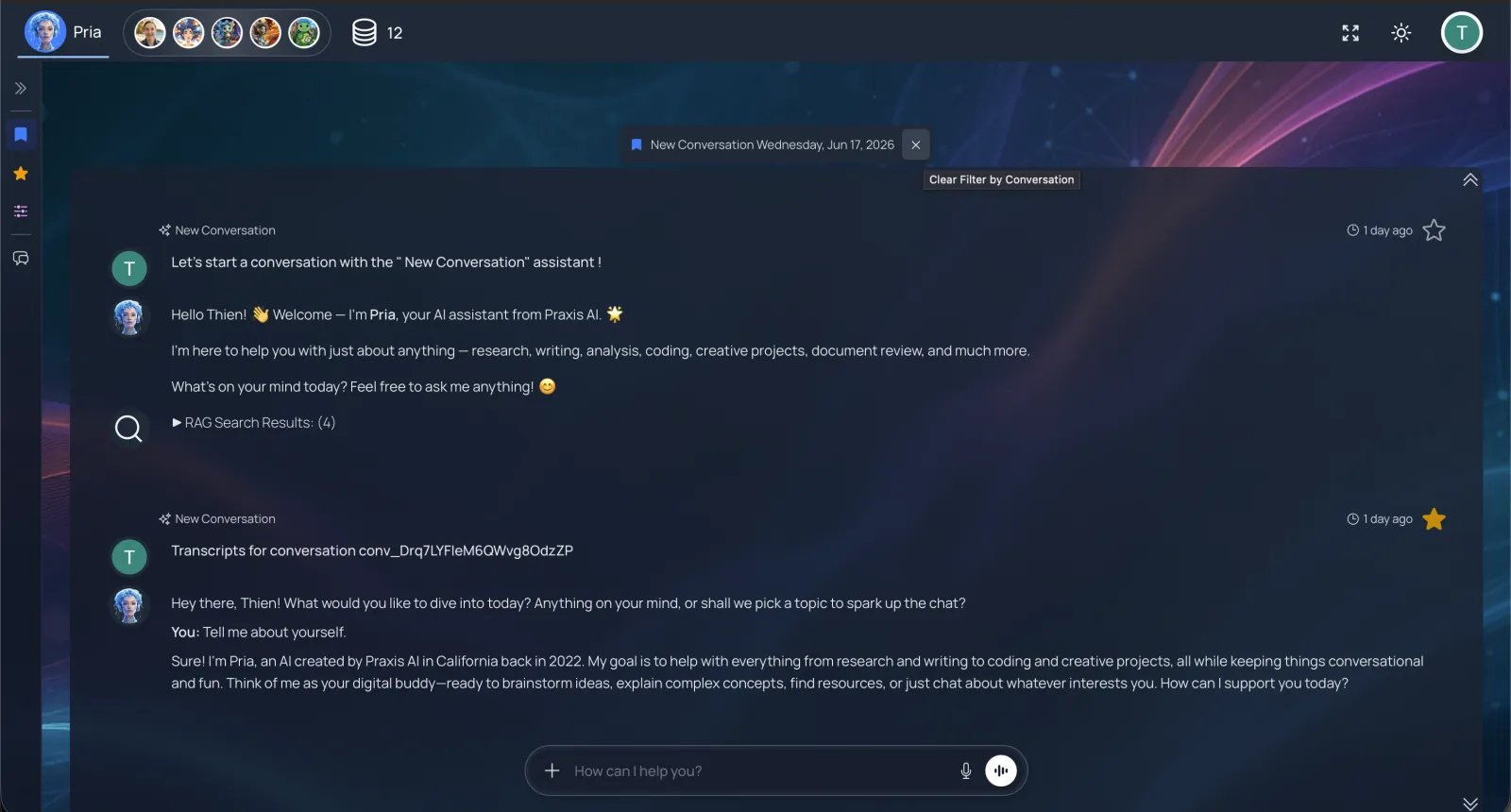
**Close the open conversation.** The conversation you're viewing appears as a chip at the top of the dialogues — its name with an **×**. Click the **×** to close it and return to the main conversation surface.
**Deletion is permanent.** A deleted conversation can't be recovered — all its dialogues go with it. Export first (*Your Profile → Your Data → Export my data*) if you need a backup.
***
## Leaving a conversation — back to the full view
When you open a conversation you're looking at just that one thread. Two small **×** controls take you back out to the wider view.
**Close the open conversation.** The conversation you're viewing appears as a chip at the top of the dialogues — its name with an **×**. Click the **×** to close it and return to the main conversation surface.
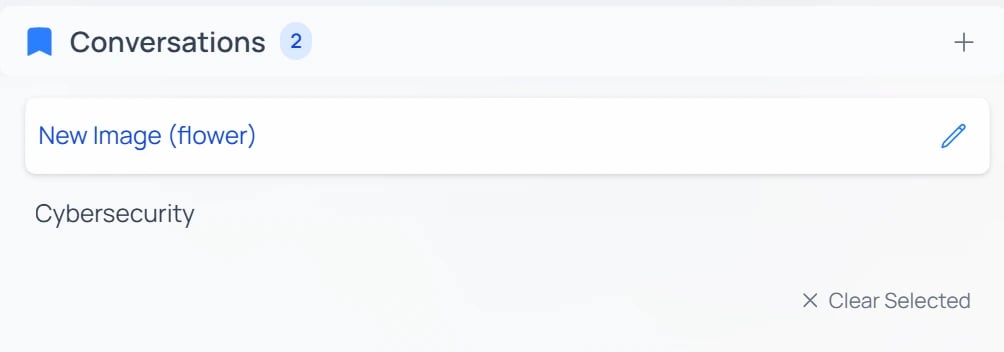
 **Clear a course filter.** If you launched Pria from a Canvas/LMS course, the **Conversations** list is narrowed to that course, and a **× Clear Selected** chip sits at the bottom of the list. Click it to clear the course filter and see conversations from every context again.
 ***
## Favorites
Favoriting an **assistant** (above) pins a persona for quick reuse. Favoriting a **response** is different: it bookmarks a single answer you'll want again. Hover any response in the conversation panel and click its star, and it lands in the sidebar's **Favorites** section — newest first, labelled with the conversation it came from.
***
## Favorites
Favoriting an **assistant** (above) pins a persona for quick reuse. Favoriting a **response** is different: it bookmarks a single answer you'll want again. Hover any response in the conversation panel and click its star, and it lands in the sidebar's **Favorites** section — newest first, labelled with the conversation it came from.
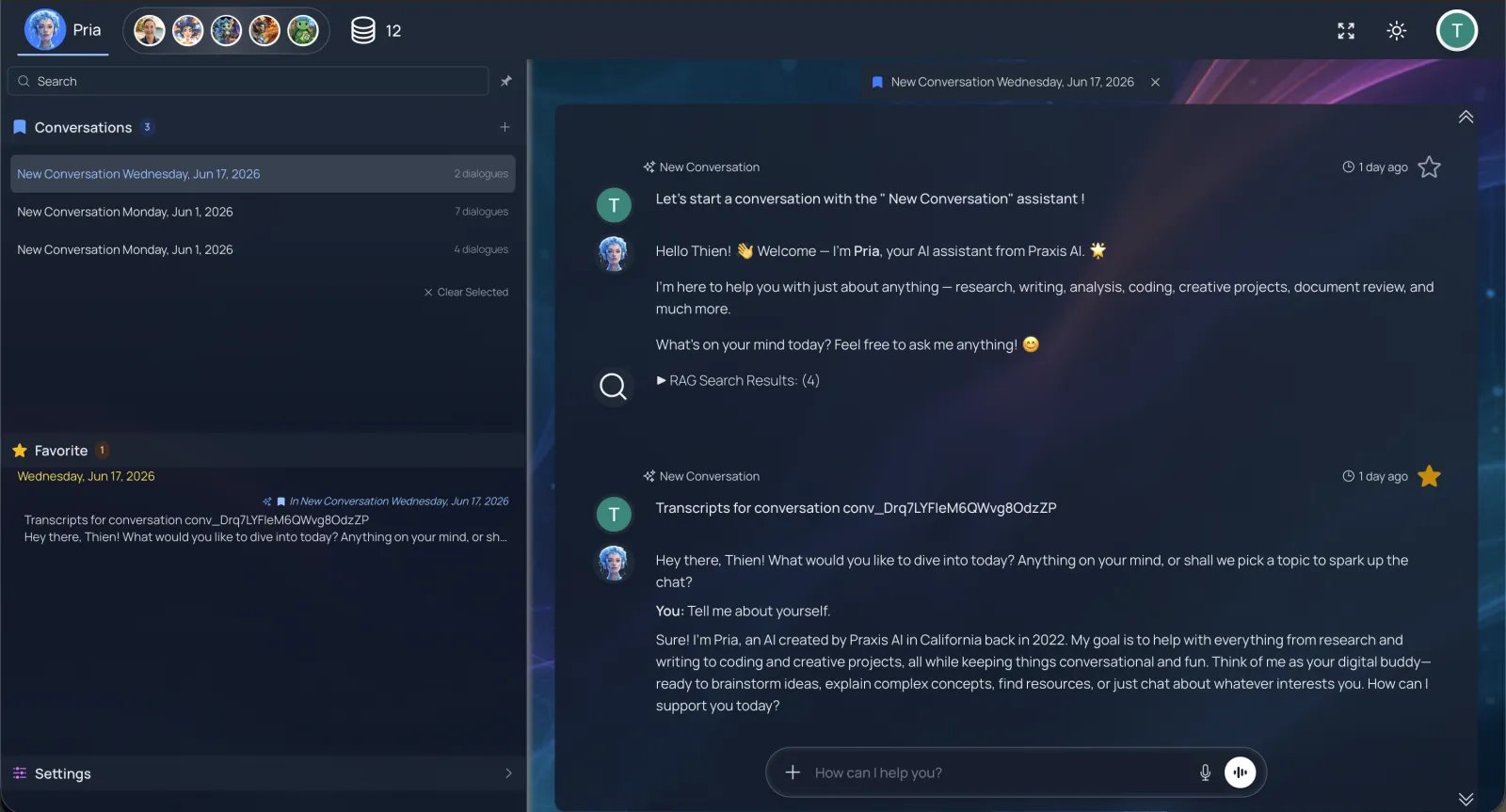 Hover the response you want and click its star.
Open the **Favorites** section and click the row — Pria opens the parent conversation and scrolls straight to the favorited message.
Hover a favorite to rename it (handy one-line summaries) or remove it.
**Favorites are your personal knowledge base.** Bookmark the answers you'll reuse — decisions, snippets, code patterns, key explanations — and they become an instantly-searchable second brain rooted in *your* conversations.
***
## Finding a conversation: Search + Pin
The top of the sidebar holds two controls:
| Control | Shortcut | What it does |
| ----------------------------- | ------------------------------ | -------------------------------------------------------------------------------------------------------------- |
| **Search** | Ctrl + F | Search inside the current conversation, highlighting every match. |
| Pin | — | Toggle the sidebar between pinned (always visible) and floating (auto-hide). The icon turns blue while pinned. |
### Searching within a conversation
Press Ctrl + F (or click **Search**) to open the search bar over the current conversation, then type a keyword — say, **patent**. Pria scans the thread and **highlights every match** right in the dialogues, so you can scan straight to the relevant turns.
Hover the response you want and click its star.
Open the **Favorites** section and click the row — Pria opens the parent conversation and scrolls straight to the favorited message.
Hover a favorite to rename it (handy one-line summaries) or remove it.
**Favorites are your personal knowledge base.** Bookmark the answers you'll reuse — decisions, snippets, code patterns, key explanations — and they become an instantly-searchable second brain rooted in *your* conversations.
***
## Finding a conversation: Search + Pin
The top of the sidebar holds two controls:
| Control | Shortcut | What it does |
| ----------------------------- | ------------------------------ | -------------------------------------------------------------------------------------------------------------- |
| **Search** | Ctrl + F | Search inside the current conversation, highlighting every match. |
| Pin | — | Toggle the sidebar between pinned (always visible) and floating (auto-hide). The icon turns blue while pinned. |
### Searching within a conversation
Press Ctrl + F (or click **Search**) to open the search bar over the current conversation, then type a keyword — say, **patent**. Pria scans the thread and **highlights every match** right in the dialogues, so you can scan straight to the relevant turns.
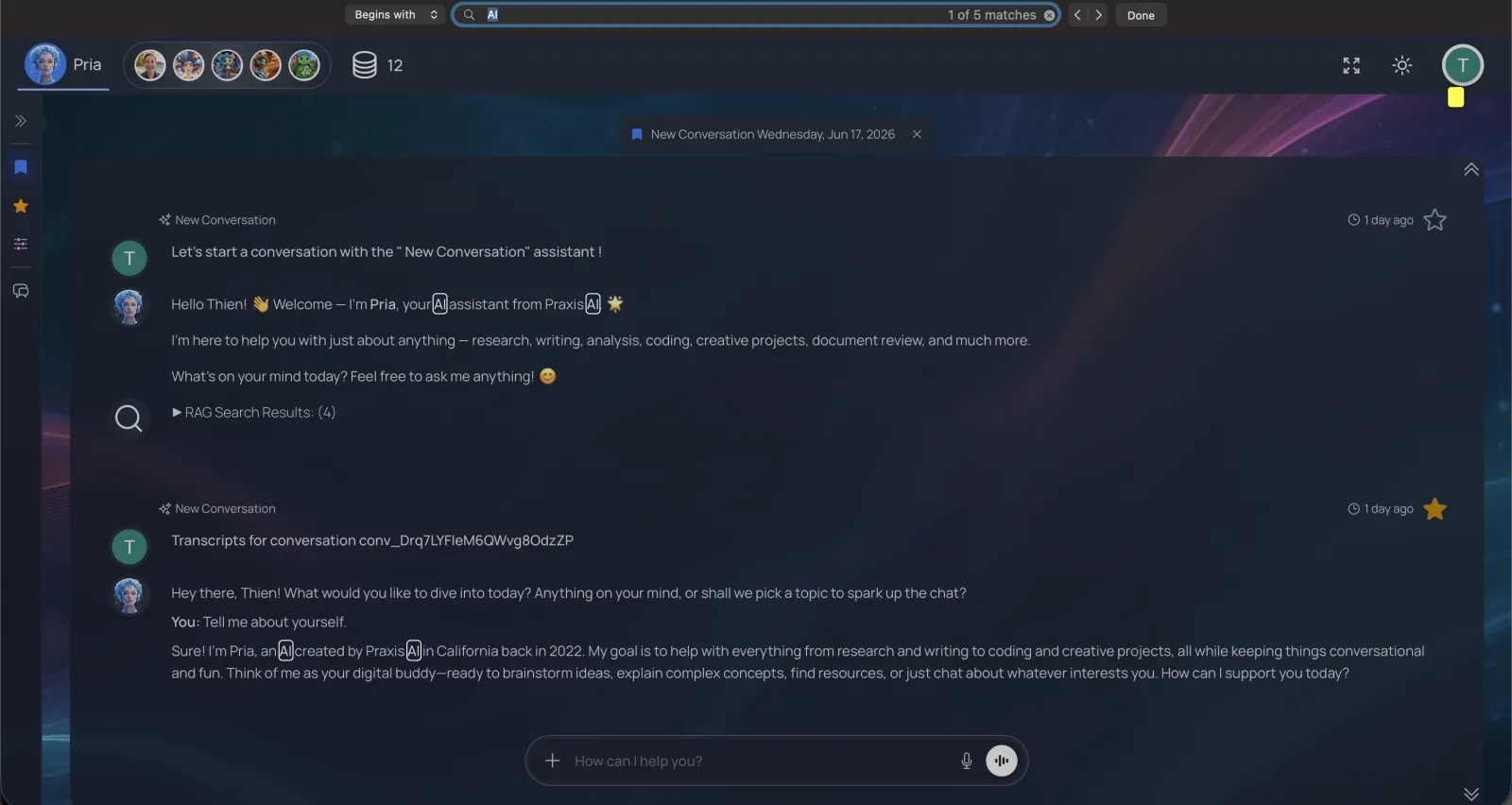 **Favorite as you search.** When a search turns up an answer you'll want again, hover it and click the star — it lands in your [Favorites](#favorites) so it won't get lost in a long thread.
### Searching across all your Digital Twins
When you belong to more than one Digital Twin, **\[+] → Search → Search Across All Digital Twins** opens the **Search your Digital Twins** lightbox — a full-text search over *every* conversation in *every* twin you belong to, not just the one you're in.
**Favorite as you search.** When a search turns up an answer you'll want again, hover it and click the star — it lands in your [Favorites](#favorites) so it won't get lost in a long thread.
### Searching across all your Digital Twins
When you belong to more than one Digital Twin, **\[+] → Search → Search Across All Digital Twins** opens the **Search your Digital Twins** lightbox — a full-text search over *every* conversation in *every* twin you belong to, not just the one you're in.
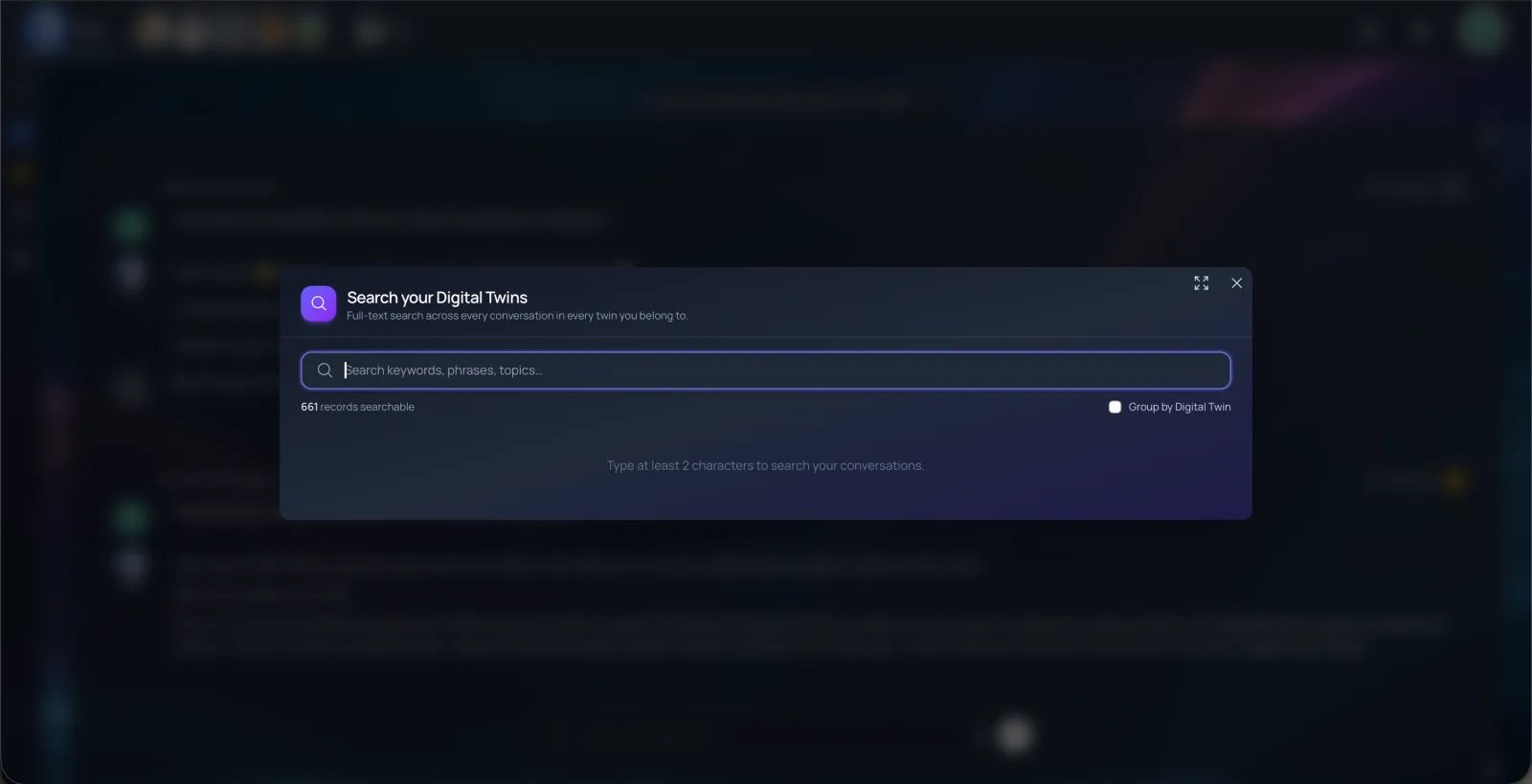 The difference from the in-conversation search: this one ignores where you currently are and looks **everywhere**. Each result shows its **Digital Twin**, the highlighted snippet, and a **Go To →** button that switches you to that twin and jumps to the message; the header counts how many matches were found across how many records. Tick **Group by Digital Twin** to cluster results by twin.
Cross-twin search is the fastest way to find that one Q\&A you remember having "somewhere" — type a couple of distinctive words and the right conversation usually surfaces near the top.
### Course context filtering (Canvas / LMS)
When you launch Pria from a Canvas or other LMS course, the **Conversations** list is automatically scoped to that course — you only see conversations created in that context, and a small course-name chip marks the active filter. To widen back to every conversation, use **× Clear Selected** (see [Leaving a conversation](#leaving-a-conversation--back-to-the-full-view)) or switch to a different course in Canvas.
***
## Settings — shortcuts to your settings panels
The **Settings** section at the bottom of the sidebar isn't where settings live — it's just a pair of shortcuts (mirrored in the **\[+] → Settings** action menu) that open Pria's two settings Lightboxes:
* **Personal** opens **Your Profile** — your identity, personalization, personal knowledge, data, security, and billing. Full reference: [Personal Settings](/mdx/user-guide/profile-settings/edit-profile).
* **Instance** (for admins / Twin managers) opens **Instance Settings** for the current Digital Twin — model, reasoning, knowledge, voice, tools, and more. Full reference: [Instance Settings](/mdx/user-guide/profile-settings/instance-settings).
The tab-by-tab detail for each lives on those two pages.
***
## Collapsed sidebar / mini icons
When you unpin the sidebar (or on small screens), it collapses to a thin icon strip: Conversations, Favorites, Settings, New conversation. Click any icon to expand back into that section.
Selecting a conversation no longer auto-collapses the sidebar — whatever pinned / unpinned state you set survives across conversation switches.
***
## Related
* [Input & Responses](/mdx/user-guide/interface/input-responses) — the composer, keyboard navigation, and drafts.
* [Assistants](/mdx/user-guide/assistants-personalization/assistants) — building, scoping, and favoriting the personas conversations run on.
* [Knowledge Modes](/mdx/user-guide/interface/knowledge-modes) — the retrieval controls in the Personal → Knowledge tab and the \[+] menu.
* [Edit Profile](/mdx/user-guide/profile-settings/edit-profile) — display name, picture, Remember History.
* [Personal Data](/mdx/user-guide/profile-settings/personal-data) — export and deletion of your conversation history.
The difference from the in-conversation search: this one ignores where you currently are and looks **everywhere**. Each result shows its **Digital Twin**, the highlighted snippet, and a **Go To →** button that switches you to that twin and jumps to the message; the header counts how many matches were found across how many records. Tick **Group by Digital Twin** to cluster results by twin.
Cross-twin search is the fastest way to find that one Q\&A you remember having "somewhere" — type a couple of distinctive words and the right conversation usually surfaces near the top.
### Course context filtering (Canvas / LMS)
When you launch Pria from a Canvas or other LMS course, the **Conversations** list is automatically scoped to that course — you only see conversations created in that context, and a small course-name chip marks the active filter. To widen back to every conversation, use **× Clear Selected** (see [Leaving a conversation](#leaving-a-conversation--back-to-the-full-view)) or switch to a different course in Canvas.
***
## Settings — shortcuts to your settings panels
The **Settings** section at the bottom of the sidebar isn't where settings live — it's just a pair of shortcuts (mirrored in the **\[+] → Settings** action menu) that open Pria's two settings Lightboxes:
* **Personal** opens **Your Profile** — your identity, personalization, personal knowledge, data, security, and billing. Full reference: [Personal Settings](/mdx/user-guide/profile-settings/edit-profile).
* **Instance** (for admins / Twin managers) opens **Instance Settings** for the current Digital Twin — model, reasoning, knowledge, voice, tools, and more. Full reference: [Instance Settings](/mdx/user-guide/profile-settings/instance-settings).
The tab-by-tab detail for each lives on those two pages.
***
## Collapsed sidebar / mini icons
When you unpin the sidebar (or on small screens), it collapses to a thin icon strip: Conversations, Favorites, Settings, New conversation. Click any icon to expand back into that section.
Selecting a conversation no longer auto-collapses the sidebar — whatever pinned / unpinned state you set survives across conversation switches.
***
## Related
* [Input & Responses](/mdx/user-guide/interface/input-responses) — the composer, keyboard navigation, and drafts.
* [Assistants](/mdx/user-guide/assistants-personalization/assistants) — building, scoping, and favoriting the personas conversations run on.
* [Knowledge Modes](/mdx/user-guide/interface/knowledge-modes) — the retrieval controls in the Personal → Knowledge tab and the \[+] menu.
* [Edit Profile](/mdx/user-guide/profile-settings/edit-profile) — display name, picture, Remember History.
* [Personal Data](/mdx/user-guide/profile-settings/personal-data) — export and deletion of your conversation history.