> ## Documentation Index
> Fetch the complete documentation index at: https://docs.praxis-ai.com/llms.txt
> Use this file to discover all available pages before exploring further.
# Generating Images
> Ask Pria to create images during a conversation — providers, sizes, and what each model is good at.
Pria can generate images directly inside a conversation. You ask in natural language, Pria picks the right model and tool, and the image appears in the response stream alongside any text answer.
No menu hunting required — you just describe what you want. Pria routes the request to the best available image model on your Digital Twin and saves the result to your IP Vault automatically.
***
## How to ask
Type a prompt the same way you'd ask for anything else:
```text theme={null}
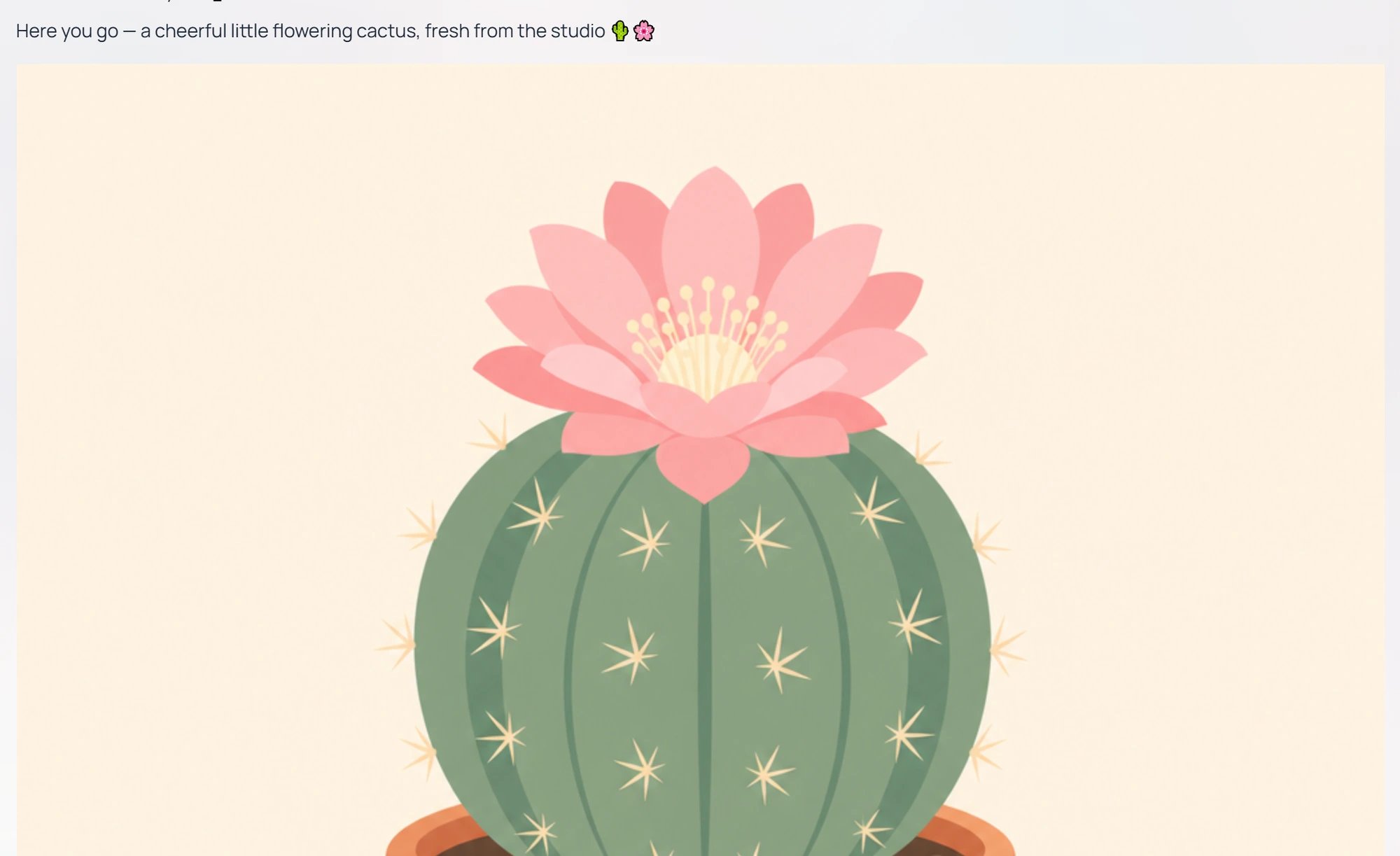
Generate an image of a minimalist illustration of a flowering cactus,
flat colours, soft pastel palette, square aspect.
```
Pria recognises the intent, calls the image-generation tool, and renders the image inline, usually with a short description of what it made. The tool call itself is recorded under **Tool Details** on the response, so you can confirm which provider and model produced it.
 You can also pin image generation to a specific assistant. Assistants tuned for visual work (slide designers, art directors, illustrators) make image generation the default response style — see [Content Creation](/mdx/user-guide/capabilities/content-creation).
***
## What you can ask for
Pria handles a wide range of visual styles. The most common requests fall into a handful of categories:
| Category | Example prompt |
| ------------------------ | --------------------------------------------------------------------- |
| Illustration | "A flat-colour illustration of a robot watering houseplants" |
| Photorealism | "A photo of a wooden desk with morning light, shallow depth of field" |
| Diagrams and concept art | "A simple labelled diagram of the water cycle" |
| Slide hero images | "A wide hero image for a product launch slide, dark navy gradient" |
| Logos and icons | "A minimal flat icon of a lighthouse, blue and white, square" |
| Editorial / marketing | "Magazine-style hero of a hiker on a ridgeline at sunrise" |
Style descriptors (medium, lighting, palette, mood, composition) help every provider get closer to what you want on the first attempt.
***
## Provider behaviour at a glance
Your administrator chooses which image providers are enabled on your Digital Twin. Each provider has its own strengths.
Broad-purpose generator with strong prompt-following. Good first choice when you need the image to closely match a detailed text description. Handles styles, text-in-image, and compositional instructions well. Sizes are specified as pixel dimensions (square, portrait, landscape).
Strong creative range — illustration, painting styles, dramatic lighting, and stylised art. Stability also supports image-to-image editing (start from a source image and steer it with a new prompt) where the model variant allows it.
Particularly strong on photographic quality and natural scenes. Reliable for product photos, landscapes, and human portraits where you need photographic realism rather than illustration.
Broad enterprise availability through AWS. Titan Image Generator covers general image generation; Nova Reel adds short video clips for motion previews. Useful when your Digital Twin's compliance posture requires staying inside AWS.
Uses **aspect ratio** rather than pixel size — you ask for `1:1`, `16:9`, `9:16`, etc., and xAI returns an image scaled to that ratio. xAI does **not** support image-to-image editing; if you need to edit an existing image, switch your conversation model to a provider that does (OpenAI, Stability, Bedrock Titan, or Google Imagen).
***
## Sizes vs aspect ratios
Most providers accept either explicit pixel sizes (`1024x1024`, `1792x1024`, `1024x1792`) or aspect ratios (`1:1`, `16:9`, `9:16`). Pria translates between the two when you ask in plain language ("make it wide", "vertical poster", "square thumbnail").
| Shape | Best for |
| --------------------- | ----------------------------------------------------------------------- |
| Square (1:1) | Profile pictures, icons, social-media tiles |
| Landscape (16:9, 3:2) | Slide hero images, banners, blog headers |
| Portrait (9:16, 2:3) | Posters, mobile-first social, magazine covers |
| Custom | When the provider supports it, say "tall and narrow", "panoramic", etc. |
***
## Style tips for prompts
A few short habits dramatically improve image results:
* **Lead with the subject**, then add medium, then add style. ("A photo of a fox in a snowy forest, cinematic, golden hour.")
* **Name the medium** explicitly — "watercolour", "vector illustration", "studio photograph", "pencil sketch".
* **Add lighting words** — "soft natural light", "neon backlight", "overcast", "rim light".
* **Steer composition** — "wide shot", "close-up", "rule-of-thirds", "centred subject", "negative space top-right".
* **Iterate.** Generate, look, then ask Pria to "make the lighting warmer" or "remove the background clutter". Pria treats follow-ups as edits where the provider supports them, or as a fresh generation with the previous prompt as context.
***
## Editing an existing image
Where the provider supports it, you can refine an image after the fact. Drop an image into the conversation (drag-and-drop, or attach via the \[+] menu) and ask Pria to change it:
```text theme={null}
Take this image and add a sunset sky behind the mountains.
```
| Provider | Supports image-to-image edits |
| ------------- | ------------------------------------------------ |
| OpenAI | Yes |
| Stability | Yes (model-variant dependent) |
| Google Imagen | Yes |
| Bedrock Titan | Yes |
| xAI | No — switch your conversation model to use edits |
When edits aren't supported, Pria re-generates from scratch using the same prompt plus your refinement.
***
## Saving and re-using generated images
Every image Pria generates is saved to your IP Vault automatically, so you can find it later, re-attach it to a future conversation, or share it via a public conversation link.
* **In-line save** — click the download icon on any generated image to save to your device.
* **Attach to next message** — drag a Vault image back into the input pill to use it as a source for the next generation.
* **Share** — use the conversation's *Share as link* action to publish the dialogue (and image) as a public URL.
See [Managing Files](/mdx/user-guide/files-documents/managing-files) for the full file workflow.
***
## Cost
Image generation is billed in credits per image, with the rate set per-provider and per-model. Larger images, higher quality settings, and longer videos cost more. The exact per-image cost is shown under **View Details → Conversation History** (the **Credits** line) on that response, alongside any token-based costs.
See [Credits](/mdx/user-guide/credits) for the in-app credit display and [Plans & Credits](/mdx/introduction/plans-and-credits) for the full pricing model.
***
## Content moderation applies
The same moderation policy that covers text answers covers image generation — prompts and outputs are filtered against safety rules before the image is returned. If a prompt or generated image is blocked, Pria explains why and invites you to rephrase.
See [Moderation](/mdx/admin-guide/moderation) for the policy details.
***
## Related
* [Content Creation](/mdx/user-guide/capabilities/content-creation) — using assistants tuned for visual work
* [Media Analysis](/mdx/user-guide/capabilities/media-analysis) — having Pria read, describe, or analyse images you provide
* [AI Models](/mdx/admin-guide/ai-models) — which image-generation models are available per provider
* [Moderation](/mdx/admin-guide/moderation) — content safety rules
* [Credits](/mdx/user-guide/credits) — credit balance, usage, and how image cost is shown
You can also pin image generation to a specific assistant. Assistants tuned for visual work (slide designers, art directors, illustrators) make image generation the default response style — see [Content Creation](/mdx/user-guide/capabilities/content-creation).
***
## What you can ask for
Pria handles a wide range of visual styles. The most common requests fall into a handful of categories:
| Category | Example prompt |
| ------------------------ | --------------------------------------------------------------------- |
| Illustration | "A flat-colour illustration of a robot watering houseplants" |
| Photorealism | "A photo of a wooden desk with morning light, shallow depth of field" |
| Diagrams and concept art | "A simple labelled diagram of the water cycle" |
| Slide hero images | "A wide hero image for a product launch slide, dark navy gradient" |
| Logos and icons | "A minimal flat icon of a lighthouse, blue and white, square" |
| Editorial / marketing | "Magazine-style hero of a hiker on a ridgeline at sunrise" |
Style descriptors (medium, lighting, palette, mood, composition) help every provider get closer to what you want on the first attempt.
***
## Provider behaviour at a glance
Your administrator chooses which image providers are enabled on your Digital Twin. Each provider has its own strengths.
Broad-purpose generator with strong prompt-following. Good first choice when you need the image to closely match a detailed text description. Handles styles, text-in-image, and compositional instructions well. Sizes are specified as pixel dimensions (square, portrait, landscape).
Strong creative range — illustration, painting styles, dramatic lighting, and stylised art. Stability also supports image-to-image editing (start from a source image and steer it with a new prompt) where the model variant allows it.
Particularly strong on photographic quality and natural scenes. Reliable for product photos, landscapes, and human portraits where you need photographic realism rather than illustration.
Broad enterprise availability through AWS. Titan Image Generator covers general image generation; Nova Reel adds short video clips for motion previews. Useful when your Digital Twin's compliance posture requires staying inside AWS.
Uses **aspect ratio** rather than pixel size — you ask for `1:1`, `16:9`, `9:16`, etc., and xAI returns an image scaled to that ratio. xAI does **not** support image-to-image editing; if you need to edit an existing image, switch your conversation model to a provider that does (OpenAI, Stability, Bedrock Titan, or Google Imagen).
***
## Sizes vs aspect ratios
Most providers accept either explicit pixel sizes (`1024x1024`, `1792x1024`, `1024x1792`) or aspect ratios (`1:1`, `16:9`, `9:16`). Pria translates between the two when you ask in plain language ("make it wide", "vertical poster", "square thumbnail").
| Shape | Best for |
| --------------------- | ----------------------------------------------------------------------- |
| Square (1:1) | Profile pictures, icons, social-media tiles |
| Landscape (16:9, 3:2) | Slide hero images, banners, blog headers |
| Portrait (9:16, 2:3) | Posters, mobile-first social, magazine covers |
| Custom | When the provider supports it, say "tall and narrow", "panoramic", etc. |
***
## Style tips for prompts
A few short habits dramatically improve image results:
* **Lead with the subject**, then add medium, then add style. ("A photo of a fox in a snowy forest, cinematic, golden hour.")
* **Name the medium** explicitly — "watercolour", "vector illustration", "studio photograph", "pencil sketch".
* **Add lighting words** — "soft natural light", "neon backlight", "overcast", "rim light".
* **Steer composition** — "wide shot", "close-up", "rule-of-thirds", "centred subject", "negative space top-right".
* **Iterate.** Generate, look, then ask Pria to "make the lighting warmer" or "remove the background clutter". Pria treats follow-ups as edits where the provider supports them, or as a fresh generation with the previous prompt as context.
***
## Editing an existing image
Where the provider supports it, you can refine an image after the fact. Drop an image into the conversation (drag-and-drop, or attach via the \[+] menu) and ask Pria to change it:
```text theme={null}
Take this image and add a sunset sky behind the mountains.
```
| Provider | Supports image-to-image edits |
| ------------- | ------------------------------------------------ |
| OpenAI | Yes |
| Stability | Yes (model-variant dependent) |
| Google Imagen | Yes |
| Bedrock Titan | Yes |
| xAI | No — switch your conversation model to use edits |
When edits aren't supported, Pria re-generates from scratch using the same prompt plus your refinement.
***
## Saving and re-using generated images
Every image Pria generates is saved to your IP Vault automatically, so you can find it later, re-attach it to a future conversation, or share it via a public conversation link.
* **In-line save** — click the download icon on any generated image to save to your device.
* **Attach to next message** — drag a Vault image back into the input pill to use it as a source for the next generation.
* **Share** — use the conversation's *Share as link* action to publish the dialogue (and image) as a public URL.
See [Managing Files](/mdx/user-guide/files-documents/managing-files) for the full file workflow.
***
## Cost
Image generation is billed in credits per image, with the rate set per-provider and per-model. Larger images, higher quality settings, and longer videos cost more. The exact per-image cost is shown under **View Details → Conversation History** (the **Credits** line) on that response, alongside any token-based costs.
See [Credits](/mdx/user-guide/credits) for the in-app credit display and [Plans & Credits](/mdx/introduction/plans-and-credits) for the full pricing model.
***
## Content moderation applies
The same moderation policy that covers text answers covers image generation — prompts and outputs are filtered against safety rules before the image is returned. If a prompt or generated image is blocked, Pria explains why and invites you to rephrase.
See [Moderation](/mdx/admin-guide/moderation) for the policy details.
***
## Related
* [Content Creation](/mdx/user-guide/capabilities/content-creation) — using assistants tuned for visual work
* [Media Analysis](/mdx/user-guide/capabilities/media-analysis) — having Pria read, describe, or analyse images you provide
* [AI Models](/mdx/admin-guide/ai-models) — which image-generation models are available per provider
* [Moderation](/mdx/admin-guide/moderation) — content safety rules
* [Credits](/mdx/user-guide/credits) — credit balance, usage, and how image cost is shown