> ## Documentation Index
> Fetch the complete documentation index at: https://docs.praxis-ai.com/llms.txt
> Use this file to discover all available pages before exploring further.
# Input and Responses
> Talk to your Digital Twin — typing, dictation, voice mode, and what you can do with each response.
The input pill at the bottom of your screen is where every conversation happens. It hosts four interaction surfaces:
| Surface | Where it lives | What it does |
| -------------------- | --------------------- | ----------------------------------------------------------------------------- |
| Text input | Centre of the pill | Type a question or instruction |
| **\[+]** action menu | Left edge of the pill | New Conversation, Files, Assistants, Search, Knowledge, Settings, Audio, More |
| **Convo** button | Right of the pill | Toggle hands-free speech-to-speech voice mode |
| **🎙 Mic** button | Next to Convo | Open the dictation recorder (transcribe a message into the textarea) |
A **Submit** button replaces Convo on the right whenever the textarea has content; press Enter or click it to send.
***
## Typing prompts
![The Pria text input pill containing a two-line prompt, with the [+] action menu button on the left and the round Submit (send) button on the right.](https://mintcdn.com/praxisai/5XakllQlecMDawVX/images/user-guide/interface/input-text-pill.webp?fit=max&auto=format&n=5XakllQlecMDawVX&q=85&s=5ebf8fa38bae7517609a6a3e26e5394e) Click into the textarea and write your prompt. The pill auto-grows from a single line into a multi-line editor as you type.
```text Prompt icon=comment wrap theme={null}
Summarise the attached vendor agreements and highlight any renewal-fee surprises.
```
Press Enter to send, or Shift + Enter to add a newline without sending. The Convo button is hidden while the textarea has content; a green **Submit** button takes its place.
Pria streams the answer token-by-token. You can keep typing your next prompt while the current one streams — they'll queue.
**Be specific.** Pria responds better to focused questions ("Compare clauses 4.2 and 7.1 of the attached MSA") than to vague ones ("Tell me about this"). When you don't get what you want, refine the prompt rather than starting fresh — Pria has the recent conversation in context.
### Keyboard navigation through prompt history
The input pill remembers everything you've sent in the active conversation. When the textarea is **empty**, you can scroll back through your previous prompts without leaving the keyboard:
| Key | What happens |
| ----------------- | ---------------------------------------------------------------------------------------------------- |
| ↑ Up | Load the previous prompt into the textarea. Repeat to walk further back. |
| ↓ Down | Walk forward toward the most recent prompt. Past the newest, the textarea returns to your **draft**. |
| Esc | Cancel history navigation and restore your draft. |
**Drafts are preserved.** If you'd started typing a new prompt and then pressed ↑ to look at an older one, your in-progress draft is held aside. Walking forward past the newest history entry (or pressing Esc) drops you back into the draft exactly where you left it — nothing typed is ever lost.
History navigation only activates when the cursor is at the very start or end of the textarea, so multi-line editing with arrow keys still works as expected inside a prompt.
### Re-asking and editing the last question
Two quick ways to retry a turn without re-typing:
* **Edit and resend the last prompt** — press ↑ once on an empty textarea. Your most recent message reloads; tweak the wording and press Enter to send the new version. This creates a fresh turn — the original stays in history.
* **Regenerate from the same prompt** — hover the last response and use **Copy input → paste → send** if you want to retry verbatim, or open the dialogue's action row and use **Delete dialogue** first if you want the old answer out of context before re-asking.
Editing the prompt and resending is usually better than asking "no, try again" — Pria sees both the new prompt and the unhelpful previous answer in context, and tends to overcorrect rather than start clean.
### Pasting images and drag-dropping files
The input pill accepts files three ways without ever opening the **\[+]** menu:
* **Drag and drop** — drag one or more files from your desktop onto the input pill (or anywhere over the conversation surface). A blue overlay highlights the drop zone; release to start the upload.
* **Paste from clipboard** — copy an image (screenshot, browser image, etc.) and press Ctrl/⌘ + V with the textarea focused. Images paste as attachments; text pastes inline.
* **Browser file picker** — open **\[+] → Add Photos & Files** to browse your vault, or tap the row's right-edge **+** to jump straight to your computer's file picker.
Click into the textarea and write your prompt. The pill auto-grows from a single line into a multi-line editor as you type.
```text Prompt icon=comment wrap theme={null}
Summarise the attached vendor agreements and highlight any renewal-fee surprises.
```
Press Enter to send, or Shift + Enter to add a newline without sending. The Convo button is hidden while the textarea has content; a green **Submit** button takes its place.
Pria streams the answer token-by-token. You can keep typing your next prompt while the current one streams — they'll queue.
**Be specific.** Pria responds better to focused questions ("Compare clauses 4.2 and 7.1 of the attached MSA") than to vague ones ("Tell me about this"). When you don't get what you want, refine the prompt rather than starting fresh — Pria has the recent conversation in context.
### Keyboard navigation through prompt history
The input pill remembers everything you've sent in the active conversation. When the textarea is **empty**, you can scroll back through your previous prompts without leaving the keyboard:
| Key | What happens |
| ----------------- | ---------------------------------------------------------------------------------------------------- |
| ↑ Up | Load the previous prompt into the textarea. Repeat to walk further back. |
| ↓ Down | Walk forward toward the most recent prompt. Past the newest, the textarea returns to your **draft**. |
| Esc | Cancel history navigation and restore your draft. |
**Drafts are preserved.** If you'd started typing a new prompt and then pressed ↑ to look at an older one, your in-progress draft is held aside. Walking forward past the newest history entry (or pressing Esc) drops you back into the draft exactly where you left it — nothing typed is ever lost.
History navigation only activates when the cursor is at the very start or end of the textarea, so multi-line editing with arrow keys still works as expected inside a prompt.
### Re-asking and editing the last question
Two quick ways to retry a turn without re-typing:
* **Edit and resend the last prompt** — press ↑ once on an empty textarea. Your most recent message reloads; tweak the wording and press Enter to send the new version. This creates a fresh turn — the original stays in history.
* **Regenerate from the same prompt** — hover the last response and use **Copy input → paste → send** if you want to retry verbatim, or open the dialogue's action row and use **Delete dialogue** first if you want the old answer out of context before re-asking.
Editing the prompt and resending is usually better than asking "no, try again" — Pria sees both the new prompt and the unhelpful previous answer in context, and tends to overcorrect rather than start clean.
### Pasting images and drag-dropping files
The input pill accepts files three ways without ever opening the **\[+]** menu:
* **Drag and drop** — drag one or more files from your desktop onto the input pill (or anywhere over the conversation surface). A blue overlay highlights the drop zone; release to start the upload.
* **Paste from clipboard** — copy an image (screenshot, browser image, etc.) and press Ctrl/⌘ + V with the textarea focused. Images paste as attachments; text pastes inline.
* **Browser file picker** — open **\[+] → Add Photos & Files** to browse your vault, or tap the row's right-edge **+** to jump straight to your computer's file picker.
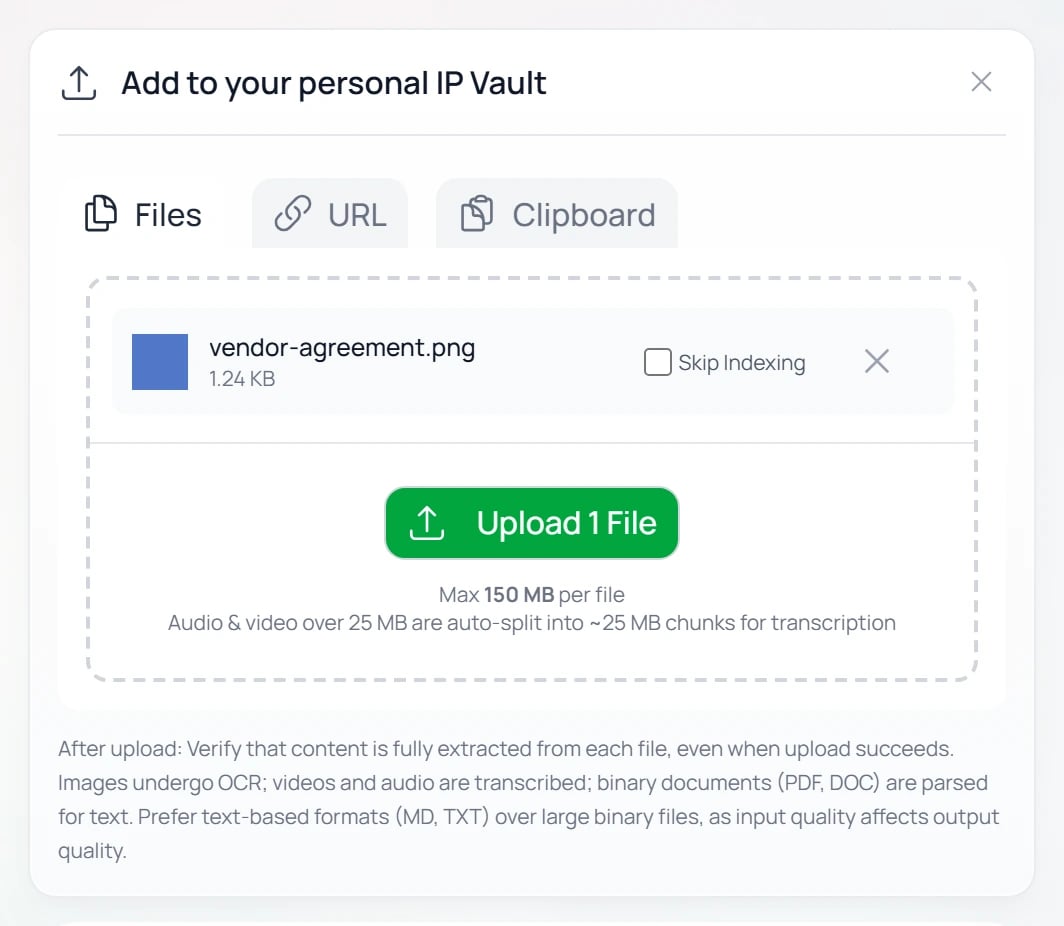
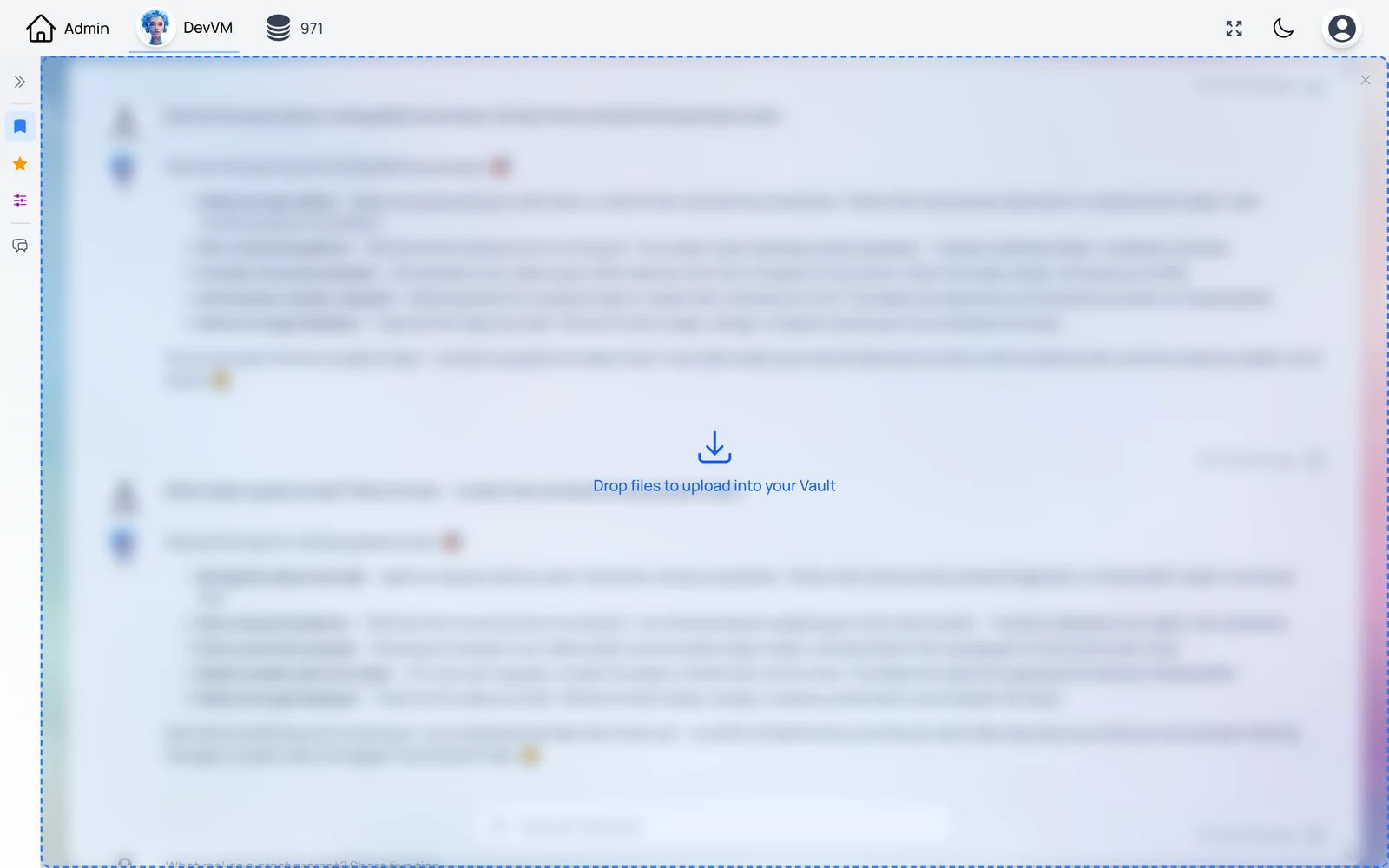 However you add them, files open the **Add to your personal IP Vault** uploader — with **Files / URL / Clipboard** tabs, a per-file **Skip Indexing** toggle (skip RAG indexing for a file you only want as one-off context), and an **Upload** button. Uploaded files attach to the **next turn** and also land in your IP Vault (My Files) for re-use.
 Multi-modal models can reason directly over pasted images — paste a screenshot of an error message, a chart, or a whiteboard photo and ask Pria what's in it.
### Quoting a prior message
To reference an earlier message in your follow-up without retyping it:
1. Hover the message you want to quote and use **Copy input** or **Copy output** from the dialogue action row.
2. Paste into the textarea — Pria's markdown preview renders the quoted block as you type.
3. Add your follow-up question beneath the quoted block and send.
Even without explicit quoting, Pria has the most recent dialogues in context (see [Remember History](/mdx/user-guide/profile-settings/edit-profile#remember-history--compaction)) — so references like *"the second bullet you mentioned above"* generally resolve fine for nearby turns.
### Which model answers
The model that answers is the **default set for the Digital Twin by an admin** in **Instance Settings → Conversation**.
**Personal accounts use the Twin's default model and can't change it.** If you need a different model, ask the Twin's admin. Admins: see [Model Selection](/mdx/user-guide/interface/model-selection) for choosing the model, BYOK options, and per-model capability flags.
### Markdown formatting in responses
Pria streams answers as Markdown. The renderer supports:
* **Headings, bold, italic, lists, blockquotes** — standard CommonMark.
* **Code blocks with syntax highlighting** — triple-backtick fences with a language tag (` ```python `, ` ```ts `, etc.). Each block carries a Copy button.
* **Tables** — pipe syntax renders as a clean grid. Long tables scroll horizontally inside the response.
* **Inline links** — clickable, open in a new tab.
* **Math** — inline `$E = mc^2$` and block `$$ … $$` render via LaTeX-style markup when the active model emits it.
* **Mermaid diagrams** — flowcharts, sequence diagrams, gantt, etc. inside ` ```mermaid ` fences render as SVG.
* **Citations** — clickable chips after sentences that reference your IP Vault content.
Multi-modal models can reason directly over pasted images — paste a screenshot of an error message, a chart, or a whiteboard photo and ask Pria what's in it.
### Quoting a prior message
To reference an earlier message in your follow-up without retyping it:
1. Hover the message you want to quote and use **Copy input** or **Copy output** from the dialogue action row.
2. Paste into the textarea — Pria's markdown preview renders the quoted block as you type.
3. Add your follow-up question beneath the quoted block and send.
Even without explicit quoting, Pria has the most recent dialogues in context (see [Remember History](/mdx/user-guide/profile-settings/edit-profile#remember-history--compaction)) — so references like *"the second bullet you mentioned above"* generally resolve fine for nearby turns.
### Which model answers
The model that answers is the **default set for the Digital Twin by an admin** in **Instance Settings → Conversation**.
**Personal accounts use the Twin's default model and can't change it.** If you need a different model, ask the Twin's admin. Admins: see [Model Selection](/mdx/user-guide/interface/model-selection) for choosing the model, BYOK options, and per-model capability flags.
### Markdown formatting in responses
Pria streams answers as Markdown. The renderer supports:
* **Headings, bold, italic, lists, blockquotes** — standard CommonMark.
* **Code blocks with syntax highlighting** — triple-backtick fences with a language tag (` ```python `, ` ```ts `, etc.). Each block carries a Copy button.
* **Tables** — pipe syntax renders as a clean grid. Long tables scroll horizontally inside the response.
* **Inline links** — clickable, open in a new tab.
* **Math** — inline `$E = mc^2$` and block `$$ … $$` render via LaTeX-style markup when the active model emits it.
* **Mermaid diagrams** — flowcharts, sequence diagrams, gantt, etc. inside ` ```mermaid ` fences render as SVG.
* **Citations** — clickable chips after sentences that reference your IP Vault content.
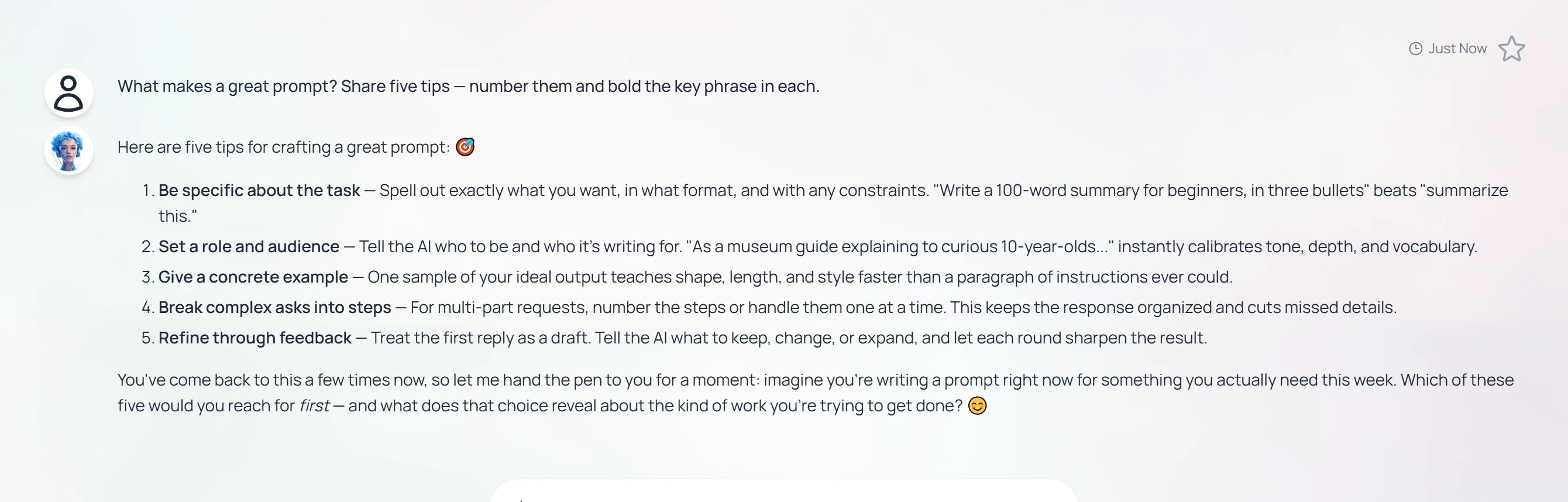 Code blocks remember language across turns — Pria tends to keep replying in the same code style you've been working in.
***
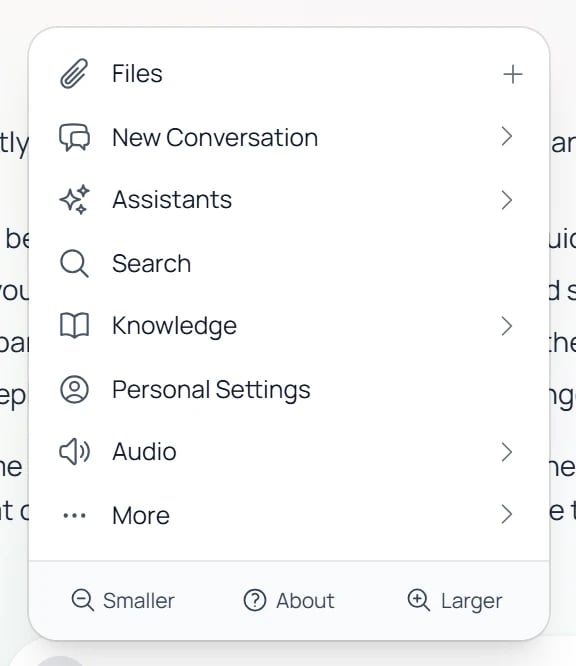
## The **\[+]** action menu
Click the **\[+]** icon on the left of the pill to open a structured menu of everything you can attach to or change about the next turn. Each entry that has more options expands **inline** when you click it — its choices appear indented just below the row, rather than flying out to the side.
Code blocks remember language across turns — Pria tends to keep replying in the same code style you've been working in.
***
## The **\[+]** action menu
Click the **\[+]** icon on the left of the pill to open a structured menu of everything you can attach to or change about the next turn. Each entry that has more options expands **inline** when you click it — its choices appear indented just below the row, rather than flying out to the side.
 **"About this menu" — built-in help on tap.** Every expandable submenu carries a small **? About this menu** link pinned at the *bottom* of its options. The help text stays hidden until you click it (it then changes to **Hide info**), so the menu opens clean and uncluttered. If you're ever unsure what a section does, expand it and tap **? About this menu** for a plain-English explanation.
Start a fresh conversation thread. The submenu lists your **favorite assistants** as one-tap shortcuts, plus **Select Assistant…** to browse them all — the new conversation is scoped to whichever assistant you pick (its instructions, tools, and Knowledge configuration).
**"About this menu" — built-in help on tap.** Every expandable submenu carries a small **? About this menu** link pinned at the *bottom* of its options. The help text stays hidden until you click it (it then changes to **Hide info**), so the menu opens clean and uncluttered. If you're ever unsure what a section does, expand it and tap **? About this menu** for a plain-English explanation.
Start a fresh conversation thread. The submenu lists your **favorite assistants** as one-tap shortcuts, plus **Select Assistant…** to browse them all — the new conversation is scoped to whichever assistant you pick (its instructions, tools, and Knowledge configuration).
![The New Conversation submenu opened from the [+] action menu, listing favorite assistants and a Select Assistant option.](https://mintcdn.com/praxisai/XBHqs7uAYpdvbZlI/images/user-guide/interface/newconv-from-plus.webp?fit=max&auto=format&n=XBHqs7uAYpdvbZlI&q=85&s=28097198ed157e8cadac7c8fb99d32d6) Attach files for the next turn or browse what's already in your IP Vault. The row's right-edge **+** is a shortcut that opens your computer's file picker directly, skipping the vault browser. Audio Notes and document uploads land in your vault. Files in shared vaults can be marked **Confidential** — their knowledge still informs answers, but only the owner can open them or see their details.
Manage your assistants, quick-edit the one you're currently using, create a new one, or switch the assistant for **just the next message** using the inline type-to-filter picker. The current assistant is highlighted with a **Current** badge; pick a different one to queue a one-message override (a chip shows the pending switch next to the input).
Search inside the active conversation (matches are highlighted inline). If you belong to more than one Digital Twin, the submenu also offers **Search Across All Digital Twins** to widen the query to every twin you can access. On a personal account with a single twin, Search is a single one-tap entry instead of a submenu.
Attach files for the next turn or browse what's already in your IP Vault. The row's right-edge **+** is a shortcut that opens your computer's file picker directly, skipping the vault browser. Audio Notes and document uploads land in your vault. Files in shared vaults can be marked **Confidential** — their knowledge still informs answers, but only the owner can open them or see their details.
Manage your assistants, quick-edit the one you're currently using, create a new one, or switch the assistant for **just the next message** using the inline type-to-filter picker. The current assistant is highlighted with a **Current** badge; pick a different one to queue a one-message override (a chip shows the pending switch next to the input).
Search inside the active conversation (matches are highlighted inline). If you belong to more than one Digital Twin, the submenu also offers **Search Across All Digital Twins** to widen the query to every twin you can access. On a personal account with a single twin, Search is a single one-tap entry instead of a submenu.
![The Search entry in the [+] action menu, with the option to search the active conversation or across all Digital Twins.](https://mintcdn.com/praxisai/XBHqs7uAYpdvbZlI/images/user-guide/interface/search-action-menu-option.webp?fit=max&auto=format&n=XBHqs7uAYpdvbZlI&q=85&s=90c58ca0336cddf4f17cae2ba73d98f1) Three things that shape what Pria draws on when it answers:
* **Remember History** — a quick selector for how many recent exchanges stay in context (0 disables history; higher keeps more, at higher credit cost; deep settings auto-summarize to save credits). The free-form slider lives in Personal Settings → Conversation Preferences.
* **Memory** — long-term facts Pria remembers about *you* across sessions (your role, ongoing projects, preferences). Opens the Memory manager.
* **Sources** — how your file vaults feed the answer: a retrieval mode, plus an orthogonal **Search Only** toggle.
**Retrieval Mode:**
| Mode | What runs |
| -------------------- | --------------------------------------------------------------------------------------------------------------------------------------------------------------------------------------------------------------------------------------------------------------------- |
| **Disabled** | No vault context. The LLM answers from its training only. |
| **RAG** | Dense vector retrieval over your vaults + LLM rewrite. The default when knowledge graphs aren't enabled. |
| **RAG + KAG Fusion** | Dense vector + knowledge-graph retrieval, fused for the best answer. Offered when the active vault has knowledge graphs enabled. Best for complex queries where rephrasing matters. KAG is always an augmentation on top of RAG — there is no "KAG without RAG" mode. |
**Search Only** (toggle, orthogonal): when on, Pria returns the raw matching vault chunks instead of an LLM-rewritten answer. Useful for checking retrieval coverage or exporting raw evidence. Only shown while retrieval is on.
A small coloured badge appears next to the Knowledge label whenever you're in a non-default state: red for Disabled, amber for Search Only, blue for RAG + KAG.
The Settings row uses the same **dials** icon as the sidebar Settings tab. It links into the two settings areas:
* **Personal (Yours)** — opens *Your Profile* (General, Personalization, Knowledge, Your Data, Security, Google Cloud, Canvas/LTI, Billing, Developer/API).
* **This Digital Twin** — admins only; labelled with the twin's name. Opens the quick instance-settings panel (general, personalization, voice, conversation, knowledge, tools, assistants, invites, billing). A right-edge **open-in-new** icon jumps to the full admin Edit Digital Twin page. Members who can't edit an instance see a single **Personal Settings** entry instead.
Voice-related controls:
* **New Audio Note** — record a voice note and add it to your knowledge (shown when audio notes are available).
* **Speech to Text** (toggle) — shows the dictation 🎙 mic in the input pill. When off, the mic is hidden.
* **Read Aloud — Natural Voice** (toggle) — read responses with the speech model. Where this is managed depends on your account: Instance Settings → Voice for admins, Conversation Preferences for personal accounts, or set by your Digital Twin admin for members.
* **Text to Speech — Voices** — pick the voice used to read responses aloud (the browser voice picker, or your settings page when the natural voice is on).
* **User Guide / Admin Guide** — opens `docs.praxis-ai.com` in a new tab (Admin Guide shows for admins).
* **Feedback** — file a bug or feature request.
* **Referral** — open the Referral Program Lightbox to earn credits for inviting others.
The menu footer carries three quick controls — **Smaller**, **About**, and **Larger**. Smaller and Larger scale the entire UI (and keep the menu open so you can zoom repeatedly); **About** opens the Pria walkthrough.
***
## Voice dictation
The 🎙 mic button on the right of the pill opens an in-place audio recorder (when **Audio → Speech to Text** is on in the \[+] menu).
The textarea is replaced in-place by a recorder widget showing a pulsing red dot, an MM:SS timer, a live waveform of your voice, and **Cancel** / **Confirm** buttons.
The first time, your browser will ask for microphone permission. Pick *Allow while visiting the site* to remember it.
Recording is capped at **2 minutes** with a 10-second warning before the cap. The waveform animates in real time so you can see Pria is hearing you.
Click **Confirm** to transcribe. The audio is sent in a single shot to your institution's configured speech-to-text engine (Voxtral, Whisper, etc.) — the same one used by Audio Notes and Convo mode. The transcript is **appended** to whatever text you've already typed, so you can dictate part of a message and finish typing.
**Nothing is stored after transcription.** No `Upload`, no `History`, no embeddings. The audio is processed and discarded.
Click **Cancel** at any time to discard the recording.
***
## Convo mode (speech-to-speech voice)
The **Convo** button on the right of the pill launches a hands-free voice conversation with Pria. Click once to start, click again to stop.
Three things that shape what Pria draws on when it answers:
* **Remember History** — a quick selector for how many recent exchanges stay in context (0 disables history; higher keeps more, at higher credit cost; deep settings auto-summarize to save credits). The free-form slider lives in Personal Settings → Conversation Preferences.
* **Memory** — long-term facts Pria remembers about *you* across sessions (your role, ongoing projects, preferences). Opens the Memory manager.
* **Sources** — how your file vaults feed the answer: a retrieval mode, plus an orthogonal **Search Only** toggle.
**Retrieval Mode:**
| Mode | What runs |
| -------------------- | --------------------------------------------------------------------------------------------------------------------------------------------------------------------------------------------------------------------------------------------------------------------- |
| **Disabled** | No vault context. The LLM answers from its training only. |
| **RAG** | Dense vector retrieval over your vaults + LLM rewrite. The default when knowledge graphs aren't enabled. |
| **RAG + KAG Fusion** | Dense vector + knowledge-graph retrieval, fused for the best answer. Offered when the active vault has knowledge graphs enabled. Best for complex queries where rephrasing matters. KAG is always an augmentation on top of RAG — there is no "KAG without RAG" mode. |
**Search Only** (toggle, orthogonal): when on, Pria returns the raw matching vault chunks instead of an LLM-rewritten answer. Useful for checking retrieval coverage or exporting raw evidence. Only shown while retrieval is on.
A small coloured badge appears next to the Knowledge label whenever you're in a non-default state: red for Disabled, amber for Search Only, blue for RAG + KAG.
The Settings row uses the same **dials** icon as the sidebar Settings tab. It links into the two settings areas:
* **Personal (Yours)** — opens *Your Profile* (General, Personalization, Knowledge, Your Data, Security, Google Cloud, Canvas/LTI, Billing, Developer/API).
* **This Digital Twin** — admins only; labelled with the twin's name. Opens the quick instance-settings panel (general, personalization, voice, conversation, knowledge, tools, assistants, invites, billing). A right-edge **open-in-new** icon jumps to the full admin Edit Digital Twin page. Members who can't edit an instance see a single **Personal Settings** entry instead.
Voice-related controls:
* **New Audio Note** — record a voice note and add it to your knowledge (shown when audio notes are available).
* **Speech to Text** (toggle) — shows the dictation 🎙 mic in the input pill. When off, the mic is hidden.
* **Read Aloud — Natural Voice** (toggle) — read responses with the speech model. Where this is managed depends on your account: Instance Settings → Voice for admins, Conversation Preferences for personal accounts, or set by your Digital Twin admin for members.
* **Text to Speech — Voices** — pick the voice used to read responses aloud (the browser voice picker, or your settings page when the natural voice is on).
* **User Guide / Admin Guide** — opens `docs.praxis-ai.com` in a new tab (Admin Guide shows for admins).
* **Feedback** — file a bug or feature request.
* **Referral** — open the Referral Program Lightbox to earn credits for inviting others.
The menu footer carries three quick controls — **Smaller**, **About**, and **Larger**. Smaller and Larger scale the entire UI (and keep the menu open so you can zoom repeatedly); **About** opens the Pria walkthrough.
***
## Voice dictation
The 🎙 mic button on the right of the pill opens an in-place audio recorder (when **Audio → Speech to Text** is on in the \[+] menu).
The textarea is replaced in-place by a recorder widget showing a pulsing red dot, an MM:SS timer, a live waveform of your voice, and **Cancel** / **Confirm** buttons.
The first time, your browser will ask for microphone permission. Pick *Allow while visiting the site* to remember it.
Recording is capped at **2 minutes** with a 10-second warning before the cap. The waveform animates in real time so you can see Pria is hearing you.
Click **Confirm** to transcribe. The audio is sent in a single shot to your institution's configured speech-to-text engine (Voxtral, Whisper, etc.) — the same one used by Audio Notes and Convo mode. The transcript is **appended** to whatever text you've already typed, so you can dictate part of a message and finish typing.
**Nothing is stored after transcription.** No `Upload`, no `History`, no embeddings. The audio is processed and discarded.
Click **Cancel** at any time to discard the recording.
***
## Convo mode (speech-to-speech voice)
The **Convo** button on the right of the pill launches a hands-free voice conversation with Pria. Click once to start, click again to stop.
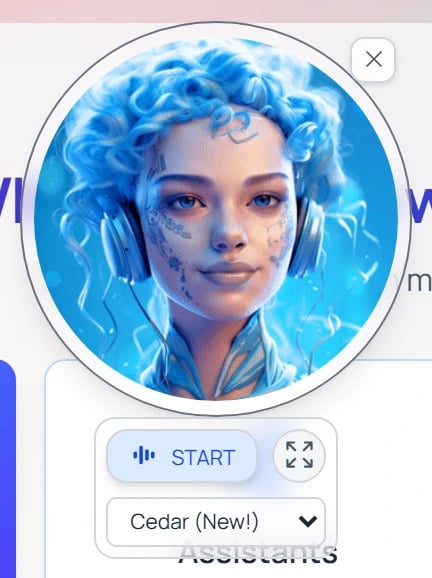 * **Default model**: OpenAI's `gpt-realtime-2` (configurable per institution; Gemini Live and xAI are also supported).
* **Live transcript**: a character-by-character transcript appears under the voice indicator as you and Pria speak.
* **Tools work in voice**: Pria can search your vault, generate images, query Canvas, etc., while you talk to it.
You can drag the Convo widget anywhere on the screen and resize it. Closing the widget ends the voice session.
Convo mode and the 🎙 mic dictation are independent. Convo is a real-time bidirectional audio session; the mic is a one-shot transcribe-then-type. Use Convo for back-and-forth conversation; use the mic when you want to compose a single longer message hands-free.
***
## While a response is streaming
You can:
* **Stop** the response with the **Stop** button (labelled **Abort** in the control row) — anything generated so far is preserved.
* **Pause auto-scroll** so you can read at your own pace while the rest streams in below.
* **Enable audio (TTS)** with **Speak** to have the streamed response read aloud using the voice shown beside the controls (set under Audio → Text to Speech — Voices).
* **Start typing the next prompt** — your input queues and submits as soon as the current response finishes.
* **Default model**: OpenAI's `gpt-realtime-2` (configurable per institution; Gemini Live and xAI are also supported).
* **Live transcript**: a character-by-character transcript appears under the voice indicator as you and Pria speak.
* **Tools work in voice**: Pria can search your vault, generate images, query Canvas, etc., while you talk to it.
You can drag the Convo widget anywhere on the screen and resize it. Closing the widget ends the voice session.
Convo mode and the 🎙 mic dictation are independent. Convo is a real-time bidirectional audio session; the mic is a one-shot transcribe-then-type. Use Convo for back-and-forth conversation; use the mic when you want to compose a single longer message hands-free.
***
## While a response is streaming
You can:
* **Stop** the response with the **Stop** button (labelled **Abort** in the control row) — anything generated so far is preserved.
* **Pause auto-scroll** so you can read at your own pace while the rest streams in below.
* **Enable audio (TTS)** with **Speak** to have the streamed response read aloud using the voice shown beside the controls (set under Audio → Text to Speech — Voices).
* **Start typing the next prompt** — your input queues and submits as soon as the current response finishes.
 ***
## What you can do with a completed response
Hover any past dialogue (input + response pair) to reveal its action row:
***
## What you can do with a completed response
Hover any past dialogue (input + response pair) to reveal its action row:
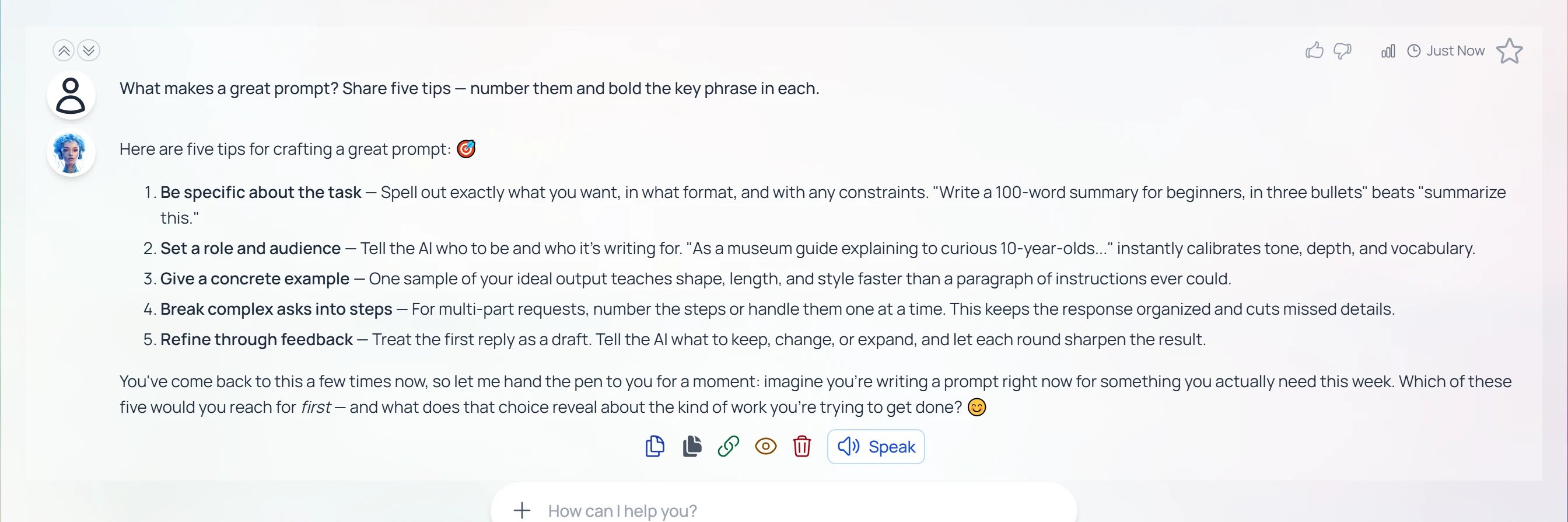 Generate a public shareable URL of this conversation. Recipients can read the dialogue without an account — useful for sending insights to colleagues or saving for later reference.
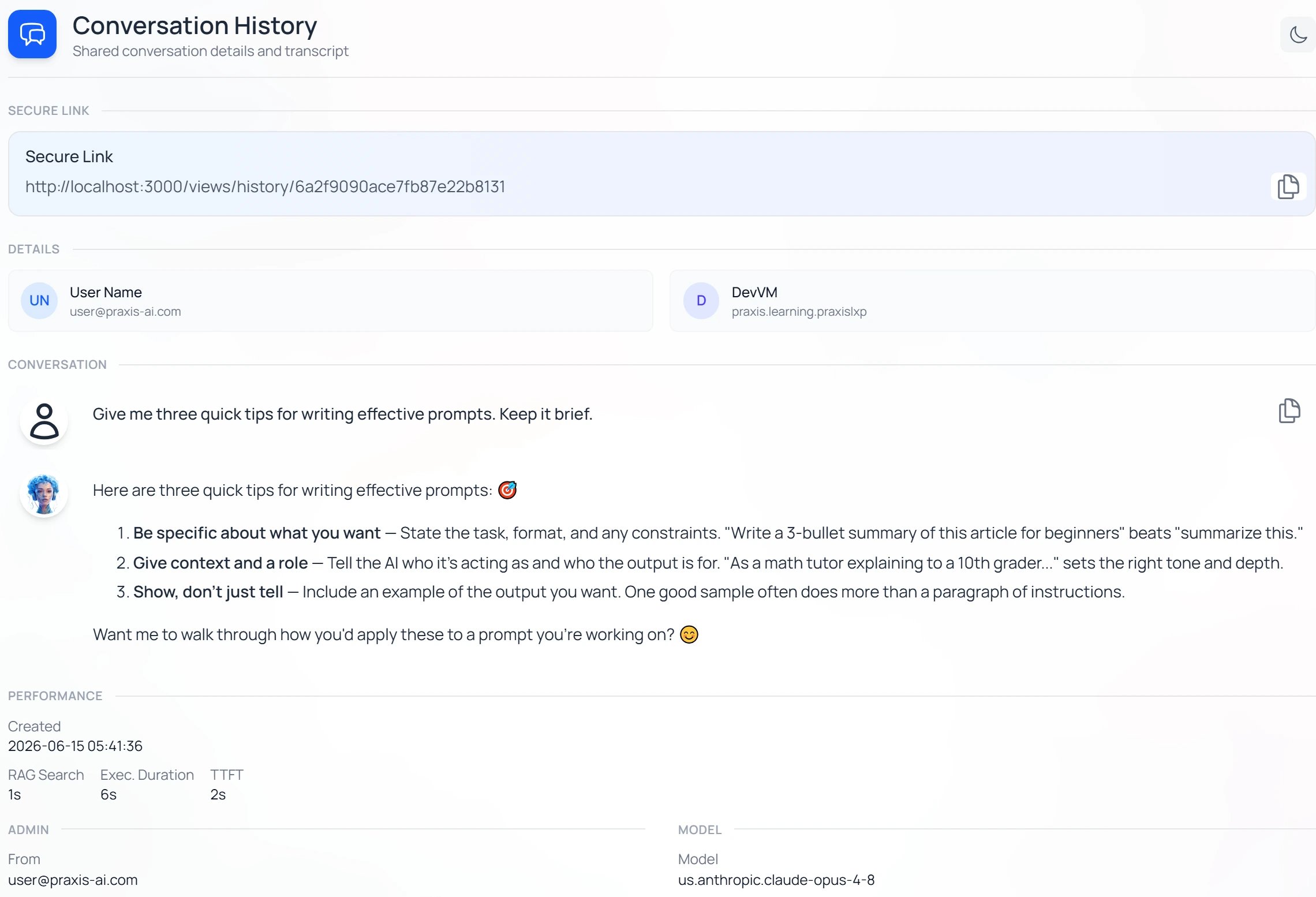
Open the **Conversation History** card — a per-dialogue summary that reveals how Pria processed the turn:
* **Secure Link** — a shareable URL for this dialogue (the same link as *Share as link*).
* **Details** — the user and the Digital Twin (Instance) the turn ran on.
* **Conversation** — the full input + response transcript.
* **Performance** — the *Created* timestamp, **RAG Search** time, **Exec. Duration** (total processing time), and **TTFT** (time to first token — how long before the model started streaming).
* **Model** — the exact model that answered, and the **Credits** the turn consumed.
A **Print** button exports the card. It's the quickest way to see *which* model ran, how long retrieval and generation took, and what the turn cost.
Generate a public shareable URL of this conversation. Recipients can read the dialogue without an account — useful for sending insights to colleagues or saving for later reference.
Open the **Conversation History** card — a per-dialogue summary that reveals how Pria processed the turn:
* **Secure Link** — a shareable URL for this dialogue (the same link as *Share as link*).
* **Details** — the user and the Digital Twin (Instance) the turn ran on.
* **Conversation** — the full input + response transcript.
* **Performance** — the *Created* timestamp, **RAG Search** time, **Exec. Duration** (total processing time), and **TTFT** (time to first token — how long before the model started streaming).
* **Model** — the exact model that answered, and the **Credits** the turn consumed.
A **Print** button exports the card. It's the quickest way to see *which* model ran, how long retrieval and generation took, and what the turn cost.
 Permanently remove this dialogue from history. **Cannot be undone.** Use it to clean up stray turns or remove sensitive content you don't want to keep.
Two separate buttons. Copy the original prompt for re-use, or copy Pria's full response (with formatting preserved where possible) into another app.
Click the ⭐ to bookmark a useful response. Bookmarked dialogues show up under **Favorites** in the sidebar so you can jump back any time.
Have Pria's response spoken using the voice you chose in **Audio → Text to Speech — Voices**. The voices come from your browser's built-in speech-synthesis engine, so the catalogue varies by OS.
When Pria's answer drew on documents from your IP Vault, citation chips appear inline. Click one to open the source file in the Files preview, with the matching chunk highlighted.
**Reading the performance numbers** — **TTFT** (time to first token) reflects how responsive the model felt; **Exec. Duration** is the full turn including any tool calls; **RAG Search** isolates how long vault retrieval took. The **Credits** figure is the turn's billed cost — reasoning models spend extra hidden thinking effort before answering, which shows up as higher credits and duration rather than as visible output. See [Reasoning & Thinking](/mdx/user-guide/interface/reasoning-and-thinking) for how that effort is configured.
***
## Related
* [Model Selection](/mdx/user-guide/interface/model-selection) — Admin-set model per Twin, capabilities, BYOK.
* [Convo Mode](/mdx/user-guide/interface/convo-speech) — Speech-to-speech voice mode.
* [Sidebar & History](/mdx/user-guide/interface/history-settings) — Remember-history count, draft preservation, cross-twin search.
* [Knowledge Modes](/mdx/user-guide/interface/knowledge-modes) — RAG, KAG, Search Only.
* [Reasoning & Thinking](/mdx/user-guide/interface/reasoning-and-thinking) — Thinking tokens, reasoning effort.
* [Managing Files](/mdx/user-guide/files-documents/managing-files) — Upload, preview, OCR, confidential marking.
* [Citations](/mdx/user-guide/files-documents/citations) — How citation chips link back to source files.
Permanently remove this dialogue from history. **Cannot be undone.** Use it to clean up stray turns or remove sensitive content you don't want to keep.
Two separate buttons. Copy the original prompt for re-use, or copy Pria's full response (with formatting preserved where possible) into another app.
Click the ⭐ to bookmark a useful response. Bookmarked dialogues show up under **Favorites** in the sidebar so you can jump back any time.
Have Pria's response spoken using the voice you chose in **Audio → Text to Speech — Voices**. The voices come from your browser's built-in speech-synthesis engine, so the catalogue varies by OS.
When Pria's answer drew on documents from your IP Vault, citation chips appear inline. Click one to open the source file in the Files preview, with the matching chunk highlighted.
**Reading the performance numbers** — **TTFT** (time to first token) reflects how responsive the model felt; **Exec. Duration** is the full turn including any tool calls; **RAG Search** isolates how long vault retrieval took. The **Credits** figure is the turn's billed cost — reasoning models spend extra hidden thinking effort before answering, which shows up as higher credits and duration rather than as visible output. See [Reasoning & Thinking](/mdx/user-guide/interface/reasoning-and-thinking) for how that effort is configured.
***
## Related
* [Model Selection](/mdx/user-guide/interface/model-selection) — Admin-set model per Twin, capabilities, BYOK.
* [Convo Mode](/mdx/user-guide/interface/convo-speech) — Speech-to-speech voice mode.
* [Sidebar & History](/mdx/user-guide/interface/history-settings) — Remember-history count, draft preservation, cross-twin search.
* [Knowledge Modes](/mdx/user-guide/interface/knowledge-modes) — RAG, KAG, Search Only.
* [Reasoning & Thinking](/mdx/user-guide/interface/reasoning-and-thinking) — Thinking tokens, reasoning effort.
* [Managing Files](/mdx/user-guide/files-documents/managing-files) — Upload, preview, OCR, confidential marking.
* [Citations](/mdx/user-guide/files-documents/citations) — How citation chips link back to source files.