> ## Documentation Index
> Fetch the complete documentation index at: https://docs.praxis-ai.com/llms.txt
> Use this file to discover all available pages before exploring further.
# Knowledge Modes
> How Pria retrieves from your uploaded files — the Knowledge menu's Sources (Disabled / RAG / KAG Fusion) and the Search Only output toggle.
When you ask Pria a question, it can either answer from its general training — the same way a stock AI model would — or **ground its answer in your own uploaded files**. That second mode is called "knowledge retrieval", and it's what makes a Digital Twin feel like an expert in *your* material. The **Knowledge** entry in the **\[+] Actions menu** lets you choose how Pria searches.
## What knowledge retrieval does
Behind the scenes, every file you put in your **IP Vault** (your personal vault, your Digital Twin's shared vault, and the account-wide vault) is processed and indexed. When you ask a question with retrieval turned on, Pria:
1. Searches the indexed content for the passages most relevant to your question.
2. Hands those passages to the model as context.
3. The model composes an answer that quotes or paraphrases your material and cites the source files.
The result: answers that reflect *your* documents, not just the model's training cut-off. Citations let you jump straight to the original passage to verify.
Knowledge retrieval is the foundation of Pria as a knowledge worker tool. Most institutions leave it on by default.
***
## Where the Knowledge controls live
Open the **\[+]** (Actions) menu to the left of the input pill and choose **Knowledge**. The panel expands inline with everything that shapes a reply's context:
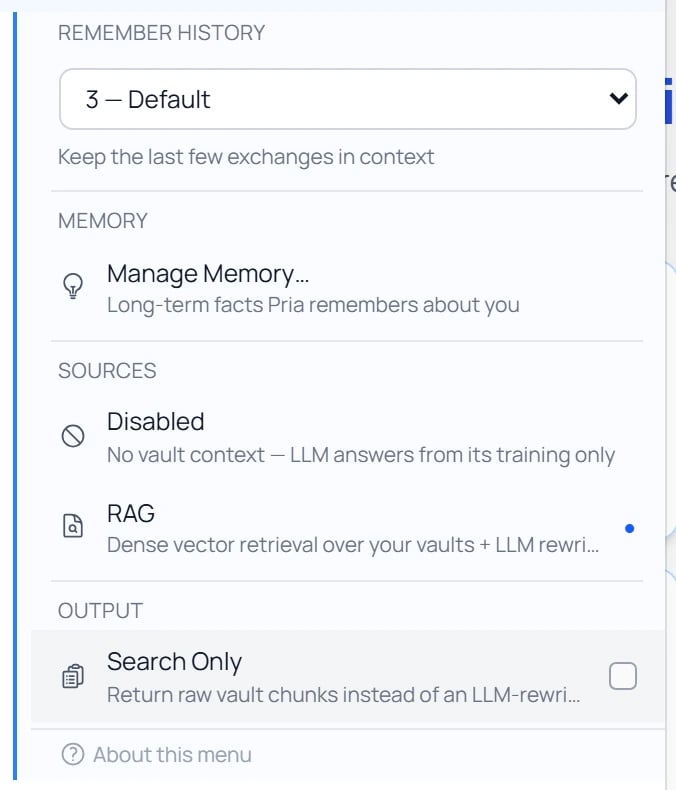 * **Remember History** — how many recent exchanges stay in context (see [Conversation History](/mdx/user-guide/memory/conversation-history)).
* **Manage Memory** — long-term facts Pria remembers about you (see [User Memory](/mdx/user-guide/memory/user-memory)).
* **Sources** — the retrieval mode (below).
* **Search Only** — an output toggle (below).
Knowledge isn't a separate sidebar panel — it's a section of the **\[+] Actions menu**, so it's always one click from the composer while you chat.
***
## Sources: how Pria searches
The **Sources** radio is the core choice. It has two states — and the "on" state quietly upgrades itself when a knowledge graph is available.
No retrieval at all. The model answers from its training data alone, with no reference to your files. Handy for off-topic questions or when you specifically want the model's own knowledge.
Retrieval **on**. Pria runs a **dense vector search** over your file chunks to find the passages most similar in meaning to your question, then feeds them to the model. This is the everyday default for "what does this say about X" questions.
What **RAG** automatically becomes when the vault you're searching has a **knowledge graph**. Pria adds a graph-search leg — entities (people, organisations, concepts) and the relationships between them — and fuses the two ranked lists. Better for "how does X relate to Y" or "who works on Z" questions where the answer is structural. You don't pick this separately; turning Sources on uses Fusion wherever a graph exists, plain RAG otherwise.
A separate **Output** toggle, not a source. With it on, Pria returns the matched passages exactly as the model would have seen them — *without* calling the model to write a reply. Useful when you want to skim the raw hits and pick your own quote. It only applies while Sources is on.
So the menu is really **two settings, not four peers**: a **Sources** radio (Disabled / on) and a **Search Only** output toggle. "Normal RAG" and "KAG Fusion" are the same *on* state — Fusion simply kicks in when a graph is available.
A knowledge graph is available for your **personal vault** once you opt in (under *Settings → Personal → Knowledge*, below), or for a **Digital Twin** when an admin enables it. Once a graph exists you can **browse it directly**: open the Files panel and switch the Display selector to **Tree of Knowledge** to explore the extracted themes, entities, relationships, and source files. See [Managing Files](/mdx/user-guide/files-documents/managing-files#tree-of-knowledge--browse-your-vault-as-a-graph).
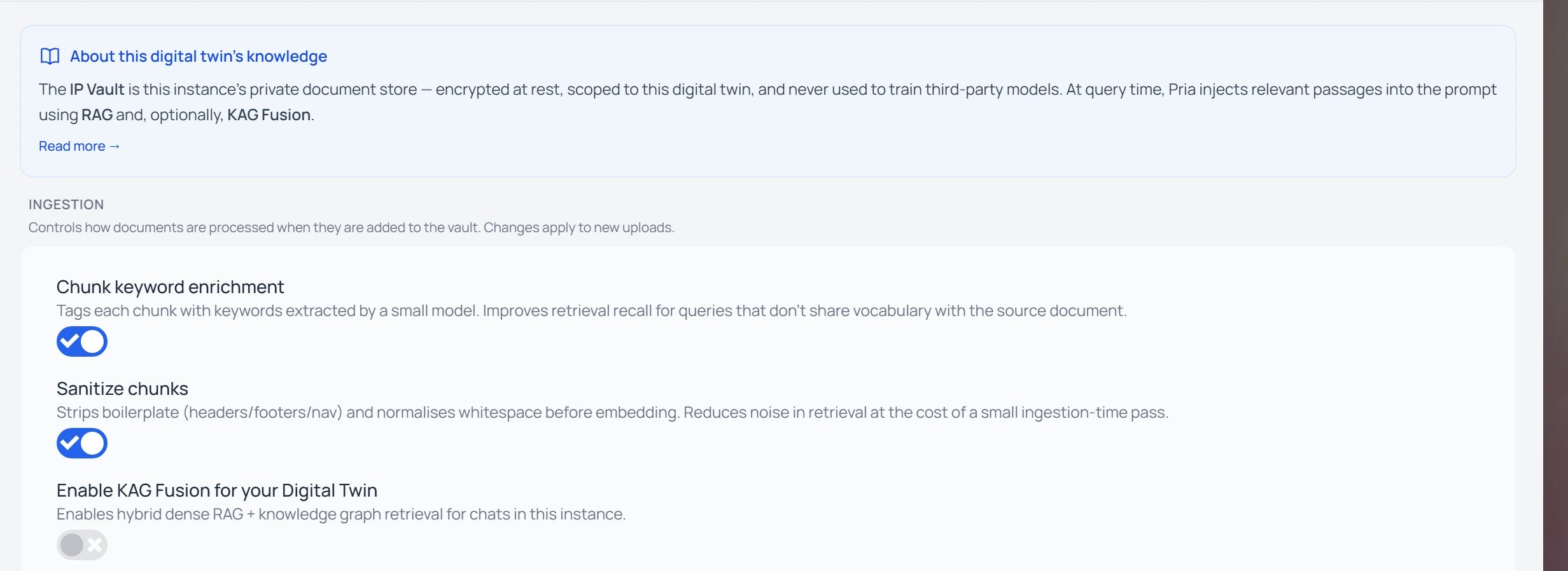
Whoever manages the Twin enables the graph under **Settings → Instance → Knowledge → Enable KAG Fusion**. The same tab tunes how files are ingested (chunk keyword enrichment, chunk sanitising).
* **Remember History** — how many recent exchanges stay in context (see [Conversation History](/mdx/user-guide/memory/conversation-history)).
* **Manage Memory** — long-term facts Pria remembers about you (see [User Memory](/mdx/user-guide/memory/user-memory)).
* **Sources** — the retrieval mode (below).
* **Search Only** — an output toggle (below).
Knowledge isn't a separate sidebar panel — it's a section of the **\[+] Actions menu**, so it's always one click from the composer while you chat.
***
## Sources: how Pria searches
The **Sources** radio is the core choice. It has two states — and the "on" state quietly upgrades itself when a knowledge graph is available.
No retrieval at all. The model answers from its training data alone, with no reference to your files. Handy for off-topic questions or when you specifically want the model's own knowledge.
Retrieval **on**. Pria runs a **dense vector search** over your file chunks to find the passages most similar in meaning to your question, then feeds them to the model. This is the everyday default for "what does this say about X" questions.
What **RAG** automatically becomes when the vault you're searching has a **knowledge graph**. Pria adds a graph-search leg — entities (people, organisations, concepts) and the relationships between them — and fuses the two ranked lists. Better for "how does X relate to Y" or "who works on Z" questions where the answer is structural. You don't pick this separately; turning Sources on uses Fusion wherever a graph exists, plain RAG otherwise.
A separate **Output** toggle, not a source. With it on, Pria returns the matched passages exactly as the model would have seen them — *without* calling the model to write a reply. Useful when you want to skim the raw hits and pick your own quote. It only applies while Sources is on.
So the menu is really **two settings, not four peers**: a **Sources** radio (Disabled / on) and a **Search Only** output toggle. "Normal RAG" and "KAG Fusion" are the same *on* state — Fusion simply kicks in when a graph is available.
A knowledge graph is available for your **personal vault** once you opt in (under *Settings → Personal → Knowledge*, below), or for a **Digital Twin** when an admin enables it. Once a graph exists you can **browse it directly**: open the Files panel and switch the Display selector to **Tree of Knowledge** to explore the extracted themes, entities, relationships, and source files. See [Managing Files](/mdx/user-guide/files-documents/managing-files#tree-of-knowledge--browse-your-vault-as-a-graph).
Whoever manages the Twin enables the graph under **Settings → Instance → Knowledge → Enable KAG Fusion**. The same tab tunes how files are ingested (chunk keyword enrichment, chunk sanitising).
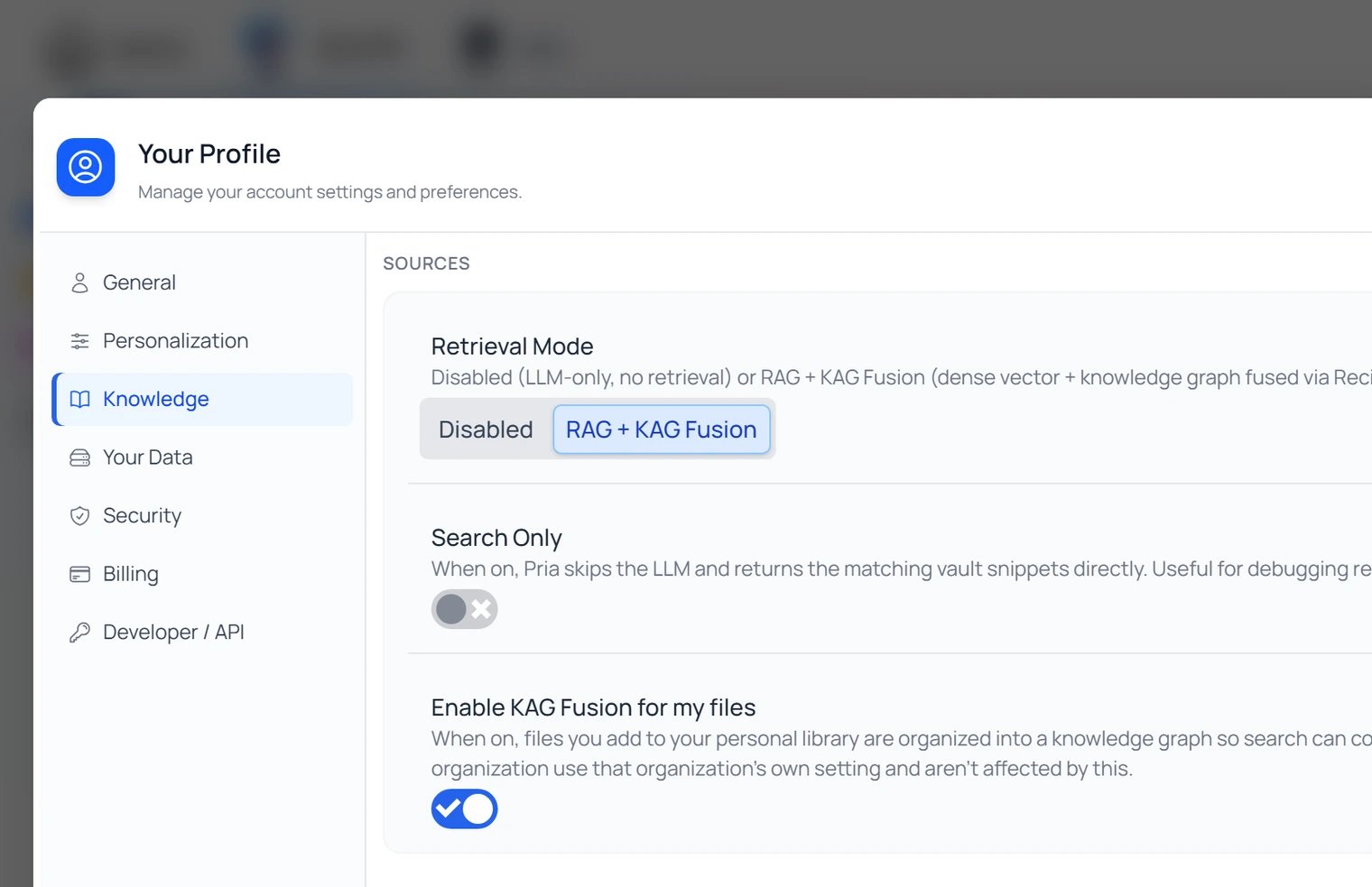
 For your **personal vault** you control it yourself. Open **\[+] → Settings → Personal → Knowledge** and turn on **Enable KAG Fusion for my files** (off by default). Once on, files you add to your personal library are organised into a knowledge graph, so your personal retrieval upgrades from plain RAG to **RAG + KAG Fusion**. The same tab carries the personal **Retrieval Mode** (Disabled / RAG + KAG Fusion) and **Search Only** controls — the same two axes the \[+] menu exposes.
 ***
## When to use each
* "What does the policy say about X?"
* "Summarise the second chapter."
* "Find every place we mention vendor Y."
* "How are X and Y related?" / "Who else works on Jane's projects?" — these lean on the Fusion graph leg when one's available.
* Most everyday questions where the answer is somewhere *in your material*.
* Skimming for primary sources before writing your own draft.
* Verifying a claim — get the passages without an LLM rephrasing.
* Auditing what the retrieval layer is actually seeing.
* Quick lookups where you trust your own reading over a synthesised answer.
* General knowledge questions unrelated to your files.
* Comparing Pria's "off-the-shelf" answer to a grounded one.
* Speed runs where you don't need the retrieval step at all.
* Diagnosing whether a wrong answer was caused by retrieval picking the wrong passages.
Your choice persists across conversations on this Digital Twin until you change it. Each Digital Twin remembers its own setting.
You'll also see a small badge on each Pria reply showing how it was retrieved (e.g. *RAG Search results* or *KAG Search results*), so you can tell at a glance how an answer was grounded.
***
## Showing or hiding retrieved passages
When retrieval runs, Pria can show you exactly what it pulled in — a collapsible panel beneath each answer, so you can verify the reply against its sources. Whether the panel appears is governed by the **Display RAG/KAG Search Details** toggle under **Settings → Instance → Personalization → Display Details** (the same place as the [thinking-display toggles](/mdx/user-guide/interface/reasoning-and-thinking#the-thinking-display-toggle)). In **Search Only** mode the passages *are* the entire response — there's nothing to hide them under.
### KAG / RAG Search Results
Expand the ** KAG Search Results** (or **RAG Search Results**) disclosure at the foot of a reply to see every passage that fed the answer. Each row shows the **source file** (and segment), a **preview** of the matched text, its **Relevance** score, and its **Length**, with numbered citations you can click to open the original.
***
## When to use each
* "What does the policy say about X?"
* "Summarise the second chapter."
* "Find every place we mention vendor Y."
* "How are X and Y related?" / "Who else works on Jane's projects?" — these lean on the Fusion graph leg when one's available.
* Most everyday questions where the answer is somewhere *in your material*.
* Skimming for primary sources before writing your own draft.
* Verifying a claim — get the passages without an LLM rephrasing.
* Auditing what the retrieval layer is actually seeing.
* Quick lookups where you trust your own reading over a synthesised answer.
* General knowledge questions unrelated to your files.
* Comparing Pria's "off-the-shelf" answer to a grounded one.
* Speed runs where you don't need the retrieval step at all.
* Diagnosing whether a wrong answer was caused by retrieval picking the wrong passages.
Your choice persists across conversations on this Digital Twin until you change it. Each Digital Twin remembers its own setting.
You'll also see a small badge on each Pria reply showing how it was retrieved (e.g. *RAG Search results* or *KAG Search results*), so you can tell at a glance how an answer was grounded.
***
## Showing or hiding retrieved passages
When retrieval runs, Pria can show you exactly what it pulled in — a collapsible panel beneath each answer, so you can verify the reply against its sources. Whether the panel appears is governed by the **Display RAG/KAG Search Details** toggle under **Settings → Instance → Personalization → Display Details** (the same place as the [thinking-display toggles](/mdx/user-guide/interface/reasoning-and-thinking#the-thinking-display-toggle)). In **Search Only** mode the passages *are* the entire response — there's nothing to hide them under.
### KAG / RAG Search Results
Expand the ** KAG Search Results** (or **RAG Search Results**) disclosure at the foot of a reply to see every passage that fed the answer. Each row shows the **source file** (and segment), a **preview** of the matched text, its **Relevance** score, and its **Length**, with numbered citations you can click to open the original.
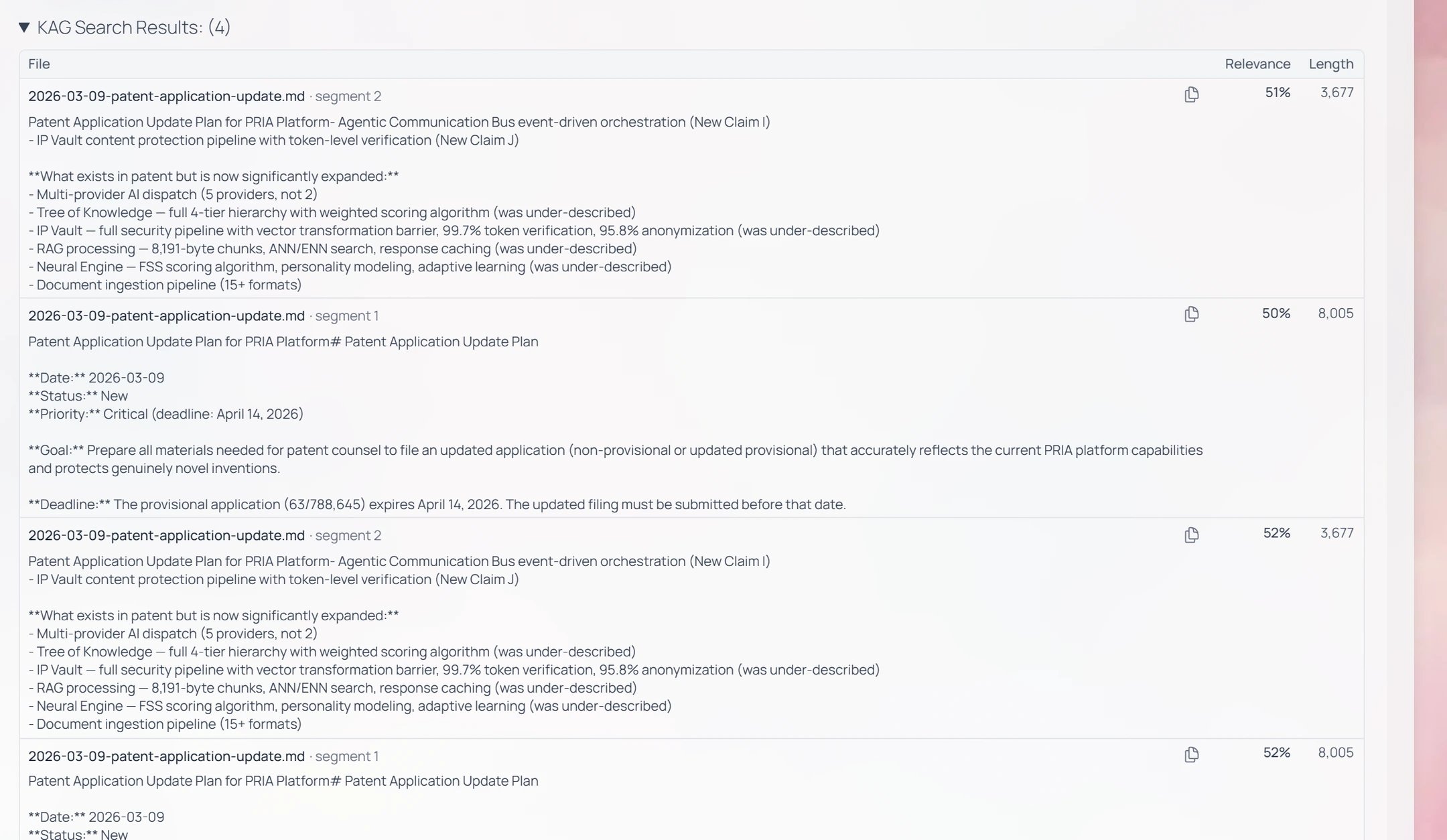 In the example above, the question *“Tell me more about Praxis's patent”* pulled four segments from the user's own `patent-application-update.md`, scored \~50–52% relevant — the answer is built from those passages, and the citations jump straight to them.
### Agent Details — what ran
When a reply also runs a **tool** — image generation, web search, an MCP connector, code — a separate **Tool Details** (Agent Details) disclosure appears. Expanded, it shows, per call: the **tool name**, a **Success / failure** status, the **execution duration**, the **Arguments** it was invoked with, and the **Response** it returned.
In the example above, the question *“Tell me more about Praxis's patent”* pulled four segments from the user's own `patent-application-update.md`, scored \~50–52% relevant — the answer is built from those passages, and the citations jump straight to them.
### Agent Details — what ran
When a reply also runs a **tool** — image generation, web search, an MCP connector, code — a separate **Tool Details** (Agent Details) disclosure appears. Expanded, it shows, per call: the **tool name**, a **Success / failure** status, the **execution duration**, the **Arguments** it was invoked with, and the **Response** it returned.
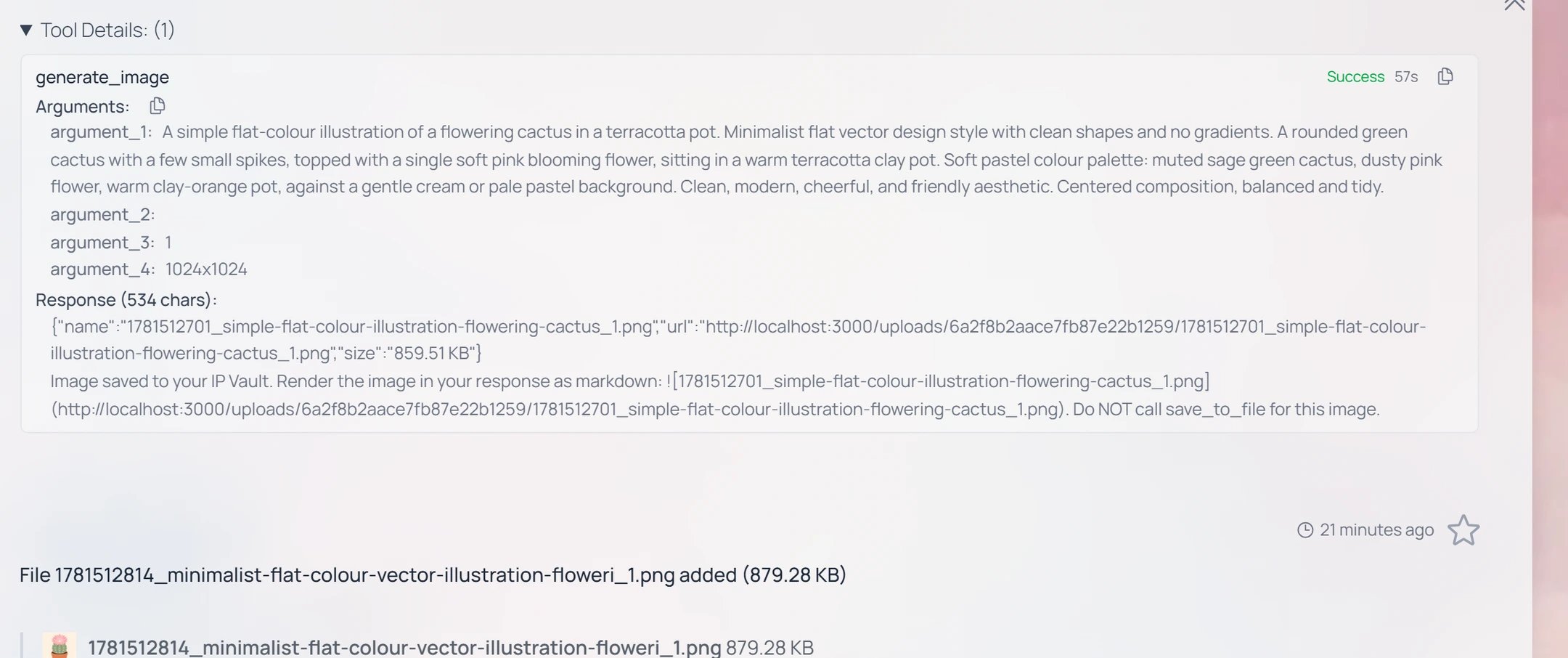 Together, **KAG/RAG Search Results** (what was *retrieved*) and **Tool Details** (what was *run*) let you trace exactly how an answer was produced — the verification habit at the heart of [Best Practices](/mdx/user-guide/best-practices).
***
## File scope: which vault gets searched
Every retrieval call looks across the vaults you have access to:
| Vault | Contents | Who sees it |
| ------------------------ | ------------------------------------------------------------------ | ------------------------------ |
| **Personal vault** | Files you uploaded outside any Digital Twin | Only you |
| **Digital Twin vault** | Files attached to the current Digital Twin | Everyone who can use this Twin |
| **Account-shared vault** | Files marked as shared across sibling Twins under the same account | Everyone in your account |
All three are searched concurrently and their results merged. See [Managing Files](/mdx/user-guide/files-documents/managing-files) for how to upload, mark shared, or move files between scopes.
An Admin can configure a Digital Twin to **ignore your personal vault** when chatting in that twin — useful for keeping personal notes out of an enterprise context. When that's set, personal files stay searchable from the standalone "Personal Pria" but are invisible while you're inside the institution twin.
***
## Limitations
Knowledge retrieval has a few honest constraints worth knowing about.
* **Confidential files stay locked for everyone but their owner.** A file marked **Confidential** can still lend its knowledge to answers, but other members never see its details — retrieval shows them a "🔒 CONFIDENTIAL" marker and a short redacted snippet instead of the document. Only the owner gets full citations and preview. See [What Confidential really means](/mdx/user-guide/files-documents/managing-files#what-confidential-really-means).
* **Very recent uploads may still be indexing.** Large PDFs, audio, and video files take a few minutes to extract, chunk, and embed. If a brand-new file isn't appearing in retrieval yet, give it a moment and check **Files** for processing status.
* **Disabled skips ALL files.** Don't leave Sources off by accident if you actually need grounded answers — your replies will go back to "general knowledge only".
* **Fusion needs RAG.** The graph leg always sits on top of the dense RAG leg; there's no "graph only". With Sources disabled, neither runs.
* **Search quality depends on file quality.** Scanned PDFs without OCR, password-locked files, and corrupt uploads can't be indexed. Check the file status in the IP Vault to see what's processed.
***
## Related
* [IP Vault](/mdx/user-guide/files-documents/ipvault) — what the vault is and how scopes work.
* [Managing Files](/mdx/user-guide/files-documents/managing-files) — uploading, organising, sharing, deleting.
* [Audio Notes](/mdx/user-guide/files-documents/audio-notes) — voice memos that flow through the same retrieval pipeline.
* [Conversation History](/mdx/user-guide/memory/conversation-history) — the Remember History control in the same menu.
* [User Memory](/mdx/user-guide/memory/user-memory) — the Manage Memory link in the same menu.
* [Reasoning & Thinking](/mdx/user-guide/interface/reasoning-and-thinking) — combine high effort with grounded retrieval for the best research answers.
Together, **KAG/RAG Search Results** (what was *retrieved*) and **Tool Details** (what was *run*) let you trace exactly how an answer was produced — the verification habit at the heart of [Best Practices](/mdx/user-guide/best-practices).
***
## File scope: which vault gets searched
Every retrieval call looks across the vaults you have access to:
| Vault | Contents | Who sees it |
| ------------------------ | ------------------------------------------------------------------ | ------------------------------ |
| **Personal vault** | Files you uploaded outside any Digital Twin | Only you |
| **Digital Twin vault** | Files attached to the current Digital Twin | Everyone who can use this Twin |
| **Account-shared vault** | Files marked as shared across sibling Twins under the same account | Everyone in your account |
All three are searched concurrently and their results merged. See [Managing Files](/mdx/user-guide/files-documents/managing-files) for how to upload, mark shared, or move files between scopes.
An Admin can configure a Digital Twin to **ignore your personal vault** when chatting in that twin — useful for keeping personal notes out of an enterprise context. When that's set, personal files stay searchable from the standalone "Personal Pria" but are invisible while you're inside the institution twin.
***
## Limitations
Knowledge retrieval has a few honest constraints worth knowing about.
* **Confidential files stay locked for everyone but their owner.** A file marked **Confidential** can still lend its knowledge to answers, but other members never see its details — retrieval shows them a "🔒 CONFIDENTIAL" marker and a short redacted snippet instead of the document. Only the owner gets full citations and preview. See [What Confidential really means](/mdx/user-guide/files-documents/managing-files#what-confidential-really-means).
* **Very recent uploads may still be indexing.** Large PDFs, audio, and video files take a few minutes to extract, chunk, and embed. If a brand-new file isn't appearing in retrieval yet, give it a moment and check **Files** for processing status.
* **Disabled skips ALL files.** Don't leave Sources off by accident if you actually need grounded answers — your replies will go back to "general knowledge only".
* **Fusion needs RAG.** The graph leg always sits on top of the dense RAG leg; there's no "graph only". With Sources disabled, neither runs.
* **Search quality depends on file quality.** Scanned PDFs without OCR, password-locked files, and corrupt uploads can't be indexed. Check the file status in the IP Vault to see what's processed.
***
## Related
* [IP Vault](/mdx/user-guide/files-documents/ipvault) — what the vault is and how scopes work.
* [Managing Files](/mdx/user-guide/files-documents/managing-files) — uploading, organising, sharing, deleting.
* [Audio Notes](/mdx/user-guide/files-documents/audio-notes) — voice memos that flow through the same retrieval pipeline.
* [Conversation History](/mdx/user-guide/memory/conversation-history) — the Remember History control in the same menu.
* [User Memory](/mdx/user-guide/memory/user-memory) — the Manage Memory link in the same menu.
* [Reasoning & Thinking](/mdx/user-guide/interface/reasoning-and-thinking) — combine high effort with grounded retrieval for the best research answers.