> ## Documentation Index
> Fetch the complete documentation index at: https://docs.praxis-ai.com/llms.txt
> Use this file to discover all available pages before exploring further.
# AI Models for Your Twin
> Every Digital Twin runs on an AI model chosen by whoever sets it up. Learn how that choice is made, how to see which model answered you, and how to change it if you manage the Twin.
Your Digital Twin talks to a real AI model behind the scenes — and which one it uses isn't a per-message toggle you flip while chatting. The model is part of how the Twin is configured: someone who manages the Twin picks it once, and every conversation uses it until they change it. This page explains how that choice is made, how to tell which model answered a given message, and where to change it if the Twin is yours to manage.
There's no model switcher floating in the chat box. The model a conversation uses is set **per Digital Twin** (and, optionally, **per assistant**) by whoever configures it.
## Why the model matters
Different jobs deserve different tools, and that's why Pria supports many models.
Smaller models burn far fewer credits per turn. For brainstorming or quick lookups, a lightweight model is plenty.
Compact models reply in seconds. Reserve the slower, larger ones for when you actually need depth.
Frontier reasoning models (Claude Opus, GPT-5, Gemini 3 Pro, Grok 4) plan, reflect, and self-check before answering — best for analysis, long planning, and nuanced writing.
Some models read images, some have million-token context windows, some power live voice. The right model is the one whose strengths match the task.
***
## Which model am I using?
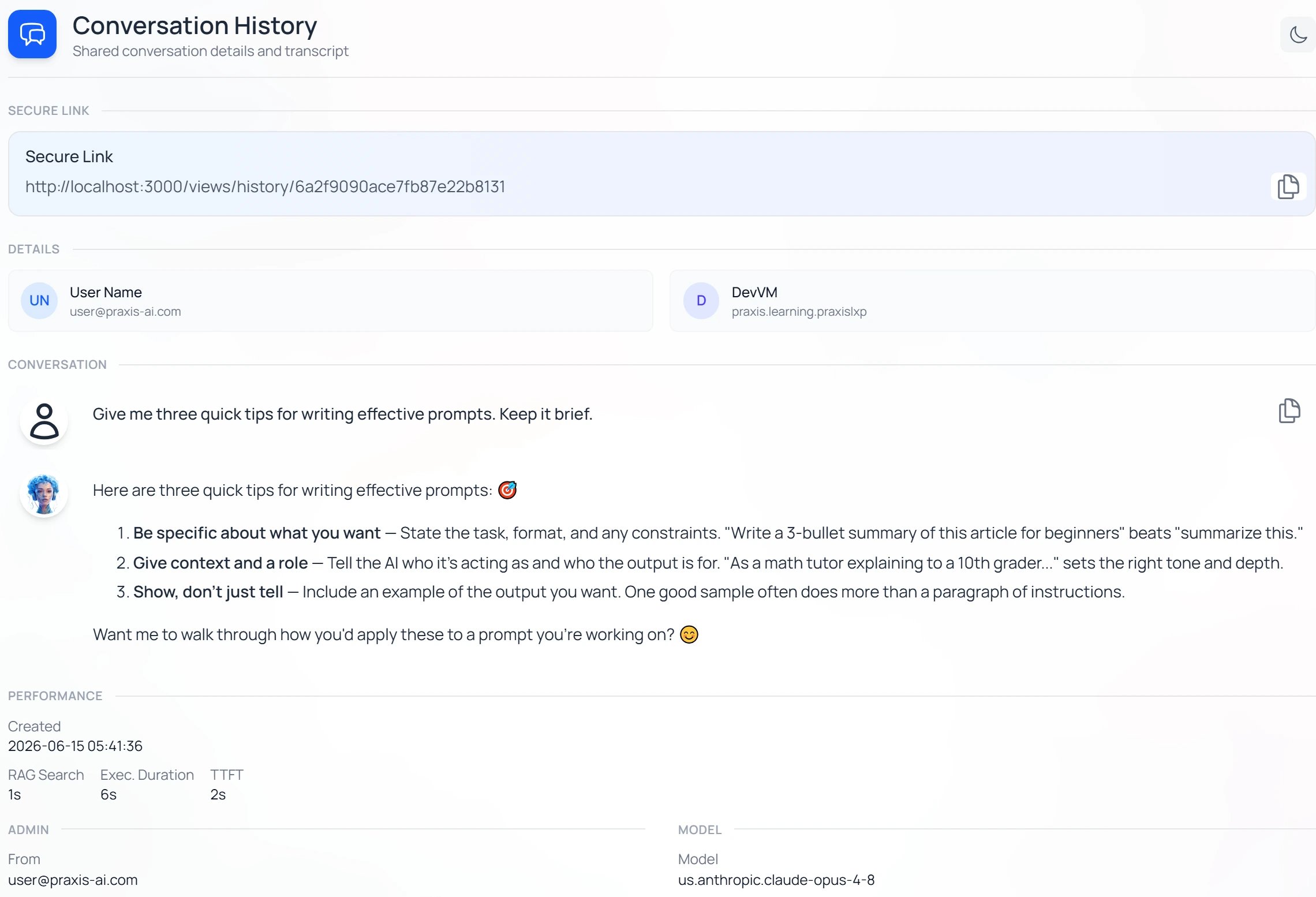
To see exactly which model produced any answer, hover the response and open **View Details** (the icon). The **Conversation History** card lists the **Model** that answered, alongside performance and credit details.
 If you simply want to chat, you don't need to do anything here — your Twin is already set to a sensible model. The rest of this page is for when you *manage* a Twin and want to choose its model.
***
## Setting your Twin's model
If you manage a Digital Twin, open **Settings → Instance → Customize Instance** in the sidebar to open its Instance settings, then select the **Conversation** tab. The **Conversation Model** dropdown sets the model; expand **Model Options** to browse the full catalog.
If you simply want to chat, you don't need to do anything here — your Twin is already set to a sensible model. The rest of this page is for when you *manage* a Twin and want to choose its model.
***
## Setting your Twin's model
If you manage a Digital Twin, open **Settings → Instance → Customize Instance** in the sidebar to open its Instance settings, then select the **Conversation** tab. The **Conversation Model** dropdown sets the model; expand **Model Options** to browse the full catalog.
 The dropdown's first choice is labelled **`-- Default --`**. Leaving it there means the Twin uses Pria's current default model — a balanced, reliable choice the Praxis AI team keeps up to date, so you automatically benefit when it's upgraded. You don't have to chase model releases yourself.
The change applies to the **next** question asked. Answers already on screen stay attributed to whichever model produced them.
### Reading the model catalog
**Model Options** lists every available model, grouped by provider. Use the **Filter providers** checkboxes (Amazon Bedrock, OpenAI-CLI, Anthropic Direct API, Google-CLI, Mistral AI, X.AI/Grok — plus **Show Deprecated**) to narrow the list. Each row shows the model's **Input Size** and **Output Size** (its context window and maximum reply length), an indicative **Price \$/1M** tokens, and a set of **Features** icons summarising what it can do.
The dropdown's first choice is labelled **`-- Default --`**. Leaving it there means the Twin uses Pria's current default model — a balanced, reliable choice the Praxis AI team keeps up to date, so you automatically benefit when it's upgraded. You don't have to chase model releases yourself.
The change applies to the **next** question asked. Answers already on screen stay attributed to whichever model produced them.
### Reading the model catalog
**Model Options** lists every available model, grouped by provider. Use the **Filter providers** checkboxes (Amazon Bedrock, OpenAI-CLI, Anthropic Direct API, Google-CLI, Mistral AI, X.AI/Grok — plus **Show Deprecated**) to narrow the list. Each row shows the model's **Input Size** and **Output Size** (its context window and maximum reply length), an indicative **Price \$/1M** tokens, and a set of **Features** icons summarising what it can do.
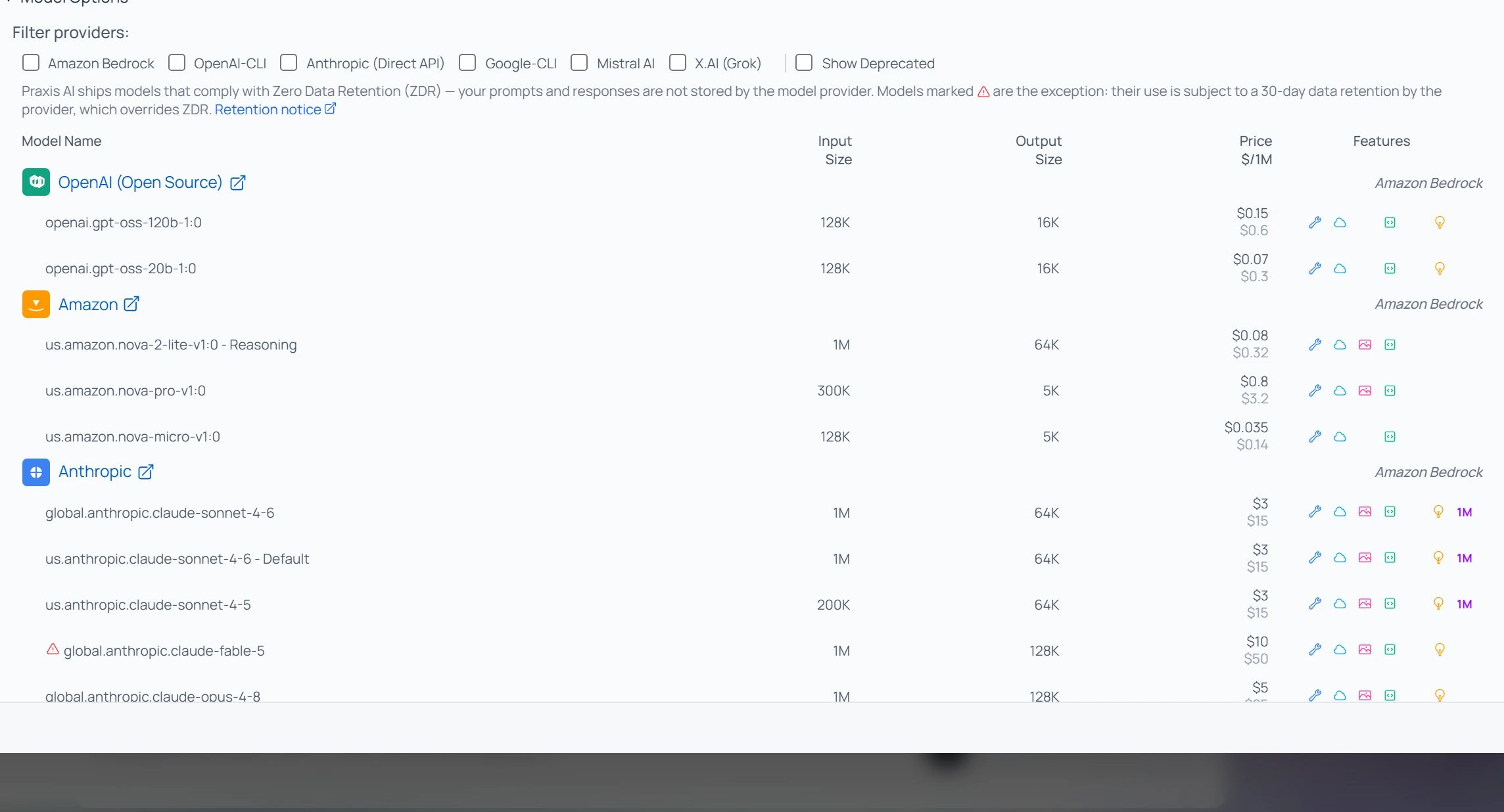 Pria ships models that comply with **Zero Data Retention (ZDR)** — your prompts and responses aren't stored by the model provider. A few models are exceptions, marked with a warning in the catalog; using them accepts the provider's 30-day retention.
The **Features** icons tell you at a glance what each model supports:
| Icon | Meaning |
| ------------------------- | -------------------------------------------------------------------------------------------------------- |
| | **Reasoning** — supports the [reasoning effort scale](/mdx/user-guide/interface/reasoning-and-thinking). |
| | **Tools** — can call file search, web search, code, and other built-in tools. |
| | **MCP connectors** — can reach external systems through [MCP](/mdx/integrations/mcp/introduction). |
| | **Streaming** — replies appear progressively as they're generated. |
| | **Vision** — you can paste, drop, or upload images for the model to read. |
| | **Structured output** — can return clean JSON for downstream use. |
| | **Code** — strong at generating and explaining code. |
| **1M** | **Extended context** — a million-token context window for very large inputs. |
***
## Custom Models
If your institution has configured its own model — a self-hosted endpoint or one bound to your own provider key — it appears in the model picker as a **Custom Model**, with its name and endpoint shown above the standard options.
Pria ships models that comply with **Zero Data Retention (ZDR)** — your prompts and responses aren't stored by the model provider. A few models are exceptions, marked with a warning in the catalog; using them accepts the provider's 30-day retention.
The **Features** icons tell you at a glance what each model supports:
| Icon | Meaning |
| ------------------------- | -------------------------------------------------------------------------------------------------------- |
| | **Reasoning** — supports the [reasoning effort scale](/mdx/user-guide/interface/reasoning-and-thinking). |
| | **Tools** — can call file search, web search, code, and other built-in tools. |
| | **MCP connectors** — can reach external systems through [MCP](/mdx/integrations/mcp/introduction). |
| | **Streaming** — replies appear progressively as they're generated. |
| | **Vision** — you can paste, drop, or upload images for the model to read. |
| | **Structured output** — can return clean JSON for downstream use. |
| | **Code** — strong at generating and explaining code. |
| **1M** | **Extended context** — a million-token context window for very large inputs. |
***
## Custom Models
If your institution has configured its own model — a self-hosted endpoint or one bound to your own provider key — it appears in the model picker as a **Custom Model**, with its name and endpoint shown above the standard options.
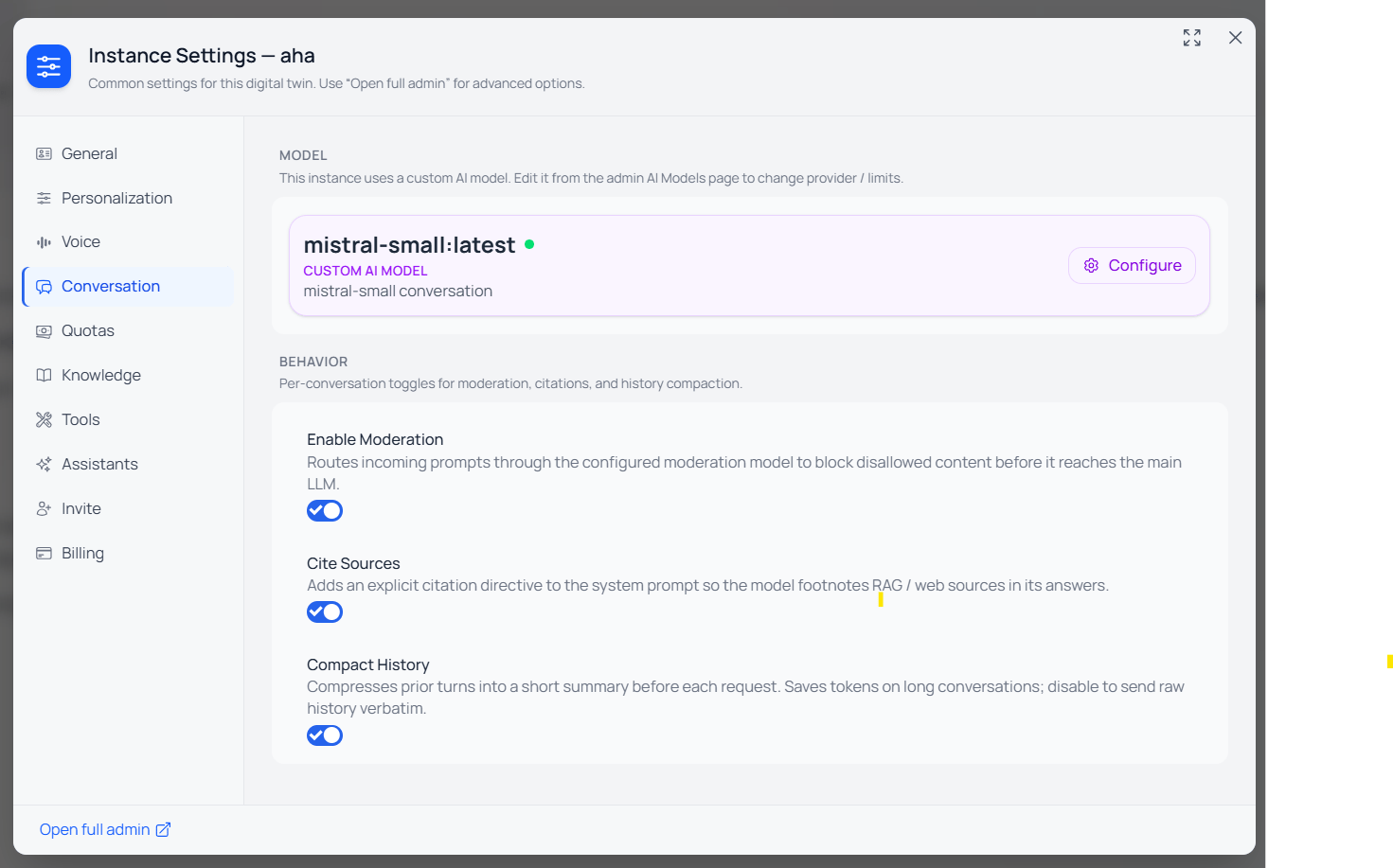 Custom Models behave like the built-in catalog from the chat side — same conversation experience, same credit accounting. Setting one up is an institution task; see [AI Models](/mdx/admin-guide/ai-models) in the Admin Guide.
***
## Per-assistant model
An assistant (a specialised persona in your [Digital Expert Gallery](/mdx/user-guide/interface/digital-expert-gallery)) can run on its own model. When you build or edit an assistant, the **Conversation Model** field — with the same `-- Default --` option and **Model Options** catalog — lets you pin the model that best fits that persona's job.
Custom Models behave like the built-in catalog from the chat side — same conversation experience, same credit accounting. Setting one up is an institution task; see [AI Models](/mdx/admin-guide/ai-models) in the Admin Guide.
***
## Per-assistant model
An assistant (a specialised persona in your [Digital Expert Gallery](/mdx/user-guide/interface/digital-expert-gallery)) can run on its own model. When you build or edit an assistant, the **Conversation Model** field — with the same `-- Default --` option and **Model Options** catalog — lets you pin the model that best fits that persona's job.
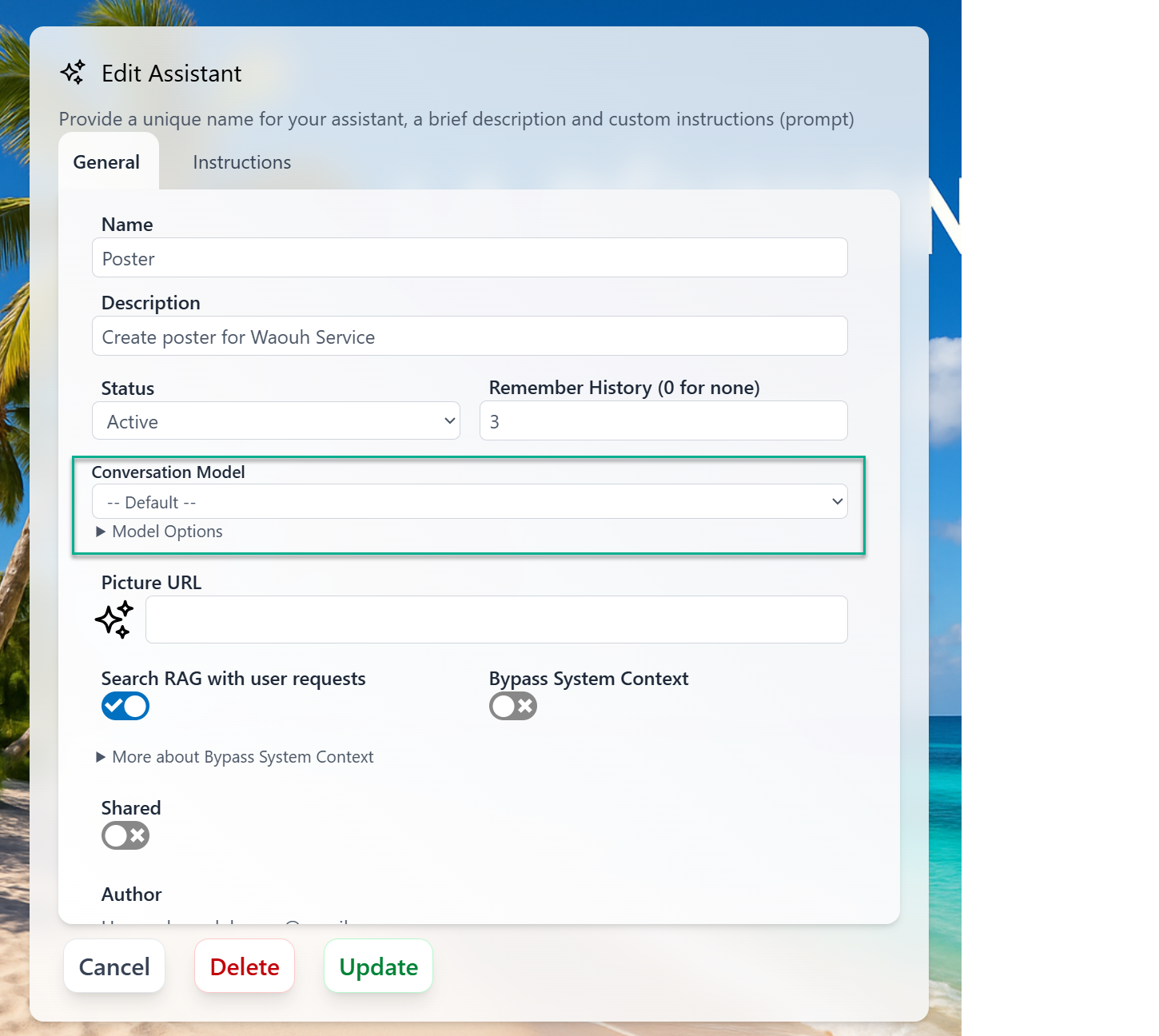 When a conversation runs through an assistant that pins a model, that model is used regardless of the Twin's default. This is common for image-focused, code, or research assistants where the right model is part of the assistant's identity. To use a different model with the same prompt, start a conversation with a different assistant, or one that leaves its model on `-- Default --`.
***
## Getting a different model
Open **Settings → Instance → Conversation Model** and pick the model — or set it on a specific assistant instead, so only that persona changes.
You use the model the Twin is set to. Choose an assistant whose model fits your task, or ask whoever administers the Twin to adjust it. For institution-level model requests, contact the Praxis AI team at [humans@praxis-ai.com](mailto:humans@praxis-ai.com).
***
## Related
* [Reasoning & Thinking](/mdx/user-guide/interface/reasoning-and-thinking) — control how deeply a model thinks before answering.
* [Input and Responses](/mdx/user-guide/interface/input-responses) — the composer and the View Details card in depth.
* [Knowledge Modes](/mdx/user-guide/interface/knowledge-modes) — how the model uses your uploaded files.
* [Assistants](/mdx/user-guide/assistants-personalization/assistants) — building and using model-pinned personas.
* [AI Models (Admin)](/mdx/admin-guide/ai-models) — configuring the model catalog and Custom Models for an institution.
* [Credits](/mdx/user-guide/credits) — how model choice affects credit spend.
When a conversation runs through an assistant that pins a model, that model is used regardless of the Twin's default. This is common for image-focused, code, or research assistants where the right model is part of the assistant's identity. To use a different model with the same prompt, start a conversation with a different assistant, or one that leaves its model on `-- Default --`.
***
## Getting a different model
Open **Settings → Instance → Conversation Model** and pick the model — or set it on a specific assistant instead, so only that persona changes.
You use the model the Twin is set to. Choose an assistant whose model fits your task, or ask whoever administers the Twin to adjust it. For institution-level model requests, contact the Praxis AI team at [humans@praxis-ai.com](mailto:humans@praxis-ai.com).
***
## Related
* [Reasoning & Thinking](/mdx/user-guide/interface/reasoning-and-thinking) — control how deeply a model thinks before answering.
* [Input and Responses](/mdx/user-guide/interface/input-responses) — the composer and the View Details card in depth.
* [Knowledge Modes](/mdx/user-guide/interface/knowledge-modes) — how the model uses your uploaded files.
* [Assistants](/mdx/user-guide/assistants-personalization/assistants) — building and using model-pinned personas.
* [AI Models (Admin)](/mdx/admin-guide/ai-models) — configuring the model catalog and Custom Models for an institution.
* [Credits](/mdx/user-guide/credits) — how model choice affects credit spend.