> ## Documentation Index
> Fetch the complete documentation index at: https://docs.praxis-ai.com/llms.txt
> Use this file to discover all available pages before exploring further.
# Access your LMS
> Learn how your digital twin seamlessly integrates with your Learning Management System to deliver personalized, context-aware educational support.
## Connecting to Your LMS
When configured by your institution, your digital twin can search content in your LMS (Learning Management System, such as Canvas or the Praxis LXP) — assignments, pages, the syllabus, discussions — right from chat.
Before it can do that, you connect your LMS account **once**. The first time you ask a course question, Pria gives you a link to your LMS's own consent screen, which shows exactly what access you're granting. Approve it and you're done — Pria keeps the connection alive in the background, and you stay in control: you can disconnect at any time from your profile.
Start by asking your digital twin about your coursework:
```text theme={null}
What are the assignments for my course?
```
Click the **Connect to Canvas** link to establish the connection with your LMS.
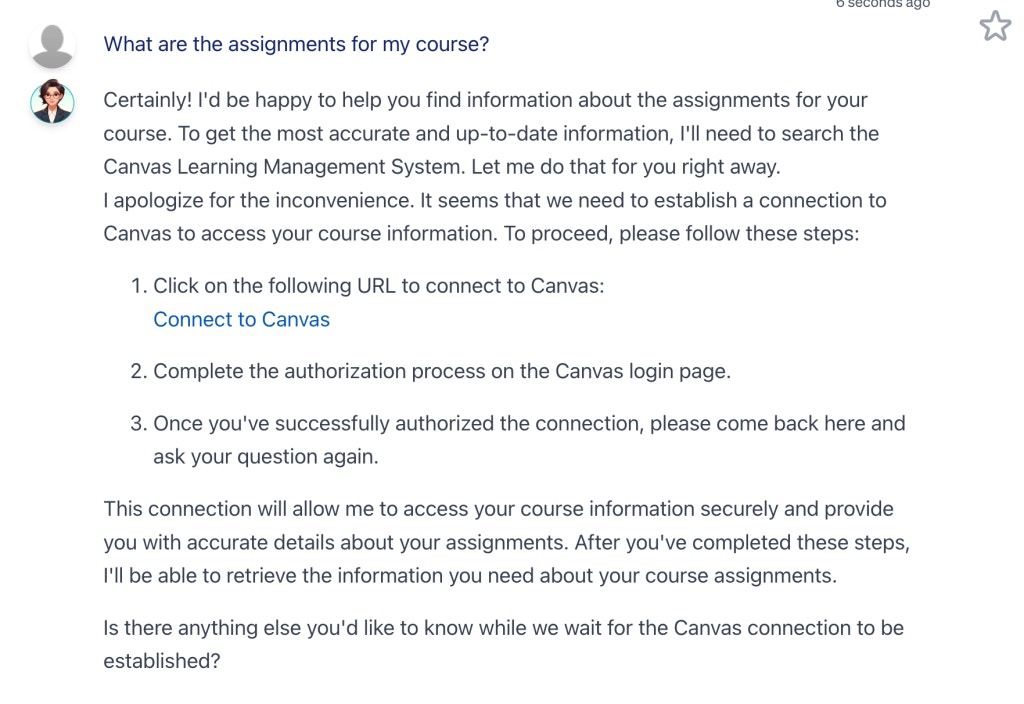 This link is unique to your Digital Twin and is re-created everytime an access token is needed to connect to your LMS.
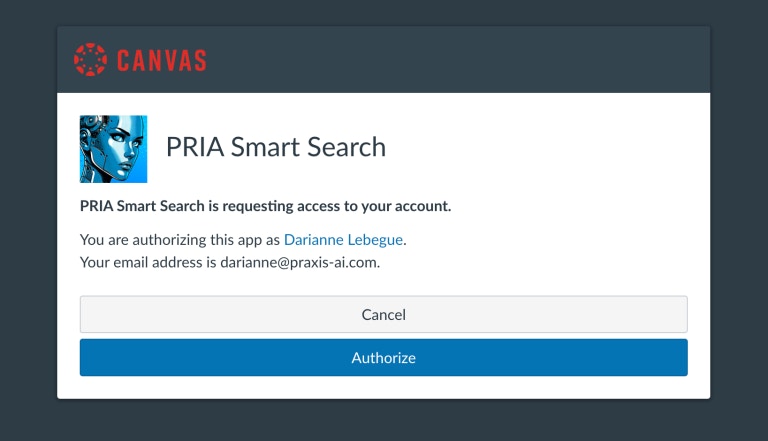
Click **Authorize** to grant your digital twin access to your LMS.
This link is unique to your Digital Twin and is re-created everytime an access token is needed to connect to your LMS.
Click **Authorize** to grant your digital twin access to your LMS.
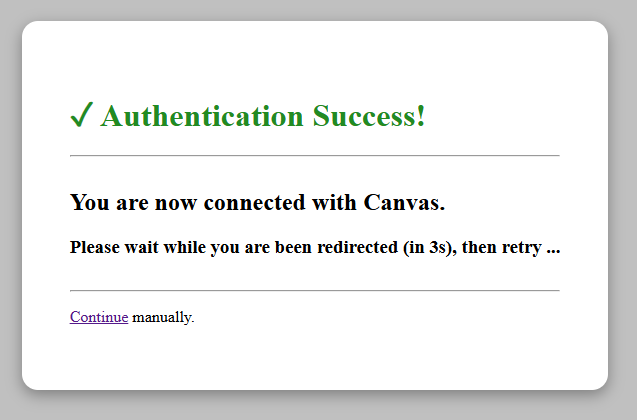
 The LMS confirms the authentication as **successful** and redirects to Pria
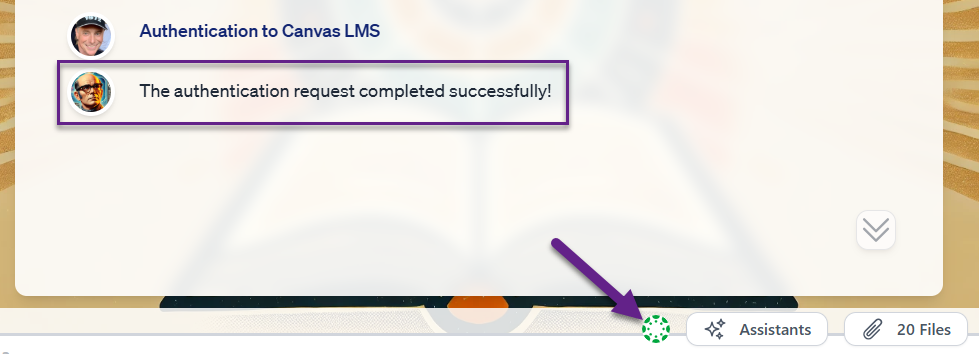
 A new **Authentication request completed successfully!** message is added to the list, and an access token is now visible in green (active) on the input bar.
 You can now securely retry your question:
```text theme={null}
What are the assignments for my course?
```
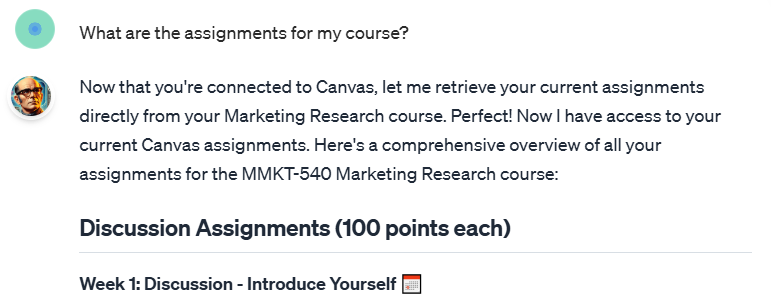
And your Digital Twin connect securely to your LMS to retrieve such information
You can now securely retry your question:
```text theme={null}
What are the assignments for my course?
```
And your Digital Twin connect securely to your LMS to retrieve such information
 The connection renews itself automatically in the background — you won't be asked to re-authorize during normal use. If it ever expires completely (for example, after revoking access on the LMS side), Pria simply gives you a fresh consent link the next time you ask a course question.
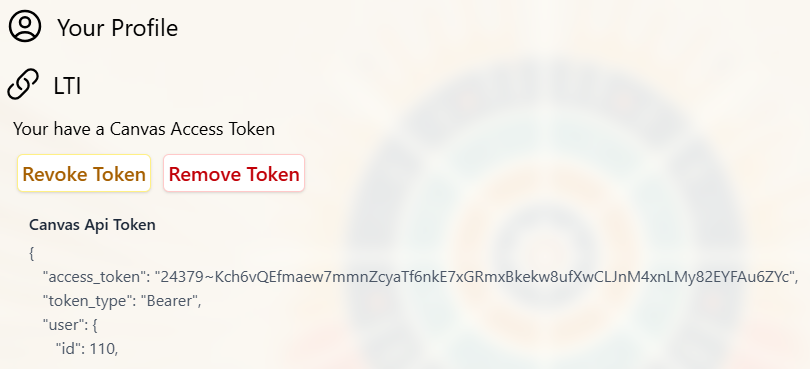
You can revoke or remove the connection at any time from your Profile page.
The connection renews itself automatically in the background — you won't be asked to re-authorize during normal use. If it ever expires completely (for example, after revoking access on the LMS side), Pria simply gives you a fresh consent link the next time you ask a course question.
You can revoke or remove the connection at any time from your Profile page.