> ## Documentation Index
> Fetch the complete documentation index at: https://docs.praxis-ai.com/llms.txt
> Use this file to discover all available pages before exploring further.
# Change Password
> Follow these steps to update your account password and maintain secure access to your digital twin.
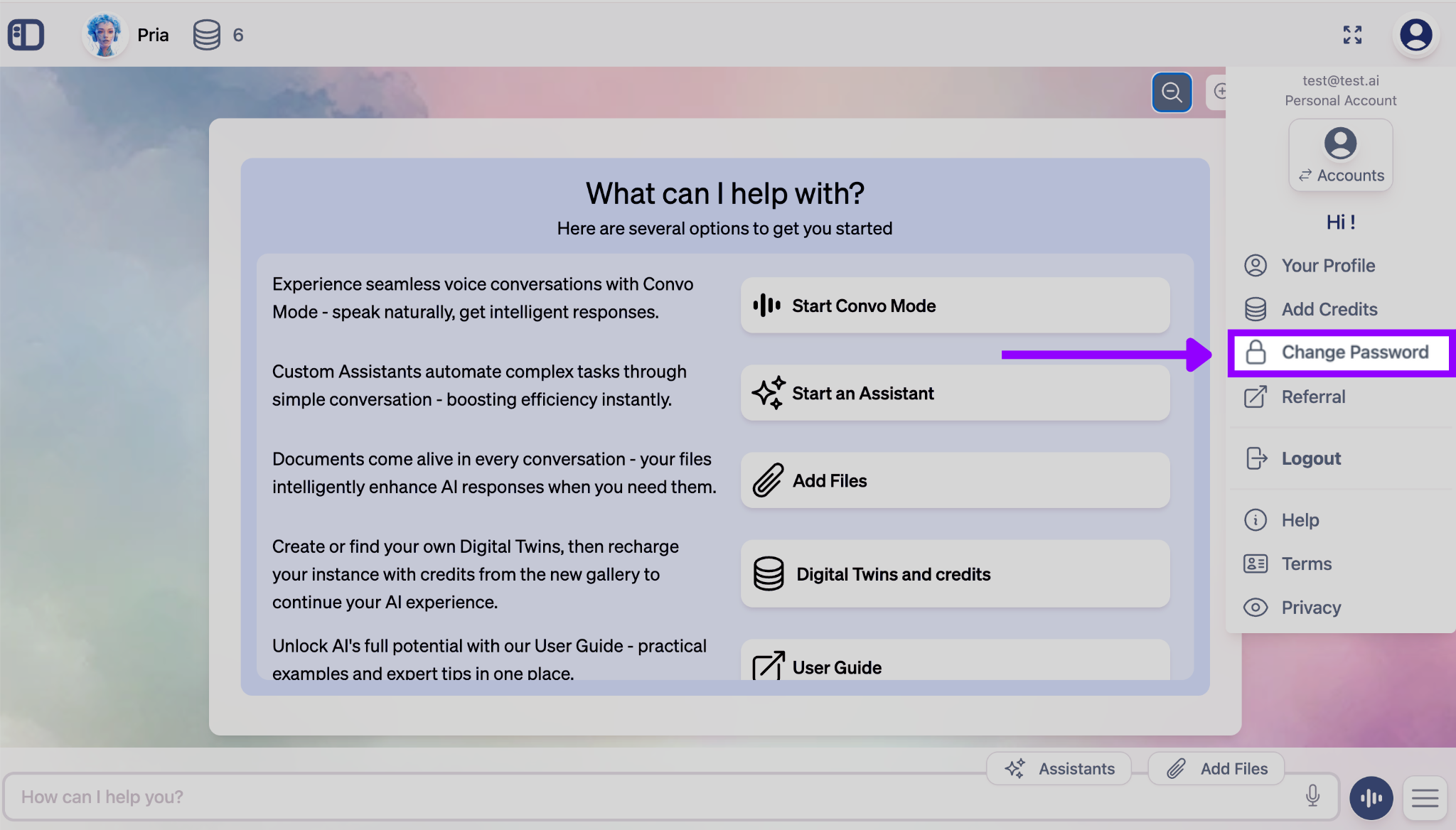
Navigate to your profile settings and locate the password change option. Click the **"Change Password"** button to begin the process.
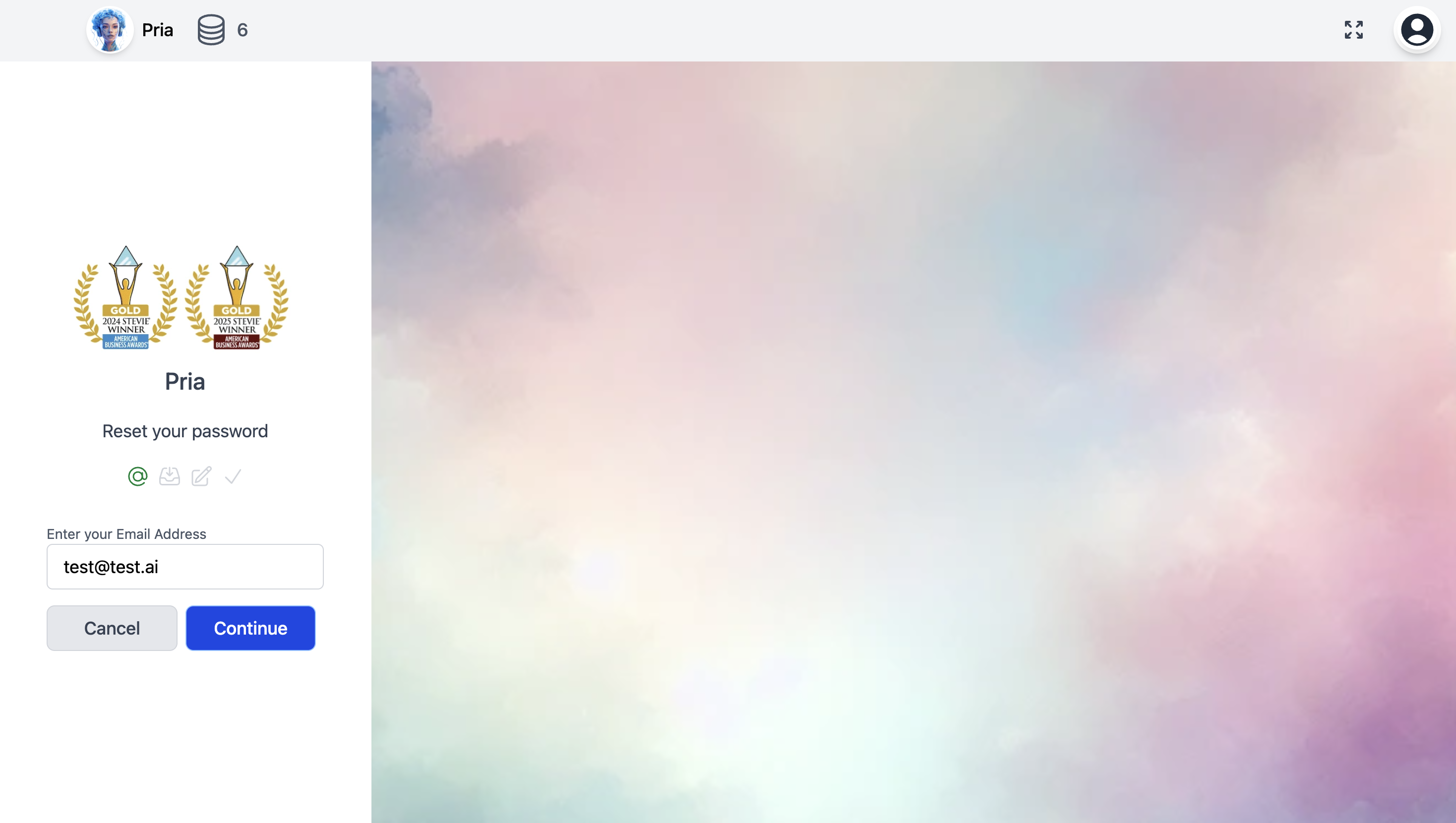
 You'll be prompted to enter your email address associated with your account. This ensures the password reset request is sent to the correct email address for security verification.
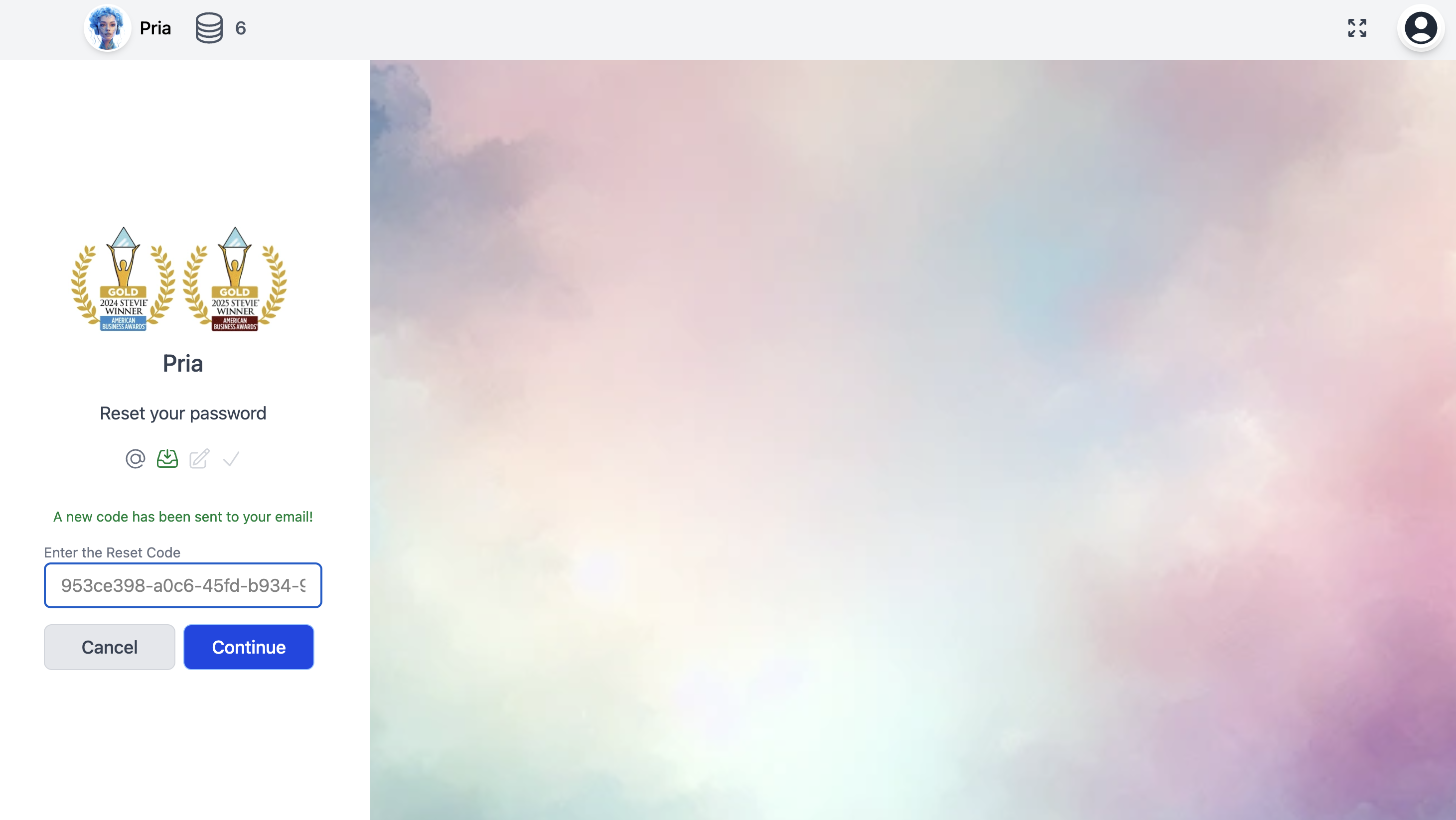
 Check your email for a verification code sent to your inbox. Enter this security code in the provided field to confirm your identity and proceed with the password change.
The verification code typically expires within 10-15 minutes for security purposes. If you don't receive the email, check your spam folder or request a new code.
Check your email for a verification code sent to your inbox. Enter this security code in the provided field to confirm your identity and proceed with the password change.
The verification code typically expires within 10-15 minutes for security purposes. If you don't receive the email, check your spam folder or request a new code.
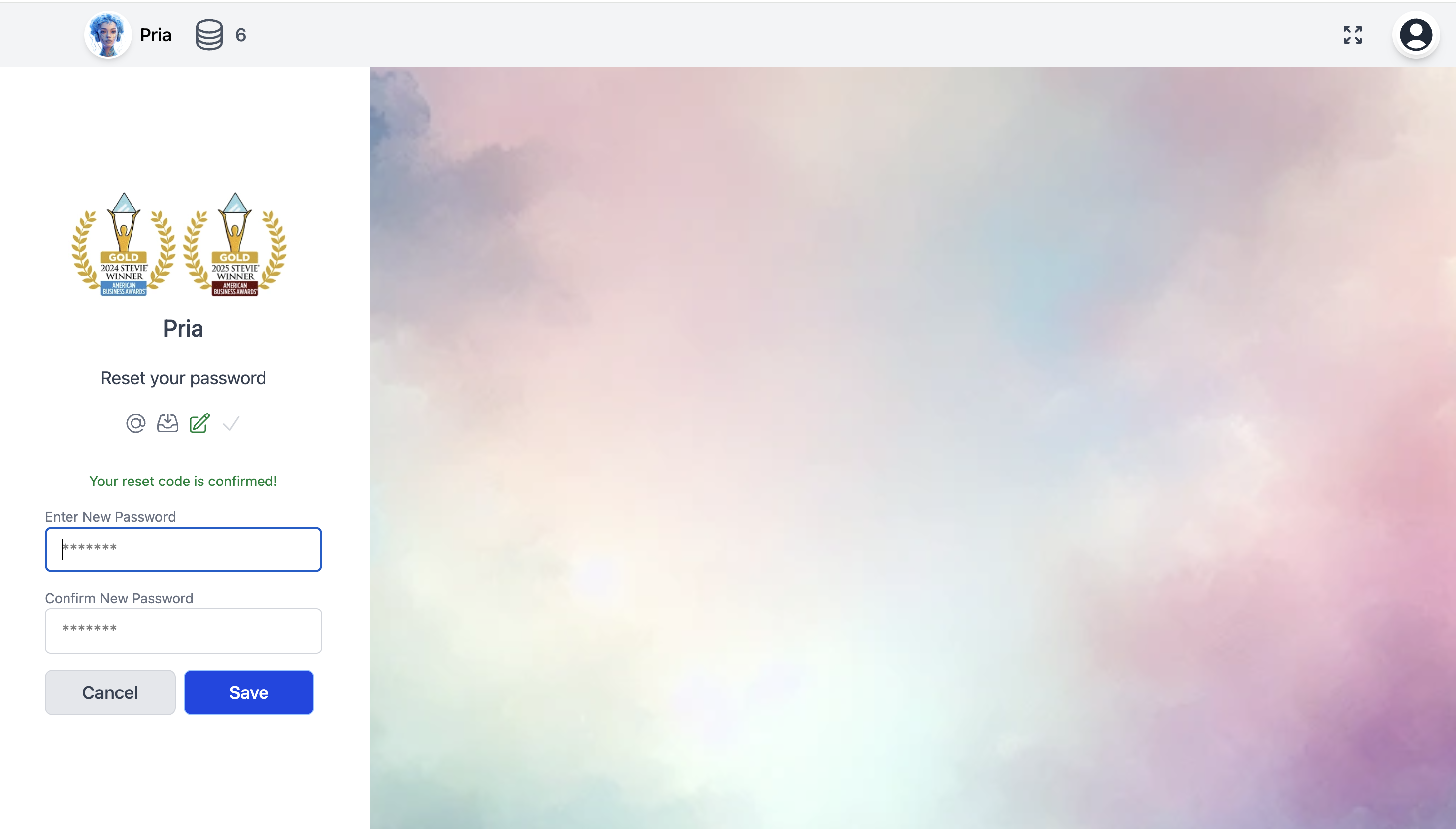
 Once verified, enter your new password. Choose a strong password that includes a combination of uppercase letters, lowercase letters, numbers, and special characters for optimal security.
**Password Best Practices:**
* Use at least 8-12 characters
* Include uppercase and lowercase letters
* Add numbers and special characters
* Avoid common words or personal information
Once verified, enter your new password. Choose a strong password that includes a combination of uppercase letters, lowercase letters, numbers, and special characters for optimal security.
**Password Best Practices:**
* Use at least 8-12 characters
* Include uppercase and lowercase letters
* Add numbers and special characters
* Avoid common words or personal information
 After successfully changing your password, you'll be automatically logged out of all devices for security. You'll need to log back in using your new password.
Keep your new password secure and don't share it with others. If you suspect your account has been compromised, change your password immediately and contact support at [**humans@praxis-ai.com**](mailto:humans@praxis-ai.com).
After successfully changing your password, you'll be automatically logged out of all devices for security. You'll need to log back in using your new password.
Keep your new password secure and don't share it with others. If you suspect your account has been compromised, change your password immediately and contact support at [**humans@praxis-ai.com**](mailto:humans@praxis-ai.com).