> ## Documentation Index
> Fetch the complete documentation index at: https://docs.praxis-ai.com/llms.txt
> Use this file to discover all available pages before exploring further.
# Edit Profile
> Personalise how Pria looks and behaves for you — display name, profile picture, theme, history depth, and the entry points to your data, security, and API keys.
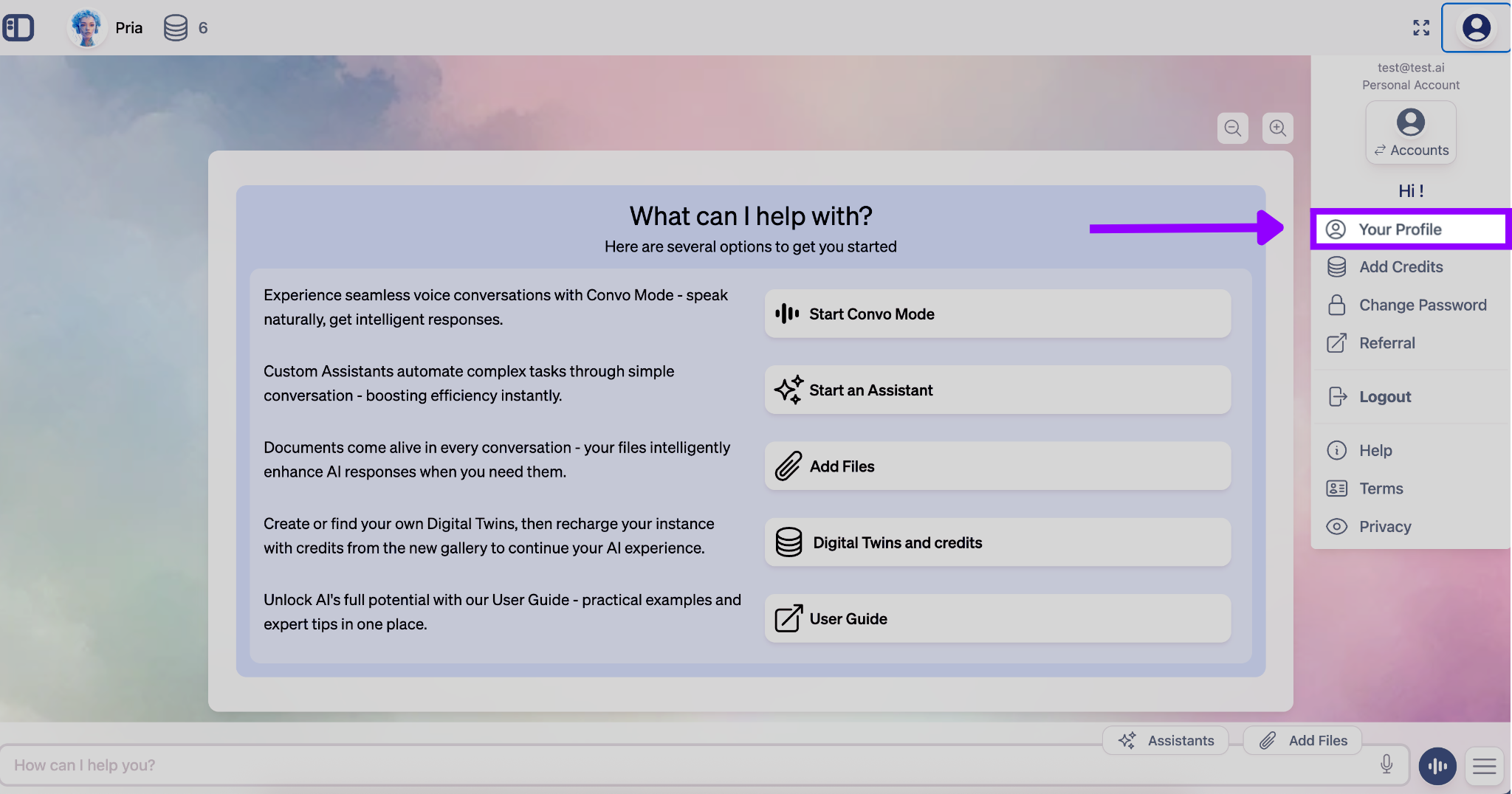
Open your profile from the avatar in the top-right of the main interface and choose **Your Profile** from the dropdown — or use **\[+] → Settings → Personal**, or the sidebar **Settings → Personal** shortcut. The settings open in a Lightbox with several tabs; this page covers the **General**, **Personalization**, and **Knowledge** tabs and the buttons that lead off to the deeper settings pages.
 ***
## General — identity
***
## General — identity
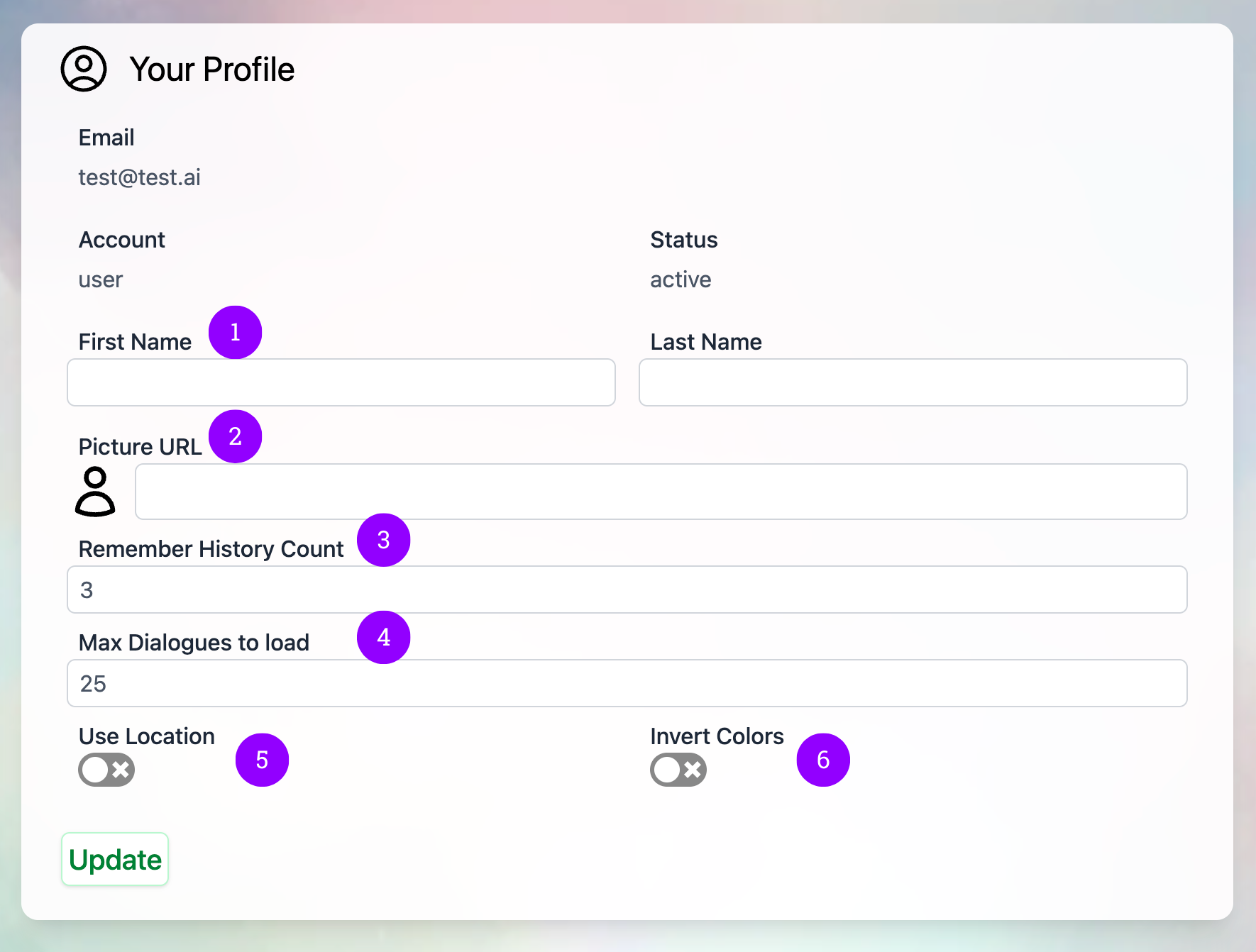 ### Profile picture — click the avatar
To change your picture, **click the avatar itself**. There's no separate *Upload* button — the avatar is the upload trigger. A camera icon overlays the avatar on hover so the affordance is visible.
The picker that opens lets you:
* **Take a photo** with your webcam
* **Pick a file** from your device
* **Paste from clipboard** (e.g. a screenshot you just copied)
* **Crop** any of the above to a square thumbnail before saving
**Supported formats:** PNG, JPG, JPEG, WEBP, GIF, HEIC.
**Sizing:** any source resolution works — Pria crops to a square and scales to **256×256** for the stored avatar, then renders smaller copies (16, 32, 64, 96 px) on the fly for the various surfaces that show your face.
A small helper line beside the avatar reminds you: *"Click the picture to upload a new one."* To remove your picture entirely, use the small **×** that appears on hover over the avatar — you'll fall back to your initials in a coloured circle.
The same click-the-avatar pattern is used everywhere Pria shows an avatar: institution logos, assistant cards, and the Anam Convo avatar all upload via the same picker.
### Display name
The **Display Name** field is what other members of your Digital Twin see in shared conversations, on assistants you publish, and in admin tables. Edit and click outside the field to save — no submit button required.
### Email address
Your email is shown for reference. To change the email address linked to your account, click **Change email** — Pria sends a verification link to the new address and only completes the swap once you click it. Until the new email is verified, sign-in continues to work with the old one.
**SSO sign-in users** (Google, Microsoft, Apple, Canvas, etc.) can't change their email directly — the email is provided by the identity provider. Change it on the IdP side and re-sign-in.
### Time zone and locale
Pria displays timestamps and respects locale formatting in these places:
| Setting | Where it affects you |
| ------------- | ------------------------------------------------------------------------------------- |
| **Time zone** | Conversation timestamps, calendar tool results, scheduled job indicators. |
| **Locale** | Number/date formatting (e.g. `1,234.56` vs `1.234,56`), default model language hints. |
The defaults come from your browser. If you'd like to override (e.g. you travel, or your browser locale is wrong), pick **Time zone** and **Locale** from the dropdowns under General. Changes save immediately.
***
## Personalization — how Pria behaves for you
Switch between dark and light visual themes. Dark reduces strain in low-light environments; light is easier in bright settings.
How many previous turns Pria pulls into context for each new prompt. Suggested **3–7**; higher uses more tokens but keeps longer continuity. See **Remember History & compaction** below.
How many conversation rows the sidebar loads at once. Higher means slower initial render but smoother scrollback.
Lets Pria use your approximate location (from your browser) for timezone-aware answers, local weather, and nearby search results. Off by default.
Shows the 🎙 mic button on the input pill so you can dictate prompts. Toggle off to hide the button.
Pick the browser voice Pria uses when reading responses aloud. Catalogue depends on your OS.
Changes save immediately — no page refresh needed.
### Remember History & compaction
The **Remember History** slider (also reachable from the **\[+] → Knowledge** menu) controls how many previous dialogues Pria includes in context for each new turn.
| Value | Behaviour |
| ----------------- | ------------------------------------------------------------------------------------------------ |
| **0** | Every turn starts fresh. Good for one-shot lookups where prior context would mislead. |
| **3–5 (default)** | Balanced — enough context for follow-ups without runaway token cost. |
| **6+** | Pria automatically **compacts** older dialogues into summaries (keeps continuity, saves tokens). |
| **10+** | Use sparingly, for sustained projects needing long-range continuity. Higher cost. |
**Suggested per use case:** quick lookups 1–3 · general chat 3–5 · learning/tutoring 5–7 · programming/complex projects 7–12 · creative writing with continuity 8–15. Compaction kicks in at 6.
Lowering the value won't delete older dialogues — they're just no longer fed into new prompts. Raising it brings them back (subject to compaction). The value applies to the **next turn** and persists across sessions and devices; your personal value overrides the institution default.
**Compaction.** When Remember History is high (≥ 6) or a conversation outgrows the model's context window, Pria **compacts** older dialogues into a short summary that stands in for the original turns — freeing room for new content without losing the thread. Compacted turns are marked with an *"Earlier summary"* divider; **the originals are never deleted** — click the divider to expand them verbatim.
***
## Knowledge — your personal vault retrieval
The **Knowledge** tab controls how Pria searches *your personal* files — the ones you upload outside any Digital Twin.
### Profile picture — click the avatar
To change your picture, **click the avatar itself**. There's no separate *Upload* button — the avatar is the upload trigger. A camera icon overlays the avatar on hover so the affordance is visible.
The picker that opens lets you:
* **Take a photo** with your webcam
* **Pick a file** from your device
* **Paste from clipboard** (e.g. a screenshot you just copied)
* **Crop** any of the above to a square thumbnail before saving
**Supported formats:** PNG, JPG, JPEG, WEBP, GIF, HEIC.
**Sizing:** any source resolution works — Pria crops to a square and scales to **256×256** for the stored avatar, then renders smaller copies (16, 32, 64, 96 px) on the fly for the various surfaces that show your face.
A small helper line beside the avatar reminds you: *"Click the picture to upload a new one."* To remove your picture entirely, use the small **×** that appears on hover over the avatar — you'll fall back to your initials in a coloured circle.
The same click-the-avatar pattern is used everywhere Pria shows an avatar: institution logos, assistant cards, and the Anam Convo avatar all upload via the same picker.
### Display name
The **Display Name** field is what other members of your Digital Twin see in shared conversations, on assistants you publish, and in admin tables. Edit and click outside the field to save — no submit button required.
### Email address
Your email is shown for reference. To change the email address linked to your account, click **Change email** — Pria sends a verification link to the new address and only completes the swap once you click it. Until the new email is verified, sign-in continues to work with the old one.
**SSO sign-in users** (Google, Microsoft, Apple, Canvas, etc.) can't change their email directly — the email is provided by the identity provider. Change it on the IdP side and re-sign-in.
### Time zone and locale
Pria displays timestamps and respects locale formatting in these places:
| Setting | Where it affects you |
| ------------- | ------------------------------------------------------------------------------------- |
| **Time zone** | Conversation timestamps, calendar tool results, scheduled job indicators. |
| **Locale** | Number/date formatting (e.g. `1,234.56` vs `1.234,56`), default model language hints. |
The defaults come from your browser. If you'd like to override (e.g. you travel, or your browser locale is wrong), pick **Time zone** and **Locale** from the dropdowns under General. Changes save immediately.
***
## Personalization — how Pria behaves for you
Switch between dark and light visual themes. Dark reduces strain in low-light environments; light is easier in bright settings.
How many previous turns Pria pulls into context for each new prompt. Suggested **3–7**; higher uses more tokens but keeps longer continuity. See **Remember History & compaction** below.
How many conversation rows the sidebar loads at once. Higher means slower initial render but smoother scrollback.
Lets Pria use your approximate location (from your browser) for timezone-aware answers, local weather, and nearby search results. Off by default.
Shows the 🎙 mic button on the input pill so you can dictate prompts. Toggle off to hide the button.
Pick the browser voice Pria uses when reading responses aloud. Catalogue depends on your OS.
Changes save immediately — no page refresh needed.
### Remember History & compaction
The **Remember History** slider (also reachable from the **\[+] → Knowledge** menu) controls how many previous dialogues Pria includes in context for each new turn.
| Value | Behaviour |
| ----------------- | ------------------------------------------------------------------------------------------------ |
| **0** | Every turn starts fresh. Good for one-shot lookups where prior context would mislead. |
| **3–5 (default)** | Balanced — enough context for follow-ups without runaway token cost. |
| **6+** | Pria automatically **compacts** older dialogues into summaries (keeps continuity, saves tokens). |
| **10+** | Use sparingly, for sustained projects needing long-range continuity. Higher cost. |
**Suggested per use case:** quick lookups 1–3 · general chat 3–5 · learning/tutoring 5–7 · programming/complex projects 7–12 · creative writing with continuity 8–15. Compaction kicks in at 6.
Lowering the value won't delete older dialogues — they're just no longer fed into new prompts. Raising it brings them back (subject to compaction). The value applies to the **next turn** and persists across sessions and devices; your personal value overrides the institution default.
**Compaction.** When Remember History is high (≥ 6) or a conversation outgrows the model's context window, Pria **compacts** older dialogues into a short summary that stands in for the original turns — freeing room for new content without losing the thread. Compacted turns are marked with an *"Earlier summary"* divider; **the originals are never deleted** — click the divider to expand them verbatim.
***
## Knowledge — your personal vault retrieval
The **Knowledge** tab controls how Pria searches *your personal* files — the ones you upload outside any Digital Twin.
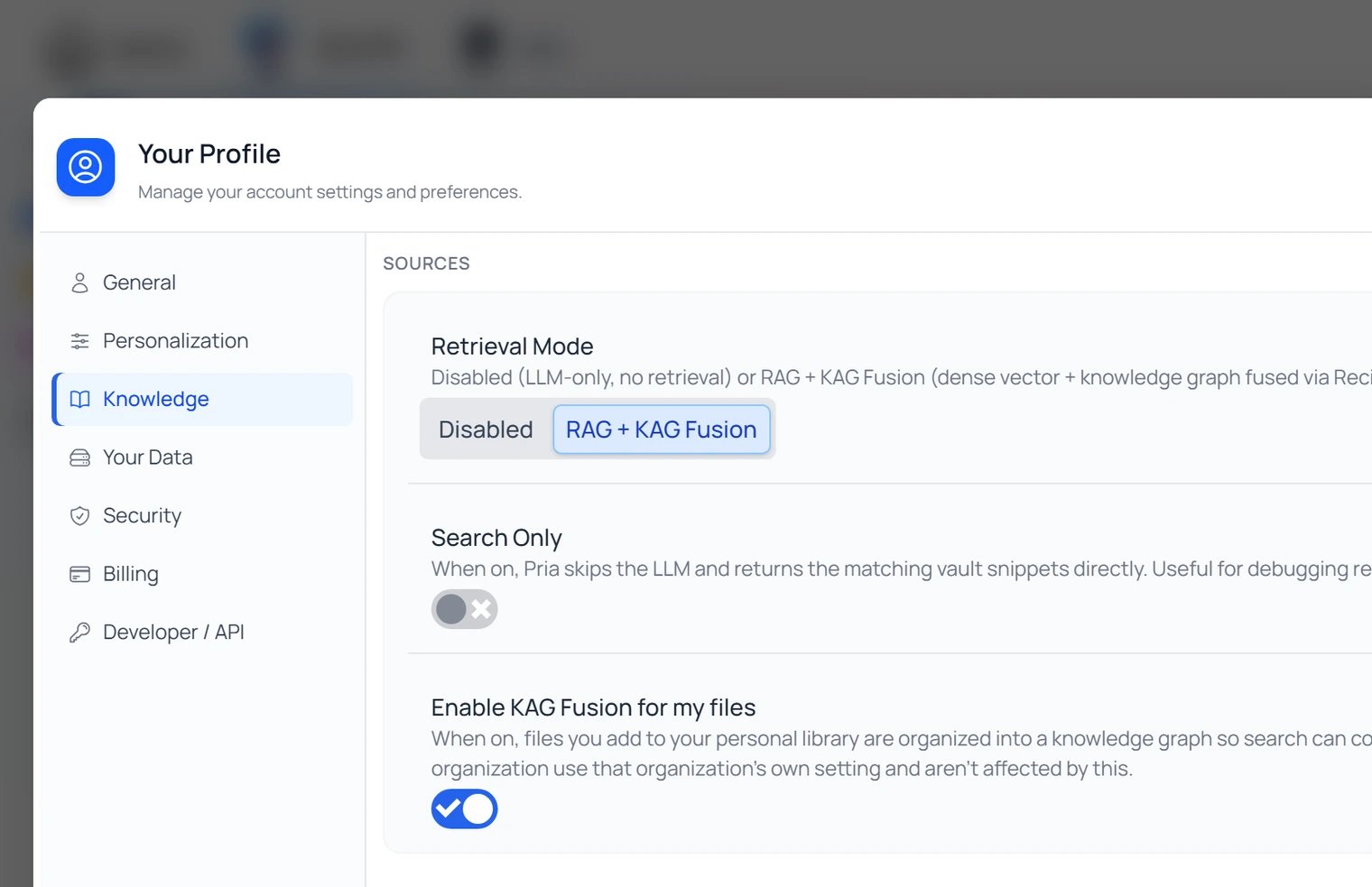 * **Retrieval Mode** — **Disabled** (answer from training only) or **RAG + KAG Fusion** (search your personal vault).
* **Search Only** — return the matching vault passages directly instead of an LLM-written answer.
* **Enable KAG Fusion for my files** — off by default; when on, files you add to your personal library are organised into a knowledge graph for richer, connection-aware search. Files inside an organisation's Twin follow that Twin's setting instead.
These mirror the controls in the **\[+] → Knowledge** menu — see [Knowledge Modes](/mdx/user-guide/interface/knowledge-modes).
***
## Where to go next — deeper settings
The other tabs of *Your Profile* open dedicated pages elsewhere in this guide.
See, export, or delete the personal data Pria holds about you — dialogues, files, memory, assistants, feedback, sessions. The entry point for GDPR-style data requests.
Generate, label, rotate, and revoke API keys for programmatic access to your Digital Twin from scripts and the SDK.
Open the Instance Lightbox to manage the active Digital Twin — model picks, RAG / KAG, Voice, Tools, Assistants, Invite, Billing. **Admins only.**
Require a 6-digit email code when signing in from a new device. Strongly recommended for admin accounts.
Rotate your password. Required to change every 12 months unless your admin has set a different cadence.
Connect or revoke Google Workspace access so Pria can reach private Drive files, calendar events, and Gmail on your behalf.
***
## Course Management (Administrator Features)
* **Retrieval Mode** — **Disabled** (answer from training only) or **RAG + KAG Fusion** (search your personal vault).
* **Search Only** — return the matching vault passages directly instead of an LLM-written answer.
* **Enable KAG Fusion for my files** — off by default; when on, files you add to your personal library are organised into a knowledge graph for richer, connection-aware search. Files inside an organisation's Twin follow that Twin's setting instead.
These mirror the controls in the **\[+] → Knowledge** menu — see [Knowledge Modes](/mdx/user-guide/interface/knowledge-modes).
***
## Where to go next — deeper settings
The other tabs of *Your Profile* open dedicated pages elsewhere in this guide.
See, export, or delete the personal data Pria holds about you — dialogues, files, memory, assistants, feedback, sessions. The entry point for GDPR-style data requests.
Generate, label, rotate, and revoke API keys for programmatic access to your Digital Twin from scripts and the SDK.
Open the Instance Lightbox to manage the active Digital Twin — model picks, RAG / KAG, Voice, Tools, Assistants, Invite, Billing. **Admins only.**
Require a 6-digit email code when signing in from a new device. Strongly recommended for admin accounts.
Rotate your password. Required to change every 12 months unless your admin has set a different cadence.
Connect or revoke Google Workspace access so Pria can reach private Drive files, calendar events, and Gmail on your behalf.
***
## Course Management (Administrator Features)
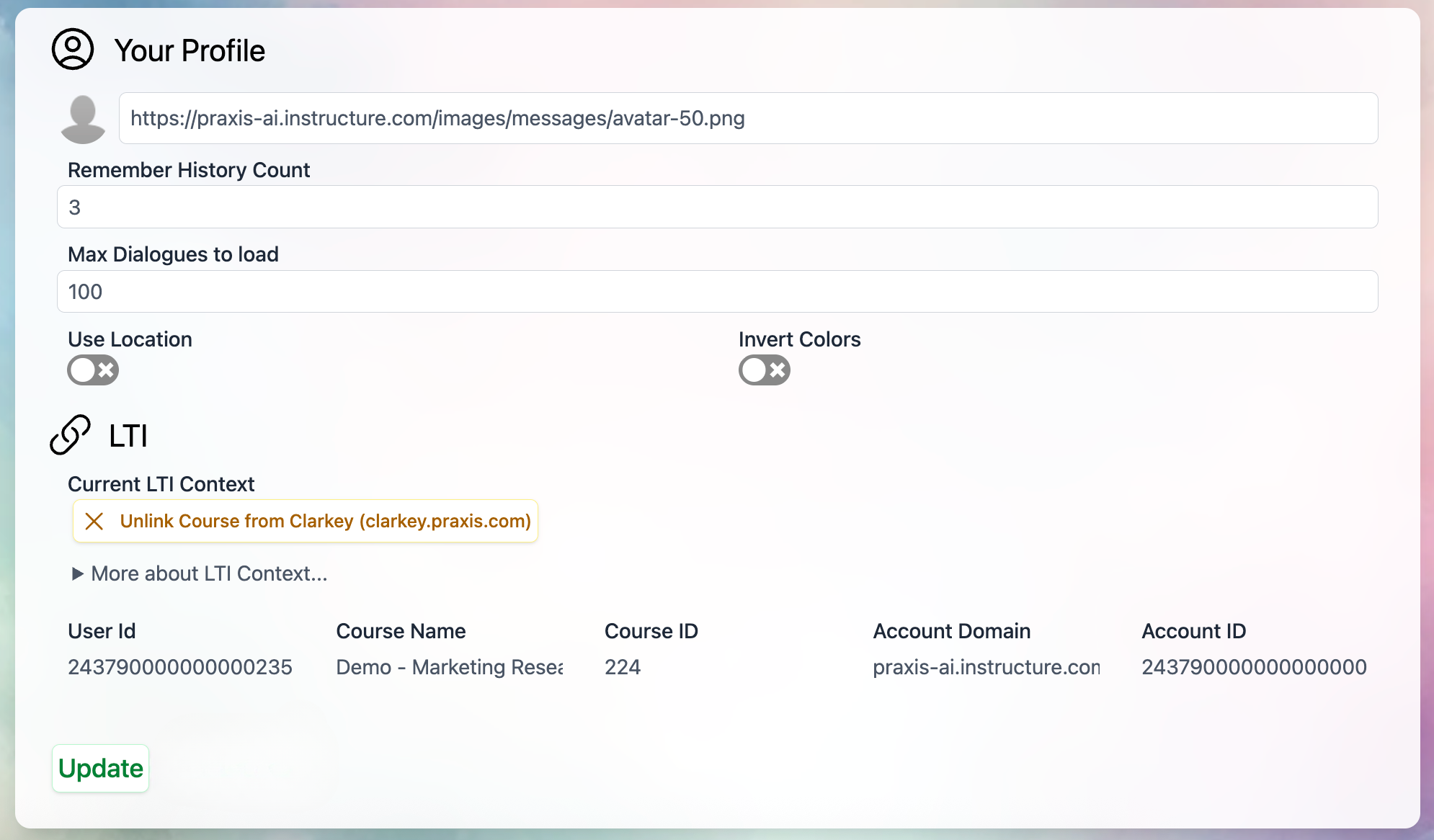 If you're an administrator, you'll see additional options for managing your Digital Twin's Learning Management System (LMS) connections:
### Course Connection Status
View which specific course your Digital Twin is currently linked to from your LMS integration.
### Administrative Actions
* **Unlink from Course** — Disconnect your Digital Twin from its current course assignment.
* **Refresh Canvas Token** — Update your Canvas authorization to maintain seamless integration.
* **Unlink Course** — Completely remove the Canvas course connection from your Digital Twin if no longer needed.
Administrative changes to course connections may affect student access and functionality. Ensure you understand the impact before making modifications.
***
## Quick Tips
**Theme Selection:** Dark themes can reduce eye strain in low-light environments; light themes may be easier to read in bright conditions.
**Avatar = upload button.** If you're not sure how to change your picture, just click it — there's deliberately no separate Upload button next to it.
Changes to your profile settings take effect immediately. You don't need to save or refresh the page.
***
## Related
* [Personal Data](/mdx/user-guide/profile-settings/personal-data) — Export and delete your data.
* [API Keys](/mdx/user-guide/profile-settings/api-keys) — Personal programmatic-access tokens.
* [Instance Settings](/mdx/user-guide/profile-settings/instance-settings) — Admin-side Digital Twin configuration.
* [Two-Step Verification](/mdx/user-guide/profile-settings/two-step-verification) — MFA setup.
* [Change Password](/mdx/user-guide/profile-settings/change-password) — Rotate your password.
* [Google Services](/mdx/user-guide/profile-settings/google-services) — Workspace integration.
* [Sidebar & History](/mdx/user-guide/interface/history-settings) — Remember History, course-context filters.
If you're an administrator, you'll see additional options for managing your Digital Twin's Learning Management System (LMS) connections:
### Course Connection Status
View which specific course your Digital Twin is currently linked to from your LMS integration.
### Administrative Actions
* **Unlink from Course** — Disconnect your Digital Twin from its current course assignment.
* **Refresh Canvas Token** — Update your Canvas authorization to maintain seamless integration.
* **Unlink Course** — Completely remove the Canvas course connection from your Digital Twin if no longer needed.
Administrative changes to course connections may affect student access and functionality. Ensure you understand the impact before making modifications.
***
## Quick Tips
**Theme Selection:** Dark themes can reduce eye strain in low-light environments; light themes may be easier to read in bright conditions.
**Avatar = upload button.** If you're not sure how to change your picture, just click it — there's deliberately no separate Upload button next to it.
Changes to your profile settings take effect immediately. You don't need to save or refresh the page.
***
## Related
* [Personal Data](/mdx/user-guide/profile-settings/personal-data) — Export and delete your data.
* [API Keys](/mdx/user-guide/profile-settings/api-keys) — Personal programmatic-access tokens.
* [Instance Settings](/mdx/user-guide/profile-settings/instance-settings) — Admin-side Digital Twin configuration.
* [Two-Step Verification](/mdx/user-guide/profile-settings/two-step-verification) — MFA setup.
* [Change Password](/mdx/user-guide/profile-settings/change-password) — Rotate your password.
* [Google Services](/mdx/user-guide/profile-settings/google-services) — Workspace integration.
* [Sidebar & History](/mdx/user-guide/interface/history-settings) — Remember History, course-context filters.