> ## Documentation Index
> Fetch the complete documentation index at: https://docs.praxis-ai.com/llms.txt
> Use this file to discover all available pages before exploring further.
# Instance Settings
> Settings that shape a Digital Twin for all its members — model, reasoning, knowledge, voice, theme, and what appears above each answer.
Instance Settings are the preferences that travel with **this Digital Twin** — the visual theme, what gets shown above each answer, your voice and realtime configuration, and the picture used to represent the instance. Each Digital Twin you belong to has its own settings, so switching instances always restores the look and behaviour you set up for that context.
"Instance" and "Digital Twin" mean the same thing throughout this guide. Pria uses both interchangeably depending on whether the surface is technical (Instance Settings) or product-facing (your Digital Twin).
## Where to find Instance Settings
The Instance Settings lightbox opens from a few places:
* The **gear icon** next to the Digital Twin name in the top bar.
* The **Settings → Instance** entry in the sidebar.
* The **Configure** button on a Digital Twin tile from the Digital Twin chooser.
The lightbox uses a sidebar (desktop) or top tabs (mobile) with one panel per area: General, Personalization, Voice, Conversation, Quotas, Knowledge, Tools, Assistants, Invite, and Billing. Changes save the moment you tick a box or pick a value — there is no separate **Save** button.
## Conversation — model, reasoning, and behaviour
The **Conversation** panel sets the AI behind this Digital Twin and how it behaves for every member.
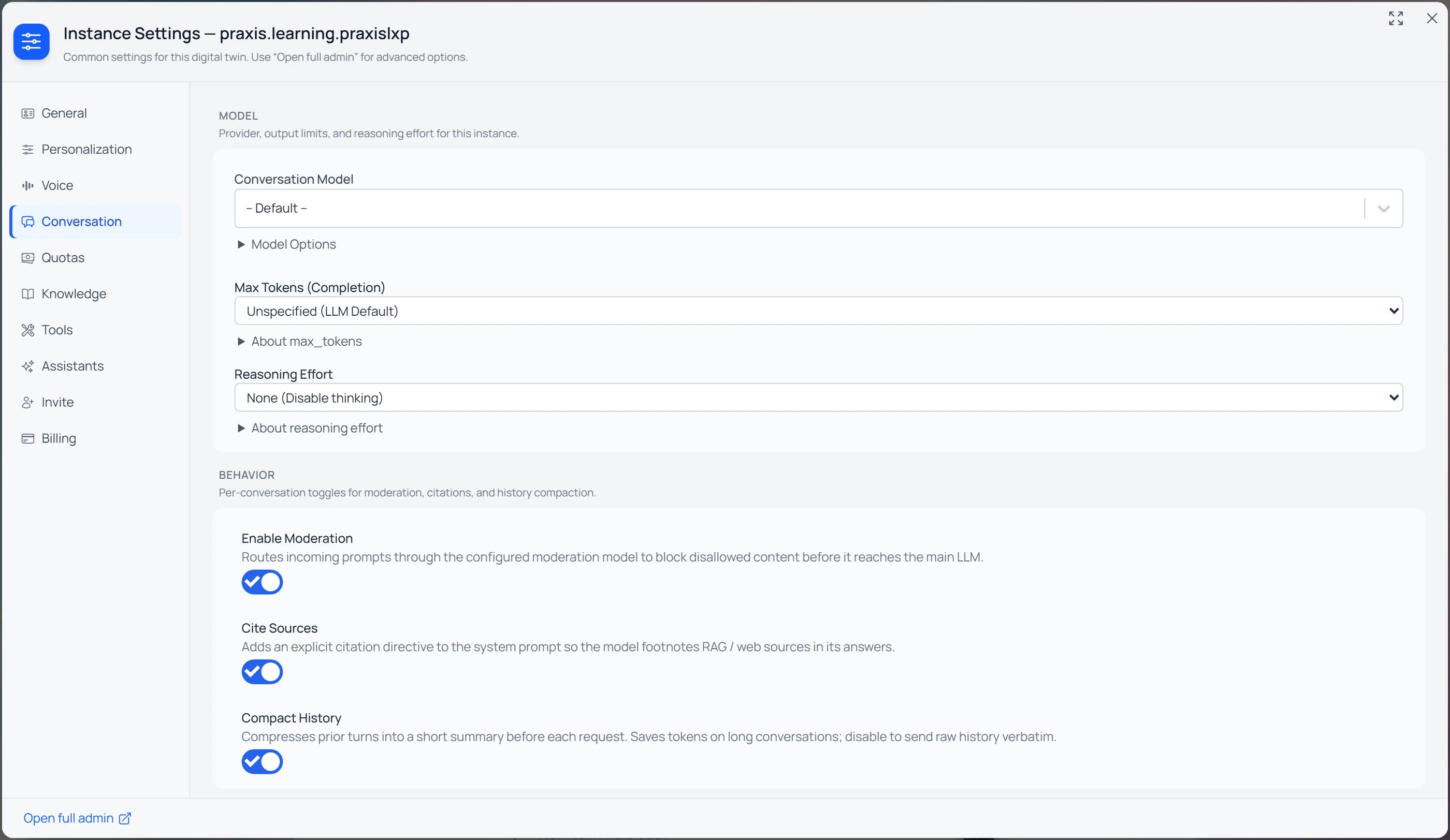 * **Conversation Model** — the model every conversation uses by default; `-- Default --` uses Pria's platform default. Expand **Model Options** for the full catalog (input/output sizes, price, and capability icons). See [AI Models for Your Twin](/mdx/user-guide/interface/model-selection).
* **Max Tokens (Completion)** — caps the length of each reply; *Unspecified* uses the model's own default.
* **Reasoning Effort** — how much the model thinks before answering (None / Low / Medium / High / Max). See [Reasoning & Thinking](/mdx/user-guide/interface/reasoning-and-thinking).
* **Behaviour** — **Enable Moderation** (screen prompts before they reach the model), **Cite Sources** (footnote RAG / web sources in answers), and **Compact History** (summarise older turns to save tokens).
## Theme — Light, Dark, or User Directed
Found under **Personalization → Appearance**. Choose how the interface looks for every member of this Digital Twin:
| Option | What it does |
| ----------------- | -------------------------------------------------------------- |
| **User Directed** | Each member picks their own theme from their personal profile. |
| **Dark Mode** | Every member sees the instance in dark theme. |
| **Light Mode** | Every member sees the instance in light theme. |
User Directed is the most common choice — it respects each member's preference. Pick Dark or Light when you want a consistent look (for example, a presentation Digital Twin shown on shared screens).
## Knowledge retrieval display
Found under **Personalization → Display Details**. Controls whether the file segments Pria retrieves for each answer appear above the response:
* **Display RAG/KAG Search Details** — when enabled, each answer shows a magnifying-glass block listing the file segments retrieved, with file name, relevance percentage, and a chunk preview. Disable for a cleaner conversation view; confidential file content stays redacted regardless of this setting.
Turn this on while you are tuning your IP Vault — it shows you exactly which passages Pria pulled in for each question. Once you trust the retrieval, you can turn it off for a less cluttered surface.
## Knowledge — graph & ingestion
The **Knowledge** panel controls how this Digital Twin's vault is searched and how files are processed as they arrive.
* **Conversation Model** — the model every conversation uses by default; `-- Default --` uses Pria's platform default. Expand **Model Options** for the full catalog (input/output sizes, price, and capability icons). See [AI Models for Your Twin](/mdx/user-guide/interface/model-selection).
* **Max Tokens (Completion)** — caps the length of each reply; *Unspecified* uses the model's own default.
* **Reasoning Effort** — how much the model thinks before answering (None / Low / Medium / High / Max). See [Reasoning & Thinking](/mdx/user-guide/interface/reasoning-and-thinking).
* **Behaviour** — **Enable Moderation** (screen prompts before they reach the model), **Cite Sources** (footnote RAG / web sources in answers), and **Compact History** (summarise older turns to save tokens).
## Theme — Light, Dark, or User Directed
Found under **Personalization → Appearance**. Choose how the interface looks for every member of this Digital Twin:
| Option | What it does |
| ----------------- | -------------------------------------------------------------- |
| **User Directed** | Each member picks their own theme from their personal profile. |
| **Dark Mode** | Every member sees the instance in dark theme. |
| **Light Mode** | Every member sees the instance in light theme. |
User Directed is the most common choice — it respects each member's preference. Pick Dark or Light when you want a consistent look (for example, a presentation Digital Twin shown on shared screens).
## Knowledge retrieval display
Found under **Personalization → Display Details**. Controls whether the file segments Pria retrieves for each answer appear above the response:
* **Display RAG/KAG Search Details** — when enabled, each answer shows a magnifying-glass block listing the file segments retrieved, with file name, relevance percentage, and a chunk preview. Disable for a cleaner conversation view; confidential file content stays redacted regardless of this setting.
Turn this on while you are tuning your IP Vault — it shows you exactly which passages Pria pulled in for each question. Once you trust the retrieval, you can turn it off for a less cluttered surface.
## Knowledge — graph & ingestion
The **Knowledge** panel controls how this Digital Twin's vault is searched and how files are processed as they arrive.
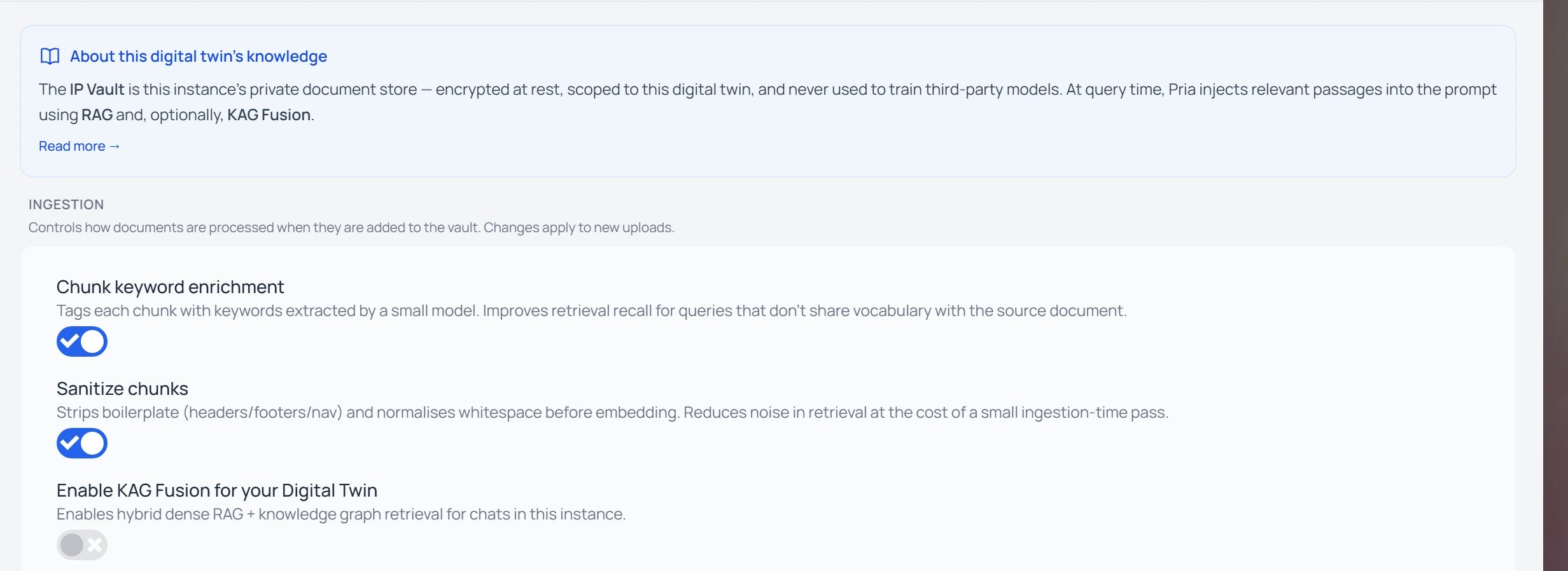 * **Enable KAG Fusion** — adds a knowledge-graph leg on top of dense RAG retrieval for richer, multi-hop answers (building the graph processes every file with an extra pass, so it costs more credits). See [Knowledge Modes](/mdx/user-guide/interface/knowledge-modes).
* **Ingestion** — **Chunk keyword enrichment** (tags chunks with extracted keywords to improve recall) and **Sanitize chunks** (strips boilerplate before embedding) tune how new uploads are indexed.
## Thinking and reasoning display
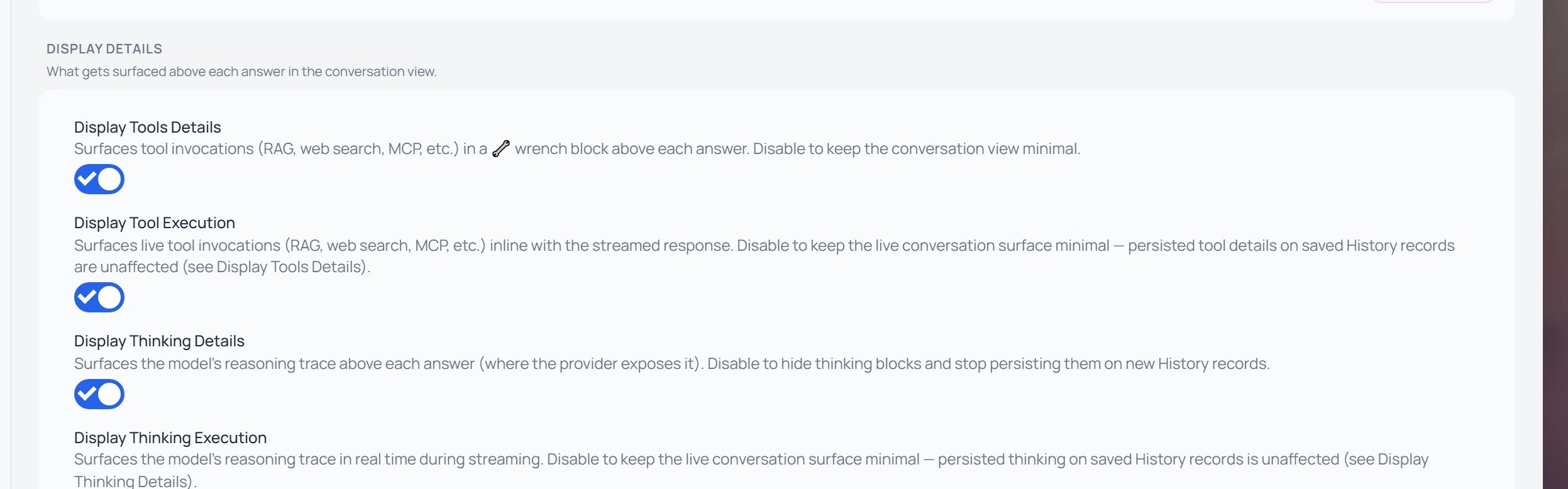
Pria can show the model's reasoning trace above each answer (where the underlying model exposes one). There are two independent toggles under **Personalization → Display Details**:
* **Display Thinking Details** — surfaces the reasoning trace on **saved** conversation history. Disable to hide it and stop persisting it on new answers.
* **Display Thinking Execution** — surfaces the reasoning trace **live**, as the response streams. Disable to keep the live conversation surface minimal. This does **not** affect what was already persisted on previous answers.
Reasoning traces only appear for models that expose them — Claude 3.7+, Sonnet 4+, Opus 4+, OpenAI o-series and GPT-5+, Gemini 2.5+. Other models will show nothing even with both toggles on.
* **Enable KAG Fusion** — adds a knowledge-graph leg on top of dense RAG retrieval for richer, multi-hop answers (building the graph processes every file with an extra pass, so it costs more credits). See [Knowledge Modes](/mdx/user-guide/interface/knowledge-modes).
* **Ingestion** — **Chunk keyword enrichment** (tags chunks with extracted keywords to improve recall) and **Sanitize chunks** (strips boilerplate before embedding) tune how new uploads are indexed.
## Thinking and reasoning display
Pria can show the model's reasoning trace above each answer (where the underlying model exposes one). There are two independent toggles under **Personalization → Display Details**:
* **Display Thinking Details** — surfaces the reasoning trace on **saved** conversation history. Disable to hide it and stop persisting it on new answers.
* **Display Thinking Execution** — surfaces the reasoning trace **live**, as the response streams. Disable to keep the live conversation surface minimal. This does **not** affect what was already persisted on previous answers.
Reasoning traces only appear for models that expose them — Claude 3.7+, Sonnet 4+, Opus 4+, OpenAI o-series and GPT-5+, Gemini 2.5+. Other models will show nothing even with both toggles on.
 ## Tool execution display
Pria tells you what tools the model invoked (web search, vault retrieval, calendar, image generation, etc.). Two independent toggles, again under **Personalization → Display Details**:
* **Display Tools Details** — shows a wrench block summarising tool invocations on saved answers. Disable to hide tool details from the conversation view.
* **Display Tool Execution** — shows live tool indicators interleaved with the response as it streams ("Running…" → "Ran ✓"). Disable to keep the live view minimal; persisted tool details on saved answers are unaffected.
Pair the live execution toggle with the persisted toggle the way you prefer:
| Live | Saved | What you see |
| ---- | ----- | ------------------------------------------------------------- |
| On | On | Activity as it happens, plus a summary on history. |
| Off | On | Quiet during streaming, full summary when revisiting. |
| On | Off | Activity while streaming, clean history when you scroll back. |
| Off | Off | A pure conversational surface with no tool surfaces. |
## Voice and realtime preferences
Found in the **Voice** panel. Set up how Convo Mode — the speech-to-speech experience — behaves for this Digital Twin:
The **Convo (Speech-to-Speech) Model** dropdown lists every realtime-capable model available to this instance. Different providers offer different voice characters and latency profiles.
Providers that ship multiple voices show a **Voice** selector — pick the one that best fits your Digital Twin's persona.
Per-provider extras (such as silence detection, turn-taking sensitivity, or output audio sampling) appear under the voice selector when the chosen model supports them.
For an overview of Convo Mode itself and how to launch a voice conversation, see [Convo Mode](/mdx/user-guide/interface/convo-speech).
## Picture upload
Found in the **General** panel. The Digital Twin's avatar is **its own upload button** — there is no separate "Change picture" button next to it.
Click the circular avatar at the top of the General panel. A camera icon appears on hover to confirm it is interactive.
The picture upload lightbox opens. Pick a file, drag it in, or paste from your clipboard, then crop to the round frame.
The new avatar replaces the old one for every member of the Digital Twin as soon as the upload completes.
A small helper line beside the avatar reads "Click the picture to change it." A subtle hover overlay reinforces the gesture for new users.
## Saving and resetting
Instance Settings save **as you go**. There is no submit step — toggling a checkbox or picking a value writes the change immediately, and a small spinner near the top of the lightbox indicates the save is in flight. If a save fails (for example, your session expired), the toggle reverts to its previous state and an error appears.
To revert a single setting, change it back manually. There is no global "reset to defaults" button — settings are per-Digital-Twin, and each one is intentionally scoped to a single observable behaviour.
Instance Settings affect every member of the Digital Twin. Theme, knowledge display, and thinking visibility apply to everyone in the instance, not just you. If you only want to change how things appear for **yourself**, look in your personal profile instead.
## Related
* [AI Models for Your Twin](/mdx/user-guide/interface/model-selection)
* [Convo Mode](/mdx/user-guide/interface/convo-speech)
* [Reasoning & Thinking](/mdx/user-guide/interface/reasoning-and-thinking)
* [Knowledge Modes](/mdx/user-guide/interface/knowledge-modes)
* [Edit Profile](/mdx/user-guide/profile-settings/edit-profile)
* [Personal API Keys](/mdx/user-guide/profile-settings/api-keys)
## Tool execution display
Pria tells you what tools the model invoked (web search, vault retrieval, calendar, image generation, etc.). Two independent toggles, again under **Personalization → Display Details**:
* **Display Tools Details** — shows a wrench block summarising tool invocations on saved answers. Disable to hide tool details from the conversation view.
* **Display Tool Execution** — shows live tool indicators interleaved with the response as it streams ("Running…" → "Ran ✓"). Disable to keep the live view minimal; persisted tool details on saved answers are unaffected.
Pair the live execution toggle with the persisted toggle the way you prefer:
| Live | Saved | What you see |
| ---- | ----- | ------------------------------------------------------------- |
| On | On | Activity as it happens, plus a summary on history. |
| Off | On | Quiet during streaming, full summary when revisiting. |
| On | Off | Activity while streaming, clean history when you scroll back. |
| Off | Off | A pure conversational surface with no tool surfaces. |
## Voice and realtime preferences
Found in the **Voice** panel. Set up how Convo Mode — the speech-to-speech experience — behaves for this Digital Twin:
The **Convo (Speech-to-Speech) Model** dropdown lists every realtime-capable model available to this instance. Different providers offer different voice characters and latency profiles.
Providers that ship multiple voices show a **Voice** selector — pick the one that best fits your Digital Twin's persona.
Per-provider extras (such as silence detection, turn-taking sensitivity, or output audio sampling) appear under the voice selector when the chosen model supports them.
For an overview of Convo Mode itself and how to launch a voice conversation, see [Convo Mode](/mdx/user-guide/interface/convo-speech).
## Picture upload
Found in the **General** panel. The Digital Twin's avatar is **its own upload button** — there is no separate "Change picture" button next to it.
Click the circular avatar at the top of the General panel. A camera icon appears on hover to confirm it is interactive.
The picture upload lightbox opens. Pick a file, drag it in, or paste from your clipboard, then crop to the round frame.
The new avatar replaces the old one for every member of the Digital Twin as soon as the upload completes.
A small helper line beside the avatar reads "Click the picture to change it." A subtle hover overlay reinforces the gesture for new users.
## Saving and resetting
Instance Settings save **as you go**. There is no submit step — toggling a checkbox or picking a value writes the change immediately, and a small spinner near the top of the lightbox indicates the save is in flight. If a save fails (for example, your session expired), the toggle reverts to its previous state and an error appears.
To revert a single setting, change it back manually. There is no global "reset to defaults" button — settings are per-Digital-Twin, and each one is intentionally scoped to a single observable behaviour.
Instance Settings affect every member of the Digital Twin. Theme, knowledge display, and thinking visibility apply to everyone in the instance, not just you. If you only want to change how things appear for **yourself**, look in your personal profile instead.
## Related
* [AI Models for Your Twin](/mdx/user-guide/interface/model-selection)
* [Convo Mode](/mdx/user-guide/interface/convo-speech)
* [Reasoning & Thinking](/mdx/user-guide/interface/reasoning-and-thinking)
* [Knowledge Modes](/mdx/user-guide/interface/knowledge-modes)
* [Edit Profile](/mdx/user-guide/profile-settings/edit-profile)
* [Personal API Keys](/mdx/user-guide/profile-settings/api-keys)