

Your conversation history and settings are the foundation of a personalized AI experience. Learn to navigate, organize, and customize your interactions effectively.
History Dialogues
Each interaction (or Dialogue) with your AI is groupped in a conversation, creating a searchable record of your AI sessions.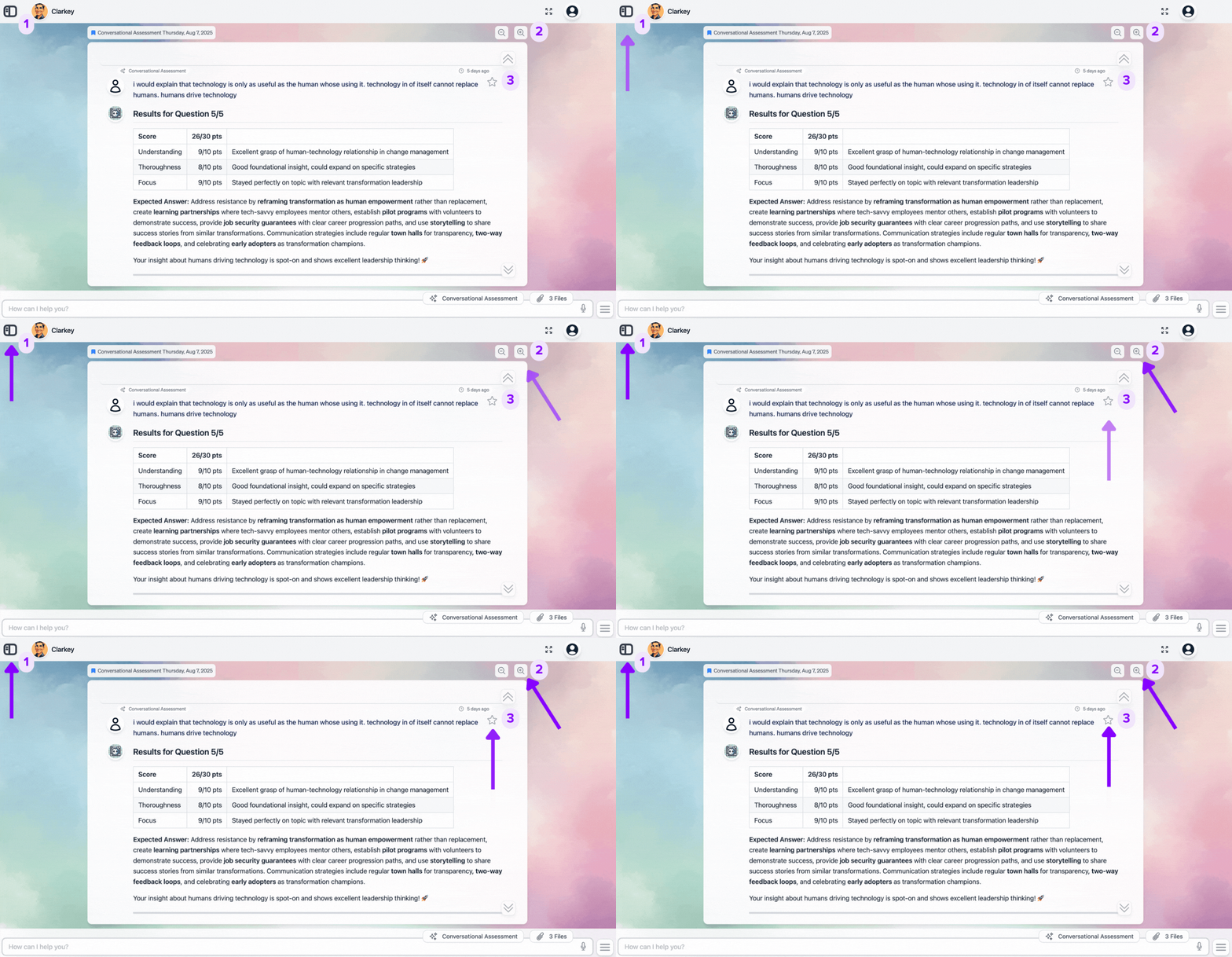
Essential History Controls
1- Navigate
Open SidebarClick the side tab to browse all your conversations and switch between different sessions.
2- Resize Display
Adjust View SizeMake conversations appear larger or smaller to match your reading preferences and screen size.
Dialogue Info
The Dialogue Info card provides administrators with a comprehensive metrics overview for individual dialogues, displaying key performance indicators including the model used, credit consumption, parent conversation context, tool invocation count, and additional operational details—enabling quick assessment and monitoring of conversation-level analytics.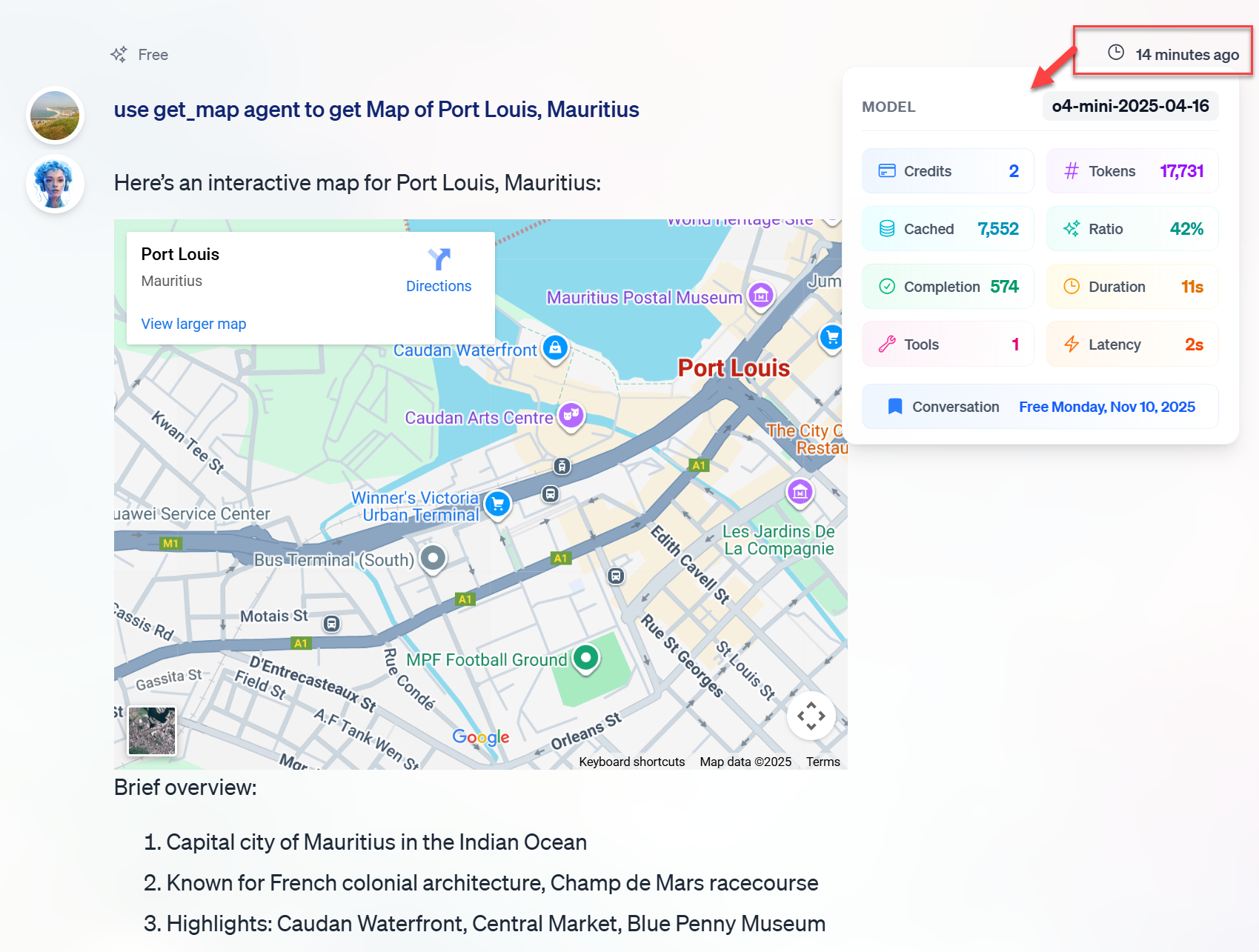
Loading Previous Dialogues
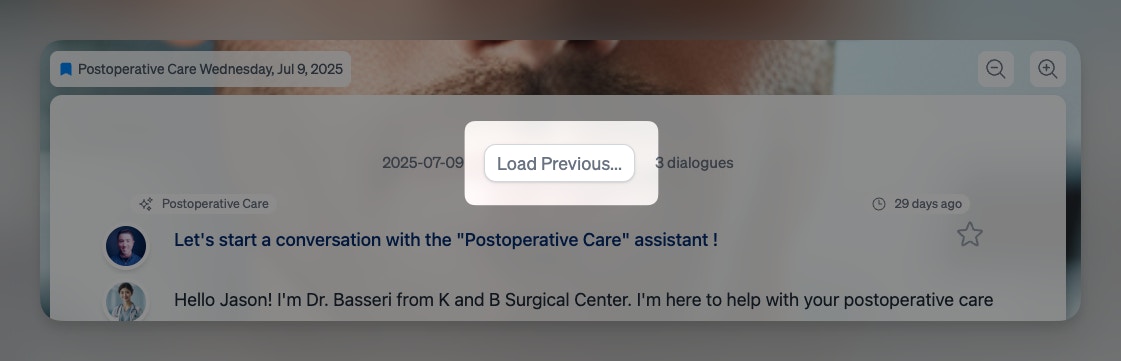
- Scroll to Top: Navigate to the beginning of your current history list
- Find Load Menu: A “Load Previous…” option appears automatically
- Click to Load: Select the link to retrieve older dialogue records
- Browse History: Scroll through expanded conversation history
This feature helps you access your complete conversation archive without overwhelming the interface with too much data at once.
Sidebar
Access your conversation history in the sidebar by clicking the tab icon in the top-left corner of your screen.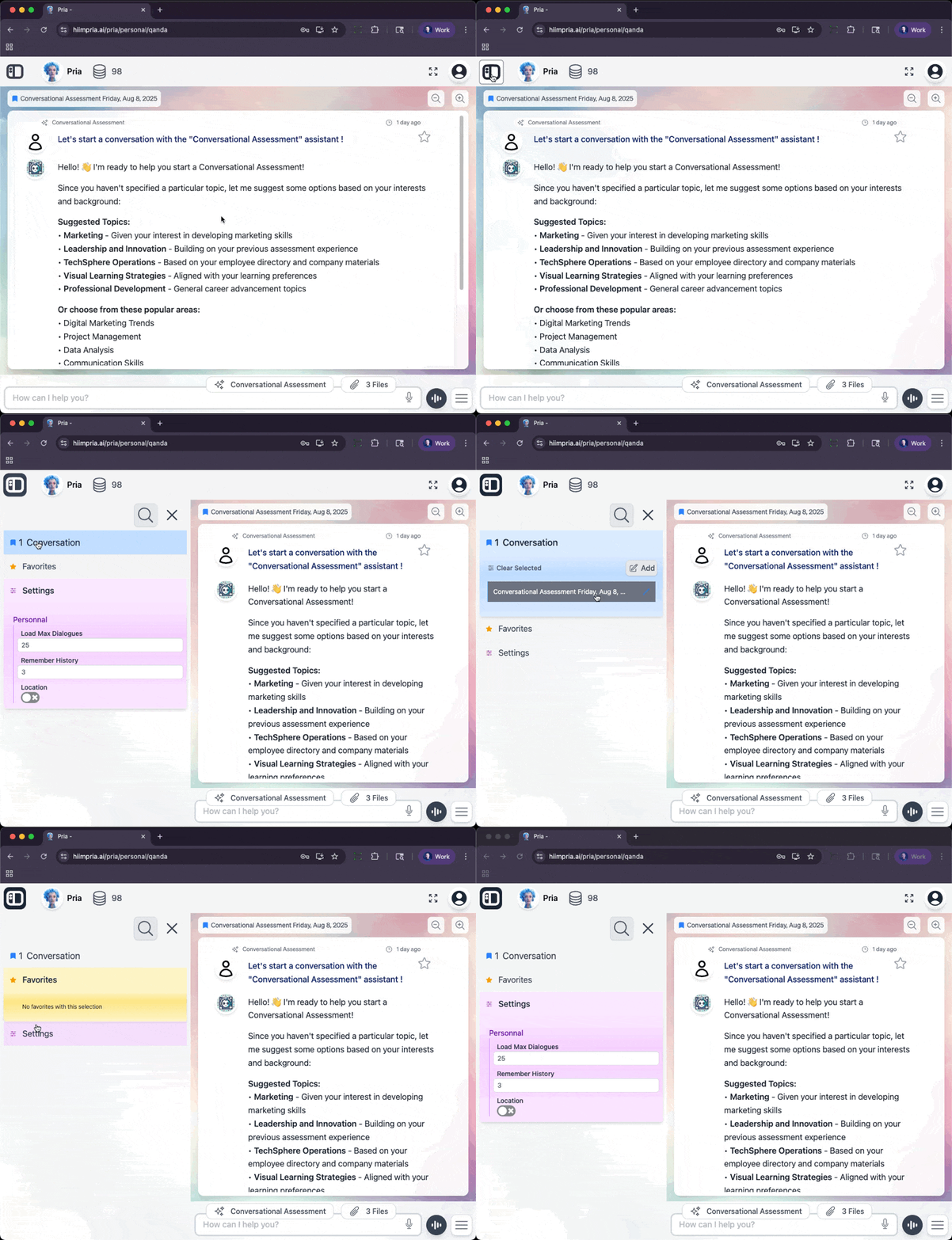
Conversations
Organize and manage all your AI interactions
Favorites
Quick access to bookmarked dialogues
Settings
Customize your AI experience preferences
Sidebar Features
The sidebar offers the following important featuresConversations
Conversations
Conversations automatically organize your interactions with Pria. Each time you:
- Start a new chat through assistants
- Switch between Canvas classes using the same digital twin
- Begin a specialized session (like Conversational Assessment)
- ✏️ Rename conversations for easy identification
- 📅 Sort by creation date
- 🗑️ Clear conversations when no longer needed
Favorites
Favorites
Save valuable dialogues for quick future reference:
- Save: Click the ⭐ star icon on any response
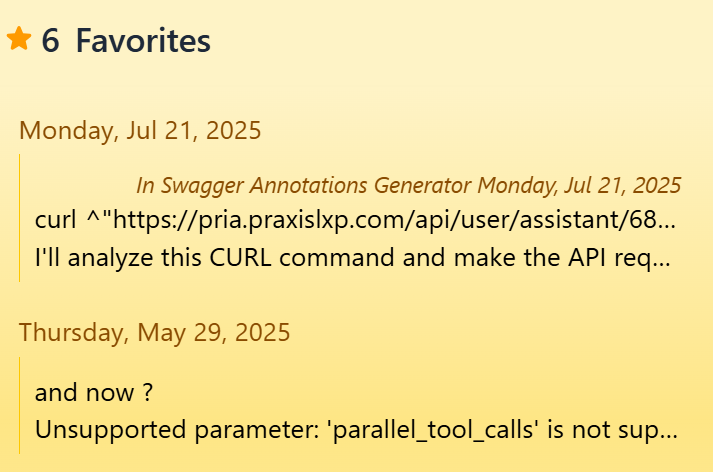
- Access: Find all favorites in this dedicated section
- Navigate: Click any favorite to jump directly to that conversation
Settings
Settings
Settings are organized into Instance settings for Administrators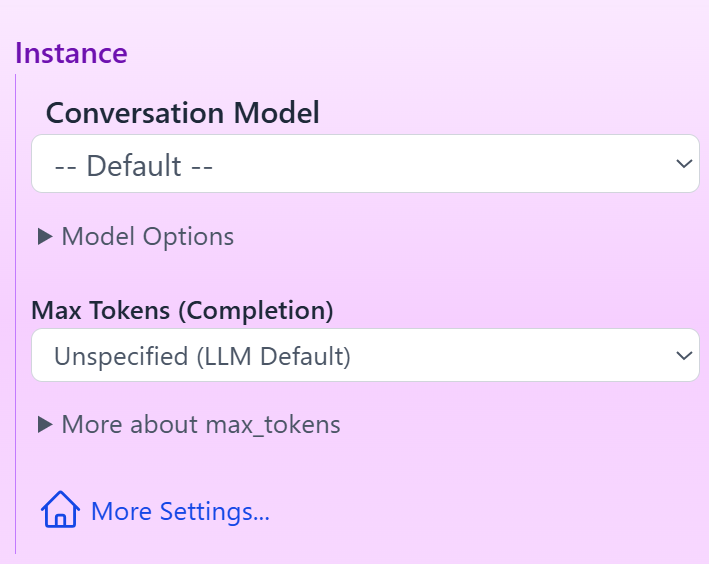
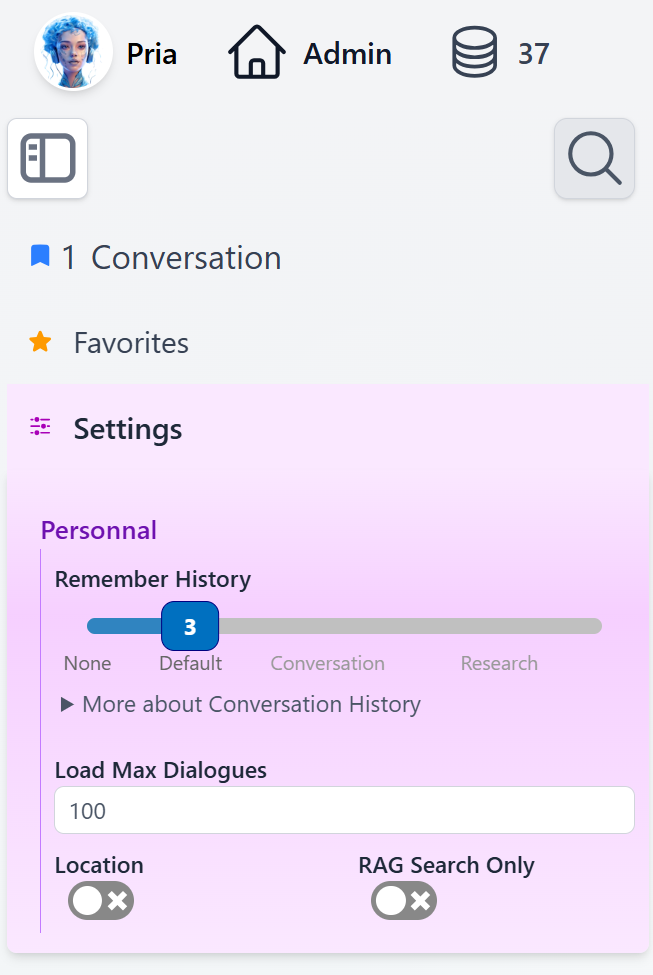
- Conversation Model (Admin)
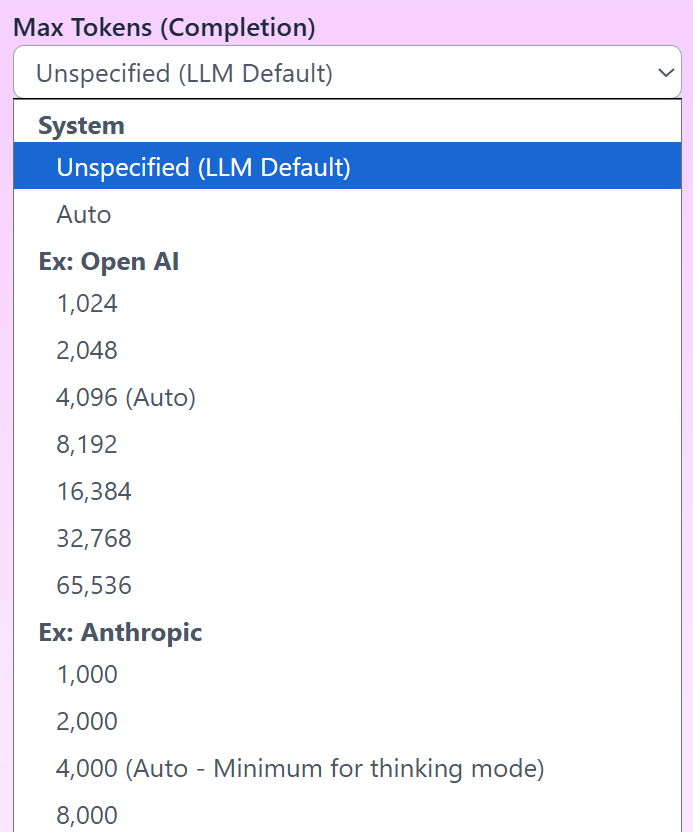
- Max Tokens (Admin)
- Max Dialogues
- Remember History
Conversation ModelSelect the AI model that best fits your needs and usage patterns.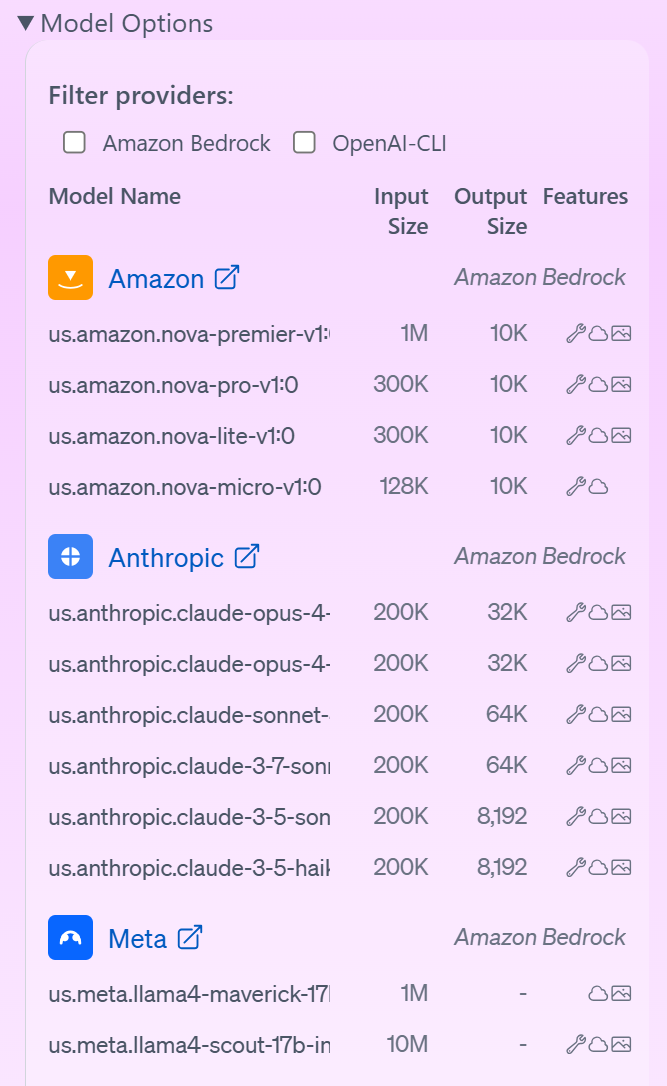
Managing Conversations
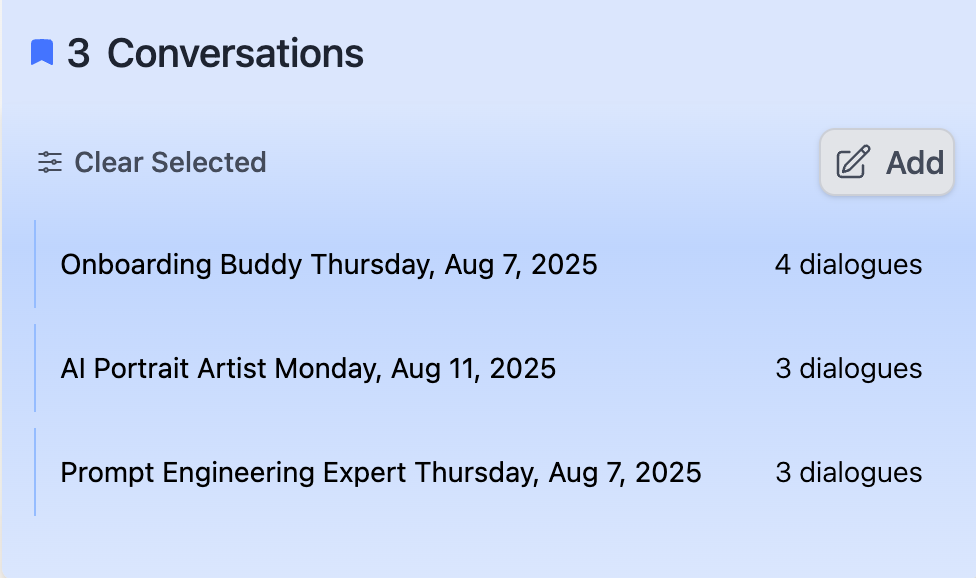
Understanding Your Conversations
Each conversation entry displays:- Name: Course or Assistant identifier
- Date: Creation timestamp
- Count: Number of dialogue exchanges
- Context: Current active conversation indicator
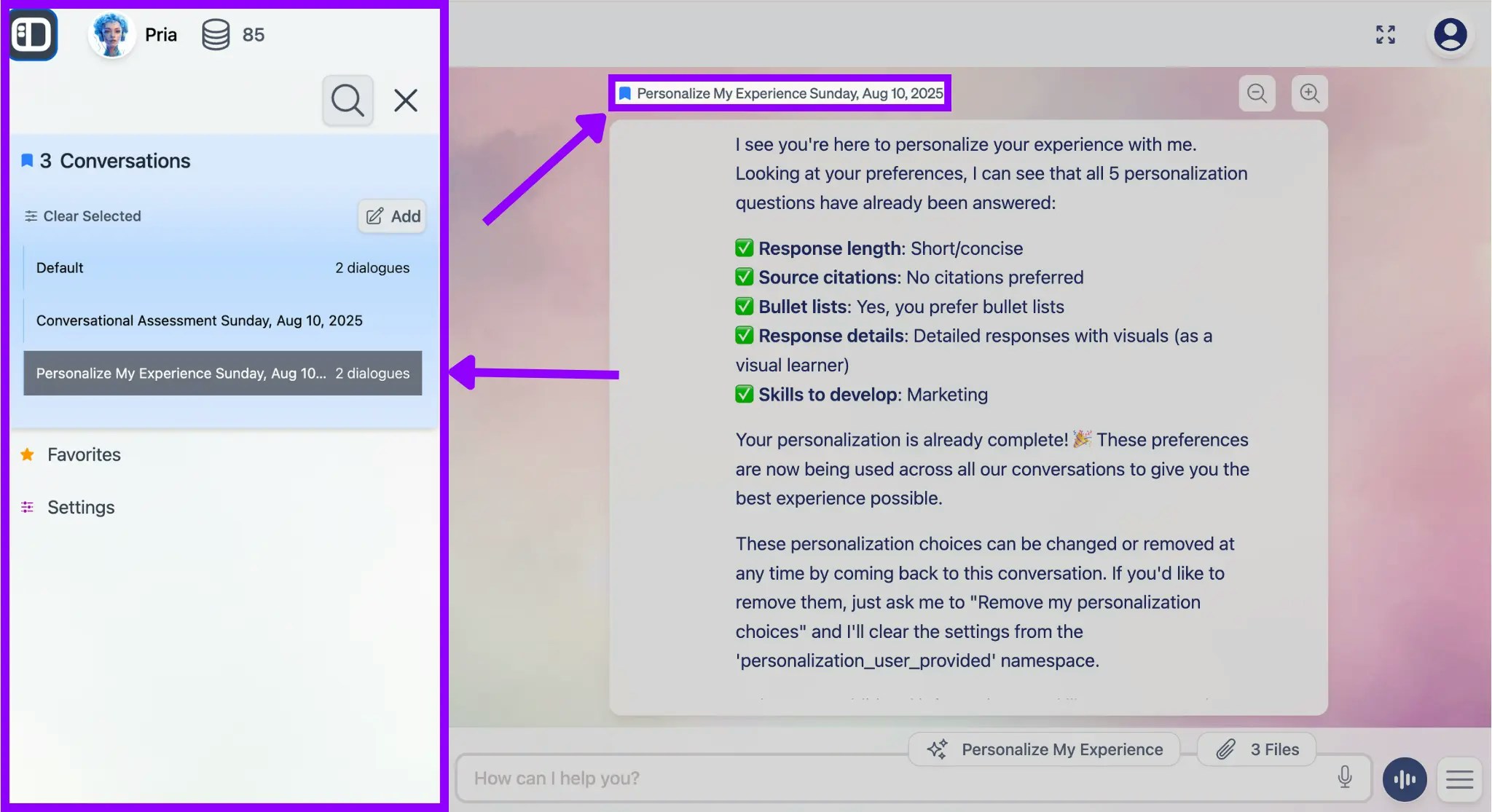
Conversation Management Tools
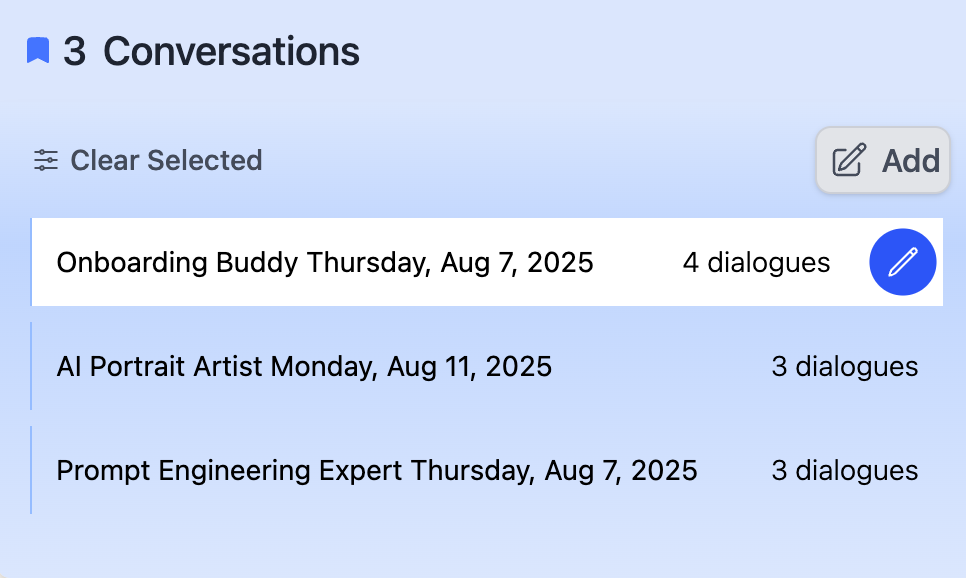
Rename Conversations
Customize for Easy IdentificationGive your conversations meaningful names that reflect their content or purpose.
Delete Conversations
Clean Up Your HistoryRemove conversations you no longer need to keep your list organized.
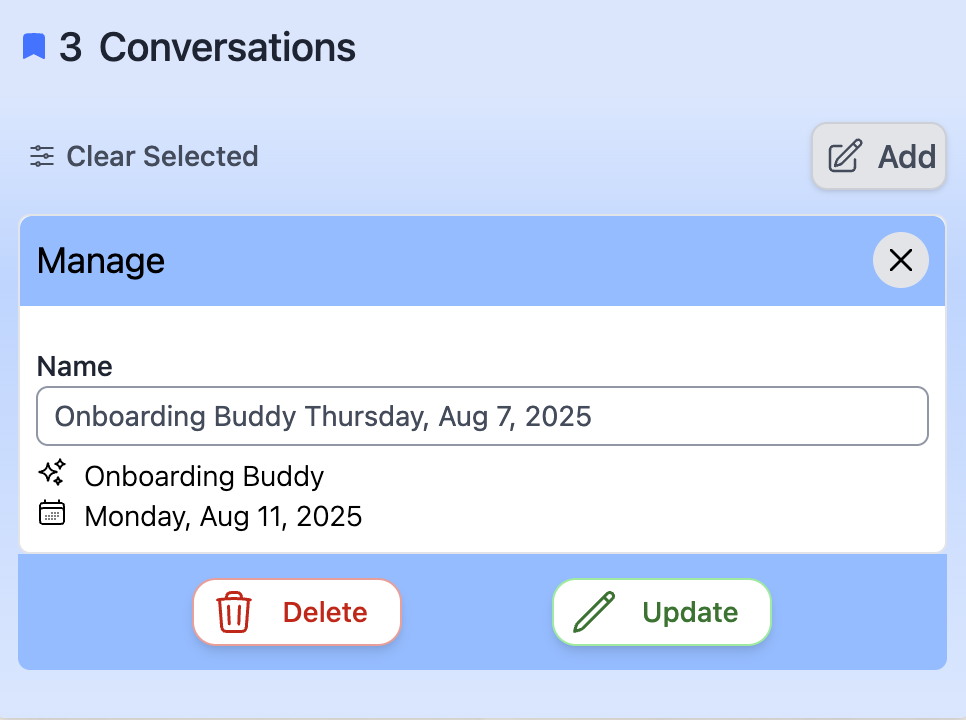
Deletion WarningDeleting a conversation permanently removes all dialogue history. Only delete conversations you’re certain you won’t need to reference again. This action cannot be undone.
Best Practices
Naming Strategy
Organize Effectively
- Use descriptive conversation names
- Include dates for time-sensitive topics
- Add project or subject identifiers
- Keep names concise but informative
Favorites Strategy
Build Your Knowledge Base
- Bookmark key explanations
- Save important reference materials
- Mark successful problem solutions
- Collect valuable insights for later use
Managing Favorites
Flag a dialogue as a Favorite from the history panel to add it to the Favorites list in the Sidebar.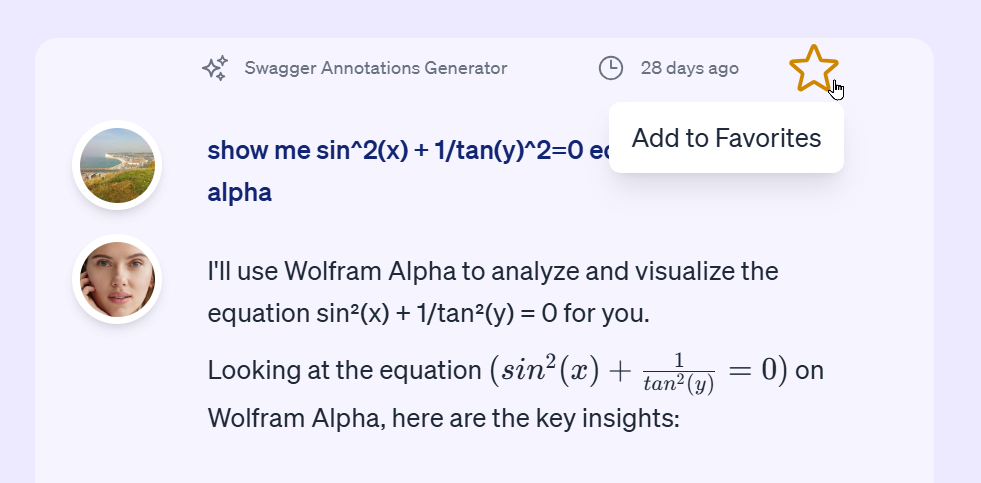
Remember History Settings
Amongst your personal settings, the Remember History setting controls how much conversation context your digital twin retains between interactions, directly impacting the quality and continuity of your conversations. Navigate to: Sidebar Menu → Settings → Remember History (located at the bottom-left of the interface)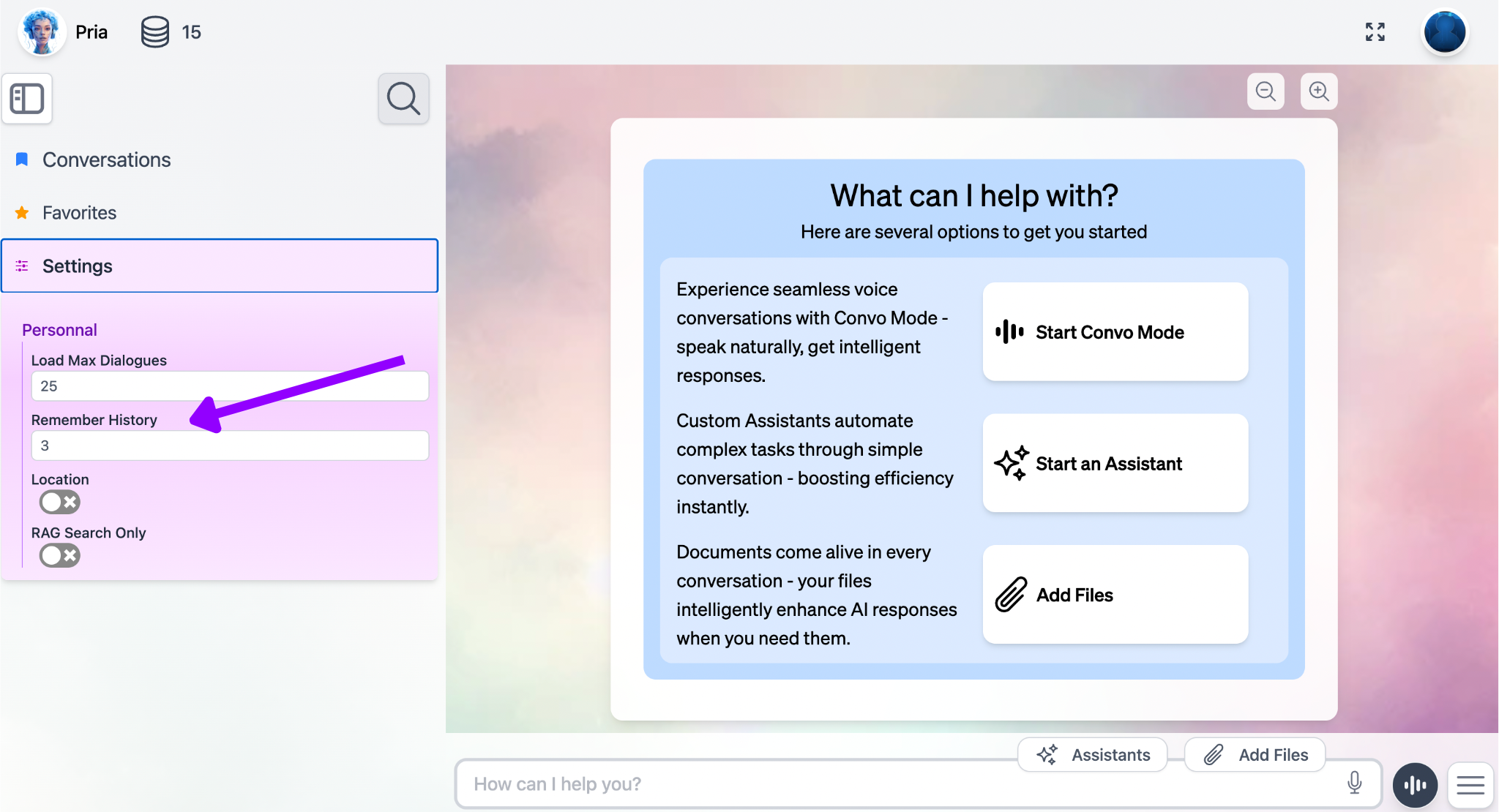
Feature Summary
Context Window
Your digital twin can see the messages only up to the number of history settings permitted (both your messages and responses)
Continuity
Maintains context about the ongoing conversation
Reference Capability
Can refer back to decisions, preferences, and information from recent conversations
Adaptive Responses
Provides more personalized and contextually relevant answers
Recommended value by Use Case
Higher values (5-10): Better context for complex, multi-step conversations but higher token costs Lower values (1-3): More cost-effective for simple, independent queries but limited context| Use Case | Recommended Setting | Reason |
|---|---|---|
| Quick Tasks | 1-3 dialogues | Faster responses for simple queries |
| General Chat | 2-5 dialogues | Balanced performance and context |
| Learning & Education | 3-7 dialogues | Tracks learning progress and concepts |
| Technical Documentation | 3-8 dialogues | Preserves technical details and decisions |
| Programming | 3-10 dialogues | Maintains build upon previous response |
| Complex Projects | 5-12 dialogues | Maintains detailed project context |
| Creative Writing | 6-15 dialogues | Maintains story/character continuity |
| Research | 7-15 dialogues | Maintains research continuity, build upon previous response |
When to Adjust Your Settings
Increase the number when:- Working on complex, multi-session projects
- Need your digital twin to remember detailed preferences
- Having extended technical or creative discussions
- Collaborating on documentation or research
- Credit usage is not an issues
- You want faster response times
- Prefer each conversation to be more independent
- Working primarily on simple, standalone tasks
- Experiencing performance issues
- Prefer minimizing costs when responding
How to Configure
Best Practices
- Monitor Performance: If responses become slow, consider reducing the history setting
- Project-Based Adjustment: Increase settings for long-term projects, decrease for quick tasks
- Regular Review: Periodically assess if your current setting meets your needs
- Context Awareness: Higher settings work better for users who have extended, topic-focused conversations
Troubleshooting
Digital twin seems to forget recent conversations:- Increase your Remember History setting
- Try reducing your Remember History setting
- Consider starting a new conversation thread for unrelated topics
Learn more with Conversation History: How it works