ElevenLabs Conversational AI lets you create voice agents with cloned or synthetic voices. By pointing an ElevenLabs agent at Pria’s Chat Completions API as a Custom LLM, your Digital Twin becomes the brain behind a real-time voice experience — no additional backend code required.
This integration combines ElevenLabs’ voice synthesis and real-time audio with your Digital Twin’s knowledge, personality, and tools.

How It Works

ElevenLabs Agent

Handles voice input/output, speech-to-text, text-to-speech, and the real-time audio stream.

Chat Completions API

Receives OpenAI-compatible requests from ElevenLabs and routes them to your Digital Twin.

Digital Twin

Generates intelligent responses using its knowledge base, tools, assistants, and conversation memory.
User speaks → ElevenLabs (STT) → Chat Completions API → Digital Twin → Response → ElevenLabs (TTS) → User hears

Prerequisites

Before you begin, make sure you have:
  • An ElevenLabs account with access to Conversational AI Agents
  • Created a voice in Eleven Labs and trained it
  • A Praxis AI account with at least one Digital Twin configured
  • Your Digital Twin’s Public ID (a UUID found in the administration panel)

Step 1: Create an ElevenLabs Agent
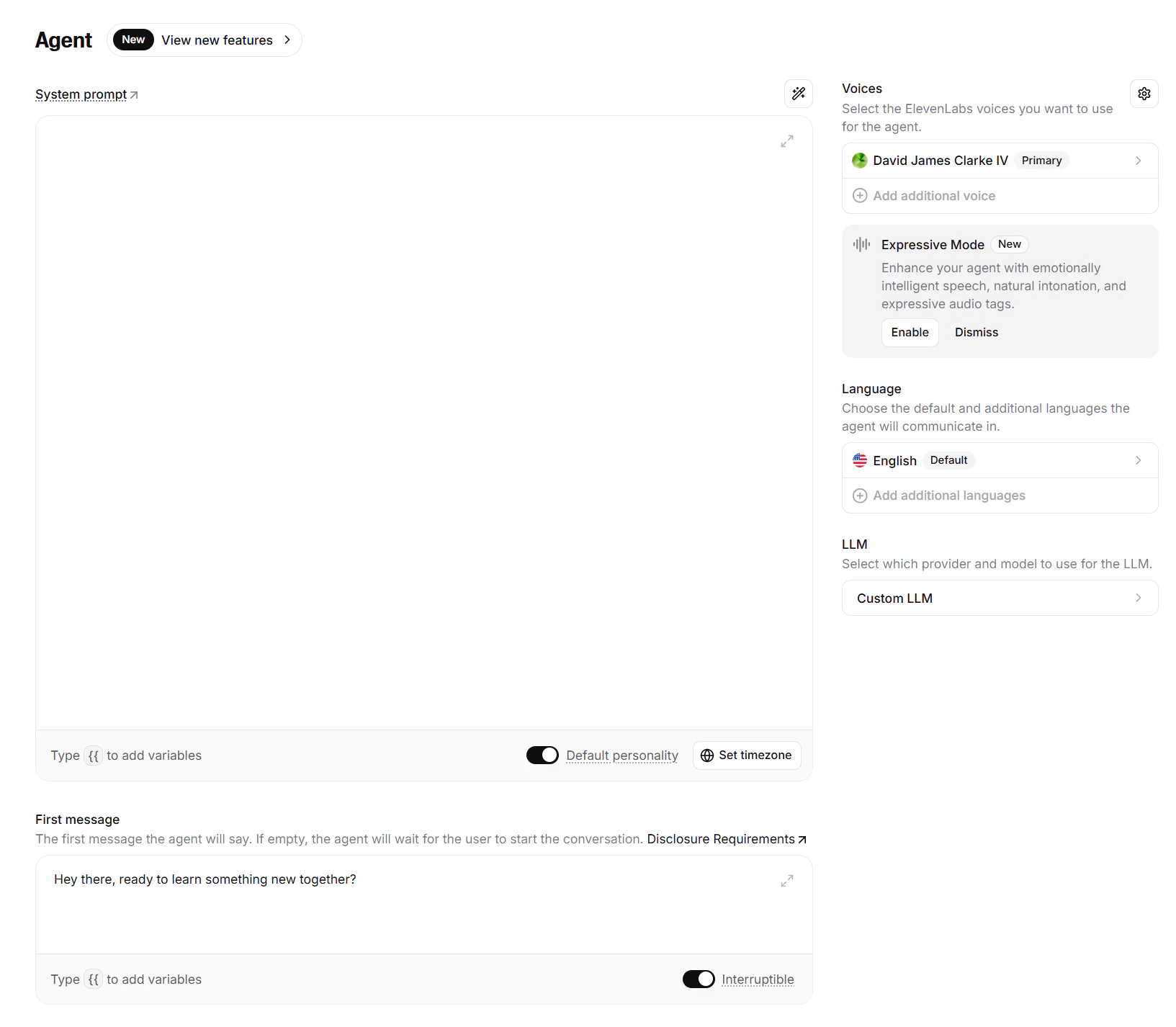
Custom LLM
1

Go to the ElevenLabs Dashboard

Navigate to Conversational AI in your ElevenLabs account and create a new agent.
2

Choose a voice

Select a stock voice, or use ElevenLabs’ voice cloning to create a custom voice that matches your Digital Twin’s persona.
3

Configure the system prompt

The Digital Twin manages its own system instructions server-side. Use the ElevenLabs system prompt for voice-specific behavior only (e.g., greeting style, conversation pacing).
4

First Message

Type a greeting, for example Hey there, ready to learn something new together?
5

LLM

Select Custom LLM

Step 2: Connect to Custom LLM

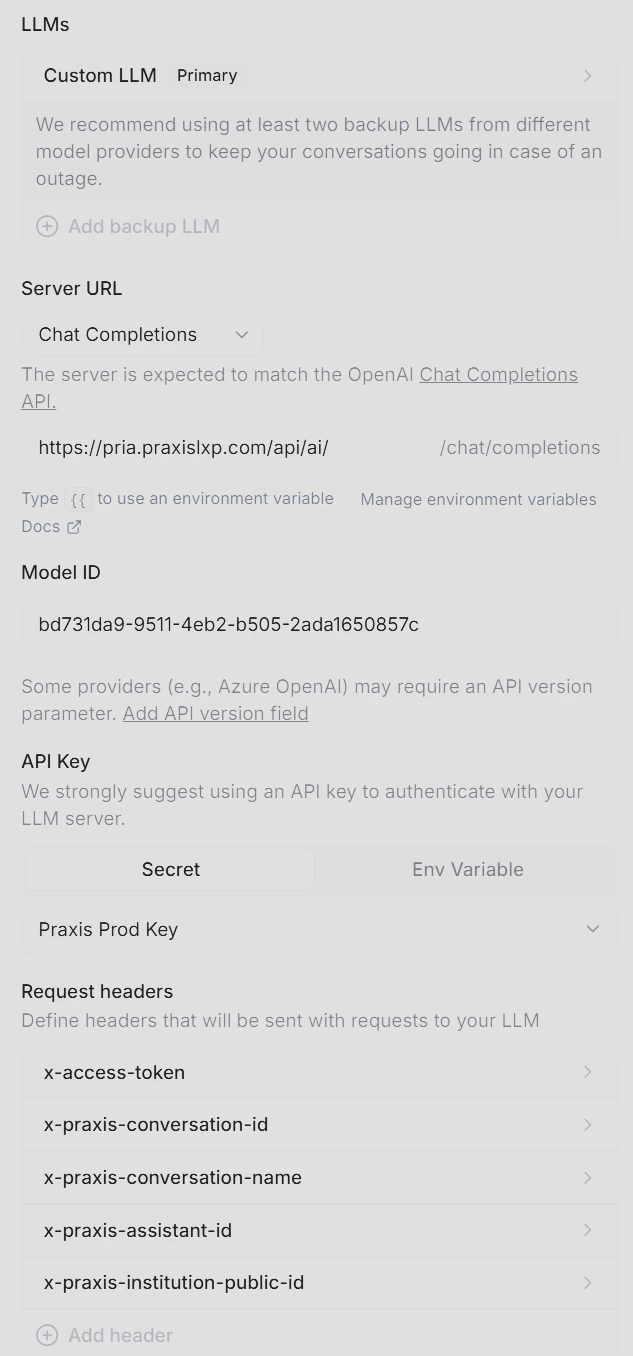
This is the core configuration — tell your ElevenLabs agent to use your Digital Twin as its language model. Custom LLM
1

Open LLM settings

In your agent’s settings, go to the LLM section and select Custom LLM.
2

Set the Server URL

Enter your Chat Completions API base URL:
https://pria.praxislxp.com/api/v2
3

Set the Model ID

Enter your Digital Twin’s Public ID as the model:
e455529a-4f51-479e-94fc-bbebb41d19a1
The Model ID maps directly to the Digital Twin Public ID. ElevenLabs will include this in every request as the model parameter — exactly how the Chat Completions API expects it.
4

API Key

In the API Key section of your ElevenLabs custom-LLM dashboard, select your ElevenLabs API Key or create a new one.Elevenlab API Secret
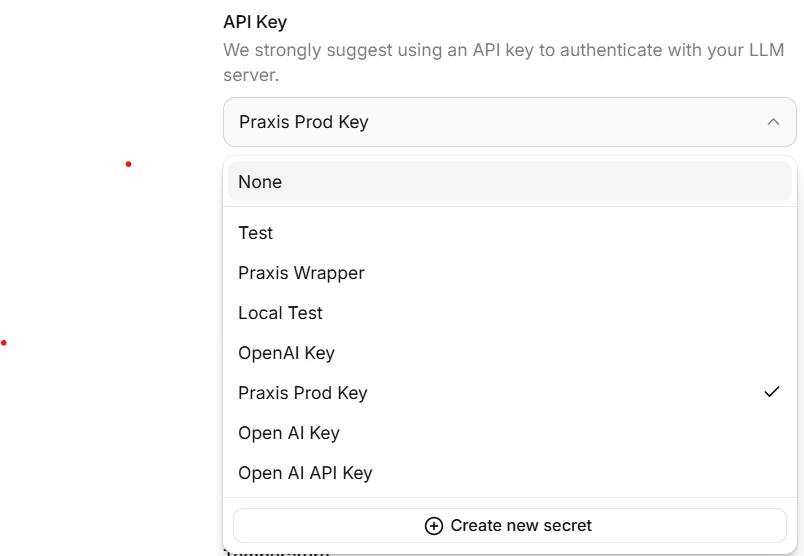
You must also set this value in your Digital Twin configuration page in Praxis.

Step 3: Configure Dynamic Variables

Dynamic variables let you pass user identity and conversation context from the client application through ElevenLabs to your Digital Twin. These are mapped to the x-praxis-* request headers that the Chat Completions API forwards to Praxis.

Define Variables in ElevenLabs
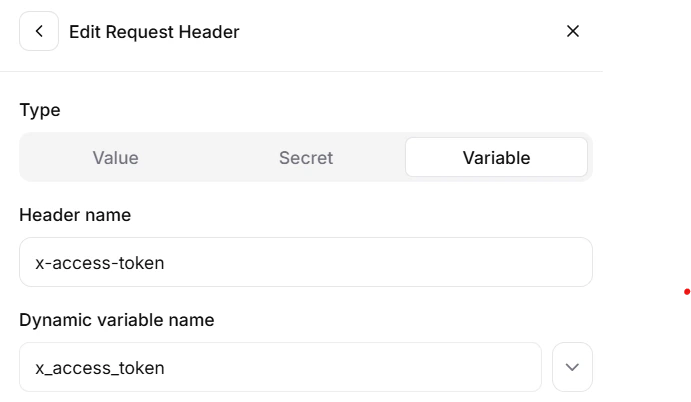
Custom Variable In your agent’s settings, define the custom header mapping to dynamic variables:
HeaderDescriptionDynamic Variable
x-access-tokenPraxis JWT for user authenticationx_access_token
x-praxis-conversation-idNumeric conversation/course identifierx_praxis_conversation_id
x-praxis-conversation-nameHuman-readable conversation namex_praxis_conversation_name
x-praxis-assistant-idAssistant to execute during the conversationx_praxis_assistant_id
x-praxis-institution-public-idOverride the target Digital Twin when using the voice agent for multiple Twinsx_praxis_institution_public_id
The x_access_token dynamic variable corresponds to the user’s access token from Praxis and is passed through to allow the Chat Completions API to seamlessly connect to your Digital Twin assuming the user’s identity.
This is the example JSON configuration for your Agent’s custom LLM: Example Configuration JSON
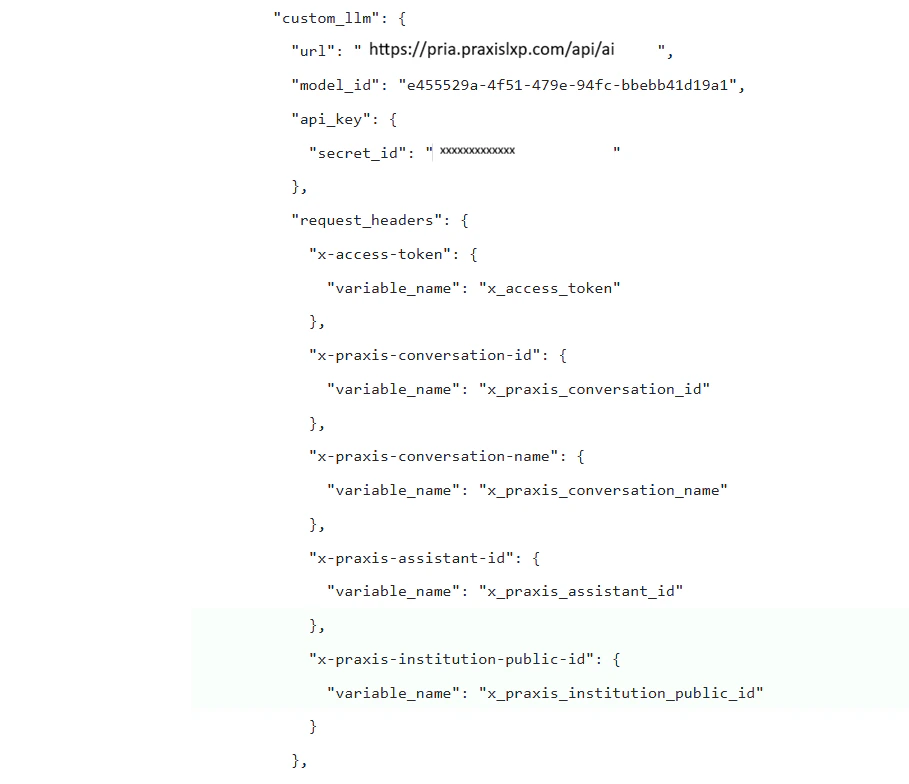
Don’t forget to publish your changes after making updates.

How Variables Flow

Client widget passes dynamic variables at session start

ElevenLabs injects variables into custom headers + system prompt

Chat Completions API extracts x-praxis-* headers

Digital Twin receives full conversation context
When using the Extra Body option in ElevenLabs, dynamic variables are included in the request body under elevenlabs_extra_body:
{
  "model": "e455529a-4f51-479e-94fc-bbebb41d19a1",
  "messages": [
    {"role": "user", "content": "What are today's assignments?"}
  ],
  "elevenlabs_extra_body": {
    "x_access_token": "eyJhbGciOiJIUzI1NiIs...",
    "x_praxis_conversation_id": "48201",
    "x_praxis_conversation_name": "Biology 101",
    "x_praxis_assistant_id": "69956bf0c8510d46974a11a6",
    "x_praxis_institution_public_id": "f831501f-b645-481a-9cbb-331509aaf8c1",
  }
}

Step 4: Configure Your Digital Twin

After setting up the ElevenLabs agent, you must configure your Digital Twin in Praxis to accept requests from ElevenLabs. Digital Twin Setup for Elevenlabs
1

Open the Admin Dashboard

Navigate to the Admin dashboard and select your Digital Twin instance.
2

Go to Integrations

Open the Integrations section and locate the ElevenLabs configuration.
3

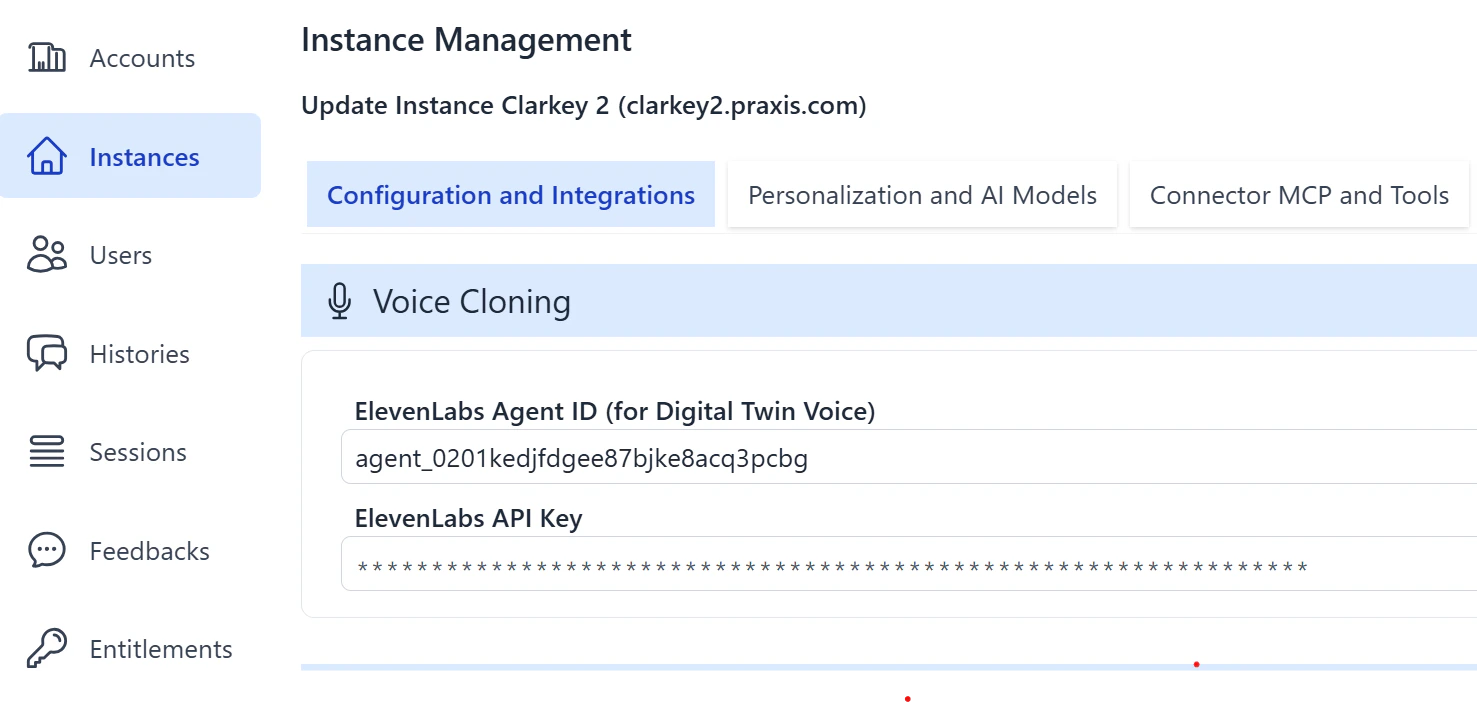
Set the ElevenLabs Agent ID

Enter the Agent ID from your ElevenLabs Conversational AI agent. This is the identifier shown in your ElevenLabs dashboard under the agent settings.
4

Set the ElevenLabs API Key

Enter the same API Key you configured in Step 2. This allows the Chat Completions API to validate inbound requests from ElevenLabs.
See Configuration — ElevenLabs for full details on the integration settings.

Step 5: Use ElevenLabs for Convo Mode

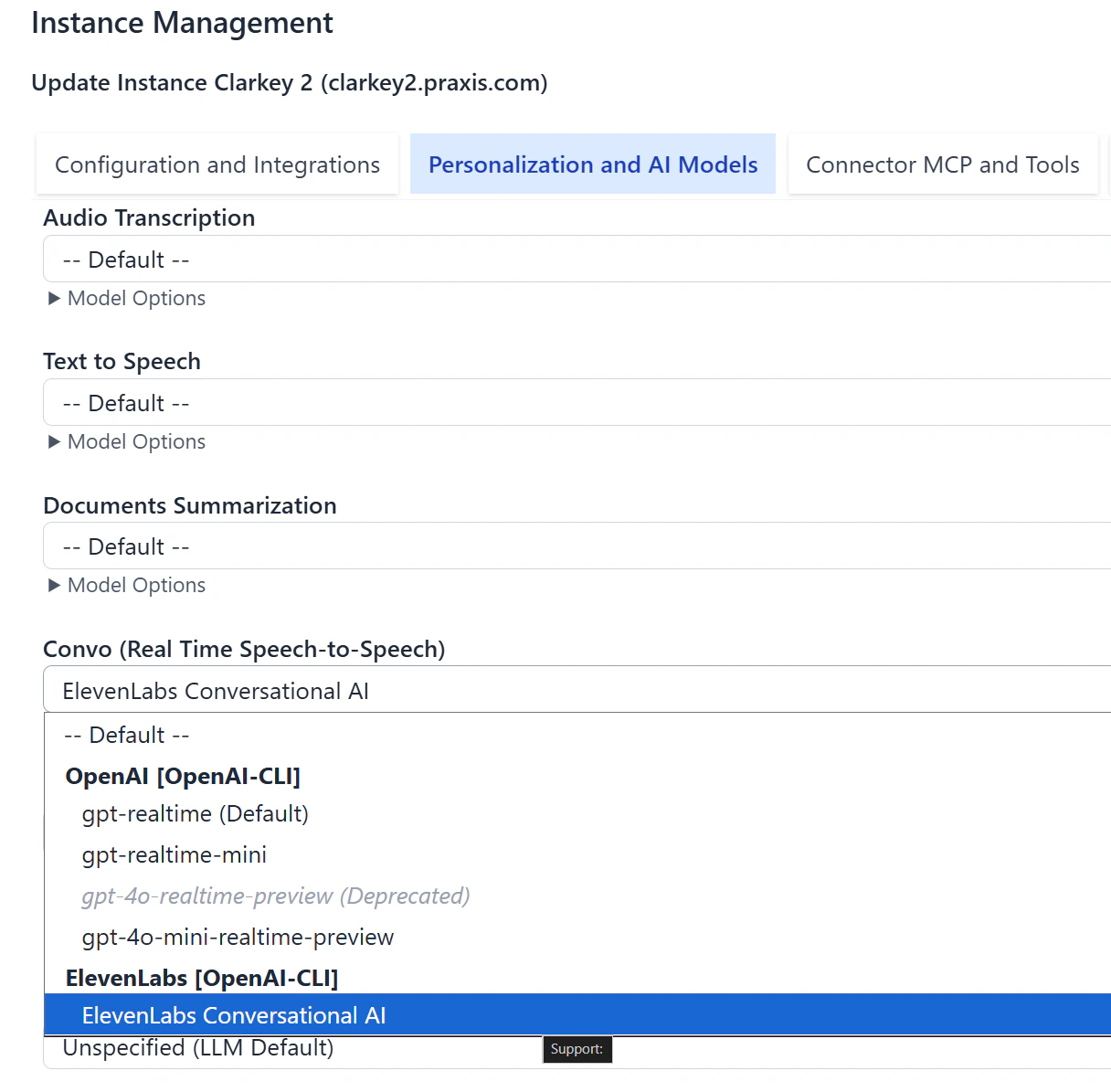
Once the ElevenLabs agent is configured in your Digital Twin, you can select ElevenLabs as the voice provider for Pria’s built-in Convo Mode (speech-to-speech). Digital Twin Convo with Elevenlabs
1

Open Personalization and AI Models

In the Admin dashboard, select your Digital Twin instance and navigate to Personalization and AI Models.
2

Change the Convo Mode model

Under Convo Mode, select ElevenLabs from the list of supported voice providers.
3

Start a conversation

The Convo widget will now use your ElevenLabs agent for real-time speech-to-speech. Users can click the Convo button to speak directly with the Digital Twin.
Voice selection is not available in ElevenLabs Convo Mode. The voice used is the one configured in your agent’s settings on the ElevenLabs dashboard. To change the voice, update it in your ElevenLabs agent configuration.

Step 6: Deploy Client Widgets (optional)

ElevenLabs provides multiple ways to embed a voice agent in your application. Each method supports passing dynamic variables at session start.

HTML Widget

The simplest option — add two lines to any web page:
<script src="https://unpkg.com/@elevenlabs/convai-widget-embed" async type="text/javascript"></script>

<elevenlabs-convai agent-id="YOUR_ELEVENLABS_AGENT_ID"></elevenlabs-convai>
Pin to a specific version for production: @elevenlabs/convai-widget-embed@1.0.0

React Integration

For React applications, use the @elevenlabs/react package with dynamic variables:
import { useConversation } from "@elevenlabs/react";

export function DigitalTwinVoice({ praxisToken, courseId, courseName, assistantId, publicId }) {
  const conversation = useConversation({
    agentId: "YOUR_ELEVENLABS_AGENT_ID",
    dynamicVariables: {
      x_access_token: praxisToken,
      x_praxis_conversation_id: courseId,
      x_praxis_conversation_name: courseName,
      x_praxis_assistant_id: assistantId,
      x_praxis_institution_public_id: publicId,
    },
  });

  const handleStart = async () => {
    await navigator.mediaDevices.getUserMedia({ audio: true });
    await conversation.startSession();
  };

  return (
    <div>
      <button onClick={handleStart}>
        Talk to your Digital Twin
      </button>
      {conversation.status === "connected" && (
        <button onClick={() => conversation.endSession()}>
          End Conversation
        </button>
      )}
    </div>
  );
}
Install the dependency:
npm install @elevenlabs/react

JavaScript SDK (Vanilla)

For non-React applications, use the @elevenlabs/client SDK directly:
import { Conversation } from "@elevenlabs/client";

const conversation = await Conversation.startSession({
  agentId: "YOUR_ELEVENLABS_AGENT_ID",
  connectionType: "webrtc",
  dynamicVariables: {
    x_access_token: "your-praxis-jwt-token",
    x_praxis_conversation_id: "48201",
    x_praxis_conversation_name: "Biology 101",
    x_praxis_assistant_id: "69956bf0c8510d46974a11a6",
    x_praxis_institution_public_id: "f831501f-b645-481a-9cbb-331509aaf8c1",
  },
  onMessage: (message) => {
    console.log(`${message.source}: ${message.message}`);
  },
  onError: (error) => {
    console.error("Conversation error:", error);
  },
  onStatusChange: (status) => {
    console.log("Status:", status);
  },
});

// End the session when done
await conversation.endSession();
Install the dependency:
npm install @elevenlabs/client

Securing Private Agents

For production deployments, use signed URLs to prevent unauthorized access to your ElevenLabs agent.
1

Generate a signed URL on your server

// Server-side (Node.js)
app.get("/api/voice-session", async (req, res) => {
  const response = await fetch(
    `https://api.elevenlabs.io/v1/convai/conversation/get-signed-url?agent_id=${AGENT_ID}`,
    {
      headers: { "xi-api-key": process.env.ELEVENLABS_API_KEY },
    }
  );
  const data = await response.json();
  res.json({ signedUrl: data.signed_url });
});
2

Use the signed URL on the client

const { signedUrl } = await fetch("/api/voice-session").then(r => r.json());

const conversation = useConversation({
  signedUrl: signedUrl,
  dynamicVariables: {
    x_access_token: praxisToken,
    x_praxis_conversation_id: courseId,
    x_praxis_conversation_name: courseName,
    x_praxis_assistant_id: assistantId,
  },
});
Never expose your ElevenLabs API key in client-side code. Always generate signed URLs from your backend. Signed URLs expire after 15 minutes.
You can also configure an allowlist of approved domains in your agent’s Security tab to restrict where the widget can be embedded.

Full Example: Embeddable Support Widget

A complete React component that authenticates with your backend, starts a voice session with a Digital Twin, and displays the conversation transcript:
import React, { useState, useCallback } from "react";
import { useConversation } from "@elevenlabs/react";

export function SupportWidget({ praxisToken, courseId, courseName, assistantId, publicId }) {
  const [messages, setMessages] = useState([]);

  const conversation = useConversation({
    agentId: "YOUR_ELEVENLABS_AGENT_ID",
    dynamicVariables: {
      x_access_token: praxisToken,
      x_praxis_conversation_id: String(courseId),
      x_praxis_conversation_name: courseName,
      x_praxis_assistant_id: assistantId,
      x_praxis_institution_public_id: publicId,
    },
    onMessage: (msg) => {
      setMessages((prev) => [
        ...prev,
        { role: msg.source === "ai" ? "assistant" : "user", text: msg.message },
      ]);
    },
  });

  const toggle = useCallback(async () => {
    if (conversation.status === "connected") {
      await conversation.endSession();
    } else {
      await navigator.mediaDevices.getUserMedia({ audio: true });
      await conversation.startSession();
    }
  }, [conversation]);

  return (
    <div style={{ maxWidth: 400, margin: "0 auto", fontFamily: "sans-serif" }}>
      <button onClick={toggle}>
        {conversation.status === "connected" ? "End" : "Start"} Conversation
      </button>

      <div style={{ marginTop: 16 }}>
        {messages.map((m, i) => (
          <p key={i}>
            <strong>{m.role === "assistant" ? "Twin" : "You"}:</strong> {m.text}
          </p>
        ))}
      </div>
    </div>
  );
}

Troubleshooting

SymptomCauseFix
Agent responds but has no knowledgeModel ID is wrongVerify the Digital Twin Public ID in the LLM model field
401 Unauthorized from Chat Completions APIMissing or expired JWTEnsure x_access_token dynamic variable contains a valid Praxis JWT
No audio from agentMicrophone not grantedCheck browser permissions; call getUserMedia before startSession
Agent is silent after connectingElevenLabs can’t reach your APIVerify the Custom LLM server URL is publicly accessible
”LiveKit v1” 404 in consoleNormal SDK behaviorBenign version negotiation — safe to ignore