

Configuration and Integrations
Personalization and AI Models
Knowledge and tools
Twin Memory
How the instance editor is organised
Instance Management
Instances are the core of your Praxis AI experience, allowing you to manage and interact with various digital twins.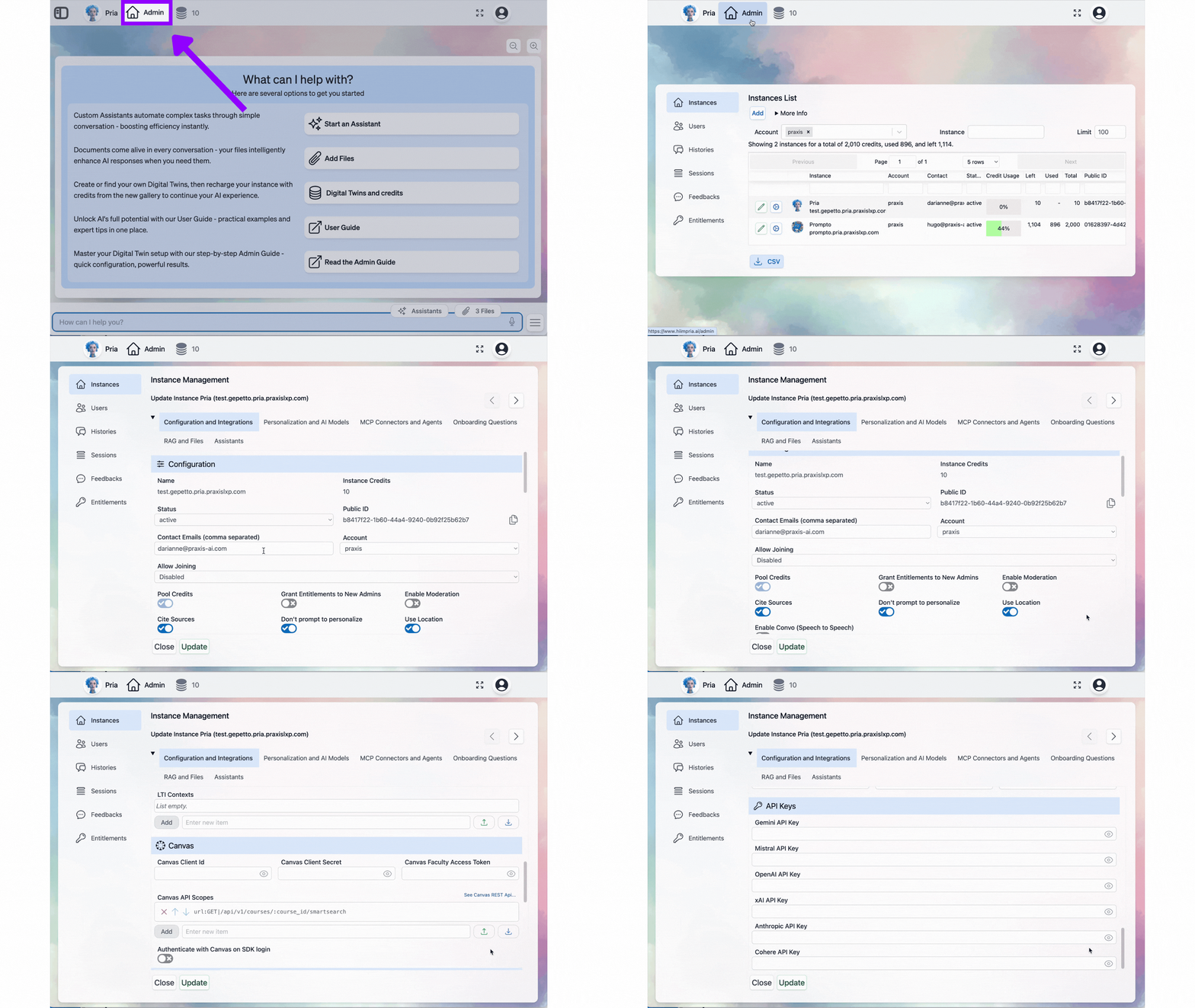
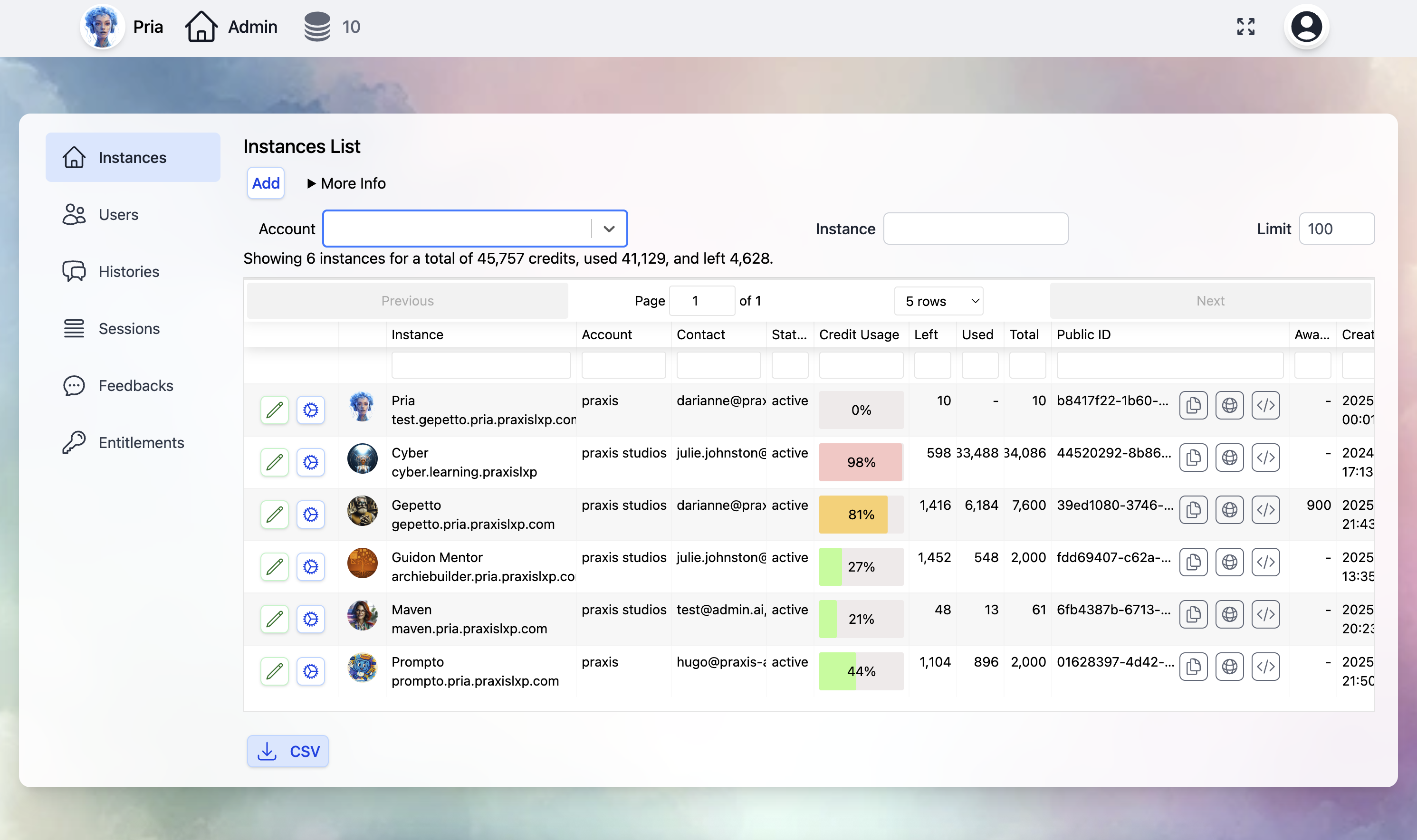
Viewing Instances
List of Instances
Instance Details
Tab: Configuration and Integrations
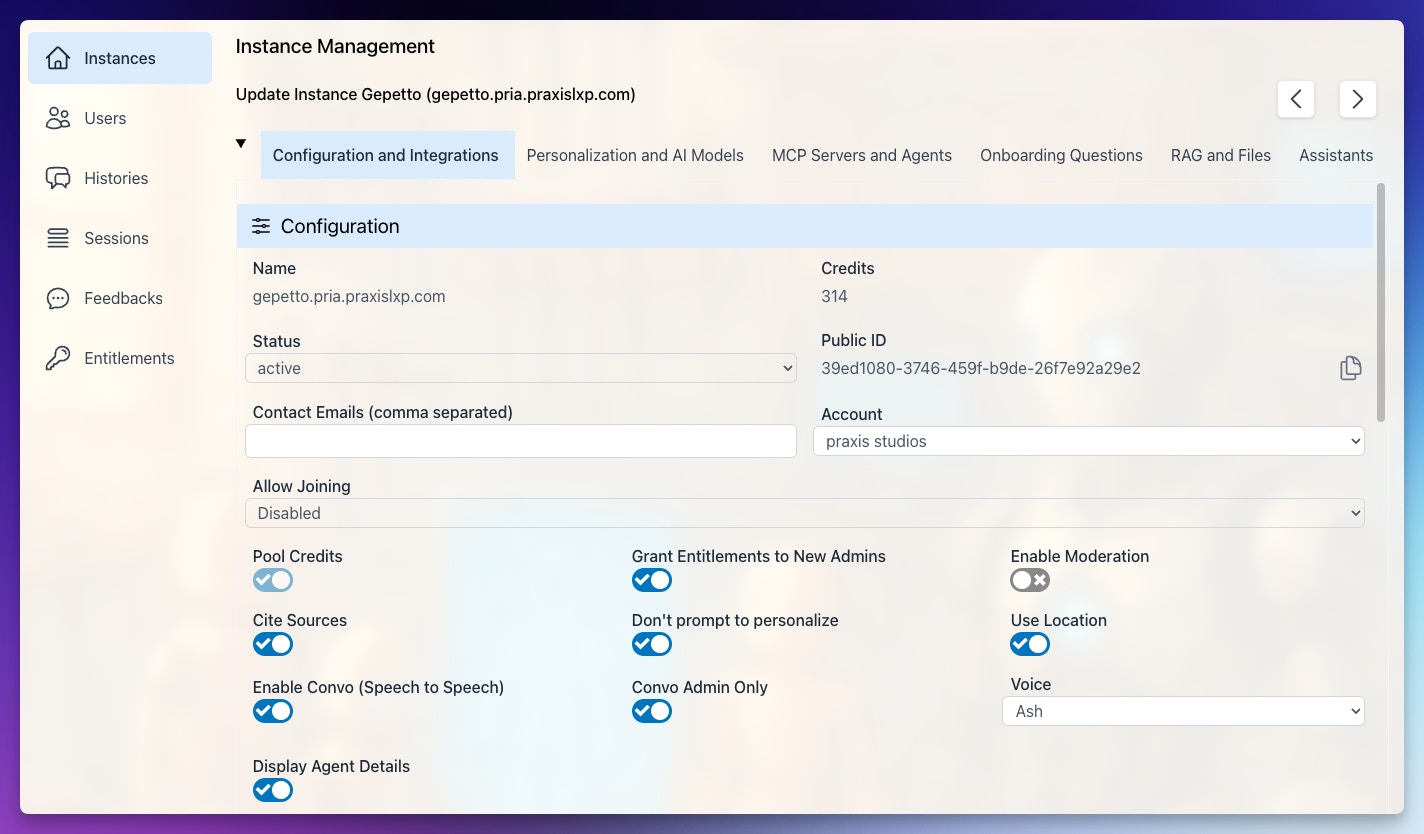
Configuration
Instance Details
Name
Name
Instance Credits
Instance Credits
Status
Status
- Active — Instance is operational for all users
- Inactive — Instance is temporarily disabled
Public ID
Public ID
Contact Emails
Contact Emails
Account
Account
Access & Membership
Allow Joining
Allow Joining
- Disabled — Users cannot self-join; they must be added by an administrator
- Account only — Only users within the same institutional account can join
- Everyone (public) — Anyone can join this instance
Joining Admin Only
Joining Admin Only
Pool Credits
Pool Credits
Credits Awarded to New Users
Credits Awarded to New Users
0 to disable automatic credit awards. This field is only visible when Pool Credits is disabled (i.e., users manage their own credit balance).Grant Entitlements to New Admins
Grant Entitlements to New Admins
Prevent Switching to Other Instances
Prevent Switching to Other Instances
Disable Add Credits
Disable Add Credits
Prevent Personal Account Creation
Prevent Personal Account Creation
- The setting applies while a member is working in this instance. Someone who also belongs to another instance without this setting can still create a personal account from there.
- It covers members creating an account for themselves. Administrators adding or editing people through the admin screens are not restricted by it.
AI Behavior
Content Moderation
Content Moderation
Cite Sources
Cite Sources
Don't Prompt to Personalize
Don't Prompt to Personalize
Use Location
Use Location
History Compaction
History Compaction
- As a conversation grows, Pria monitors the total token count
- When approaching the model’s context limit, older messages are grouped and summarized by an LLM
- The summaries replace the original messages, preserving key context while reducing token usage
- Base64-encoded data (images, files) is automatically stripped from compacted history
- Tool results are enriched with human-readable summaries before compaction
Transparency toggles
Transparency toggles
- Display RAG/KAG Search Details — which passages were retrieved, and their relevance scores
- Display Thinking Details — the model’s reasoning trace when thinking is enabled
- Display Thinking Execution — live progress while the model is reasoning
- Display Tool Execution — real-time progress as tools execute
- Display Tools Details — the complete agent step-by-step breakdown
Disable Clipboard for Users
Disable Clipboard for Users
- Text selection is disabled on AI responses and user inputs
- Copy keyboard shortcuts (Ctrl+C / Cmd+C) are blocked
- Copy-to-clipboard buttons are hidden
- Share link buttons are hidden
Autonomous Agent
A single switch that makes this Digital Twin eligible to run as an autonomous agent. Turning it on reveals the Agents tab, where you provision and manage the agent’s workspace.User Quotas
Per-user credit caps for this instance, shown alongside any caps inherited from the parent account and a live count of how many users are currently at their limit. Caps limit how much a single user may consume without affecting the instance’s total balance. See Credit Management for how caps interact with pooled credits and account-wide limits.Realtime / Convo
The entry points to live voice. Provider choice, voice selection, and avatar tuning live in the Personalization and AI Models tab — see Realtime Voice & Avatars.Enable Convo (Speech-to-Speech)
Enable Convo (Speech-to-Speech)
Convo Admin Only
Convo Admin Only
Convo Enable Text Input
Convo Enable Text Input
Lock full-screen conversation
Lock full-screen conversation
Start Immersive Mode by Default
Start Immersive Mode by Default
Convo Web Access Link
Convo Web Access Link
nova produces …/twins/nova. Once saved, the full link is shown with a copy button and a scannable QR code for posters, badges, and screens.Whether that page opens straight into a voice conversation is decided by Start Immersive Mode by Default; if voice isn’t available it falls back to text chat.Full guide: Guest Twin Links.Text-To-Speech
Controls the read-aloud voice used to speak responses in text conversations (distinct from Convo, which is a live voice call).Integrations
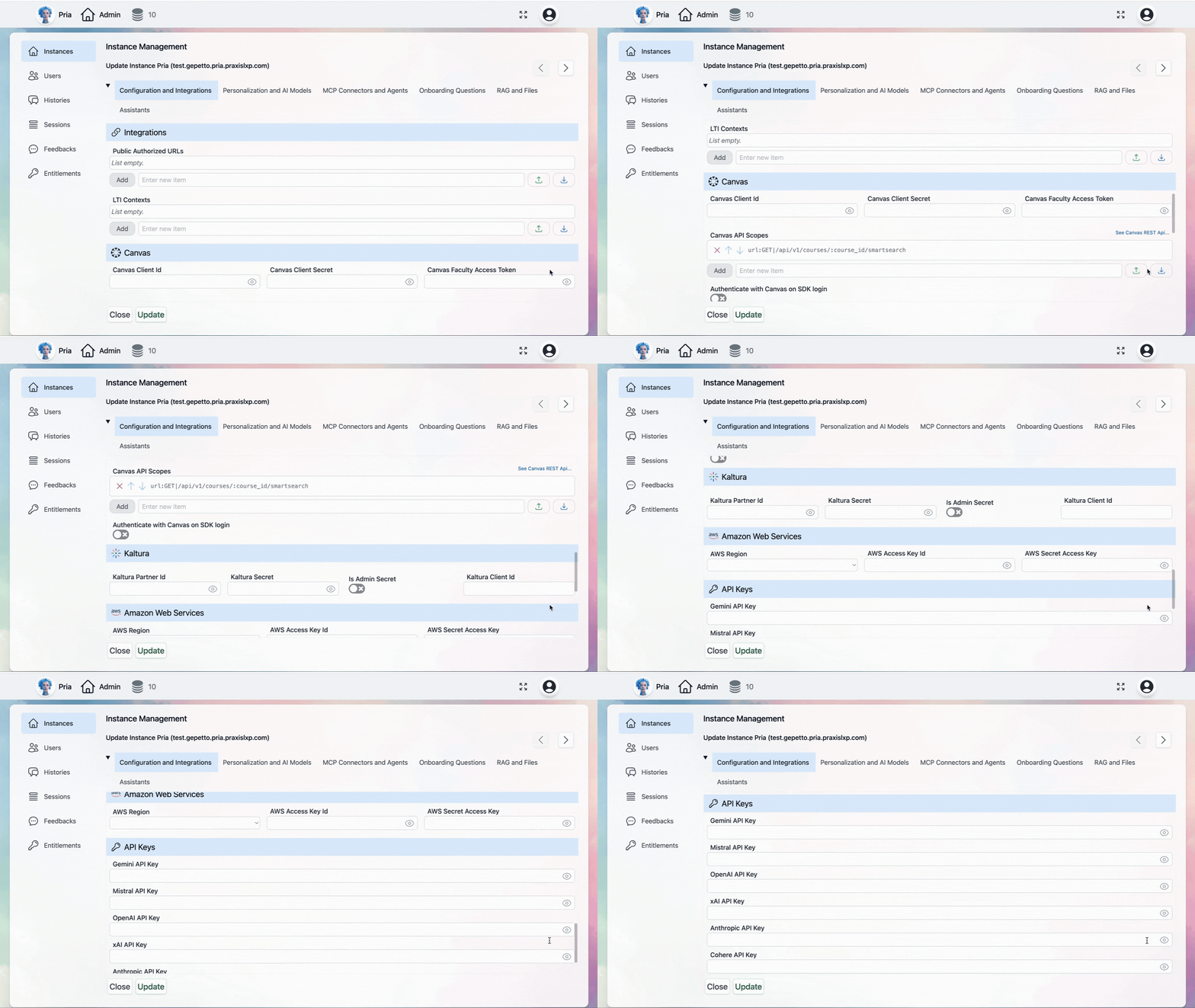
Embedding & LTI
Public Authorized URLs — the URLs authorized to embed or call your instance. All inbound requests are validated against this list.Pria MCP Server
MCP (Model Context Protocol) is the open standard for connecting AI to external systems, and your Digital Twin speaks it in both directions. Outbound — the twin calling external MCP servers as extra tools — is configured on the Connector MCP and Tools tab. The settings here govern the inbound direction and the identity signing used on outbound calls.Enable MCP Server
Enable MCP Server
MCP Server Secret
MCP Server Secret
MCP Signing Secret
MCP Signing Secret
Curation
Curation
POST /api/curation/search. Used by the Praxis LXP to populate its AI Curated Content library.Switching Curation on generates a secret the first time. Give that secret to the calling platform; it is sent as Authorization: Bearer <secret>. It is scoped to the Digital Twin rather than to a person, so curation keeps working when staff change roles.To stop curation, switch Curation off. Do not blank the secret — turning the flag off refuses calls cleanly, whereas an emptied secret makes the calling platform look misconfigured instead.Canvas
Connect your Digital Twin to Canvas LMS so it can query courses, assignments, grades, and more through the Canvas REST APIs. Without these credentials, thecall_canvas and search_canvas
tools are unavailable.
Canvas Client ID
Canvas Client ID
10000000000217). Generated when a Canvas administrator creates an API-type Developer Key under Admin → Developer Keys.One Developer Key can be shared across multiple Digital Twin instances within the same institution.Canvas Client Secret
Canvas Client Secret
Canvas Faculty Access Token
Canvas Faculty Access Token
Canvas API Scopes
Canvas API Scopes
url:GET|/api/v1/courses/:course_id/smartsearchScopes must be configured in two places — on the Canvas Developer Key and here. If a scope is missing from either location, the API call is rejected.See Canvas Scopes Reference for the full list.Authenticate with Canvas on SDK Login
Authenticate with Canvas on SDK Login
Chat Completion
Exposes this Digital Twin behind an OpenAI-compatible Chat Completion endpoint, so external tools that already speak that protocol can talk to your twin.Anam Meeting Bot
Credentials and behaviour for the meeting agent that can join a Zoom, Meet, or Teams call as a participant, appearing with the twin’s avatar and voice. Engagement mode, naming, wake-words, pronunciations, and answer length are all documented in Meeting Agent; avatar and voice tuning itself lives in Realtime Voice & Avatars.ElevenLabs Voice Cloning
Connect your Digital Twin to an ElevenLabs Conversational AI agent to enable voice capabilities — both for Convo Mode and for embeddable client widgets. Two credentials are entered here:- ElevenLabs Agent ID — the Agent ID from your ElevenLabs Conversational AI agent
- ElevenLabs API Key — authenticates requests between ElevenLabs and your Digital Twin; must match the key in your ElevenLabs agent’s Custom LLM settings
Anam Avatar
Credentials and tuning for the Anam photorealistic avatar used in Convo Mode. Configuration lives in Realtime Voice & Avatars.Cartesia Voice
Credentials and voice selection for Cartesia, one of the Convo Mode voice providers. See Realtime Voice & Avatars.Microsoft
Connect Microsoft 365 services using the same two identity models as Google.Kaltura
Connect to the Kaltura Video Platform for video search, playback, and media interactions. Enter your Partner ID and API Secret (plus a Client ID when using a user-level secret) — see Cloud Services for where to find each value in the Kaltura Management Console.Amazon Web Services
Connect your own AWS services — primarily Amazon Bedrock for model access and Amazon S3 for storage — so the twin uses your AWS account under your organization’s billing and security policies.AWS Region
AWS Region
- us-east-1 (N. Virginia) — Broadest Bedrock model availability
- us-west-2 (Oregon) — Good Bedrock coverage
- eu-central-1 (Frankfurt) — European data residency
- ap-southeast-1 (Singapore) — Asia-Pacific
AWS Access Key ID
AWS Access Key ID
AWS Secret Access Key
AWS Secret Access Key
API Keys
By default the Digital Twin uses Praxis-managed credits for every AI provider. When you provide your own API key, the twin routes that provider’s requests directly to your account — bypassing Praxis credits for that provider and giving you control over billing, rate limits, and model availability. This is the bring-your-own-key (BYOK) section.OpenAI API Key
OpenAI API Key
Anthropic API Key
Anthropic API Key
Gemini API Key
Gemini API Key
xAI API Key
xAI API Key
Mistral API Key
Mistral API Key
DeepSeek API Key
DeepSeek API Key
Cohere API Key
Cohere API Key
Tab: Personalization and AI Models
Identity and appearance, plus the model assigned to each job the twin performs.Personalization (Digital Twin)
AI Models
Each Model Use — a job the twin does — is assigned a model here.Tab: Connector MCP and Tools
Connector MCP
Outbound MCP connectors — external MCP servers this Digital Twin may call as extra tools. Each connector is authored with its own configuration and credentials. See MCP Servers and Connectors.Tools
Governs which platform tools the twin may use.Disabled Tools
Disabled Tools
generate_image for a text-only academic instance, or hiding call_canvas when Canvas is not configured. Tools are excluded from the model’s tool list at request time, so even if the model tries to call them the request is rejected upstream.Tool Result Size Limit
Tool Result Size Limit
60000 characters.Maximum characters returned by a single tool call; longer results are truncated. Increase for instances working with large documents or detailed API responses. Decrease to reduce token usage and protect against runaway tool output.Tab: Onboarding Questions
The guided questions new users answer on first run, whose answers feed the twin’s understanding of each person. See Onboarding Questions.Tab: RAG and Files
How the twin retrieves from the IP Vault, and the vault itself.User Access
Who may upload, and the per-user file policy — including whether personal-vault content is searchable on this instance.Ingestion Pipeline
How uploaded files are chunked, sanitized, and enriched before they become searchable.RAG
Retrieval mode (Disabled / Normal / KAG Fusion / Search Only), chunk limits, thekmeanScore
similarity threshold, and the embedding model.
KAG (Knowledge Graph)
Knowledge-graph extraction over ingested documents, and the analysis model that performs it.Files in IP Vault
The vault itself, embedded directly in the tab — upload, preview, edit segments, and remove files without leaving the editor. Full reference: Knowledge & RAG Configuration.Tab: Assistants
User Access
Whether regular users may reach assistants at all, and whether they may author their own.Disable Assistants for User
Disable Assistants for User
Disable Create Assistants for User
Disable Create Assistants for User
Enable Assistants for Email
Enable Assistants for Email
Available Assistants
A multi-select of specific assistants to hide from the library on this instance, even if they exist in the catalog. Use this to retire an assistant without deleting it. Full reference: Assistants.Tab: Agents
Provision and manage autonomous agent workspaces for this Digital Twin — workspace status, scheduled heartbeat tasks, live sessions, and the approval queue.Tab: Twin Memory
Twin Memory is the umbrella for what the twin knows about a person across conversations. It has two parts, each with its own section.Long-term Memory
What the twin forms on its own from conversations, with a visible receipt for every memory it saves. Controls here decide whether it is available on this instance, whether it is limited to administrators, and whether memories may be shared across sibling twins. Display Memory Details (on by default) controls whether the expandable Memory row under an answer lists the memories that were Recalled to shape the reply. Turn it off for a quieter transcript — memories are still used, they are just not listed. Anything the twin Saved, Updated or Forgotten during the exchange is always shown in the same row, so a user can always see what was kept. The same controls are also available to instance administrators from inside the product, in Instance Settings → Knowledge → Long-term Memory (the first card of that tab). Turning the feature on or off and account-wide sharing remain platform-administrator actions and show as read-only there for other admins.Shared Memory
Facts the whole instance reads — set once by an administrator and available to every user of this Digital Twin. Full reference: Twin Memory and Memory Parameters & Act As.Related
- Knowledge & RAG Configuration — Retrieval modes, chunk handling, embeddings, KAG analysis model, upload policies
- Realtime Voice & Avatars — Provider catalog, voice tuning, avatar configuration
- Cloud Services — Google Workspace, Microsoft, and Kaltura setup
- MCP Servers — Inbound and outbound Model Context Protocol setup
- Twin Memory — Long-term Memory and Shared Memory
- Memory & Act As — Per-user memory, shared memory, impersonation
- AI Models — Provider catalogs, BYOM, reasoning effort, prompt caching
- Personalization — Identity, avatar, branding, model assignments
- Content Moderation — Per-message safety screening
- Agents — Autonomous agent workspaces, scheduled tasks, approvals
- Meeting Agent — Sending the twin into a Zoom, Meet, or Teams call
- Credit Management — Pooled credits, user quotas, and caps
- Onboarding Questions — Guided personalization for new users