

Overview
Theme Tools is a Nice Add-On that sits on top of the standard Canvas Theme integration. The base theme install (pria-sdk-canvas.js) embeds Pria as a floating button on every course page. Theme Tools (pria-sdk-canvas-tools.js) is optional — it adds editor widgets and on-page interactions that make Pria feel like a native part of Canvas:
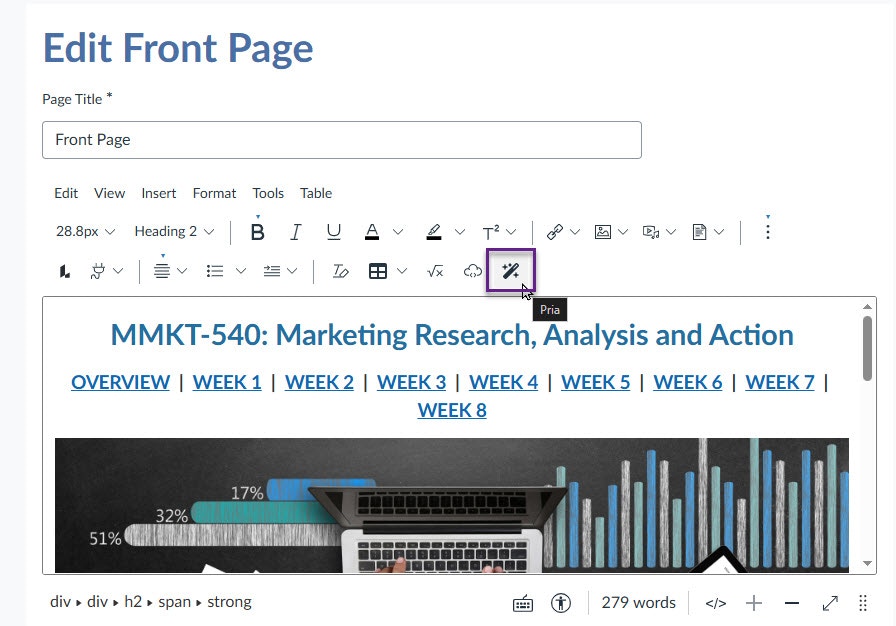
- A “Praxis” button in the TinyMCE toolbar (pages, quizzes, assignments) that opens a modal to insert a Pria action button into your content.
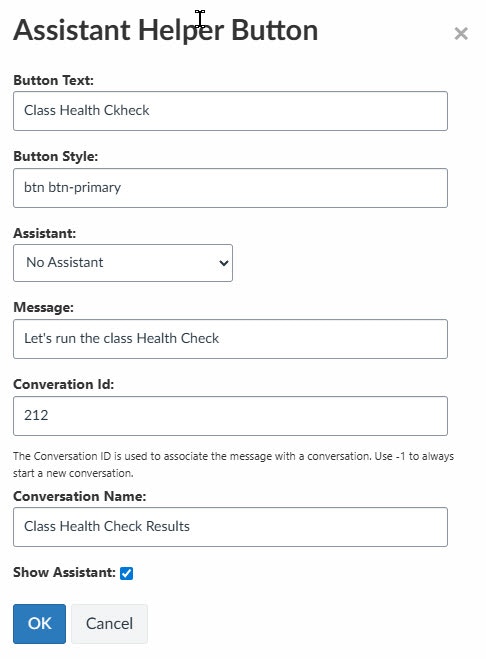
- Pria action buttons authors can drop into pages — a single click sends a pre-canned message to Pria.
- Start in Convo Mode — a per-button checkbox that makes the saved button launch a Pria voice (Convo) session instead of a text chat.
- “Submit Quiz to Praxis” and “Submit Assignment to Praxis” interceptors that forward submissions to Pria alongside the normal Canvas submission.
- “Explain with <AI name>” — a floating popup on text selection that asks Pria to explain the highlighted phrase in context.
Source Code Access
The pria-sdk-canvas-tools.js source code is available free of charge in the official community GitLab repository.Always use the latest version on the
main branch to ensure up-to-date features and security fixes. When linking the file in Canvas, upload the raw file — do not save the GitLab page itself.Examples of widgets added by this library

Installation
This step assumes the base Canvas Theme integration is already installed and customized. Theme Tools is not uploaded as a separate file — Canvas’s Theme Editor only accepts a single JavaScript upload, so you concatenate Theme Tools onto the end of your customizedpria-sdk-canvas.js and re-upload the combined file.
1
Download the Theme Tools file
pria-sdk-canvas-tools.js
Open the link, then save as
pria-sdk-canvas-tools.js. We recommend keeping the file in your own source control so you can re-pull the latest version when upgrading.2
Append Theme Tools to your customized pria-sdk-canvas.js
- Open your customized
pria-sdk-canvas.js(the one already in your theme) in a text editor. - Paste the entire contents of
pria-sdk-canvas-tools.jsat the very end of the file. - Save the combined file (still named
pria-sdk-canvas.js).
pria-sdk-canvas.js (your customized copy) and pria-sdk-canvas-tools.js as separate source files in version control, and concatenate them at deploy time:pria-sdk-canvas-tools.js from GitLab, re-concatenate, re-upload — without losing your pria-sdk-canvas.js customizations.3
Upload the combined file to your Canvas theme
- In Canvas, go to Admin → Themes, open your theme, and click Edit.
- On the Upload tab, under the JavaScript file section, click Select and choose your combined
pria-sdk-canvas.js. This replaces the previously uploaded version.
4
Preview, save, and verify
- Click Preview Your Changes in the Theme Editor.
- Reload any course page; edit a page, quiz, or assignment description.
- The Praxis button should appear in the TinyMCE toolbar (Miscellaneous group) with a sparkles icon over the “Praxis” label.
- Click Save in the Theme Editor to apply the changes.
Canvas caches uploaded JS aggressively. Whenever you re-upload an updated combined file, save the theme and force-reload (Ctrl+Shift+R / Cmd+Shift+R) in your browser to flush old cached versions.
Configuration flags
The script exposes awindow.priaEnhancedCanvas object with toggles you can edit before uploading the file. All flags default to true:
Inserting a Pria action button (page editor)
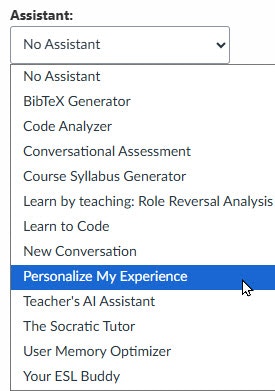
Open any Canvas page in Edit mode. In the TinyMCE toolbar, click the Praxis sparkles button. The “Assistant Helper Button” modal opens:
Click OK and the button is inserted at the cursor with the configuration encoded in its CSS class. Save the page; the button is live for learners.
To edit a button later, place the cursor on it and click the Praxis toolbar button again — the modal repopulates from the saved class (or from a legacy
data-custom attribute, on older pages, which is automatically migrated to the class form on save).
Start in Convo Mode (voice button)
When Start in Convo Mode is checked in the page-editor modal, the inserted button no longer sends a text message. Instead, on click it:- Sends a
convo.startrequest to Pria with the configured assistant and conversation. - Reveals the Pria widget at a compact size in the bottom-right corner of the screen (smaller than the regular text panel) so it doesn’t block course content.
- The Pria UI initializes a voice session with the chosen assistant — the learner can talk to the AI directly.
- Send
convo.stopso Pria tears down the voice session. - Pass
interruptConvo: trueon the newpostrequest as a backstop. - Revert the widget to its normal docked text size and surface the text reply.
Submit Quiz / Submit Assignment to Praxis
In the quiz description or assignment description editor, the Praxis toolbar button inserts a small placeholder block (Submit Quiz Results to Praxis / Submit Assignment to Praxis). Authors don’t show this block to learners — it’s a marker that activates the matching submit-time interceptor at runtime:
- When the learner clicks Canvas’s Submit Quiz / Submit File button, the interceptor first forwards the answers (or a submission notice) to Pria, then lets Canvas continue with its native submit.
- The interceptor uses Pria’s
postcommand, which in turn cleanly closes any running Convo session before sending the message.
Versioning and updates
The script’s first line shows the current version, e.g.:pria-sdk-canvas-tools.js from GitLab, re-concatenate it onto your customized pria-sdk-canvas.js (see the Installation steps above), re-upload the combined file to the Canvas Theme Editor, save the theme, and force-reload your browser. Existing data-custom buttons authored by previous versions continue to work in the editor and are silently migrated to the new class-encoded form the next time a teacher opens and saves the page.
What’s next?
Canvas Theme integration
The base install. Theme Tools depends on this being in place.
Pria Tools (Canvas API access)
Let your Digital Twin read course content, modules, and assignments to give context-aware help.