

What is MCP?
The Model Context Protocol (MCP) is an open standard that lets AI applications connect to external data sources and tools through a unified interface. Pria speaks MCP in both directions — see below.The Two MCP Roles in Pria
Pria participates in the MCP ecosystem in two distinct ways. Most administrators will use one or both; understanding the distinction up front saves a lot of confusion.Pria AS an MCP server
Your IDE, agent, or other LLM application connects to Pria as an MCP server. Pria exposes tools like
search-instance-rag and api-rt-docs so external assistants can query your Digital Twin’s knowledge base and API.Pria CONSUMING MCP servers
Your Digital Twin calls out to external MCP servers (Slack, Zapier, a custom internal MCP server) as tools during a conversation. The external MCP server becomes part of the Twin’s toolkit.
What Pria Exposes as an MCP Server
Search Your Knowledge
Query your Digital Twin’s document collection using natural‑language search via the
search-instance-rag tool.Explore the API
Access live OpenAPI documentation for both Runtime and Admin endpoints directly from your LLM.
Link Digital Twins
Connect multiple Digital Twins so one can query another’s knowledge base without duplicating data.
Quick Start — Pria AS an MCP Server
Follow these steps to expose your Digital Twin as an MCP server and connect an external client (Claude Desktop, Cursor, your own application).Step 1 — Enable MCP on Your Digital Twin
Open your Digital Twin’s Configuration and Integrations panel and turn on the MCP Server switch, then save.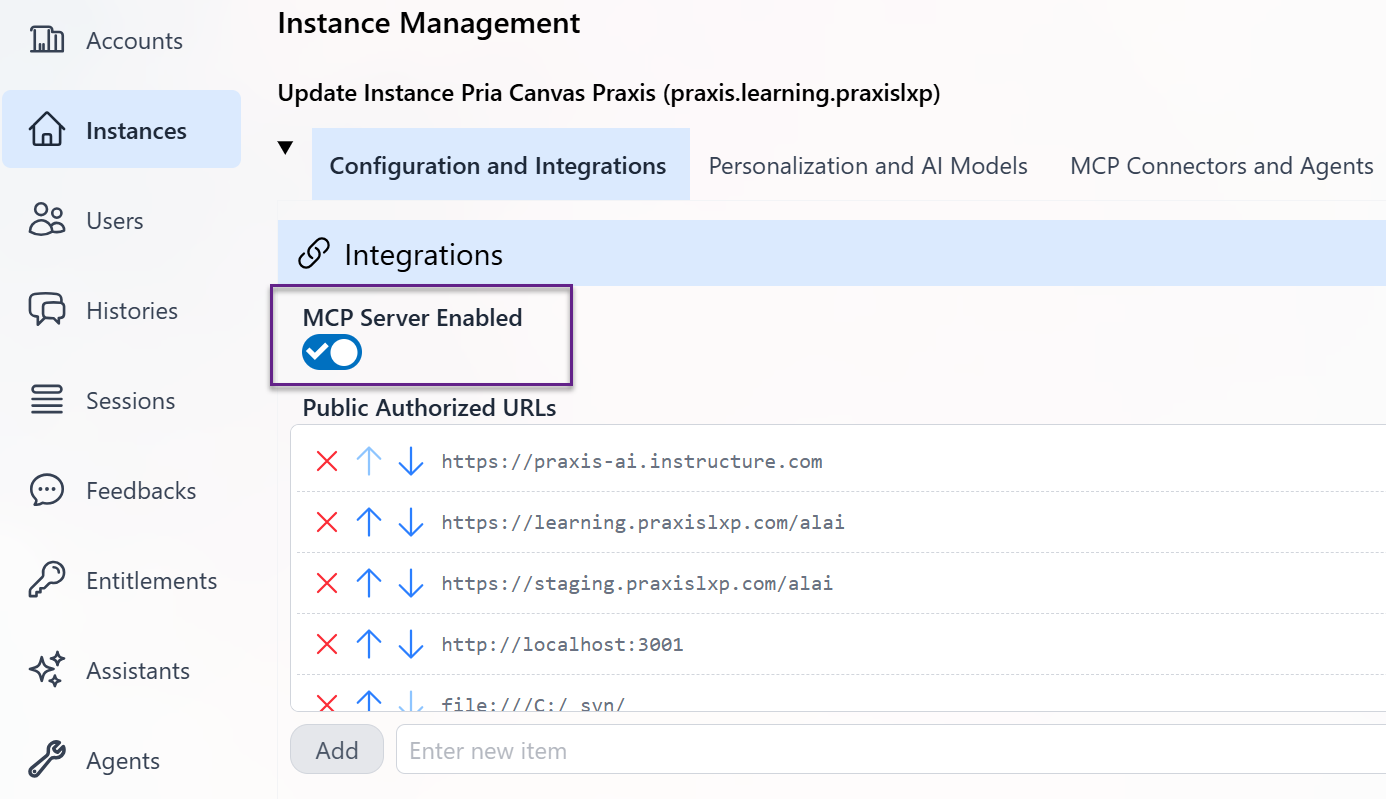
Step 2 — Copy Your MCP Secret
In the same panel, copy the value from the MCP Secret field. This token authenticates clients connecting to your MCP server.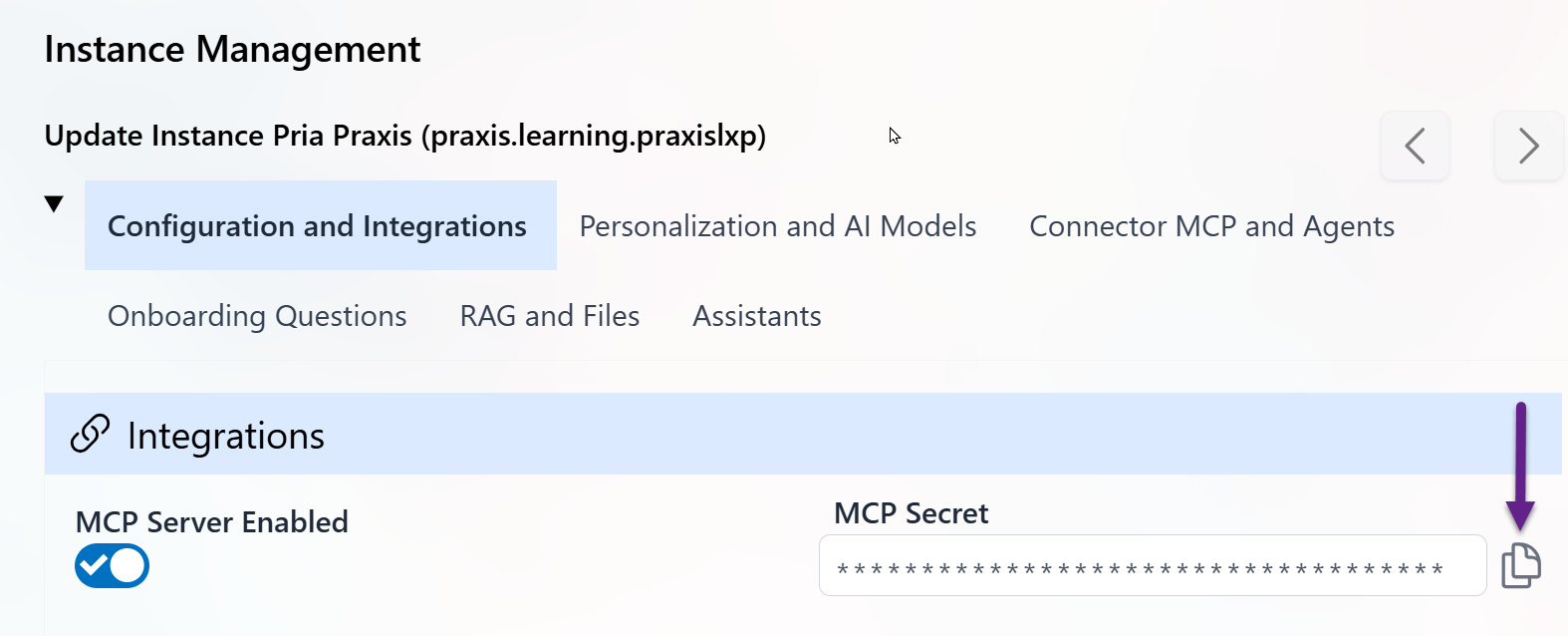
Step 3 — Configure Your MCP Client
Use the following settings in any MCP-compatible client:
Description / System Instruction (optional but recommended):
Available Tools
Once connected, your MCP client can invoke these tools:Additional tools may be available depending on your Digital Twin’s configuration and enabled connectors.
Testing Your MCP Server
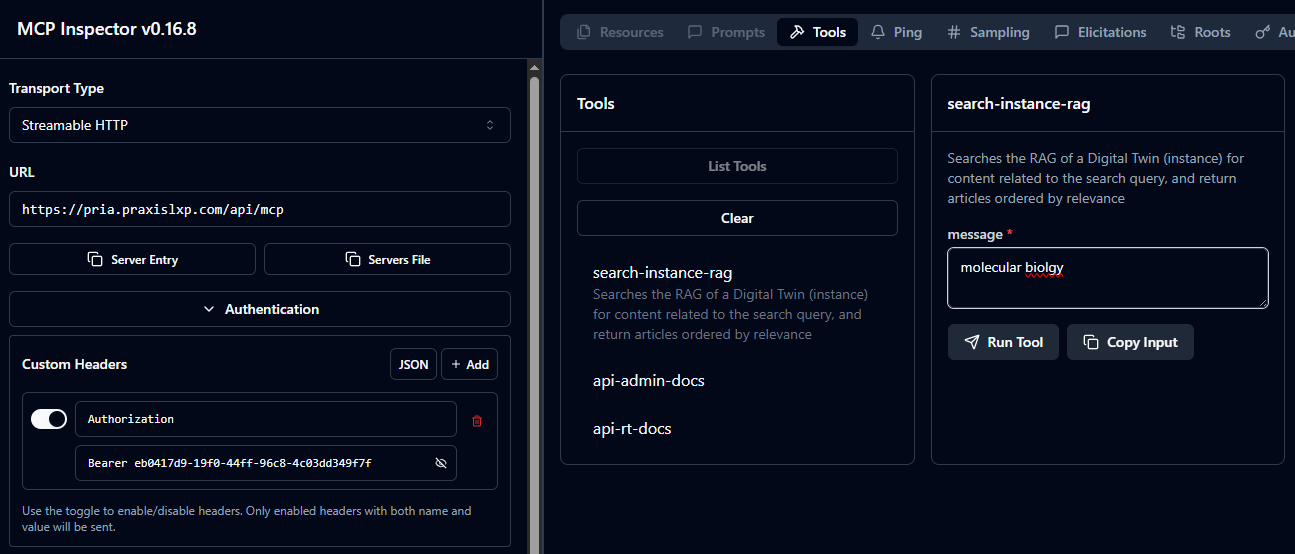
Use the MCP Inspector (documentation) to validate your connection, browse available tools, and send test requests.https://pria.praxislxp.com/api/mcp with your Bearer token and verify that the tools listed above appear.
Protocol Version & Tool Catalog
Pria’s MCP server is built on the official MCP TypeScript SDK (@modelcontextprotocol/sdk) and serves MCP over HTTP at /api/mcp (stateless transport). The protocol version is negotiated with each client per the MCP specification, so current MCP clients connect without any version configuration.
The currently exposed tools are:
Additional tools may be added over time. Use the Inspector’s
tools/list to see the current catalog for your deployment.
Pria CONSUMING an External MCP Server
In the other direction, your Digital Twin can call out to any external MCP‑compatible server during a conversation. Once configured, the external server’s tools appear in the Twin’s toolkit alongside Pria’s built‑in tools — the model can decide to invoke them when relevant. Common reasons to add an external MCP server:- A company knowledge base running its own MCP server (Notion, internal docs MCP).
- A task / automation hub like Slack, Zapier, or a workflow engine.
- A custom domain MCP server you built — for example, a server that exposes your CRM, your ticketing system, or a proprietary scientific database.
- A second Praxis Digital Twin (see Linking Digital Twins below).
Where to Wire It Up
External MCP servers are configured per Digital Twin: open the Twin in the Admin dashboard and switch to the Connector MCP and Tools tab, then add a Connector MCP with the server’s name, URL, and (optionally) an authorization header. Once active, the server’s tools are available to every assistant and every user of that Digital Twin — no per-user setup. Servers are deliberately scoped to a single Twin (this keeps credentials isolated). If several Twins need the same upstream MCP server, add it to each one. For the full field reference, tool filters, approvals, and troubleshooting, see MCP Servers (admin).Authentication to External MCP Servers
When Pria connects out to a third‑party MCP server, you supply the credentials Pria should present:- Authorization header — most common. Paste the full header value (for example
Bearer xyz123…) in the connector’s Authorization Header field. - No auth — for open public MCP servers (rare).
Linking Digital Twins via Connector MCP
A common use case is connecting two Digital Twins so that Twin B can search Twin A’s knowledge base in real time — without copying or syncing documents between them. Why link twins?- Keep source knowledge centralized in one twin while others query it on demand
- Updates to Twin A’s documents are instantly available to Twin B
- Avoid data duplication and keep all twins consistent
How to Set It Up
1
Enable MCP on Twin A
Follow the Quick Start above to enable MCP and copy Twin A’s MCP Secret.
2
Add a Connector MCP in Twin B
In Twin B, open the Connector MCP and Tools tab and add a new connector: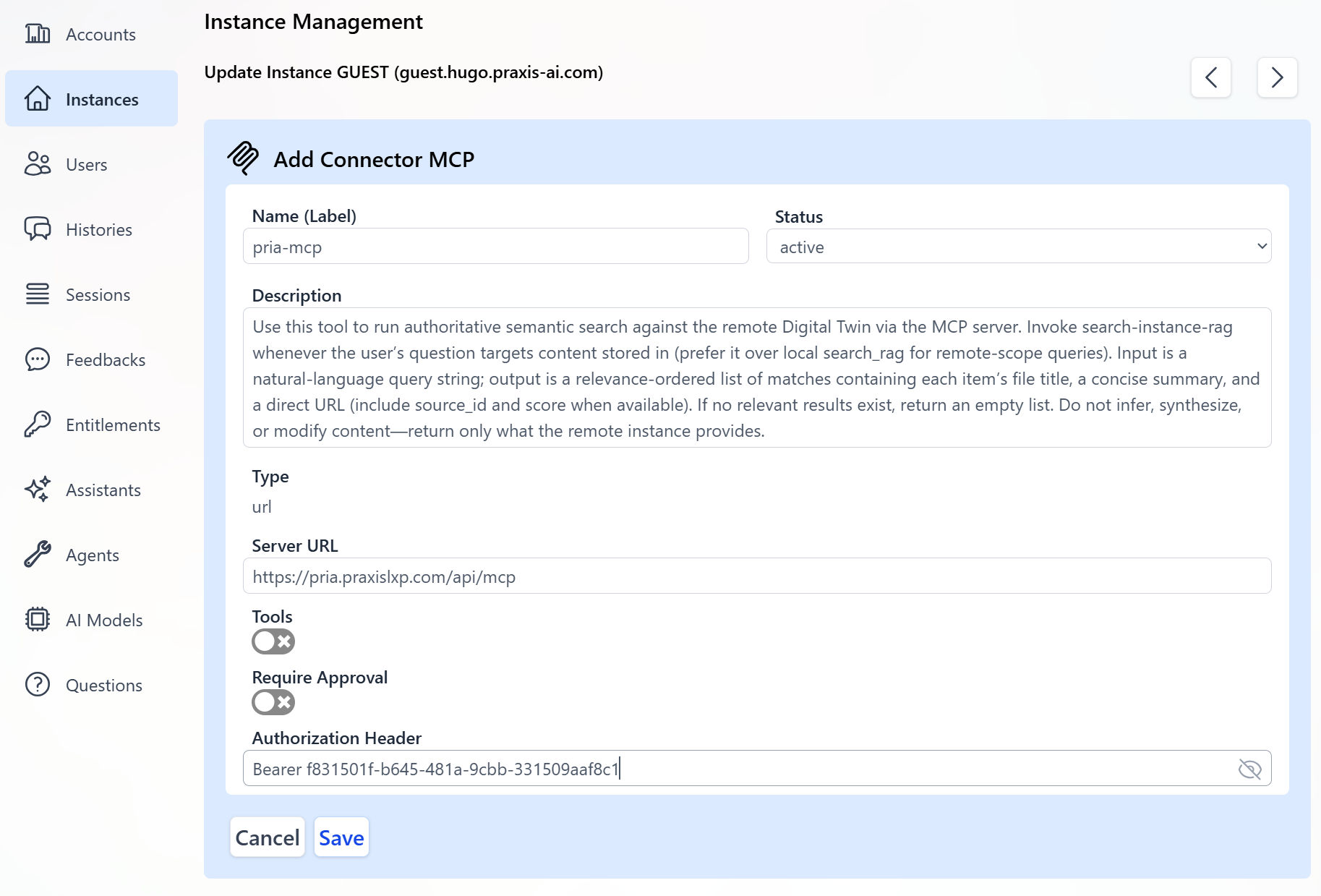
- Type: Connector MCP
- Target URL:
https://pria.praxislxp.com/api/mcp - Authorization Header:
Bearer <Twin A's MCP Secret>
3
Save and Enable
Save the connector and ensure it is enabled.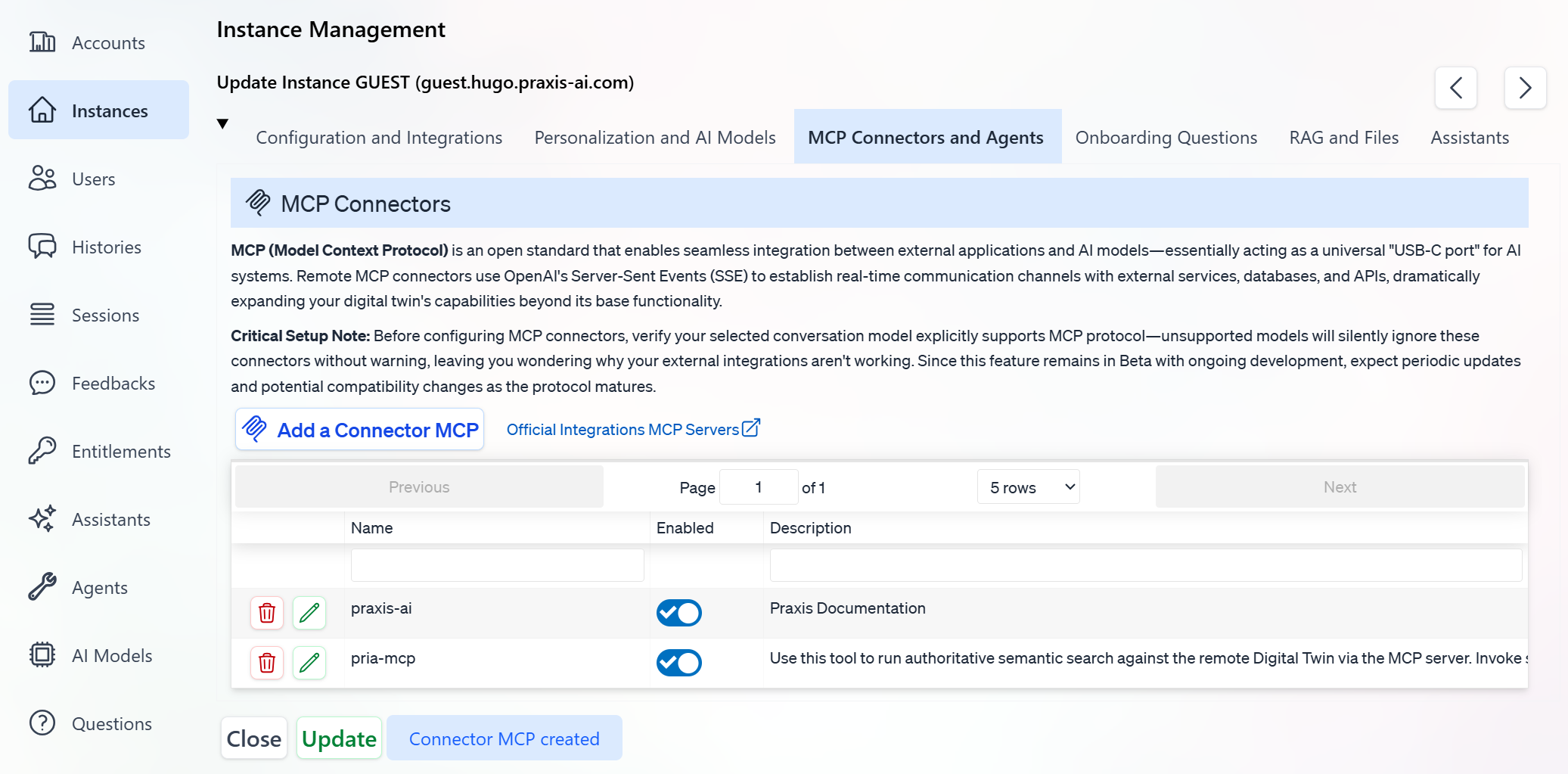
4
Test the Connection
Send a query in Twin B that targets Twin A’s knowledge. For example: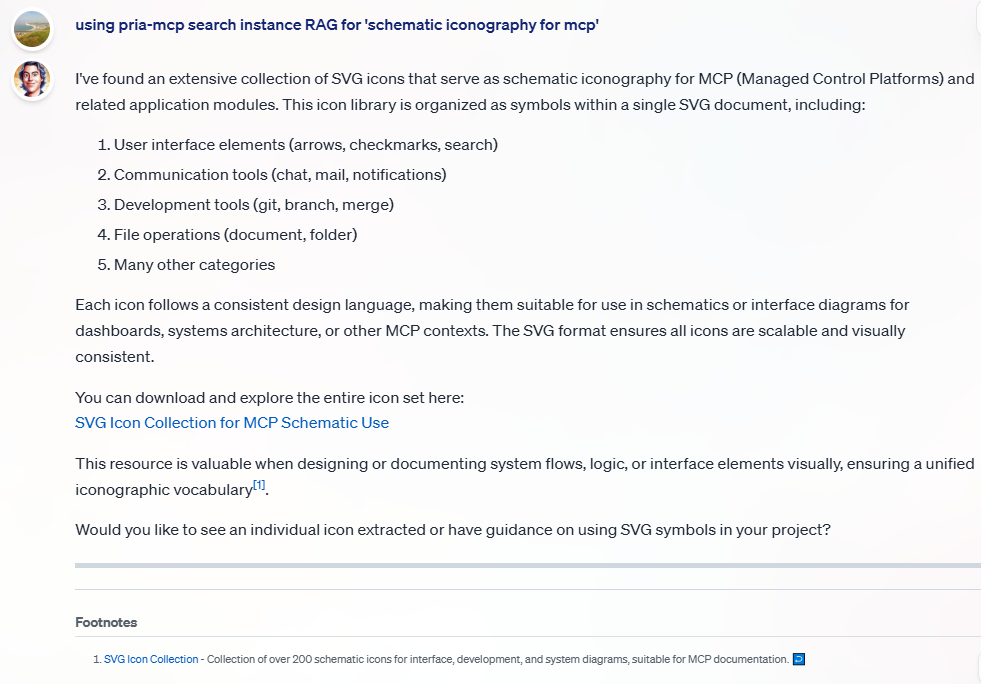
Using the pria-mcp, search for information about “onboarding process”
5
Review Tool Details
Check the agent details to confirm the tool was invoked correctly and returned results.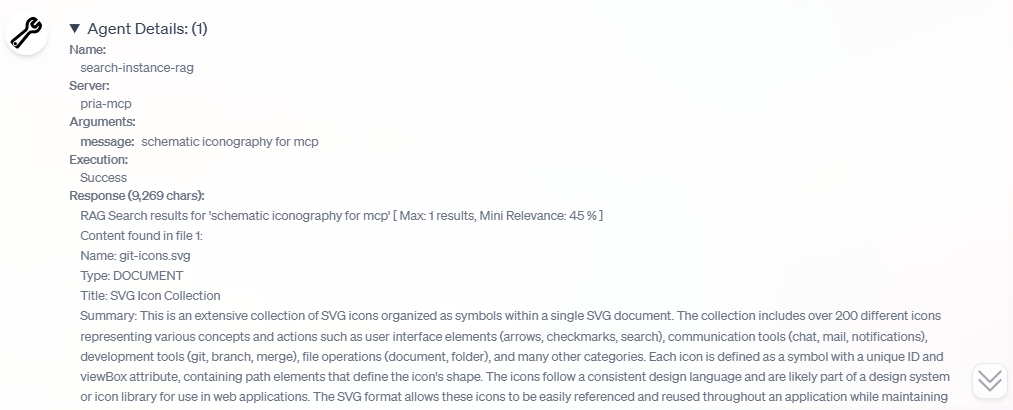
The bearer value you provide in Twin B’s connector must be Twin A’s MCP Secret (not its Public ID). This ensures authenticated, secure communication between twins.
MCP in Real-Time Voice Conversations
MCP tools are also available during Convo Mode — your Digital Twin can invoke MCP tools during live voice conversations, for example searching a connected twin’s knowledge base while speaking with a user.Voice-mode MCP support depends on the provider: the OpenAI GPT-Realtime and xAI Grok realtime providers accept MCP tools directly; ElevenLabs and Anam voice sessions route each spoken turn through Pria’s Chat Completions bridge, so MCP tools are available there whenever the Twin’s conversation model supports MCP. Gemini Live does not support MCP tool definitions. See Convo Mode for a provider comparison.
Shared MCP Configuration for a Digital Twin
Administrators configure external MCP servers once per Digital Twin on the Connector MCP and Tools tab in the Admin dashboard. This makes the server’s tools available to all users of that Digital Twin without any individual setup. See MCP Servers (admin) for the field reference, and Configuration for the inbound MCP Server switch, Secret, and identity-signing settings.Troubleshooting
Learn More
- Model Context Protocol specification — The official MCP documentation and standard
Related
- MCP Servers (admin) — Institution‑level MCP server configuration
- Configuration — Where the MCP Server switch and Secret live
- Connectors — Adding external MCP servers as Twin‑scoped connectors
- Tools — Tool definitions available to your Digital Twin
- Convo Mode — Voice conversations with MCP tool support
- API Reference — Runtime and Admin REST APIs that the MCP server mirrors
- API Keys — Personal API keys for programmatic access to Pria