

Start a Conversation
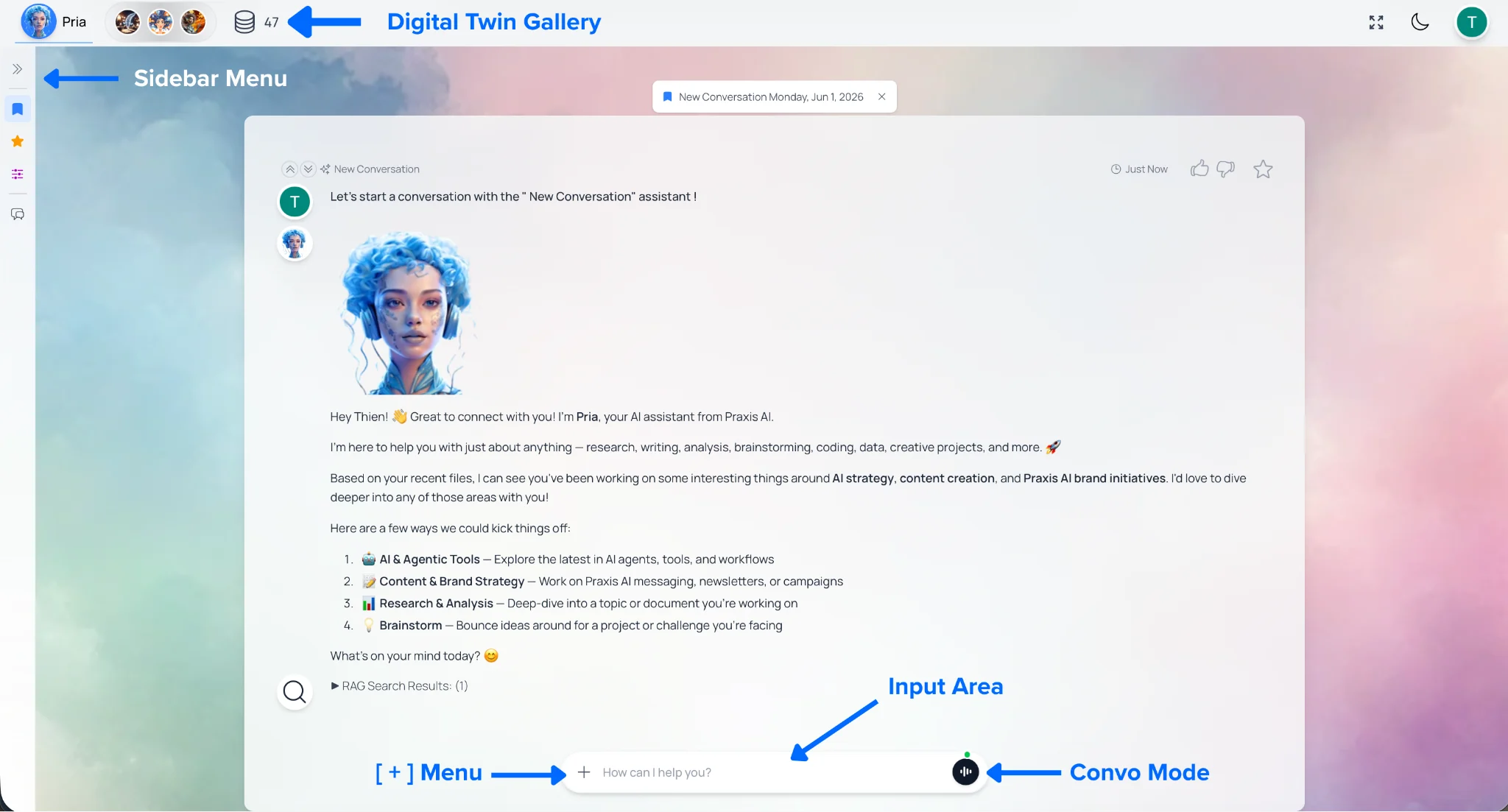
Type a question or request into the input area at the bottom of the screen
- Stop — preserves everything generated so far
- Pause scroll — read at your own pace
- Enable TTS — have the response read aloud
- Type your next prompt — it queues automatically
Use the Input Options
The input area is where you send messages and access helpful tools. Most users will start by typing into the input bar, but Digital Twins can also support files, audio, Assistants, and voice conversations.Text Input
Use the text input area to type a question, instruction, or request. You can use simple language:The [+] Action Menu
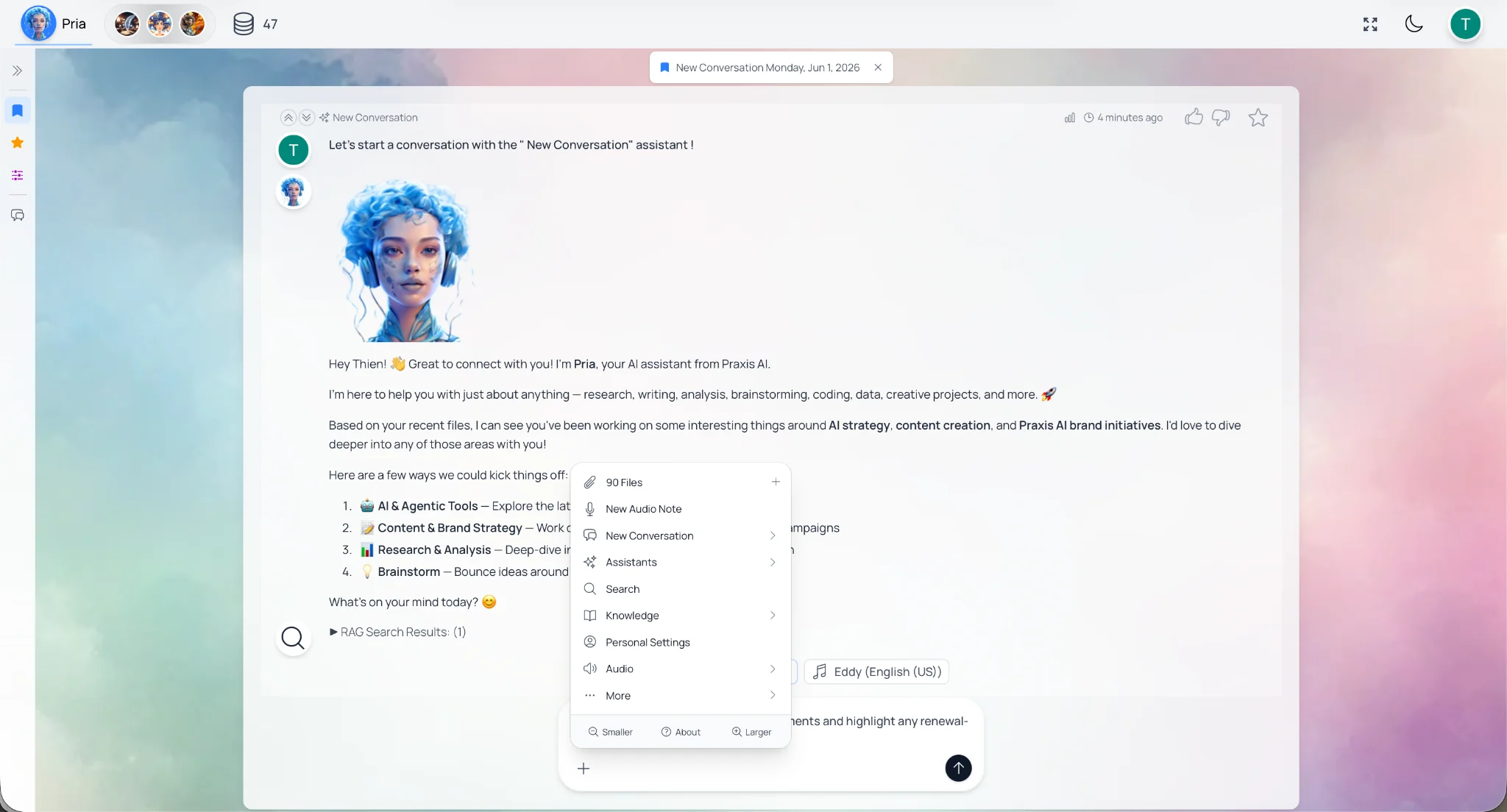
The [+] action menu in the input bar
- Adding or selecting files
- Creating an audio note
- Using different Assistants
- Searching within current or previous conversations
- Accessing available tools or settings
- Adjusting how Pria uses sources or context
Mic (Dictation)
The mic button lets you speak instead of type. Tap it, talk, and Pria transcribes your speech into the text field. You can review and edit the text before sending it, just like a typed message. This is useful when you want to capture a longer thought, explain something quickly, or work hands-free for a moment.Your speech is transcribed into the text field. The audio is processed and immediately discarded — nothing is stored.
Convo Mode
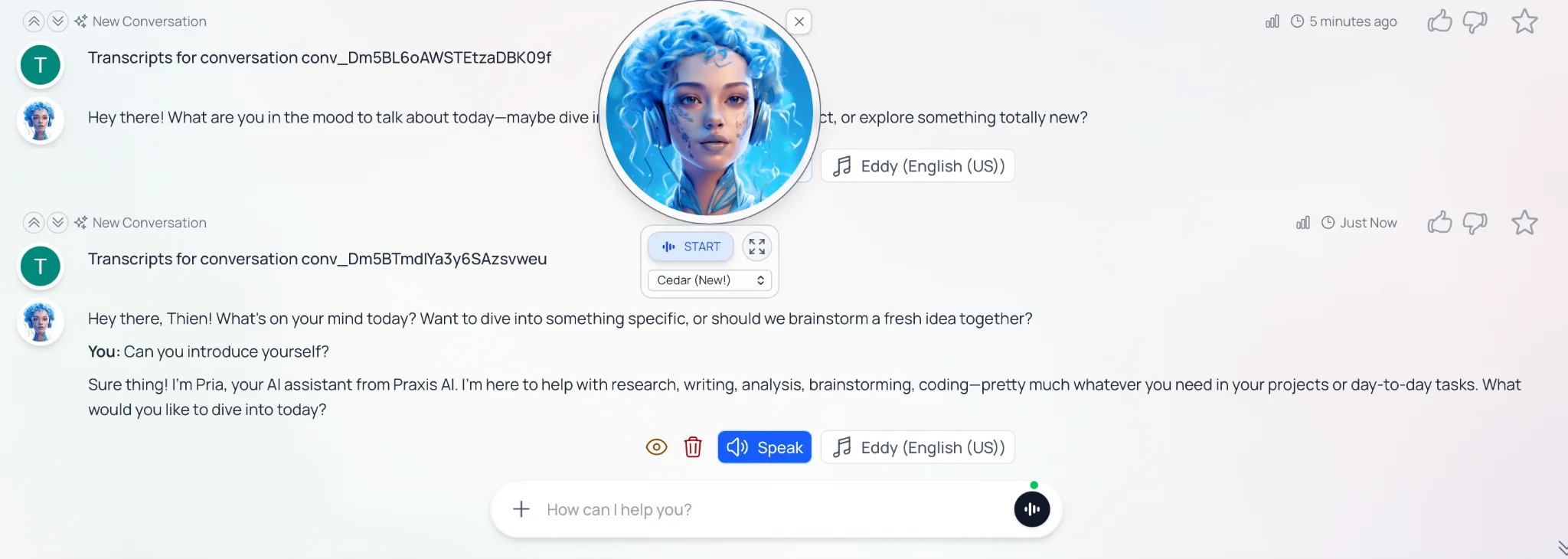
Convo Mode — real-time voice conversation with a live transcript
- A live transcript appears as you and Pria speak.
- Pria’s full tool set (search, file lookup, image generation, etc.) is available during voice sessions.
- The Convo widget can be minimized, moved, and resized. Closing it ends the session.
- Convo Mode — back-and-forth conversation
- Mic (dictation) — composing a single longer message hands-free
Digital Twin vs. Assistant
A Digital Twin is the main personality or expert you are speaking with. An Assistant is a focused tool or workflow inside Pria that helps with a specific task, such as drafting content, reviewing a document, or following a step-by-step process. You can think of the Digital Twin as the expert, and Assistants as task-specific helpers.Understand Responses
After you send a message, the Digital Twin will generate a response. Once a response is complete, hover the dialogue to reveal:- Copy input / Copy output
- Share link
- View Tool Details
- Delete dialogue
- Read aloud (Text-to-speech)
Stop Generation
If a response is still being written, you can stop it before it finishes. This is useful if you realize you asked the wrong question, want to change direction, or already have enough information. Stopping a response keeps what has already been generated.Copy Response
You can copy a response and paste it somewhere else, such as a document, email, slide deck, or notes app. This is helpful when the Digital Twin drafts something you want to reuse or edit.Read Aloud / Text-to-Speech
The Read Aloud option lets you hear a response spoken out loud. This can support accessibility for users who prefer listening, use screen-reading workflows, or benefit from audio while reviewing content. It can also be useful when checking the tone of written content — sometimes hearing a paragraph out loud makes it easier to spot awkward wording.View Tool Details
Tool Details shows what tools Pria used, if any, to help create a response. For example, it may show whether Pria searched files, read a document, used a connected service, or answered without using a tool. New users do not need to inspect Tool Details every time. It is most helpful when you want to understand where an answer came from or check whether the right information was used.Delete Dialogue
You can delete a dialogue if you no longer need it.Manage Conversations
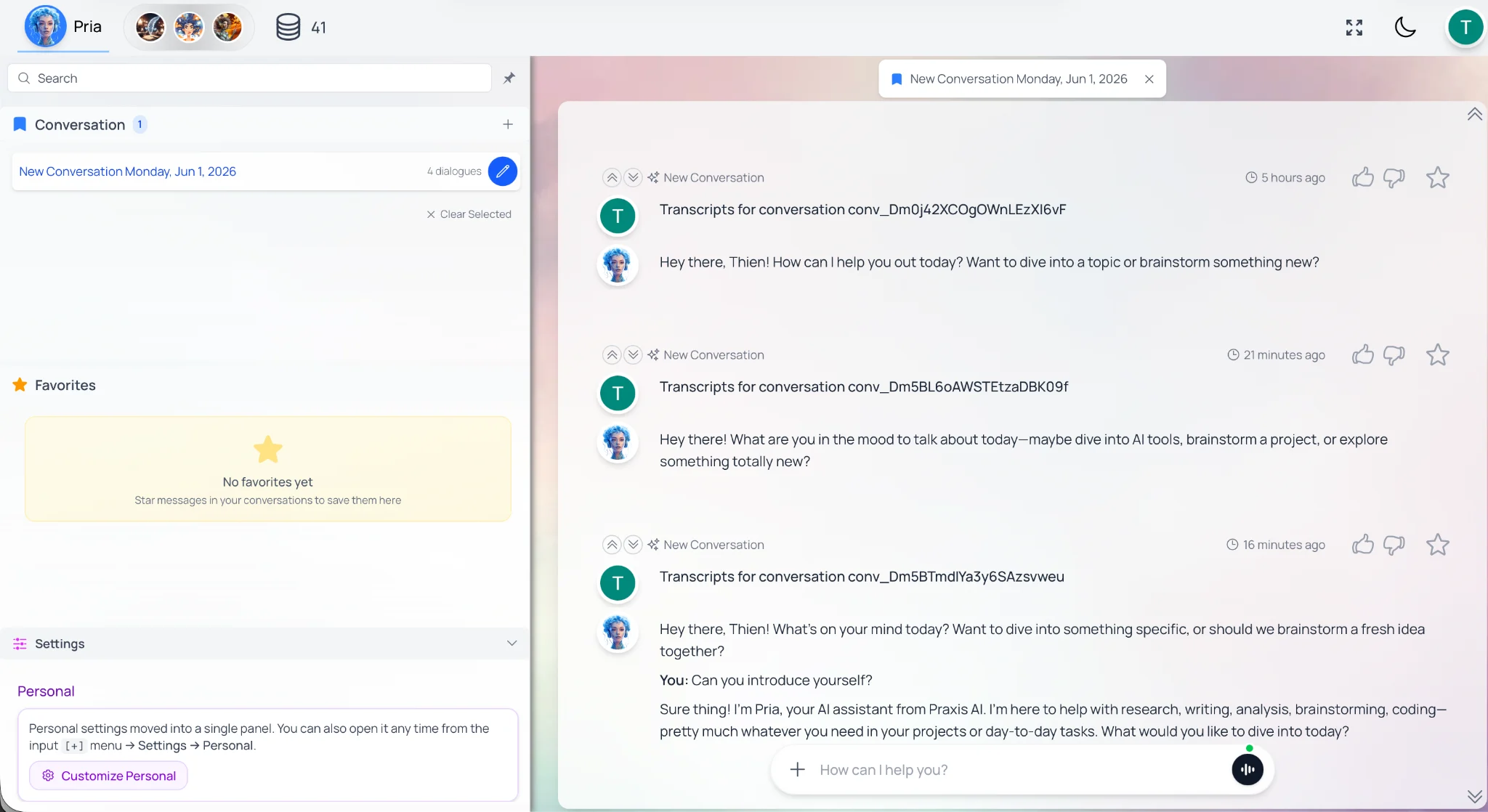
The Conversations panel in the left navigation
- Switch — click any entry to load it
- Rename / Delete — hover a row and click the pencil icon
- Clear filter — click the × Clear Selected chip to return to all conversations
Start a New Conversation
You can start a new conversation using the + button. It is a useful shortcut for creating a fresh conversation when you are starting a new topic.Use the Left Navigation
The left navigation or sidebar lets you view and switch between conversations. Use it to return to previous work, continue an earlier topic, or keep different projects separate.Save Important Responses as Favorites
If a response is especially useful, you can save it as a favorite. Favorites help you quickly return to important answers without searching through an entire conversation.Basic Settings
Settings help you personalize your Pria experience. You do not need to adjust everything when you first start, but a few basic settings are useful to know. Click Settings at the bottom of the sidebar to access:
Key settings in Your Profile:
Profile
Your profile may include your name, profile picture, account information, and other personal settings. Keeping your profile up to date can help your account feel more personalized and easier to recognize, especially if you use the platform across multiple Digital Twins or organizations.Dark Mode
Changes the display to a darker color theme.Remember History
Remember History controls how much previous conversation context Pria keeps in mind when responding. For example, if you are working on a project and Remember History is enabled, Pria can better follow the ongoing conversation.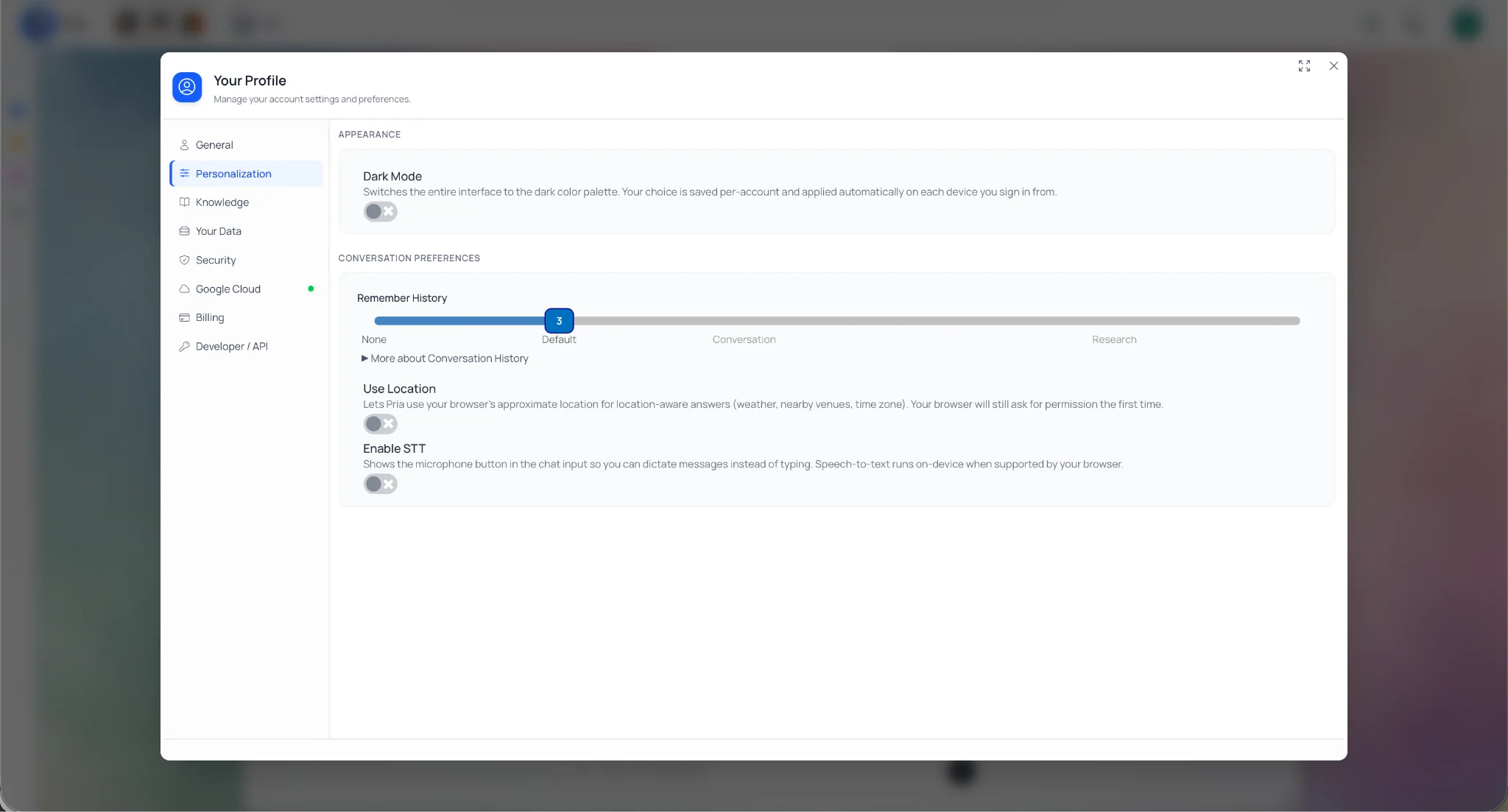
The Remember History setting
Suggested settings by use case:
- Quick lookups: 1–3
- General chat: 3–5
- Learning / tutoring: 5–7
- Complex projects: 7–12
Google Connection
Some organizations allow users to connect to Google Workspace. If this is enabled for your account, you may be able to connect supported Google tools so Pria can help with approved tasks involving Google Docs, Sheets, Slides, Calendar, Gmail, or Drive. If you do not see this option, your organization may not have enabled it.Credits
Depending on your account setup, you may be able to view your credits from your profile, billing, or credits area. Credits are connected to usage. If your organization manages billing or access for you, you may not need to manage credits yourself.Switch Digital Twins
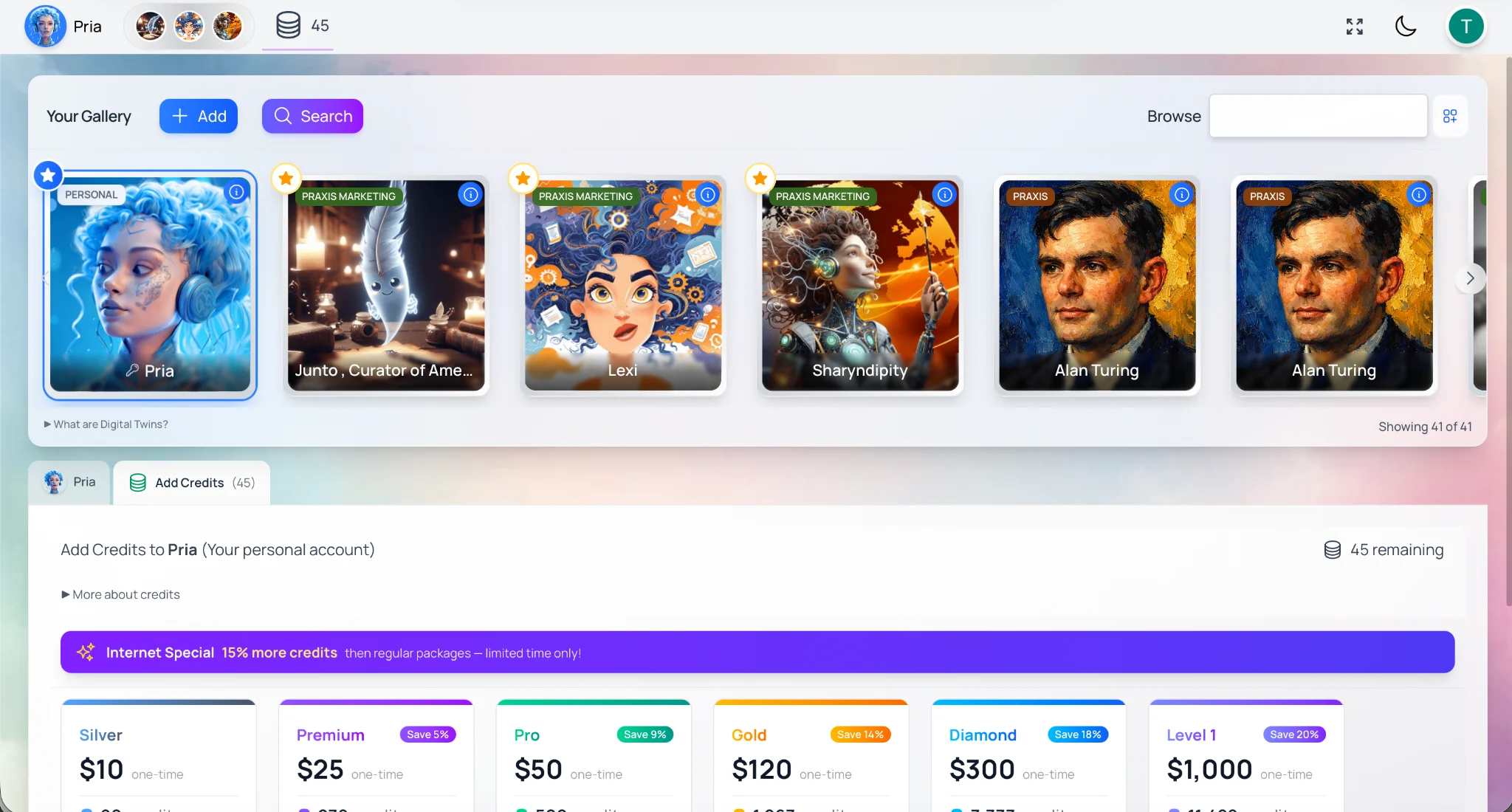
Switching between Digital Twins from the gallery
Use the Gallery or the Accounts Button
Use the Gallery or the Accounts button to move between Digital Twins available to you. This is helpful when you want to work with a different expert, project, class, organization, or branded experience.Favorite a Digital Twin
If you use a Digital Twin often, mark it as a favorite. Favoriting a Digital Twin makes it easier to find and access quickly.Best Practices
1. Be Specific
Include objective, audience, format, constraints, and success criteria in your prompt.Vague
“Write about marketing”
Specific
“Write a 500-word blog post on Q1 SEO trends for small businesses. Tone: conversational. Format: 4 sections with 3 actionable bullets. Cite stats inline.”
2. Add Context
Context helps provide a better response. Useful context can include:- Your goal
- Your audience
- The tone you want
- The file or topic you are working with
- Any constraints, such as length or format
3. Ask for a Format
You can ask the Digital Twin to respond in a specific format — bullet points, a table, a checklist, an email draft, a summary, a step-by-step guide, a lesson plan, a meeting agenda, or a file format (PDF, DOCX, HTML, and more).4. Review Important Outputs
Always review important outputs before sharing, submitting, publishing, or using them for decisions. Pria can help you draft, summarize, brainstorm, and analyze, but you should still check important details for accuracy, tone, and completeness. This is especially important for legal, medical, financial, academic, or official communications.5. Quick Tips
Here are a few simple habits that help beginners get better results:- Start with one clear request.
- Ask follow-up questions.
- Tell Pria what role to take, such as “act as a tutor” or “act as a technical writer.”
- Ask for the format you want.
- Add background information when needed.
- Use favorites for responses you want to keep.
- Start a new conversation when changing topics.
- Review important answers before using them.
Related Guides
These guides are useful next steps when you are ready to go deeper.IP Vault
For power users who want to add documents, websites, or knowledge sources for Pria to use.
Building Assistants
For power users who want to create repeatable workflows for common tasks.
Admin Settings
For administrators who manage Digital Twin configuration, users, branding, permissions, and advanced settings.