

Switch Between Digital Experts
Once you have more than one Digital Twin, switch between them with the Accounts button (despite its name, it switches Digital Twins).Effortlessly switch between your digital experts using the intuitive navigation interface. Simply click the profile icon on the top right of the platform and choose Accounts
Your Gallery
Your centralized gallery provides comprehensive management capabilities for all your digital experts.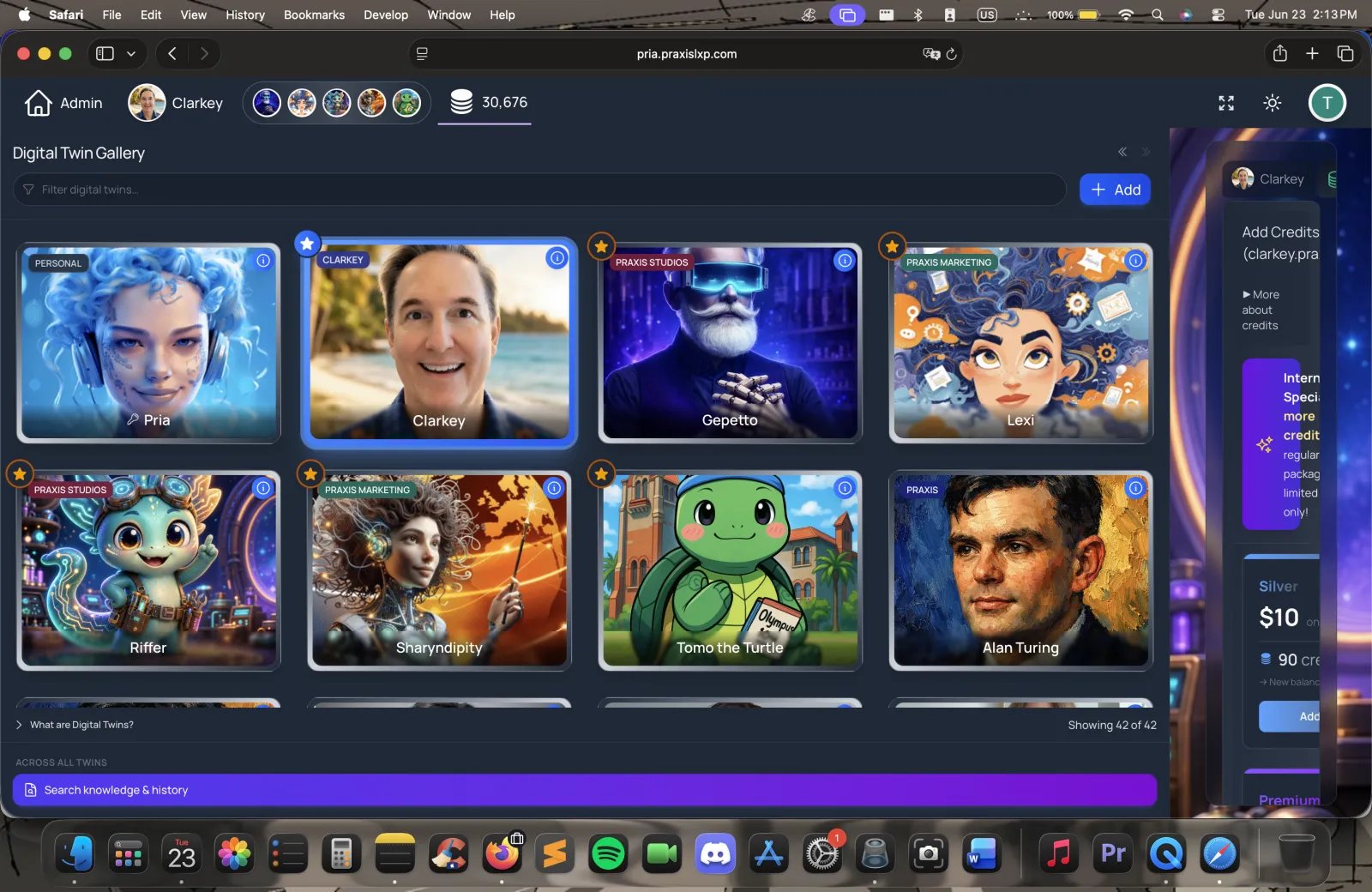
The Digital Twin Gallery — each Twin as a card, with a filter box, an Add button, and each twin's credit usage at a glance.
Gallery Management Features
Search & Discovery
Search & Discovery
- Smart Search: Locate experts by name, subject, or specialty
- Filter Options: Sort by creation date, usage frequency, or category
- Quick Preview: View expert capabilities without switching
Expert Management
Expert Management
- Direct Editing: Modify expert personalities and instructions
- Capability Updates: Add new skills or knowledge areas
- Visual Customization: Update avatars and display preferences
- Performance Tuning: Adjust response styles and behaviors
Credit Management
Credit Management
- Balance Tracking: Credit usage monitoring
- Easy Top-Up: One-click credit purchasing
Capability Expansion
Capability Expansion
- Skill Integration: Add new assistants that are custom to your expert
- Knowledge Updates: Incorporate latest information and data in the IP vault
- Specialization: Fine-tune experts for specific domains
Favorite Digital Twins
Mark your most frequently used digital twins as Favorites to prioritize them at the top of your gallery for quick access.Select your Digital Twin from the gallery
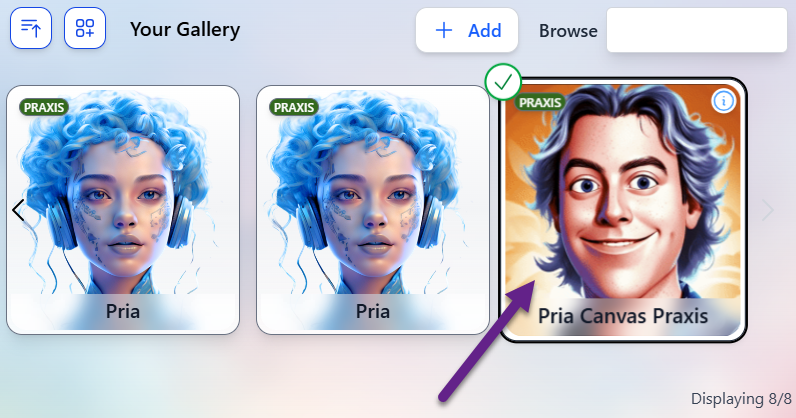
Select Digital Twin
Mark as Favorite
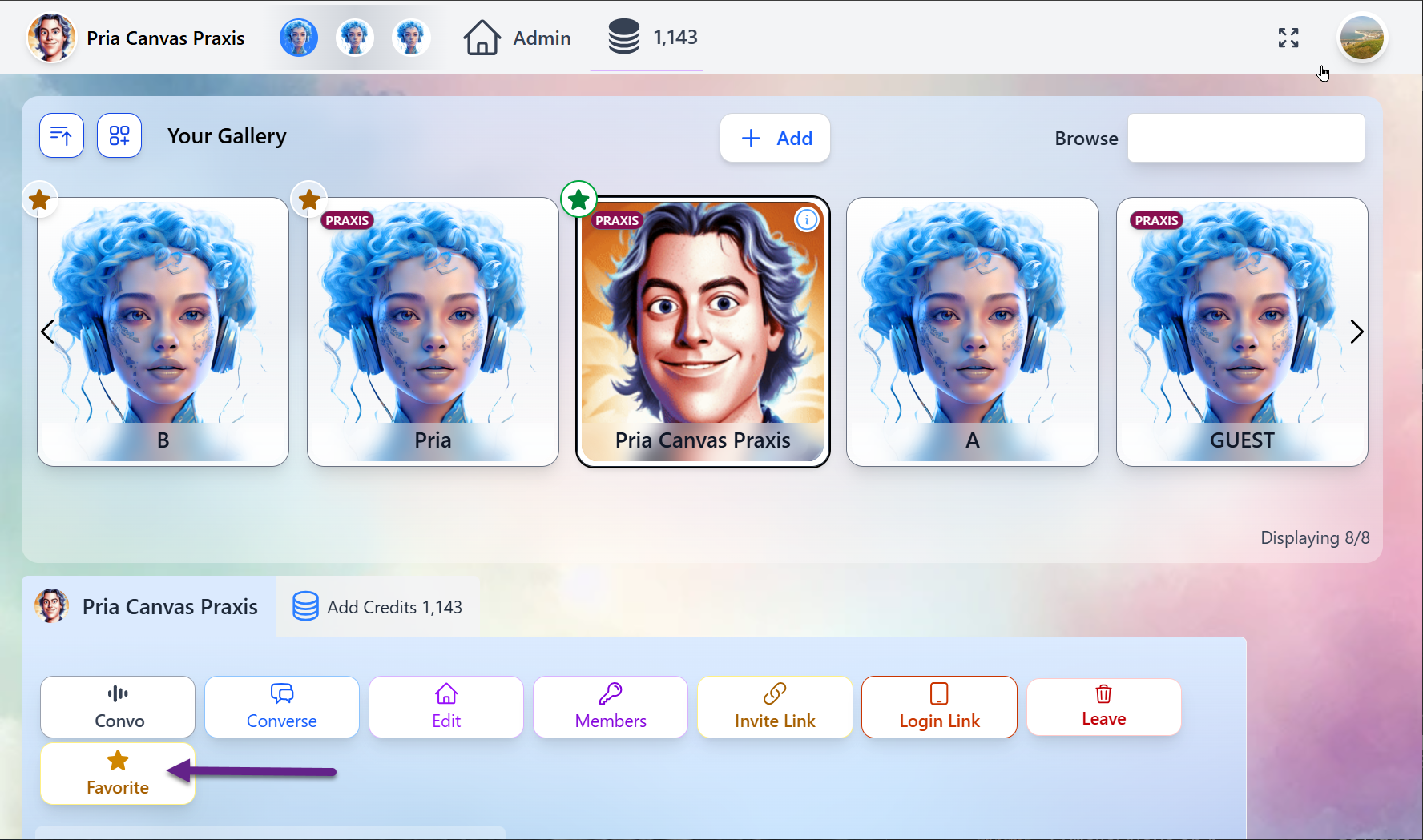
Favorite Digital Twin
Switch Favorite in the Navigation Top Bar
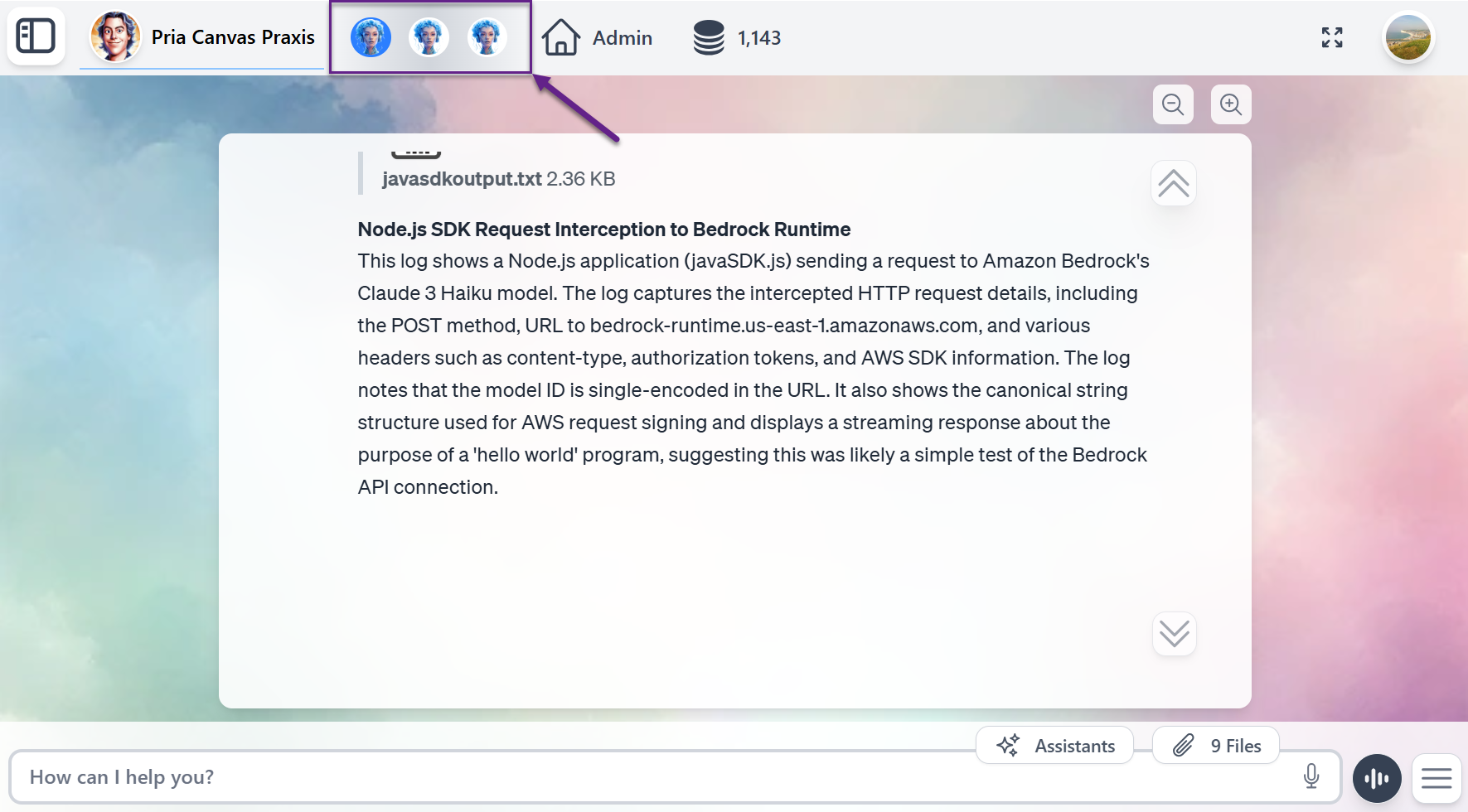
Switch Digital Twin
Digital Twin Options
Admin Features
Administrative users have enhanced capabilities for expanding and managing the digital expert ecosystem and are offered several buttons that regroup to most commonly used commands for your digital twins.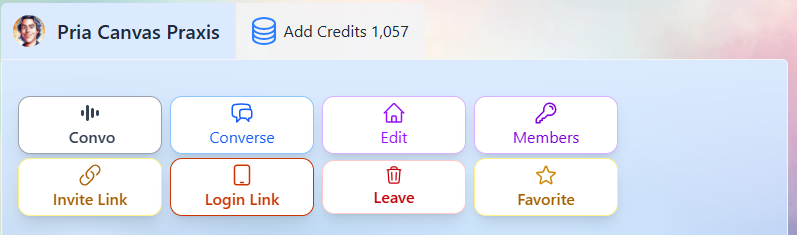
Admin Commands for a Digital Twin
Add Credits to your Digital Twin
Use the Gallery to add credits to your own Digital Twin. For more information, consult the Plans and Credits page.Invite users to your Digital Twin
Inviting people is built into Instance Settings → Invite (the person-plus tab). It gives you a shareable Invite Link — anyone who opens it can sign up and join your Twin automatically — plus a scannable QR code for posters, slides, or onboarding in person. The same tab also carries the branded Login Page for people who already have access.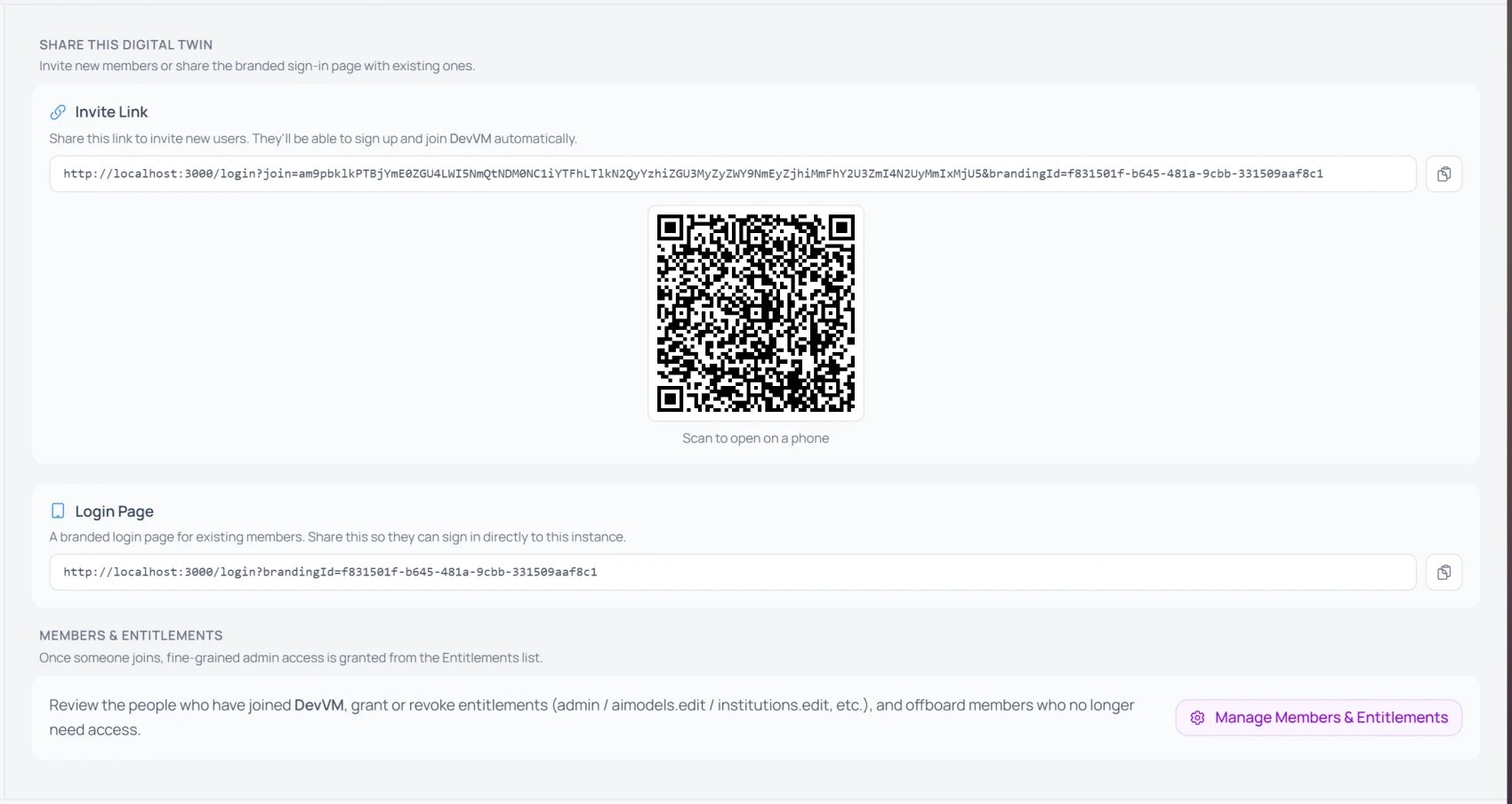
Instance Settings → Invite: an Invite Link (with QR code) for new members, a branded Login Page for existing ones, and a shortcut to Members & Entitlements.
Open the Invite tab
institutions.edit entitlement) — regular members won’t see the tab.Share the Invite Link or QR code
Manage who's in
Create a Branded Login Screen
Alongside the Invite Link, the Invite tab also offers a Login Page link — a branded sign-in page for people who already have access to your Digital Twin. Copy it from Instance Settings → Invite and share it.Branded Login Link Features
Branding
Branding
Responsive
Responsive
Your Digital Twin first
Your Digital Twin first
Animated
Animated
How it works
Copy the Login Page link
Members sign in on your branded page

A branded Digital Twin login page — themed with the Twin's avatar, name, and About text.
Example with Animation
Here is an example of a branded login page with an animationAdding New Digital Twins to your gallery
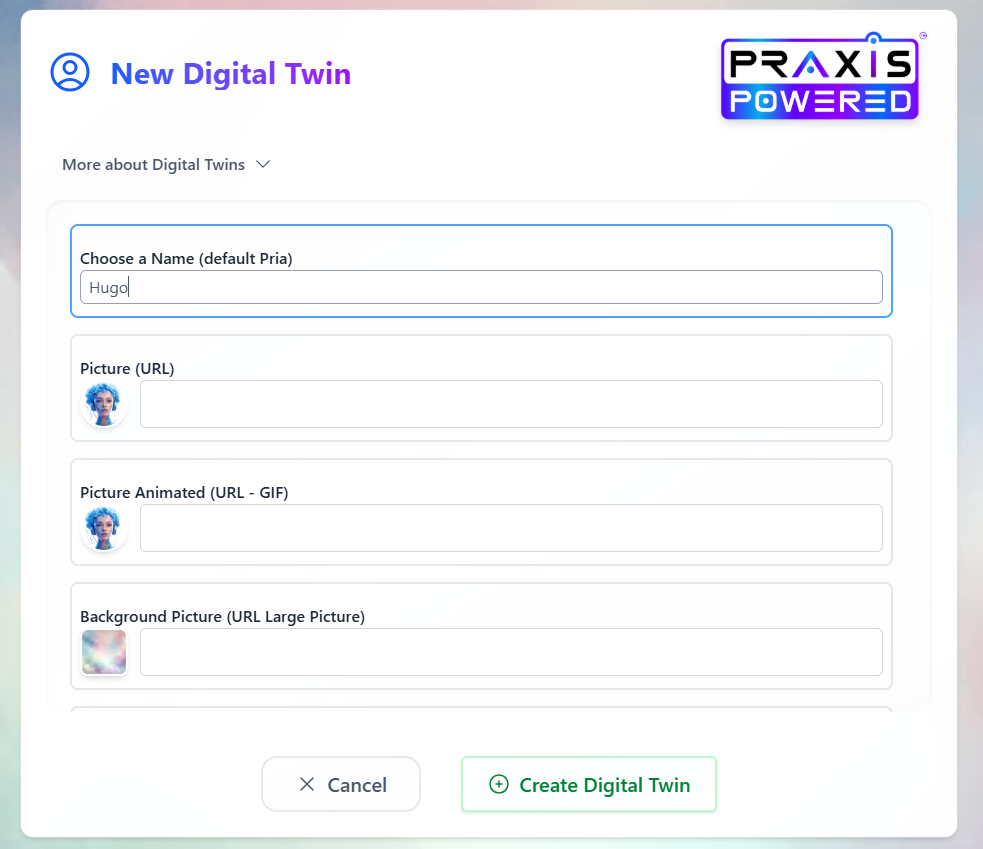
To add a digital twin to your gallery, click the Add button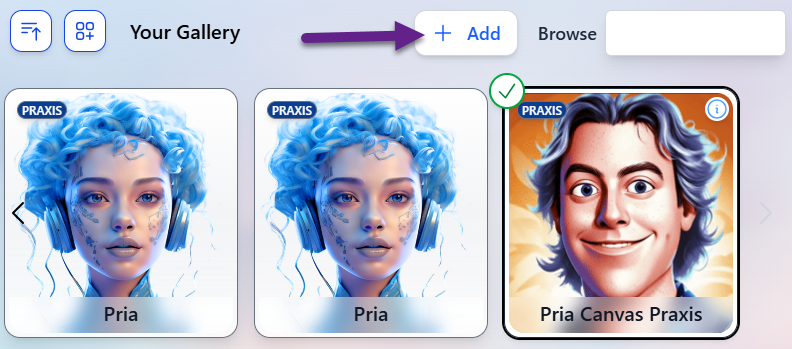
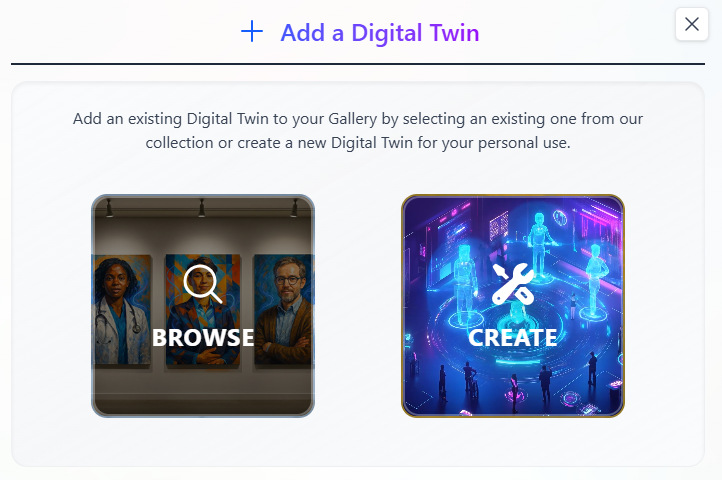
- Browse
- Create
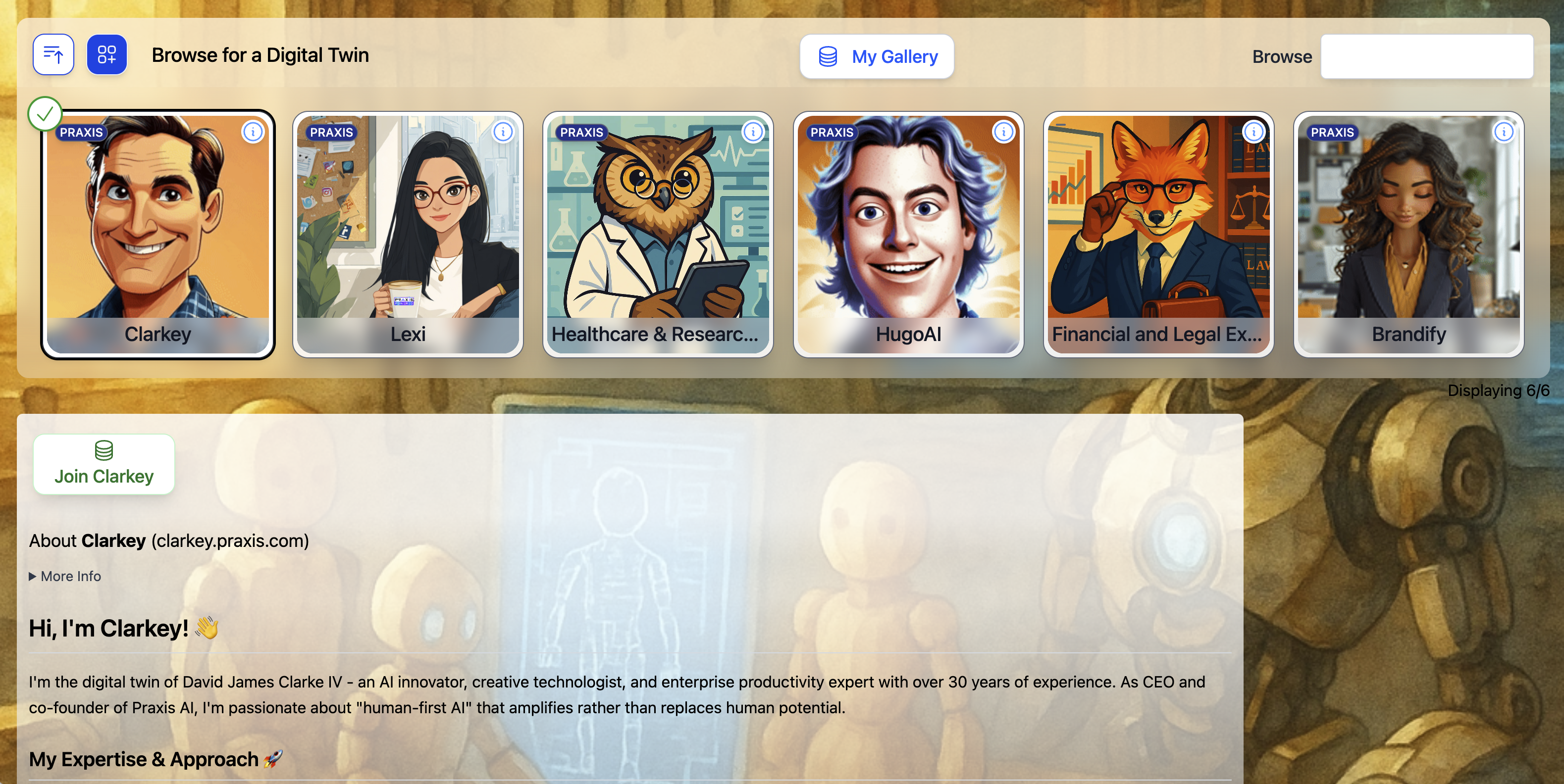
- Curated Collection: Access professionally designed digital experts
- Category Filtering: Find experts by subject, industry, or use case
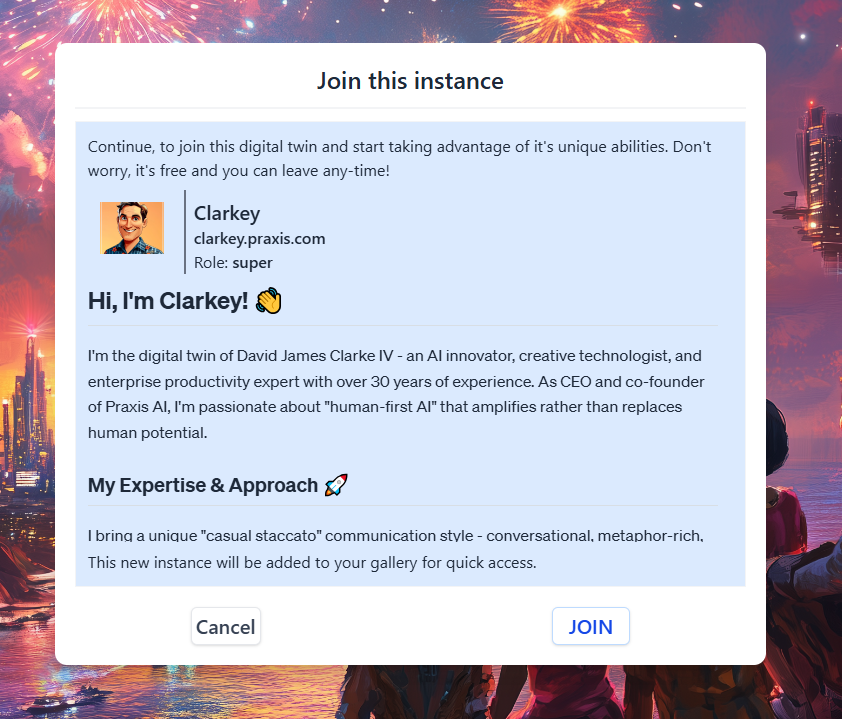
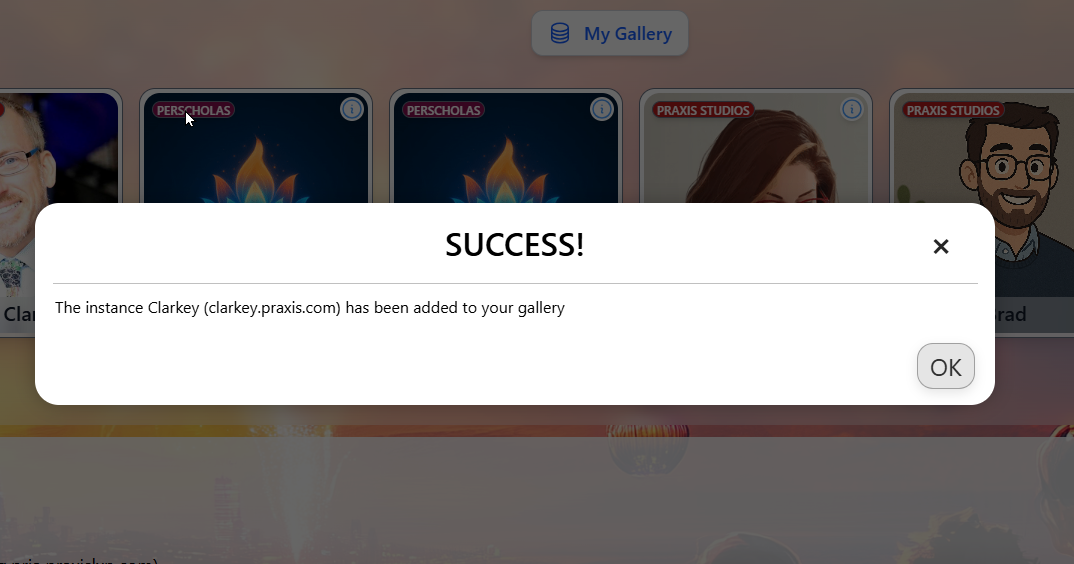
- Instant Integration: Add experts to your gallery with one click
Getting Started
Assess Your Needs
Explore Options
Add Your First Expert
Practice Switching
Scale Gradually
Related
- Convo Mode — Real-time voice conversations with your Digital Twin
- Assistants — Specialized AI assistants within your Digital Twin
- Plans and Credits — Credit management and purchasing
- Edit Profile — Personalization and voice settings
- Configuration — Admin settings for Digital Twin instances