

On your personal Pria, image tools come with the Media tool set (the recommended Minimal set has none). Turn it on in [+] → Tools — see Choosing Your Tools. In a Digital Twin, its administrator chooses the tools.
How to ask
Type a prompt the same way you’d ask for anything else: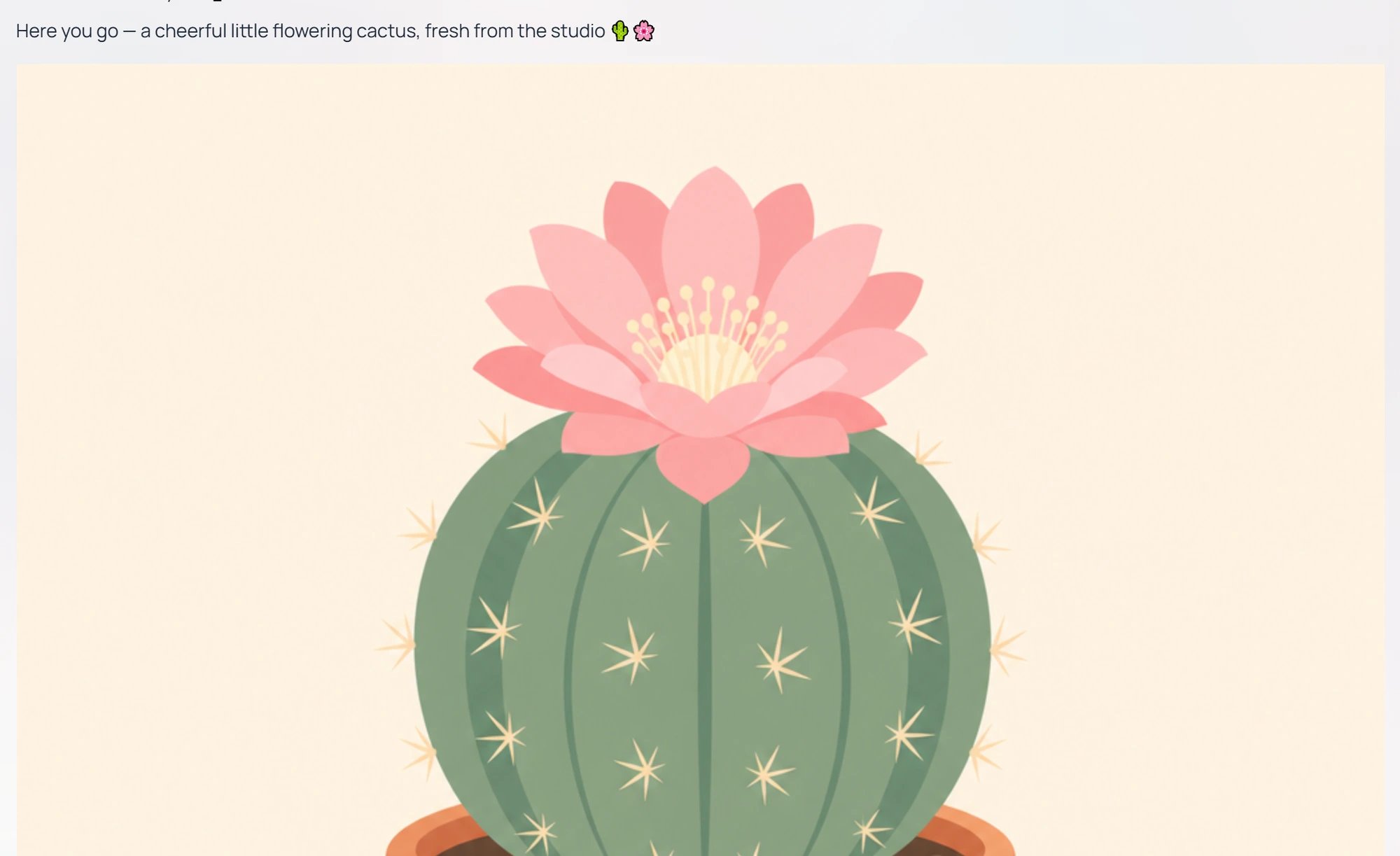
Ask in plain language and the image appears inline in the response stream.
What you can ask for
Pria handles a wide range of visual styles. The most common requests fall into a handful of categories:
Style descriptors (medium, lighting, palette, mood, composition) help every provider get closer to what you want on the first attempt.
Provider behavior at a glance
Your administrator chooses which image providers are enabled on your Digital Twin. Each provider has its own strengths.OpenAI (GPT Image family)
OpenAI (GPT Image family)
Broad-purpose generator with strong prompt-following. Good first choice when you need the image to closely match a detailed text description. Handles styles, text-in-image, and compositional instructions well — and supports editing an existing image. GPT Image 2.5 Flare is the fast everyday choice; GPT Image 2.5 Sunburst is the most precise for edits. Sizes are specified as pixel dimensions (square, portrait, landscape).
Stability
Stability
Strong creative range — illustration, painting styles, dramatic lighting, and stylized art. Stability accepts a wide range of aspect ratios (square, wide, tall, ultra-wide) and generates fresh images from your text prompt.
Google (Gemini image models)
Google (Gemini image models)
Google’s native Gemini image-generation models. Strong on photographic quality and natural scenes — reliable for product photos, landscapes, and portraits where you need photographic realism rather than illustration. The high-quality variant supports larger output resolutions.
Bedrock — Amazon Titan and Nova
Bedrock — Amazon Titan and Nova
Available through AWS for organizations whose compliance posture requires staying inside AWS. The older Titan and Nova Canvas image models are deprecated and will be removed; a Twin that still uses one keeps working until your admin picks a newer image model. Nova Reel adds short video clips for motion previews.
xAI image generation
xAI image generation
Uses aspect ratio rather than pixel size — you ask for
1:1, 16:9, 9:16, etc., and xAI returns an image scaled to that ratio. xAI does not support image-to-image editing; if you need to edit an existing image, ask your admin to switch the Twin’s image model to one that does — GPT Image 2.5 Sunburst or GPT Image 2.5 Flare.Sizes vs aspect ratios
Most providers accept either explicit pixel sizes (1024x1024, 1536x1024, 1024x1536) or aspect ratios (1:1, 16:9, 9:16). Pria translates between the two when you ask in plain language (“make it wide”, “vertical poster”, “square thumbnail”).
Style tips for prompts
A few short habits dramatically improve image results:- Lead with the subject, then add medium, then add style. (“A photo of a fox in a snowy forest, cinematic, golden hour.”)
- Name the medium explicitly — “watercolor”, “vector illustration”, “studio photograph”, “pencil sketch”.
- Add lighting words — “soft natural light”, “neon backlight”, “overcast”, “rim light”.
- Steer composition — “wide shot”, “close-up”, “rule-of-thirds”, “centered subject”, “negative space top-right”.
- Iterate. Generate, look, then ask Pria to “make the lighting warmer” or “remove the background clutter”. Pria treats follow-ups as edits where the provider supports them, or as a fresh generation with the previous prompt as context.
Editing an existing image
Where the provider supports it, you can refine an image after the fact. Drop an image into the conversation (drag-and-drop, or attach via the [+] menu) and ask Pria to change it:
When edits aren’t supported, Pria re-generates from scratch using the same prompt plus your refinement. For real edits, ask your admin to pick GPT Image 2.5 Sunburst or GPT Image 2.5 Flare as the Twin’s image model.
Saving and re-using generated images
Every image Pria generates is saved to your IP Vault automatically, so you can find it later, re-attach it to a future conversation, or share it via a public conversation link.- Save to your device — open the image in Files (your IP Vault) and use its Download action.
- Re-use as a source — reference the image by name in your next request, or attach it via the [+] → Add Photos & Files menu, to use it as the starting point for an edit.
- Share — use the conversation’s Share as link action to publish the dialogue (and image) as a public URL.
Cost
Image generation is billed in credits per image, with the rate set per-provider and per-model. Larger images, higher quality settings, and longer videos cost more. The exact cost of the turn is shown on that response’s Usage Details card (the chart icon in the hover action row) and under View Details → Conversation History (the Credits line), alongside any token-based costs. See Credits for the in-app credit display and Plans & Credits for the full pricing model.Content moderation applies
The same moderation policy that covers text answers covers image generation — prompts and outputs are filtered against safety rules before the image is returned. If a prompt or generated image is blocked, Pria explains why and invites you to rephrase. See Moderation for the policy details.Related
- Content Creation — using assistants tuned for visual work
- Media Analysis — having Pria read, describe, or analyse images you provide
- AI Models — which image-generation models are available per provider
- Moderation — content safety rules
- Credits — credit balance, usage, and how image cost is shown