

Activating Conversation Mode
Instance owners can make Convo Mode the default experience: with Start Immersive Mode by Default enabled (Instance Settings → Voice, or the admin instance editor), visitors land on a tap-to-start screen right after signing in — the tap grants microphone access and begins the conversation. Anyone can exit to the classic chat, and each visitor’s last choice (voice or text) is remembered on their device for future visits. Full-screen behavior follows the Avatar Fullscreen setting.
1
Locate convo mode icon
From the main interface, look for the Conversation icon on the text input bar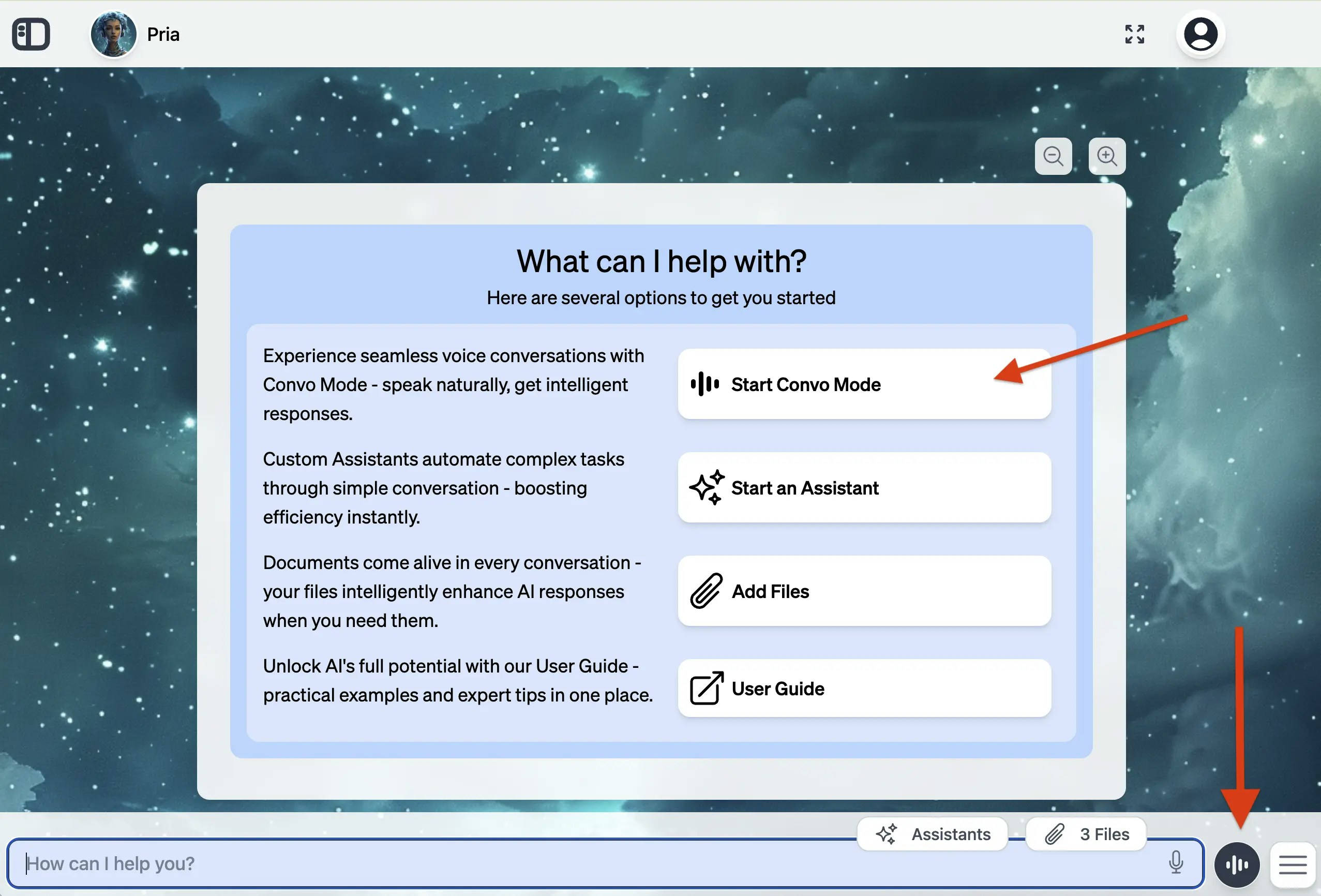
2
Enable microphone
Allow microphone use in the browser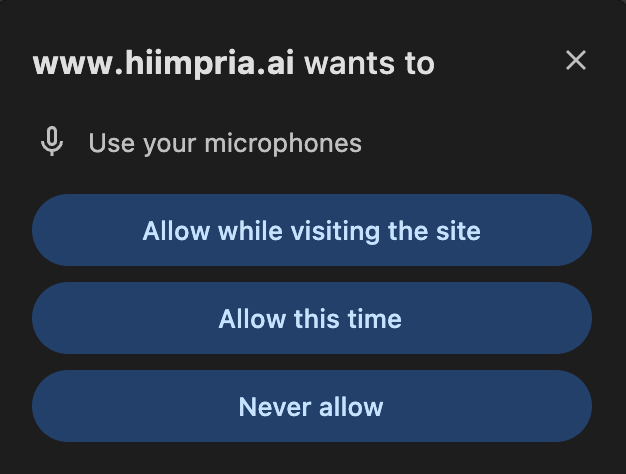
3
Start speaking
Click the start button and begin talking. Your Digital Twin will listen and respond with voice.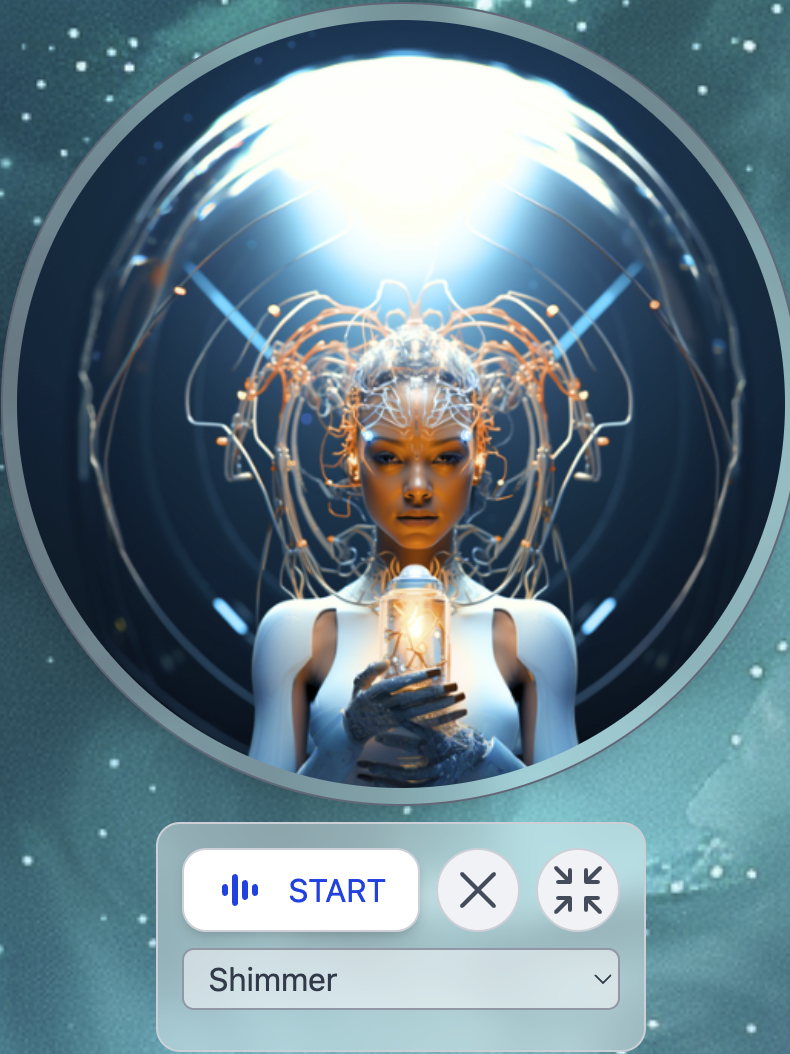
The Convo Mode panel
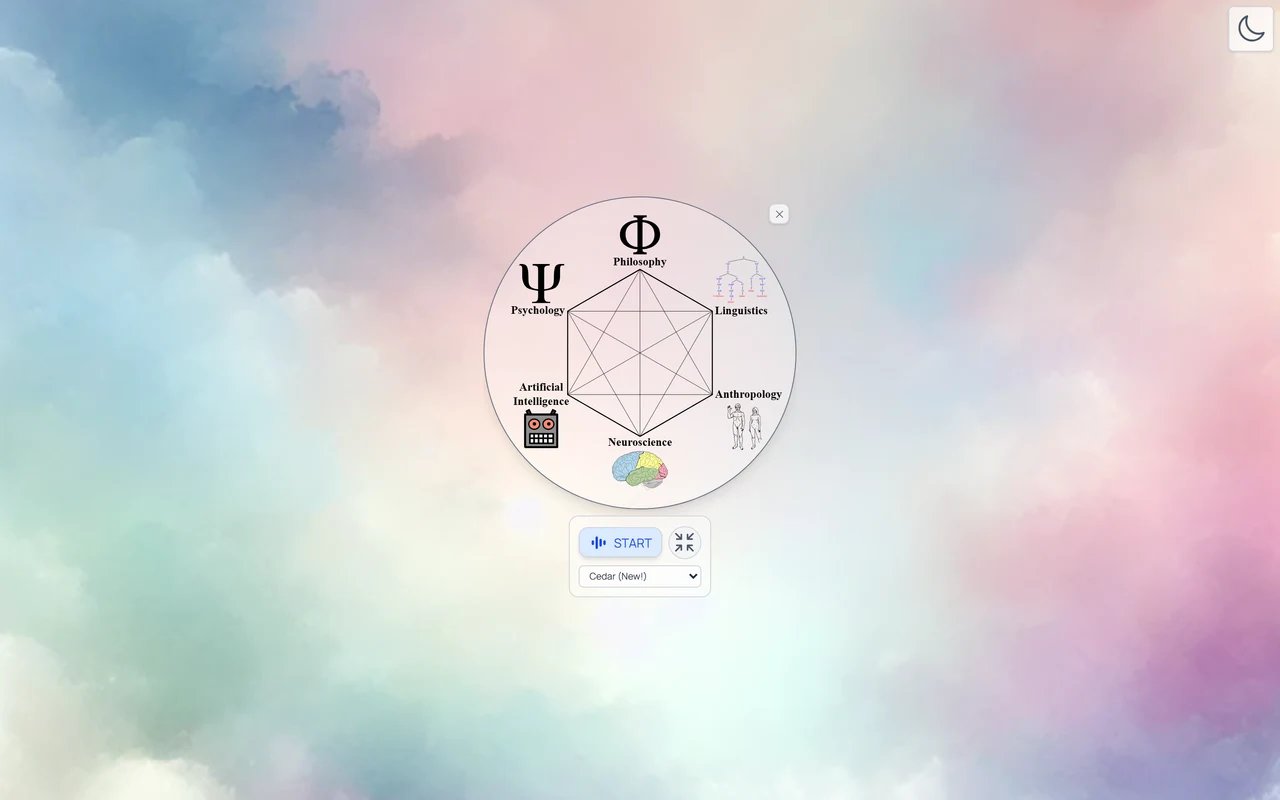
Once you launch Convo Mode, a floating panel appears over your conversation — Pria’s avatar orb with the controls beneath it.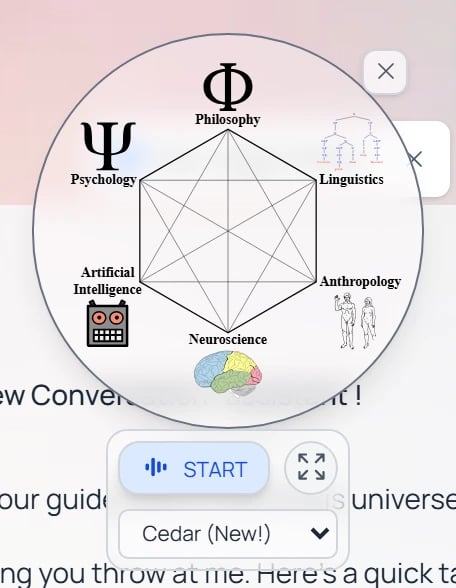
The Convo Mode panel: the avatar orb with START, the expand (display-mode) button, the voice picker, and a close ×.
Display modes
Expanded mode fills the screen for a focused, immersive conversation.
Kiosk lock. If the Twin’s administrator turns on Lock full-screen conversation (Instance Settings → Voice), the collapse button and the Esc key are disabled — ending the call is the only way out of the full-screen view. Starting, ending, and muting the call work exactly as usual. This keeps kiosk screens and embedded experiences in the conversation for the whole session.
Mute and the live transcript appear once a voice session is actually running — press START to see them.
Voice Providers
Convo Mode supports several real-time voice and avatar providers. Your administrator selects which provider your Digital Twin uses; see Voice & Realtime Providers for the integration overview and Realtime Voice & Avatars for admin-side configuration.- OpenAI GPT-Realtime
- xAI Realtime
- Gemini Live
- ElevenLabs
- Anam Avatar
The default voice provider, powered by OpenAI’s Realtime API.
- Voice selection — Choose from 10+ built-in voices (Cedar, Marin, Alloy, Ash, and more) directly in the Convo Mode panel
- Voice Activity Detection (VAD) — Configurable eagerness controls how quickly the AI responds when you pause speaking
- Tool calling — Your Digital Twin can access its full set of tools (search, file lookup, web browsing, etc.) during voice conversations
- MCP support — Connected MCP servers are available during real-time conversations
- Token tracking — Input and output token usage is tracked and displayed
- Reasoning support — The
gpt-realtime-2model supports configurable reasoning effort during voice conversations, enabling stronger instruction following and more reliable tool use for complex voice-agent workflows. It also accepts image input alongside text and audio. See AI Models for details.
Switching voices mid-conversation
You can change the voice at any time during a Convo session — the new voice takes effect on the next response. Open the voice picker in the Convo panel header, pick a new voice, and continue speaking; the running response (if any) finishes in the original voice, then the next turn switches. Switching between providers (OpenAI ↔ xAI ↔ Gemini Live ↔ ElevenLabs) is an admin action — the live voice picker only swaps voices within the active provider. The Anam avatar operates independently of the underlying voice model: you can change voices without losing the avatar, and you can disable the avatar without ending the voice session.Avatar animation feedback
When an avatar provider is active, the Convo panel includes a few visual cues so you can tell what state Pria is in:Features
Natural Dialogue Flow
Your digital twin knows how to have actual conversations. It waits for you
to finish your thoughts before jumping in, remembers what you’ve been
talking about, and lets you ask follow-up questions without having to repeat
yourself.
Voice Capabilities
When you speak, your words appear as text right away. When your digital twin
responds, you’ll hear it speak back to you with a natural-sounding voice.
The more you use it, the better it gets at understanding how you talk.
Text Input
Prefer typing? When text input is enabled, you can type messages during a
voice conversation instead of speaking. Your Digital Twin responds with both
voice and text — ideal for noisy environments or when you need to input precise information.
Multilingual Support
Switch between languages right in the middle of a conversation. Your digital
twin will catch on and switch with you, keeping track of what you were
talking about.
Knowledge Integration
Your AI assistant automatically references your uploaded documents and
custom-built assistants during conversations, providing personalized and
contextually relevant responses.
Audio Transcriptions
All voice conversations are automatically saved as searchable transcript
files that you can access, review, and reference at any time.
Provider Comparison
The Anam avatar is layered on top — it pairs with the audio providers above to give Pria a visible face.
Your administrator selects the voice provider for your Digital Twin. Contact your admin if you have questions about which provider is active.
Troubleshooting Common Issues
Microphone not working
Microphone not working
Check permissions and hardware connections. Your microphone needs to be
enabled in the browser for Convo Mode to work.
Poor audio quality
Poor audio quality
Adjust input sensitivity and check for background noise.
Echo or feedback
Echo or feedback
Use headphones or adjust speaker volume.
Voice not recognized
Voice not recognized
Speak clearly and check language settings.
AI not responding
AI not responding
Check internet connection and try restarting the conversation.
Context lost
Context lost
Provide a brief recap of your previous discussion and pick up from there.
Misunderstood requests
Misunderstood requests
Rephrase using different words or examples.
Language switching problems
Language switching problems
Explicitly state language changes if the Digital Twin does not pick up on the switch.
Voice options not visible
Voice options not visible
If you don’t see voice selection or VAD controls, your Digital Twin is using ElevenLabs as the voice provider. These settings are managed by your administrator in the ElevenLabs dashboard.
Related
- Realtime Voice & Avatars (admin) — Admin-side configuration of voice providers, avatars, and per-instance voice picks
- Voice & Realtime Providers (integration overview) — How each provider connects to Pria and what features it brings
- Anam Integration — Setup guide for the Anam animated avatar
- Gemini Live Integration — Admin setup guide for Gemini Live voice
- AI Models — Real-time speech-to-speech model options
- Configuration — Voice provider selection for administrators
- Input & Responses — Text and voice input options, including one-shot dictation (the 🎙 mic)
- Audio Notes — Record voice memos that become searchable knowledge in your vault