

What is a Conversation?
A Conversation is a single thread between you and your Digital Twin. Inside one conversation you can have many back-and-forth turns (called dialogues) — a question and its answer is one dialogue; a long working session is many. The important part is context: Pria answers based on the current conversation’s history. Everything earlier in the same thread is available to it; anything in a different conversation is not. That’s deliberate — it keeps unrelated topics from bleeding into each other.Starting a new conversation
Open the [+] (Actions) menu next to the input pill and choose New Conversation — or click the + at the right of the Conversations header in the sidebar.![The [+] Actions menu listing Files, New Conversation, Assistants, Search, Knowledge (RAG + KAG), Personal Settings, Audio, and More, with submenu chevrons on several items.](https://mintcdn.com/praxisai/QuC6PliAGSCHnMfO/images/user-guide/interface/actions-menu-conversations.webp?fit=max&auto=format&n=QuC6PliAGSCHnMfO&q=85&s=7fc9322d8b9a1f6457e89e5bc1d52cd6)
The [+] Actions menu: New Conversation starts a fresh thread; Assistants opens the assistant library. (The Knowledge badge shows the active retrieval mode.)
- Launch a chat with an assistant,
- Switch Canvas classes on the same Digital Twin, or
- Start fresh after a long, compacted thread.
Conversations run on an Assistant
Every conversation runs under an assistant — a persona with its own instructions, knowledge, and skills (the default twin behavior is itself an assistant). The [+] → Assistants entry opens the full library, where you can browse, create, and favorite assistants. Favorite the assistants you use most. In the library, click an assistant’s star to favorite it — favorites pin to the top of the list.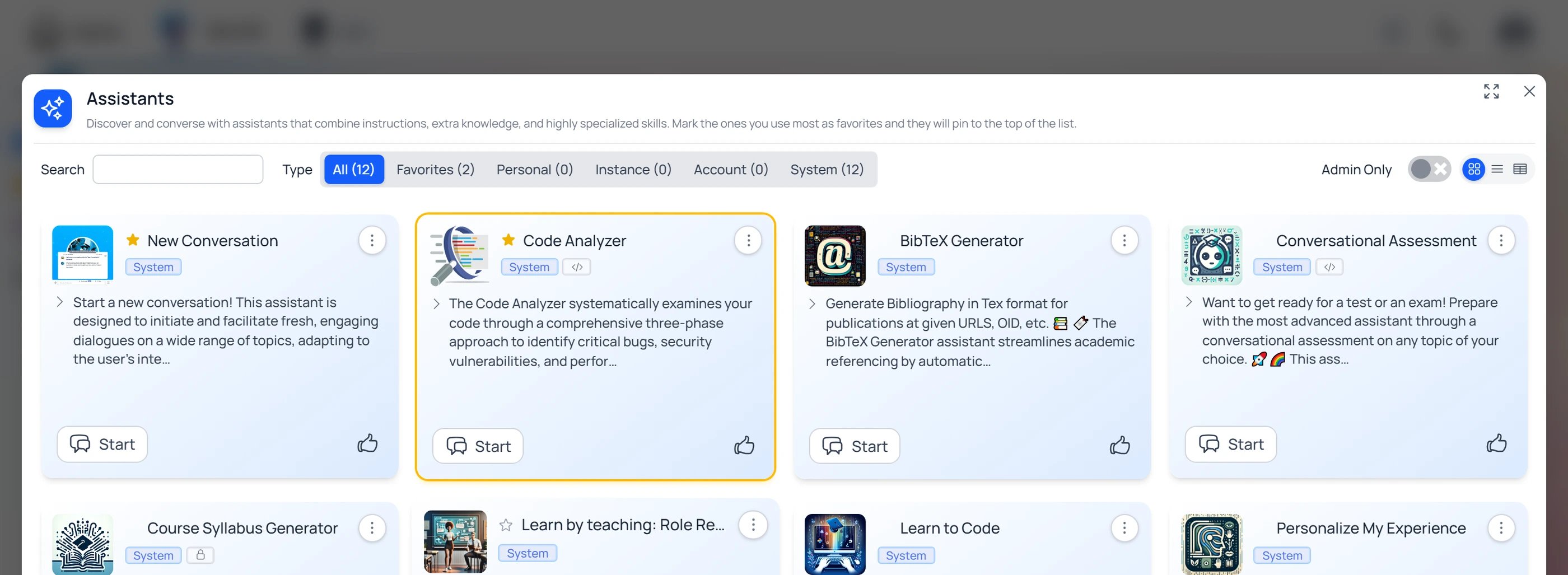
The assistant library: click the star on any assistant to favorite it. Favorites pin to the top and become quick-start shortcuts.
![The [+] Actions menu with New Conversation expanded, showing shortcuts for New Conversation, the favorited Code Analyzer assistant, and Select Assistant.](https://mintcdn.com/praxisai/5XakllQlecMDawVX/images/user-guide/interface/newconv-favorite-assistant.webp?fit=max&auto=format&n=5XakllQlecMDawVX&q=85&s=1264ca3b361051bef353572e168913f5)
[+] → New Conversation: your favorited assistant (Code Analyzer) appears as a shortcut, next to a blank New Conversation and Select Assistant…
Managing conversations in the sidebar
The sidebar’s Conversations list holds every thread for the current Digital Twin, newest first, each labeled with its name and last-activity date. The active conversation is highlighted.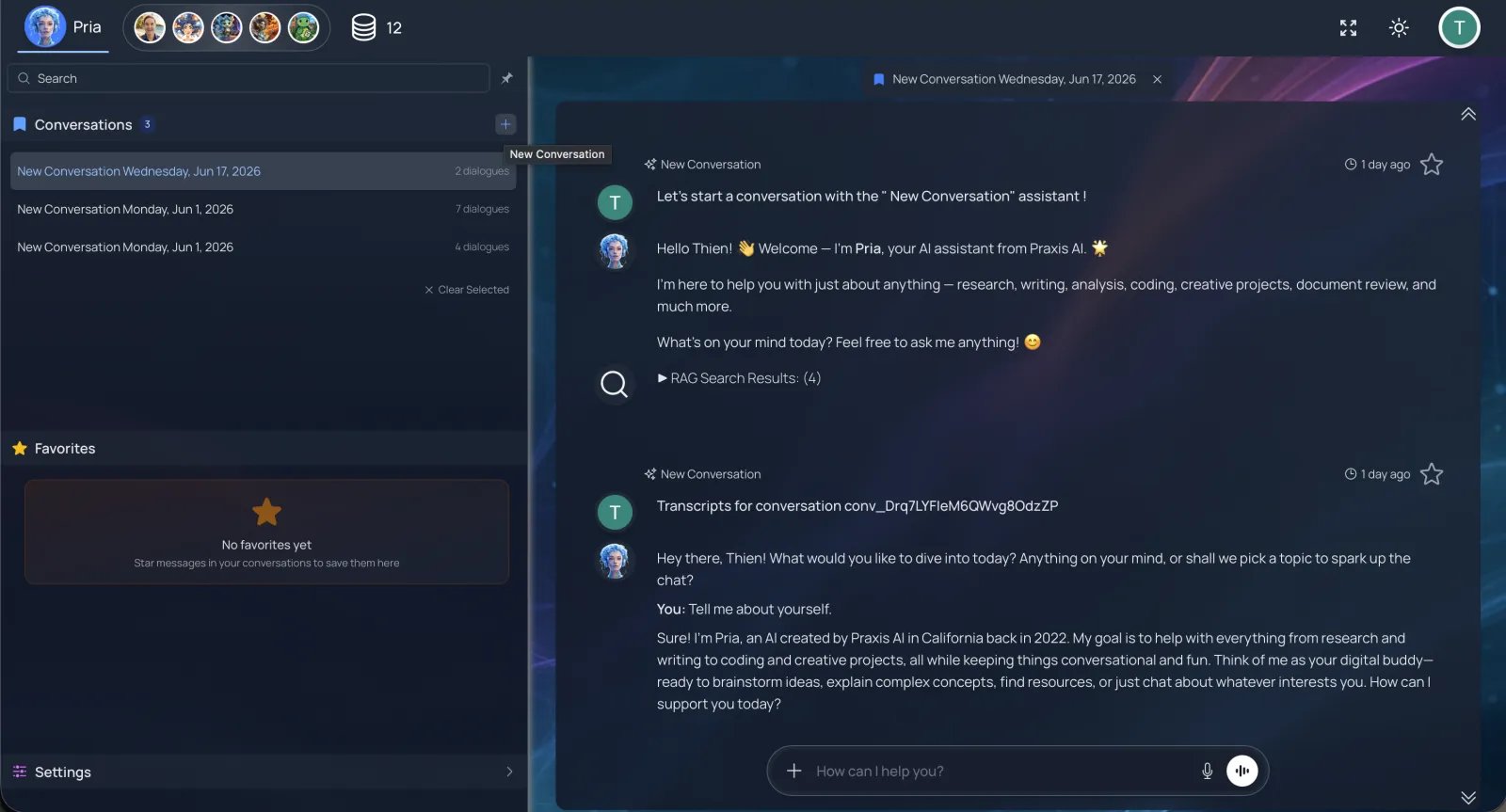
The Conversations list — click any thread to open it; the + on the header starts a new one.
- Switch — click any row to load that conversation into the main panel.
- Leave the open conversation — it shows as a chip above the dialogues; click its × to close it (see Leaving a conversation).
- Rename or delete — hover a row to reveal the pencil; it opens the Edit Conversation dialog where you can type a new name, click Rename with AI to have Pria generate a short descriptive name, or delete the thread.

Hover a conversation row to reveal the pencil — rename the thread, or delete it.
Leaving a conversation — back to the full view
When you open a conversation you’re looking at just that one thread. Two small × controls take you back out to the wider view. Close the open conversation. The conversation you’re viewing appears as a chip at the top of the dialogues — its name with an ×. Click the × to close it and return to the main conversation surface. Hovering the chip also reveals a pencil (always visible on phones), so you can rename the conversation right where you’re reading it.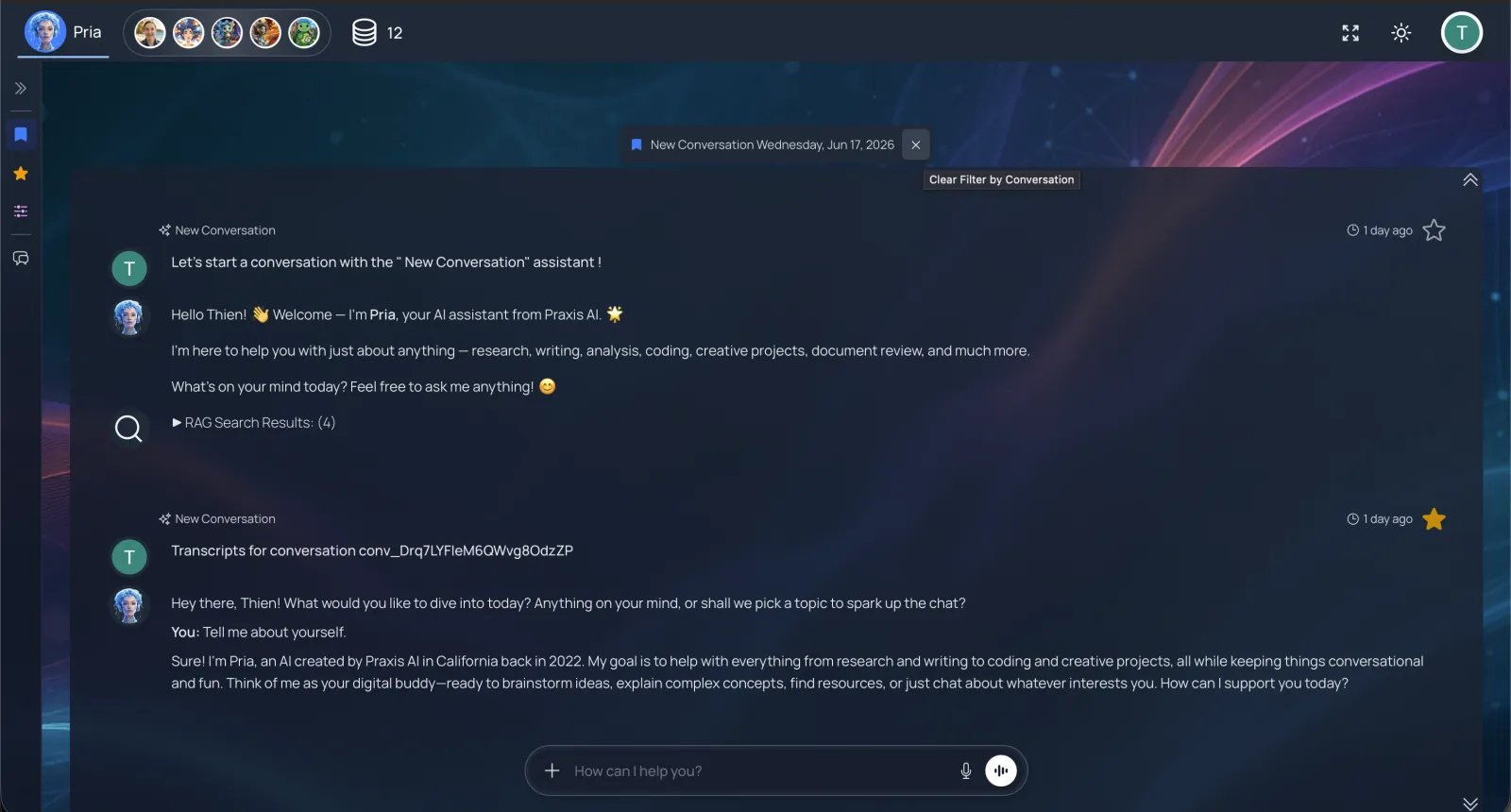
The open conversation shows as a chip above the dialogues — click its × to leave it.
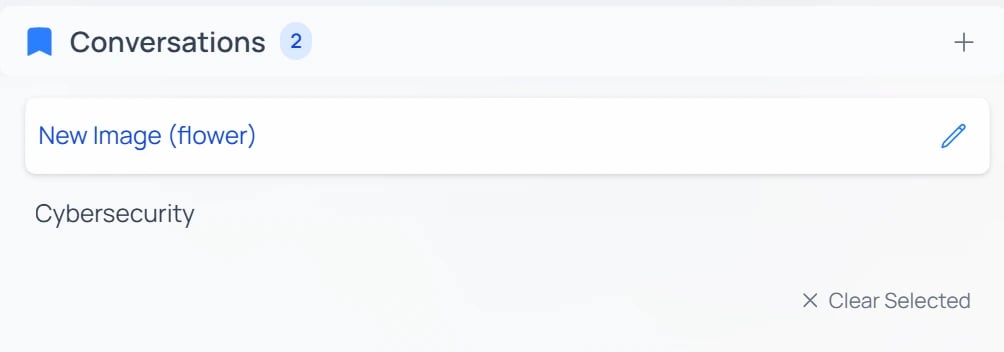
While a conversation is selected, “× Clear Selected” at the bottom of the Conversations list returns you to the full view.
Favorites
Favoriting an assistant (above) pins a persona for quick reuse. Favoriting a response is different: it bookmarks a single answer you’ll want again. Hover any response in the conversation panel and click its star, and it lands in the sidebar’s Favorites section — newest first, labeled with the conversation it came from.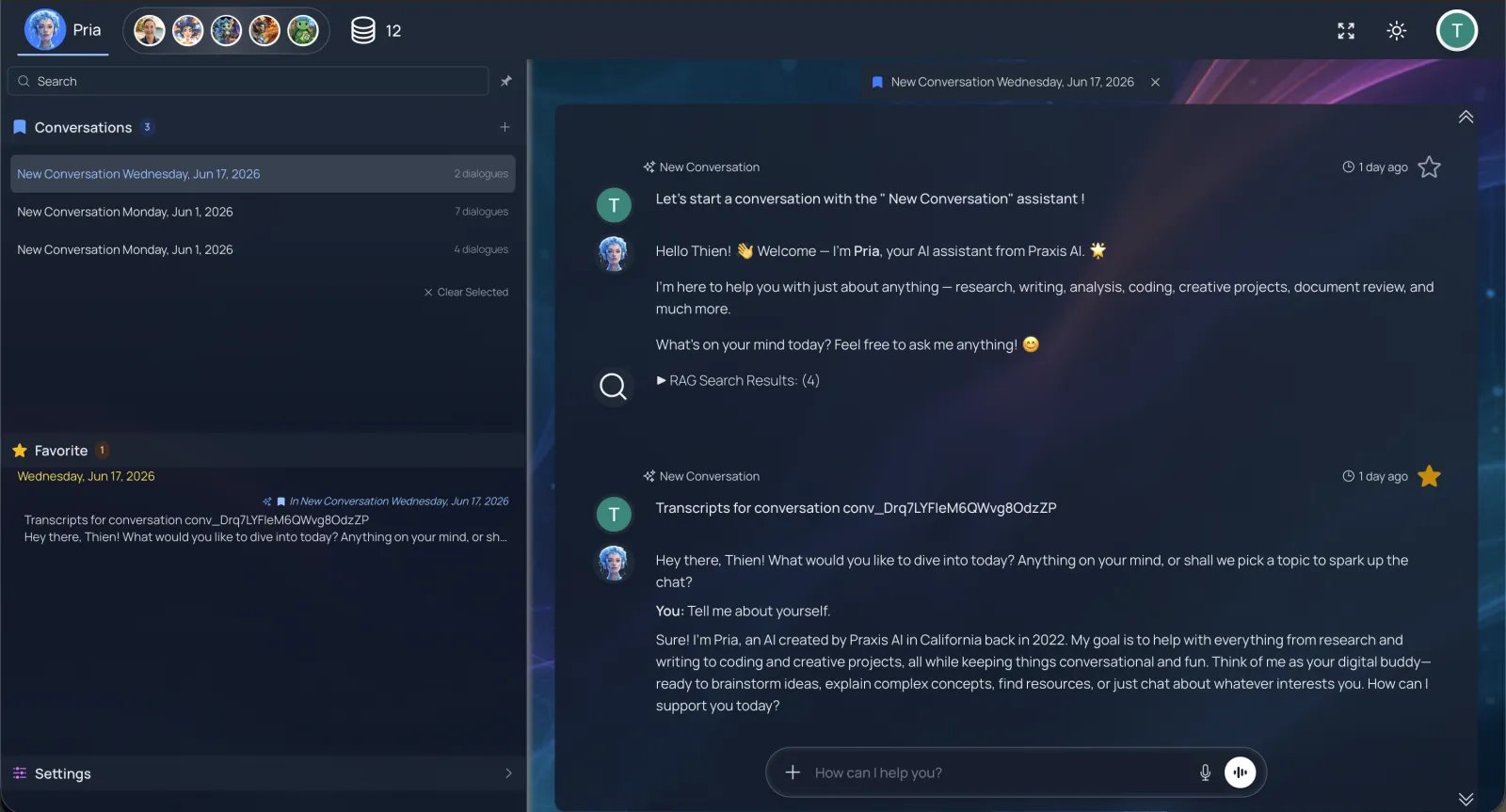
The Favorites list collects starred responses, grouped by date and labeled with their source conversation.
Save a Favorite
Recall it
Rename or unfavorite
Finding a conversation: Search + Pin
The top of the sidebar holds two controls:Searching within a conversation
Press Ctrl + F (or click Search) to open the search bar over the current conversation, then type a keyword — say, patent. Pria scans the thread and highlights every match right in the dialogues, so you can scan straight to the relevant turns.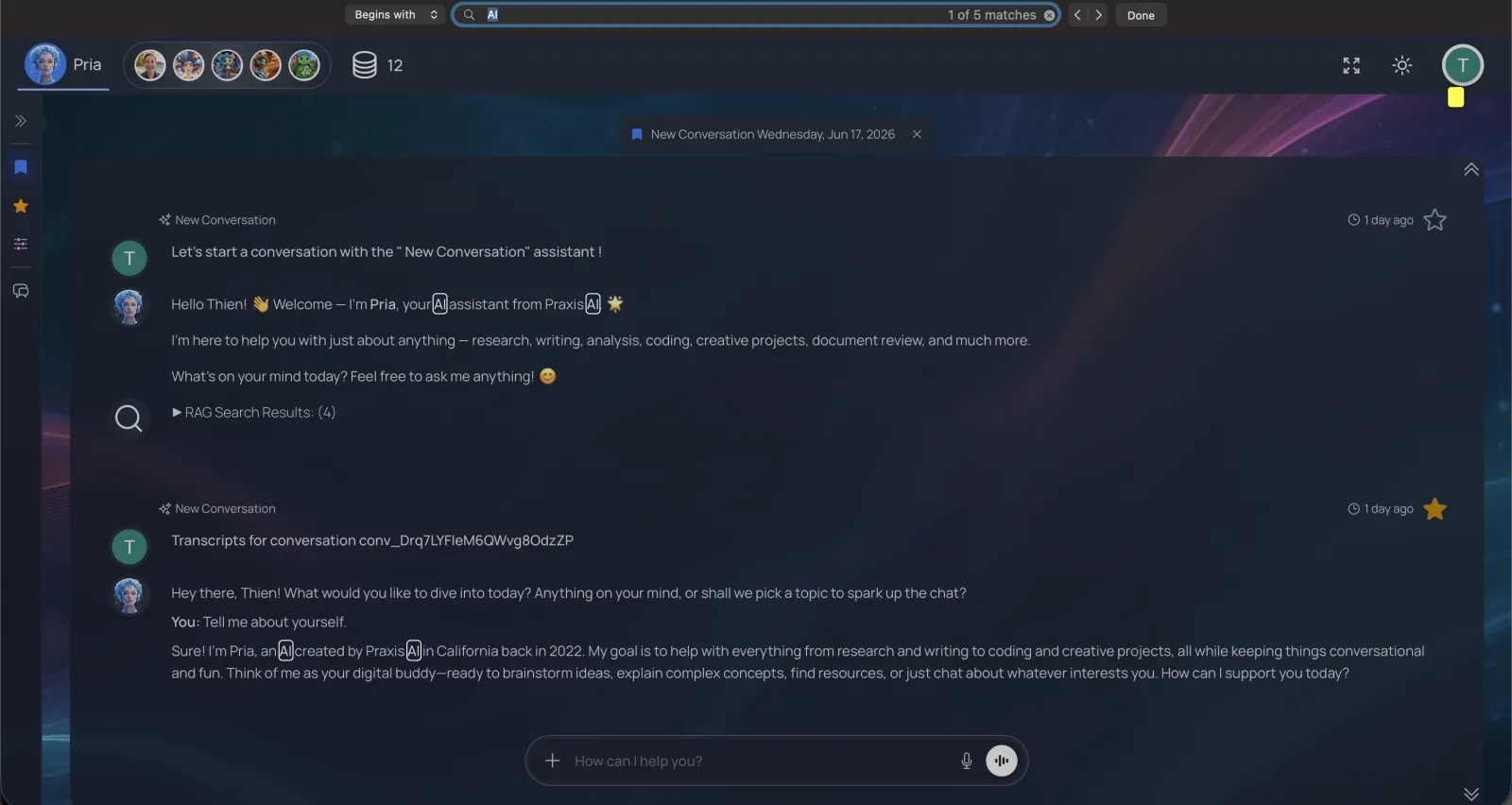
Searching “patent” in a conversation — every match is highlighted in the dialogues.
Searching across all your Digital Twins
When you belong to more than one Digital Twin, [+] → Search → Search Across All Digital Twins opens the Search your Digital Twins lightbox — a full-text search over every conversation in every twin you belong to, not just the one you’re in.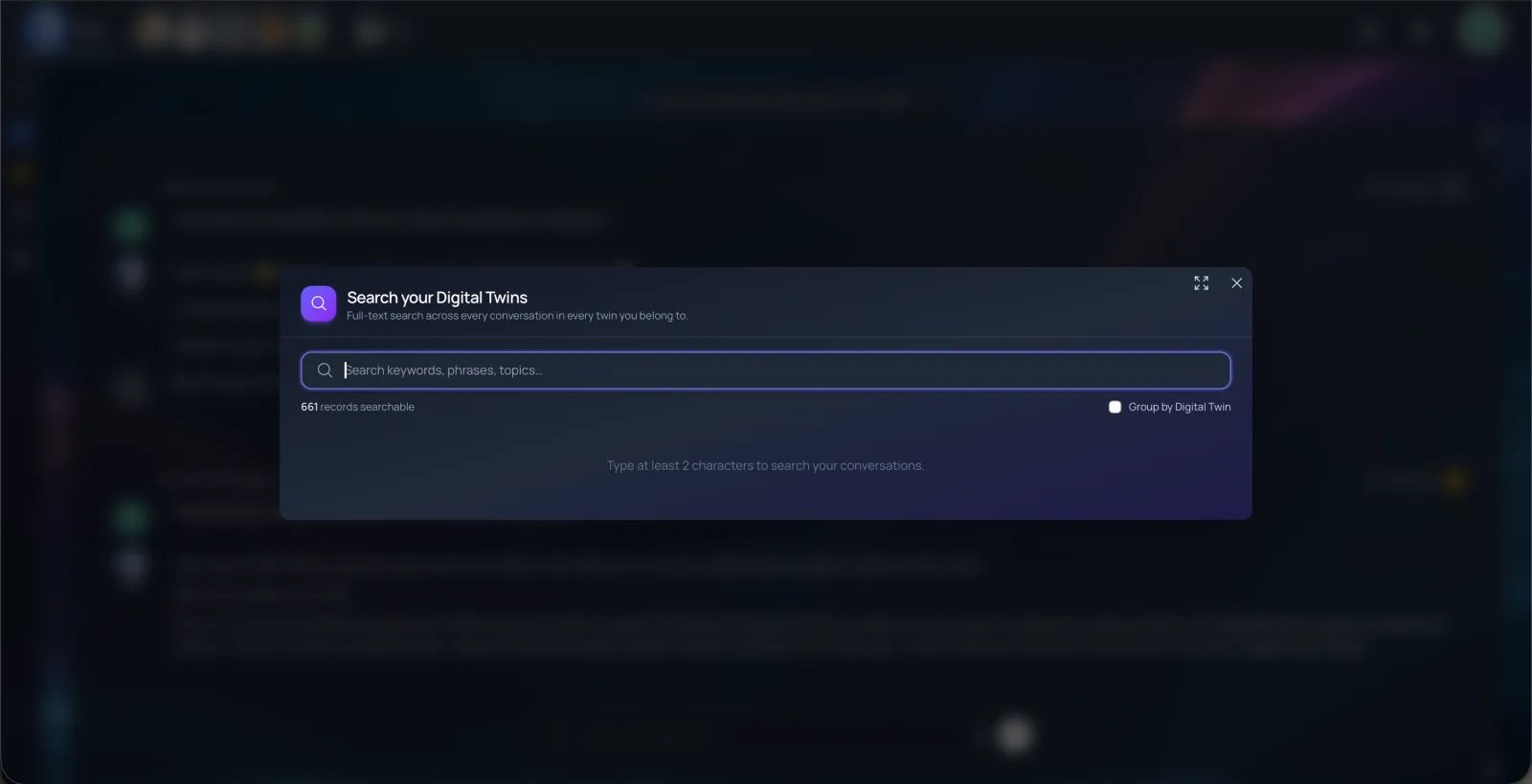
“Search your Digital Twins”: full-text search across every twin — match counts, highlighted snippets, “Go To” jumps, and a Group by Digital Twin toggle.
Course context filtering (Canvas / LMS)
When you launch Pria from a Canvas or other LMS course, the Conversations list is automatically scoped to that course — you only see conversations created in that context, and a small course-name chip marks the active filter. To widen back to every conversation, use × Clear Selected (see Leaving a conversation) or switch to a different course in Canvas.Settings — shortcuts to your settings panels
The Settings section at the bottom of the sidebar isn’t where settings live — it’s just a pair of shortcuts (mirrored in the [+] → Settings action menu) that open Pria’s two settings Lightboxes:- Personal opens Your Profile — your identity, personalization, personal knowledge, data, security, and billing. Full reference: Personal Settings.
- Instance (for admins / Twin managers) opens Instance Settings for the current Digital Twin — model, reasoning, knowledge, voice, tools, and more. Full reference: Instance Settings.
Collapsed sidebar / mini icons
When you unpin the sidebar (or on small screens), it collapses to a thin icon strip: Conversations, Favorites, Settings, New conversation. Click any icon to expand back into that section.Related
- Input & Responses — the composer, keyboard navigation, and drafts.
- Assistants — building, scoping, and favoriting the personas conversations run on.
- Knowledge Modes — the retrieval controls in the Personal → Knowledge tab and the [+] menu.
- Edit Profile — display name, picture, Remember History.
- Personal Data — export and deletion of your conversation history.