

Typing prompts
![The Pria text input pill containing a two-line prompt, with the [+] action menu button on the left and the round Submit (send) button on the right.](https://mintcdn.com/praxisai/5XakllQlecMDawVX/images/user-guide/interface/input-text-pill.webp?fit=max&auto=format&n=5XakllQlecMDawVX&q=85&s=5ebf8fa38bae7517609a6a3e26e5394e)
The input pill: type in the center, [+] action menu on the left, Submit on the right. It auto-grows into a multi-line editor as you type.
Type your question
Submit
Response streams in
Keyboard navigation through prompt history
The input pill remembers everything you’ve sent in the active conversation. When the textarea is empty, you can scroll back through your previous prompts without leaving the keyboard:Re-asking and editing the last question
Two quick ways to retry a turn without re-typing:- Edit and resend the last prompt — press ↑ once on an empty textarea. Your most recent message reloads; tweak the wording and press Enter to send the new version. This creates a fresh turn — the original stays in history.
- Regenerate from the same prompt — hover the last response and use Copy input → paste → send if you want to retry verbatim, or open the dialogue’s action row and use Delete dialogue first if you want the old answer out of context before re-asking.
Pasting images and drag-dropping files
The input pill accepts files three ways without ever opening the [+] menu:- Drag and drop — drag one or more files from your desktop onto the input pill (or anywhere over the conversation surface). A blue overlay highlights the drop zone; release to start the upload.
- Paste from clipboard — copy an image (screenshot, browser image, etc.) and press Ctrl/⌘ + V with the textarea focused. Images paste as attachments; text pastes inline.
- Browser file picker — open [+] → Add Photos & Files to browse your vault, or tap the row’s right-edge + to jump straight to your computer’s file picker.
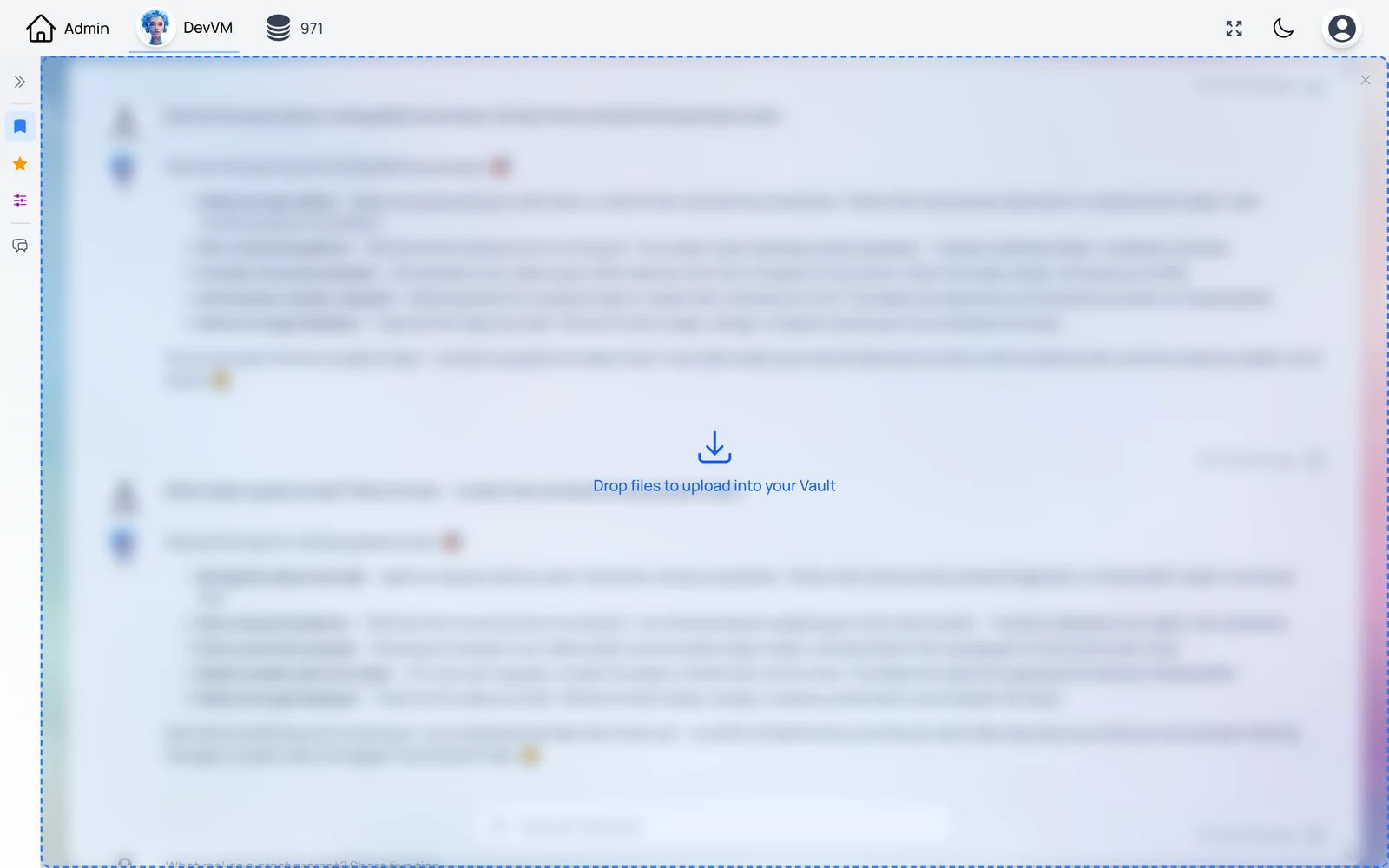
Drag files anywhere over the conversation and a blue drop zone appears — release to upload into your Vault.
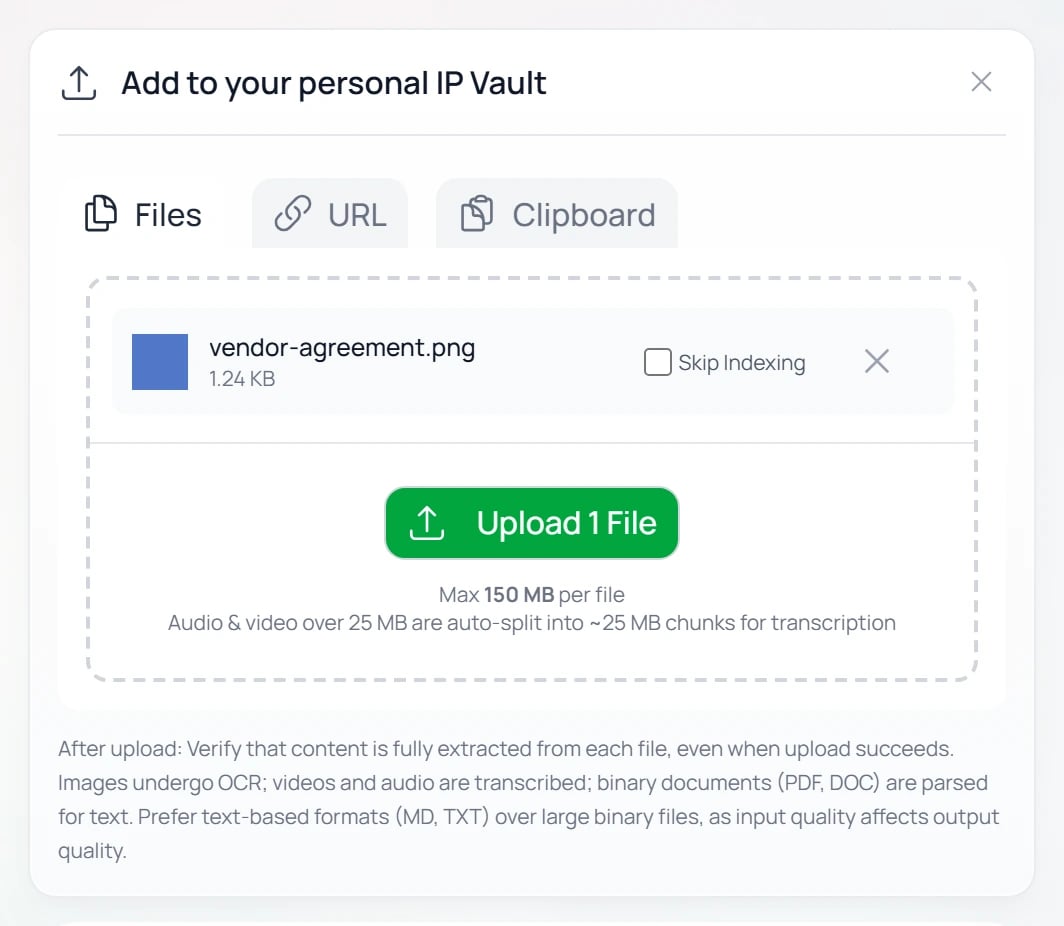
The file uploader: review the file, optionally Skip Indexing, then Upload to your personal IP Vault.
Quoting a prior message
To reference an earlier message in your follow-up without retyping it:- Hover the message you want to quote and use Copy input or Copy output from the dialogue action row.
- Paste into the textarea — Pria’s markdown preview renders the quoted block as you type.
- Add your follow-up question beneath the quoted block and send.
Which model answers
The model that answers is the default set for the Digital Twin by an admin in Instance Settings → Conversation. Personal accounts use the Twin’s default model and can’t change it. If you need a different model, ask the Twin’s admin. Admins: see Model Selection for choosing the model, BYOK options, and per-model capability flags.Markdown formatting in responses
Pria streams answers as Markdown. The renderer supports:- Headings, bold, italic, lists, blockquotes — standard CommonMark.
- Code blocks with syntax highlighting — triple-backtick fences with a language tag (
```python,```ts, etc.). Each block carries a Copy button. - Tables — pipe syntax renders as a clean grid. Long tables scroll horizontally inside the response.
- Inline links — clickable, open in a new tab.
- Math — inline
$E = mc^2$and block$$ … $$render via LaTeX-style markup when the active model emits it. - Mermaid diagrams — flowcharts, sequence diagrams, gantt, etc. inside
```mermaidfences render as SVG. - Citations — clickable chips after sentences that reference your IP Vault content.
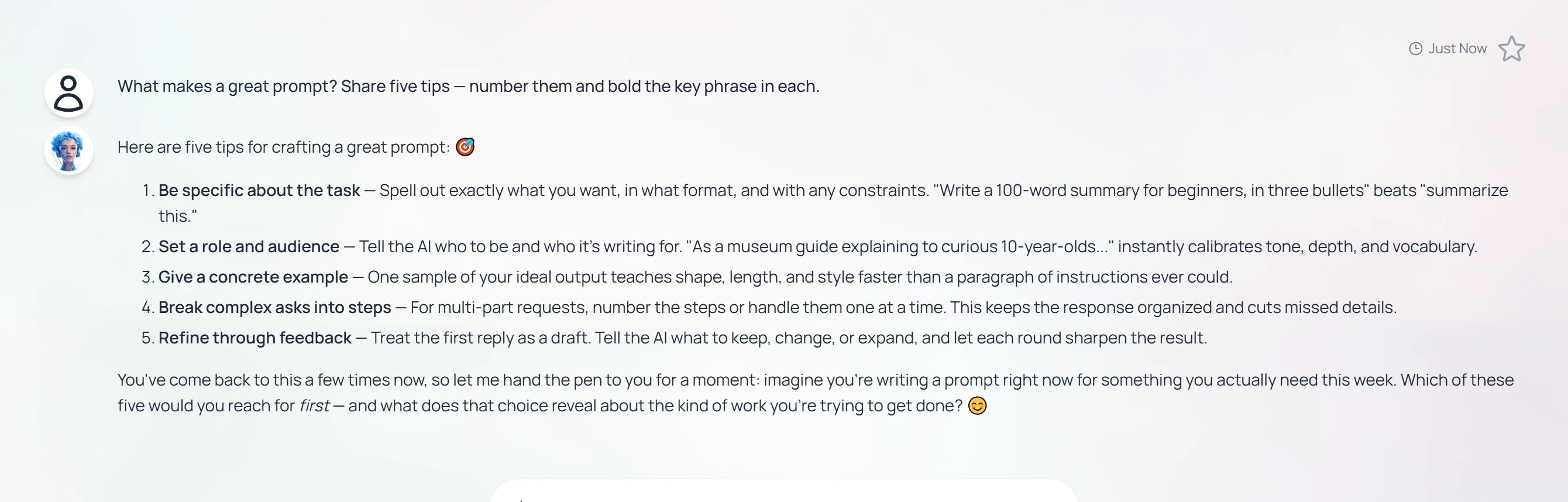
Pria renders answers as Markdown — headings, bold, lists, tables, code, math, and more.
The [+] action menu
Click the [+] icon on the left of the pill to open a structured menu of everything you can attach to or change about the next turn. Each entry that has more options expands inline when you click it — its choices appear indented just below the row, rather than flying out to the side.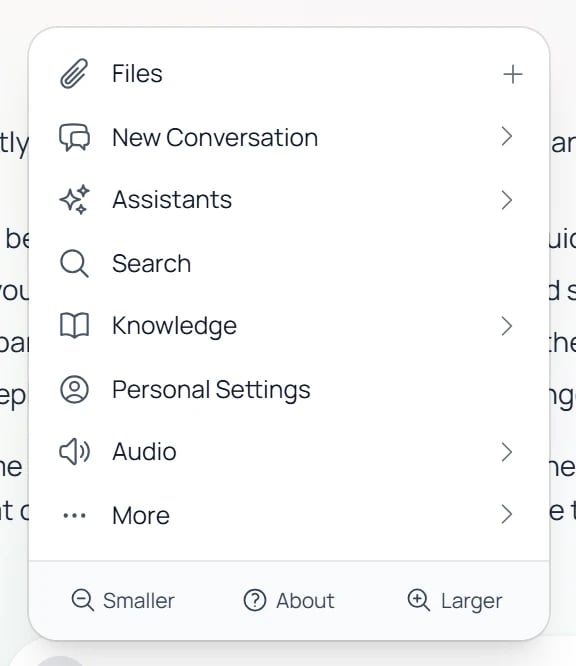
The [+] action menu, expanded above the input pill.
New Conversation
New Conversation
![The New Conversation submenu opened from the [+] action menu, listing favorite assistants and a Select Assistant option.](https://mintcdn.com/praxisai/XBHqs7uAYpdvbZlI/images/user-guide/interface/newconv-from-plus.webp?fit=max&auto=format&n=XBHqs7uAYpdvbZlI&q=85&s=28097198ed157e8cadac7c8fb99d32d6)
Starting a new conversation from the [+] menu — favorite assistants appear as one-tap shortcuts.
Add Photos & Files
Add Photos & Files
Assistants
Assistants
Search
Search
![The Search entry in the [+] action menu, with the option to search the active conversation or across all Digital Twins.](https://mintcdn.com/praxisai/XBHqs7uAYpdvbZlI/images/user-guide/interface/search-action-menu-option.webp?fit=max&auto=format&n=XBHqs7uAYpdvbZlI&q=85&s=90c58ca0336cddf4f17cae2ba73d98f1)
The Search option in the [+] action menu.
Knowledge
Knowledge
- Remember History — a quick selector for how many recent exchanges stay in context (0 disables history; higher keeps more, at higher credit cost; deep settings auto-summarize to save credits). The free-form slider lives in Personal Settings → Conversation Preferences.
- Memory — long-term facts Pria remembers about you across sessions (your role, ongoing projects, preferences). Opens the Memory manager.
- Sources — how your file vaults feed the answer: a retrieval mode, plus an orthogonal Search Only toggle.
Settings
Settings
- Personal (Yours) — opens Your Profile (General, Personalization, Knowledge, Your Data, Security, Google Cloud, Microsoft 365, Canvas/LTI, Billing, Developer/API — the integration tabs appear when your organization enables them).
- This Digital Twin — admins only; labeled with the twin’s name. Opens the instance-settings panel (General, Personalization, Voice, Conversation, Quotas, Knowledge, Tools, Assistants, Invite, Integration, Billing). A right-edge open-in-new icon jumps to the full admin Edit Digital Twin page. Members who can’t edit an instance see a single Personal Settings entry instead.
Audio
Audio
- New Audio Note — record a voice note and add it to your knowledge (shown when audio notes are available).
- Speech to Text (toggle) — shows the dictation 🎙 mic in the input pill. When off, the mic is hidden.
- Read Aloud — Natural Voice (toggle) — read responses with the speech model. Where this is managed depends on your account: Instance Settings → Voice for admins, Conversation Preferences for personal accounts, or set by your Digital Twin admin for members.
- Text to Speech — Voices — pick the voice used to read responses aloud (the browser voice picker, or your settings page when the natural voice is on).
More
More
- User Guide / Admin Guide — opens
docs.praxis-ai.comin a new tab (Admin Guide shows for admins). - Feedback — file a bug or feature request.
- Referral — open the Referral Program Lightbox to earn credits for inviting others.
Voice dictation
The 🎙 mic button on the right of the pill opens an in-place audio recorder (when Audio → Speech to Text is on in the [+] menu).Tap the mic
Speak your message
Confirm
Upload, no History, no embeddings. The audio is processed and discarded.Convo mode (speech-to-speech voice)
The Convo button on the right of the pill launches a hands-free voice conversation with Pria. Click once to start, click again to stop.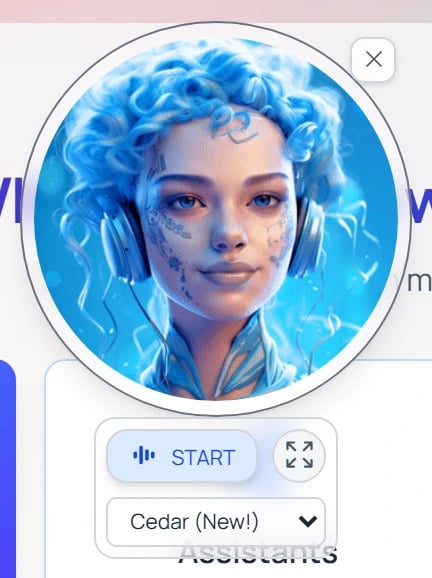
The Convo widget: press START to begin a hands-free voice session, pick a voice, and drag or resize the floating panel.
- Default model: OpenAI’s
gpt-realtime-2(configurable per institution; Gemini Live and xAI are also supported). - Live transcript: a character-by-character transcript appears under the voice indicator as you and Pria speak.
- Tools work in voice: Pria can search your vault, generate images, query Canvas, etc., while you talk to it.
While a response is streaming
You can:- Stop the response with the Stop button (labeled Abort in the control row) — anything generated so far is preserved.
- Pause auto-scroll so you can read at your own pace while the rest streams in below.
- Enable audio (TTS) with Speak to have the streamed response read aloud using the voice shown beside the controls (set under Audio → Text to Speech — Voices).
- Start typing the next prompt — your input queues and submits as soon as the current response finishes.

While a response streams, the control row offers Stop (Abort), pause, and Read Aloud (Speak).
What you can do with a completed response
Hover any past dialogue (input + response pair) to reveal its action row: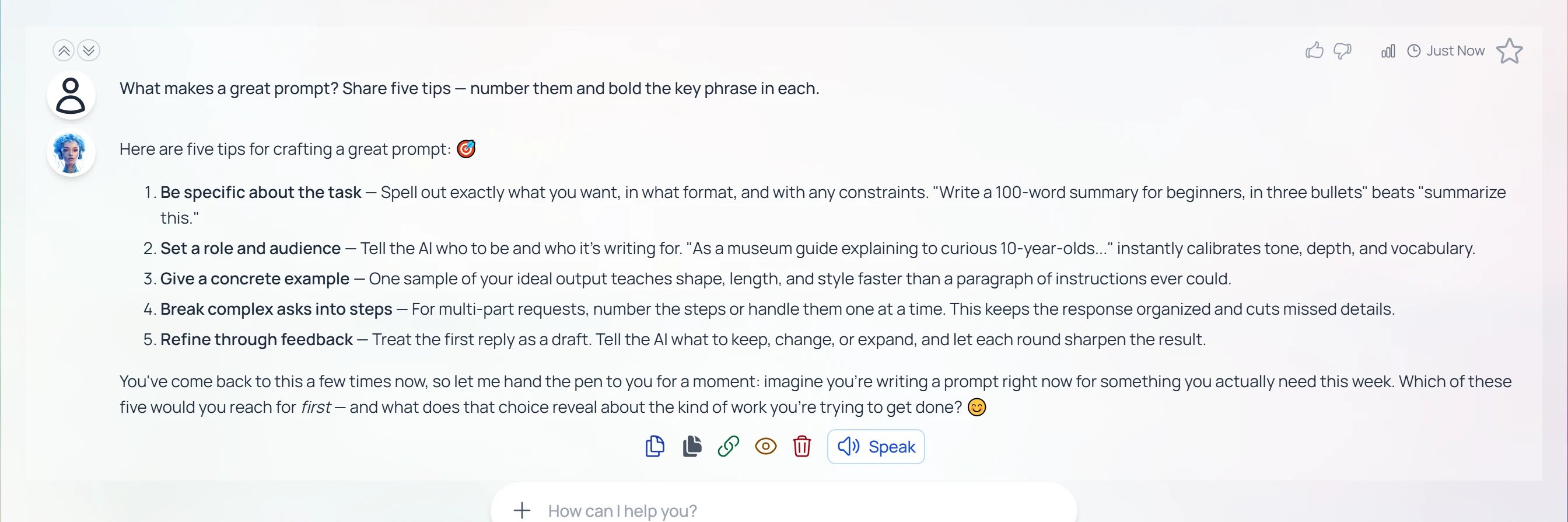
Hovering a completed dialogue reveals its action row.
View Details
View Details
- Secure Link — a shareable URL for this dialogue (the same link as Share as link).
- Details — the user and the Digital Twin (Instance) the turn ran on.
- Conversation — the full input + response transcript.
- Performance — the Created timestamp, RAG Search time, Exec. Duration (total processing time), and TTFT (time to first token — how long before the model started streaming).
- Model — the exact model that answered, and the Credits the turn consumed.
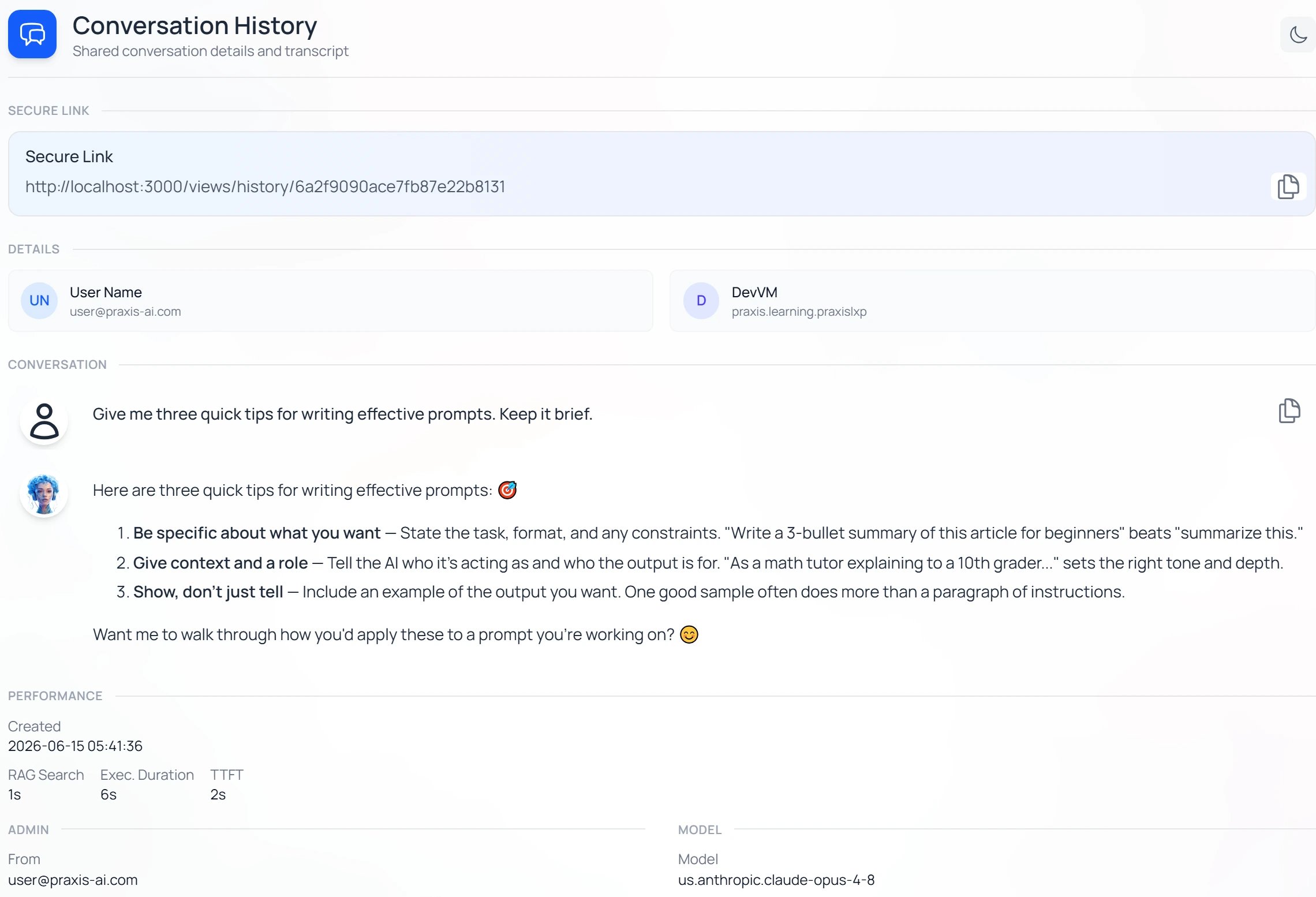
The View Details card surfaces the model, performance timings, and credit cost behind a single response.
Usage Details
Usage Details
- Overview — total tokens, credits, duration, tool calls, time to first token, and retrieval timing at a glance.
- Pricing — the itemized bill: every model involved, its tokens, and its credits. When the turn ran an agent team, each helper’s lane is listed separately.
- Tokens / Context — where the tokens went, and how much of the model’s context window the turn used.
- Retrieval — appears when the turn searched your vault; shows what was retrieved.
- Subagents — appears on agent-mode turns; per-helper tokens and models.
Delete dialogue
Delete dialogue
Copy input / Copy output
Copy input / Copy output
Add to / Remove from Favorites
Add to / Remove from Favorites
Read aloud (TTS)
Read aloud (TTS)
Citations
Citations
Related
- Model Selection — Admin-set model per Twin, capabilities, BYOK.
- Convo Mode — Speech-to-speech voice mode.
- Sidebar & History — Remember-history count, draft preservation, cross-twin search.
- Knowledge Modes — RAG, KAG, Search Only.
- Reasoning & Thinking — Thinking tokens, reasoning effort.
- Managing Files — Upload, preview, OCR, confidential marking.
- Citations — How citation chips link back to source files.