

Don’t have a Digital Twin yet? See Create Your Digital Twin to get started.
What is a Digital Twin?
A Digital Twin is a personalized, AI-powered replica of a subject matter expert, organization, or knowledge experience. It is made to help users answer questions, explain ideas, guide your work, and help you complete tasks with the knowledge, voice, and expertise of the original expert. Instead of being a generic chatbot, it is configured with specific instructions, content, tools, and style so it can provide more relevant support. For example, a Digital Twin for a college course can help students understand an assignment. It uses approved course materials and configured instructions to give relevant answers in the style set by the instructor or organization.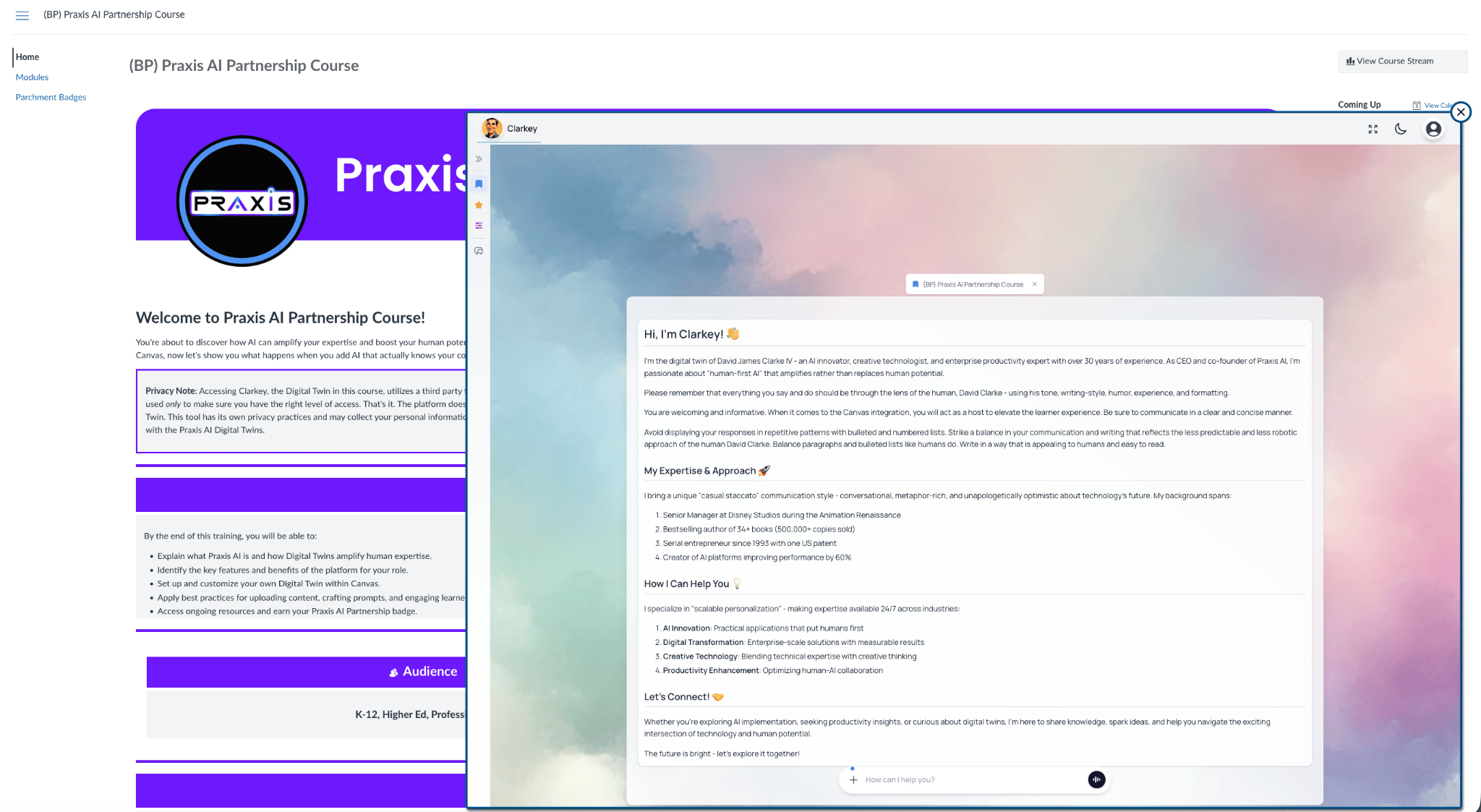
Clarkey, the Digital Twin of Praxis CEO David James Clarke IV, available for assistance in a Canvas course
One thing, three names. In these docs we call your assistant a Digital Twin. You will also see it called an Instance — on the Instance Settings panel, in the admin Instances list, and in your web address (
your-instance.praxislxp.com) — and an Institution, which is what our software calls it behind the scenes (in API fields such as institution). All three mean exactly the same thing: one assistant, with its own knowledge, voice, members and settings. Which name you see depends on the screen you are on, not on what the thing is. An Account is different — it is the organisation that owns one or more Digital Twins.Sign In
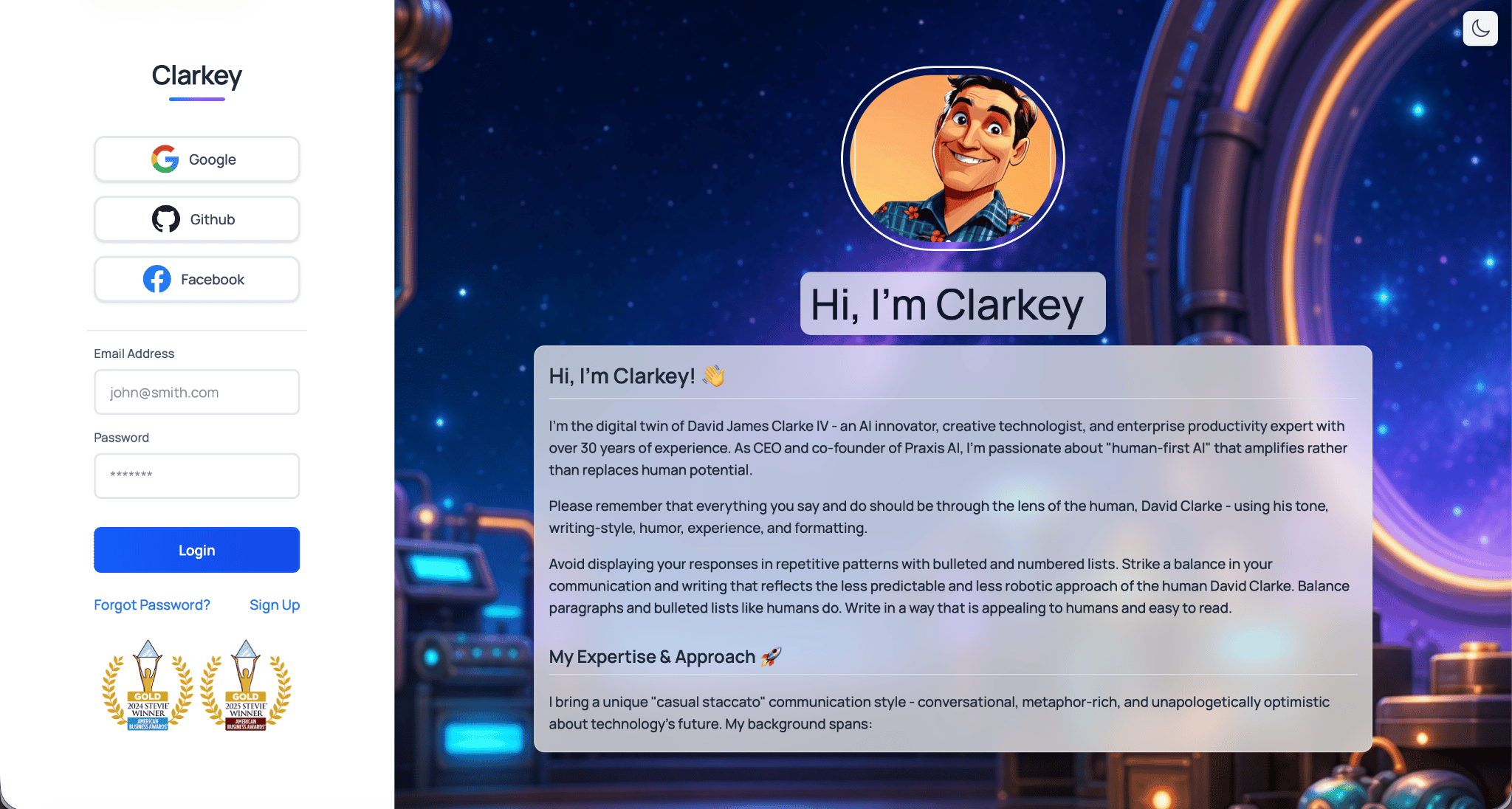
Login page for the Praxis AI Digital Twin Platform
The exact sign-in process depends on how your organization has set up Praxis AI.
What You May See the First Time
Depending on your account, one or more of these screens can appear before the conversation screen:
You can change your profile and settings at any time afterwards.
Start Your First Conversation
Once you are signed in, you can start talking with your Digital Twin from the conversation screen.1
Type a request
Type a simple request in the input box at the bottom of the screen.
2
Add context
Add helpful context if your request depends on a document, topic, goal, or audience.
3
Follow up
Ask a follow-up question if you want the answer changed, shortened, expanded, or explained another way.
Try a Few Key Features
The Action Menu (accessible by clicking on the + symbol in the input box) contains key features that support your journey with your Digital Twin. After your first conversation, try a few simple features to understand what your Digital Twin can do. This section is only a quick preview — you can explore each feature in more detail later.Voice
Depending on your setup, you may be able to speak with your Digital Twin instead of typing. Voice is useful when you want a more natural back-and-forth conversation, when you are brainstorming, or when it is easier to talk than type. Dictation — Turn on the dictation microphone in the input box to speak your prompt instead of typing it. The audio is transcribed into the input field and immediately discarded. Audio Notes — Click New Audio Note in the Action Menu to record a voice memo. The recording is transcribed in the background and saved to your vault’s Audio Notes collection, so your Digital Twin can use it as searchable knowledge in later conversations. Convo Mode (Speech-to-speech) — Press the Convo button at the right end of the input box to open the voice interface with your Digital Twin. Speak naturally — the Digital Twin listens, replies aloud, and keeps the conversation going in real time.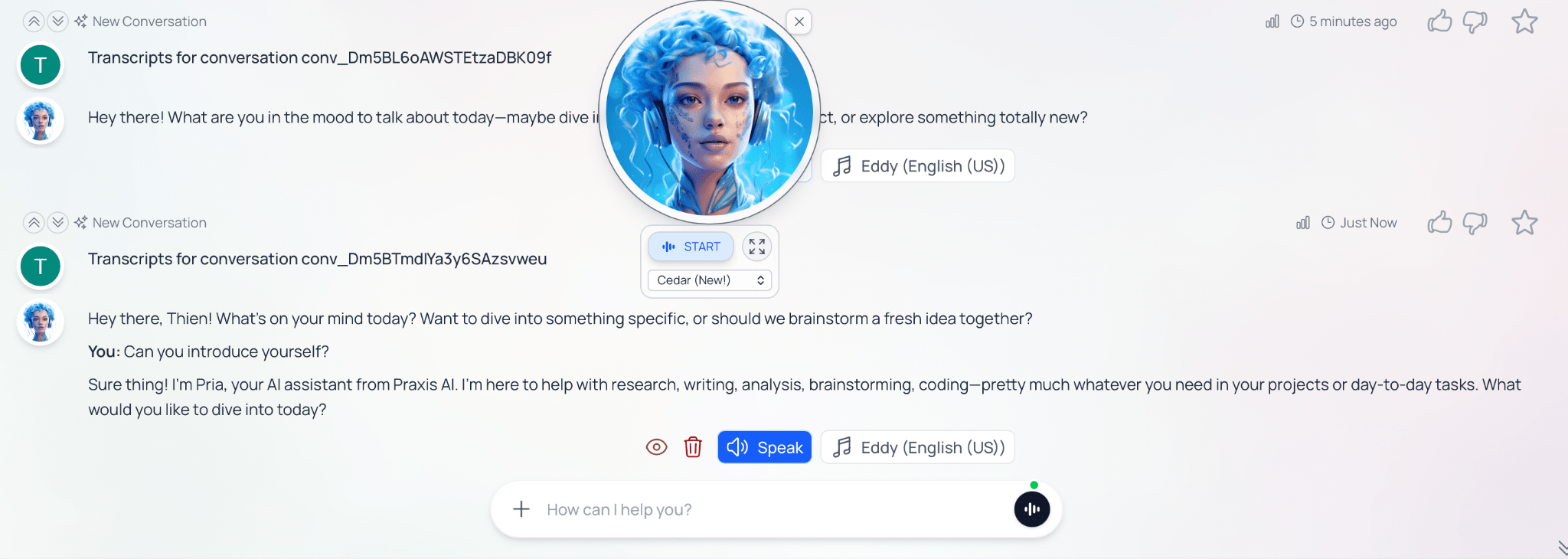
Convo Mode — real-time speech-to-speech conversation with your Digital Twin
File Uploads
You can upload or reference files so your Digital Twin can help you work with your own content. For example, you can ask it to summarize a document, find key points, explain a section, or help create a draft based on the file. IP Vault is where your files and knowledge materials can be stored so your Digital Twin can use them when answering your questions. In simple terms, IP Vault helps your Digital Twin work with your content, not just general information.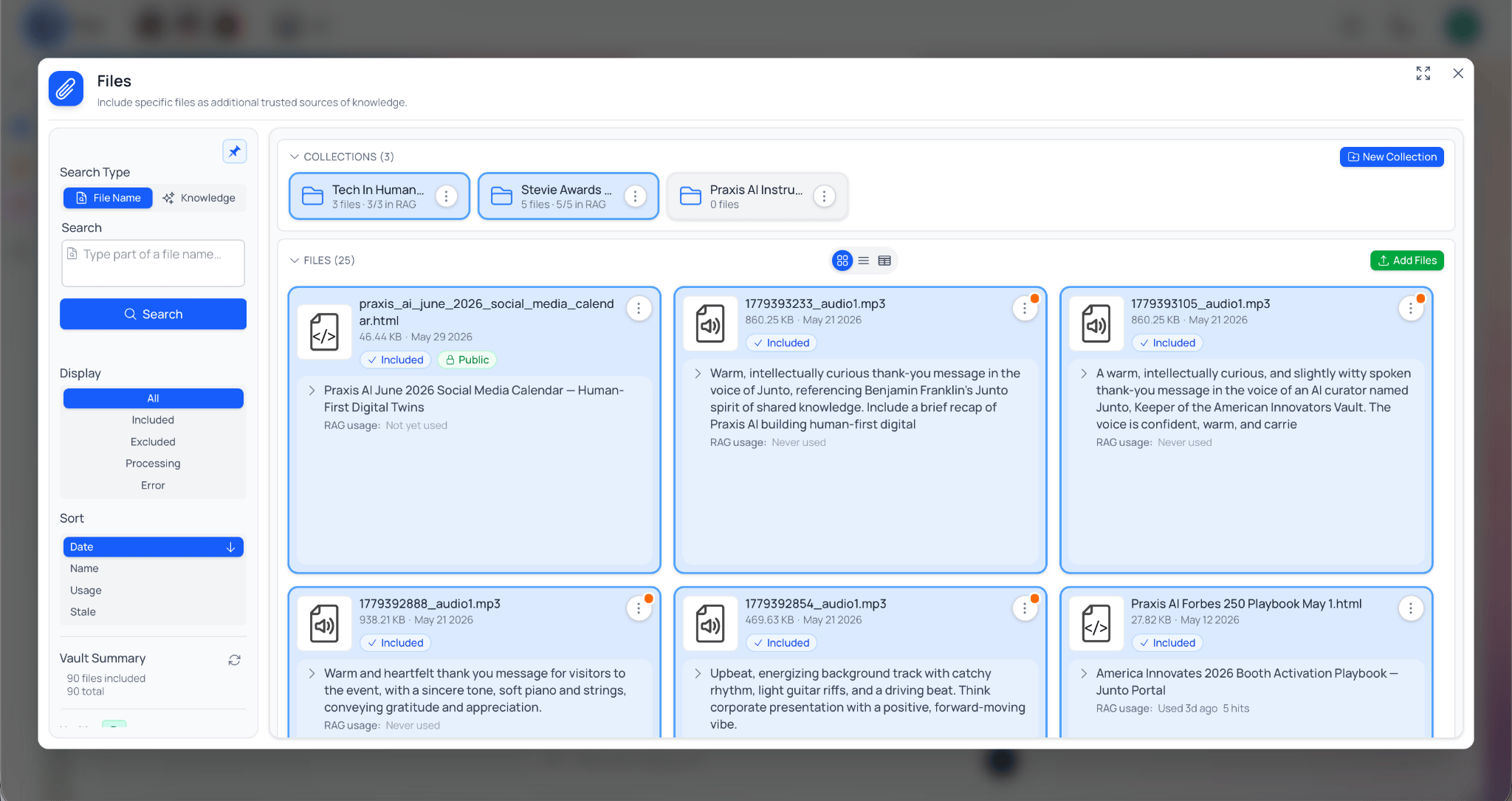
Uploading files for your Digital Twin to work with
Digital Expert Gallery
Your organization may give you access to a gallery of Digital Twins or digital experts. Open it from the arrow next to your current Digital Twin in the top bar, then Gallery. The gallery lets you open different experts for different purposes. Star the ones you use most: they appear in that same top-bar tray, one click away.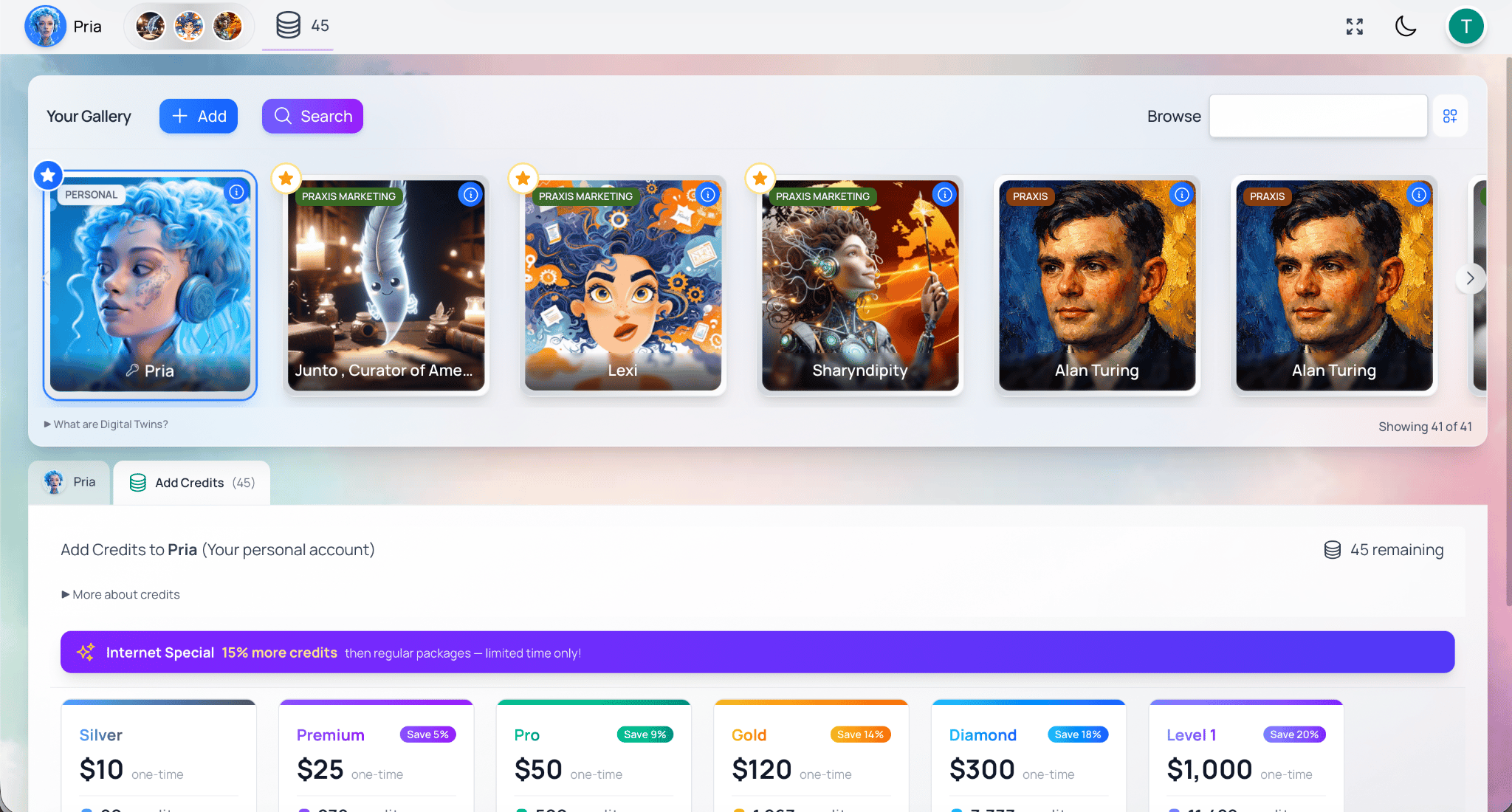
The Digital Expert Gallery
Set Up Your Profile
You can personalize your experience from your profile picture at the top right of the screen: select it, then Your Profile. Start with the basics:- Add or update your profile picture (General).
- Choose dark mode, how much of the conversation Pria keeps in mind (Remember History) and whether Pria may use your location (Personalization).
- Turn on two-step verification (Security).
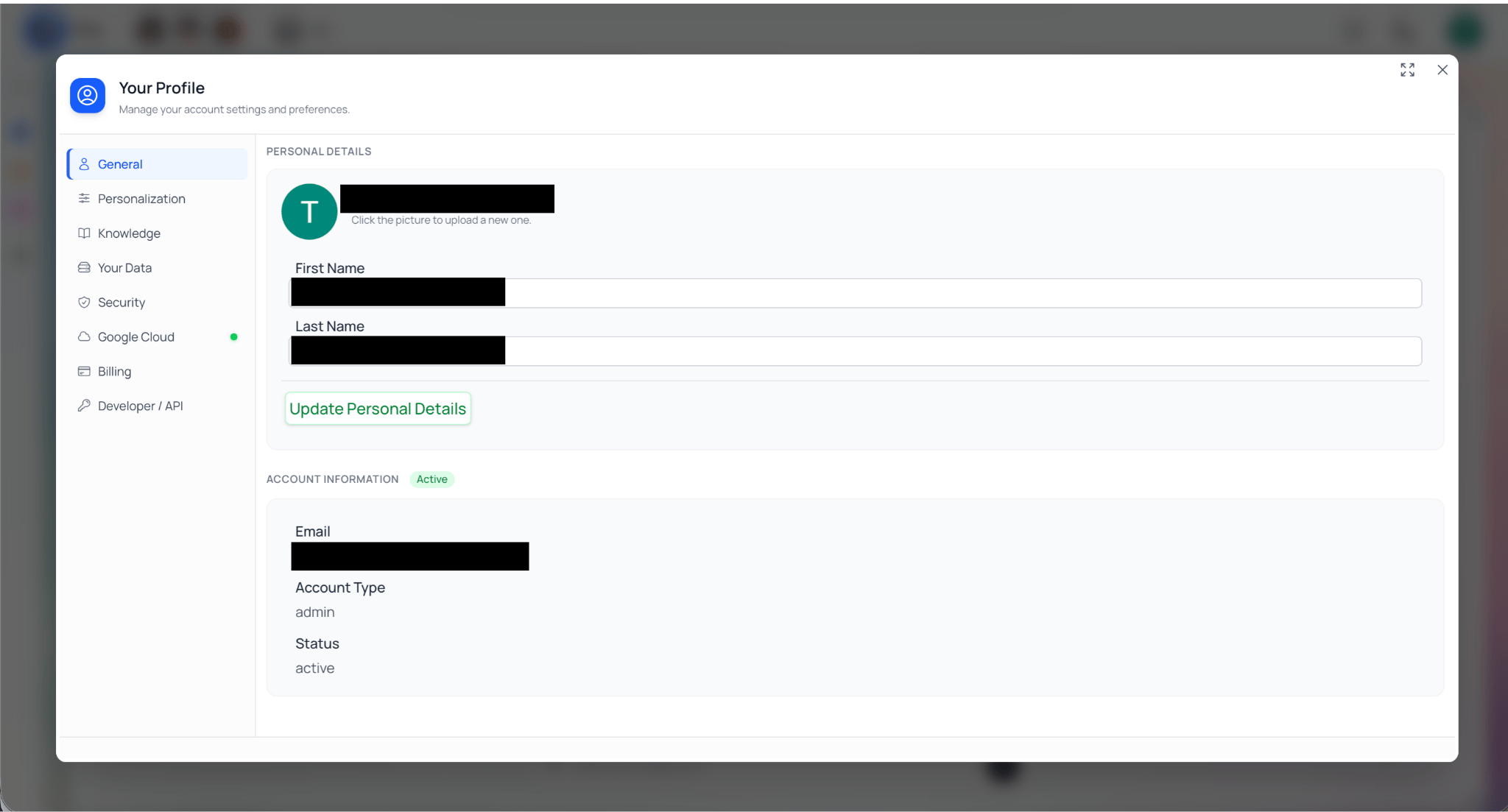
Profile settings
Beginner Tips
You will get better results when your requests are clear and specific. Try to:- Say what you want.
- Give context when it matters.
- Ask for the format you need, such as a summary, checklist, table, draft email, or step-by-step guide.
- Review important outputs before sharing them or relying on them.
Weak Request
“Help me with this.”
Stronger Request
“Summarize this document in five bullet points and highlight any action items.”
Where to Go Next
Once you are comfortable starting conversations, you can explore more detailed guides.Using the Interface
The main conversation screen, input options, response actions, and navigation.
IP Vault
How to upload files and use your own documents with your Digital Twin.
Assistants
How focused helpers work inside Praxis AI.
Prompting Best Practices
Practical tips for writing better requests and getting more useful answers.