Group related files into Collections for cleaner organization and easier sharing.
Collections are named groups of files — folders, essentially. They live inside a vault, nest as deeply as you want, and exist for one reason: to keep your vault organized so you can find things quickly. Your Digital Twin still searches across every included file regardless of folder, so a Collection’s job is purely human-facing.
Use Collections to mirror how you think about the content — by topic, course, project, client, or release. A clean vault is a vault you’ll actually trust.
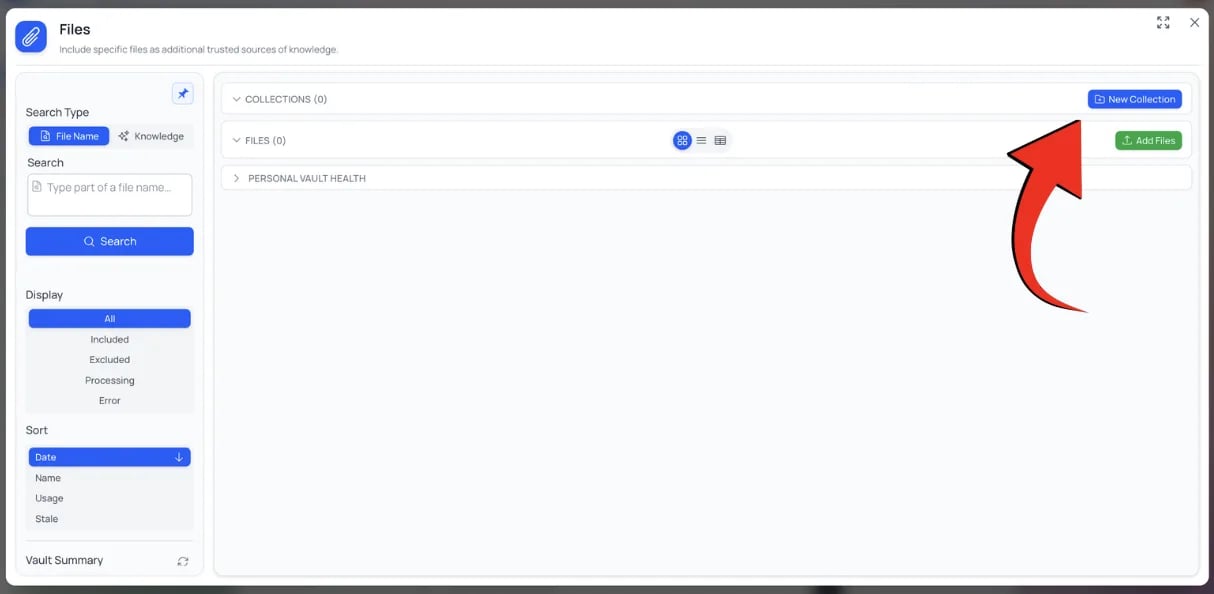
The button sits next to + Add at the bottom of the file panel.
The + New Collection button in the IP Vault.
3
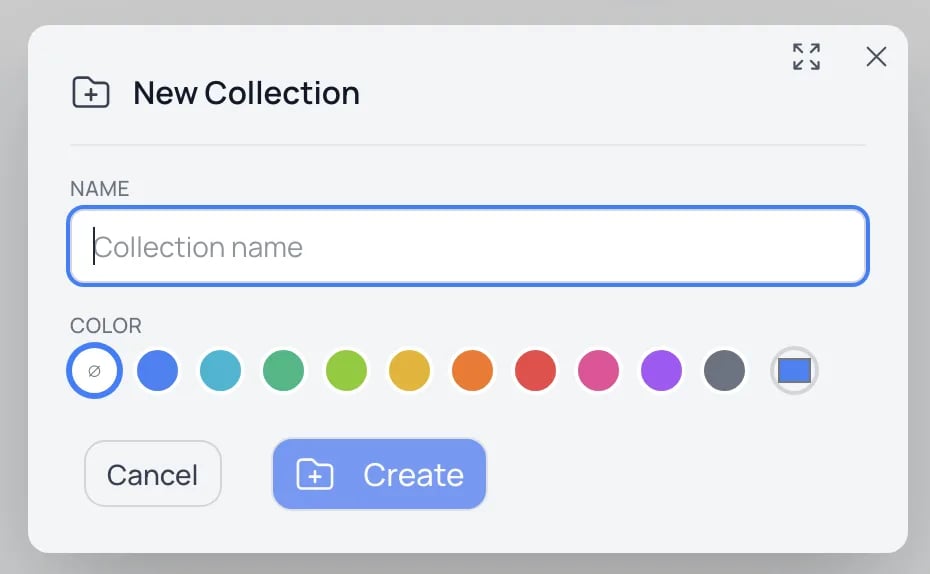
Name it and pick an optional color
Color codes show up on the folder icon and on file-card breadcrumbs throughout the vault.
Naming a new Collection and choosing an optional color.
4
Click Create
The new Collection card appears alongside your files at the root of the active vault.
Click a Collection card to navigate into it. The breadcrumb at the top of the panel lets you climb back out one level at a time, or jump straight to the vault root.
Click the ⋮ menu on a Collection card for the management actions.
Action
What happens
Edit
Rename the Collection or change its color. Updates everywhere it’s referenced; files inside are unaffected.
New Sub-Collection
Creates a nested Collection inside this one.
Include All Files / Exclude All Files
Switches every file in the Collection (and its sub-collections) on or off for your Digital Twin to read — in one click.
Make All Public / Make All Private
Changes access for every file inside. Shared vaults also offer Make All Confidential / Remove Confidential.
Reprocess All
Re-runs processing on every file in the Collection — useful after an embedding-model change.
Download ZIP
Downloads the Collection and its sub-collections as one zip, keeping the folders. A personal Collection downloads only for its owner; in a shared vault, other people’s Confidential files are left out.
Delete Collection
Removes the Collection and its sub-collections, and moves every file inside them to the Trash.
Before anything is deleted, the confirmation says how many sub-collections and files are affected and lists the files. The files stay restorable from the Trash for 30 days, but they come back at the top of the vault — the Collection is gone. To keep the files where they are, move them out first.
Collections can contain other Collections — nesting is unbounded. Drag one Collection onto another to make it a sub-collection. The folder hierarchy shows up in file breadcrumbs everywhere:
Collection › Sub-collection › document.pdf
This is useful for top-down organization (Courses › Fall 2026 › Biology 101 › Lecture Notes) where each level adds context.
From the Personal tab, drag the Collection card onto your Digital Twin’s tab or your account’s tab, or use Move to … in the Collection’s ⋮ menu. The Collection and every file inside it (including sub-collections) move together.Once moved:
Members see the Collection in that vault.
File access still applies — moving a Confidential file does not let others open it; they see a ”🔒 CONFIDENTIAL” marker instead of its details.
Drag the Collection back onto the Personal tab, or use Move to Personal in its menu. Only the person who created the Collection can do this, if they may delete files in that Digital Twin, and only while every file and sub-collection inside it is theirs; otherwise Pria asks you to move or remove the others’ items first.
When a Collection lives in a shared vault, who can do what depends on your role:
Role
Add files
Rename / Recolor
Move files in/out
Delete
View
Digital Twin admin
Yes
Yes
Yes
Yes
Yes
Admin of a twin in the account
Yes (account vault)
Yes
Yes
Yes
Yes
Standard user
No (unless granted)
No
No
No
Yes
Standard users see shared Collections and the files inside them but can’t restructure the shared knowledge base. This keeps the shared vault curated.
Need permission to manage a shared Collection? Ask your Digital Twin’s administrator to give you the right permission (they manage it under Instance Settings → Invite → Manage Members & Entitlements).
Collections can do double duty: instead of letting your Digital Twin search the entire vault, you can restrict an Assistant’s retrieval to specific Collections for focused answers.This is useful when:
You’re working on a specific project and want answers grounded only in that project’s files
You have overlapping topics across Collections and want to disambiguate
You’re testing how a Collection’s files behave in conversation
Open the Assistant’s edit dialog and pick the Collections it should draw from. While you chat with that Assistant, its answers are grounded in just those Collections’ files.
Pair a Collection-scoped Assistant with Search Only mode to get the raw passages without an LLM rewrite — perfect for browsing a project’s knowledge base directly.
Resist the urge to over-nest. A project Collection with everything inside (sources, notes, deliverables) is easier to scope than three levels of folder hierarchy.
Archive old Collections
Use a top-level Archive Collection for finished work. The files stay searchable, but they don’t clutter your current view.
Color-code by intent
Use folder colors consistently — e.g. blue for active, gray for archived, red for sensitive. Color carries through breadcrumbs and file cards.
Watch for orphans
Files at the vault root with no Collection are easy to lose track of. Run a quick sort by date occasionally and tuck recent uploads into the right Collection.
Use the Display filter
Combine Collection navigation with the Display: Processing or Display: Error filter to find files that need attention inside any Collection.
Don't fight the search
Remember: your Digital Twin searches across every included file regardless of folder. You don’t need Collections for retrieval to work — they’re for you.