

One thing, three names. In these docs we call your assistant a Digital Twin. You will also see it called an Instance — on the Instance Settings panel, in the admin Instances list, and in your web address (
your-instance.praxislxp.com) — and an Institution, which is what our software calls it behind the scenes (in API fields such as institution). All three mean exactly the same thing: one assistant, with its own knowledge, voice, members and settings. Which name you see depends on the screen you are on, not on what the thing is. An Account is different — it is the organisation that owns one or more Digital Twins.The screens at a glance
The panel has one screen per area — a sidebar on a computer, tabs along the top on a phone — in this order:
Changes save the moment you tick a box or pick a value — there is no separate Save button (the Digital Twin Instructions and guardrail instructions are the exception, see Personalization).
Where to find Instance Settings
- From a conversation: open the [+] menu in the message bar, choose Settings, then the row showing your Digital Twin’s picture and name (it reads Instance when the twin has no AI name). Personal (Yours), the other row, is your own profile. The small open-in-new icon at the end of the twin’s row opens the twin’s full edit page in the admin console instead, with every field.
- Straight to one screen: [+] → Tools opens the Tools screen; the read-aloud settings under [+] → Audio open Voice; and in the twin’s Files, the max searched figure opens Knowledge.
- From the Digital Twin Gallery: the Edit button on the twin’s card.
General
The General screen is your Digital Twin’s identity and look.- Picture — the avatar is its own upload button: click it, pick or drop an image, crop it to the round frame, and it replaces the old one for every member as soon as the upload completes. A camera icon appears on hover, and the line beside the avatar reads “Click the picture to upload a new one.” The same picture is the button of the widget the Integration Wizard builds.
- Name and Public ID — the twin’s unique name (for example
clarkey.praxislxp.com) and its public identifier, each with a copy button. Copy them when support asks, or when you connect the twin to a website, an LMS or the SDK. - AI Name — the name your Digital Twin goes by in greetings, voice and conversations.
- UI Theme — the theme every member sees:
- Backgrounds — the background images behind the chat, one for the light theme and one for the dark theme. Click each to replace it.
Personalization
The Personalization screen shapes who your Digital Twin is and what members can do.- Persona mode — the twin always speaks as its character: even questions about what it can do are answered in its own voice, without platform guides or tool lists.
- Digital Twin Instructions — the standing instructions that set its role, tone and focus, for every conversation, typed or spoken. This field is the exception to saving as you go: click Save Instructions when you are done.
- Enable guardrail instructions — optional rules added right after your instructions in every conversation (chat and voice), for what the twin must always or never do. Load default template gives you a starting point.
- Guided setup — prefer answering questions to a blank page? Configure walks you through personality and behaviour step by step.
- What members can use — these hide features from members while admins keep them:
- Guest UI (minimum screen) — a chat-only screen without navigation or file management.
- Use Location — lets members choose to share their location for location-aware answers.
- Disable file upload for users and Disable audio notes for users — hide the upload and audio-note controls.
- Disable clipboard for users — removes copy and paste on answers, for confidential content.
Conversation
The Conversation screen sets the AI behind this Digital Twin, how each conversation behaves, and what appears around each answer.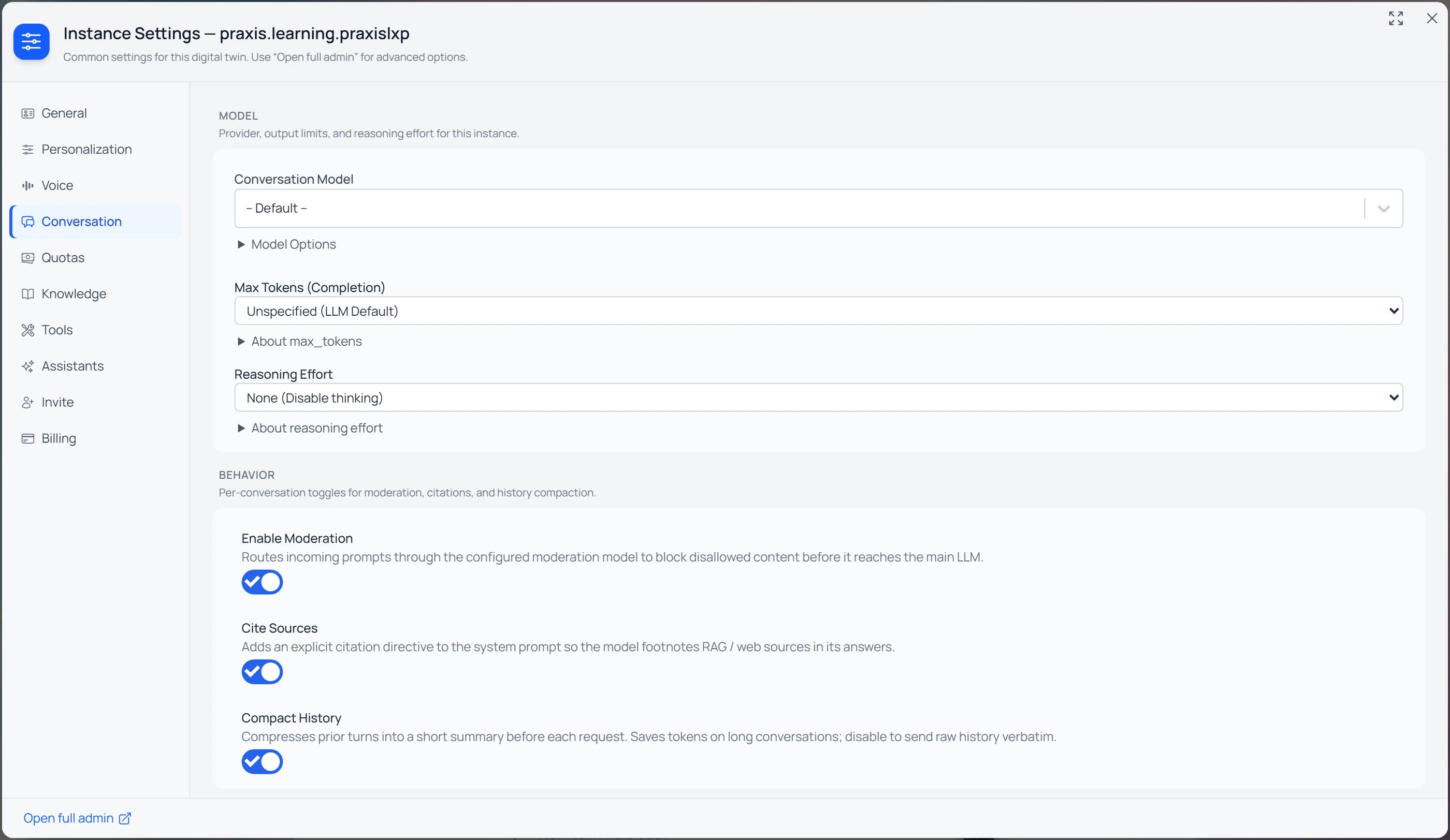
Instance Settings → Conversation: the model, max output length, reasoning effort, and per-conversation behaviour toggles.
Model
- Conversation Model — the model every conversation uses by default;
-- Default --uses Pria’s platform default. Expand Model Options for the full catalog (input/output sizes, price, and capability icons). See AI Models for Your Twin. - Custom AI model — when the twin uses its own model (your provider, endpoint and key), the section shows it instead, with a Configure button for admins allowed to edit AI models. Admins allowed to add AI models see Add custom model when the twin has none yet.
- Fallback conversation model — the model that answers when the conversation model fails before any reply started (for example, the provider is over its usage limit or briefly unavailable). Leave it unset to use the platform default; the answer then comes from that model for that one turn, and the usage card says so. It shows whether the twin uses a catalog model or its own custom model — a failing custom endpoint falls back the same way. Only admins allowed to edit the Digital Twin can change it.
- Max Tokens (Completion) — caps the length of each reply; Unspecified uses the model’s own default.
- Extended Context — a larger context window for very long conversations, on the models that offer it.
- Reasoning Effort — how much the model thinks before answering (None / Low / Medium / High / Max). See Reasoning & Thinking.
Behaviour
Enable Moderation (screen prompts before they reach the model), Cite Sources (add footnotes pointing at the files or web pages an answer drew on), and Compact History (summarise older exchanges so long conversations cost less).Display Details
What appears around each answer. Tools and thinking each have two independent toggles: one for the saved conversation and one for the live view while the answer streams.- Display Tools Details — a wrench block summarising the tools used (web search, vault retrieval, calendar, image generation…) on saved answers.
- Display Tool Execution — live tool indicators while the response streams (“Running…” → “Ran ✓”). The summary on saved answers is unaffected.
- Display Thinking Details — the model’s reasoning trace on saved conversation history. Disable to hide it and stop keeping it on new answers.
- Display Thinking Execution — the reasoning trace live, as the response streams. It does not change what was already saved on previous answers.
- Display RAG/KAG Search Details — a magnifying-glass block listing the file passages retrieved for each answer, with file name, relevance percentage and a preview. Confidential file content stays redacted regardless.
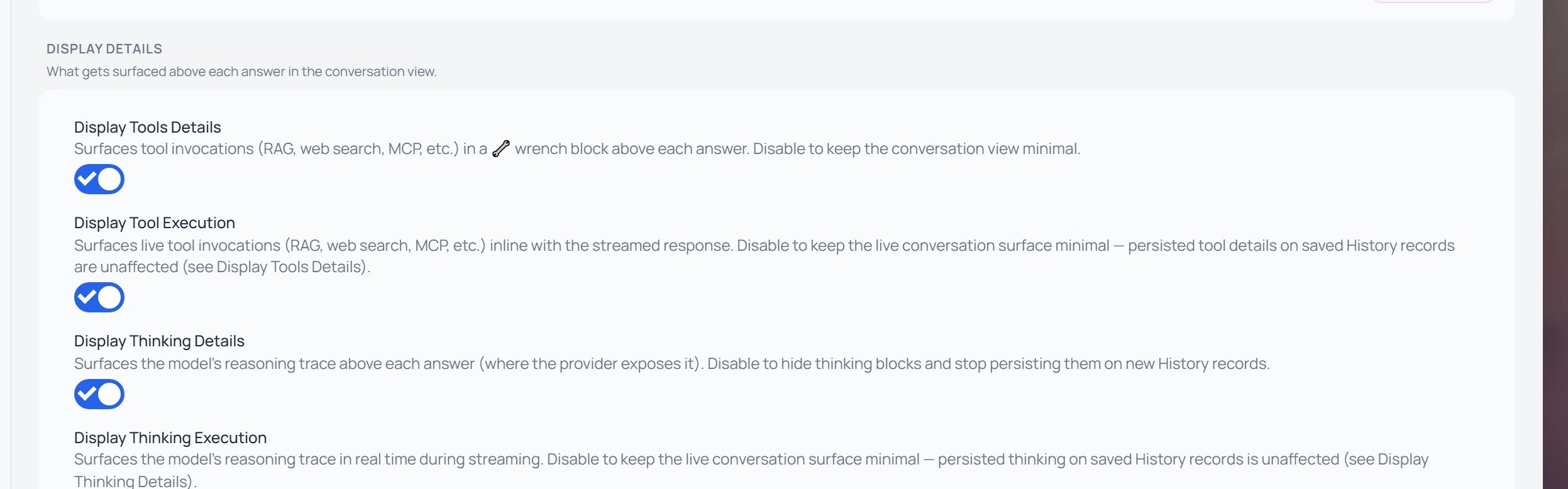
Conversation → Display Details: the Tools and Thinking traces, each split into a saved (Details) and a live (Execution) toggle.
Reasoning traces only appear for models that expose them — Claude 3.7+, Sonnet 4+, Opus 4+, OpenAI o-series and GPT-5+, Gemini 2.5+. Other models show nothing even with both thinking toggles on.
Voice
The Voice screen covers the two ways members can talk with the twin: Convo, a live spoken conversation, and Natural Voice, which reads written answers aloud. For Convo itself, see Convo Mode.Convo — who can use it
- Enable Convo (Speech-to-Speech) — turns on the live spoken conversation alongside text chat. The member speaks, the twin listens and answers aloud, and can be interrupted. Members with access see a Convo button.
- Convo admin only — only administrators of this twin can use Convo, for a private rollout or while you tune the voice.
- Restrict use of assistants — a conversation that runs one of the twin’s assistants keeps that assistant when a member starts talking. To limit Convo to chosen assistants, turn this on and check the allowed ones in the list that appears; members can then switch between those assistants during a call. Left off (the default), every assistant is allowed. With the switch on and nothing checked, every assistant stays allowed.
Convo — model and voice
1
Pick a Convo model
The Speech-to-Speech Model dropdown lists every voice-capable model available to this Digital Twin. The model shapes the call: an Anam model adds a lifelike video avatar; OpenAI, GPT-Live, Gemini, xAI and Cartesia models run voice-only calls.
2
Pick a voice (where supported)
Providers that ship several voices show a voice selector (Gemini Live Voice, xAI Voice, GPT-Live Voice, or Voice under OpenAI Realtime) — pick the one that best fits your Digital Twin’s persona.
3
Tune how it listens
The options that appear depend on the model: Interruption Sensitivity (how readily the twin stops talking when someone speaks over it) and, for OpenAI Realtime, Voice Activity Detection Eagerness (how quickly it decides you’ve finished speaking), Noise Reduction, and Transcription Language (ISO 639-1).
- Speech Recognition Language — what the twin can hear. English-only is the default. Multilingual understands, and switches between, German, English, Spanish, French, Hindi, Italian, Japanese, Dutch, Portuguese and Russian. Choose it when members speak another language — with English-only, other languages come out as English-sounding words. The same choice applies when the twin joins a Zoom or Google Meet meeting.
Convo — Anam avatar
With an Anam model, the Anam Avatar section sets the video avatar. The avatar speaks each answer while Pria stays the brain.- Anam Avatar ID and Anam Voice ID — the avatar’s face and voice. Leave either blank for the built-in default.
- Placeholder Image URL — the still image shown before the avatar’s video connects.
- Introductory Message — an optional greeting the avatar speaks when the call connects.
- Greeting delay (ms) — how long the avatar waits, once its video, audio and the member’s microphone are all ready, before speaking the introductory message (0–10,000 ms; default 1,000).
- Apply the avatar standard — applies Praxis AI’s recommended avatar settings in one click. It first shows exactly which settings will change and asks you to confirm.
Convo — how the call looks
- Enable text input alongside speech — members can type while in Convo, for quiet rooms or when reading is easier than speaking.
- Show fullscreen transcript — shows the live transcript panel in full-screen Convo. This is separate from typed input.
- Avatar Fullscreen — Convo opens straight into a full-screen avatar view that fills the window, instead of the smaller panel.
- Lock full-screen conversation — people stay in the full-screen avatar view for the whole conversation: the collapse button and the Escape key are turned off, and ending the call is the only way out. Use it for kiosk screens and embedded experiences.
- Start Immersive Mode by Default — new visitors land in the immersive voice conversation (with a tap-to-start step) every time they sign in. Turn it off to land in the classic chat.
- Immersive Side Drawer — slides a panel of your own content (text, images, links, buttons) in beside the full-screen avatar. Pick the Drawer Side and design the panel with Open Drawer Builder.
Convo — when the twin is embedded on another website
These apply when a website embeds this twin through the Pria SDK (see Integration).- Share voice transcripts with the embedding page — that page can receive what people say and what the avatar answers, live, as the conversation happens. Only the page hosting the twin receives them, and only if it asks for them. Make sure your privacy notice covers sharing conversations with that website.
- Let the embedding page guide live conversations — that page can send instructions during a live voice conversation, for example to open the lesson the learner just started. Those turns are billed like any other. Leave it off unless you trust that website.
Natural Voice (read aloud)
- Use natural voices — when a member presses Speak on an answer, it is read aloud with a natural-sounding voice instead of the browser’s basic one. Generating the audio uses credits; replaying the same answer is free.
- Read-aloud voice — the voice members hear.
Knowledge
A Digital Twin answers from two sources: its knowledge (the documents in its IP Vault) and its long-term memory (what it learns about each member across conversations). The Knowledge screen covers both.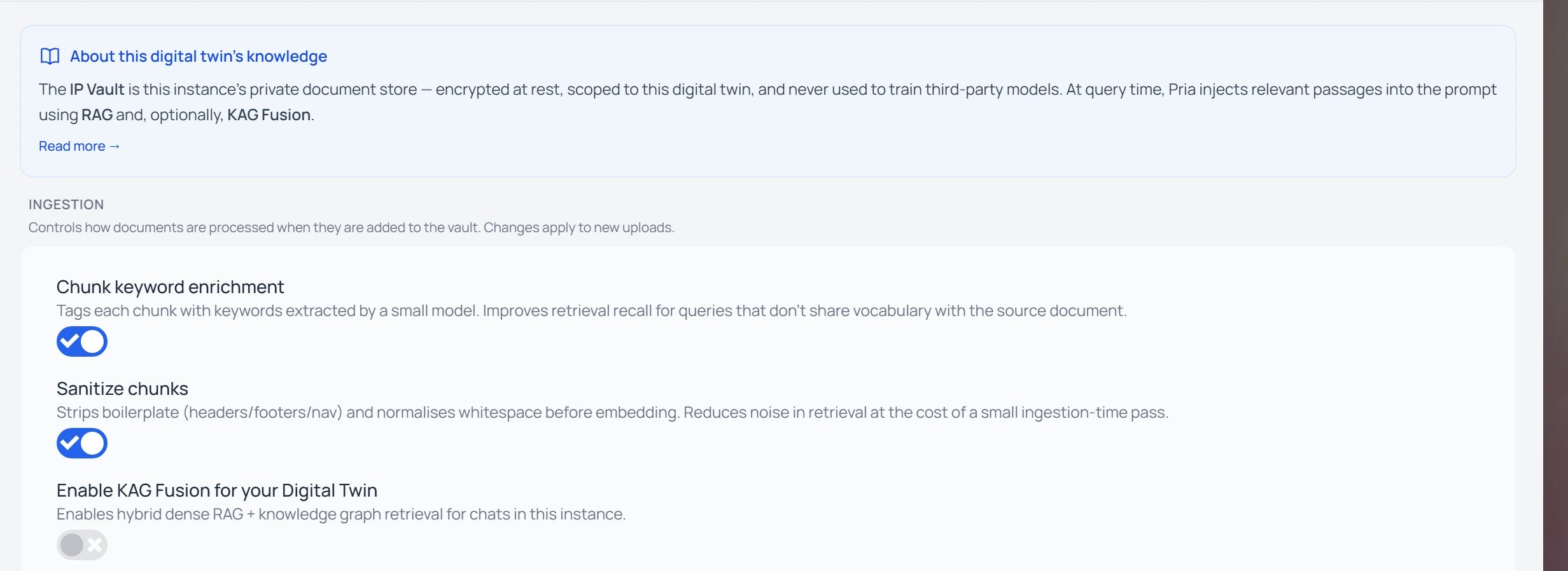
Instance Settings → Knowledge: file preparation and KAG Fusion for the Twin's vault.
Long-term Memory
When on, the twin decides after each exchange whether something should shape its future replies (a preference, a decision, a fact about the member’s work) and saves it as a memory, with a short note in the conversation. Memories are recalled automatically on later messages, belong to each member and this twin only, and members can review, correct, export and delete them under Manage Memory… → Long-term Memory. The Praxis AI team turns long-term memory on for a Digital Twin — contact us at humans@praxis-ai.com. Once it is on, you choose:- Admins only — only this twin’s admins use long-term memory while you try it; other members keep classic memory.
- Default Memory Mode — Classic (key/value) or Long-term Memory, which saves and recalls memories automatically.
- Display Memory Details — answers list the memories that shaped them, in a Memory row.
Documents (IP Vault)
- Personal Files and Memory → Ignore user personal vault — when on, the twin doesn’t draw on members’ personal uploaded files or their personal memory: search, knowledge graph, tool calls and voice all use this Digital Twin’s own vault, so every member gets the same twin.
- Ingestion — how new files are prepared: Chunk keyword enrichment adds a few key words to each passage so it’s easier to find later; Sanitize chunks cleans menus, headers and scanning errors out of a passage before it is filed. Both apply to files uploaded from now on.
- Enable KAG Fusion for your Digital Twin — adds a knowledge-graph search on top of the ordinary file search, for questions about how things connect across documents. Building the graph processes every file with an extra pass, so it costs more credits. If your account manages KAG Fusion for all its twins, the switch shows the account’s choice and can’t be changed here. See Knowledge Modes.
- Add existing files — with KAG Fusion on, files that were in the vault before aren’t in the knowledge graph yet. The screen says how many, with the segments to process and an estimate of the tokens it will use; Add existing files builds them into the graph, with a progress bar and a Stop button.
- File longevity (days) — new files uploaded to this twin’s vault move to the Trash when they have not been used for this many days. Each use — Pria answering with the file, a download, a shared link — starts the period again. 0, the default, keeps files forever. See How long files are kept.
- Retrieval — Files searched per question, Document Search Affinity (how closely passages must match), and Number of Relevant Articles (default 2).
Tools
The Tools screen lists every tool the AI can call in this twin — search it by name, filter it by category, or show only the enabled ones, and switch single tools on or off. Tools whose feature is off for the twin (for example long-term memory or a service that isn’t connected) are not listed, and a line says which features hide tools. Fewer tools make every answer lighter and faster, because the AI considers a shorter list before it replies — whether or not it uses any of them.- Tool presets — None, Minimal (recommended), Media, Builder and All, with the number of tools each one leaves on. Each set contains the one before it, so moving up only adds. Choosing one asks you to confirm, then switches the rest off for everyone in this Digital Twin; you can still switch single tools back on afterwards. A connection you deliberately set up is never switched off: Canvas while its credentials are in place, and Google or Microsoft while they’re enabled for members. If you then change single tools, your choice shows as Custom.
- Tool Switches — File navigation tools (list folders, find files by name) and Builder tools (check, screenshot and review the web pages the AI builds). Both are on by default; subagents need both.
- Tool Options — Tools Guidance (extra instructions for more reliable tool use), Max Tool Result Size (how much of each tool result the model sees), and Tool calls per answer (cap) — the most tool calls one answer may make before the twin has to write its reply. Leave it at 0 for the platform default of 20; a twin can only lower it, never raise it. A reply that reaches the cap still answers from what it gathered and says what it couldn’t find.
Assistants
Choose which assistants are available in this twin. Search by name, tick Show only enabled assistants, or filter by where an assistant lives: System, Personal, Instance (this twin), or Account. An assistant shared across your account says which Digital Twin it comes from (for example “From RAI (Interview)”, or “From this Digital Twin”), so copies are easy to tell apart. See Assistants.Subagents
With subagents, your Digital Twin can take on bigger jobs: it plans the work, splits it into steps and hands them to a team of specialised subagents working in parallel (planner, designer, coder, tester, writer, researcher) — building web pages, activities, apps and games, or researching and writing reports and course material.- Enable Subagents (experimental) makes subagents available in this twin — it does not turn them on for anyone. A member who wants them opts in from the chat’s [+] menu (Subagents → Enable Subagents) and chooses how much autonomy to give; everyone else keeps single-agent conversations.
- Once enabled, Admins only limits that opt-in to administrators while you try it out.
- A request handled by a team is billed for the work every subagent did, so it uses more credits than a single answer.
Connectors
Connectors let the twin reach outside sources natively, through its tools — an email, a file in a drive, a calendar event or a course — without copying anything into the vault first.- Google Workspace and Microsoft 365 — whether access is on for members, whether each member connects their own account or the twin uses one account for the Digital Twin, which account is connected and the services granted to it, and a notice if the connection stopped working.
- Canvas — whether the Canvas connection is set up, plus Authenticate with Canvas on SDK login and Don’t prompt to enable Canvas authentication.
- Configure connections and API keys — opens this twin in the admin editor, where access is turned on, the twin’s own account is connected, and the keys other services need are added.
Quotas
Cap how many credits each member can spend in this twin. With Enable user quotas on, a member who reaches a limit can’t send new messages until you raise it or, for the 24-hour limit, until their older use ages out.- Per-user lifetime limit — the most credits one member may ever use here (empty or 0 = no limit).
- Per-user 24-hour limit — the most credits one member may use in any 24 hours.
Invite
- Invite Link — new people sign up and join this twin automatically; share the link or its QR code.
- Login Page — a sign-in page with your twin’s branding, for existing members (Copy login link).
- Guest Access — a short public web address that opens straight into a voice conversation, without signing in and always as a guest.
- Manage Members & Entitlements — see who has joined, give or remove admin rights, and remove members.
Integration
The Integration screen is the Integration Wizard: it writes ready-to-use code that puts this Digital Twin on a website, in an app or in your LMS — you copy or download it, paste it in, and it works as-is. Opened from Instance Settings, it already knows which twin to embed.1
Where will this run?
Pick a target. Each one produces a single file:
2
Appearance
Set how the widget looks and behaves, with a small live preview: Position (top-left, top-right, bottom-left, bottom-center or bottom-right), Button size (S, M or L), Full screen, Open on load, Start in Convo mode, and Visitor mode (see below). Show advanced options adds Allow pop-out, Headless (no UI) for pages that drive the twin from their own code, Disable button bounce, and the ids of the page elements that should hold the twin and its button. Don’t use Headless (no UI) when the twin’s account asks people to accept a privacy policy: with no panel, nobody can accept it, and the twin will not answer.The avatar widget has its own choices instead — Theme (light or dark), Mode (launcher, a floating button that opens the avatar, or inline, the avatar placed in your page) and Skip microphone prompt. The Claude target has nothing to set.
3
Get the code
Click Generate code, check the result, then Copy code or Save the file. Above the code, the wizard shows the sites this twin accepts (see the warning below).
Billing
- Instance Credits — the balance of Praxis Unified Credits available to the members of this twin, with Add Credits, which takes you to the credit purchase page. The button is hidden when adding credits is turned off for this twin.
- Pooled or not — the screen says whether credits are pooled (every member’s conversations draw from this shared balance) or not (members use their own personal credits).
- Payment History — the payments made for this twin, under View Payment History…: date, description, amount, credits, and a View link to each receipt.
Saving and resetting
Instance Settings save as you go. There is no submit step — toggling a checkbox or picking a value writes the change immediately, and a small spinner near the top of the panel indicates the save is in flight. If a save fails (for example, your session expired), the toggle reverts to its previous state and an error appears. The Digital Twin Instructions and guardrail instructions are saved with their own Save buttons. To revert a single setting, change it back manually. There is no “reset everything” button — settings belong to this Digital Twin, and each one does one specific thing, so change back the one you want.Related
- Digital Twin Configuration — every field of the full edit page in the admin console
- AI Models for Your Twin
- Convo Mode
- Reasoning & Thinking
- Knowledge Modes
- Invite Members
- Embed your Digital Twin
- Edit Profile
- Personal API Keys