

What is User Memory?
User Memory is the set of memory parameters — small key/value facts with a description — that Pria keeps about you so every conversation starts already knowing your context: your role, your projects, how you like answers formatted.Persistent
Stored across sessions — available weeks or months later, no matter how long the break
Private to you
Your memory parameters are yours alone; they’re never visible to other users
Built two ways
Pria stores important facts automatically during conversation, and you can tell it explicitly what to remember
Fully under your control
View, edit, and delete every parameter from the Memory panel in your profile
Memory scope: parameters created while chatting in a Digital Twin belong to your private memory within that twin; parameters created outside any twin are personal and follow you everywhere. A twin can also have Shared Memory — team-wide parameters visible to all its members.
Your twin also keeps Long-term Memory — what it picks up on its own as you talk. It works alongside this, and does not replace it.
How it works
1
Pria notices or you tell it
During conversation, Pria stores important facts automatically (preferences, goals, role). You can also be explicit: “Remember that I prefer concise documentation with clear examples.”
2
Stored as a parameter
Each fact becomes a named parameter with a value and a description, organized into namespaces (e.g.
personal_info, work_context, technical_preferences).3
Used in future conversations
Stored parameters are available to Pria in later sessions, so it answers with your context already in mind — no re-explaining.
4
Updated as things change
Just say so: “Actually, my role changed to Senior Technical Writer.” Pria updates the relevant parameter.
Managing memory in chat
Ask Pria directly at any time: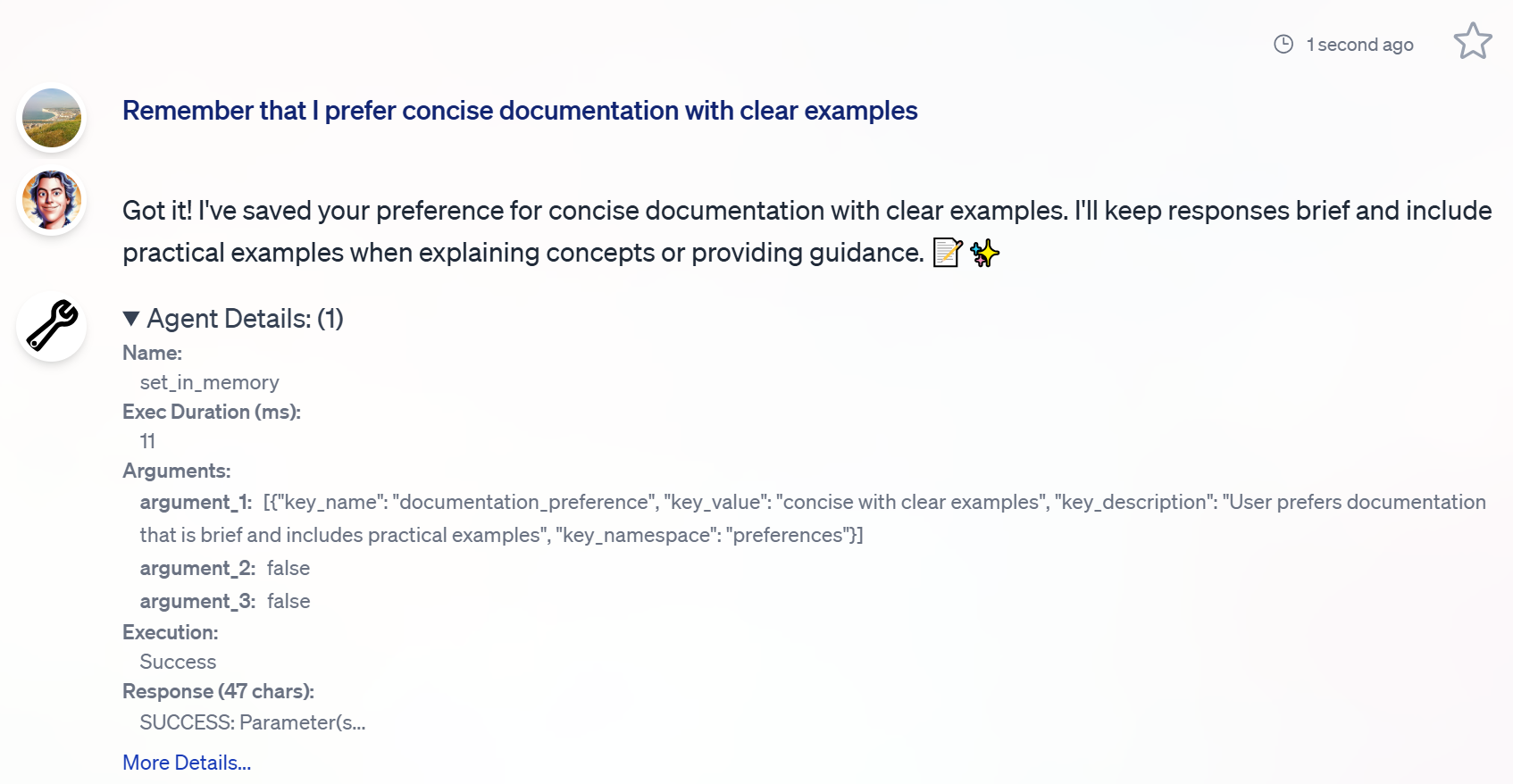
The Memory panel — view, edit, delete
You don’t have to go through chat. Open the Memory panel from your avatar menu in the top-right (Memory), from Your Profile → Knowledge → Manage Memory…, or from the conversation’s [+] action menu → Knowledge → Manage Memory… to manage everything directly:- Browse and search every parameter — filter by name, value, or namespace.
- Edit a parameter’s value or description inline.
- Delete individual parameters, or use Clear to remove everything currently matching your filter in one action.
- Share a parameter into your Digital Twin’s Shared Memory (only memories created inside that twin — purely personal memories can’t be shared). Once shared, the entry is managed alongside the twin’s other shared knowledge.
- Export to CSV for your own records.
The User Memory Optimizer assistant
Over time, memory accumulates scattered or duplicate parameters. The User Memory Optimizer assistant analyzes your stored memory, consolidates duplicates, fills obvious gaps, reorganizes namespaces, and removes stale entries — leaving a tighter set of parameters that personalizes better and costs fewer tokens.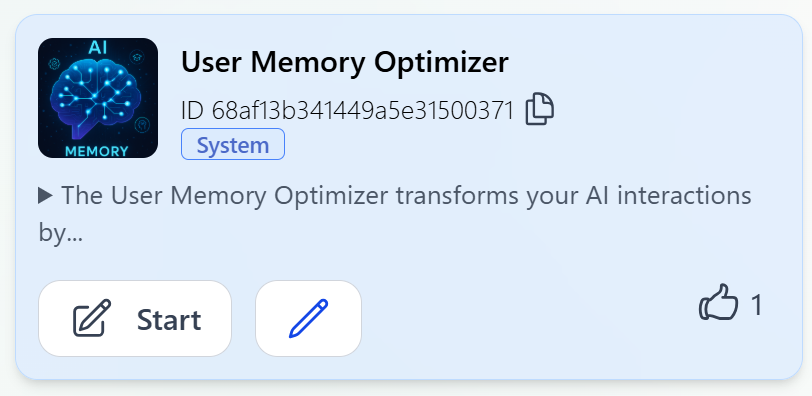
Turning User Memory off
Your Profile → Knowledge → Memory has an Enable User Memory switch (on by default) — also available as a quick toggle in the conversation action menu under Knowledge → Memory. Off: Pria stops saving new personal memories and stops using existing ones — nothing is deleted, the panel below stays fully usable, and your twin’s Shared Memory is unaffected. Details: How Memory Handles Your Data.Troubleshooting
Related
- Memory Systems — how the four memory systems fit together
- Twin Memory — Long-term Memory: what your twin keeps on its own, with a receipt each time
- Conversation History — short-term context for the current conversation
- Shared Memory — team-wide knowledge for a Digital Twin
- Your Data & Privacy — export or delete all of your data, memory included
- How Memory Handles Your Data — storage, visibility, training, retention, and deletion answers