

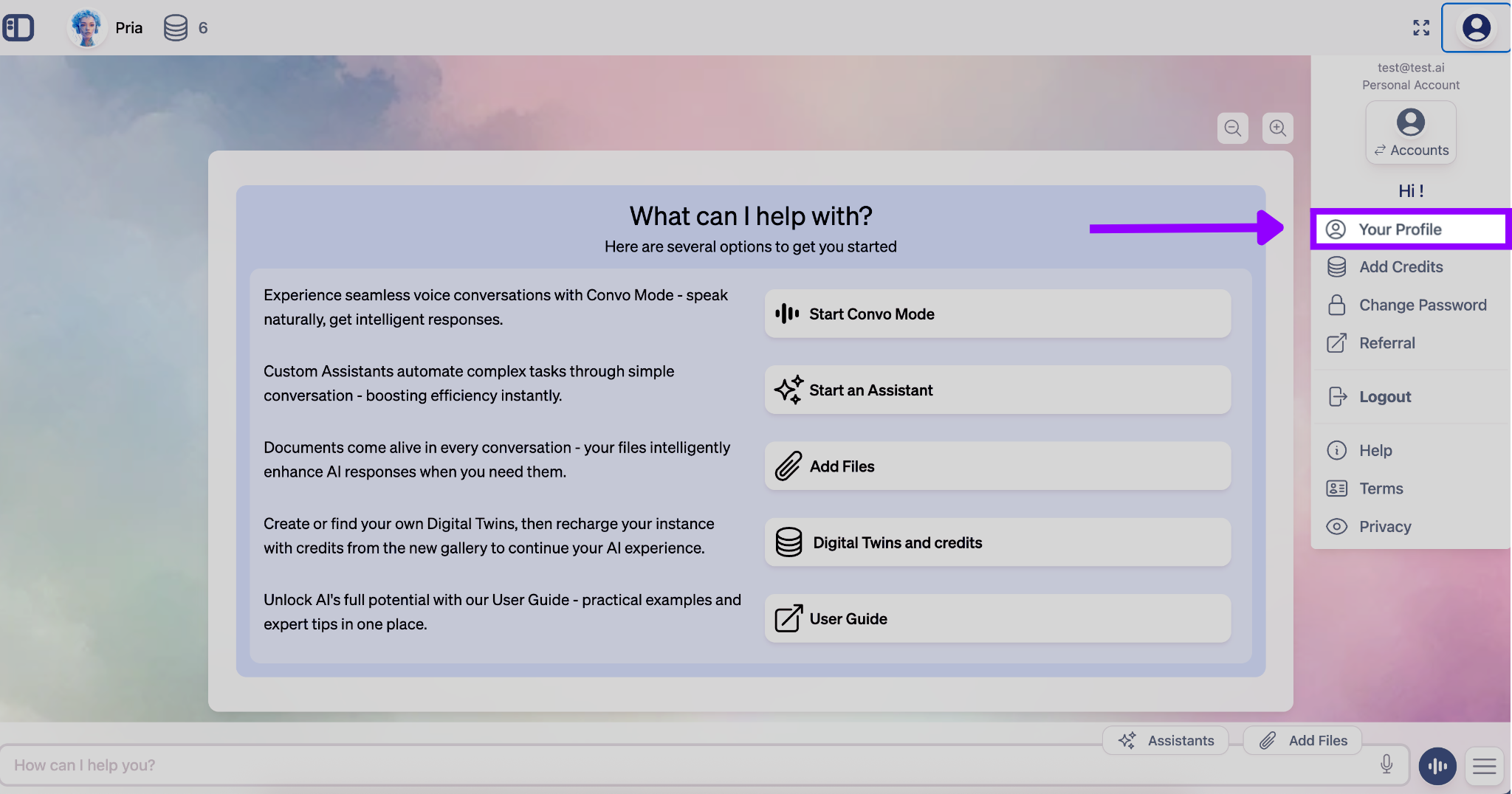
General — identity
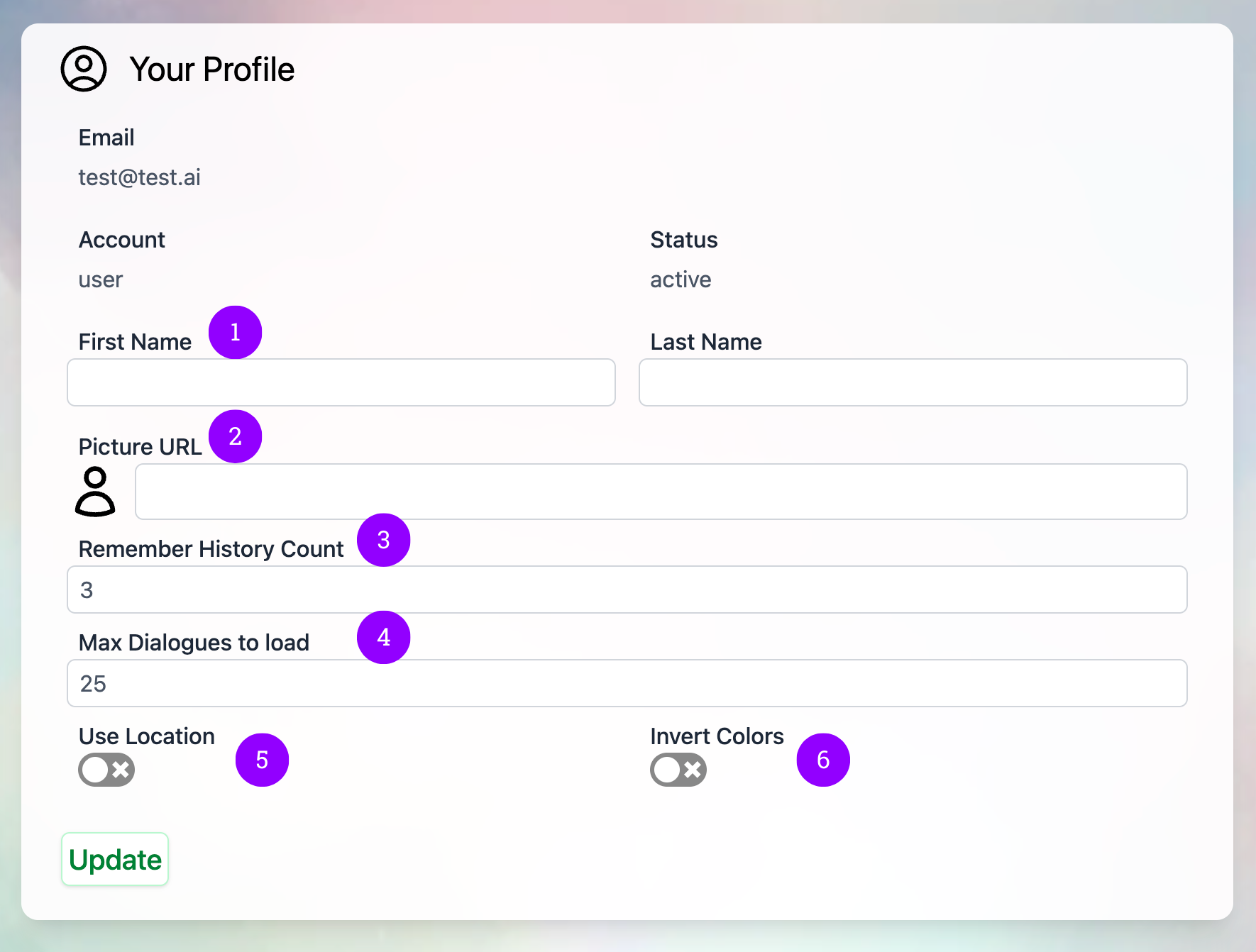
Profile picture — click the avatar
To change your picture, click the avatar itself. There’s no separate Upload button — the avatar is the upload trigger. A camera icon overlays the avatar on hover so the affordance is visible, and a small helper line beside it reminds you: “Click the picture to upload a new one.” The picker that opens lets you:- Take a photo with your webcam
- Pick an image file from your device
- Crop and reposition the image to a square before saving
Your name
The First Name and Last Name fields are what other members of your Digital Twin see in shared surfaces. Edit them and click Update Personal Details to save.Account information
The Account Information card shows your email address, account type, status, and the current instance (Digital Twin) you’re signed into. These are read-only — the email you sign in with can’t be changed from this screen; if you need it changed, contact your instance administrator or the Praxis AI team at humans@praxis-ai.com.Personalization — how Pria behaves for you
Dark Mode
Switches the entire interface to the dark palette. Saved per-account and applied on every device you sign in from. Hidden when your Digital Twin enforces a theme for all members.
Remember History
How many previous exchanges Pria pulls into context for each new prompt (slider, 0–15). Higher uses more tokens but keeps longer continuity. See below.
Use Location
Lets Pria use your browser’s approximate location for location-aware answers (weather, nearby venues, time zone). Your browser still asks for permission the first time.
Enable STT
Shows the microphone button in the chat input so you can dictate messages. Recordings are transcribed and then discarded — never stored.
Use Natural Voice
Personal accounts only: when you press Speak on a response, a natural-sounding voice reads it instead of the basic browser voice. A Playback voice picker appears when it’s on. Organization members follow their instance’s voice settings instead.
Remember History & compaction
The Remember History slider (also reachable as a quick picker from the conversation’s [+] → Knowledge menu) controls how many previous exchanges Pria includes in context for each new turn. It runs from 0 to 15, with marks at None (0) · Default (3) · Conversation (6) · Research (12).
Lowering the value won’t delete older exchanges — they’re just no longer fed into new prompts. Raising it brings them back (subject to compaction). Full guide: Conversation History.
Knowledge — memory, retrieval, and your personal vault
The Knowledge tab governs your personal knowledge — memory and the files you upload outside any Digital Twin.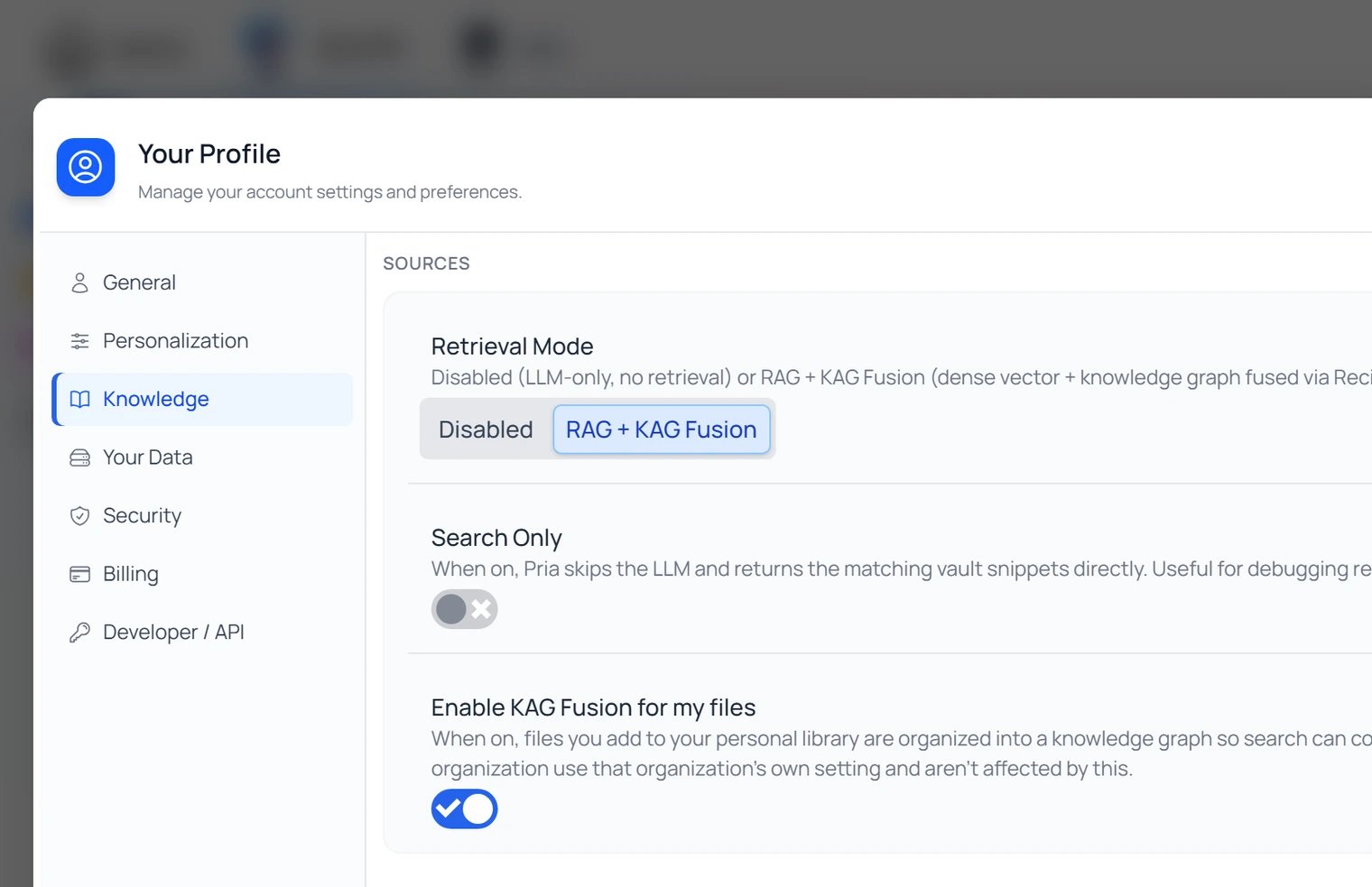
Your Profile → Knowledge: the Memory switch, your personal Retrieval Mode, Search Only, and KAG Fusion for your own files.
- Memory — the Enable User Memory master switch (on by default), plus Manage Memory… to open the Memory panel. See User Memory.
- Retrieval Mode — Disabled (answer from training only) or retrieval on: RAG (or RAG + KAG Fusion once you enable KAG for your files below).
- Search Only — return the matching vault passages directly instead of an LLM-written answer.
- Enable KAG Fusion for my files — off by default; when on, files you add to your personal library are organized into a knowledge graph for richer, connection-aware search (uses additional credits). A panel below offers to add your existing files to the graph. Files inside an organization’s Twin follow that Twin’s setting instead.
- File Retention — Personal file longevity (days): new personal files move to Trash after this many days if unused; every time Pria uses a file to answer, its clock resets. 0 keeps files forever.
Where to go next — deeper settings
The other tabs of Your Profile open dedicated pages elsewhere in this guide.Your Data & Privacy
See, export, or delete the personal data Pria holds about you — dialogues, files, memory, assistants, feedback, sessions. The entry point for GDPR-style data requests.
Personal API Keys
Generate, rotate, and revoke API keys for programmatic access to Pria from scripts and the SDK. Admin accounts only.
Instance Settings
Open the Instance Settings dialog to manage the active Digital Twin — model picks, RAG / KAG, Voice, Tools, Assistants, Invite, Billing. Admins only.
Two-Step Verification
Require a 6-digit code — by email or from an authenticator app — when signing in from a new device. Strongly recommended for admin accounts.
Change Password
Rotate your password from the Security tab.
Google Services
Connect or revoke Google Workspace access so Pria can reach private Drive files, calendar events, and Gmail on your behalf.
Canvas / LTI (course connections)
If your account came in through a Canvas LTI launch, the Canvas / LTI tab shows your launch context — user ID, course name and ID, and account domain — plus:- Canvas token status — Pria’s read access to Canvas course content. Tokens refresh automatically; you can Revoke or remove the token at any time.
- Unlink Course — administrators of the Digital Twin can disconnect the current course connection from the instance.
Quick Tips
Most profile settings take effect immediately as you change them; the name fields save when you click Update Personal Details.
Related
- Personal Data — Export and delete your data.
- API Keys — Personal programmatic-access tokens.
- Instance Settings — Admin-side Digital Twin configuration.
- Two-Step Verification — MFA setup.
- Change Password — Rotate your password.
- Google Services — Workspace integration.
- User Memory — What Pria remembers about you.