

Content search is for finding a specific passage on demand. Chat-time retrieval (RAG and KAG) runs inline while you talk to your Digital Twin. The two systems share the same underlying index, but content search puts you in the driver’s seat — type a query, scan the hits, jump to the source.
Where to use it
Open your IP Vault from the Files button on the chat input bar. At the top of the file panel you’ll see the Search bar. It has two modes — searching file names and searching file contents; flip the toggle to content mode, type a query, and Pria scans every passage in your eligible files, returning ranked snippets with the file they came from.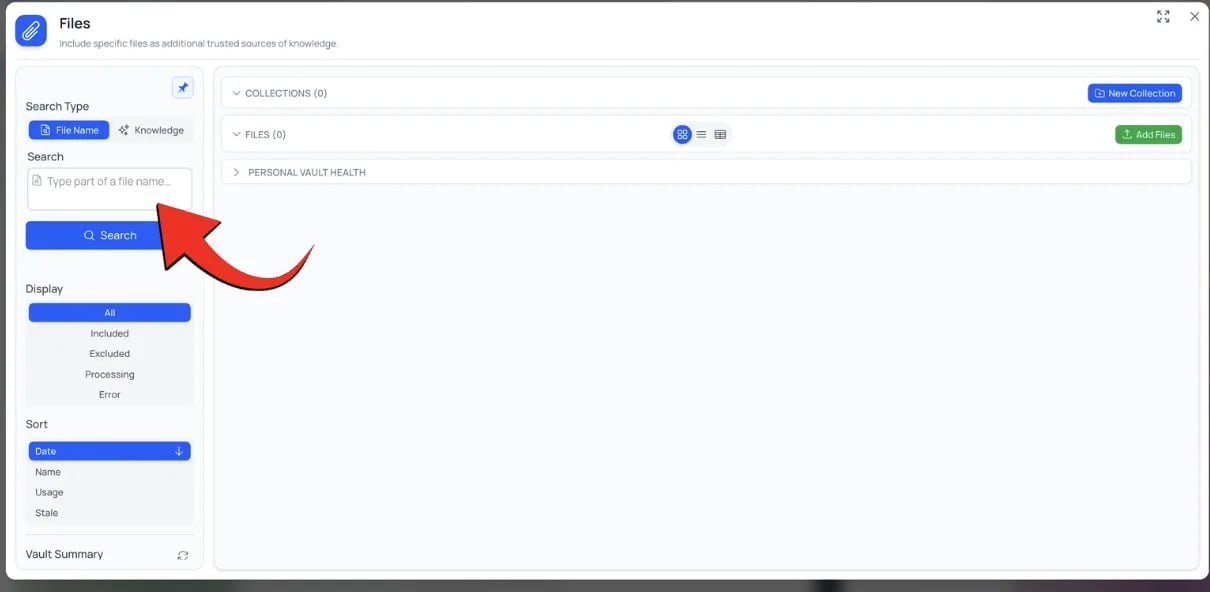
The content search bar at the top of the IP Vault file panel.
- Mid-conversation, without breaking your chat
- Before a session, to remind yourself what you uploaded
- During cleanup, to find duplicate or outdated files
Keyword queries
The search bar accepts free-form text. Pria builds a semantic query against your vault, so you don’t have to match wording exactly.Distinctive phrases
Paste the exact wording you remember — a clause, definition, or quote. Verbatim phrasing produces a very close semantic match and ranks the source passage near the top.
Multiple keywords
Combine terms to narrow the result set. Pria scores passages on how well they match the combination of words, not just any one.
Natural-language queries
“What did the report say about Q3 hiring?” works as well as
Q3 hiring. The semantic layer handles paraphrase.Names, dates, IDs
Proper nouns and specific tokens (case numbers, model IDs, ISBNs) rank reliably because they’re rare in the index.
Reading results
Each hit shows up as a card with:- File name and icon — what document the passage came from
- Snippet — about 200 characters of context, with the matched terms emphasized
- Relevance score — a 0–100% value reflecting how closely the passage matches your query
- Source label — whether the match came from the ordinary search by meaning (RAG), the knowledge graph (KAG), or both merged (fused)
What the relevance score means
By default, results below 10% relevance are dropped to keep the list focused. Strong matches (typically 70%+) are what you’ll act on; the broader floor exists so partial matches still surface for review. (This 10% floor applies to content search only. The retrieval Pria does before answering a question uses a separate, stricter cut-off that your administrator sets — 45% by default — which is why a passage can appear here yet not be quoted in a reply.)
Jumping to the source
Click any result card to open the file in the File Preview, scrolled to the matched segment. From there you can:- Read the surrounding context
- Edit the segment text (if you have permission)
- Open the original file in its native viewer
- Re-process or re-embed the file if you spot a quality issue
Narrowing the search
A query against everything you can see may return a lot of hits. Two controls scope it down:
Content search covers Included files only — files excluded from retrieval (or still processing) have no searchable segments. Confidential files owned by someone else surface as locked placeholders rather than snippets.
Multi-vault scope
Pria searches across every vault you can see in one pass:Personal
Your own uploads — files only you can see.
Digital Twin
Files shared with everyone on your Digital Twin.
Account
Files shared across every Digital Twin in your Account.
Files shared across your organisation show up in your results even though they were uploaded inside a different Digital Twin. They’re searched just as thoroughly as your own — including through the knowledge graph — regardless of where the file was originally uploaded.
When search returns no results
If you expected hits and got nothing, the most common causes are:Related
- Knowledge Modes — how Pria picks RAG, KAG fusion, or no retrieval at chat time
- IP Vault — vault overview and access tiers
- Managing Files — uploading, organizing, and reprocessing
- File Processing Status — what happens after upload