

Connectors for MCP (Model Context Protocol) are currently in Beta. Features and compatibility may change as the protocol evolves.
Overview
Connectors link your Digital Twin to remote MCP (Model Context Protocol) servers, giving it access to the rapidly growing ecosystem of MCP tools without any custom code.What is MCP?
MCP is an open standard for integrating external applications with AI models — think of it as the universal “USB-C port” for AI ecosystems. Once a connector is active, every tool the remote server exposes becomes available to your Digital Twin during conversations.Expanded Capabilities
Your Digital Twin can interact with a wide landscape of external systems, including:- Business applications (CRM, ERP, project management)
- Databases (SQL, NoSQL, data warehouses)
- APIs (REST, GraphQL, webhooks)
- Cloud services (AWS, Azure, Google Cloud)
- Custom applications and proprietary systems (Salesforce, Hubspot, Whatsapp, Slack, etc.)
Key Benefits
Unified Integration
Tap into any external business logic, data service, or proprietary application seamlessly
Workflow Automation
Automate cross-platform workflows and eliminate manual processes
Break Down Silos
Unify fragmented services without complex custom integrations
AI-Powered Solutions
Unlock new AI capabilities by connecting to specialized external tools
Prerequisites
Tools that need approval now ask in the chat. When a connector has Require approval switched on, its tools are offered to the model, and the first time the model wants to run one you get a small card in the conversation naming the tool, the connector and exactly what it would run — with Approve, Approve for this conversation and Deny. Nothing runs until you choose. Tools listed under Skip approval for run without asking, as before.The card keeps showing what happened, wherever you’re looking at it: decide in one browser tab and every other open tab updates to the outcome (“Approved”, “Denied”, …) instead of leaving a stale card behind, and the card you get back after reloading the page — or from a second device — stays in sync the same way.The card appears in text chat on every conversation model with tool support, and in Anam and
Cartesia voice conversations — there, Pria also says out loud that she needs your approval and
reminds you every twenty seconds or so until you answer, and the card appears in the live transcript.In OpenAI Realtime voice conversations the approval is answered in your browser. It is not saved to
your approval history, so it cannot be approved from another device and Approve for this
conversation is not offered there.Approval-gated connector tools now work in xAI Realtime and Gemini Live voice conversations
too. When the twin needs your approval, the microphone pauses and an approval card appears — in the
transcript, or over the conversation when you are in the compact bubble, the immersive view, or have
transcripts turned off; approve or decline there (you have 45 seconds), and the conversation
continues. In those two voice modes Pria cannot speak the approval request aloud — watch for the card.
Approve for this conversation is offered when the voice call is bound to a conversation thread.Approval also works inside delegated tasks. When Pria hands a piece of work to one of her
agents and that agent needs to run a tool you have set to require approval, the agent’s card reads
“waiting for your approval” and the request appears right under that agent’s activity. Approve or decline
there, or from the pending list in any other tab you have open, and the agent carries on with the real
result. An agent waits up to three minutes for you; if nobody answers, it is told the request timed out
and carries on without running the tool. A declined or timed-out call is shown as a failed step, so it is
never mistaken for work that happened.While a plan is building, answer from the agent’s own activity. Open the agent that is waiting inside
the build panel and approve or decline there. Known limitation: if Pria itself — rather than
one of its agents — needs approval during a plan build, no card appears and that step waits out its
three-minute limit without running.ElevenLabs conversations do not offer approval-gated tools either; Pria will say so and ask you to try
again from the Pria chat.If you hang up or reload the page while Pria is waiting for your approval, the request is cancelled and
the tool does not run. Your decision is still recorded if you make one, but that particular request
will not finish. Ask again.
Supported Models
- Any conversation model with tool support: Claude on Amazon Bedrock and Anthropic, Gemini, Mistral, Grok, and the OpenAI GPT-5 / GPT-5.x, GPT-4.1 and o-series families.
- Voice conversations through Anam, Cartesia and ElevenLabs use the same connectors.
- Realtime voice sessions on xAI and Gemini Live use connector tools, including tools that require approval.
- Pria’s own agents — the ones it uses for delegated tasks and plan builds — use connectors too, including tools that require approval. During a plan build, answer from the waiting agent’s own activity.
Connector calls now originate from Pria’s own servers. If your MCP server allowlists source addresses, add Pria’s outbound addresses (ask support) alongside any OpenAI addresses you may have allowlisted.
Configuration
Navigate to your instance Edit → Connector MCP and Tools tab to manage your connectors.Connector List View
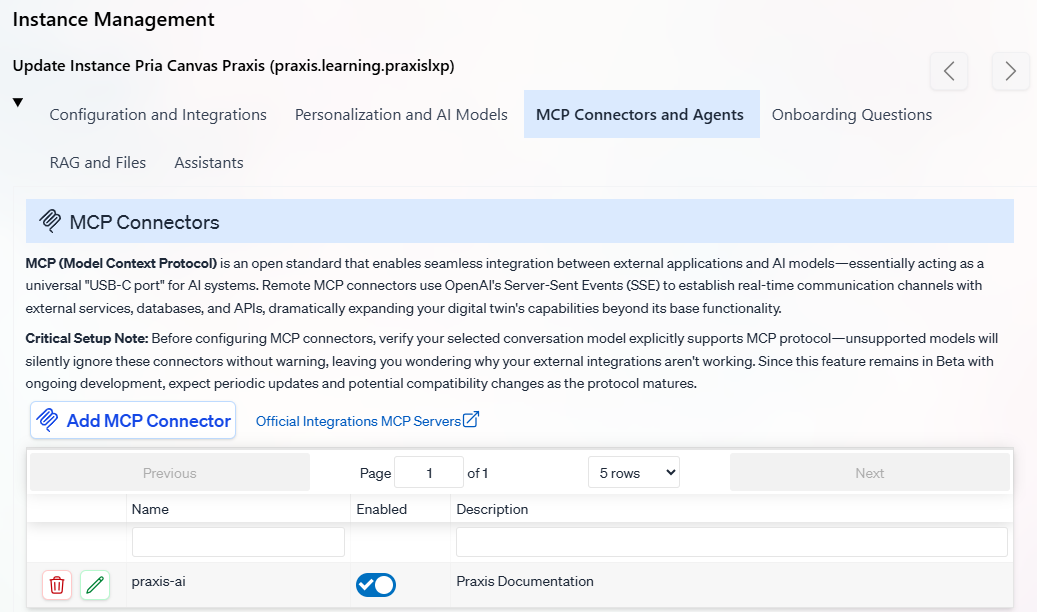
Creating/Editing Connectors
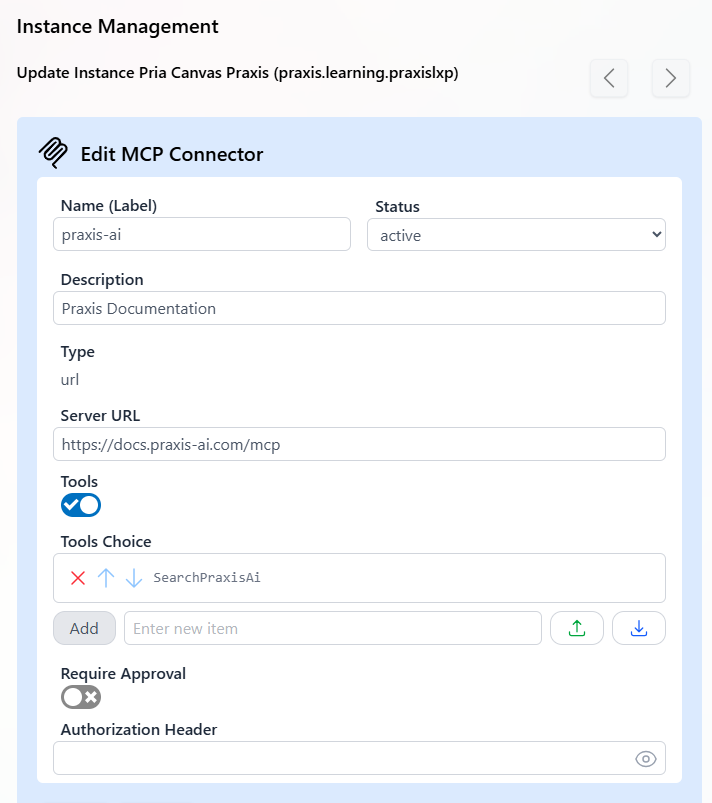
Required Fields
string
required
Connector Name (Label): Must match your MCP Server Label exactly
select
default:"Active"
Status:
Active- Connector is enabled and available to the Digital TwinInactive- Connector is disabled
string
Description: A description of your MCP server’s purpose, sent to the AI model as context. Use this to help the AI understand when and how to use the server’s tools.Example:
"This server provides access to the company's CRM. Use it to look up customer records, update contact information, and create support tickets."select
default:"url"
Type: Communication method
url- URL-based communication (currently the only supported method)
string
required
Server URL: The endpoint of your remote MCP serverExample:
https://docs.praxis-ai.com/mcpUse the server’s final URL — Pria refuses to follow a redirect from this address. This is a security measure: the URL is checked once, up front, and a redirect would send the request somewhere that check never saw. If your provider’s URL redirects to another address, register that destination address instead.
Tool Management
boolean
default:"true"
Tools: Enable to select a subset of available tools. When no tools are listed below, all of the server’s tools remain available.
Recommended: Use tool filtering when your MCP server has many tools. Some servers may expose hundreds of tools, so filtering helps optimize performance and focus functionality.
array
Tools Choice: List of specific tool names to enable
Approval Settings
boolean
default:"false"
Require Approval: When enabled, the LLM requests user permission before using MCP tools
Recommendation: Leave disabled for most use cases to maintain smooth user experience
array
Ignore Approval for Tools: List of tools that bypass the approval step when approval is requiredUse this for frequently-used, low-risk tools like search or read-only operations.
Authentication
string
Authorization Header: Service-level authentication tokenFormat:
Bearer xyz123...In addition to the Authorization header, every outbound MCP call carries a signed learner identity (the signed-in user’s email and IDs), so your MCP server can safely expose per-learner tools. Verify the signature with the Digital Twin’s MCP Signing Secret — see Verified identity for the headers, the signing rule and ready-to-paste verifiers, and Configuration → MCP Servers for where the secret lives.
Best Practices
Security Considerations
Security Considerations
- Use service accounts with minimal required permissions
- Regularly rotate authorization tokens
- Monitor MCP server access logs
- Implement rate limiting on your MCP servers
Performance Optimization
Performance Optimization
- Enable tool filtering for servers with many available tools
- Use descriptive connector names for easy management
- Test connectors in development before production deployment
- Monitor response times and adjust timeouts as needed
Troubleshooting
Troubleshooting
- Verify model MCP compatibility before deployment
- Check authorization headers and server URLs
- Ensure tool names match exactly (case-sensitive)
- Monitor server logs for connection issues
Next Steps
Read on Model Context Protocol
Read on Model Container Protocol
Search through existing MCP Servers
Search Existing MCP server
Develop on hoster platforms
Develop MCP servers on hosted platforms like smithery.ai zapier.com
Praxis AI is also an MCP Server
Connect Claude, ChatGPT, or your favorite LLM to Praxi-AI