

- User Sessions
- Charts
Overview
A session is created the first time a user signs into an instance from a given browser or device, and is updated each time that browser hits the API again. One user typically has multiple sessions: laptop, phone, tablet, second browser. Each is tracked independently so you can revoke one without touching the others.The list is sorted by Last Active (most recent first) and defaults to the last 30 days.Active vs idle
Pria does not distinguish “active” and “idle” with a hard cutoff — instead, the Last Active timestamp is updated every time the session’s browser makes an authenticated request (page navigation, message send, file upload, etc.). Read it as a freshness indicator:- Last Active within a few seconds — the user is actively interacting right now
- Last Active within a few minutes — likely still at their keyboard
- Last Active hours ago — the browser tab is probably open but unused
- Last Active days ago — abandoned session; will be cleaned up automatically
Data tracked per session
Filtering and search
The filter bar narrows the list:- Account — span all instances in an account
- Instance — sessions for a single Digital Twin instance
- User search — by email, first name, or last name
- Date range — by
Last Active; up to roughly the last month (older sessions are removed automatically — see retention below)
Reading a session row
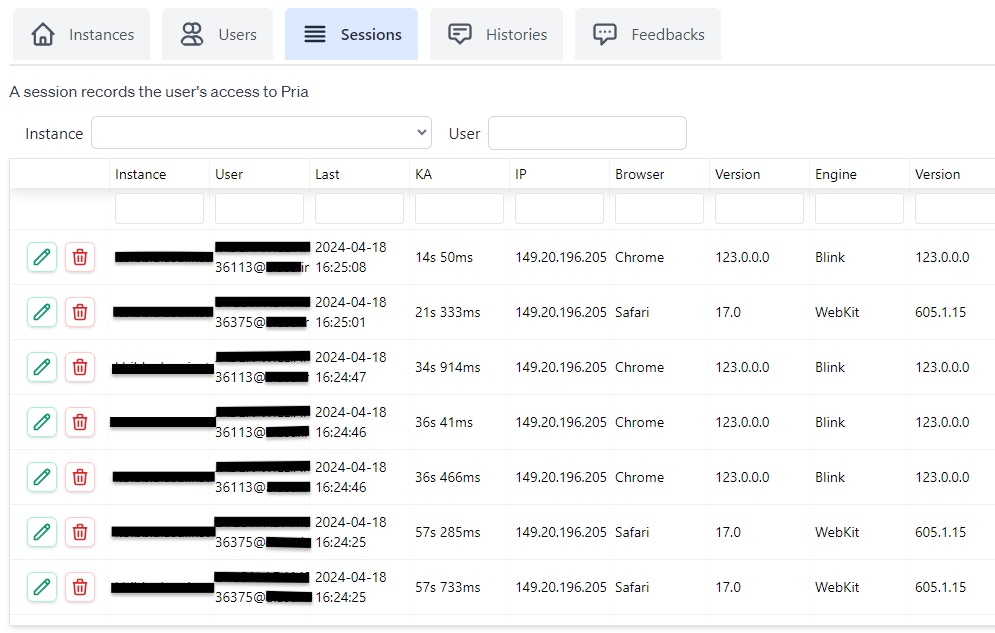
Each row shows the instance, the user, how long ago the session was active, how long it has been alive, the IP address, and the browser/engine/OS breakdown. Click the pencil to see the full detail panel:- User and instance cards (who, and which Digital Twin the session is attached to — a user with access to multiple instances has separate sessions per instance)
- Session ID, source IP, created and last-updated timestamps, and current status
- Device details when the browser reports them: type, vendor, model, and CPU architecture
- The full raw user-agent string (useful when the device columns abbreviate)
Revoking a session
Click the trash icon to revoke (soft-delete) a session. The next time the browser tries to call an authenticated endpoint, it will be forced back to the sign-in page.Common reasons to revoke:- Shared computer left signed in. A student logs out of a library workstation by emailing you; you revoke the session.
- Lost device. Phone left in a taxi; revoke every session from that device fingerprint.
- Compromised account. As part of a credential reset, revoke all of the user’s sessions across all devices to ensure the attacker is signed out everywhere.
deleted status for review until the normal retention window cleans it up. Export the filtered list to CSV first if you need the record for an incident file.Detecting suspicious activity
Things to scan for during a security review:- Multiple geographies for the same user in the same hour. A user with a session in New York and another in São Paulo five minutes later is almost certainly account sharing or a stolen credential.
- Unfamiliar user-agent. A non-browser UA string on an account that has only ever used standard browsers warrants attention.
- Long gap between Created and first Last Active update. Suggests the credential was captured and used later from a different environment.
- Burst of new sessions for one user across many IPs. Classic credential-stuffing signature.
Coordinating with the user
When you spot a suspicious session, the standard playbook is:- Revoke the suspicious session(s) immediately.
- Email the user at the address on the session row, asking them to confirm whether it was them. Use the email field in the detail panel.
- Force a password reset by directing the user to the “Forgot password” flow on sign-in. If the account uses API Keys, rotate them too.
- Require MFA going forward if the user did not already have it enabled.
- Review their Histories for the same window — sometimes the suspicious session shows in conversation patterns even when the IP looked routine.
Session retention
Sessions are a rolling window, not a permanent archive: records older than 30 days are removed automatically (the page notes this next to the date-range filter). Active sessions are kept fresh by browser activity, so anything a user still touches stays in the window indefinitely.If your compliance process needs session evidence beyond 30 days, make the CSV export part of your routine — for example, a monthly export filed with your audit records. For your deployment’s broader data-retention commitments, see Privacy & Educational Consent.Cross-link: MFA and API Keys
Sessions interact with two other security surfaces:- MFA — if a suspicious session prompts a credential reset, check whether the user has two-step verification enabled, and require it going forward. A user’s MFA state and trusted devices are managed from Users → Edit → Security.
- Personal API Keys — programmatic access via API key exchange creates short-lived tokens; those calls do not show in the Sessions list. Admins concerned about a specific user’s key activity should ask the user to rotate their key from Settings → Developer.
Export
The current filtered view can be exported as CSV for audit packages and compliance evidence. The export includes the displayed columns plus the full user-agent string.Session tracking supports FERPA compliance by maintaining a verifiable record of who accessed educational data, when, and from where.
Required permissions
See Entitlements for how to grant these.
Related
- Users — manage the user accounts behind each session
- MFA — multi-factor authentication requirements
- Personal API Keys — programmatic access for Admin users
- Entitlements —
sessions.*permissions - Histories — what each session was used to do
- Praxis Shield — automatic threat and abuse monitoring of conversations
- Configuration — instance-level security settings