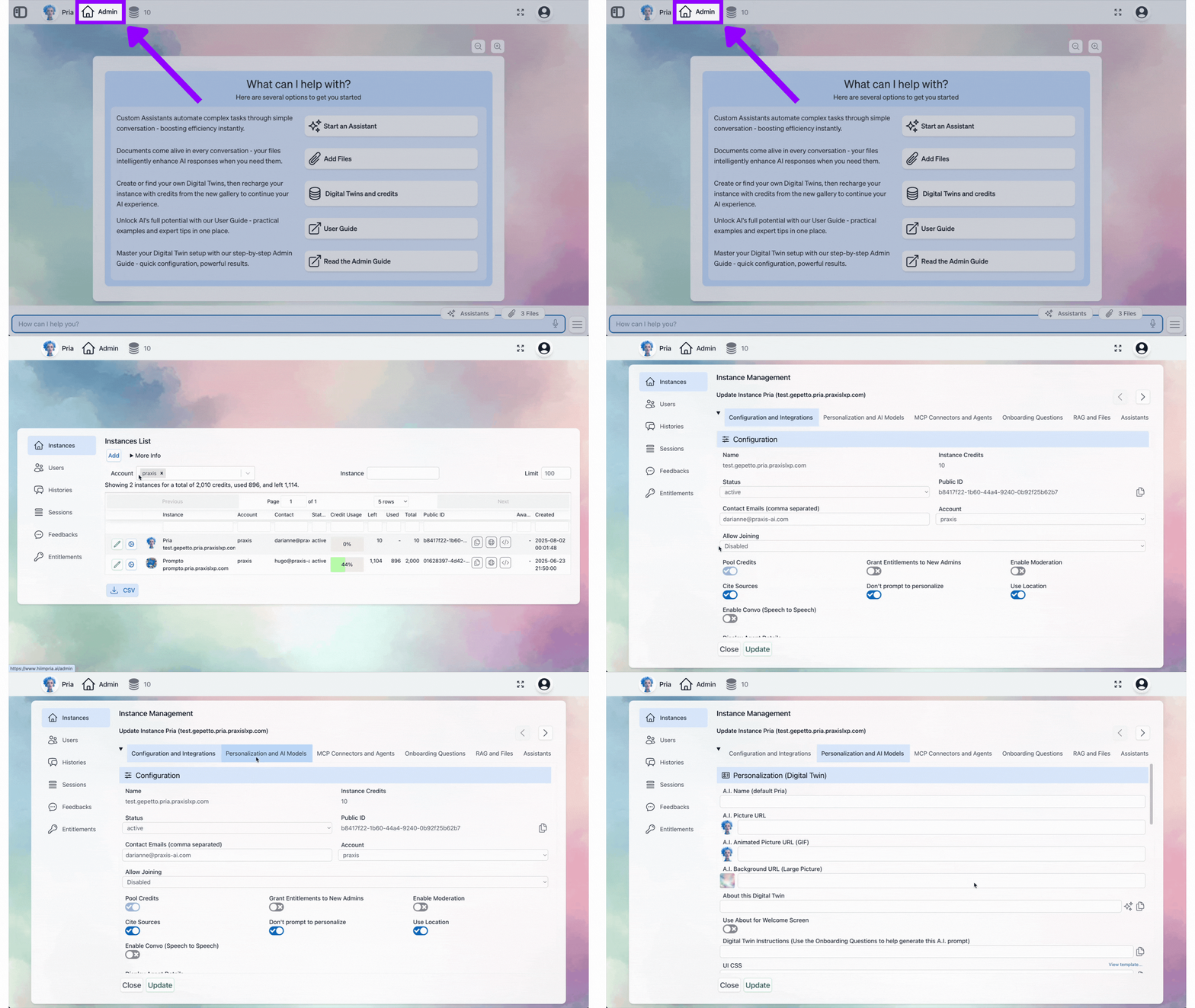
Configure your Digital Twin’s identity, appearance, behavior, and AI model assignments in the Personalization and AI Models tab.
1
Click Admin
Navigate to the Admin section of your dashboard.
2
Click Instances
Select the Instances tab from the admin menu.
3
Click Edit
Choose the instance you want to personalize and click Edit.
4
Click Personalization and AI Models
Access the Personalization and AI Models configuration tab.
The Personalization and AI Models tab is divided into two sections: Personalization for identity and branding, and AI Models for model selection and inference settings.
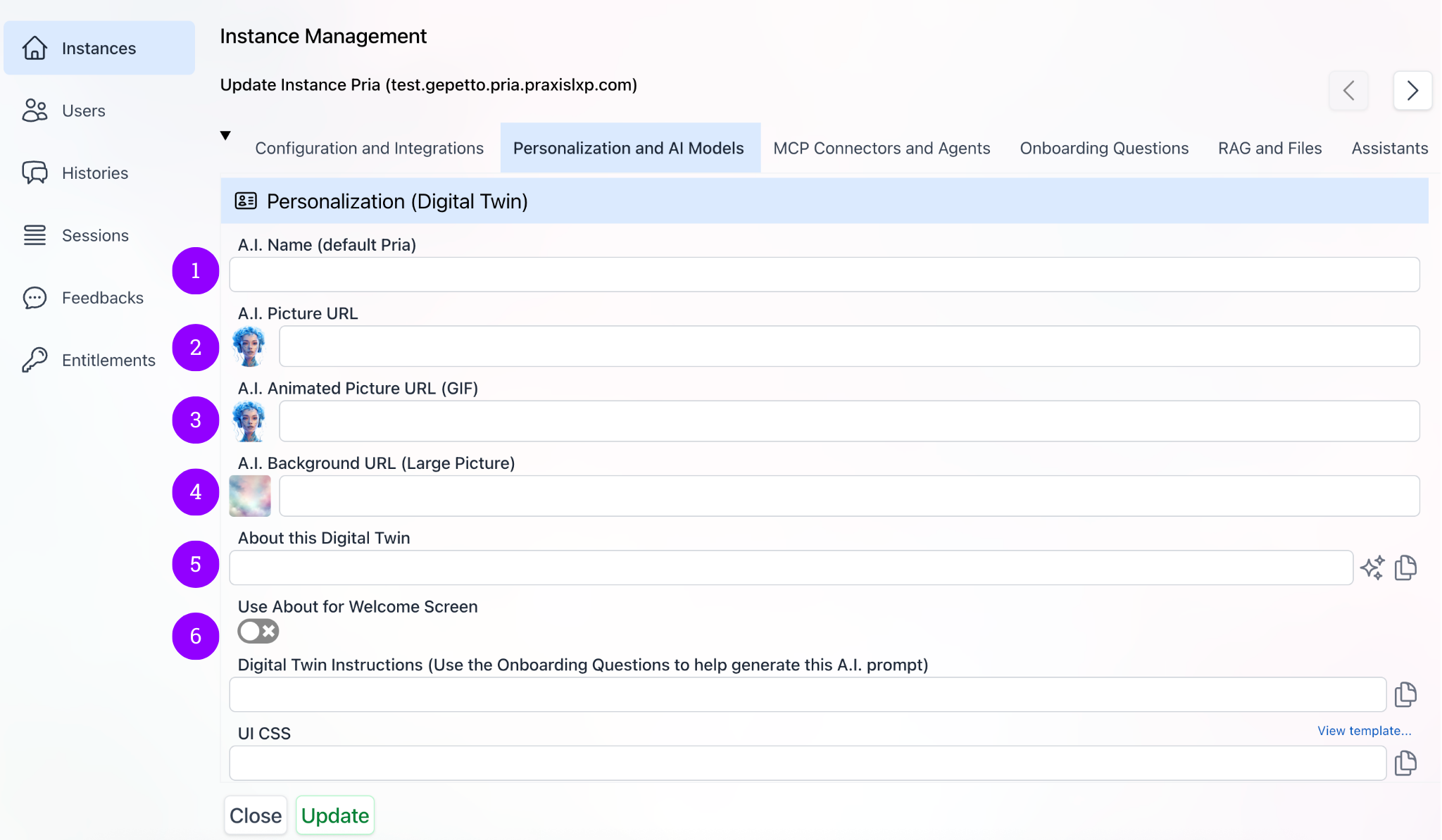
Configure the identity, appearance, and behavior of your Digital Twin.
A.I. Name
The display name for your Digital Twin. This name appears in conversations, the gallery, and throughout the interface. Defaults to Pria if left blank.Choose a name that reflects the persona or expertise your Digital Twin represents (e.g., “Professor Adams”, “TechBot”, “Campus Guide”).
A.I. Picture URL
The avatar image for your Digital Twin. Click the picture itself to upload a new one — there is no separate “Upload” button. A preview of the current image is shown next to the field.Upload UX:
Click the avatar to launch the picture picker (file dialog or drag-and-drop)
Hover the avatar to see the upload prompt overlay with the camera icon
Remove the current picture using the small x overlay that appears on hover
A small helper line “Click the picture to upload a new one” appears beside the avatar
Image specifications:
Property
Recommended
Aspect ratio
Square (1:1)
Minimum size
256 × 256 px
Optimal size
512 × 512 px or 1024 × 1024 px for retina displays
Formats
PNG, JPEG, WebP
Max file size
5 MB
Shape
Circular crop applied automatically; design with the centre in mind
If left blank, the default Pria logo is used.
A.I. Animated Picture URL (GIF)
An animated avatar for your Digital Twin. Enter a URL to a GIF that adds visual personality to the conversation interface. This animated image is displayed alongside or in place of the static picture during interactions.If left blank, the static A.I. Picture is used as fallback.
A.I. Background URL (Large Picture)
A background image displayed behind the conversation area in light mode. Use this to create a branded or themed environment for your Digital Twin.A preview thumbnail is shown next to the field — click the thumbnail to upload a new background (from a file or your webcam). The picker applies a widescreen 16:9 crop, so start from a landscape image at least 1920 px wide.
A.I. Dark Mode Background URL (Large Picture)
A separate background image used when the interface is in dark mode, so both themes look intentional. Click its preview thumbnail to upload, same as the light-mode background (16:9 crop). If left blank, the default dark mode background is used.
About this Digital Twin
A summary description of your Digital Twin that appears in the gallery and can optionally be used as the welcome screen content. This is a free-text area where you describe the Twin’s purpose, expertise, and capabilities.Click the Generate button to automatically create an about description. The generator analyzes the Digital Twin’s system instructions and the assistants configured for this instance to produce a unique summary that reflects the Twin’s actual skills and capabilities.
The Generate button builds the about text by examining your Digital Twin’s prompt instructions and all active assistants, creating a truly unique description based on the skills and expertise available in your instance. Update your instructions and assistants first, then generate the about for the most accurate result.
Use the Copy button to copy the about text to your clipboard.
Use About for Welcome Screen
When enabled, the About this Digital Twin text and the A.I. Picture are displayed on the login/welcome screen instead of the default welcome content. This creates a personalized landing experience for users.
Guest UI (Minimum Screen)
Enables a minimal interface that removes the Profile menu, Sidebar, and Digital Twin selection from the UI. Use this for publicly facing Digital Twins deployed via the Web SDK or embedded widgets, where you want a clean, focused conversation experience without navigation elements.
Disable Audio Notes for Users
Hides the microphone icon in the input toolbar that lets standard users capture spoken notes into their personal IP Vault. Audio Notes is enabled by default for new digital twin instances and for personal accounts; flip this on to disable the feature for standard users in this instance — admins are unaffected.Audio Notes is also automatically hidden whenever Guest UI or Disable File Upload for Users is on, since audio notes are uploaded to the user’s vault. See the Audio Notes user guide for the end-user perspective.
Migration note — when this feature was first rolled out, every pre-existing institution had Audio Notes turned off automatically so admins wouldn’t be surprised by the new icon. Admins must explicitly turn this toggle off (i.e. uncheck Disable Audio Notes for Users) on existing instances to enable Audio Notes for their users. New instances created after the rollout have Audio Notes enabled by default.
Compact History
When enabled, conversation history is compressed using the summary AI model before each request, reducing token usage while preserving context accuracy. This helps keep conversations within the model’s context window during long interactions.Enabled by default.
Digital Twin Instructions
The system prompt that governs your Digital Twin’s personality, expertise, behavior, and response patterns. This is the most important configuration for shaping how your Digital Twin interacts with users.Use the Onboarding Questions feature to help generate this prompt through a guided interview process.Use the Copy button to copy the instructions to your clipboard.
For a comprehensive methodology on writing effective Digital Twin instructions — including frameworks like CRISPE and ALERT, behavioral guidelines, and starter templates — see Crafting Digital Twin Instructions.
UI CSS
Inject custom CSS to further customize the look and feel of your Digital Twin interface. Use this for branding, font adjustments, color overrides, and layout modifications.For example, you can modify the default font size:
:root { font-size: 14px;}body { font-size: 1rem;}
A starter template with all available CSS classes is available at the View template link above the field.
For the full CSS template reference with all available classes and example customizations, see UI Customization.
Config Key (Branding)
A configuration key used for branding customization. This allows the system to apply instance-specific branding rules based on the key value.
To configure this field for your institution, contact the Praxis AI team at humans@praxis-ai.com.
Select which AI models power each capability of your Digital Twin. Each dropdown lists the models available to your instance from the system-level model catalog.
Custom AI Models can be defined in the AI Models admin section to override the default system-level models listed below. When a custom model is active for a capability, the corresponding system-level dropdown is hidden.
Conversation
The primary LLM used for all conversational interactions. This is the model that generates responses to user messages, processes tool results, and drives the Digital Twin’s core intelligence.
Image Analysis
The model used for analyzing images uploaded by users. Supports visual question-answering, image description, and content extraction from screenshots, diagrams, and photos.
Image Generation
The model used for generating images from text prompts (e.g., DALL-E). When a user asks the Digital Twin to create an image, this model handles the generation.
Embeddings Generation
The model used to generate vector embeddings for RAG (Retrieval-Augmented Generation). These embeddings power document search and knowledge retrieval from the IP Vault.
Audio Transcription
The model used for transcribing audio and video files uploaded to the IP Vault. Converts spoken content into searchable text for RAG indexing.
Text to Speech
The model used for converting text responses to spoken audio. This powers the read-aloud functionality in the conversation interface.
Documents Summarization
The model used for summarizing uploaded documents during RAG ingestion and for compacting conversation history when Compact History is enabled.
Convo (Real Time Speech-to-Speech)
The voice provider for Convo Mode (real-time speech-to-speech). Six providers are available, each with different trade-offs around latency, voice catalog, tool calling, and avatar support:
Provider
Voice Catalog
Tool Calling
Avatar
Transport
OpenAI GPT-Realtime
10 native voices
Yes (full Pria tools + MCP)
No
WebRTC
Google Gemini Live
30 native voices
Yes (native function calling)
No
WebSocket
xAI Voice
5 native voices
Yes
No
WebSocket
ElevenLabs
Custom voice clones from your library
Yes (Pria as Custom LLM)
No
WebRTC or WebSocket
Anam Avatar
Voice + photorealistic avatar
Yes (Pria as Custom LLM)
Yes (photorealistic)
WebRTC
Cartesia Voice
Cartesia voice library (including cloned voices)
Yes (Pria as Custom LLM)
No
WebSocket
See the Realtime Voice & Avatars guide for a full provider comparison and the Convo Mode end-user guide for what each provider feels like.Provider-specific credentials must be configured under Integrations before the provider becomes selectable here:
ElevenLabs — Agent ID and API Key
Anam — Avatar ID, Voice ID, and API Key (placeholder image / loading video / intro message configured below)
Cartesia — API Key, plus a voice picked from the Cartesia voice library
xAI — xAI API Key
Gemini Live — Gemini API Key
OpenAI GPT-Realtime — Uses the institution OpenAI API key (no separate setup)
Moderation
The model used for content moderation when Enable Moderation is turned on in the Configuration settings. Evaluates user messages for policy violations.
Configure voice conversation settings for real-time speech-to-speech interactions. These settings are visible when Enable Convo is turned on in the Configuration tab.
Speech-to-Speech Model
Select the real-time model for voice conversations:
OpenAI GPT-Realtime: gpt-realtime-2 (the platform default, with reasoning), gpt-realtime-1.5, gpt-realtime, gpt-realtime-mini
Google Gemini Live: gemini-3.1-flash-live-preview, gemini-2.5-flash-native-audio-preview-12-2025
ElevenLabs: Uses ElevenLabs Conversational AI (requires Agent ID and API Key under Configuration and Integrations → Integrations → ElevenLabs Voice Cloning)
If ElevenLabs is selected but credentials are missing, a warning pill appears directing you to Configuration and Integrations → Integrations → ElevenLabs Voice Cloning to add the Agent ID and API Key.
Voice Selection
OpenAI Voices (10 available): Cedar, Marin, Alloy, Ash, Ballad, Coral, Echo, Sage, Shimmer, Verse
— Preview voices on OpenAI TTS PlaygroundGemini Voices (30 available): Puck (Upbeat), Charon (Informative), Kore (Firm), Fenrir (Excitable), Aoede (Breezy), Zephyr (Bright), Leda (Youthful), Orus (Firm), and many more — each labelled with its character in the dropdown. Leave the field on User’s Choice to let each user pick their own voice.
— Preview voices on Google AI Studio
Voice Activity Detection (VAD) Eagerness
Controls how quickly the system detects speech pauses to end a turn:
Low: Waits longer before considering a pause as end-of-turn. Best for thoughtful conversations.
Medium: Balanced detection (default).
High: Responds quickly to short pauses. Best for fast-paced interactions.
Noise Reduction
Reduces background noise during voice conversations:
Off: No noise reduction applied.
Near Field: Optimized for close-range microphones (headsets, laptop mics).
Far Field: Optimized for distant microphones (room setups, speakerphones).
Transcription Language
Set the ISO 639-1 language code for voice transcription (e.g., en for English, es for Spanish, fr for French). This helps the transcription model produce more accurate results for non-English conversations.
ElevenLabs Connection Method
When using ElevenLabs as the voice provider, select the connection transport:
WebRTC (default): Low-latency peer-to-peer connection. Best for most use cases.
WebSocket: Server-relayed connection. Use when WebRTC is blocked by firewalls.
A condensed view of how voice behaviour is shaped across the three universal knobs. Each provider mixes these signals with its own defaults — values below describe Pria’s mapping.
Knob
Effect
Recommended Default
When to Change
VAD Eagerness
How quickly the system decides the user finished speaking. Low waits for long pauses, high cuts in on micro-pauses.
Medium
Switch to Low when users tend to pause mid-thought (research, tutoring); High for fast back-and-forth (Q&A).
Noise Reduction
Server-side filter applied to inbound audio before transcription.
Near Field for headsets, Off for studio mics
Far Field is only useful for room-scale microphones — over-filters small mics.
Transcription Language
ISO 639-1 language hint passed to the STT model.
Empty (auto-detect)
Pin to a language code when the same user code-switches and the auto-detector is unreliable.
VAD eagerness and noise reduction are OpenAI Realtime concepts; other providers map them onto their own controls or ignore them. Use the values above as the unified target — Pria translates per-provider.
When the voice provider has an avatar (Anam Avatar), additional fields appear so you can brand the in-call experience.
Placeholder Image
Field:anam_placeholder_image_urlThe static picture shown before the avatar connects and after the call ends. Keep this on-brand and matching the Digital Twin’s identity — most users see this longer than the live avatar.Recommended: a square (1:1) or 4:3 image, at least 512 × 512 px, hosted on a CDN or your media library.
Loading Video
Field:anam_loading_video_urlShort, looping MP4 shown while the avatar provider warms up the WebRTC connection (typically 1–3 seconds). A subtle idle animation (gentle breathing, blinking) feels more alive than a frozen frame.Recommended: 3–8 second loop, square 1:1, ≤ 5 MB, H.264 / .mp4.
Intro Message
Field:anam_intro_messageUp to 500 characters of text the avatar speaks first when the call connects, before the user says anything. Use this to set context (“Hi, I’m Pria — I can help you find course materials, run searches, and answer questions about the syllabus”).If left blank, the avatar waits silently for the user to speak.
Anam Conversation Model Override
Field:anam_conversation_modelOptional per-institution conversation-model override applied only to Anam voice turns. Empty = fall back to the institution conversation model (assistant model still wins when set). Useful when the avatar should run on a faster, cheaper model than the in-browser experience.
For the full Anam integration walkthrough — including provisioning the avatar, voice ID, and API key — see Realtime Voice & Avatars.
Every avatar in Pria — Digital Twin avatar, user profile picture, assistant avatar, institution logo — is clickable to upload. There is no separate “Upload” or “Change picture” button. The pattern:
Hover the avatar to see the camera-icon overlay and the prompt copy
Click the avatar to launch the file picker (or drag-and-drop a file onto the avatar)
Hover and click the small x in the corner to remove the current picture without uploading a new one
A small helper line beside the avatar reads “Click the picture to upload a new one”
This pattern applies consistently across the admin UI and the user profile screen so the affordance is predictable everywhere.
These settings control how the AI models generate responses across all conversations in this instance.
Conversation Completion Max Tokens
Sets the maximum number of tokens the conversation model can generate per response. Options are grouped by provider:
Unspecified (LLM Default) — Let the model determine the optimal response length (recommended)
Auto — System-managed token allocation
OpenAI values — 1,024 to 65,536 tokens
Anthropic values — 1,000 to 64,000 tokens
Anthropic models activate thinking mode when max_tokens is set to at least 4,000 tokens. Models accessed through Bedrock face additional throttling constraints — each request reserves five times the specified token count toward a system-wide limit. If users encounter “Too many tokens” errors, reduce this value or set it to Unspecified.
Reasoning Effort
Controls how much thinking/reasoning the AI model performs before responding. Higher effort levels produce more thorough analysis but increase latency and token usage:
None — Disable thinking (fastest, lowest cost)
Low — Minimal reasoning
Medium — Balanced reasoning
High — Thorough reasoning
Max — Maximum reasoning depth (highest latency and cost)
Only applies to models that support thinking (e.g., Claude 3.7+, Sonnet 4+, Opus 4+, OpenAI o-series/GPT-5+, Gemini 2.5+). Individual AI models can override this default. See AI Models for details.
Extended Context (1M tokens)
Enables the 1 million token context window for supported Claude models (Sonnet 5, Sonnet 4.6, Sonnet 4.5, Sonnet 4, Opus 4.6). Standard context is 200K tokens.
Extended context incurs premium pricing from Anthropic. Enable only when your use case requires processing very large documents or maintaining extremely long conversation histories.