

send_email and the meeting-agent tools, which start disabled on new instances as an abuse precaution; enable them deliberately when your use case calls for them.
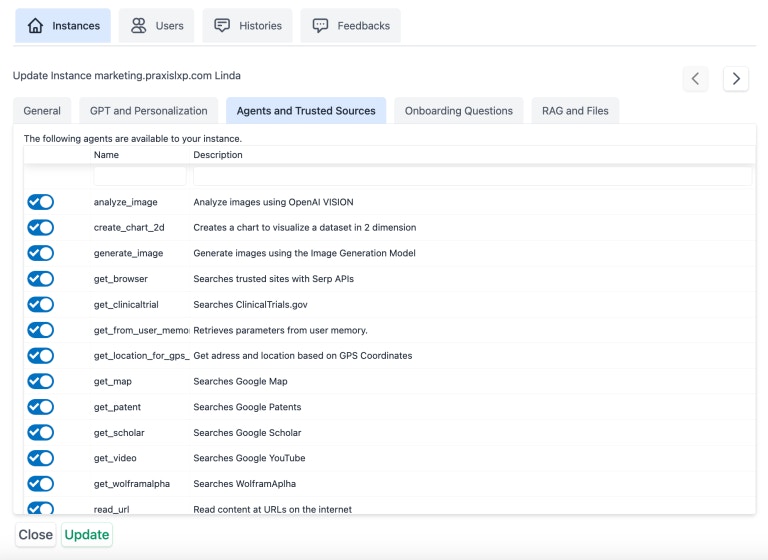
Tool categories
How the five category tags (productivity, creative, learning, research, communication) organize the catalog.
Browse all tools
The complete built-in tool reference, grouped by family with each tool in an accordion.
Tool availability
Which tools require extra configuration and when they appear.
Real-time voice support
Which tools can be invoked during speech-to-speech voice sessions.
Per-Assistant Tool Control
In addition to institution-level tool management, you can configure tool access per assistant. Each assistant can be set to use all tools (default) or a curated whitelist of specific tools. See Assistants — Per-Assistant Tool Configuration for details.Tools Reference
This is the complete list of built-in tools available to your Digital Twin. The AI automatically selects which tool(s) to use based on the conversation context.Some tools require additional configuration (e.g.,
call_canvas requires Canvas LMS integration, search_kaltura requires Kaltura credentials). A tool whose required configuration is missing is automatically disabled.Tool Categories
Each tool is tagged with one or more categories that describe its primary use case. Categories help with tool discovery and may be surfaced in future UI filtering. The five categories are:
A tool can belong to multiple categories (for example,
transcribe_youtube is both creative and learning).
Web & Research Tools
get_browser
get_browser
Searches trusted sites with Serp APIsUse for up-to-date information on broad topics when the exact URL is unknown:
- Current events, weather, stock tickers, sports scores
- General web research not covered by specialized tools
- Information you’re unfamiliar with
- “Search for the latest news on climate change.”
- “What’s the current weather in Tokyo?”
- “Find the most popular tourist attractions in Paris.”
Supports real-time voice conversations.
read_url
read_url
Read content at URLs on the internetAccess, retrieve, summarize, or save content from a known web page URL. Provides download links in Markdown format for public files.Examples:
- “Read the content from the Wikipedia page on the Roman Empire.”
- “Summarize the main points from https://example.com/article”
- “Save the content from this GitHub README to my files.”
Supports real-time voice conversations.
get_scholar
get_scholar
Searches Google ScholarSearch for scholarly articles and publications from peer-reviewed sources including NIH, NIM, PubMed, DOI, and more.Examples:
- “Find scholarly articles on artificial intelligence in healthcare.”
- “Search for recent studies on the effects of social media on mental health.”
- “What does the research say about intermittent fasting?”
get_patent
get_patent
Searches Google PatentsSearch for information about patents and inventions worldwide.Examples:
- “Who owns the patent for the smartphone?”
- “Find patents related to virtual reality technology filed in the last five years.”
- “Search for patent ID US10123456.”
get_clinicaltrial
get_clinicaltrial
Searches ClinicalTrials.govSearch clinical research studies worldwide from the US National Library of Medicine, including purpose, recruitment status, eligibility criteria, and locations.Examples:
- “Search for clinical trials related to diabetes treatment.”
- “Find clinical studies on mindfulness meditation for stress reduction.”
- “What’s the status of trial NCT06310070?”
get_wolframalpha
get_wolframalpha
Searches WolframAlpha for computations and visualizationsFactual lookups, quantitative analysis, symbolic/numeric computation (integrals, sequences, financial math), and visualizations across science, math, geography, economics, weather, population, music, and space. Also supports bio/chem/finance tasks (e.g., DNA→amino acids translation, Taylor series, compound interest calculations).Response Styles:
short— Terse answer only (minimal prose)image— Return response as an image (best for complex graphs)full— Detailed steps/derivations with richer context (default)spoken— Phrasing suitable for voice narration
- “What’s the nutritional content of an apple?”
- “Calculate the integral of sin(x) from 0 to π.”
- “Weather in NYC on July 4, 1776.”
- “California population from 1900 to 2020.”
- “Future value of $1,000 at 5% for 10 years.”
- “Translate this DNA sequence to amino acids.”
Supports real-time voice conversations.
Media & Content Tools
get_video
get_video
Searches Google YouTubeSearch for video content on specific topics from YouTube and other sources.Examples:
- “Find an educational video about the solar system.”
- “Show me a tutorial on how to bake sourdough bread.”
- “Search for analysis videos on current economic events.”
Supports real-time voice conversations.
transcribe_youtube
transcribe_youtube
Transcribe a video from YouTubeTranscribe video content when the full YouTube URL is known. Does not work for non-YouTube videos or audio files.Parameters:
- URL: The YouTube video URL (e.g.,
https://www.youtube.com/watch?v=...orhttps://youtu.be/...) - Save Result: Set to
trueto save/download the transcript to your files
- “Transcribe the video at https://www.youtube.com/watch?v=Z8T149nP5cg”
- “Summarize the YouTube video at https://youtu.be/8nBFqZppIF0”
- “Download the transcript from this YouTube video.”
transcribe_audio
transcribe_audio
Transcribe an audio file from a URLTranscribe audio files from a URL. Does not work for YouTube videos. The AI checks if transcripts are available in your files before using this tool.Supported Formats: mp3, mp4, mpeg, mpga, m4a, wav, webmExamples:
- “Transcribe the audio file at https://example.com/recording.mp3”
- “Convert this podcast episode to text.”
- “Transcribe the audio at https://upload.wikimedia.org/wikipedia/en/4/48/Bernard_Lord_at_Ecole_Odyssee_inauguration.ogg”
search_kaltura
search_kaltura
Search Kaltura for instructional videosSearch or list instructional videos on the Kaltura video streaming platform. Supports filtering by author and extracting transcripts.Parameters:
- Topic: The topic to search (leave empty for all videos)
- Author: Filter by author’s user ID, name, or email (comma-separated)
- Extract Transcripts: Set to
trueto include video transcripts - Save Results: Set to
trueto download search results
- “Find an Algebra video on Kaltura.”
- “What are my videos on Kaltura?”
- “Download the transcripts of a video about genome sequencing from Kaltura.”
- “Find videos from hugo@praxis-ai.com on Kaltura.”
Supports real-time voice conversations.
search_image
search_image
Search for images using Unsplash.orgSearch for free images in the Unsplash database. Returns images with courtesy notices for attribution.Parameters:
- Description: A short description of the image to search
- Orientation:
landscape,squarish, orportrait(default) - Count: Number of images to return (default: 1)
- “Find a sunset over the mountains.”
- “Search for 3 landscape photos of the ocean.”
- “Find a portrait-oriented image of a forest.”
Supports real-time voice conversations.
search_sound
search_sound
Search for sounds using Freesound.orgSearch for free sounds in the Freesound database. For sound effects only, not music.Parameters:
- Search Terms: Space-separated terms, or phrase in double quotes. Use
+for mandatory and-for prohibited terms (e.g.,"thunder -rain") - Count: Number of sounds to return (default: 1)
- “Find a sound of whales talking to each other.”
- “Search for thunder and rain sounds.”
- “Find 5 different bird call sounds.”
Supports real-time voice conversations.
get_location_for_gps_coordinates
get_location_for_gps_coordinates
Get address from GPS coordinatesObtain the address of a place based on latitude and longitude coordinates.Examples:
- “What’s the address at coordinates 40.7128, -74.0060?”
- “What city is at latitude -21.2863697 and longitude 55.4108081?”
Supports real-time voice conversations.
Image, Audio & Video Tools
generate_image
generate_image
Generate or edit images using AICreate new images or edit existing ones using the configured Image Generation Model (e.g., DALL-E, Amazon Titan). Prompts are automatically translated to English. Supports generating multiple variations from the same prompt.Parameters:
- Prompt: Detailed description of the image to create
- Source URLs: Optional space-delimited list of image URLs to edit/extend (JPEG, PNG, WebP only)
- Count: Number of image variations to generate (default: 1)
- No politicians or public figures
- No copyrighted characters (original descriptions only)
- Supports editing JPEG, PNG, and WebP files
- “Generate an image of a serene lake at sunset with mountains.”
- “Create a 3D picture of DNA proteins with bright colors.”
- “Edit this image to add a rainbow in the sky.”
- “Generate 3 variations of a futuristic cityscape.”
Supports real-time voice conversations.
analyze_image
analyze_image
Analyze and describe content in imagesIdentify, describe, extract text, count elements, determine emotions, historical context, cultural significance, and accessibility options in images.Examples:
- “Analyze this image of the Eiffel Tower for historical context.”
- “Extract the text contained in this screenshot.”
- “Describe the species of birds in this photo.”
- “Count the number of people in this image.”
Supports real-time voice conversations.
generate_audio
generate_audio
Generate music, ambient audio, or sound effects from a text descriptionCreate an audio clip from a descriptive prompt (style, mood, instruments, tempo, genre) using the configured Audio Generation model. The result is saved automatically to the user’s IP Vault.Parameters:
- Prompt: Detailed description of the audio to generate (in English)
- Duration: Length in seconds (default 30, up to 190)
- Format:
mp3(default) orwav
- “Generate 60 seconds of calm ambient piano music.”
- “Create a thunderstorm sound effect.”
- “Make an upbeat jazz intro for my podcast.”
Supports real-time voice conversations.
generate_video
generate_video
Generate a short video from a text prompt (optionally animating a source image)Create short videos with the configured Video Generation model. A source image is optional — provide one to animate a specific picture, or generate from text alone. The result is saved automatically to the user’s IP Vault.Parameters:
- Prompt: Description of the scene and motion
- Source Image URL: Optional image to animate
- Quality:
low,medium(default), orhigh(premium model for the selected provider) - Length: Requested seconds (default 8; the model snaps to its supported lengths)
- Aspect Ratio:
16:9(default),9:16, or1:1
- “Generate a video of waves rolling onto a beach at sunset.”
- “Animate this photo of our mascot waving.”
- “Make a vertical 8-second clip for social media.”
Supports real-time voice conversations.
Document & File Tools
call_rag
call_rag
Retrieve content from user files via semantic searchSearch the user’s uploaded documents for passages relevant to the conversation — matching by meaning, not just keywords. Results are ordered by relevance score.Examples:
- “Search my documents for information about project budgets.”
- “Find content in my files related to marketing strategies.”
- “What do my uploaded documents say about compliance requirements?”
Supports real-time voice conversations.
get_user_files
get_user_files
List and search metadata for the user’s uploaded filesAccess the user’s document library with metadata including summaries, types, dates, dimensions, and authors. Filter by file type or keyword search. Returns metadata only — to read or quote a file’s content, use
read_from_file with the URL from this listing.Parameters:- Type Filter: Filter by
image,audio,video, ordocument(for all other files) - Keyword: Search within file names and document summaries (exact match)
- “List all my uploaded documents.”
- “Show me my image files.”
- “Find files with ‘report’ in the name.”
- “What audio files do I have?”
Supports real-time voice conversations.
read_from_file
read_from_file
Read content from a single user vault file by URLRetrieve content from a single file in the user’s vault, identified by its full vault URL (typically returned by
get_user_files). Two modes: embeddings (default) returns sanitized, parsed text content and works for all file types — use this when you want to read or quote what a file says. source returns the raw byte-for-byte file content and only works for text-based files (HTML, JSON, CSS, JS, MD, CSV, TSV, XML, YAML, SVG, PY, TEX, TXT) — use this when you need to preserve formatting, structure, or markup before applying targeted edits and writing back via save_to_file.Parameters:- Mode:
embeddings(default) — sanitized, parsed text; works for all file types.source— raw bytes; only for text-based files (returns an error otherwise). - Source URL: Required. The full vault URL of the file (the
file_urlreturned byget_user_filesorsave_to_file).
productivityExamples:- “Open my
proposal.htmland apply these five edits while preserving the layout.” - “Quote the introduction paragraph from my
research_notes.mdfile.” - “Read my
config.jsonfile and tell me what’s in it.” - “Show me the source of my
styles.cssso we can refactor it.”
Supports real-time voice conversations.
save_to_file
save_to_file
Save text content to user’s document collection (text formats and PDF)Save or append text content to a file. The path is a single argument including the extension (e.g.
report.md, data.json, letter.pdf). When the path ends in .pdf, the content is treated as Markdown and rendered to a formatted PDF in one call.Parameters:- Content: The text content to save (required). Treated as Markdown when the path ends in
.pdf. - Path: Required. Filename WITH extension (e.g.
meeting_notes.md,report.pdf). Lowercase, alphanumeric + underscore + dot only. Allowed extensions:txt,md,csv,tsv,json,tex,html,js,css,xml,yaml,pdf. When omitted by the user, the LLM auto-generates names using{subject}_{YYYY_MM_DD_HH_MM}.<ext>. - Replace: Boolean.
true= overwrite existing file with the same name.false(default) = append to existing file or create new if absent.
productivityExamples:- “Save this conversation summary to a file called
meeting_notes.md.” - “Create a markdown file with these research notes.”
- “Append these notes to my existing
research.txtfile.” - “Write this letter and save it directly as
letter.pdf.”
Supports real-time voice conversations.
generate_pdf
generate_pdf
Generate a PDF from an existing vault file (no content re-read)Convert an existing markdown or plain-text file in the user’s vault to a PDF. The source is identified by its vault URL — the LLM does not need to re-read or re-paste the file content. The PDF is written to the user’s vault home and registered as a new file.Parameters:
- Source URL: Required. The full vault URL of the source file (the
file_urlreturned bysave_to_fileorget_user_files). - Output Path: Optional. Output filename including
.pdfextension (e.g.meeting_notes.pdf). If omitted, derived from the source:foo.md→foo.pdf. - Replace: Optional boolean.
true= overwrite an existing PDF with the same name.false(default) = auto-suffix on collision (e.g.foo (1).pdf).
productivitySource format: v1 supports .md and .txt only. HTML, LaTeX, and other formats are rejected with a clear error.Examples:- “Generate a PDF of my
meeting_notes.mdfile.” - “Convert that markdown letter to a PDF I can email.”
- “Make a PDF version of
report.mdnamedreport-final.pdf.”
Supports real-time voice conversations.
Memory Tools
On Digital Twins with Long-term Memory enabled, the twin also gets
remember,
recall_memories, update_memory and forget_memory — the tools it uses to keep and retrieve
what it learns on its own. They work alongside the key-value tools below, which stay
available to every twin. See Twin Memory.set_in_memory
set_in_memory
Save parameters to user or shared memoryStore or clear parameters in memory. Each parameter includes a namespace (for categorization), name, value, and description. Use namespaces to organize parameters and avoid key name conflicts. Shared memory is accessible by all users of the Digital Twin.Parameters:
- Parameters Array: JSON array with
key_name,key_value,key_description, andkey_namespaceproperties - Shared Memory: Set to
trueto save in shared memory (accessible by all users) - Clear Memory: Set to
trueto remove all parameters from memory
- “Remember that my birthday is December 30th, 1972.”
- “Remember I prefer short and concise responses.”
- “Save this copyright notice in shared memory: © 2025, Praxis-AI, Inc”
- “Clear all my stored preferences from memory.”
Supports real-time voice conversations.
get_from_memory
get_from_memory
Retrieve parameters from memoryRetrieve a list of parameters from user or shared memory. Returns CSV-formatted data including namespaces, names, values, descriptions, and creation dates. Search is case-insensitive and token-based.Parameters:
- Search Term: Search by key name, description, or namespace (leave empty for all parameters)
- Shared Memory: Set to
trueto search in shared memory instead of user memory
- “What’s my morning routine according to memory?”
- “What preferences have I stored?”
- “Show me all parameters in shared memory.”
- “What do you remember about my personal data?”
Supports real-time voice conversations.
Visualization Tools
create_chart_2d
create_chart_2d
Create 2D charts for data visualizationGenerate charts for visualizing single or multiple data series with categories on the x-axis. Each data series should include values corresponding to the specified categories.Parameters:
- Title: Descriptive title for the chart
- Categories: JSON array of x-axis category names (e.g.,
['January', 'February', 'March']) - Data Series: JSON array of data series objects with
nameanddataproperties (e.g.,[{name: 'Sales', data: [10, 8, 11]}])
- “Create a chart showing sales data from January to April.”
- “Generate a chart comparing monthly rainfall to temperature.”
- “Visualize this quarterly revenue data as a bar chart.”
Google Workspace Tools
Google Workspace tools require OAuth configuration. Each tool is automatically enabled or disabled based on whether the corresponding Google service is configured in your instance settings. See Google Workspace Integration for setup details.
call_google_gmail
call_google_gmail
Access Gmail to read, search, send, and manage emailsInteract with the user’s Gmail account — search inbox, read messages, send emails, manage labels, work with threads and drafts.Key Capabilities:
- Search with Gmail syntax:
from:,to:,subject:,is:unread,has:attachment,newer_than:7d - Send emails with HTML formatting, CC/BCC, and attachments
- Manage labels, trash messages, work with drafts
- “Show me my unread emails from this week.”
- “Search my inbox for messages from boss@company.com about invoices.”
- “Send an email to john@example.com about the meeting tomorrow.”
- “Find emails with PDF attachments from the last 30 days.”
- “Move that email to trash.”
call_google_drive
call_google_drive
Search, browse, and download files from Google DriveSearch and list files in the user’s Google Drive, get file metadata, and download files to the user’s IP Vault for RAG indexing.Key Capabilities:
- Search by name, type, date, or full-text content
- Download files to IP Vault (triggers RAG indexing)
- Export Google Workspace files (Docs, Sheets, Slides) to PDF/DOCX/XLSX/PPTX
- View file permissions and comments
- “Search my Google Drive for the Q4 report.”
- “Download the project proposal to my files.”
- “Find all presentations modified in the last week.”
- “Show me my Drive storage usage.”
Supports real-time voice conversations. To read file content directly, use the dedicated Docs, Sheets, or Slides tools instead of downloading.
call_google_calendar
call_google_calendar
List, create, update, and delete calendar eventsFull read/write access to the user’s Google Calendar with timezone-aware event management, recurring events, and availability checks.Key Capabilities:
- List events for any date range
- Create events with attendees, location, and recurrence
- Check free/busy availability
- Update or delete existing events
- “What’s on my calendar for tomorrow?”
- “Schedule a team meeting next Tuesday at 2 PM for 1 hour.”
- “Create a recurring standup every weekday at 9 AM.”
- “Am I free this Friday afternoon?”
- “Cancel my 3 PM meeting.”
call_google_sheets
call_google_sheets
Read and analyze spreadsheet data directlyRead Google Sheets content directly from Google’s API — no download needed. Supports A1 notation for cell ranges, formulas, and structured table data.Key Capabilities:
- Read specific cell ranges using A1 notation (e.g.,
Sheet1!A1:D10) - View formatted values, raw values, or formulas
- Get spreadsheet metadata and sheet names
- “Read the data from my Budget spreadsheet.”
- “Show me cells A1 through D20 from Sheet1.”
- “What formulas are used in the Revenue column?”
- “Summarize the data in my Sales Tracker spreadsheet.”
Requires Google Drive to be enabled (dependency).
call_google_docs
call_google_docs
Read and analyze document content directlyRead Google Docs content directly from Google’s API — no download needed. Extracts plain text with table support for summarization and analysis.Examples:
- “Summarize my Google Doc about marketing strategy.”
- “Read the content of my project proposal document.”
- “What does my meeting notes document say about action items?”
Requires Google Drive to be enabled (dependency).
call_google_slides
call_google_slides
Read and analyze presentation content directlyRead Google Slides content directly from Google’s API — no download needed. Extracts text from all slides with slide-by-slide structure.Examples:
- “What’s in my Google Slides presentation about onboarding?”
- “Summarize the key points from my quarterly review slides.”
- “Read slide 3 of my training presentation.”
Requires Google Drive to be enabled (dependency).
call_google_meet
call_google_meet
Access recordings and transcripts from past Google Meet meetingsRetrieve conference history, recordings (with Drive file links), and full transcripts with speaker attribution from past Google Meet sessions.Examples:
- “List my recent Google Meet recordings.”
- “Get the transcript from yesterday’s team meeting.”
- “Find the recording from last week’s project review.”
For scheduling meetings with video links, use
call_google_calendar instead. This tool is for past meeting data only. Requires Google Calendar to be enabled (dependency).call_google_classroom
call_google_classroom
View courses, assignments, grades, and announcements from Google ClassroomRead-only access to the user’s Google Classroom — list courses, view assignments and submissions, read announcements.Examples:
- “List my Google Classroom courses.”
- “What assignments are due this week in Biology 101?”
- “Show me the latest announcements from my course.”
- “What’s my grade on the midterm submission?”
call_google_maps
call_google_maps
Find places, get location details, and convert between addresses and coordinatesSearch for places, get business details and reviews, perform geocoding and reverse geocoding using Google Maps.Key Actions:
text_search— Find places by query (e.g., “coffee shops in Seattle”)nearby_search— Find places near GPS coordinates by typeplace_details— Get hours, phone, reviews for a specific placegeocode/reverse_geocode— Convert between addresses and coordinatesget_user_location— Get the user’s current location (browser permission required)
- “Find Italian restaurants near downtown Seattle.”
- “What’s the address at coordinates 40.7128, -74.0060?”
- “Show me coffee shops within 2 km of my location.”
- “Get reviews for this restaurant.”
Supports real-time voice conversations. Uses server-side API key — no user OAuth required.
Microsoft 365 Tools
Microsoft 365 tools require the user to connect their Microsoft account. Each tool appears only when the Microsoft integration is configured for your instance.
call_microsoft_onedrive
call_microsoft_onedrive
List, search, and import files from OneDriveBrowse and search the user’s OneDrive, get file details, and import files (one at a time or a whole folder) into the user’s IP Vault where they become searchable. Imported videos and audio are transcribed so their content is searchable too.Examples:
- “Search my OneDrive for the budget spreadsheet.”
- “Import everything in my Reports folder into my files.”
call_microsoft_outlook
call_microsoft_outlook
List, search, read, and send Outlook emailWork with the user’s Outlook mailbox — including sending emails with attachments pulled from OneDrive, SharePoint, or the user’s Pria files.Examples:
- “Find the latest email from finance about invoices.”
- “Send the report to the team with report.pdf attached.”
call_microsoft_calendar
call_microsoft_calendar
View, create, update, and delete Outlook calendar eventsTimezone-aware event management, including optional Teams meeting links when the user asks for a video meeting.Examples:
- “What’s on my calendar this week?”
- “Set up a Teams meeting with Dana on Thursday at 10.”
call_microsoft_excel
call_microsoft_excel
Read Excel workbook dataList worksheets and read cell values from Excel files stored in OneDrive or SharePoint — no download needed.
call_microsoft_word
call_microsoft_word
Read the text of a Word documentExtract a Word (.docx) document’s text for summarization and analysis — no download needed.
call_microsoft_powerpoint
call_microsoft_powerpoint
Read the text of a PowerPoint presentationExtract a PowerPoint (.pptx) presentation’s slide text for summarization and analysis — no download needed.
LMS Integration Tools
call_canvas
call_canvas
Interact with Canvas LMSAccess course material (syllabus, pages, office hours), enrolled users, assignments, submissions, grades, announcements, and discussion topics from Canvas LMS via the Canvas API.Parameters:
- Method: HTTP request method (GET, POST, PUT, DELETE)
- Endpoint: Canvas API endpoint URL (without domain)
- Body: Request body for POST/PUT requests (form-urlencoded or JSON)
- Faculty Context: Set to
truefor faculty/admin actions (grading, curating content)
- List and retrieve course content, syllabus, and pages
- View and submit assignments
- Read and post discussion entries
- Access grades and submission feedback
- Smart search via
/api/v1/courses/:course_id/smartsearch
- “What are my assignments due this week?”
- “Show me the course syllabus.”
- “List discussion topics in my course.”
- “What’s my grade on the midterm exam?”
- “Post a comment on my assignment submission.”
Supports real-time voice conversations.
search_canvas
search_canvas
Search Canvas for course materialFallback search tool when
call_canvas is not available. Searches course material including syllabus, pages, content, assignments, grades, office hours, and announcements.Examples:- “When is my homework due this week for Intro to Marketing?”
- “Search for office hours in my course.”
- “Find content about Chapter 5 in my course.”
Bioinformatics Tools
search_blast
search_blast
BLAST sequence similarity searchFind regions of similarity between biological sequences using NCBI BLAST (nucleotide/protein comparison with statistical significance). Note: Queries may take several minutes.Parameters:
- Program: megablast, blastn, blastp, rpsblast, blastx, tblastn, or tblastx (required)
- Database: Target database for comparison (required)
- Sequence: Nucleotide or protein sequence to search (required)
- Save Results: Set to
trueto download results
- All programs: core_nt, refseq_select_rna, refseq_rna, nt, Whole_Genome_Shotgun_contigs, est, sra, patnt, pdbnt
- Protein (blastp, blastx): nr, refseq_select_prot, refseq_protein, swissprot, pataa, pdb
- Nucleotide (blastn): rRNA_typestrains/16S_ribosomal_RNA, nt_euk, nt_prok, nt_viruses
- “Search blastp for this protein sequence: MKVKVLSLLVP…”
- “Run a megablast search against the nt database.”
- “Compare this DNA sequence to RefSeq genomes.”
Communication Tools
send_email
send_email
Send an emailSend emails with specified recipients, subject line, and HTML-formatted message body. Supports multiple recipients and responsive HTML formatting.Parameters:
The AI will request confirmation before sending unless instructed otherwise in your Digital Twin’s system prompt. This tool starts disabled on new instances — enable it from the Tools tab when your use case calls for it.
- Recipients: Email address(es), comma-separated for multiple recipients (required)
- Subject: Email subject line (required)
- Body: HTML-formatted message with inline CSS and responsive tags like
<p>,<br>,<strong>(required)
- “Send an email to john@example.com about the meeting tomorrow.”
- “Email the team a summary of today’s discussion.”
- “Send this report to user1@example.com and user2@example.com.”
Supports real-time voice conversations.
Meeting Agent Tools
When the Meeting Agent is enabled on an instance, an additional tool family becomes available:
join_meeting and leave_meeting send the avatar into (or remove it from) a Zoom, Google Meet, or Microsoft Teams meeting, and companion tools handle in-meeting chat, presenting media, posting summaries, and searching meeting memory. See the Meeting Agent documentation for the full experience.Assistant Tools
get_assistants
get_assistants
List available assistantsRetrieve a filtered or complete list of conversational assistants accessible to the current user. Returns assistant IDs and names.Examples:
- “What assistants are available?”
- “Find assistants with ‘math’ in the name.”
- “List all my assistants.”
Supports real-time voice conversations.
start_assistant
start_assistant
Activate an assistantInitialize and activate a specific conversational assistant, loading its specialized instructions into the current session.Examples:
- “Start the Math Tutor assistant.”
- “Switch to the Writing Coach.”
- “Activate the Code Review assistant.”
Available in real-time voice mode only.
API Integration Tools
call_rest
call_rest
Execute REST API callsExecute authenticated REST API calls to specific service endpoints. Use only when: (1) explicitly instructed by name, (2) the endpoint requires authentication other tools can’t provide, or (3) the service is internal/proprietary.Parameters:
- Bearer Token: Authorization token (leave empty if no auth required)
- URL: Complete REST endpoint URL with all variables substituted
- Method: HTTP method (GET, POST, PUT, DELETE)
- Body: Request body in JSON format for POST/PUT/DELETE
- Query Params: URL-encoded query string for GET/DELETE (RFC 3986)
- Content Type: Header value (default:
application/json)
- “Call the attendance API endpoint with my bearer token.”
- “POST this data to the internal reporting service.”
- “Fetch data from our custom REST endpoint.”
Supports real-time voice conversations.
Tool Availability
Tools are automatically enabled or disabled based on your Digital Twin’s configuration:Tools can also be controlled at the assistant level. When an assistant is set to “Selected Tools Only” mode, only the whitelisted tools are available during conversations with that assistant — even if the tool is enabled at the institution level. See Assistants for details.
Real-Time Voice Support
Tools marked withSupports real-time voice conversations.
Available in real-time voice mode only.
Related
- Assistants — restrict tools to a curated whitelist per assistant
- MCP Servers — extend your Digital Twin with external tools
- AI & Models — the models that decide when to call each tool