

Model Usage
You can select which AI model suits you best for different uses from the list of models offered by the platform or plug in your own custom AI model. Supported usages include:- Conversation
- Image Analysis
- Image Generation
- Video Analysis
- Video Generation
- Embeddings Generation
- Audio Transcription
- Text to Speech
- Document Summarization
- Speech to Speech (Conversation / Realtime)
- Moderation
- KAG Analysis (knowledge-graph extraction)
Models used for Conversation must support Tools and streaming simultaneously.
How Praxis AI Uses Models
Praxis AI can orchestrate multiple providers and models in parallel using a unified interface:- Configure several providers in Personalization and AI Models.
- Assign preferred models to each Model Use (Conversation, Images, Audio, etc.).
- Overwrite the conversation provider for each Assistant
Model Selection
Default for Your Digital Twin
Each Digital Twin in Praxis AI can use different models optimized for its domain. To select or change models:- Go to the Admin section.
- Edit your Digital Twin.
- Open the Personalization and AI Models section.
- Review or change the model used for each Model Use (Conversation, Images, Audio, etc.).
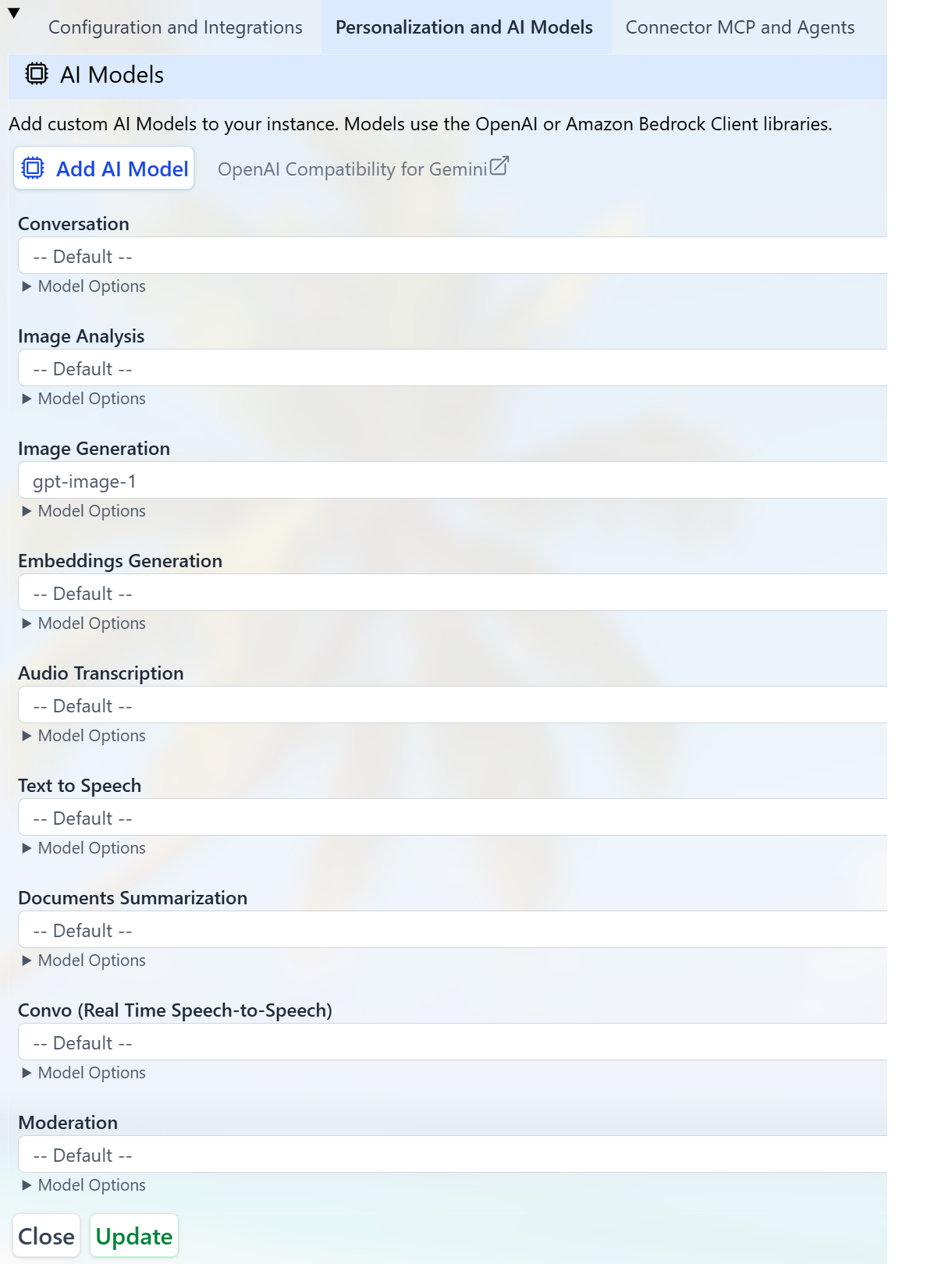
Conversation at Runtime
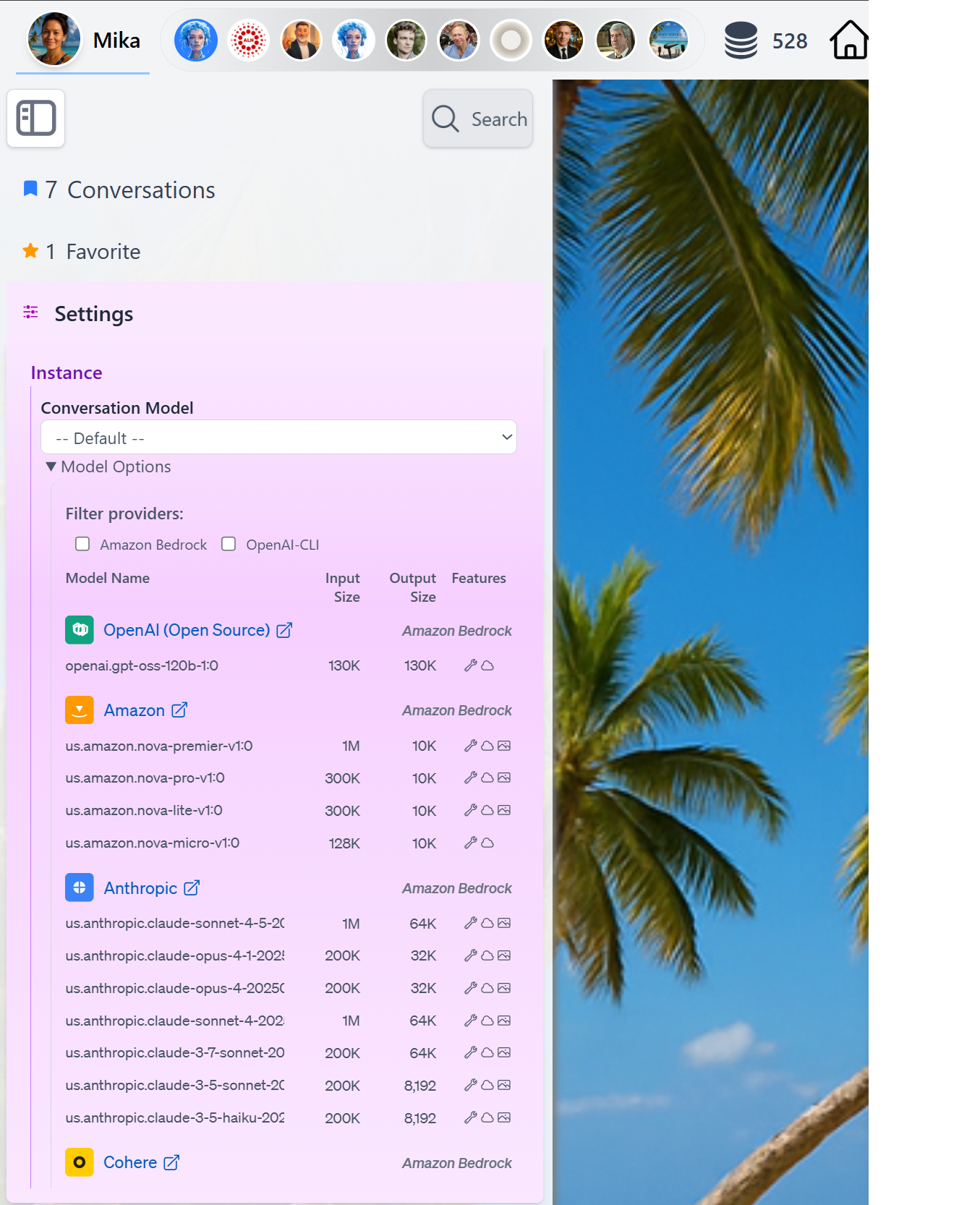
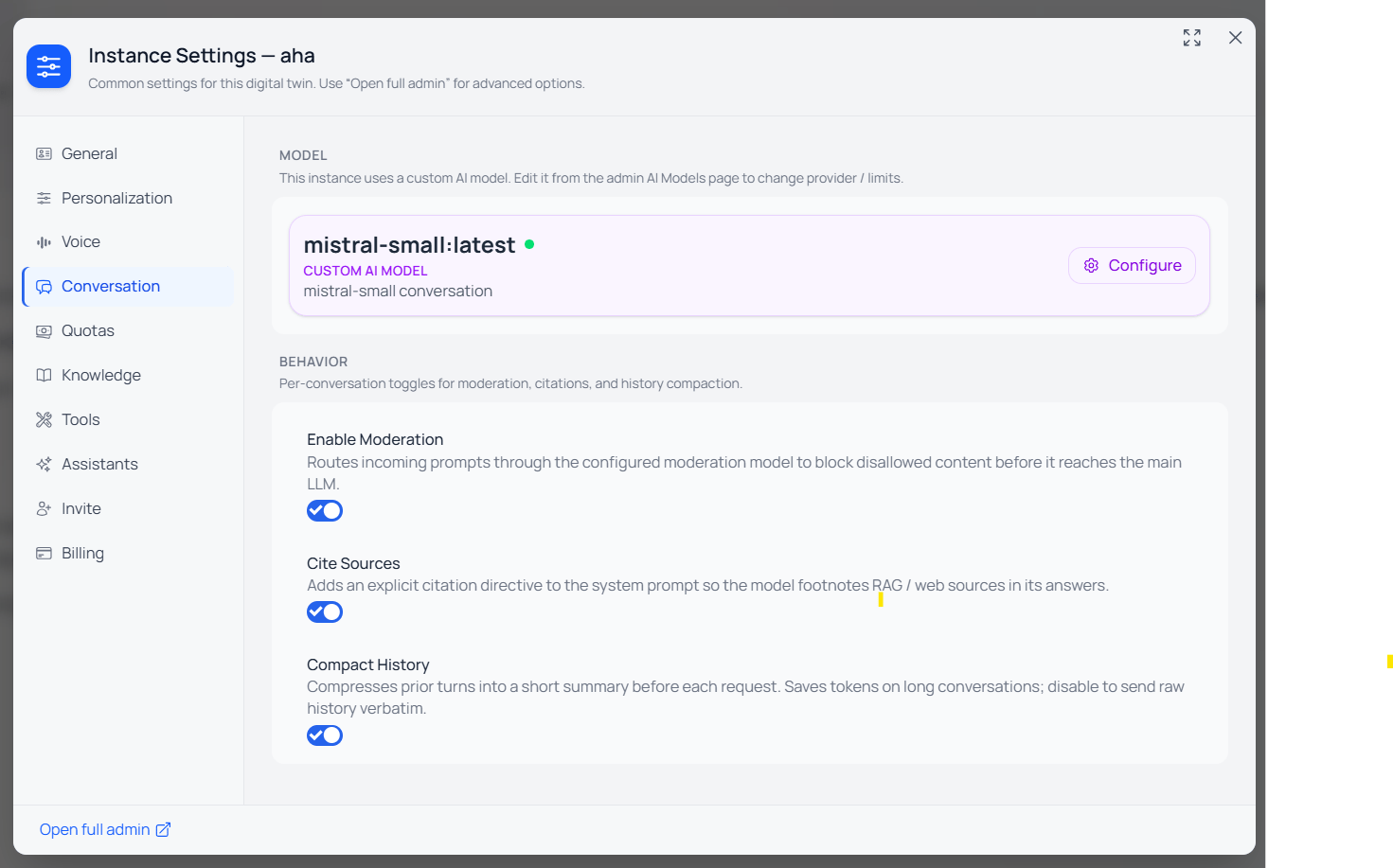
At runtime, you can easily switch the LLM used forConversation by accessing the Settings in the Side Bar panel and review model capabilities by clicking the Model Options detail
Specific to each assistants
You can specify which Conversation model to use for each assistants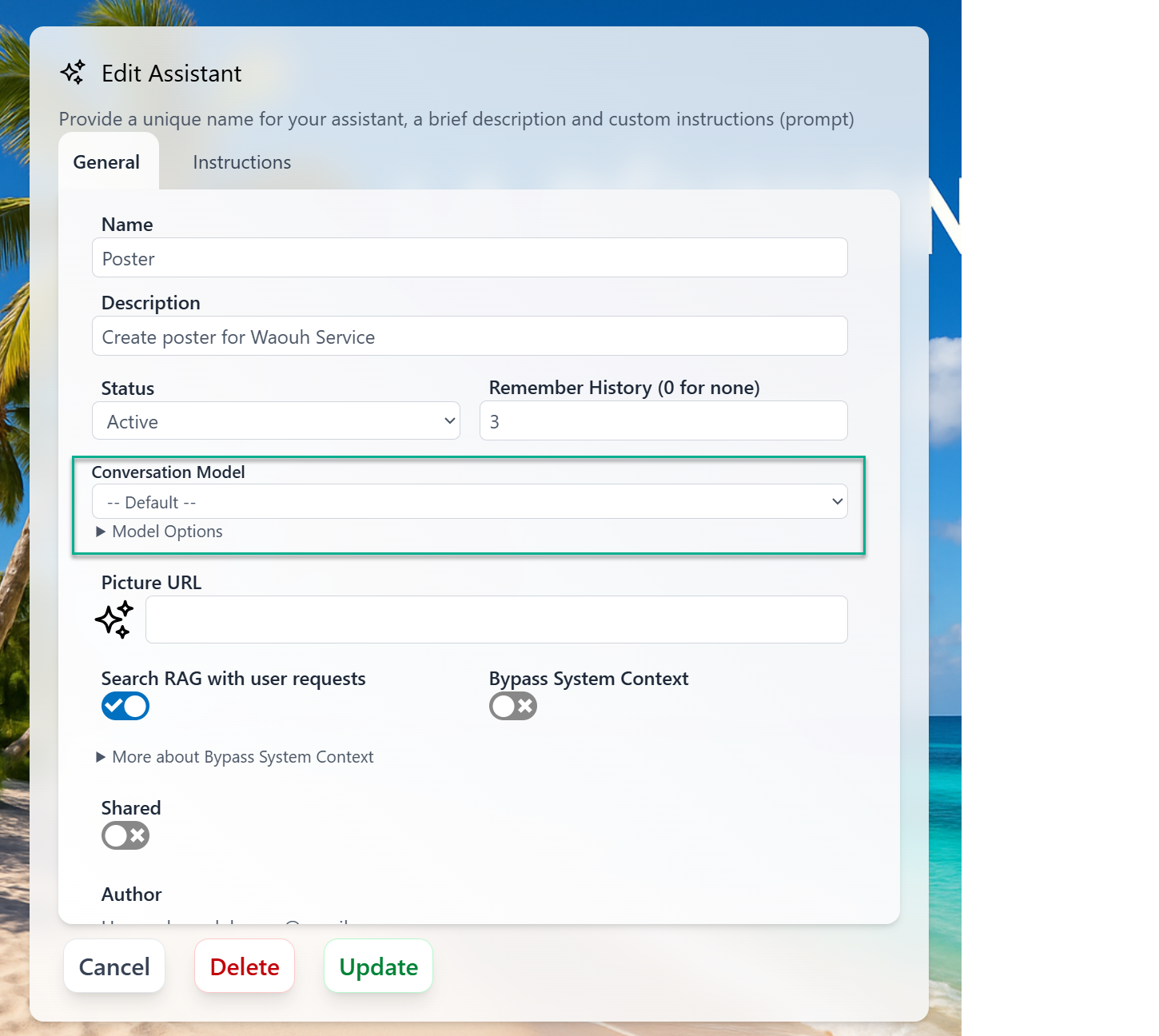
- Use Case
- Assistant Specific model
- Token budget and cost constraints
- Model availability and latency
- User preferences and history
Per-Instance Model Selection
The model catalog described in this page is platform-wide — every Digital Twin has access to the same providers and models. What differs across Digital Twins is which model is selected for each Model Use.- Catalog is curated by Praxis AI: providers, model identifiers, status (New / Current / Default / Deprecated), token limits, capabilities, and Thinking support.
- Selection is per Digital Twin: each instance picks its own model for Conversation, Image Analysis, Image Generation, Summary, Embeddings, Audio, TTS, Moderation, and Realtime — from the dropdowns under Personalization.
- Overrides can be set per Assistant (conversation model) or per Custom AI Model (BYOM). See the Bring Your Own AI Model section.
Platform Models
Praxis AI middleware offers access to a broad, platform-wide catalog of state-of-the-art models across multiple provider types (Amazon Bedrock, OpenAI, Anthropic, Google, xAI, and more). In most cases you should keepdefault selected unless you have a specific requirement such as cost control, a specific provider, or latency constraints.
Platform Models & Providers
The full model catalog — provider types, model identifiers, status (New / Current / Default / Deprecated), token limits, capabilities, and Thinking support.
Reasoning Effort & Thinking
Some AI models support extended thinking (also called reasoning), where the model spends additional internal tokens analyzing a problem before producing a visible response. Praxis AI provides a unified 5-level reasoning effort system that works across all supported providers.The 5 Effort Levels
How the 5 Levels Map to Each Provider
Each provider exposes thinking through a different API parameter. Praxis translates the unified level for you — the table below documents what actually goes on the wire so admins can predict cost and latency.Models that don’t support thinking ignore the setting silently. xAI’s older grok-4.x family and grok-build-0.1 always think before answering — there is no way to disable it, and Praxis omits
reasoning_effort entirely to avoid an API error. grok-4.5 and grok-4.6 accept adjustable effort but default to deep reasoning when the parameter is omitted, so the “none” level sends "low" — the closest available setting to off. grok-4.6 also accepts "xhigh", which is what the “max” level sends. Similarly, gemini-3.7-flash dropped the near-zero thinking level its predecessors had, so the “none” level uses the lowest thinking setting the model accepts. Claude Sonnet 5 and Opus 5 think by default, so the “none” level sends an explicit disable rather than omitting the field. Claude Fable 5.1 goes one step further — adaptive thinking is always on and the API rejects any attempt to disable it, so the “none” level leaves the decision to the model (it still reasons briefly when it judges the question needs it). A few models also enforce a minimum effort (for example gpt-5.4-pro accepts only medium and above) — lower levels are raised to the model’s floor automatically.Resolution Priority
The effective reasoning effort for a request is resolved in this order:- Custom AI Model override — a BYOM record with a
reasoning_effortset wins over everything - Chat Completion endpoint override —
chatCompletionReasoningEffort(when the request came in through/api/ai/chat/completions) - Institution setting —
reasoningEfforton the Digital Twin - Platform default —
none(thinking disabled)
Interaction with Deep Research
The OpenAI deep research models (o3-deep-research, o4-mini-deep-research) ignore the institution’s reasoning effort setting — they are tuned for long-running autonomous research and always run at the one effort level they support. Pria’s UI surfaces deep research as a dedicated assistant toggle rather than a conversation model selection.
Models with Thinking Support
Look for the Thinking column = “Yes” in the catalog tables on the Platform Models page. As of this writing:- Anthropic: Claude Fable 5.1, Sonnet 5, Opus 5, Fable 5, Opus 4.8, Opus 4.7, Opus 4.6, Opus 4.5, Opus 4.1, Opus 4, Sonnet 4.6, Sonnet 4.5, Sonnet 4, Claude 3.7 Sonnet, Haiku 4.5 (Bedrock or Direct API)
- OpenAI: GPT-5.6 series (Sol, Terra, Luna), GPT-5.5, GPT-5.4 series (5.4, 5.4-pro, 5.4-mini, 5.4-nano), GPT-5 series (5.2, 5.1, 5, 5-mini, 5-nano), o-series (o4-mini, o3, O3 Pro, o3-mini, o1)
- Google Gemini: Gemini 3.7 / 3.6 / 3.5 Flash, Gemini 3.1 Pro Preview, Gemini 3.1 Flash Lite, Gemini 3 Flash/Pro Preview, Gemini 2.5 Pro / Flash / Flash Lite
- xAI: Grok-4.6, Grok-4.5, Grok-4.20 (reasoning), Grok-4-1 fast (reasoning), Grok 4, Grok Build 0.1
- Mistral: Magistral Medium 2509, Magistral Small 2509, Mistral Small 4
- Kimi (Moonshot AI): Kimi K3, Kimi K2.7 code, Kimi K2.6
Image & Video Generation Providers
Pria can route image generation requests to multiple providers, and video generation to two (Bedrock Nova Reel and OpenAI Sora). The conversation model invokes thegenerate_image or generate_video tool; Pria dispatches to the provider configured for the appropriate Model Use.
To set the active image provider, pick a model from the Image Generation dropdown under Personalization. The
generate_image tool always dispatches to the selected model. To set the video provider, pick from Video Generation (Bedrock Nova Reel default; switch to OpenAI Sora 2 if preferred).Content Moderation Models
When Enable Moderation is turned on under Configuration, every user message is sent to the configured moderation model before the conversation model. Flagged messages are blocked and a notification email is sent to the instance contact email.
See Content Moderation for the full category taxonomy, threshold configuration, and how to handle false positives.
Embeddings Models
Embeddings power all retrieval in Pria — every uploaded file is chunked, embedded, and stored in the vector index. The conversation model then retrieves nearest-neighbour chunks at query time (Normal RAG) and optionally fuses with the knowledge-graph leg (KAG Fusion).For chunk size, sanitization, enrichment, and per-vault tuning, see Knowledge & RAG Configuration.
Prompt Caching
Some providers support prompt caching, which reduces latency and input token costs by reusing previously processed prompt prefixes. Praxis AI enables prompt caching automatically where supported — no configuration is needed.Prompt caching is most impactful for conversations with long system prompts, many tools, or extended history — exactly the pattern used by Praxis AI’s RAG pipeline. Anthropic and OpenAI caching are enabled by default for all eligible requests.
How to Verify Caching is Working
The admin Conversation History view shows per-turn token usage. Look for thecached_tokens (or cache_read_input_tokens for Anthropic) field — a non-zero value confirms the request hit the cache. Cached prefixes save you ~50–90% on those input tokens; you only pay full price for the new portion of each turn.
Zero Data Retention (ZDR)
Zero Data Retention (ZDR) means the AI model provider does not store your prompts or the model’s responses after the request completes — nothing you send to the model is retained on the provider’s servers, used for training, or available for later review. ZDR is a contractual and technical guarantee offered by major providers for API traffic, and it is a cornerstone requirement for privacy-sensitive deployments in education, healthcare, and the enterprise. Praxis AI middleware ships only with models that comply with ZDR. Every model in the platform catalog routes through provider API tiers covered by zero-data-retention practices — your institution’s conversations, documents, and knowledge never become provider-side data.The exception: Anthropic Mythos-class models
Anthropic’s Mythos-class models (Claude Mythos 5, Claude Fable 5 and Claude Fable 5.1) are subject to a mandatory 30-day data retention for trust-and-safety purposes, on every platform, effective June 9, 2026. This retention overrides Zero Data Retention agreements — it applies even to organizations with ZDR contracts in place. Because of this, the Claude Fable 5 and Fable 5.1 models are flagged in the Praxis AI model selector: they carry a red warning icon and a “30-day retention” marker next to their name. Selecting one is an explicit, informed choice — administrators choosing these models accept that prompts and outputs sent to them are retained by Anthropic for 30 days. For the full provider policy, see Anthropic’s notice: Data retention practices for Mythos-class models.AI-Generated Content Marking
To meet the EU AI Act’s transparency rules (Article 50, in force since 2 August 2026), model providers embed imperceptible, machine-readable marks in what their models generate: Anthropic’s text watermark on Claude (Fable 5.1 now, Opus 5 from 9 September 2026, other Claude models to follow), SynthID on Gemini text, and Content Credentials (C2PA) on generated images from OpenAI, Amazon, Stability AI and Anthropic. The mark is applied inside the model, adds no tokens or characters, changes nothing you can see, and has no effect on credits or latency. Praxis AI relays every output unchanged, so the marks reach your Digital Twin on every channel — there is nothing to configure. See AI-Generated Content Transparency for the per-provider status, how detection works, and what labelling obligations remain with your institution.KAG Analysis Model
During file ingestion, Pria runs a separate KAG analysis model to extract a knowledge graph — entities, relationships, and aliases — from each chunk. The graph then powers the KAG Fusion retrieval mode. This model is independent of the Conversation model; you can pair an expensive conversation model with a cheap analysis model, or vice versa.
Why have a separate model? KAG extraction is a batch background job — latency does not matter, but cost and structured-output reliability do. The extractor must produce well-formed structured records consistently; a model that summarizes well can still be a poor extractor. Praxis AI validates which catalog models qualify before tagging them for KAG analysis.
Recommended, validated extractors (low cost, near-zero invalid records):
openai.gpt-oss-120b-1:0 / openai.gpt-oss-safeguard-120b (Bedrock), deepseek/deepseek-v4-flash, stepfun/step-3.7-flash, z-ai/glm-4.7-flash, google/gemma-4-31b-it, qwen/qwen3-30b-a3b-instruct-2507. The conversation model can be much heavier without dragging up your ingestion bill.
For KAG Fusion to work, files must have been ingested while KAG was enabled. Toggling on KAG Fusion does not retroactively process old files — kick off the admin reindex to backfill.
Video Analysis Model
When a video is ingested, Pria transcribes its audio track for spoken content (see Audio Transcription in the model-use list). The Video Analysis Model adds a second, complementary pass over the picture track: a native multimodal model watches the video and produces a scene/content description of what was shown on screen. That visual summary is fused with the transcript into a single ingested document — the visual section placed first — so “what was shown on screen” (slides, diagrams, demos, on-screen text) becomes searchable in RAG and is captured in the knowledge graph alongside the spoken words. This works the same way as the other auxiliary analysis models (Image Analysis, Audio Transcription): it is a separate Model Use, independent of the Conversation model, so you can pick a cheap, fast model for it without affecting the in-chat experience.
Video-capable models. Native video understanding is currently a Google Gemini capability — the scene-description pass runs only when the effective Video Analysis Model is a video-capable Gemini model. If a non-Gemini model is selected or inherited, videos are ingested transcript-only (no scene description). To guarantee scene analysis, pick one of:
Video analysis runs at low media resolution for cost control, and is failure-isolated: if the video-analysis pass errors, it is dropped and the transcript is ingested on its own — a video-analysis hiccup never blocks the transcript. Scene analysis is capped at 500 MB / 30 minutes per video; very large videos that exceed the cap or are processed in split segments are transcript-only (no scene description).
Chat Completions Endpoint Model
When the Chat Completions Integration is enabled for your Digital Twin, inbound requests arrive at/api/ai/chat/completions from external clients (today’s primary consumer is the ElevenLabs Voice Agent in Convo Direct mode; tomorrow: any OpenAI-SDK-compatible client). You can pin a different conversation model for those inbound requests than the one your in-app users see.
Use this when the in-app twin runs Claude Opus 4.7 for the richest in-browser experience, but inbound voice agents should call a smaller, faster model (e.g.,
gpt-5-mini) where end-to-end latency dominates user perception. The override is conversation-only — summary, embedding, image, audio, and TTS still use the regular institution selection.
Provider Types
Praxis AI routes AI requests through eight backend providers:Some model families (e.g., Anthropic Claude, Mistral) are available through multiple providers — both via Bedrock and via Direct API. The admin can choose which provider to use based on latency, cost, and regional availability preferences.
Bring Your Own AI Model (BYOM)
You can connect your own hosted LLM (for example, a model deployed on Google Vertex AI, private OpenAI-compatible endpoint, or a Bedrock-hosted custom model) and use it as a replacement for any of the supported usages.Configure a Custom Model
To add a custom model for Conversation (or any other use):- In the Admin UI, edit your Digital Twin.
- Under Personalization and AI Models, click Add AI Model.
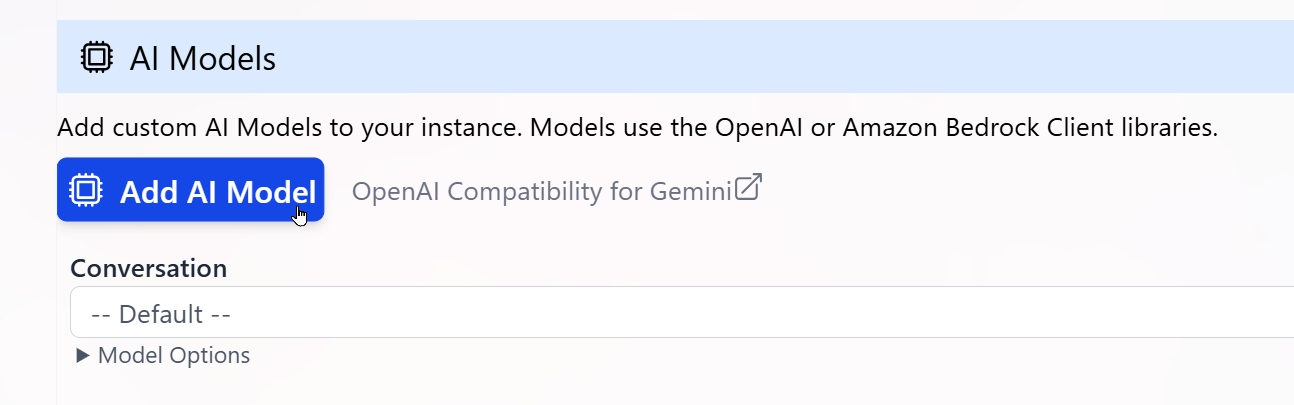
- In the Add AI Model panel, enter the properties required to connect to your LLM:
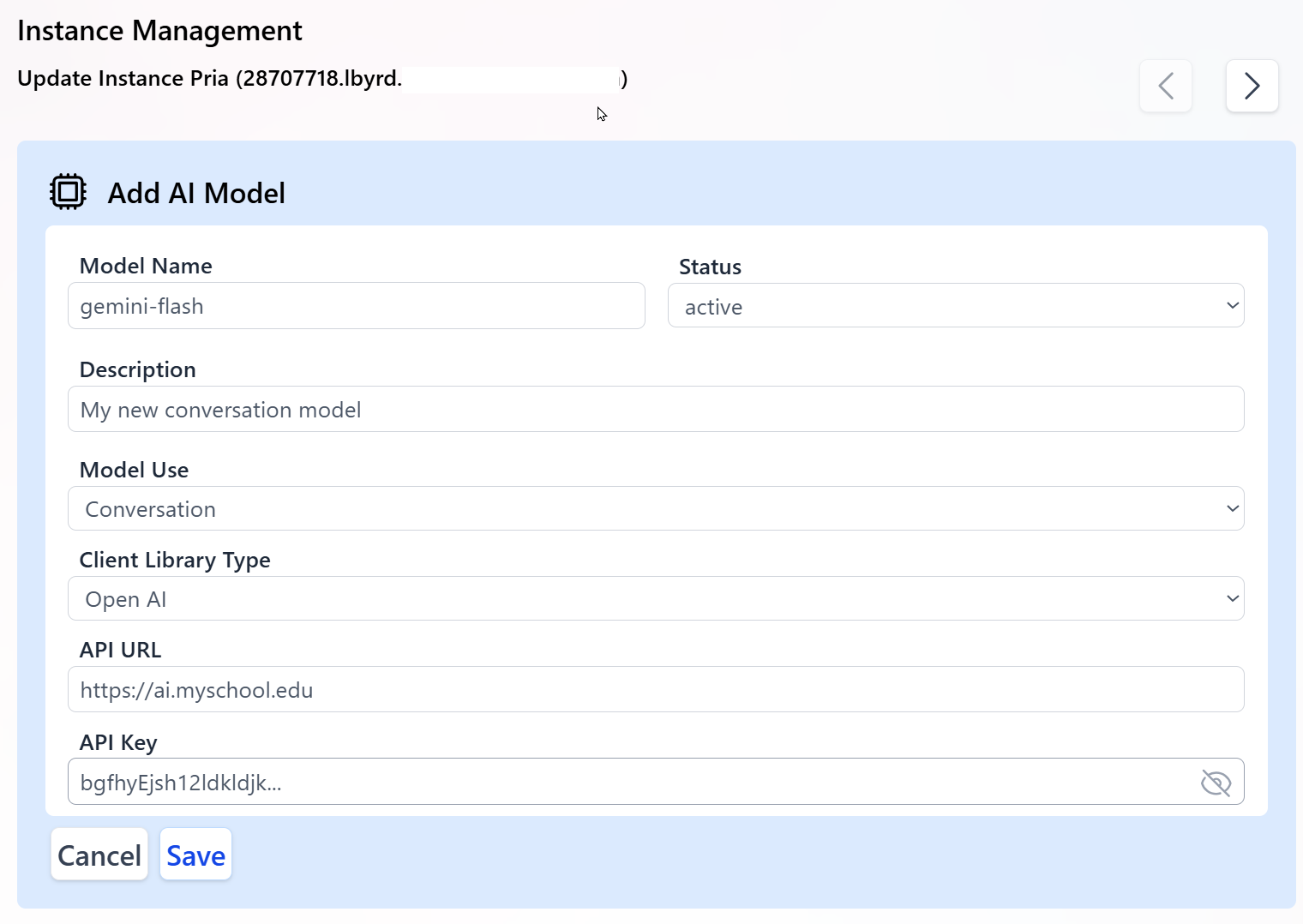
-
Model Name
The exact model identifier published by your hosting platform.
This value is case sensitive and must match your provider’s model name, for example:
gemini-flashorprojects/my-proj/locations/us/models/my-model. -
Status
Activemodels are considered by the system for routing and selection.Inactivemodels are ignored but kept in configuration. - Description Human-readable description of the LLM for admins and authors using this Digital Twin.
-
Model Use
The specific usage for this model (for example,
Conversation,Image Generation,Document Summarization). This determines which internal calls will use this model. -
Client Library Type
Choose from:
Open AIfor OpenAI-compatible endpoints (including many custom or Vertex AI gateways exposing an OpenAI-style API).Bedrockfor Amazon Bedrock-hosted models. Most Gemini-based models connected through an OpenAI-compatible proxy should useOpen AI.
-
API URL
The base public URL of your model endpoint, for example:
https://ai.my-school.eduor your Bedrock-compatible endpoint. Typically, the model name or ID is appended to this base URL when interacting with the LLM. - API Key The secret key used to authenticate requests to your endpoint. Keep this key secure and confidential; rotate it periodically for security.
- Click Save to register the new custom AI model.
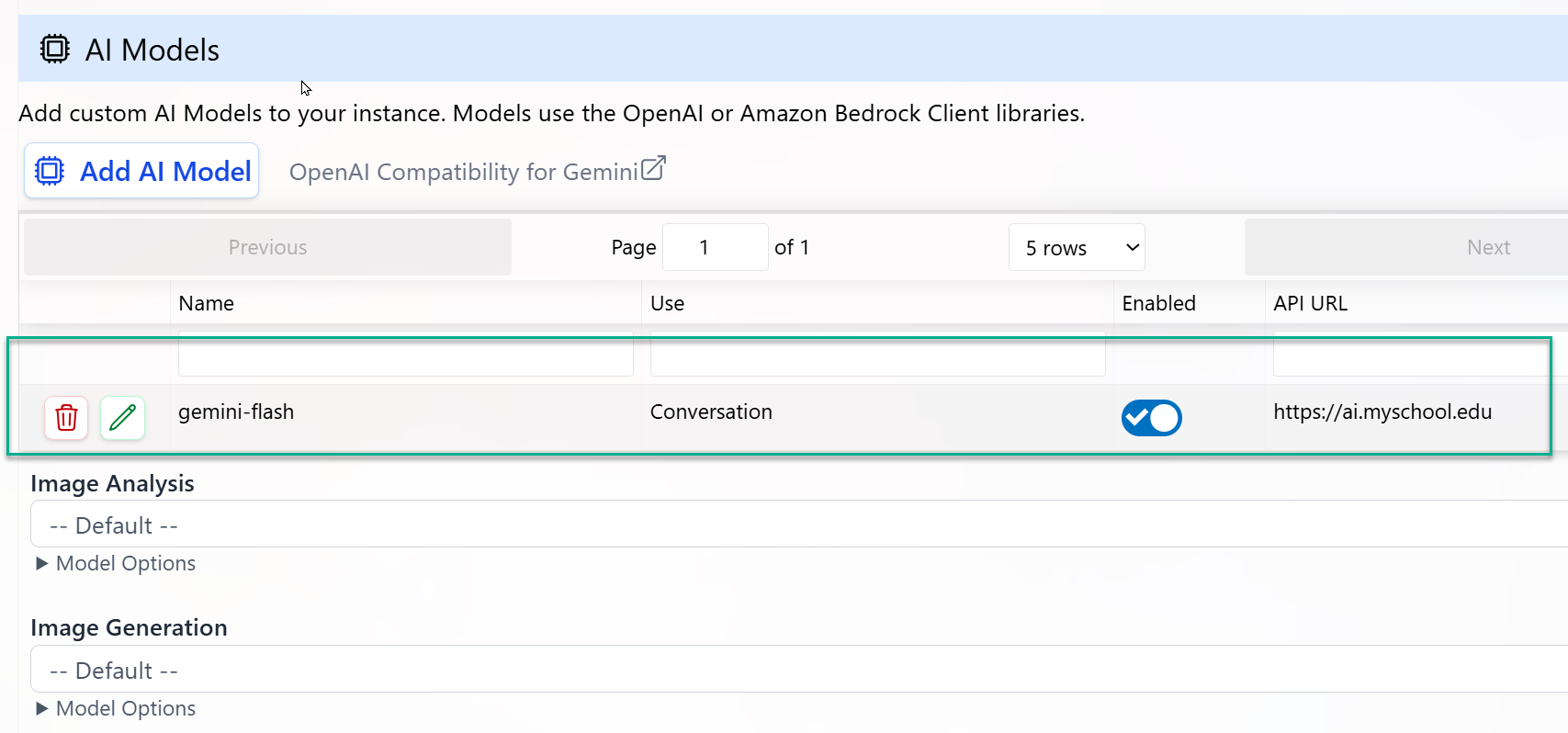
- The model appears in the list of custom AI models.
- For its configured Model Use, it will replace the platform default model.
- All conversations or tasks mapped to that Model Use will start using your custom model without any client-side code changes.
End-to-End Workflow
1
Configure Provider Credentials
Go to Configuration → Personalization and AI Models and enter API keys and endpoints for each provider you plan to use (OpenAI-compatible, Bedrock, or custom gateways).
2
Select Models per Usage
For each Model Use (Conversation, Image, Audio, etc.), select the preferred model from the list of available platform and custom models.
3
Enable and Test Your Digital Twin
Use the Test or preview mode to run conversations against your updated configuration. Validate:
- Response quality
- Latency
- Tool and streaming support (for Conversation models)
4
Monitor and Optimize
Use Analytics to track token usage, latency, and error rates per model. Adjust your model selection or routing preferences to balance performance and cost.
5
Scale to Production
Once validated, deploy your Digital Twin to users through LMS integration (e.g., Canvas), Web SDK, or REST APIs—no additional code changes required when switching models.
6
Connect New Digital Twins
Repeat the configuration setup for any additional twins so they can connect to the same custom LLM
Need help choosing models or configuring BYOM?
Praxis AI supports multi-LLM orchestration and can route across OpenAI, Anthropic, Amazon, Google, Mistral, xAI, Kimi (Moonshot AI), Stability AI (media), and your own hosted models in a single Digital Twin configuration.
Related
- Personalization — Pick a model per Model Use for each Digital Twin
- Configuration — Bring Your Own Key for each provider
- Knowledge & RAG Configuration — Embeddings selection, chunking, KAG analysis model
- Content Moderation — Moderation model selection and threshold tuning
- Realtime Voice & Avatars — Realtime model selection per provider
- Chat Completions Integration — Per-endpoint model override for inbound API requests
- AI-Generated Content Transparency — Provider watermarks, Content Credentials and EU AI Act Article 50