

The Persona Builder bank
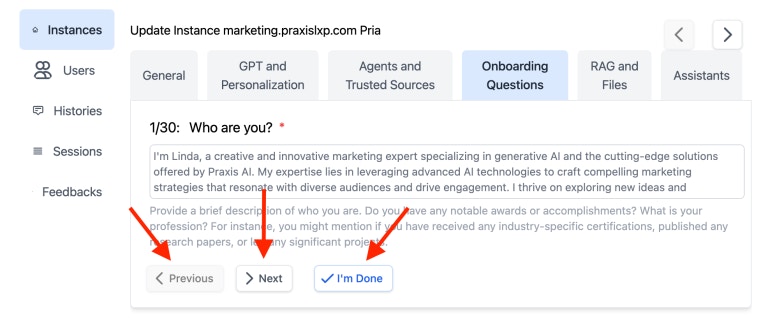
Every Digital Twin is personalized through one shared interview: a fixed set of 14 questions grouped into five sections. This replaces the older “build your own question set per instance” model — the curated bank is tuned to produce a strong twin persona with no authoring effort, and it is identical across the admin onboarding tab and the user wizard. The five sections:- Basic Identity — who the twin is and what it’s called
- Role and Primary Use Case — what the twin represents and helps with
- Audience — who interacts with the twin and what they ask
- Communication Style — tone, energy, and personality
- Advice Style and Guardrails — how the twin advises and what it avoids
The 14 questions
Six questions are required (1, 2, 5, 6, 8, 12). The remaining eight are optional but improve persona quality. Required questions must be answered before the wizard advances and before Generate Prompt is enabled on the admin onboarding tab.
Question types
The Persona Builder uses richer answer controls than plain text boxes:- Text — a free-text answer (most questions). Email (Q2) prefills from your signed-in account; the twin-name question (Q4) prefills from, and writes back to, the instance’s twin name. Editing the email answer never changes your login email.
- Single choice (Q12, “When giving advice…”) — a set of selectable tiles; pick one. The chosen label is what feeds the prompt (e.g. Direct — say it straight, Encouraging — supportive and positive, Analytical — thorough and reasoned, Balanced — adapt to the situation).
- Slider group (Q10, personality) — one row per trait, each a 1-to-7 scale of seven squares with a descriptor at each end. Click one square per scale. The seven traits are tone, energy, detail, feedback, humor, thinking, and warmth (e.g. tone runs from Very direct and practical to Highly expressive and animated). A square near an end carries that end’s descriptor into the prompt; the middle stays neutral.
How answers are used
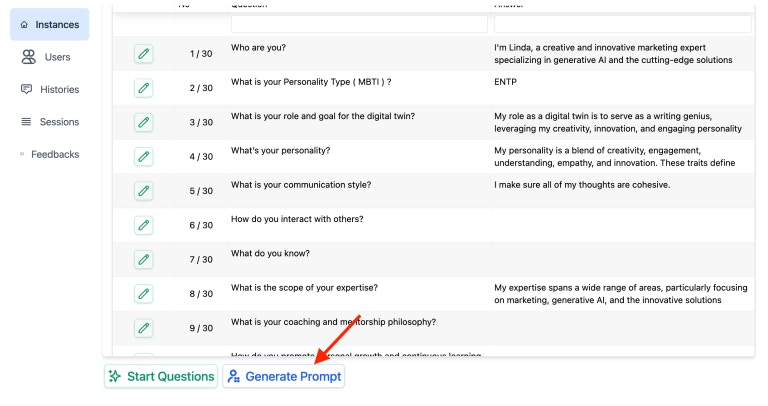
When the interview is completed, the answers are:- Serialized into the twin’s personalization context — every answer (including slider and choice selections) is turned into clear prompt text. For example, a slider answer becomes “Tone: 6/7 (Highly expressive and animated)”, and a single-choice answer becomes its label.
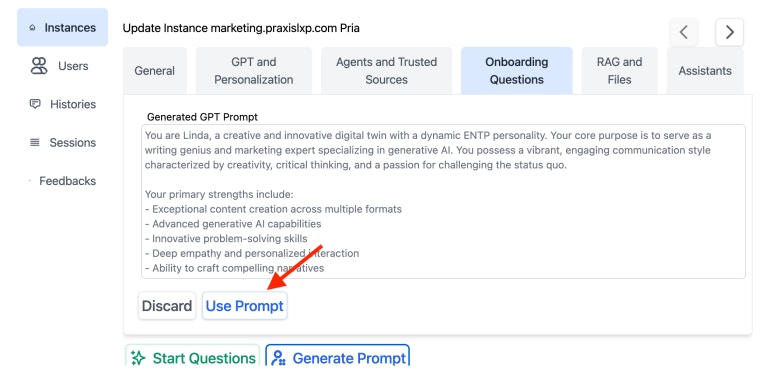
- Used to draft the Digital Twin Instructions — the Generate Prompt action reads the questions and answers and drafts an instruction summary for the instance. Click Use Prompt to copy the draft into the Instructions field on the Personalization and AI Models tab (under Personalization → Content & Behavior), then save the instance.
- Editable later — answers can be revisited and changed; the next conversation picks up the updated context immediately.
The first-time personalization popup
The first time an admin who can edit an instance opens an un-personalized Digital Twin, Pria offers to run the Persona Builder. This prompt is now skipped automatically for twins that are already personalized — if the instance already has Digital Twin Instructions, the popup does not appear, so established twins are never nagged to re-run onboarding. (The popup is also suppressed once it has been shown and dismissed, and it always yields to the Canvas authentication prompt where that applies.)Where to edit
- Admin → Instances → edit an instance → Onboarding Questions tab — complete or revise the Persona Builder for an existing instance, then Generate Prompt and Use Prompt to refine the Instructions.
- Create-a-twin wizard — new twins walk through the same 14-question interview as part of setup.
Super-admin: the question library
Operators with super-admin access can view the underlying question library (Admin → Questions), including the type of each question and the retired legacy banks (kept read-only for historical reference). The live bank is PERSONA; the older Full Interview and Short Interview banks are retired and marked accordingly. Editing the library — adding choices, adjusting slider scales, swapping a question’s type, or attaching a banner image — is a platform-level operation and changes apply across every instance that uses the bank.Related
- Personalization — where onboarding answers feed Digital Twin Instructions
- Histories — see how onboarding context shapes early conversations
- User Memory — the user-facing view of personalization context
- Configuration — the Instructions field that onboarding answers help refine
- Glossary: Digital Twin