

Entitlements are only available for Admin users. Regular users do not have entitlements.
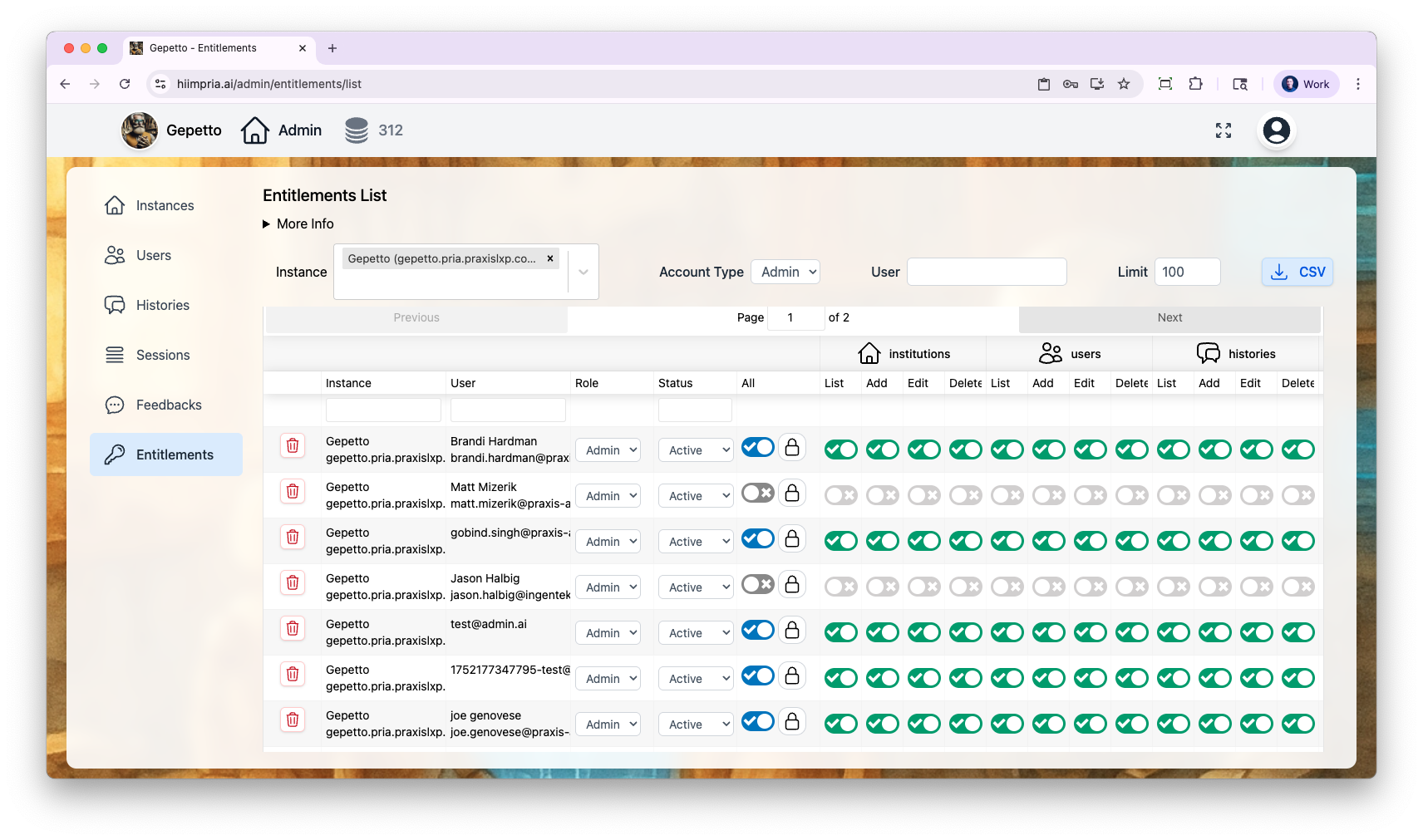
How Entitlements Work
Every admin action in Pria is governed by a permission verb in the formatmodule.action. When a user tries to perform an action (e.g., editing an assistant), the system checks whether their membership includes the corresponding verb (e.g., assistants.edit).
Entitlements apply to users with the Admin account type and control which admin features they can access.
Account Types
Permission Modules
Entitlements are organized into 10 modules, each with up to 4 actions:Complete Permission Reference
There are 35 permission verbs in total:- Institutions
- Users
- Sessions
- Histories
- Feedbacks
- Assistants
- AI Models
- Payments
- SSO
- Files
institutions.edit is the gatekeeper for the Entitlements page itself. A user needs this permission to manage other users’ entitlements.Managing Entitlements
Inline Editing
The Entitlements page provides inline editing — all changes are made directly in the list view without navigating to a separate edit page. Each row represents a user’s membership in an institution and displays:- User email and name
- Role dropdown — Change account type (User, Admin)
- Status dropdown — Change membership status (Active, Pending, Suspended)
- Credit Consumed — How many credits this member has consumed, so you can spot heavy consumers in a pooled instance
- Permission checkboxes — Toggle individual permissions on or off
Membership Status Enforcement
Membership status directly controls whether a user can interact with AI features. The platform enforces status checks on every AI request:
Personal accounts (users without an institution) are not subject to membership status checks. Their access is controlled by their account-level status instead.
Quick Actions
Grant All Permissions
Grant All Permissions
Use the “All” checkbox to toggle all 35 permissions on or off at once. This is useful when granting full admin access to a trusted administrator.
Read-Only Preset
Read-Only Preset
Click the lock icon to apply a Read-Only preset. This grants:
- All
.listpermissions (view access to every module) - All
.editpermissions exceptinstitutions.edit
Module Filtering
Module Filtering
Use the module dropdown to show or hide permission columns by module. This is helpful when you only need to manage permissions for a specific area (e.g., just Assistants or just Histories).
Filtering Users
Account Manager Role
The Account Manager role provides scoped access to manage multiple institutions within an account. This role is configured by the Praxis AI team and is separate from the standard entitlement system.To request Account Manager access for your organization, contact humans@praxis-ai.com.
Auto-Granting Entitlements
Entitlements can be automatically granted to new admin users under certain conditions:1
Grant Entitlements to New Admins
When an institution has Grant Entitlements to New Admins enabled, any user who joins with an Admin account type automatically receives all 35 permissions.
2
Contact Email List
Users whose email appears in the institution’s Contact Email list automatically receive full permissions, regardless of the entitleNewAdmins setting.
3
Institution Creation
When you create or clone an institution, the creating user automatically receives full permissions for that institution.
Enrollment
The Enroll tab (shown on the Entitlements page when an institution is selected and you holdusers.add) allows administrators to enroll users into the institution with the appropriate entitlements. This is useful for onboarding faculty or staff who need admin access.
Common Configurations
Teaching Assistant
Teaching Assistant
Grant selective read access:
histories.list— View student conversation historyfeedbacks.list— View student feedbacksessions.list— View session dataassistants.list— View available assistants
institutions.edit, users.edit, or any .delete permissions.Content Manager
Content Manager
Grant assistant and content management:
assistants.list,assistants.add,assistants.edit,assistants.deleteaimodels.listhistories.list
institutions.* or users.* permissions.Full Administrator
Full Administrator
Use the “All” checkbox to grant all 35 permissions. This gives complete access to all admin functions within the assigned institution.
Related
- User Management — Managing user accounts and account types
- Configuration — Institution settings that affect entitlements
- Sessions — Session tracking controlled by session entitlements
- SSO Providers — OAuth 2.0 Single Sign-On configuration (requires SSO entitlements)