

Variables are an advanced feature for people building assistants. They let you put a value into prompts without copying it into every assistant. Variables exist only inside a Digital Twin; personal accounts cannot create them.
What are Substitution Variables
Dynamic prompt placeholders. A variable is a named token like${slack_webhook_url} that Pria replaces with a value every time an assistant runs. Think of it as mail‑merge for prompts: the assistant’s instructions stay clean and reusable, and the value lives in one place that you can change independently.
Here is an example assistant instruction using the variable ${praxis-ai-slack-url}:
${...} placeholder with the matching variable’s value. The replacement happens on Pria’s servers.
Distinction from User Parameters. Shared variables belong to the Digital Twin and are the same for everyone using it. A person’s own remembered details (user parameters) belong to that person and differ for each of them. Use variables for shared things like URLs, IDs and instructions; use parameters for personal context.
Syntax
Variables use the form${key} in any prompt or instruction text.
course_title or quiz-id-v1). If no variable with that key is available to the person, the literal ${key} is left in the prompt — useful for spotting typos quickly.
There are no built‑in variables in Pria. Every variable you reference must be created first. Personal details like the user’s name, course context and the Digital Twin’s name are already given to the model by Pria — you do not need to template them in.
Benefits
- Single source maintenance — when a Canvas quiz ID changes from 123 to 789, update one
${quiz_id}variable and every dependent assistant picks up the new value automatically. - Cross‑assistant instruction reuse — store a shared instruction block as a variable and reference it from several assistants for consistency.
- Cleaner prompts — long URLs and IDs live in the variable store, not inside the instruction text.
- Composable workflows — when one assistant calls another (e.g. a teaching bot that calls a grading bot), each can reference the same values.
Where Variables Resolve
Variables are replaced in:- Typed conversations — in everything Pria sends to the model: the instructions, the retrieved passages, the conversation so far and the person’s own message.
- Convo Mode (voice) sessions — the spoken conversation runs on the same replaced instructions.
- The Chat Completions API — requests through the OpenAI-compatible endpoint are replaced too.
Variables in Assistants
Variables are created in the assistant editor: open an assistant’s Instructions tab and use the Variables panel beside the instructions (administrators see Add Variable there). Click a variable to insert it at the cursor.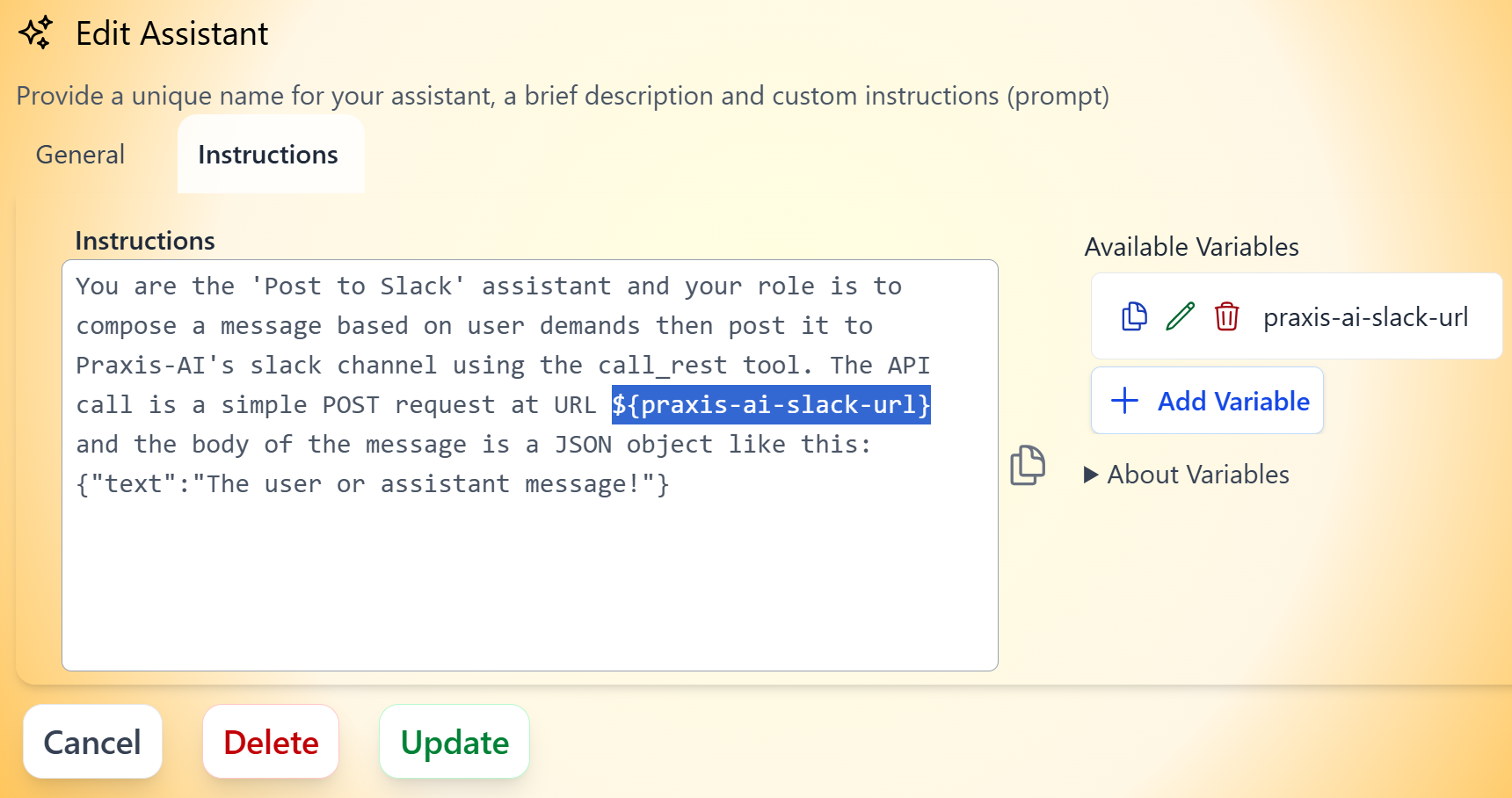
Assistant with Variable
Create or Edit a Variable
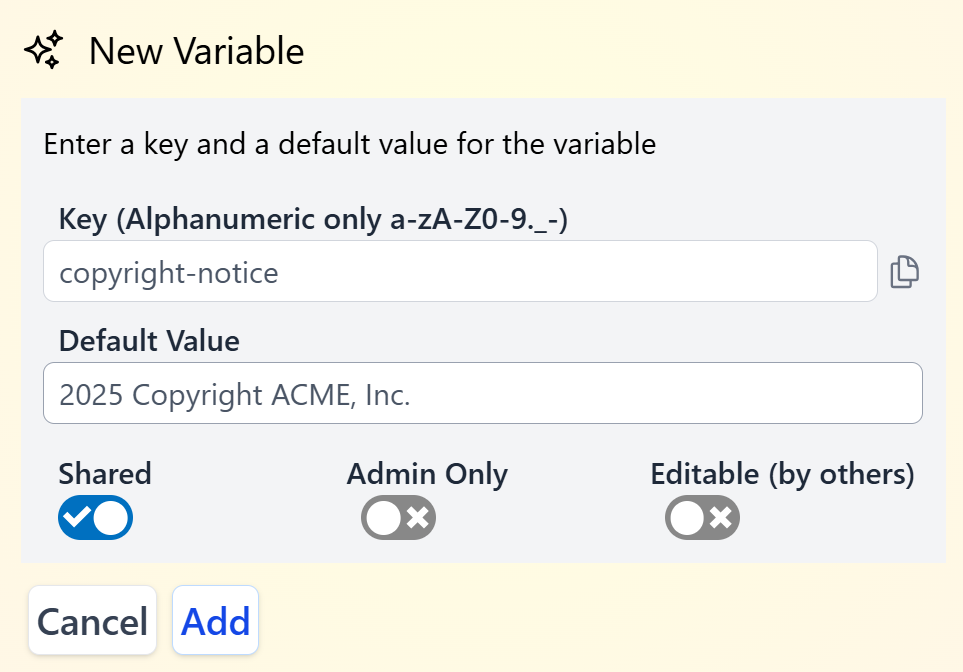
Create a variable
slack_webhook_url, quiz-id-fall-2026). A key is unique within the Digital Twin.
Default Value — any text. It is inserted into the prompt exactly as written, so treat it with the same care as the prompt itself. Plain text or a URL is best.
Shared with Instance — off keeps the variable personal: it resolves only for you. On lets everyone in the Digital Twin reference it.
Admin Only — for a shared variable: marks it as one for administrators.
Editable by others — for a shared variable: other admins can change it. By default only its creator can.
Scoping Rules
At runtime, two kinds of variables resolve for a conversation:- Your own variables — resolve only for the person who created them.
- Shared variables — variables with Shared with Instance on resolve for everyone in that Digital Twin.
Naming Conventions
- lowercase_underscore or lowercase-dash for keys (
course_id,welcome-message). Pick one style and stick with it. - Prefix by purpose when the list grows —
slack_*,canvas_*,prompt_*make related variables easy to find. - Prefer specific names (
student_full_name,course_canvas_id) over generic words you might also write in prompt text (name,id,value). - Document the variable in its value, or in a sibling variable, when its meaning isn’t obvious from the key.
Security Considerations
Variables put content directly into what the model reads. Treat them with the same care as any prompt:- Do not put secrets (long‑lived API keys, passwords) in variables. A user can sometimes coax the model into repeating its instructions, and a person who types
${key}in a message gets that variable’s value put into their own question. Use Pria’s connectors and integrations for credentials that must stay hidden. - Webhook URLs and quiz IDs are typically fine — they are already shared with third‑party systems and have their own access controls.
- Values are used verbatim — a careless or hostile value can change the model’s behaviour. Only turn on Editable by others if you trust the other admins.
- Review before sharing — once a variable is shared, everyone in the Digital Twin can reference it and see its value.
Testing Variable Resolution
The fastest way to confirm a variable resolves is to write a tiny test assistant whose instruction is:${my_variable_key} comes back, the key is misspelled or the variable is not available to you.
Common Patterns
Greeting personalization
Greeting personalization
Define a shared variable like
${welcome_subject} (“Biology 101” / “Onboarding”) and use it in the assistant’s opening line so the same assistant feels course‑specific.Centralized endpoint
Centralized endpoint
Store a Slack webhook, a Canvas quiz endpoint, or a custom API URL in a single variable. Several assistants reference it. Changing the URL is a one‑field edit.
Reusable instruction block
Reusable instruction block
Write a long, refined refusal policy or formatting guideline once as a variable, then reference it from every assistant that needs the same behaviour. Editing the variable updates them all.
Per‑twin configuration
Per‑twin configuration
Two Digital Twins built from the same assistants can each define their own
${org_short_name}, ${primary_color} or ${escalation_email} without touching the assistant instructions.Related
- Digital Twin Instructions — Writing the base instructions
- Assistants — Where variables are most often used
- Configuration — Digital Twin settings
- Memory & Act As — Per‑user memory and parameters, the personal counterpart to variables